
GDPR consent requests can be sent at any time from the contact files in your customer portfolio.
To do so, click on the button labelled ‘Information on customer consent’.

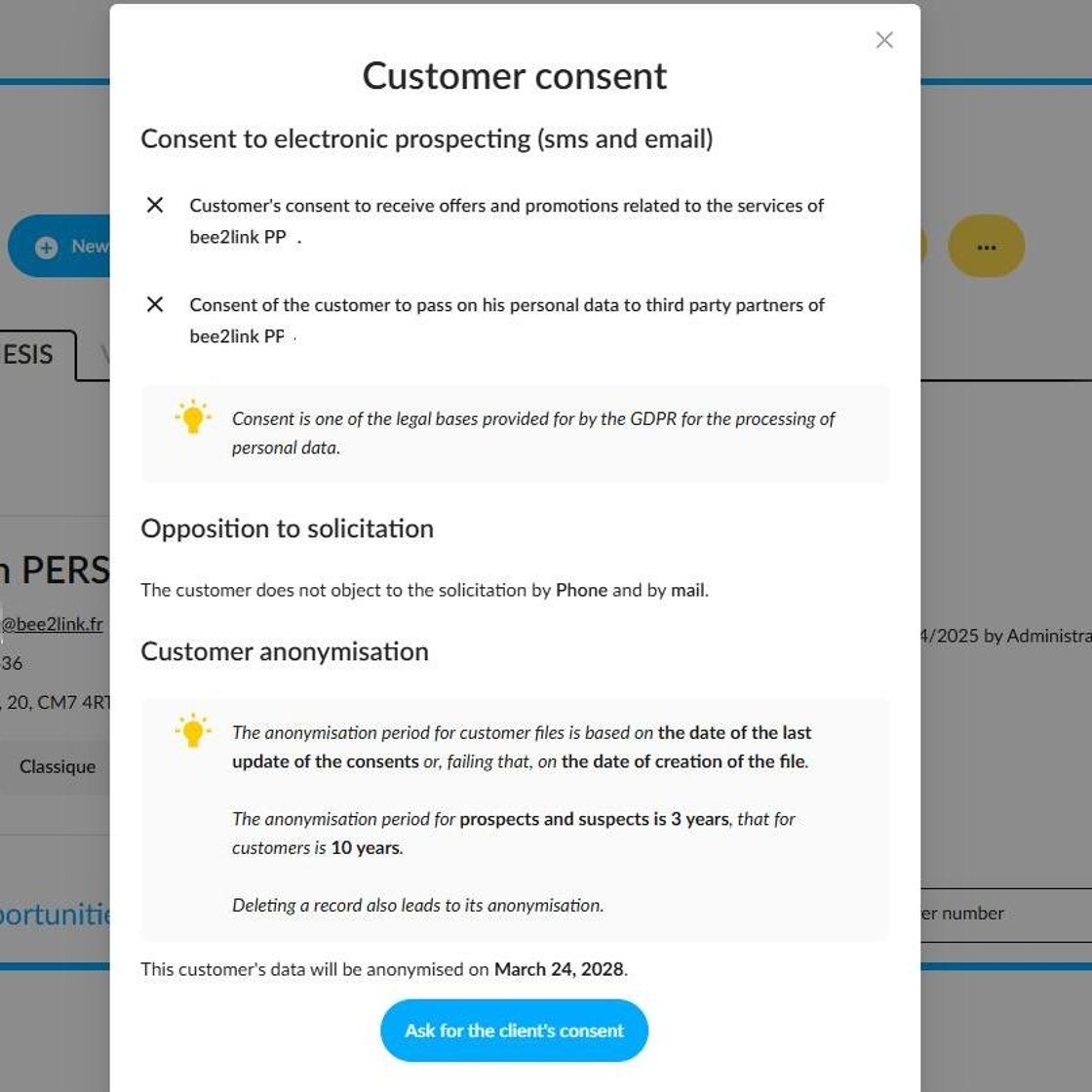
Details of the various requests for consent that will be sent to him/her will be displayed, along with a reminder of the legislation.
Once you have read them, click on the button: ‘Ask for the client's consent.’

The prospect will receive an email that looks as follows:

They will then be able to accept or refuse requests relating to digital prospecting and, if necessary, indicate their opposition to canvassing by telephone and by post.
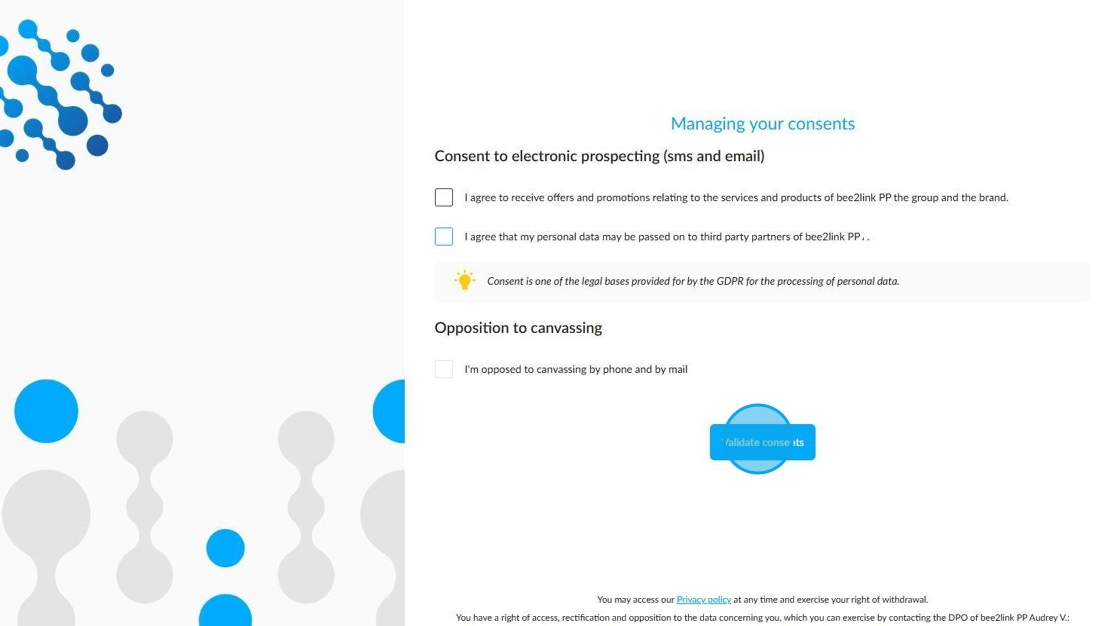
Once their preferences have been saved, they will be able to change their choices by clicking on the button provided for this purpose.

From the point of sale, the salesperson will be able to see the date on which the prospect acknowledged the consent requests.
It can be seen in the history (1) of their file or by clicking again on the 'Information on customer consent ' button (2).

(1) Filtering of information in the customer's file history:

(2) View of the consent timeline:
If you are creating a file for a prospect who is employed by a company, tick the 'This client is part of a company' box to enter their business contact details.
You can specify their role within the company:
-Legal representative,
-Fleet manager,
Or
-Employee.

Reminder: if this contact's personal details are entered in their file, they will automatically receive requests for consent at their private email address, even if their work email address is registered.
If this contact is only doing business with you in a commercial capacity for a company, you should only enter their business details on their file.

The company file will show the contact details of the legal representative.

The collection of consent from this person will be done in the same way as it is done for an individual.

Example:

Comments
0 comments
Article is closed for comments.