
Find out how to bulk edit customer assignments.
Prerequisites.
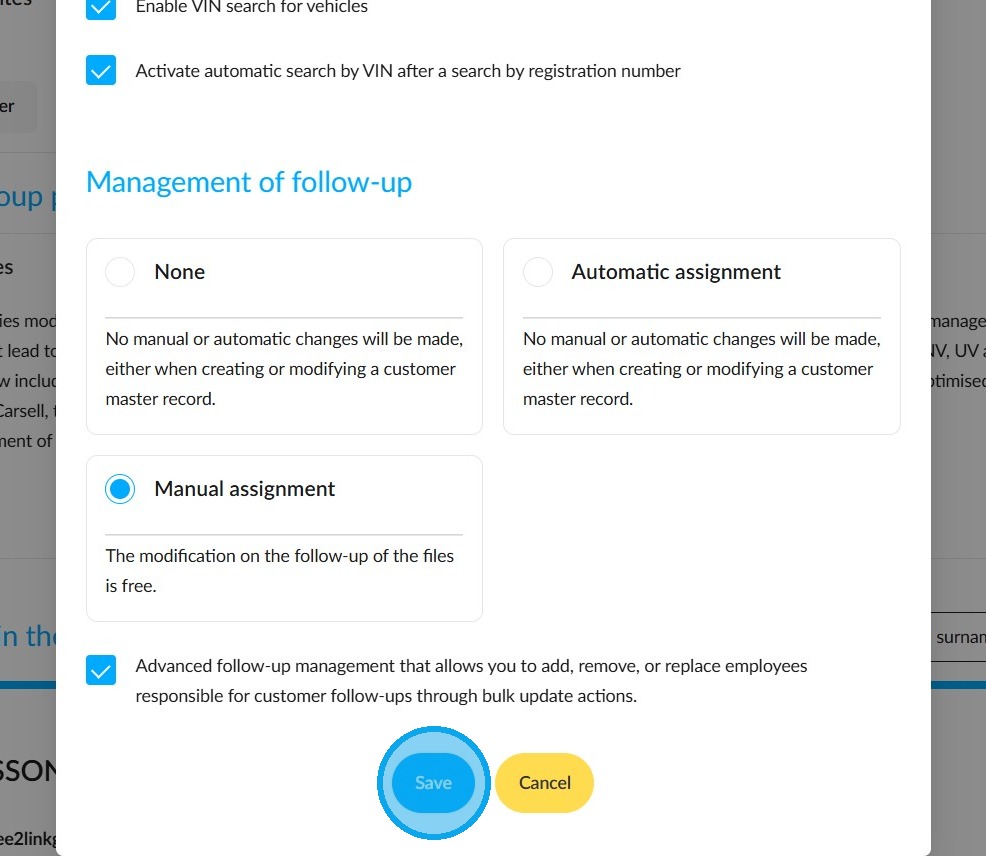
Prerequisite: you must have the Advanced follow-up management permission enabled.
In the 'Customers' module settings, tick the box labelled 'Advanced follow-up management that allows you to add, remove, or replace employees responsible for customer follow-ups through bulk update actions.', then click the 'Save' button at the bottom of the page.
Settings/Users, groups and permissions management/Customers
How can I filter out customers whose follow-up needs reviewing?
Start from the "Customers" module. Click the "Modify" button.
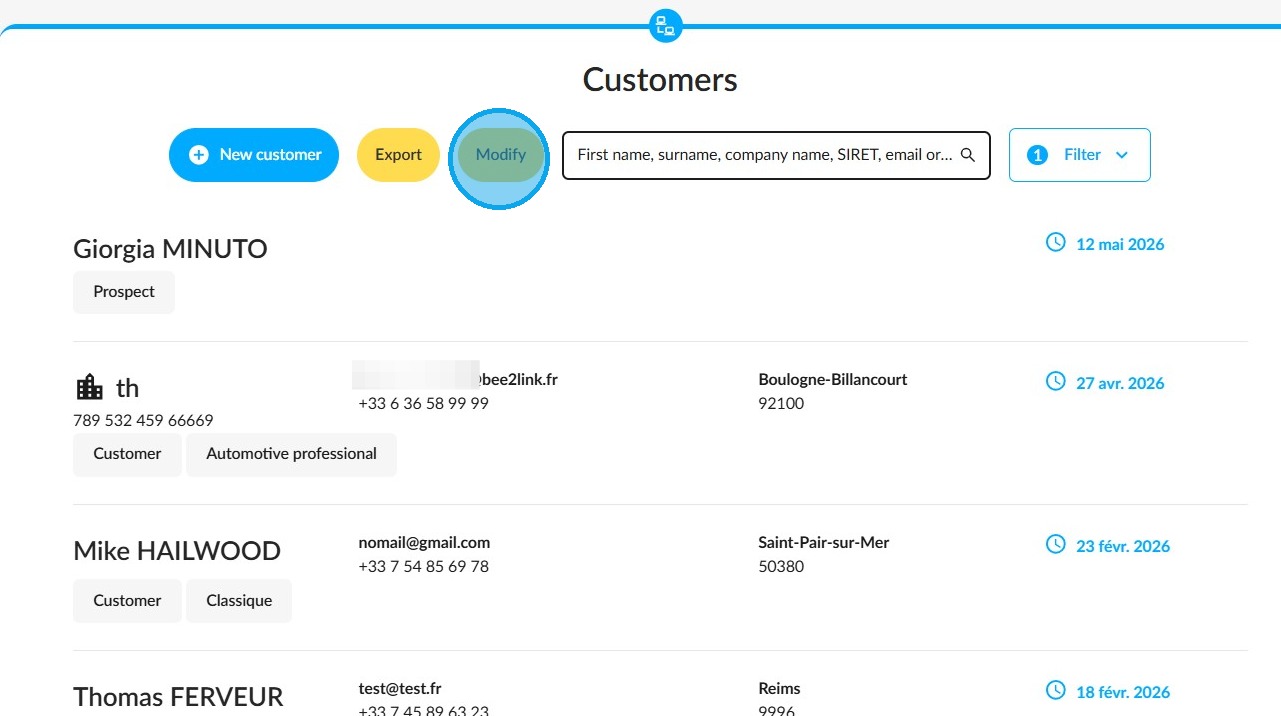
By default, you will see a list of all clients. However, you can filter the results in the ‘Such as’ field using various criteria to improve loading times and target specific changes. Sort the clients using as many filters as necessary.
You can even select deleted staff members to reassign their clients. Click on "Modify follow-up".
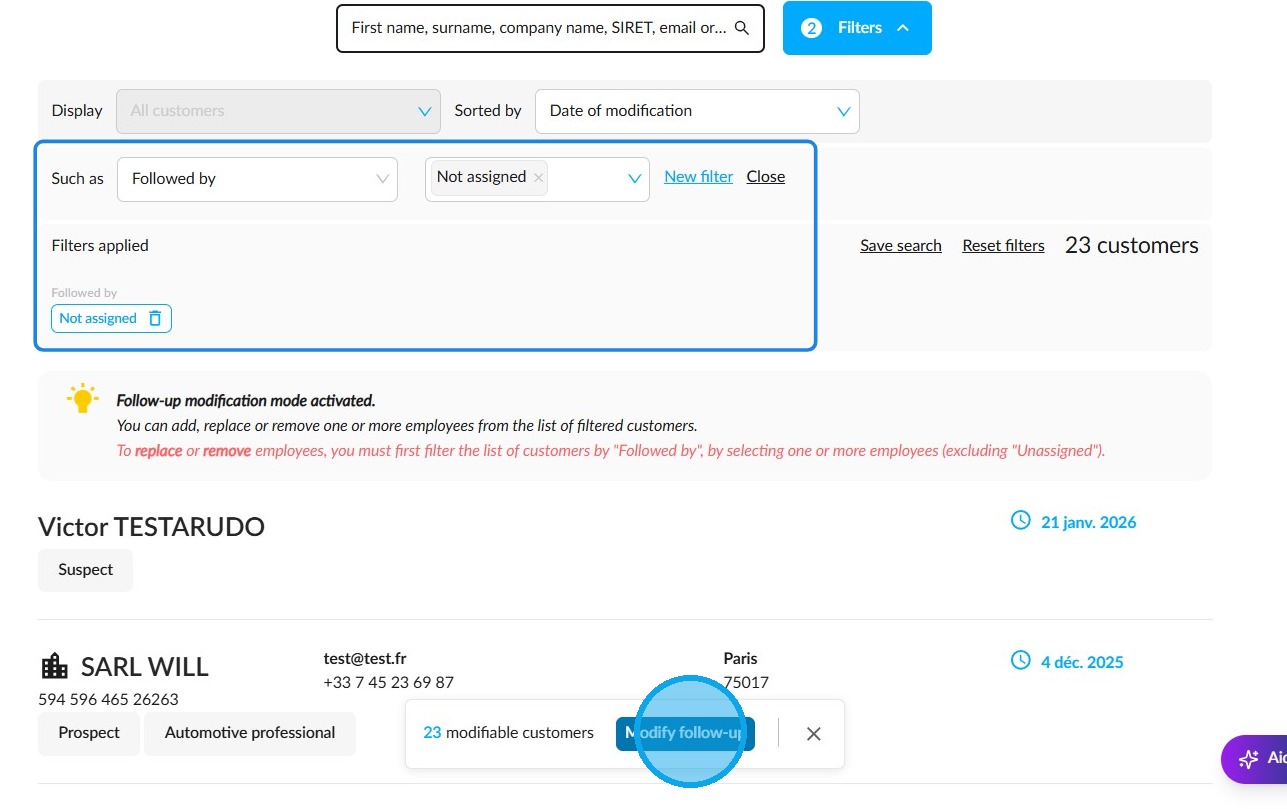
Please note: saved searches are not available during bulk edits.
What changes can be made?
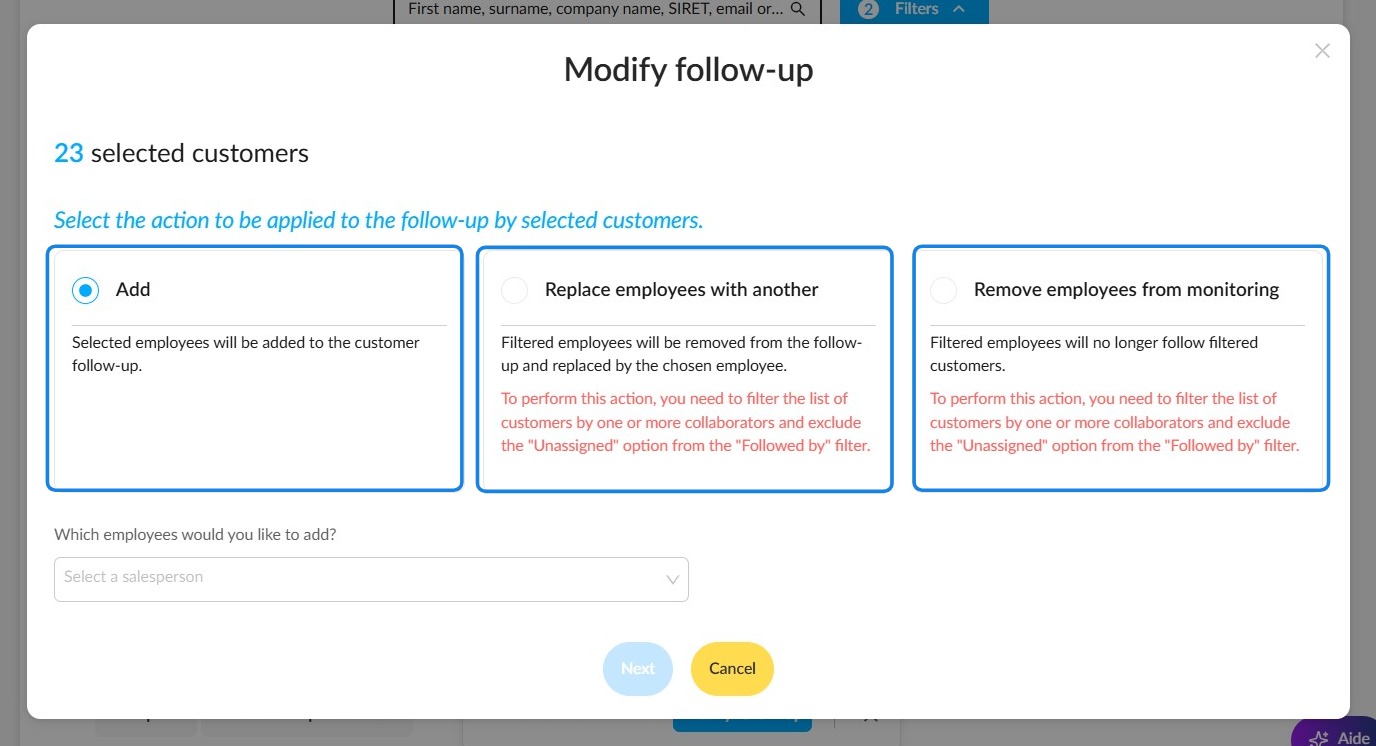
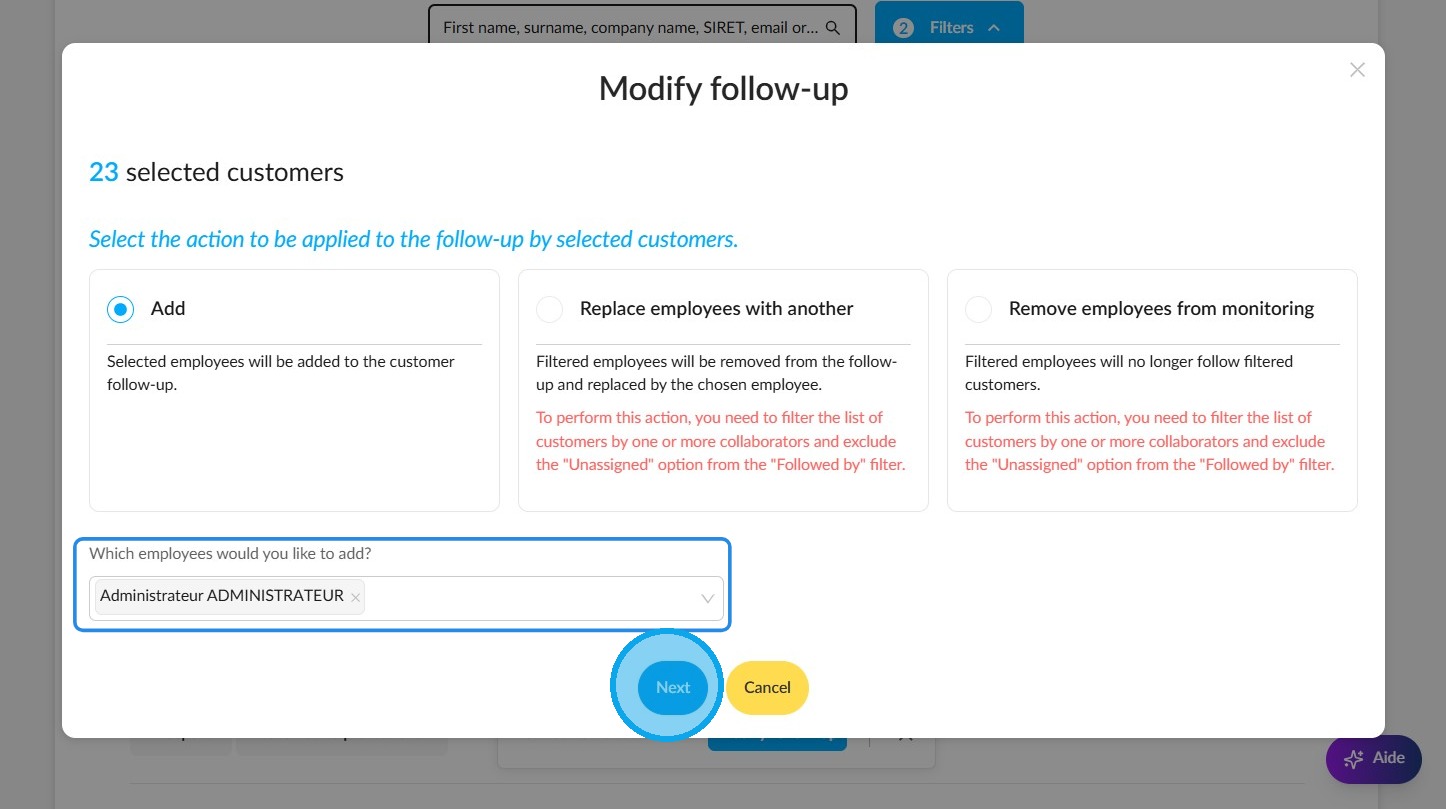
The ‘Modify follow-up’ window will be divided into three options:
-"Add" – all selected users will monitor the targeted customers.
-‘Replace employees with another’ – all staff members who are currently managing the selected customers will be replaced by those you select in this window. This option will only be available if you have first filtered by one or more ‘Follow-up’ criteria.
-‘Remove employees from monitoring’ – this option will only be available if you have first filtered by one or more ‘Follow-up’ fields.
How do I start the modification?
Next, in the field labelled "Which employees would you like to add?", select the sales representatives, sales managers or directors from your organisation who will be assigned or have customer follow-ups removed from their list.
Then click "Next".
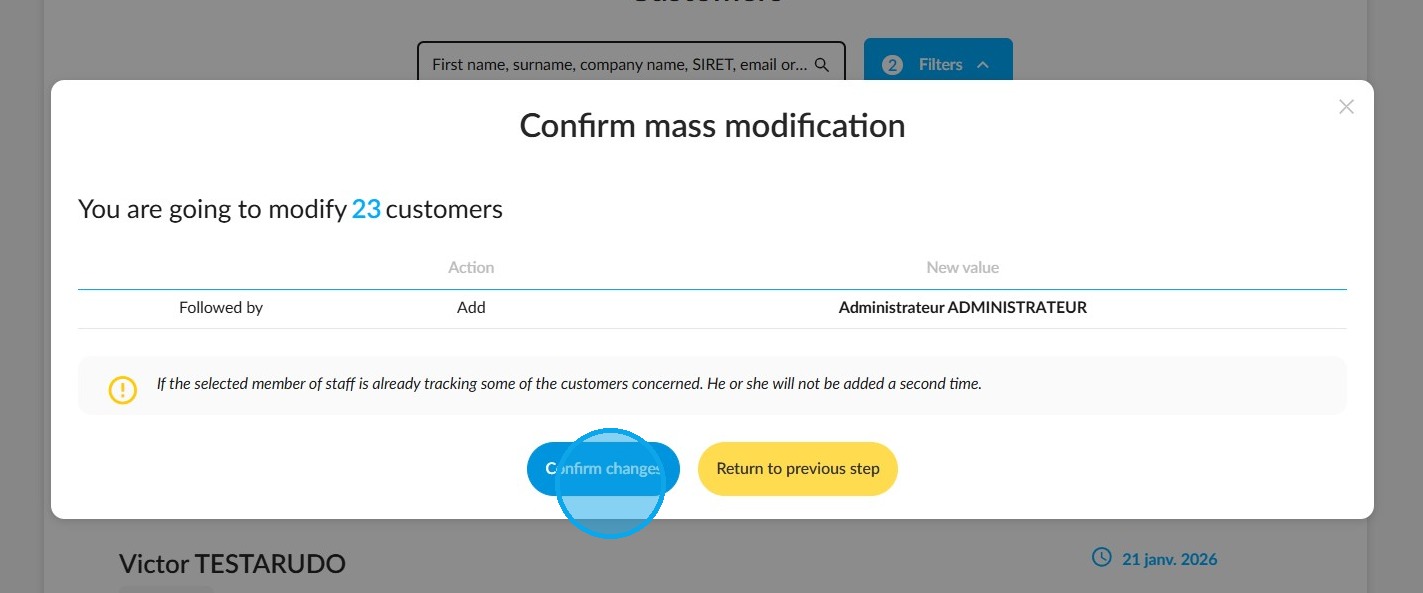
The window titled "Confirm bulk modification" will offer you two options:
-If you notice an error, return to the previous step by clicking the "Return to previous step" button.
-To continue, click "Confirm changes".
The bulk edit will then begin, and you will be notified by a box appearing in the top right-hand corner of the screen:
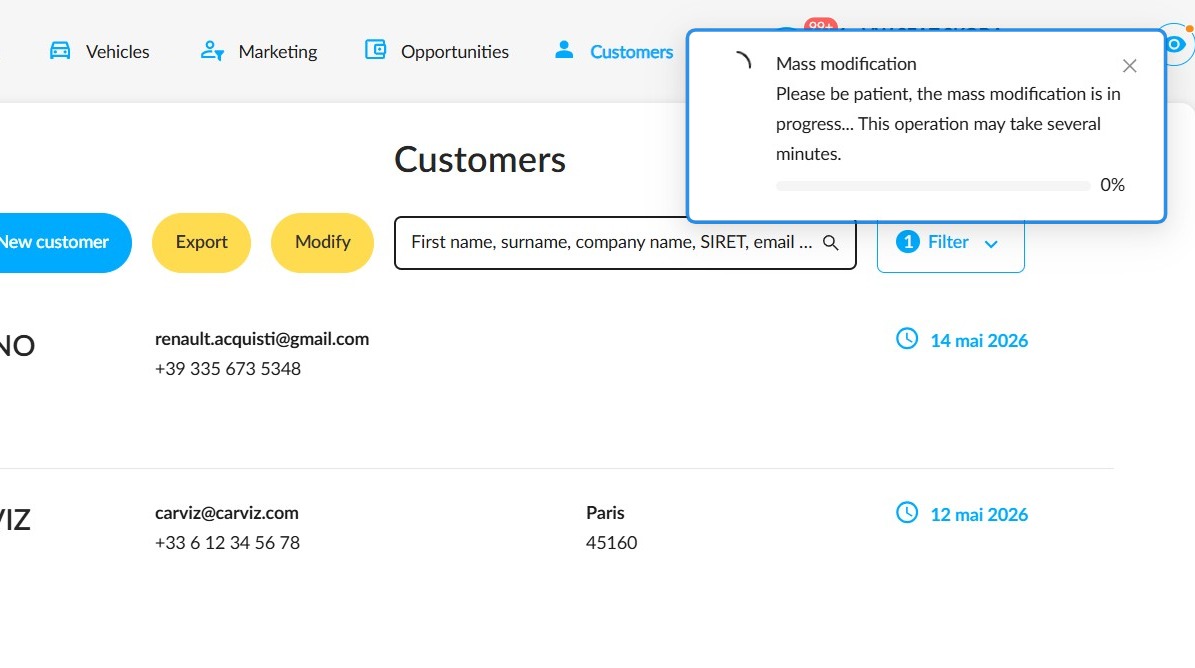
Finally, a notification in the top-right corner of the screen will alert you when it is complete and will show the number of customers affected.
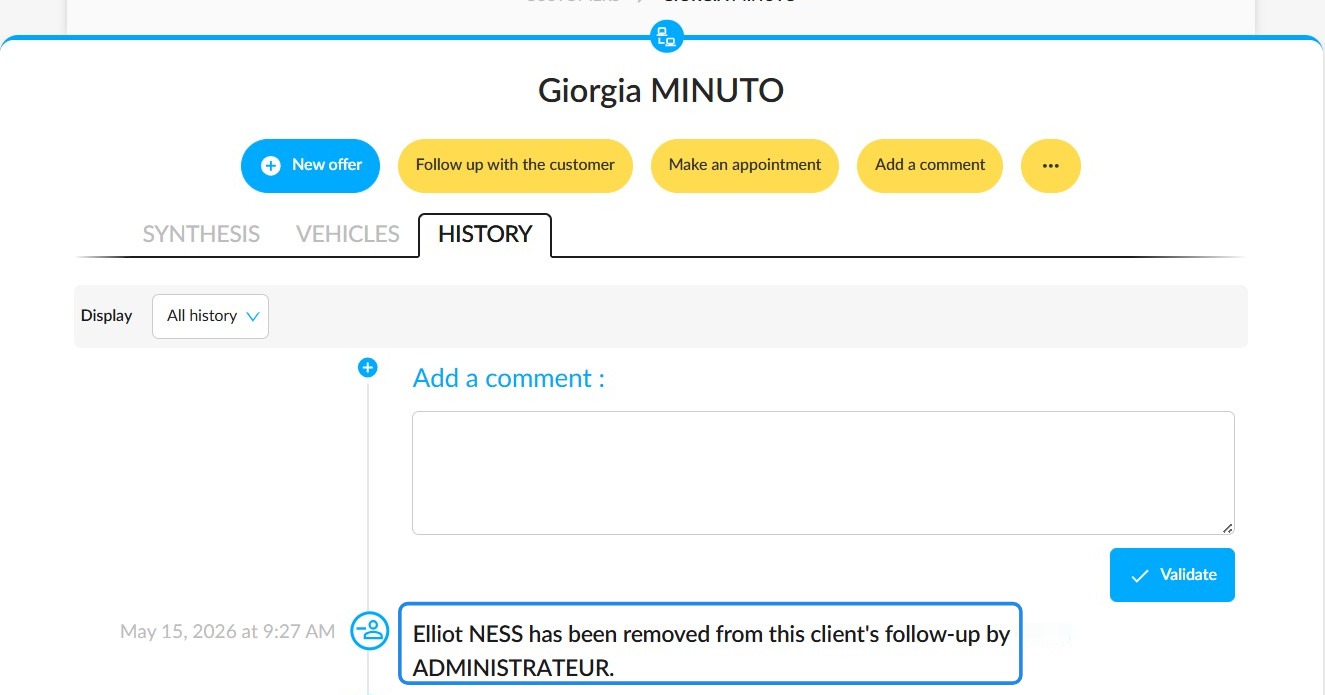
Customer file history
These changes will be recorded in the relevant customer records.
Comments
0 comments
Article is closed for comments.