
Learn how to create and configure promotions on the OpenFlex platform.
Prerequisite: You must have platform administrator rights to configure promotions.
1) Configuration
You can configure special offers in the OpenFlex platform by clicking on your initials on the OpenFlex home page. These can be configured in the promotional offer settings.
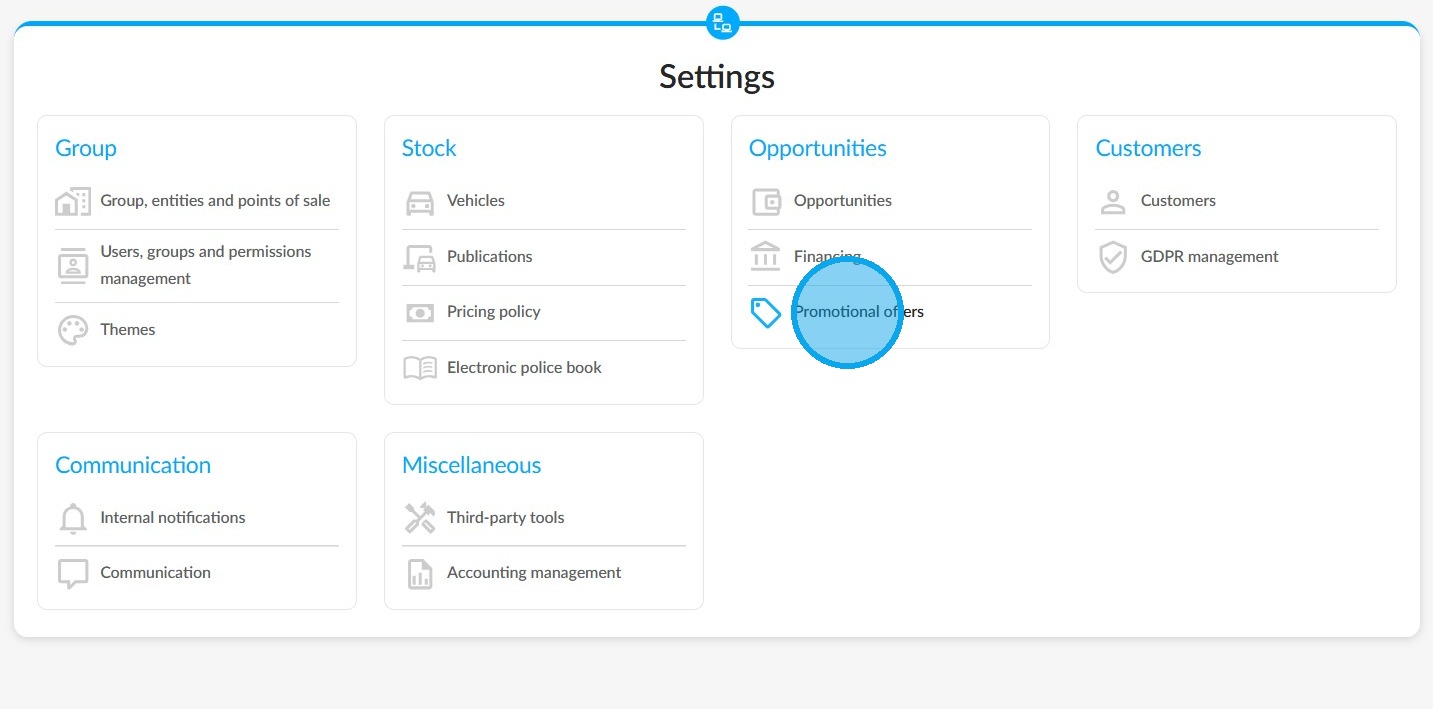
The first available setting will allow the administrator to specify whether or not promotional offers can be combined within a single offer.
This setting applies to all group entities.
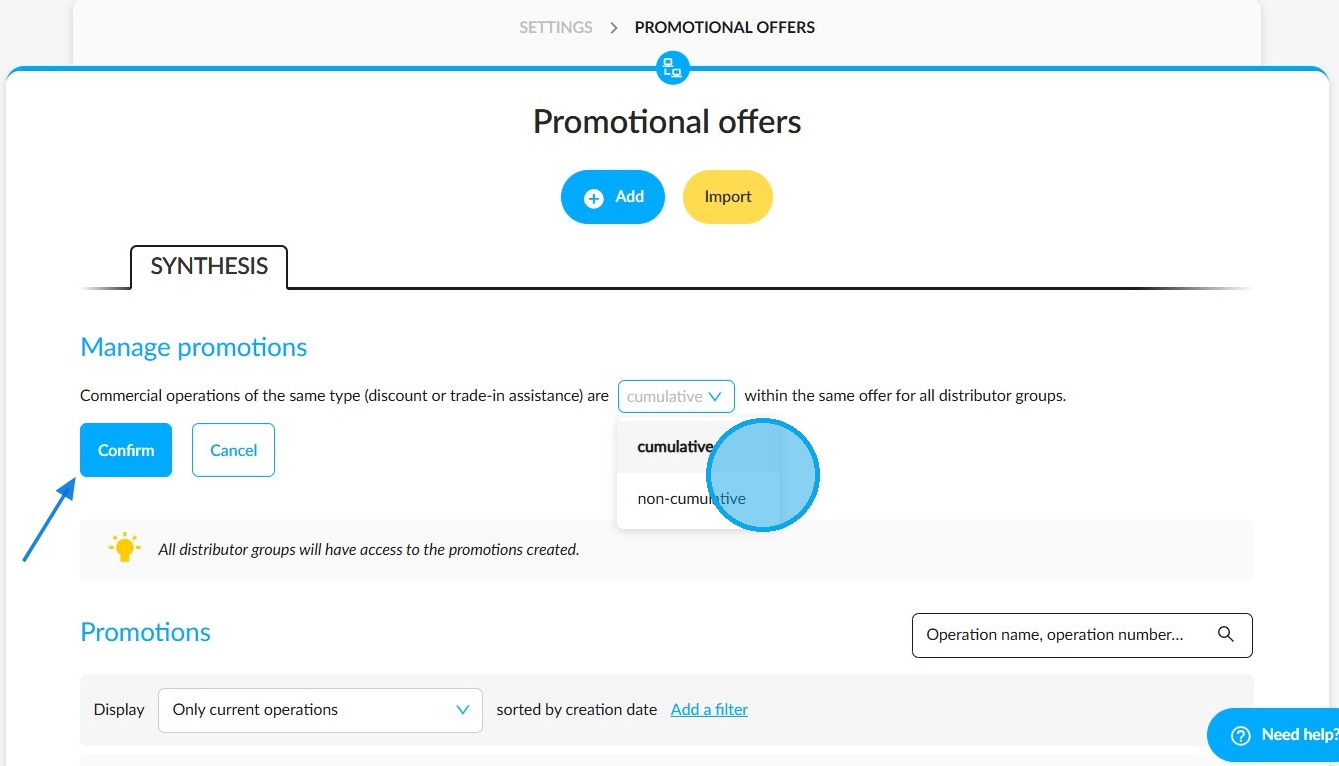
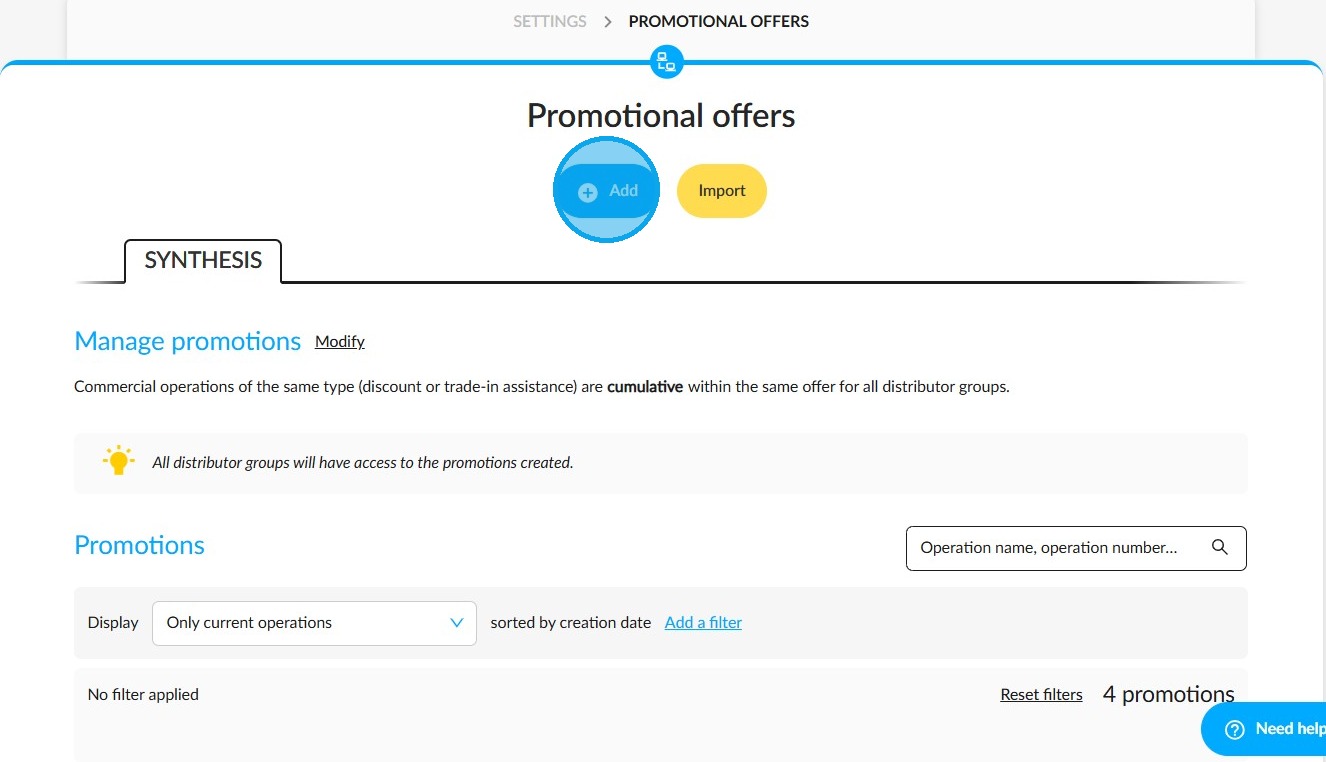
Once you have set up this condition, click the 'Add' button to create a new promotion.
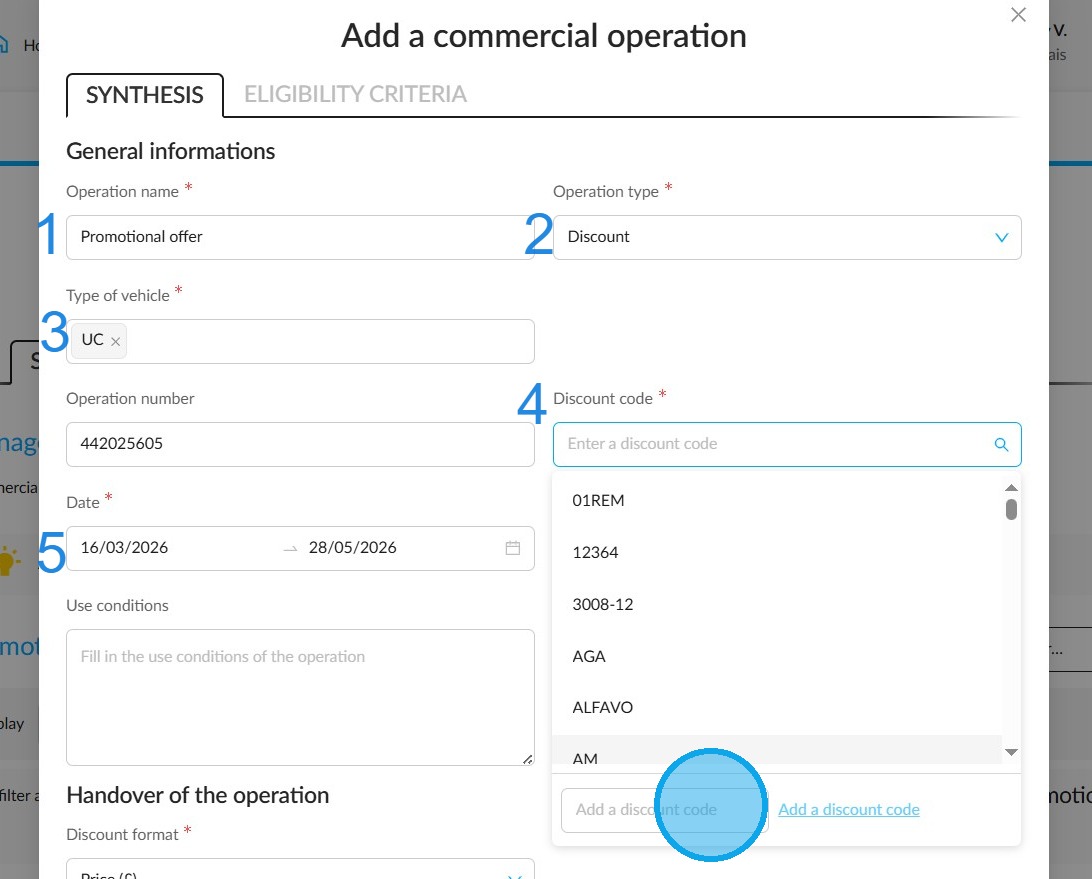
When creating the promotion, please enter the information that will determine its applicability.
You must complete the fields marked with an asterisk.
Among them:
-The name given to this promotion (1).
-The 'Promotion Type' setting allows you to specify whether the discount applies to the sold vehicle or the trade-in vehicle (Discount or trade-in bonus) (2).
-The vehicle type(s) (configured NV/ STOCK NV/DV/UV) for which this offer is available (3).
-The discount code (4).
-The start and the end dates of this promotion (5).
You can now enter the conditions for applying this discount/trade-in assistance campaign (6). These will be visible later when selecting a client benefit. This can be done when creating an offer on a vehicle for which this promotion is available.
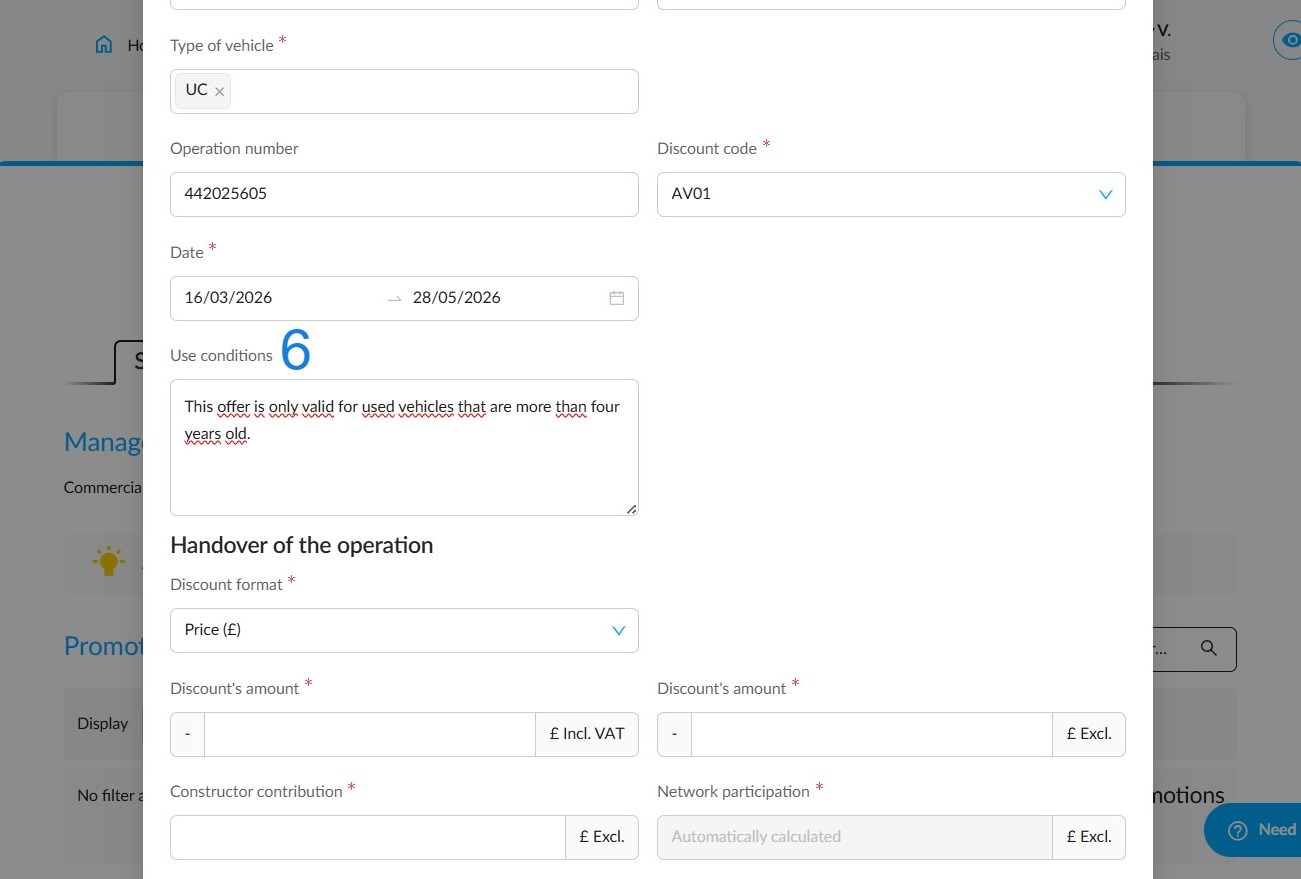
Example:
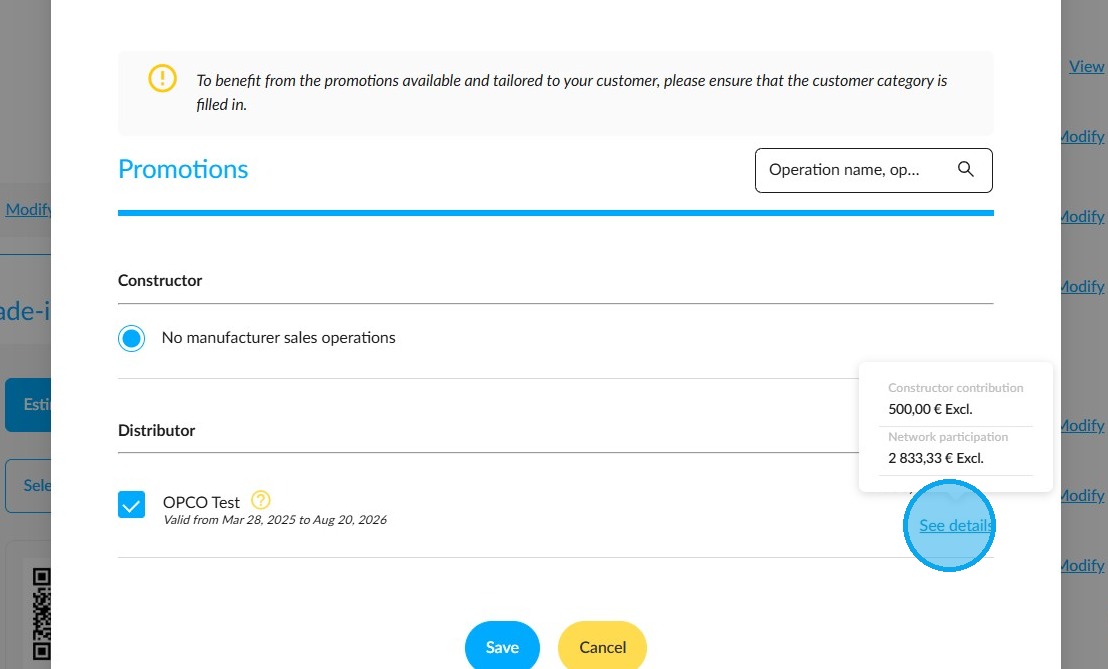
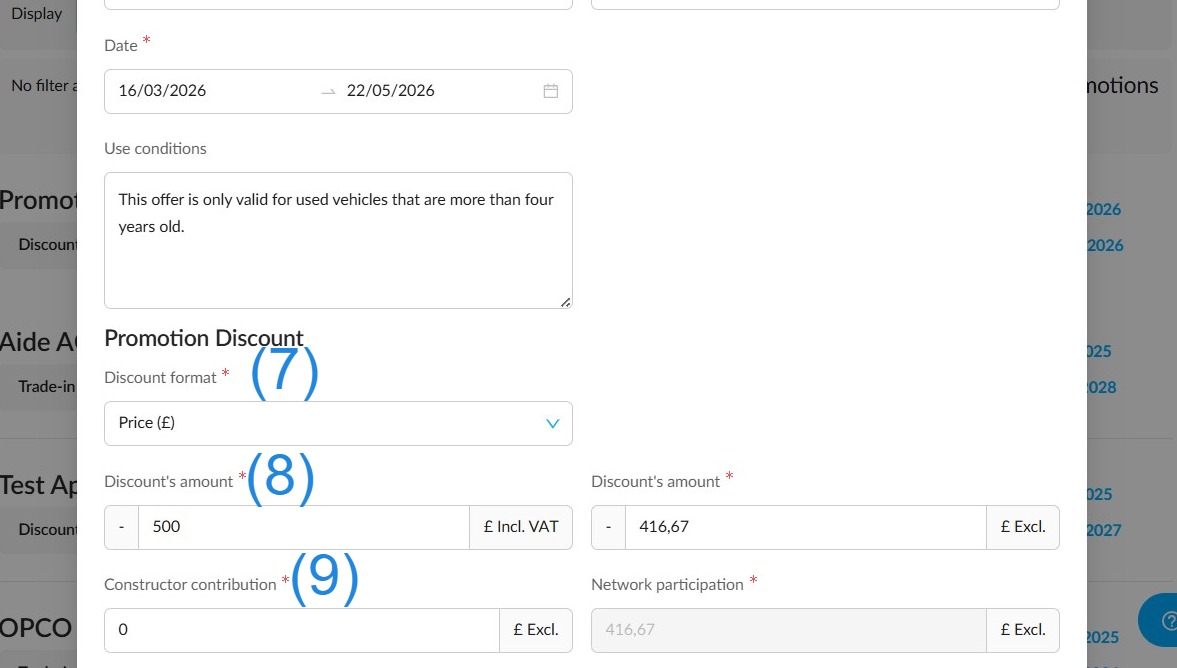
Fill in the agreed discounts or trade-in assistance values for this special offer:
-The format of the discount or trade-in assistance amount that will be applied (in euros or as a percentage) (7).
-The amount in euros (VAT incl./excl.) or as a percentage of this discount or this trade-in assistance (8).
-The amount in euros or as a percentage that the manufacturer is willing to offer if they participate in this promotion (9). The amount for network participation will be calculated automatically based on the figures you have provided. (Enter 0 if they are not participating in this special offer).
Before adding the promotion, scroll to the top of the pop-up window and enter the eligibility criteria you wish to apply.
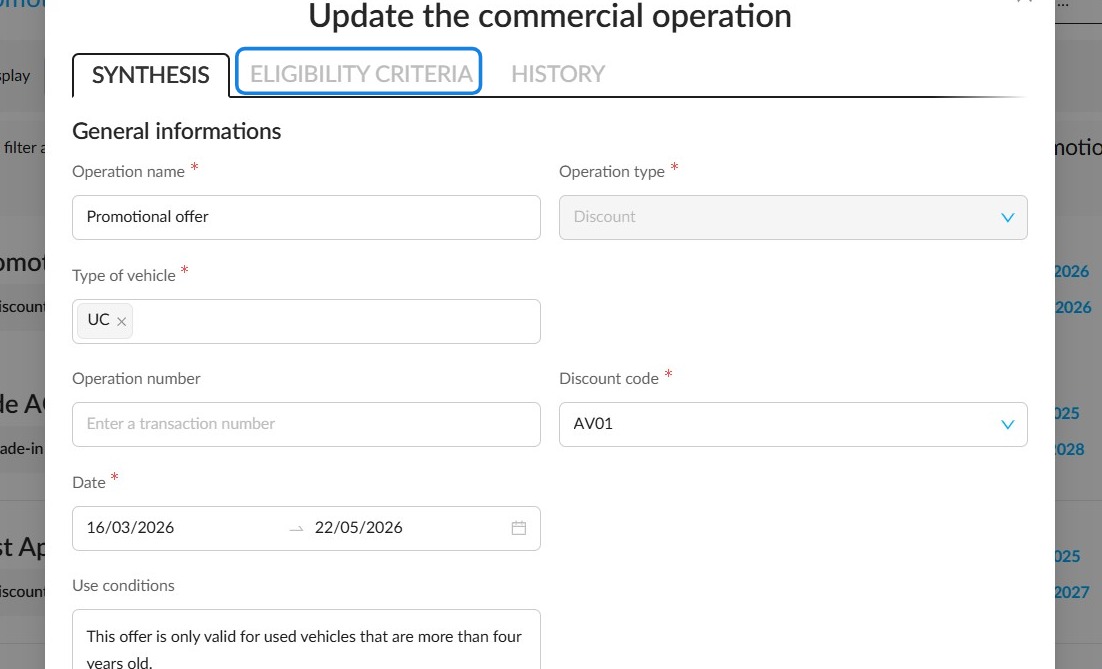
You can set various criteria to more precisely target the customers, vehicles, and funding types that will make commercial proposals eligible for the trade advantages listed in the summary.
All these criteria are cumulative, but it is not required to configure all of them. Only retain those that are relevant for a promotion.
The various eligibility criteria available are as follows:
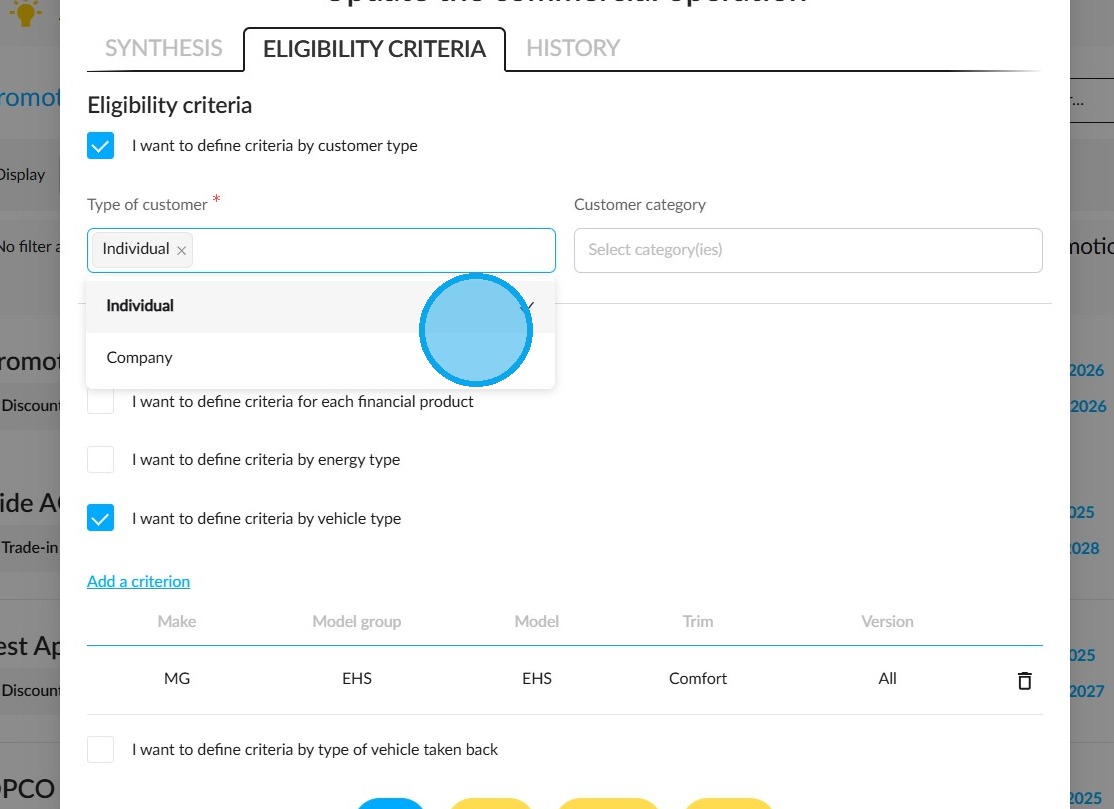
-The first criterion is the type of customer who will be allowed to receive this promotional offer (individual/Professional or both).
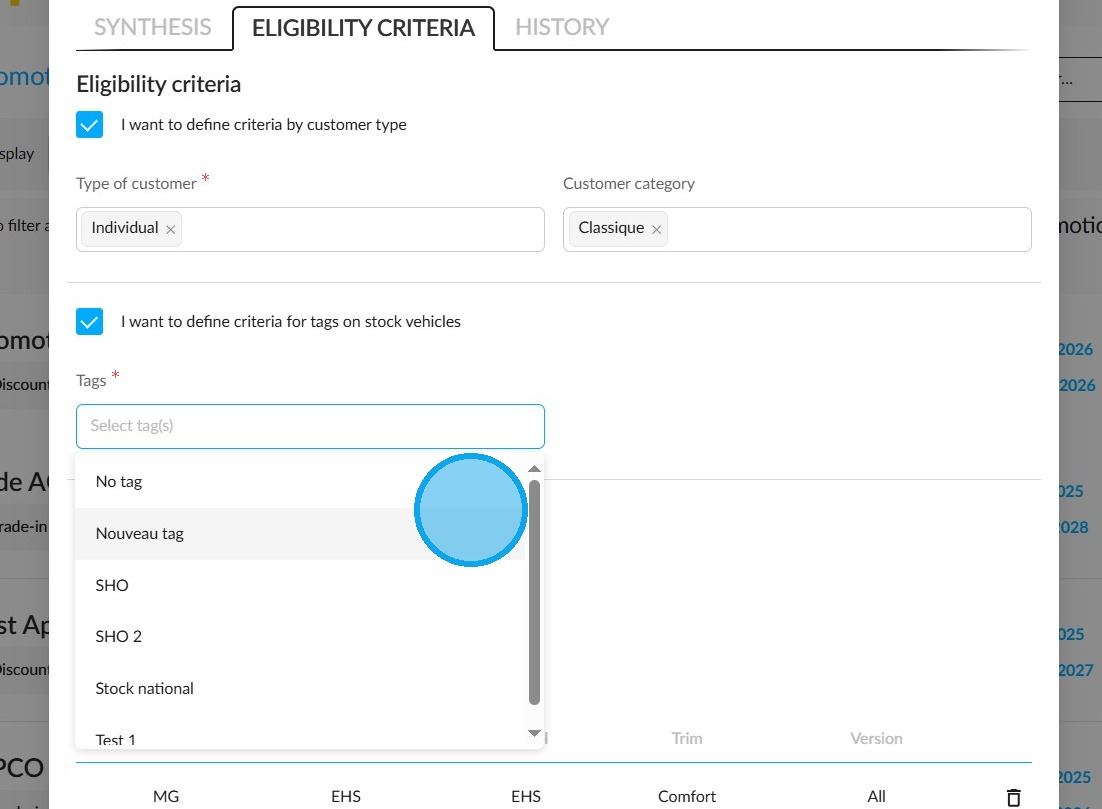
-The second criterion is whether the files of vehicles that are part of this promotion have tags.
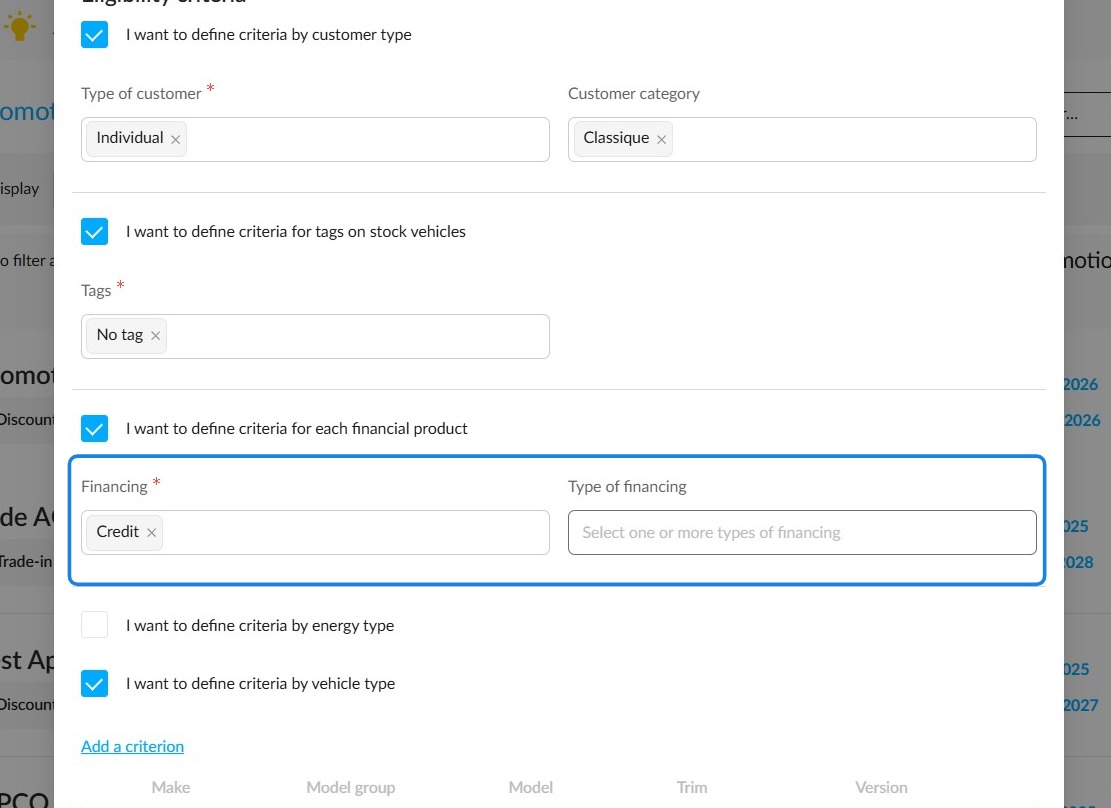
-The third criterion depends on the financing methods (cash, credit, rental...) and types (lease with purchase option, long-term rental, conventional credit...) available in the offer.
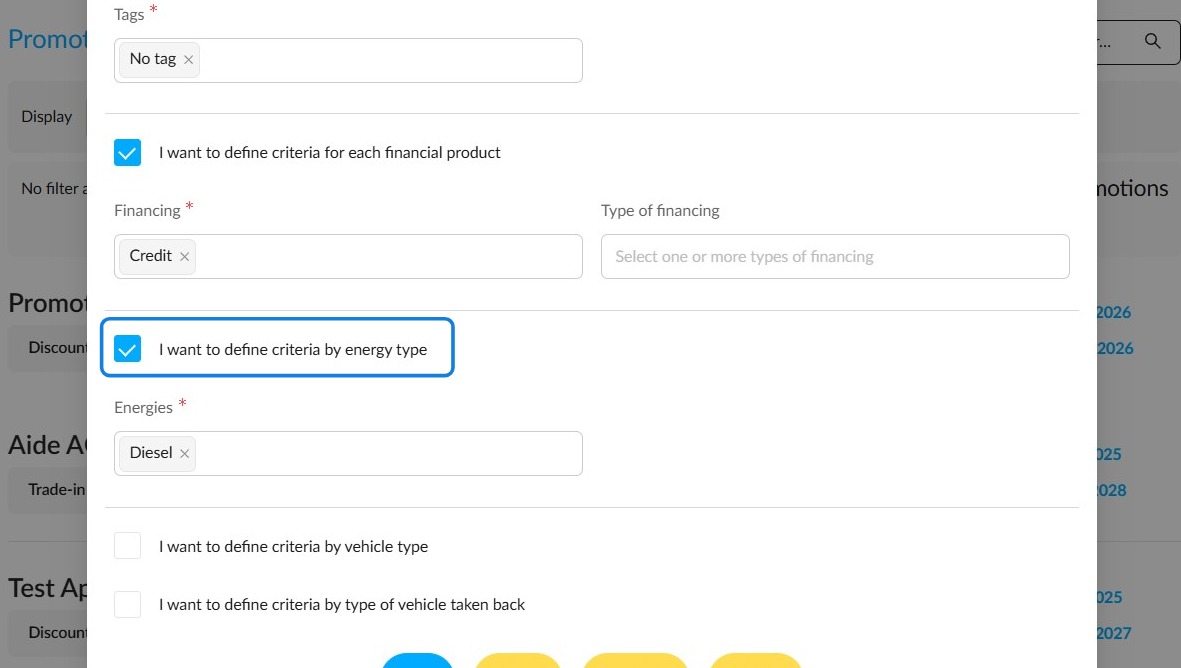
-The fourth criterion is based on energy types.
Any vehicle included in the offer that has one of the selected energies on this page will be eligible for the promotion.
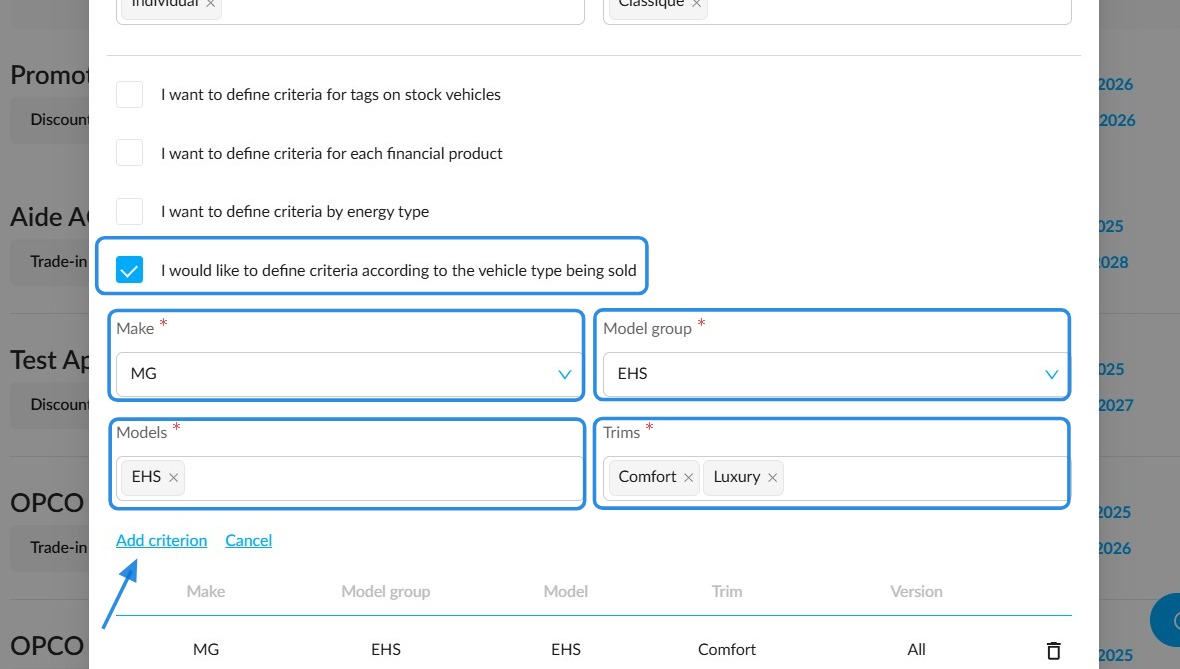
-The fifth criterion is based on the brand(s) of the vehicles sold.

Adding a model that is part of a catalogue of one of the brands added at this level will make the customer benefit visible in an offer.
Furthermore, when making the selection, it will be possible to specify which finishes and versions are eligible for the promotion.
-The last criterion allows you to determine eligibility for the promotional offer based on whether a trade‑in is included:
No trade-in = customer benefit only available if there is no trade-in vehicle in te offer.
With a trade-in vehicle = customer benefit only available if there is a trade-in vehicle in the offer.
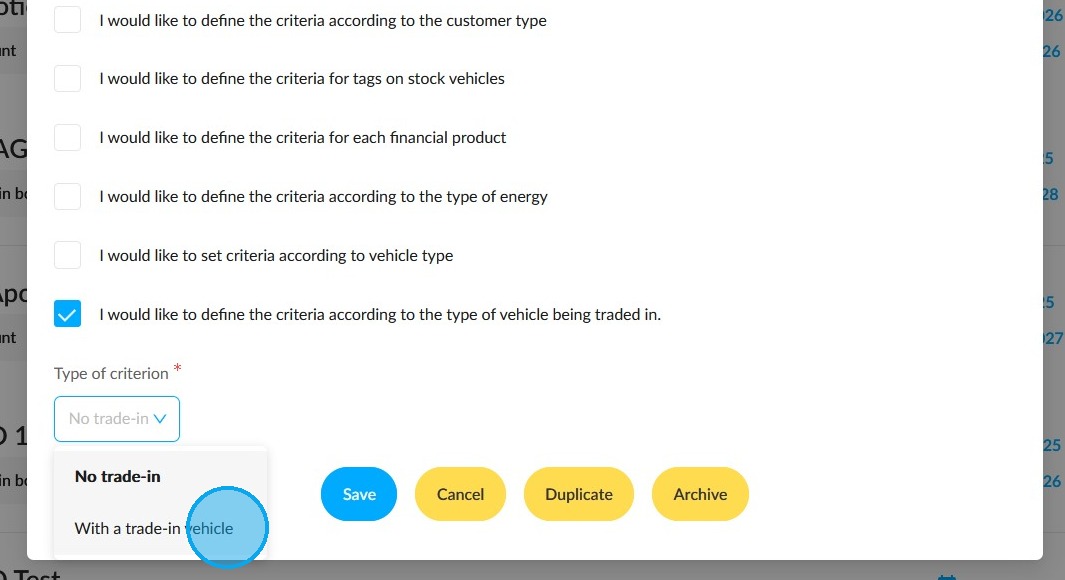
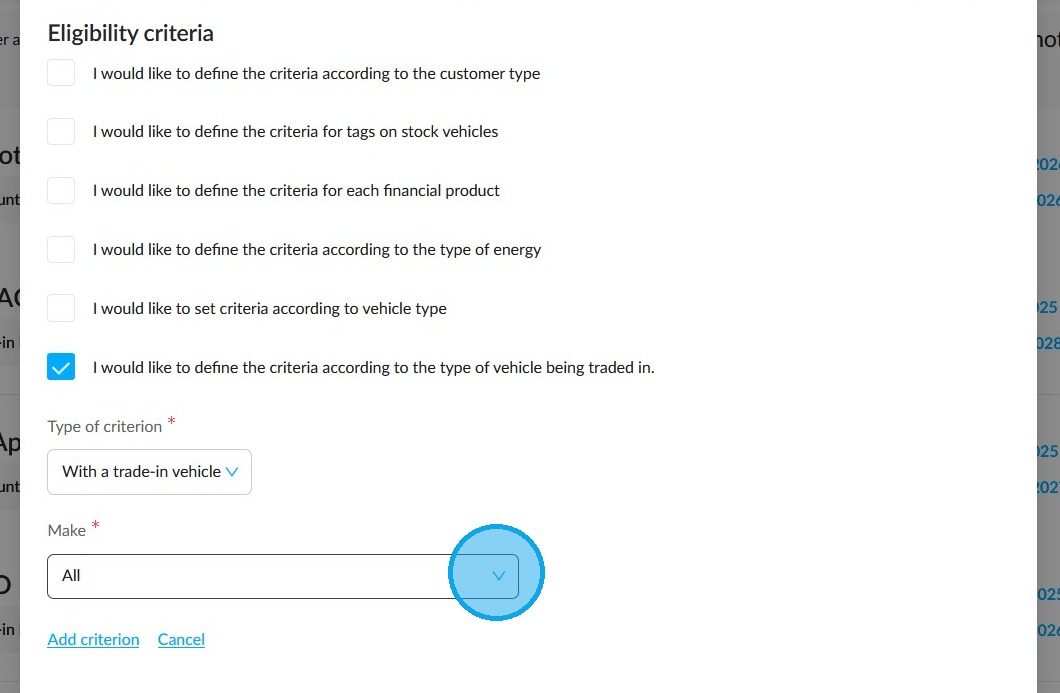
Where the presence of a promotion is determined by the inclusion of a trade-in, the user will be able to specify which brands are eligible for the promotion.
They will also be able to limit the promotion to specific models, finishes or versions.
2) Search for promotional offers
At the bottom of the Promotional Offers page, you will find a section titled 'Promotions'. There, you can track and find a promotion.
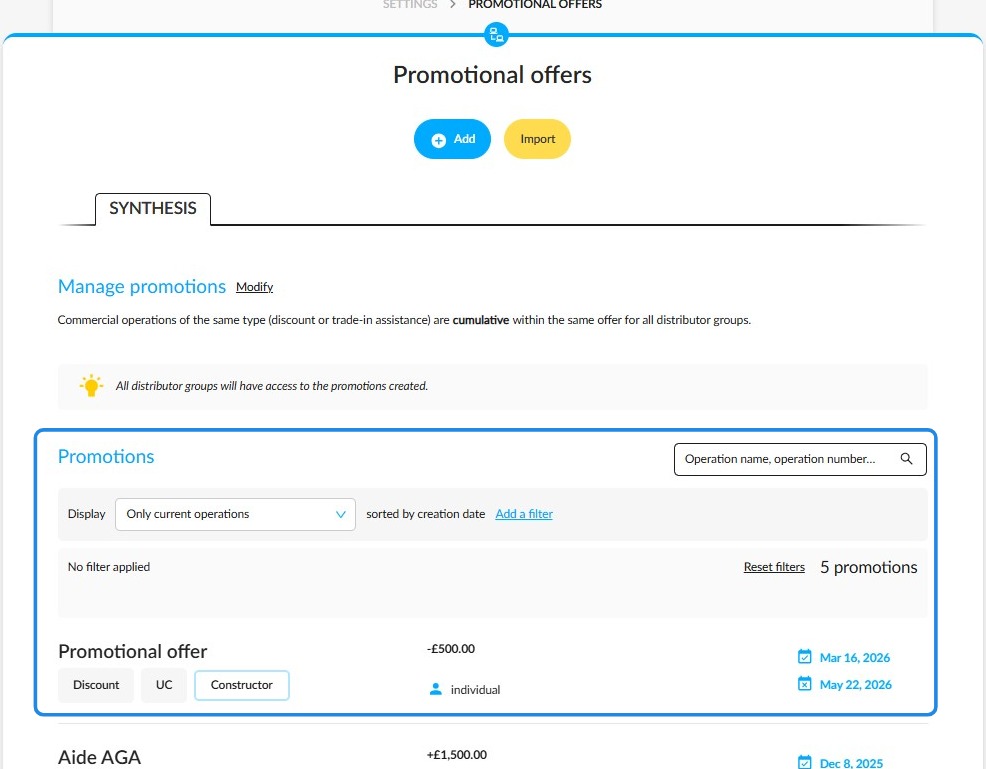
To search for a promotion, either enter its name or its number (1).
Furthermore, you can filter the displayed results (2).
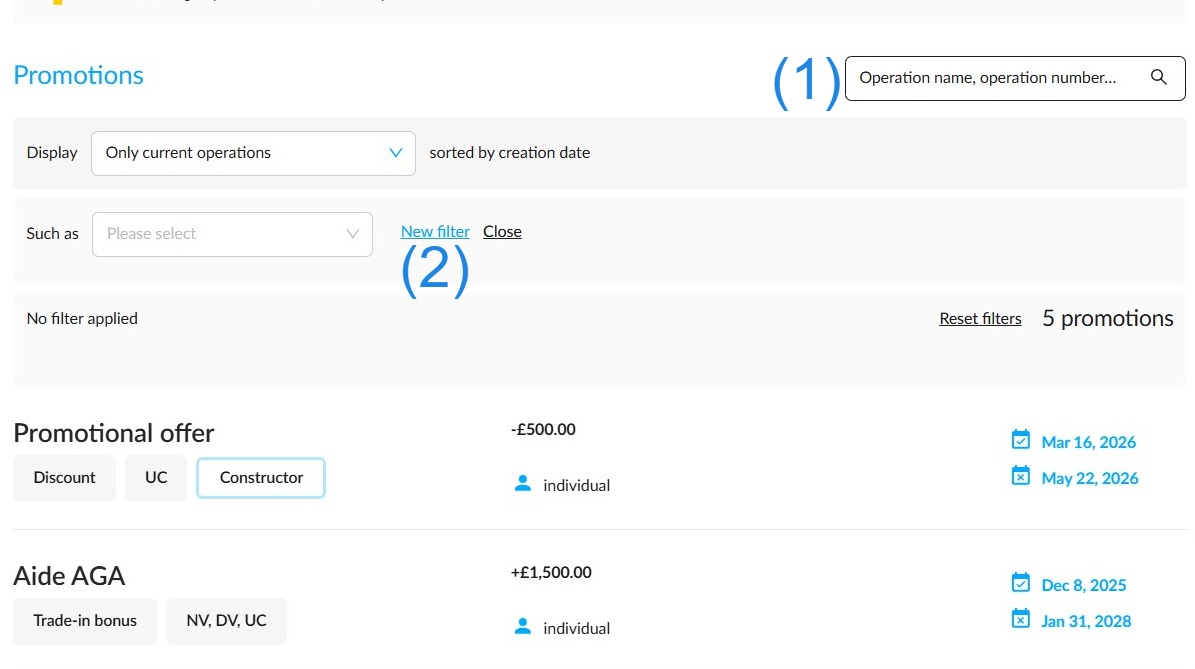
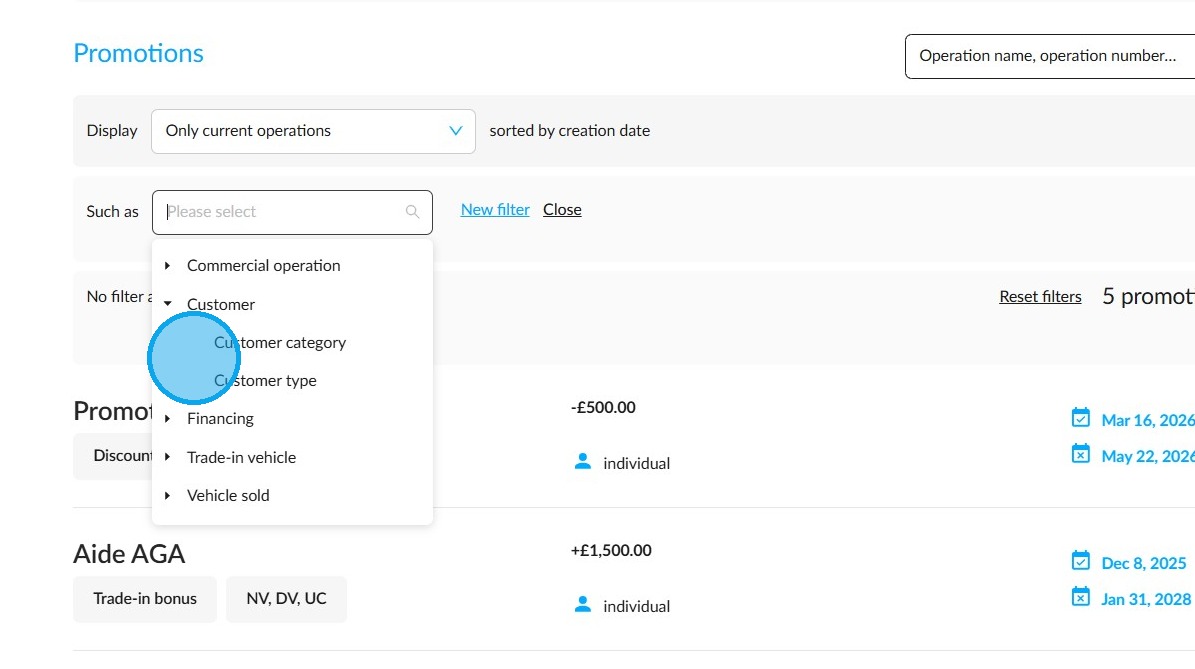
The available filters are as follows:
-Customer: Filtering the type of customer targeted by the promotional offer.
-Financing : Filtering the purchase financing method and type that are required to benefit from the promotion.
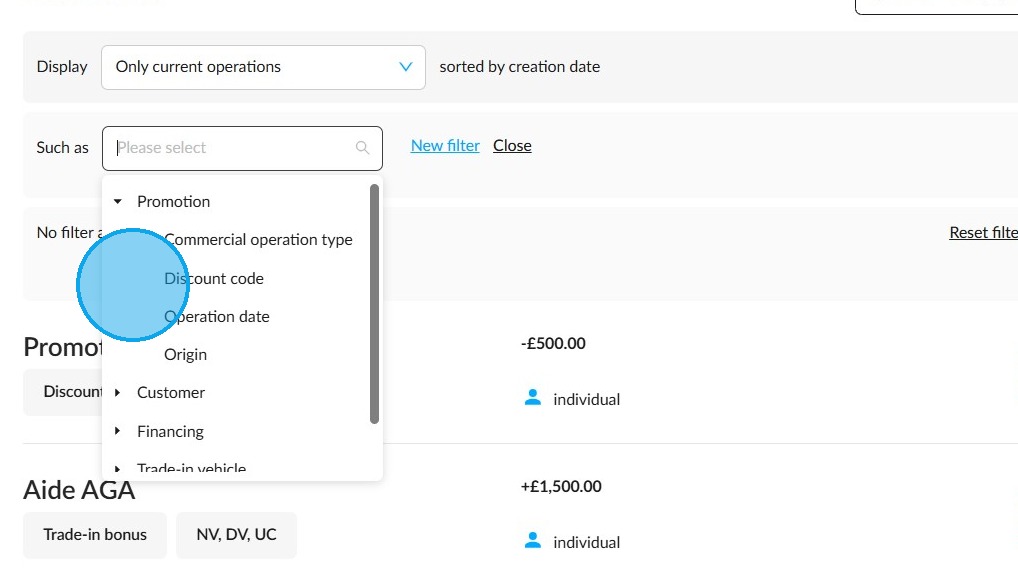
-Promotion: Filtering by the promotion start and end dates or by promotion type.
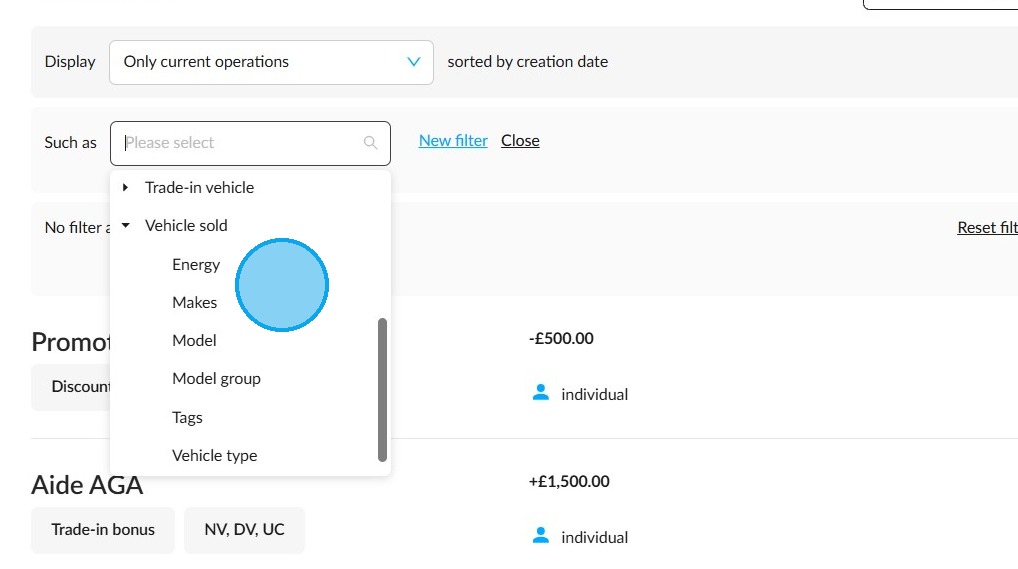
-Vehicle: Filtering by the sold vehicles' criteria (energy, brands, models...) that are relevant to be included in the promotional offer, by their types (NV, UV, DV), or by tags.
3) Selecting a promotional offer from the business offers.
When you create an offer, it wil not necessarily meet all the criteria to make it eligible to customer benefits.
Example:
In the following case, a conventional credit financing type is required to make customer benefits available.
The system will warn the salesperson that new promotional offers are available only when they add this type of financing to the offer.
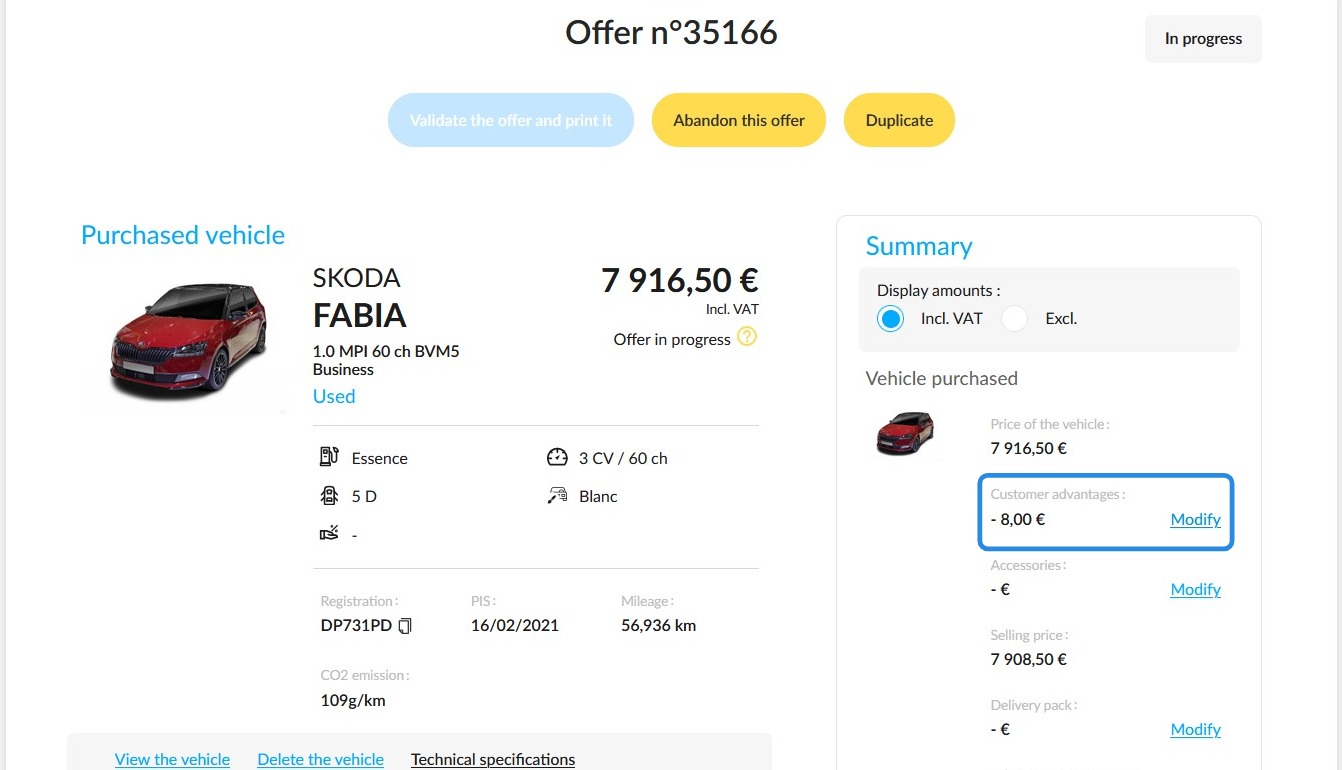
Then they can apply the financing-dependent discount and update their offer and the linked financing proposal.
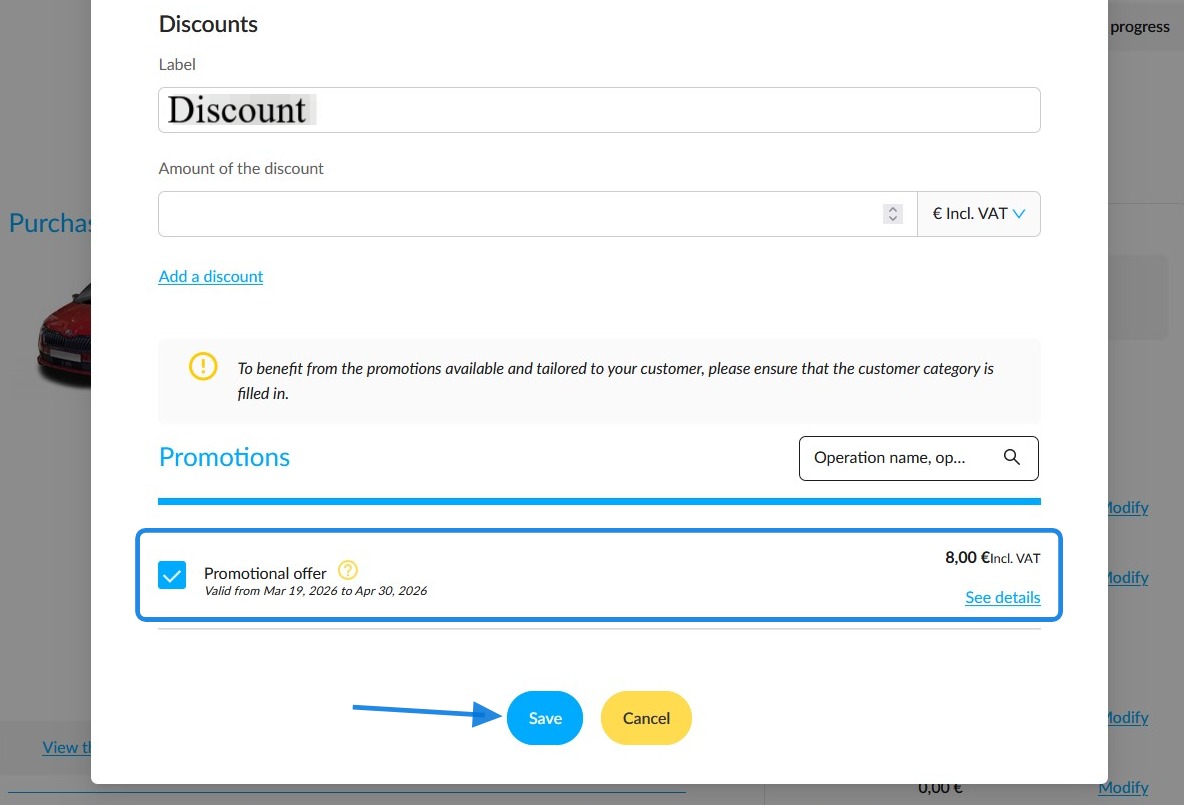
Please note: the end dates of promotions will affect the validity period of offers and orders as defined in the opportunity settings. When a offer or order containing a customer benefit from a sales promotion is validated, the following rules will apply:
• If an offer/order is affected by a sales promotion with no end date = the timeframes added in the settings will be taken into account.
• If an offer/order is affected by a sales promotion with an end date after the timeframes added in the settings = the timeframes added in the settings will be taken into account.
• If an offer/order is affected by a sales promotion that ends before the configured timeframes = the end date of the sales promotion will be taken into account.
• If an offer/order is affected by several sales promotions that end after the set timeframes = the timeframes added in the settings are taken into account.
• If an offer/order is affected by several sales promotions and one of them ends before the timeframes set in the settings = the date of the sales campaign with the nearest expiry date is taken into account.
Comments
0 comments
Article is closed for comments.