
Please read the procedure to declare the warranties of the Stellantis network’s second-hand labels on GuideWire.
Prerequisite: have administrator permissions on the platform.
Conditions to be fulfilled:
1. Some conditions must be fulfilled to be able to declare the warranties of the network labels on GuideWire:
-
Activating the warranty declaration service on the GuideWire portal is the prerogative of our deployment service. Please contact them at the following email address to make the request: deploiement@bee2link.fr
-
Depending on the makes that you distribute, you have to set up in OpenFlex the labels of warranties in compliance with the names of Spoticar Labels. Alfa Romeo CERTIFIED, Lancia CERTIFIED or DS CERTIFIED.
-
The appropriate warranties must be filled in on the sheets of DVs / UVs on sale.
-
It will be necessary to select the sales documents of the Stellantis group's second-hand labels when editing an offer and an order form.
-
Have a user profile of one of the following types: secretary, finance insurance, director or sales administrator to sign the warranty. Other user profiles will only be able to view the button. They will not be allowed to sign the contract.
Settings: creation of warranties
Access the settings, click on your initials on the OpenFlex home page.

Enter in the settings of the "Vehicles" module in the "Stock" section:
Afterwards, select the "Warranties" menu:
You will then view the list of the existing warranties. These can be modified or deleted by clicking on them.
If needed, click on the "Add a warranty" button to create a new one.

Start by filling in the wording of the new warranty before specifying for which type of vehicle it will be assigned (several possible choices : DV or UV // DV & UV):

Once the new warranty is set up, click on the "Save" button to save your work.

Addition of the warranty on the sheet of a vehicle:
Select the sheet of a DV or a UV intended for individuals in the vehicles stock.
Reminder: the warranties of sold vehicles cannot be changed. Please make sure that vehicles are covered by the appropriate warranty before putting them up for sale:

Once you are on the sheet of a vehicle, click on the "Modify" button to add or replace a warranty.

The section which is about filling in warranties is at the bottom of the page.

To select the warranty adapted to the vehicle (label criteria of age and mileage), click on the "Warranty name" field.
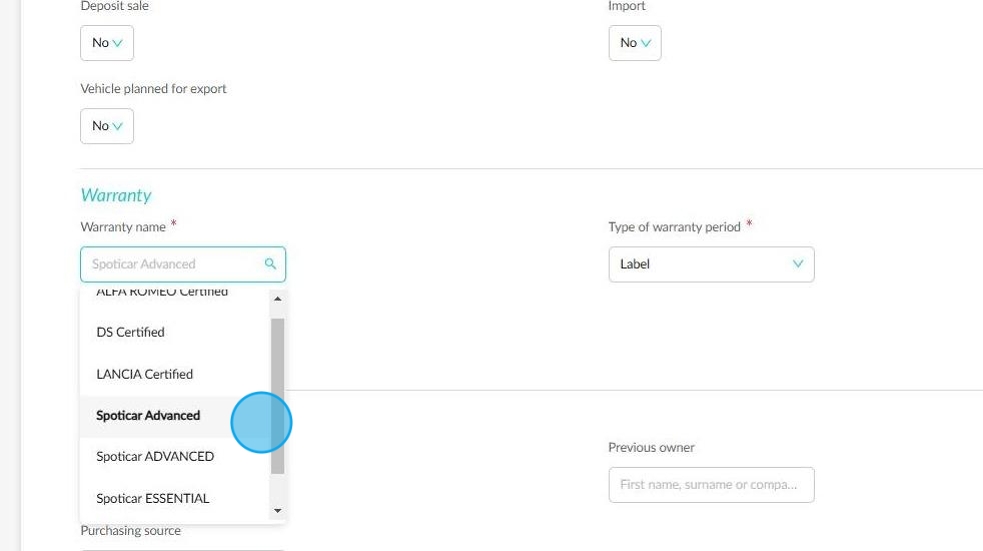
Next, indicate whether the warranty will be for a term related to its wording or if it will expire on a given date.
In our case, it will always be a duration related to the associated wording.
Examples :
Spoticar Advanced = 8 months warranty cover.
Spoticar Premium = 12 or 24 months cover.

Example of selecting the warranty duration:

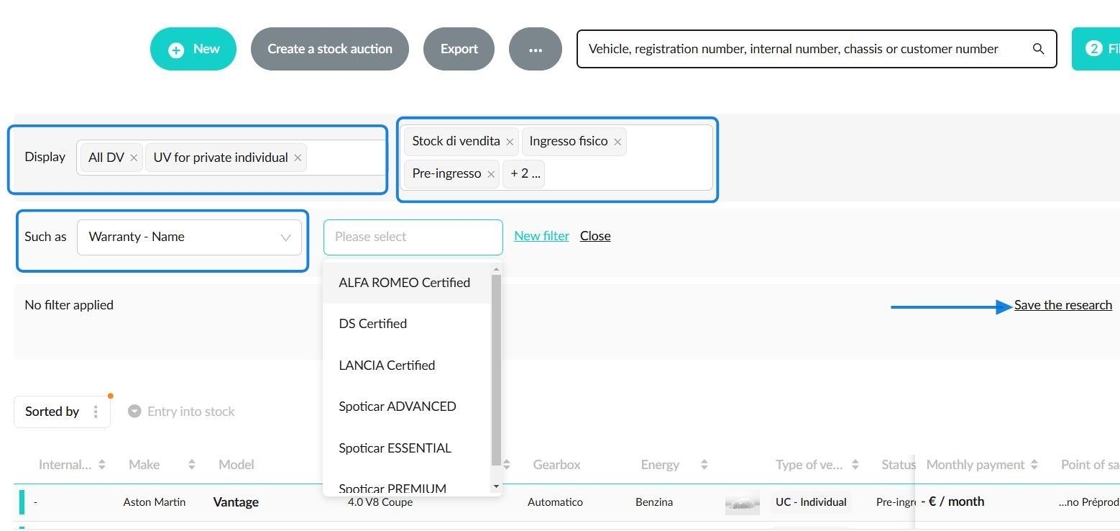
Some filters are made available for you in the "Vehicles" module to identify the various warranties of your DVs and UVs:
-Display: all DVs & all UVs for individuals.
-Filter by status: "Pre-entry, Physical entry, Sales stock".
-Additional filters: "Stock management" / "Warranty-Name".
For greater convenience, you can save this search.
Declaration of warranty:
It is possible to sign the warranty of DVs and UVs sold which are between the "Delivery" status and the "Exit" status included.
This operation can be carried out in the "Opportunities" and the "Vehicles" modules.
View of the button "Sign the warranty" on a UV order validated in the "Opportunities" module.

View of the button "Sign the warranty" in the "Vehicles" module on the sheet of a UV at delivery status.

In both cases, a notification to invite you to wait while your signing request is being transmitted to GuideWire Stellantis is displayed.

If the vehicle in question does not meet the criteria for the warranty that appears on its sheet and on the order form, the system will indicate that the transmission has failed and provide a motive.
Example with a UV which does not meet the mileage criteria to benefit from the Spoticar Premium warranty.
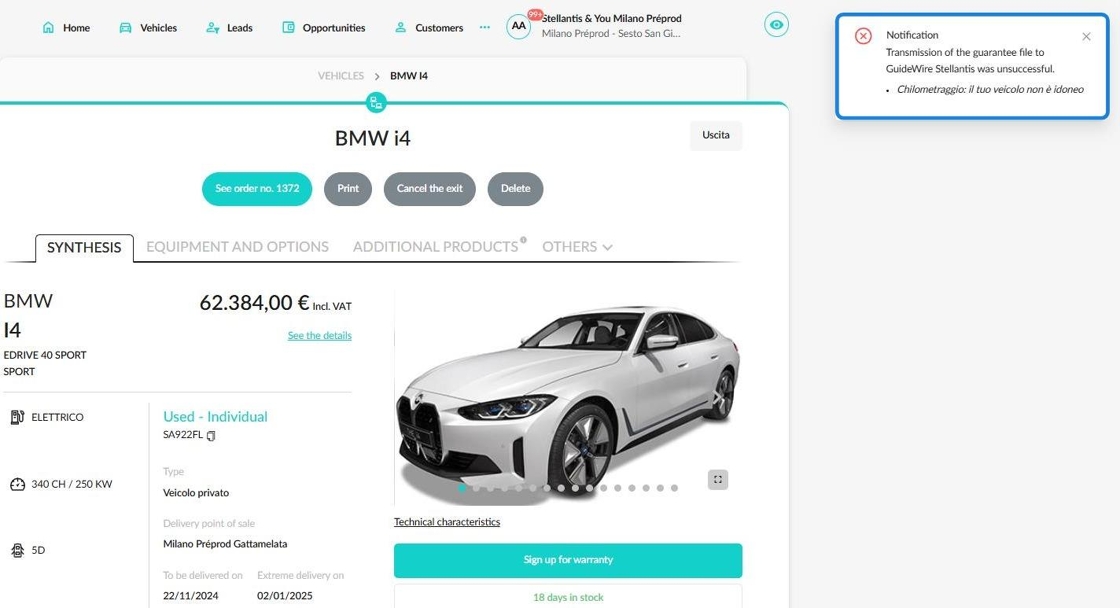
Example with a UV without any criteria to make it eligible to Spoticar warranties.

Still, if the vehicle corresponds to the warranties of the Stellantis network, a notification will display to confirm that "The warranty file no. 0000000000 has been sent to GuideWire Stellantis".
You can also log in to the portal of warranty declaration to folllow the processing of your signing request by clicking on the "View the warranty file sent" button.

Access to the GuideWire Stellantis declaration portal with OpenFlex:

Comments
0 comments
Article is closed for comments.