
You can change the type of a customer record from “individual” to “company” or vice versa. The customer’s history, opportunities and vehicles will be retained.
Change the customer type.
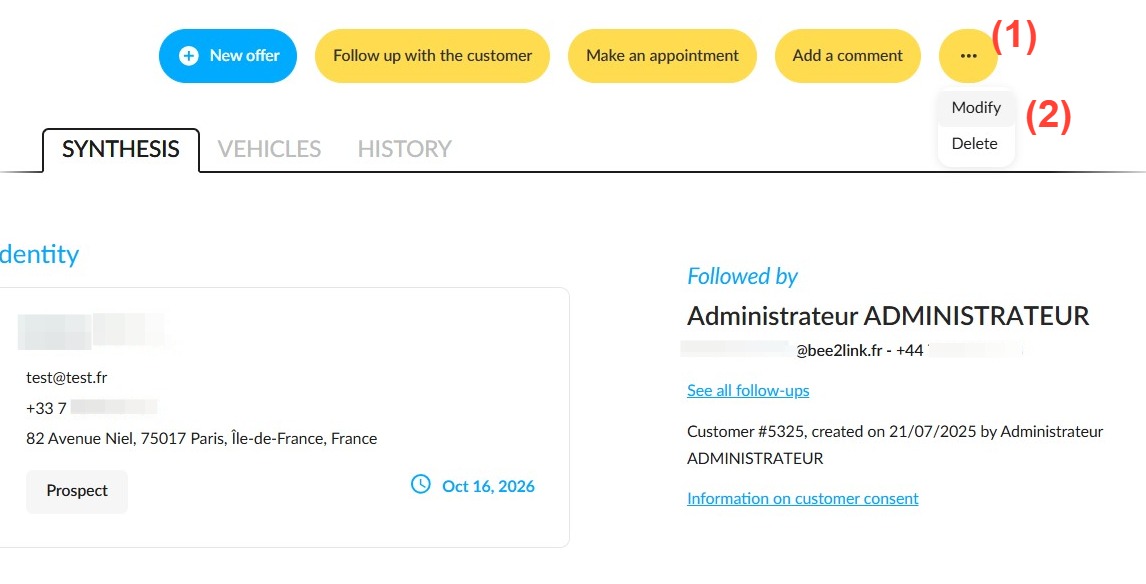
- Open the customer’s record, then click the “…” button (1).
- Click “Modify” (2).
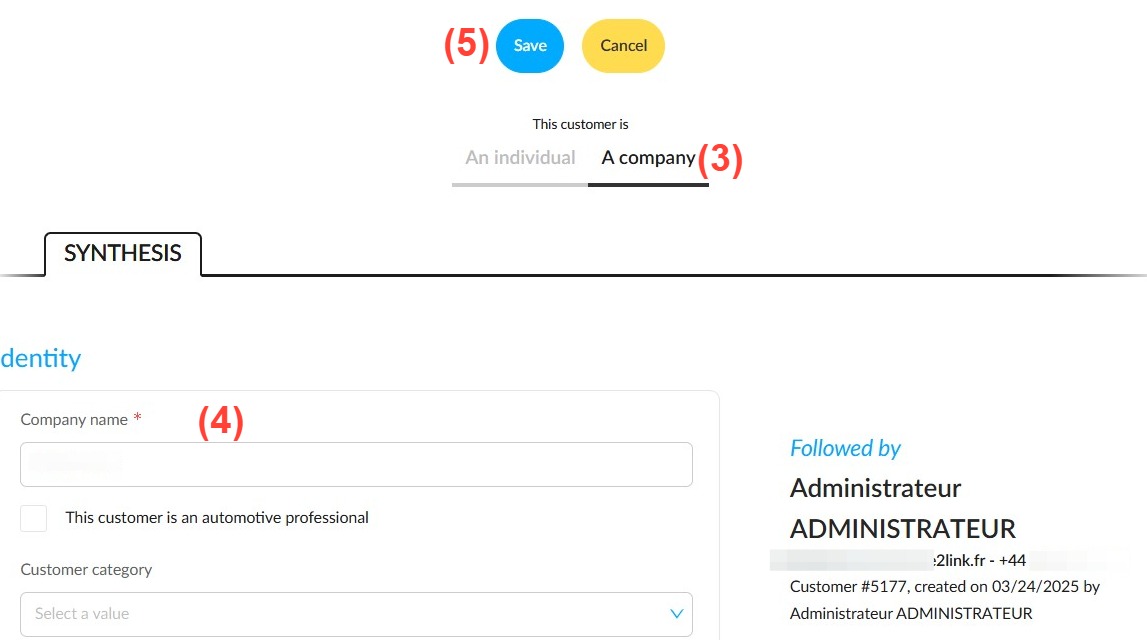
- Under “This customer is”, select “An individual” or “A company” (3).
- Check the pre-filled details (4):
◦ From an individual to a company: the first name and surname are included in the company name;
◦ From a company to an individual: the company name is copied into the “Name” field. Correct this if necessary and enter the first name. - The address, telephone numbers, email addresses and comments will remain as entered. Complete the fields marked with a red asterisk.
- Click on “Save” (5).
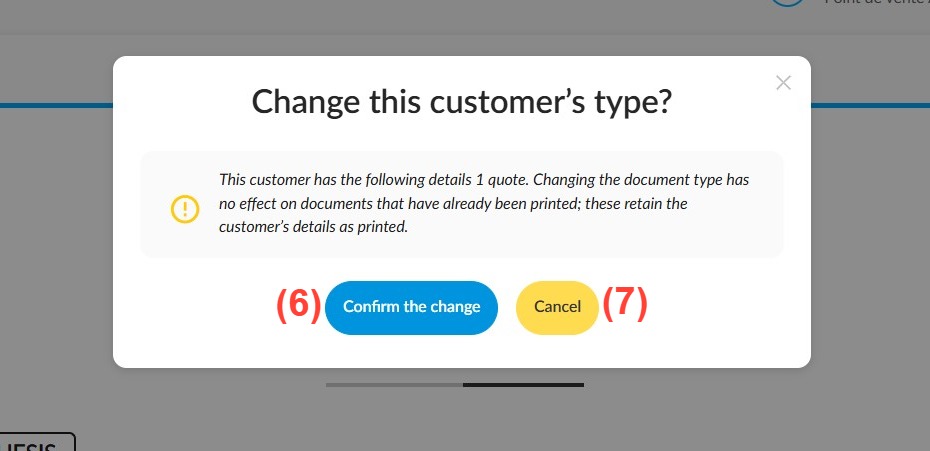
If the customer has any validated offers or orders
The “Change this customer’s type?” window shows the number of offers and orders affected.
- Click “Confirm the change” (6) to confirm;
or click “Cancel” (7) to return to the form without making any changes.
Documents that have already been issued remain unchanged.
What changes after you save?
- Information specific to the previous type is deleted:
◦ if the record becomes an individual: company name;
◦ if it becomes a company: title, spouse and place of birth.
- The “Legal Representative” or “Fleet Manager” links on the record will be removed. The records of the individuals affected will be retained.
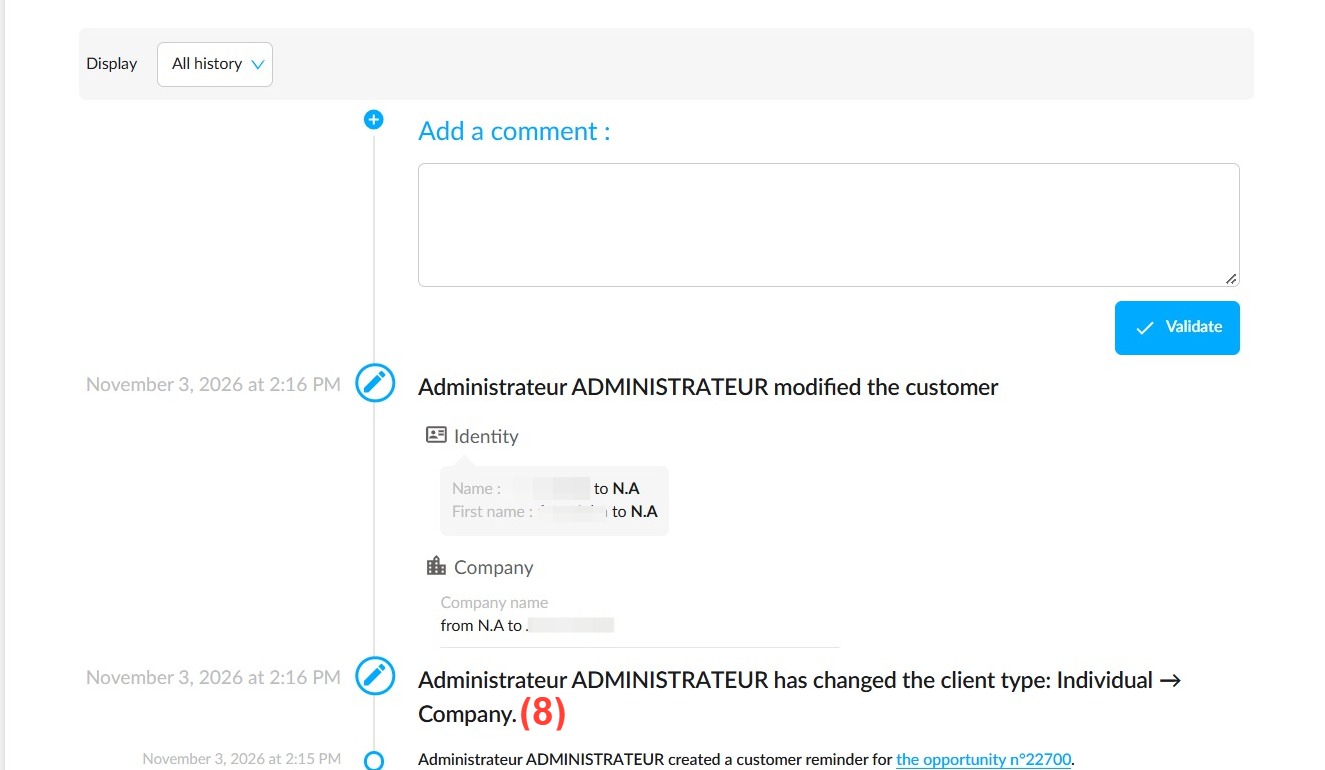
- A line is added to the customer record’s history (8), including the links that have been removed where applicable, as well as to the history of current opportunities.
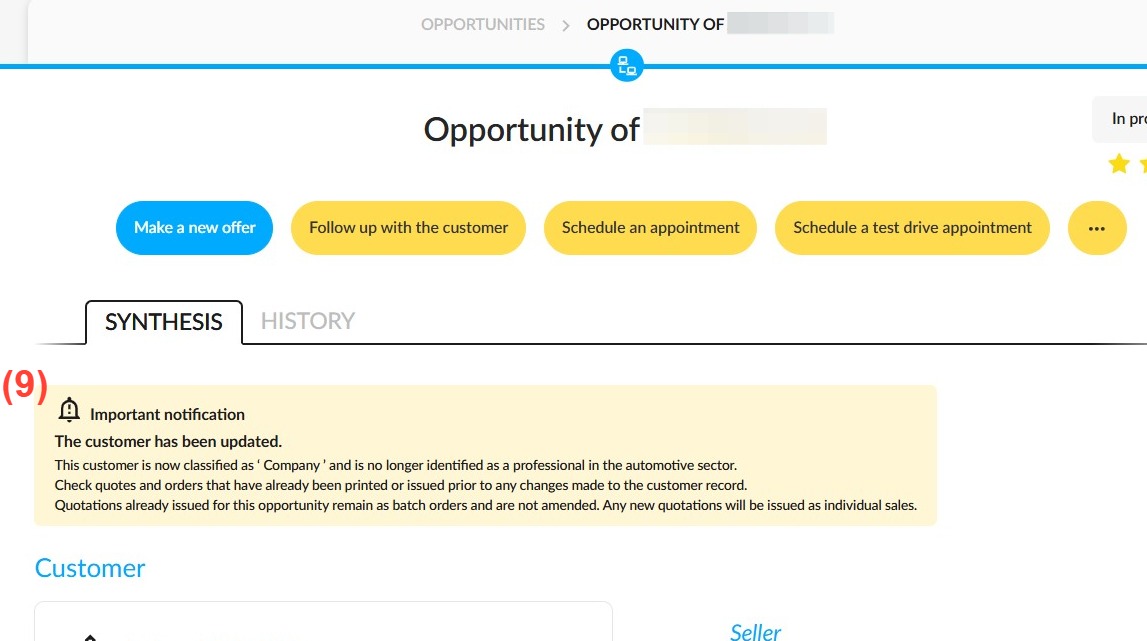
If you have any offers or orders that have already been printed, a banner labelled “Important notification” (9) will prompt you to check these documents.
Special case:
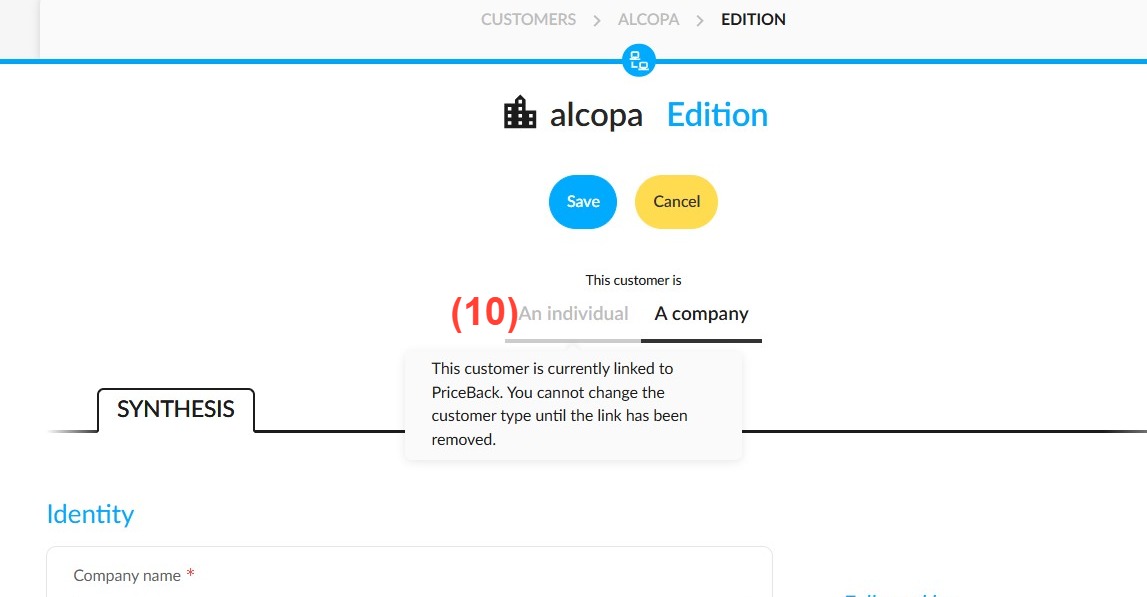
If the company is an automotive professional connected to PriceBack, the “Individual” option will be greyed out (10). To change the type, first remove the connection via “Manage connections”.
Comments
0 comments
Article is closed for comments.