

Vehicles
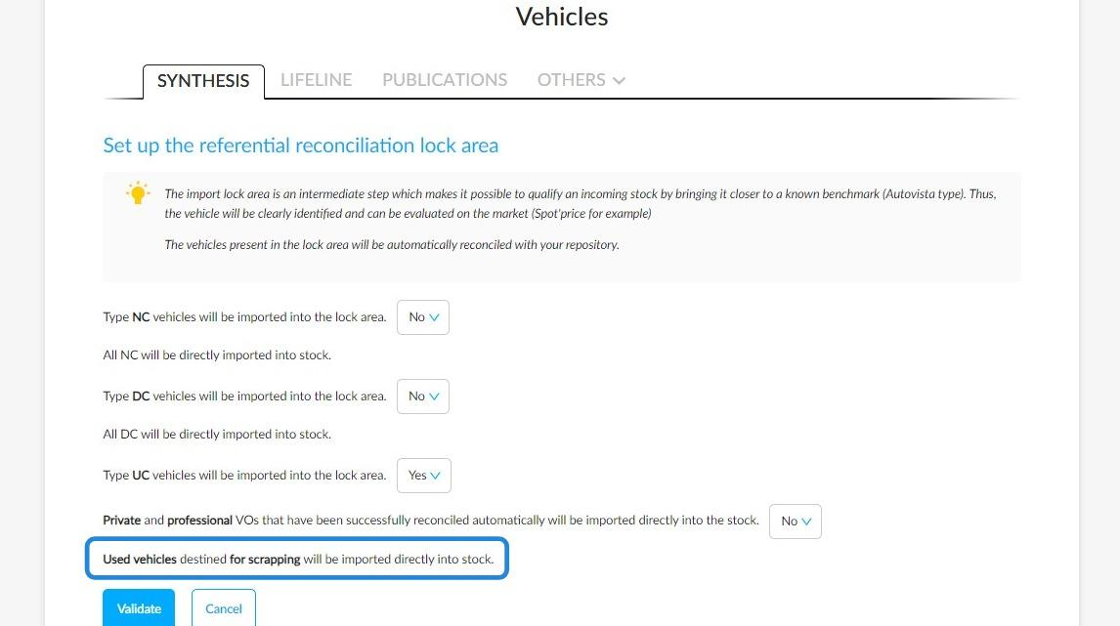
1. Importing directly vehicles intended for scrapyard into stock:
To avoid using too much space in the database's qualification lock area, a new rule has been put in place to import UVs intended for the scrapyard directly into stock.
The lock area will only be active for UVs intended for professionals and individuals.
Settings / Vehicles / Synthesis
2. Additional display on vehicle reservations:
Some modifications have been made to OpenFlex to improve the display of information relating to vehicle bookings.
In the 'Vehicles' module, you can now select two new columns in the tables to specify who a vehicle has been booked by and who the reservation has been made for.
This information is also included in the vehicle data sheets.
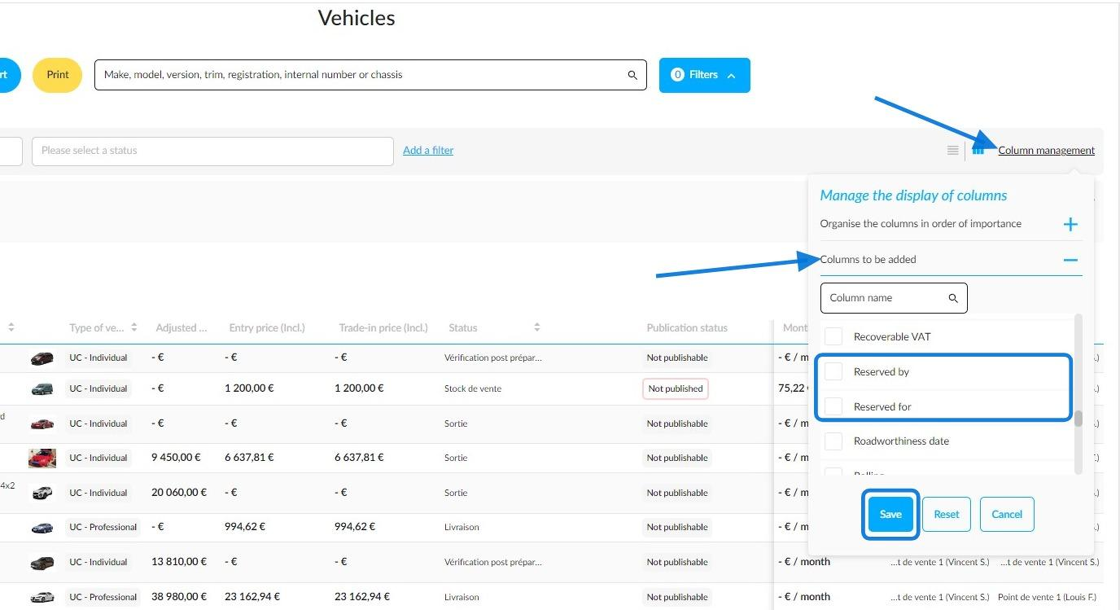
The data linked to reservations are added in the following cases:
-When a vehicle is reserved for 48 hours.
-When a vehicle is reserved by an automotive professional.
And
-When an e-reservation has been made by a user.
Example with a 48 H booking:

Example with a vehicle booked following an auction:

You can export the data contained in the 'Reserved by' and the 'Reserved for' columns:

3. Dissociation of the right to view price details from the right to view market values:
Following user feedback, a new right has been created to allow sellers to view the adjusted market values of vehicles while hiding crucial details (entry price, margins and expenses) from them in the UVs sheet summary.
This adjustment can be found in the settings for used vehicle management rights for the Sellers group.

Note: If the 'View prices' box is ticked, the box that enables you to view the adjusted market value will also be ticked automatically. The same thing happens if the 'Manage prices' box is ticked; this activates the two other aforementioned settings.

Here is an example of a vehicle sheet that specifies the adjusted market value, but hides the price details from a salesperson:
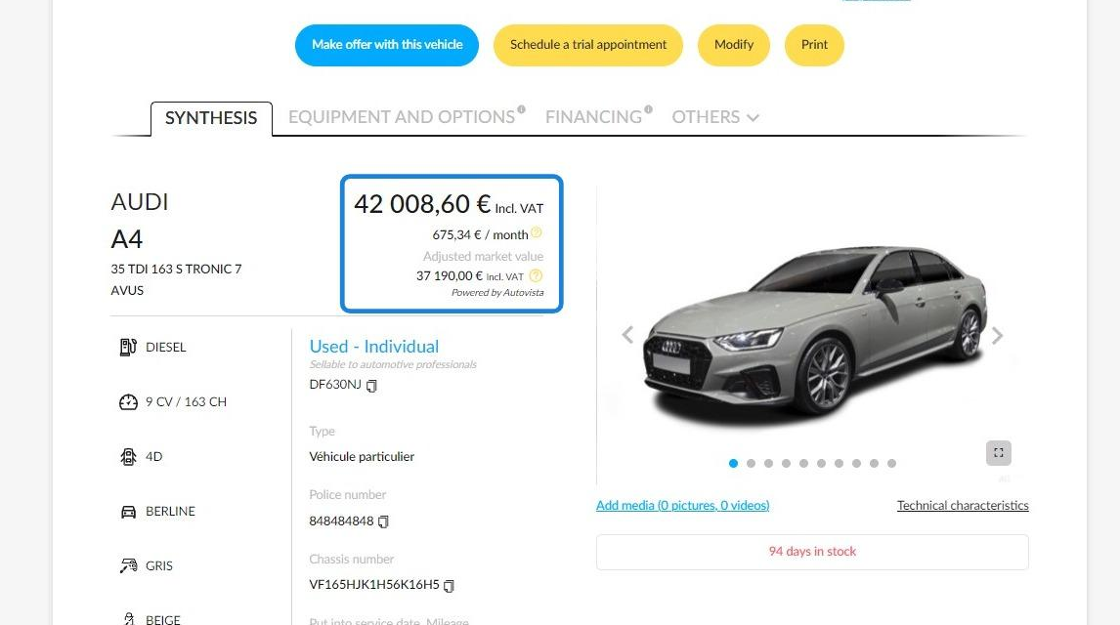
Please note: The settings that allow financial information to be hidden from salespeople only apply to used car sheets. We are planning an additional development to extend this functionality to the stock tables.
4. Enhanced menu for managing DV prices:
New information has been made available to you to make price management of DVs easier.
To effectively adjust the sales policy applied to demonstration vehicles, some additional information has been integrated into the price management menu:
- Actual commercial margin (Selling price excl.VAT- Final purchasing price excl. VAT).
- Initial commercial margin (Real sales margin excl. VAT - Created expenses excl.VAT).
- Delivery pack incl. VAT.
- Services incl.VAT.
- Total sales price (Sales price incl.VAT+Services incl.VAT+Delivery pack incl.VAT).

Information related to DVs purchasing price completes available data for better margin management:
- Manufacturer's invoice price.
- Manufacturer's bonuses and incentives.
- Fees and services.
- Final purchase price (Manufacturer's invoice price incl.VAT+Expenses and services incl.VAT+Manufacturer's bonus and premium).
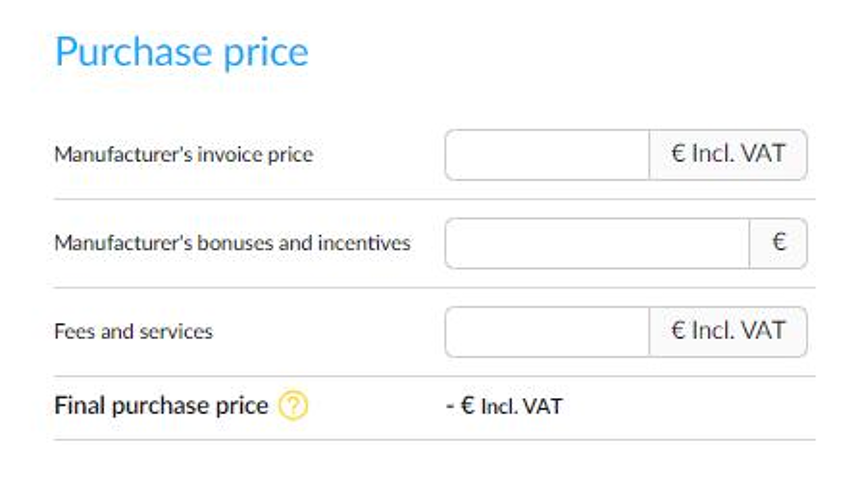
As DVs may be damaged or require repairs, a new section called 'Preparation costs' has also been addded to account for potential reconditioning expenses, which may affect the margin.

5. Making automatic price updates available for UVs intended for professionals:
To simplify the management of prices for UVs intended for automotive professionals, you can now include these in the algorithm for automatic price updates.
The settings are similar to those already in place for UVs intended for individuals. New prices calculation frequencies available on the platform are the same for both destinations. (7/15/30 days).
Consequently, the presentation of vehicles appearing on the list of prices awaiting validation has been enhanced and changed.

If you consult the list of vehicles with price updates awaiting validation via the tile on the homepage, you will see that:
- UVs intended for individuals;
- UVs intended for professionals.
- UVs intended for individuals that can also be sold to professionals.
In the latter case, a price for each category will have to be validated.
Presentation of a UV intended for sale to individuals and professionals:
- Request validation of the new price for individuals.

-Validation request for the new professional price:

Presentation of a UV intended for automative professionals:

Some new filters have also been integrated to adapt to the addition of UVs intended for professionals:
- Destination (Individual or Professionnal).
- Price by destination (useful to identify price updates to be validated for vehicles which are eligible for sale to both individuals and professionals).
- Make.
- Model group/model.
- Power.
- Finish.
- Mileage.
In addition to the data already provided, the table shows registration numbers, chassis numbers and the vehicle's destination.

For example, the filter can be selected to display prices that are updated depending on the destination of the UV.

Displaying a UV intended for individuals salable to professionals via the selection of the filter:

Opportunities
1. Trade-in estimate: possibility of copying and pasting a registration number:
In addition to the chassis number, you now have the option of copying and pasting the registration number of a vehicle included in a trade-in estimate for later use.

2. Improving the selection of the extreme delivery dates:
In response to the ever-increasing delivery times, we have optimised the selection of the extreme delivery dates during order validation. From now on, the system will automatically suggest an extreme delivery date based on the below mentioned rules:
-the extreme delivery dates will be defined based on the average of time variations between delivery dates and extreme delivery dates calculated on the previous year.
-If the data is insufficient to provide a relevant term, a period of 60 days from the initial delivery date will be applied by default.
-Concerning the NVs to be ordered from factory, it is user's responsibility to enter the correct date. However, if a delivery date has been filled in when an order has been validated, the calendar will open on the same month when selecting the extreme delivery date.

3. Adding new fields for vehicle maintenance information:
At the 'History' stage of the trade-in process, a new field will be available to specify whether repairs have been carried out on a damaged vehicle.
If the salesperson answers 'Yes' to the question 'Is your vehicle damaged?', a new field entitled 'Has the vehicle damage been repaired?' will appear, allowing them to specify whether or not this is the case.

This information will be recorded in the vehicle's details page.

This information will also be relayed to bidders when a trade-in is intended for them, as well as to dealers during stock auctions.

Reminder: certain bidders (Auto 1) require specific information in order to make a decision when requesting a quotation.
-If a vehicle has been declared as having been involved in an accident, details of any repairs must be provided, including information on any repaired damage.
-They also require it to be specified whether or not the vehicle has recoverable VAT. If this information is not provided, the bidder will not be asked to provide a quotation.
4. Simplifying the process of delivery appointments modification:
To make the system more user-friendly, we have simplified the process for postponing delivery appointments.
These can now be amended via the diary on the home page by selecting the relevant boxes.

The question that asks if the delivery was carried out properly has been moved to the top of the delivery declaration window.

If you answer 'No', a drop-down menu will appear asking if you would like to arrange a new delivery date.

If you answer 'No', it will no longer be necessary to fill in the delivery report, unlike in previous processes.

If you confirm that you would like to postpone the delivery date, the new schedule will be displayed.

From now on, it will no longer be necessary to complete a delivery report in order to change the date of the initial delivery.

The diary on the homepage will be updated as soon as you confirm the new appointment.

All actions carried out will be reported in the opportunity history. The text used to explain user actions has been modified for clarity.

5. New: shared view on delivery calendars:
To improve the organisation of deliveries, we have upgraded the calendar display to optimise the scheduling of delivery appointments.
From now on, you will be able to view the delivery schedule for a given point of sale, as well as the schedules of the employees assigned to a given delivery, making it easier to organise appointments.

Selecting a point of sale will allow you to view all delivery appointments that have already been planned by vehicle type (NV, UV or DV).
For example, if you want to schedule a delivery date for a UV, you will only see other delivery appointments linked to UVs in the left column of the calendar. These appointments will appear in yellow.

The column on the right displays the appointments of the employee assigned to the delivery. These will appear in blue.

This information can be displayed in various calendar formats: month, week or day.
For example, with the monthly display:

Here is an example using the weekly display:

You can view this shared schedule in the following cases:
- When scheduling a delivery appointment via the designated tile on the home page.
- When scheduling a delivery appointment from the file of a vehicle linked to an order.
- From the "Vehicles behind on the sales cycle" tile when a delivery is overdue.
- When a vehicle is removed from stock and a new delivery is rescheduled.

Comments
0 comments
Article is closed for comments.