

Opportunities
1) Optimising the back button from the 'Opportunities' and the 'Vehicles' module:
Previously, when a sales representative viewed the list of vehicles in stock, the path of the opportunity was lost when the user viewed a vehicle's file. Only elements from the 'Vehicles' module were displayed.

From now on, salespeople will find the browsing elements that describe their path in the 'Opportunities' module on the vehicle sheet to which they wish to link an offer.

Each step of the process will be visible at the top of the page.
In addition, a new feature has been added to make searching for vehicles in stock more efficient when a user returns to the vehicle selection tab from an opportunity.

To avoid the need to scroll through all the stock again, the page showing all the available stock will automatically load at the level of the vehicle previously selected by the user.
This new feature also benefits the 'Vehicles' module. When viewing a vehicle file, OpenFlex will take into account the vehicle's position in the stock tab when the back button is pressed.

2) Stock auctions, creation of mailing list(s):
In response to client feedback, we have introduced the option of creating mailing lists, enabling dealers to invite automotive professionals of their choice to participate in stock auctions.
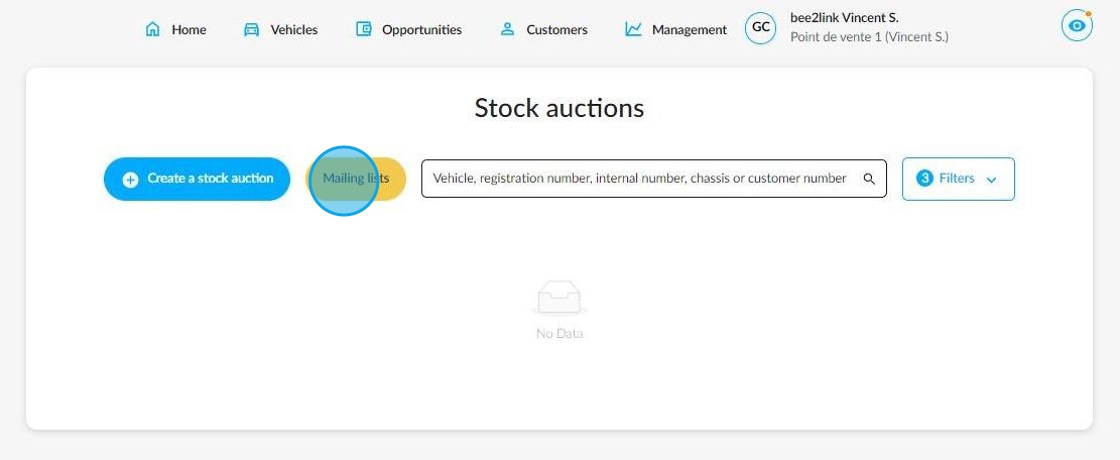
This will enable the dealer to create customised mailing lists, allowing them to target suitable automotive professionals during the preparation of stock auctions.
Please note that if no mailing list has been created or selected when an auction is set up, all automotive professionals connected with the dealer will receive the invitation.

When creating a list, first add a title, then select the professionals to whom you wish to send invitations to participate in the stock auctions in the left column (1).
The chosen professionals will be listed in the right-hand column (2). Unticking the box next to a professional's name will remove them from the recipients list.
Once the list is complete, the dealer must save it using the relevant button at the bottom of the window.

They will also have the option of cancelling the changes by clicking on the 'Reset' button, or cancelling this list if necessary.

You will be able to create as many mailing lists as you want.

When creating an auction, open the drop-down menu and select the appropriate list.

Once you have selected a list from those available, the number of professionals who will be contacted will be specified. You can still rectify this list at this stage.

If none of the pre-configured mailing lists are suitable, you can still create a new one by clicking on the 'Select professionals' button.

Then you will be able to create a new list.

Customers
1) Automatic assignment of the 'Followed by' when creating an offer:
Until now, assigning the 'Followed by' feature to sales team members depended on a permission that sellers rarely had. Managers had to assign it manually.
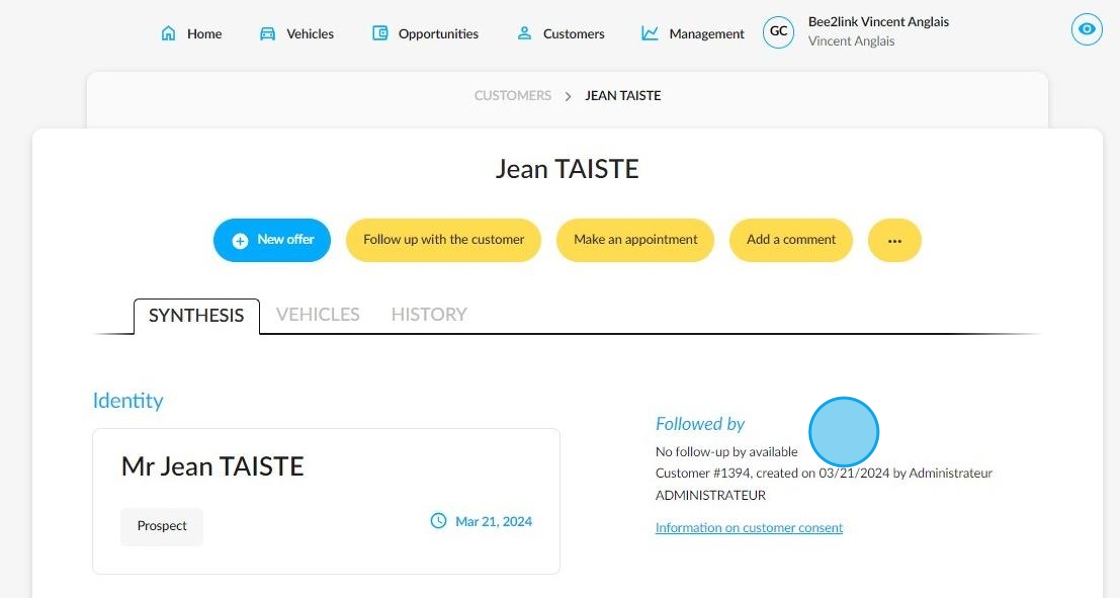
From now on, creating an offer will involve:
- a vehicle sheet;
- an opportunity
- or a customer sheet will mean that the customer follow-up is assigned to the user who created it.
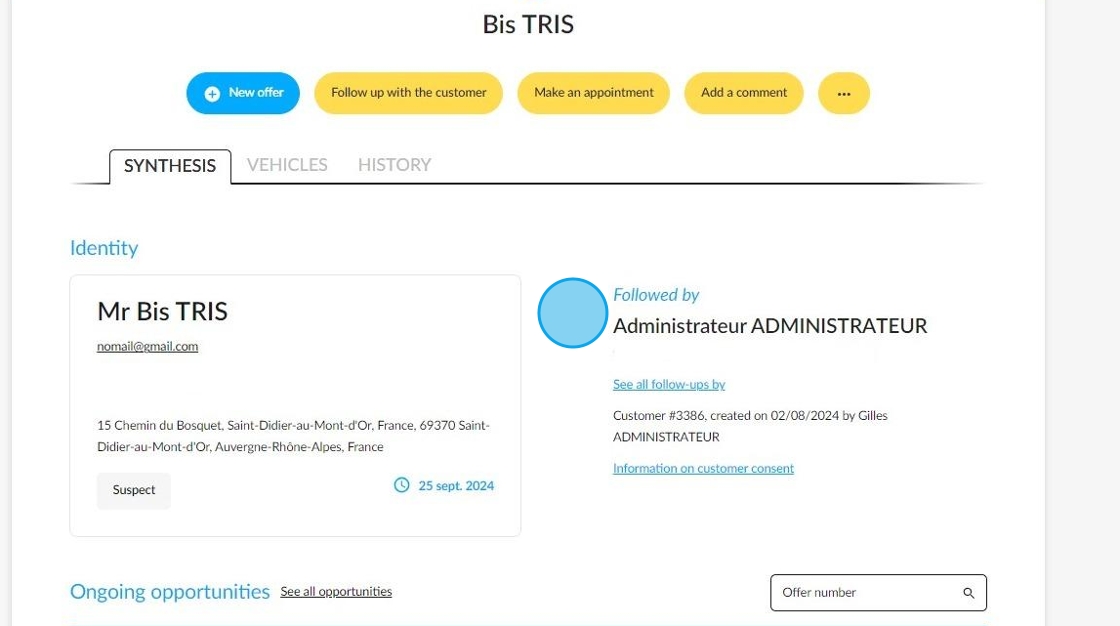
If several employees have made offers to a customer, they will all be involved in this customer follow-up.

Viewing this customer's file will give you access to the list of sellers assigned to his follow-up via the button entitled 'See all follow-ups by'.

Management
1) Adding new filters in the monitoring of activity:
To simplify monitoring of commercial activity at multi-make points of sale, two new filters, 'Makes' and 'Configurations', have been added to the 'Management' module's activity monitoring feature.
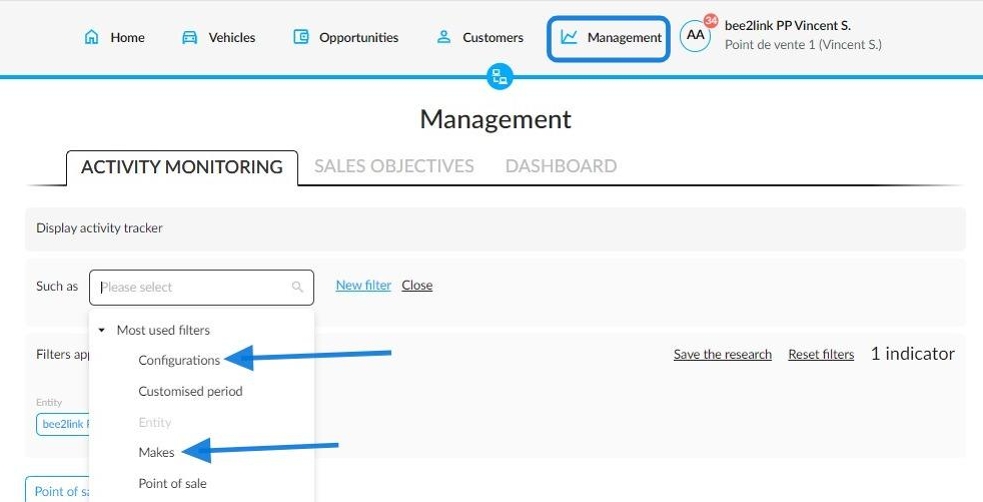
They will allow managers to filter the displayed results by make and type of vehicle, enabling them to divide the activity monitoring.

To filter the vehicles by type, select the 'Configurations' filter.

Depending on the filters applied, it will be possible:
-to view all the commercial actions of a point of sale
or

-to display them by employee.

Settings
1) New: duplication of adjustments impacting market value.
A new feature has been added to the pricing policy settings to make life easier for stock managers.
Settings / Pricing policy / UV Sales value / Adjustment
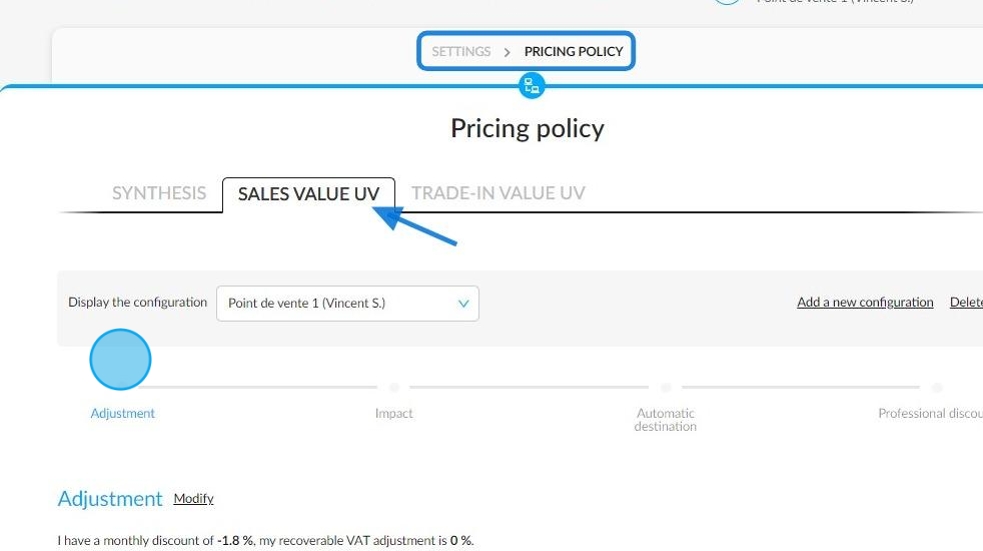
They can now duplicate adjustments relating to market values to save time when setting up parameters on the platform.

For example, I would like to duplicate the settings applied to Peugeot 208 petrol cars.

Clicking on the 'Duplicate' button opens a new window with the same conditions and criteria as those previously set. All you then have to do is transpose or modify these to apply them to another car.

You will be able to repeat this process on the vehicle that was initially duplicated.
Please note that an error message will be displayed if a user tries to save an adjustment that already exists. Two identical adjustments cannot coexist.

2) New setting to define the recipients of quotation requests:
A new setting has been integrated into the platform to make sending quotation requests to automotive professionals more efficient.
Settings / Pricing policy

It is available in the pricing policy settings, in the 'UV Sales value' (1) section of the menu that enables you to set the automatic destinations of UVs (2).
Settings / Pricing policy / UV Sales value / Automatic destination

The title is 'Set up the list of recipients of quotation requests'.
By creating this list, you can ensure that only the automotive professionals you want to receive quotation requests will receive them.
If no list is drawn up, all automotive professionals connected with the dealer will receive quotation requests.

When creating the list, first add a title, then select the automotive professionals to whom you wish to send quotation requests in the left-hand column (1).
The professionals chosen by the distributor will be listed in the right-hand column. Unticking the box next to a professional's name will remove them from the recipients list (2).
Once the list is complete, the dealer must click the 'Save' button at the bottom of the window.

They will also have the option of cancelling the changes by clicking on the 'Reset' button, or cancelling this list altogether if necessary.

Comments
0 comments
Article is closed for comments.