
Please read about the new features available on the platform.

Vehicles
1. Automatic price updates: new search modes.
A search bar has been added to the automatic price update list.
In addition to the existing filters, stock managers will be able to identify vehicles more precisely and quickly by entering one of the following pieces of information:
- Make
- model
- version
- finish
- registration number
- internal no.
- chassis number

3. New feature: modifying the configuration of a vehicle reconciled with the database.
A new button has been added to Modify the configuration of a vehicle that has been reconciled with the database.
If a qualification mistake is made, the user can easily review the vehicle's configuration from its sheet by clicking the button below.

You will be asked a confirmation before accessing the configurator.
Reminder: Clicking on the 'Validate' button will remove all in-progress or validated offers.

Then, you will be taken to the trim stage of the vehicle's configuration to make updates.

Any action that modifies a vehicle's specifications will be recorded in its history.

3. Displaying the vehicle type on folder tags:
To make it easier to identify the type of vehicle in all formats of folder tag, the DV or UV notes will now be recorded on them.

Example:

4. Integrating two new hybrid engine specifications:
To adjust the technical specifications of vehicles to meet customers' publication requirements, two types of hybrid engine specification have been added to OpenFlex.
- Hybrid Petrol / Electric
- Hybrid Diesel / Electric
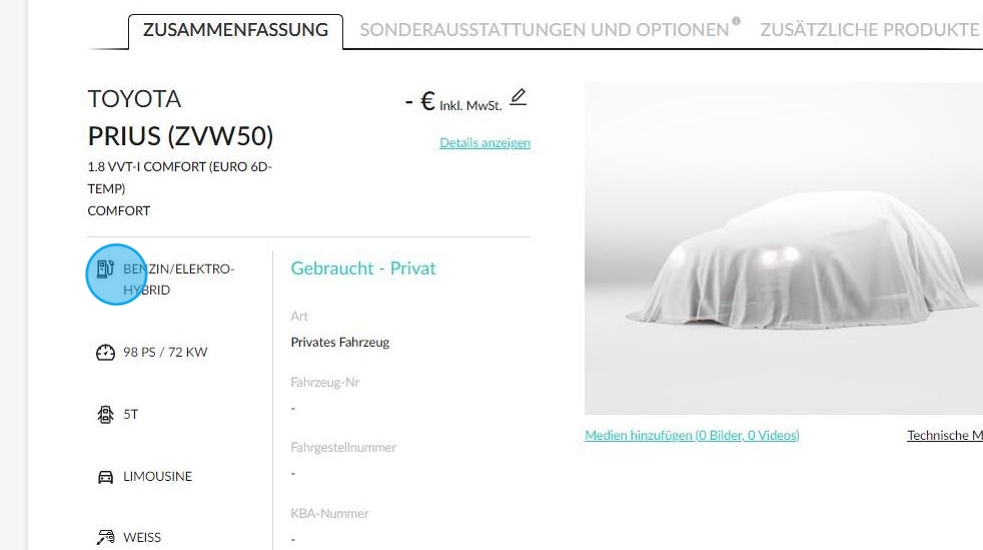
Refer to the 'Engine' section of the technical specifications to find out what type of powertrain it has.

You will also be able to find vehicles with hybrid engines in the stock table by filtering by energy type:

5.New alerts to manage printings of UV displays:
A new alert system has been set up to automatically detect when a display has been modified and needs printing again.
This alert concerns UVs intended for individuals that are between the 'physical entry' and 'sales stock' statuses.
A re-printing alert will be generated when certain major criteria change.
These alerts will be visible on the OpenFlex homepage.

The displays to be printed can be filtered by physical location.

You can choose to print displays of vehicles located at various physical locations. Once you have made your selection, you can save it. The number of displays affected by the alert will be updated.

Then, press 'Print'.

These are the reasons why an alert is generated:
- change in selling price;
- Change in mileage of more than 100 km from the previous edition.
- Change in warranty conditions (name, type or duration).
You can view the reasons by placing your cursor over the column on the far right of the table.

Filters have also been added to enable you to view vehicles affected by a printing alert and understand the reasons for it.

Example of filtering by printing alert: 'Activated or Deactivated'.

Example of filtering by printing motives: changes in financing, warranty, mileage or selling price.

If a Used Vehicle is affected by a printing alert, a reminder will appear when setting up an printing.

Opportunities
1. Direct reading of managers' comments and recommended trade-in prices:
Previously, when a salesperson requested a trade-in price to be validated by a manager, the manager's comment only appeared in the opportunity's history.
To give salespeople waiting for trade-in offer validation direct access to the manager's comment and the negotiation margin, we have added more information to the 'Your trade-in estimate' box.
Old presentation:

New presentation of a validated trade-in estimate. Comments and negotiation margins provided by managers have been added.

Hovering over the information bubble will allow you to view the comment written by the manager.

Trade-ins intended for merchants equally benefit from this innovation:

When a quotation is requested, the salesperson will be able to view the comments left by both the manager and the bidder after the trade-in has been validated:

2. Enrichment of exportable data from the opportunities module:
When setting up a data export of opportunities, you can select many new columns.
Some of them have been integrated to avoid having to cross-reference them with the exportation from the 'Vehicles' module.

In order to view the columns containing information on the market value of vehicles and clients' contact information, it is necessary to have the right to view prices and to export customer data.
Detail of new implemented columns:
- Customer type (Individual or Company or Autmative professional),
- Company registration number,
- Name of Legal representative,
- First name of legal representative,
- Email address of Legal representative,
- Address,
- Address 2,
- Additional customer address,
- Additional customer address 2,
- Customer postcode,
- Customer city,
- Customer region,
- Customer country,
- Total registration fees (includes: Regional tax + Transport vehicle, surcharge+CO2 bonus/penalty+Weight penalty+Fixed tax+Delivery charge),
- Amount of ecological Penalty/Bonus,
- Catalogue price (Incl. VAT),
- Contract reference,
- Method of financing (Cash, Credit, Renting),
- Recoverable VAT - Vehicle purchased,
- Recoverable VAT - Trade-in vehicle,
- Market value - Vehicle purchased,
- Market value - Trade-in vehicle,
- Market value date - Vehicle purchased,
- Market value date -Trade-in vehicle,
- Physical pesence site (of the sold vehicle),
- Priceback origin (Yes or No),
- Warranty (end date),
- Warranty(Duration- month),
- Warranty (wording).
3. Updating commercial documents for S&Y Germany:
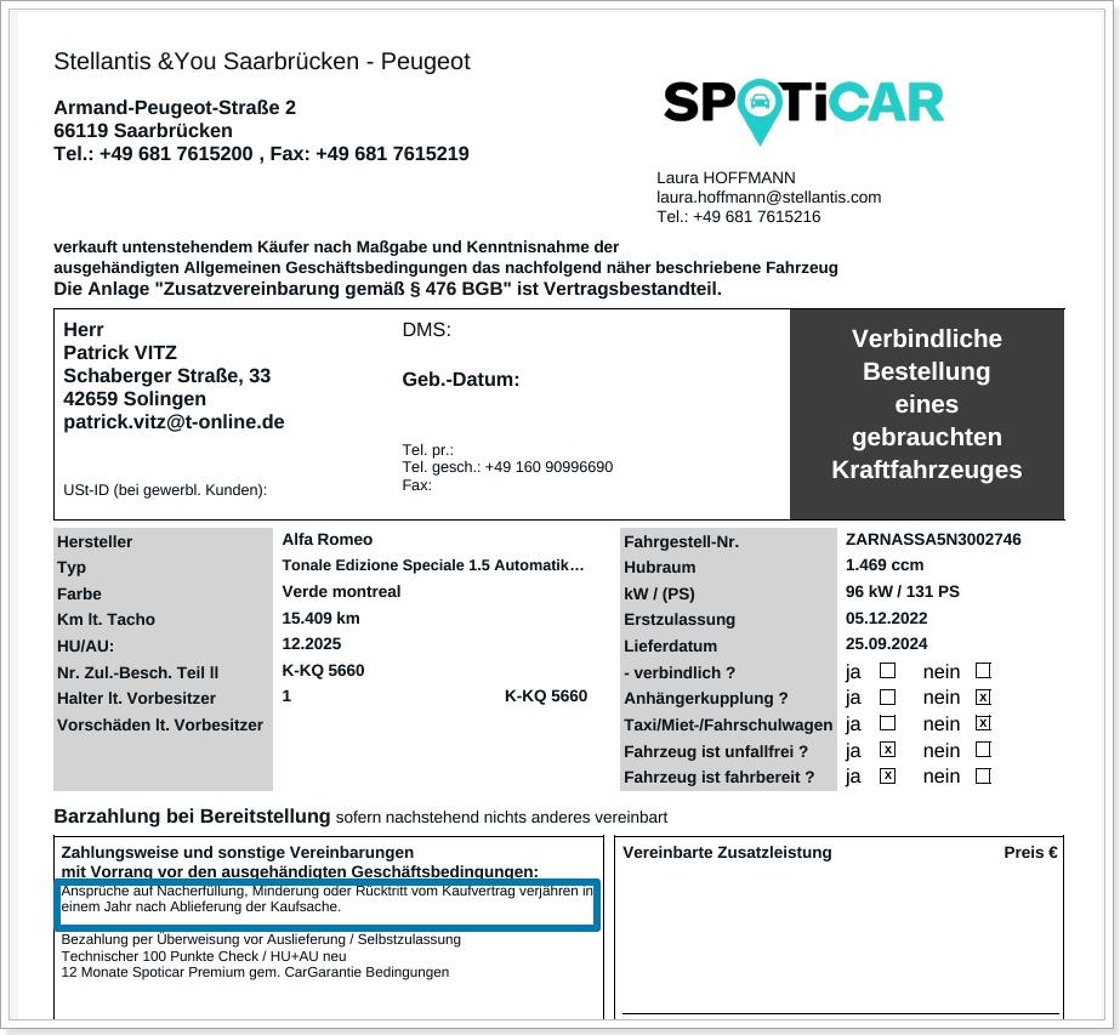
For compliance reasons relating to German legislation, the following sentence has been removed from commercial documents intended for companies (including automotive professionals): ‘Ansprüche auf Nacherfüllung, Minderung oder Rücktritt vom Kaufvertrag verjähren in einem Jahr nach Ablieferung der Kaufsache’.
This applies to the following documents:
- Spoticar order form
- Spoticar Netto-Export order form
- DS Certified order form
- DS Certified Netto-Export order form
- Spoticar order confirmation
- Spoticar Netto-Export order confirmation
- DS Certified order confirmation
- DS Certified Netto-Export order confirmation
- Offer with reservation Spoticar
- Offer with reservation Spoticar Netto export
- Offer with DS reservation
- Offer with reservation DS netto export
Customers
1. Transposition of future actions to customer files:
A new section entitled 'Future Actions' has been added to customer files, making it easier to see planned sales actions via opportunities.
Previously, these actions were not visible in the customer module. Users had to search for them in Opportunities.
Example of old presentation:

An example of the new presentation is a view of the actions that have been scheduled with this customer.

Settings
1. Reorganising the page for publications configuration:
We revised the presentation of the various settings available to optimize the reading of the publications parameters and simplify access to and viewing of the main adjustments.
The layout of the page before this update was as follows:
Advertiser contracts were the first setting displayed.

It This was followed by the addition of visuals and comments to complete the advertising texts:

The settings for displaying contacts on publications were at the bottom of the page:
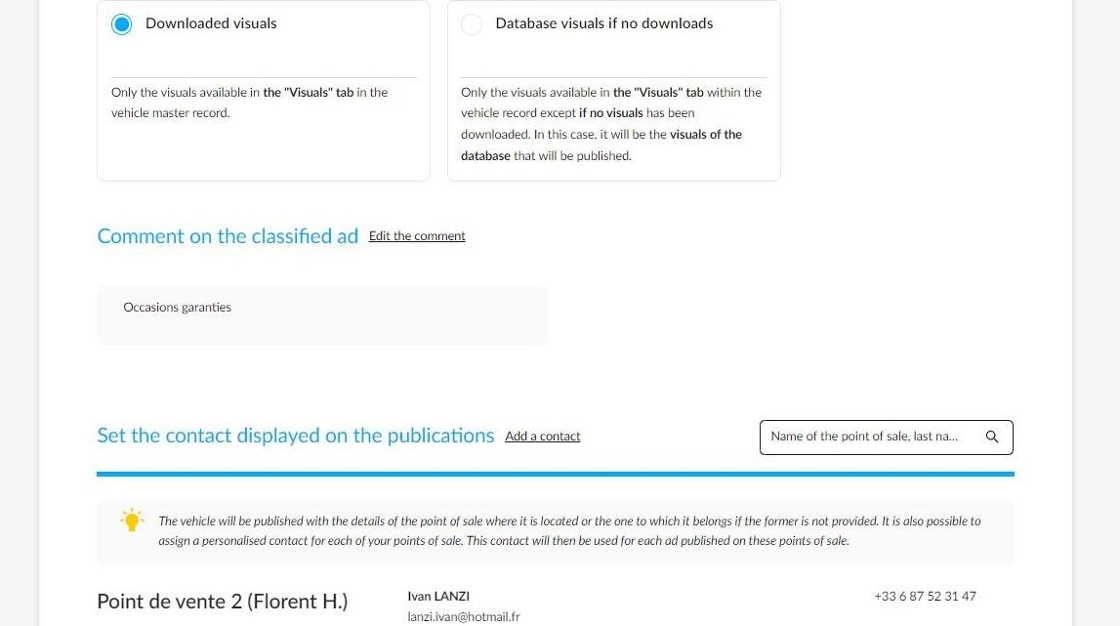
New presentation:
The option to select publication settings by vehicle type is still at the top of the page.
The order in which publication settings are displayed has been revised as follows:
Setting of the visuals to be published.
Setting of the comments written on advertisings.
Setting of the contact displayed on publications.

4. Advertisers' contracts setting has been moved at the bottom of the page with a new display:
The new columns now make the type of vehicle, publication mode, and number of entities and points of sale assigned to an advertiser clearer and more visible.
Buttons allowing users to modify or delete the configuration of a contract have also been implemented.

2. Optimising the layout and the functioning of the users, groups and permissions management menu:
Prerequisite: it is necessary to have the permission to manage accounts to be able to export users' list.
In order to improve readability and ease of use when managing user groups and permissions, the layout of the displayed information has been changed.
Old layout:
Before this update, the list of users was at the top of the page, above the group details. Only a few accounts with limited information could be selected from this page.

New layout:
From now on, user groups will be displayed at the top of the page:

The list of user accounts and the filters that enable you to search for them are located in the second half of the page, arranged in rows of ten.
Some data will also be available in the list of user accounts to simplify searches:
- The user account identification number.
- The list of entities to which the account is linked.
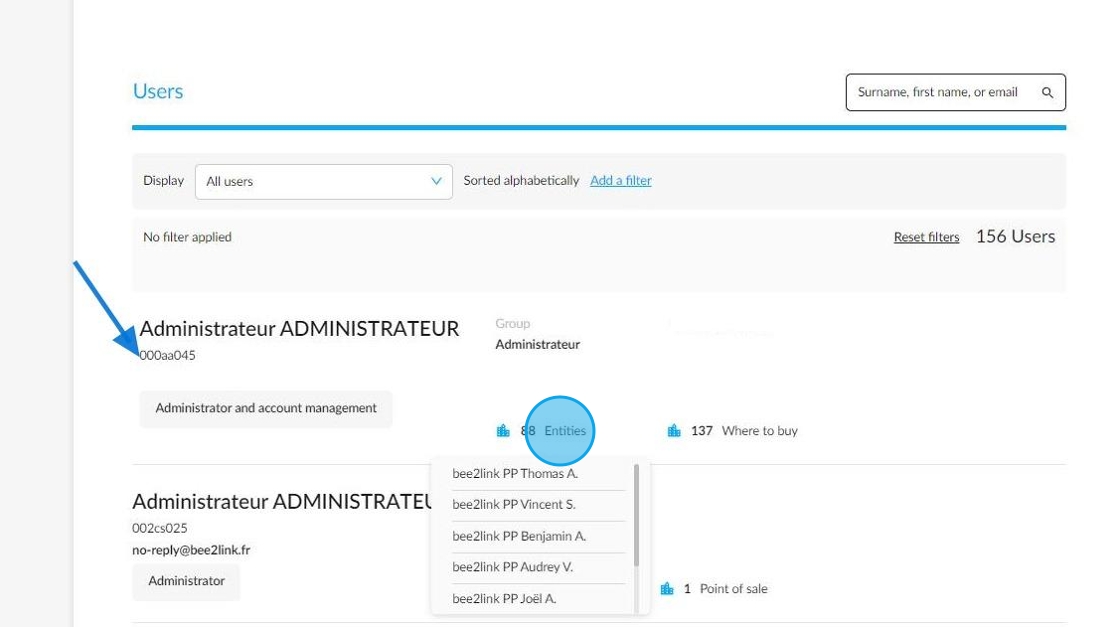
- As well as the point or points of sale to which it is assigned.

Furthermore, managers responsible for account administration will now be able to export the list of users in XLS format.

3. Setting up a comments library:
Currently, you can create a list of comments that can be selected when editing offers and orders.
To achieve this, we have modified the way comments added by default in the Opportunities settings work.
Settings /Opportunities / Set default comments for documents

The concept involves creating a variety of comments to meet your needs.
When you click on the 'Add a comment' button, a window will open where you can write a predefined comment. You will then need to name it.
Next, select the vehicle type(s) to which it will apply, as well as the destination(s).
You can then choose whether to keep this comment for offers when validating them, for orders when finalising them, or for both.

Reminder: If you have not created a comment in the settings, only the free text field will be available when validating offers and orders.
You can create as many comments as you like.

Depending on the type of vehicle and the customer category linked to the opportunity, a drop-down menu including the relevant comments will be displayed when preparing an offer or an order.

You can select several if necessary. You can also make manual changes to comments on offers and orders.

Here is an example of a document with a predefined comment on an order:

4. New feature: right to manage DVs prices:
To restrict the right to manage the price of demonstration vehicles to the relevant users, a new right can be activated for each user group.
Settings / Users, groups and permissions management / group XXX
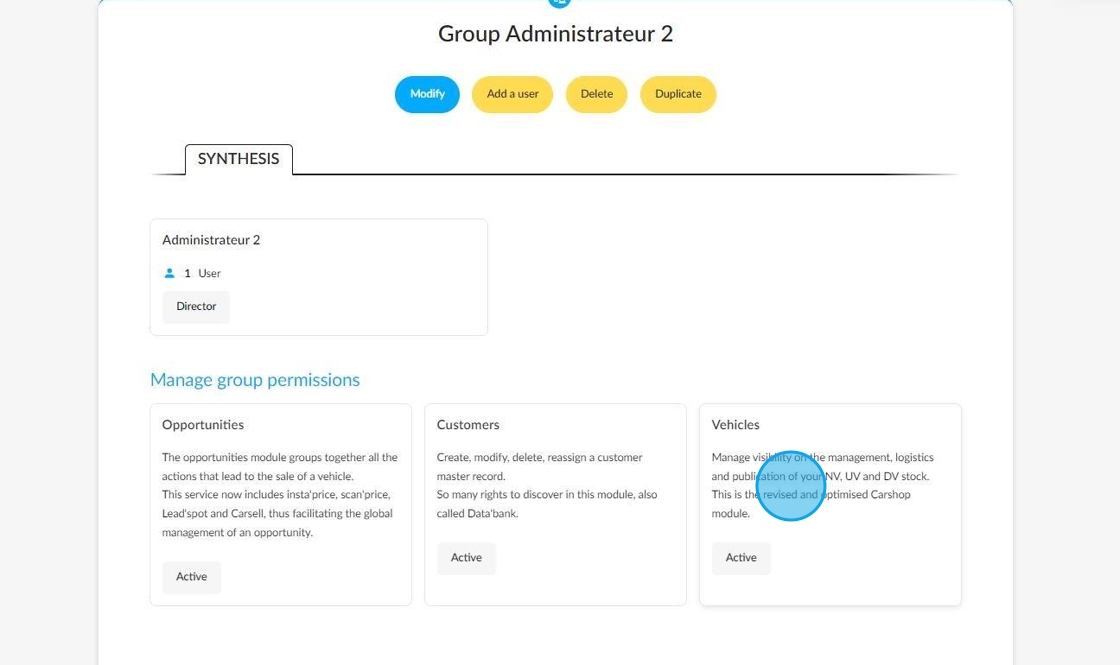
Presentation: Activating the Right to Manage Prices

Comments
0 comments
Article is closed for comments.