
Provisions for stock depreciation represent probable expenses that will be attributed to the financial year in which they are recognised. This ensures that the result is as accurate as possible. Provisions are used to comply with the accounting principles of prudence and financial year separation. If they meet the conditions for deductibility, they constitute deductible expenses.
Requirements:
-Have administrator rights for the platform.
-Have the right to export customer data.
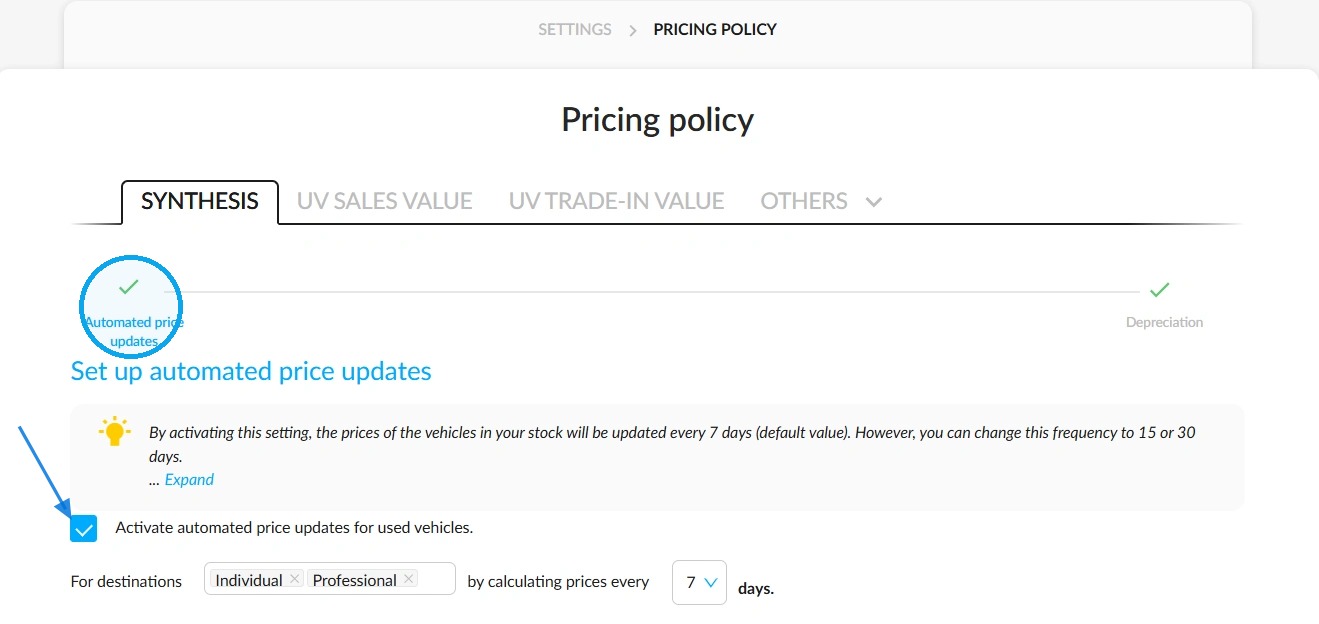
-Automatic price updates must be enabled for depreciation to be calculated. Depreciation will be calculated at the same frequency as the automatic price updates.
-The selling price of vehicles must be up to date to be taken into account in the depreciation calculation.
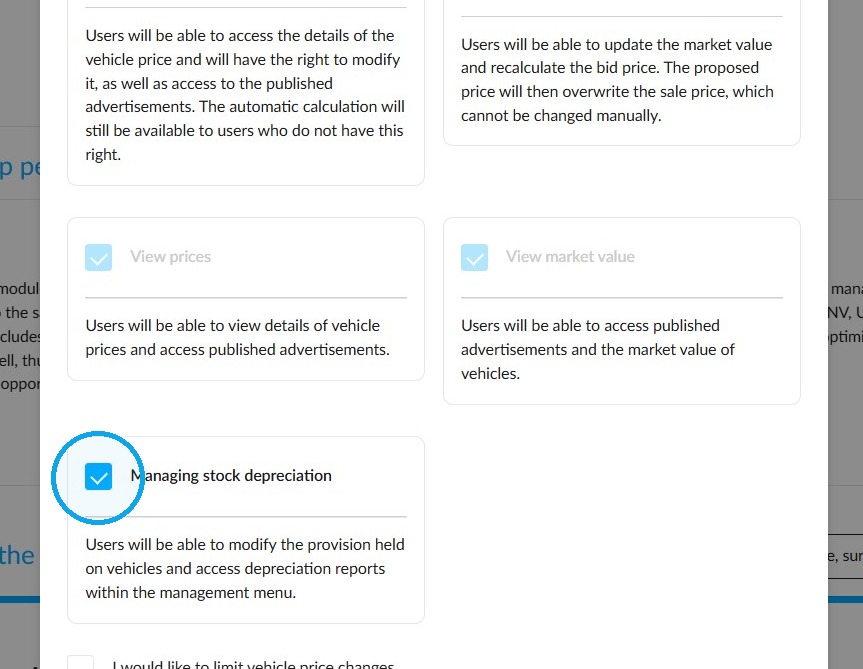
-The relevant user groups must have been granted the right to manage stock depreciation.
As a platform administrator, you can anticipate the depreciation of your vehicles. To this end, enable the 'Depreciation' feature.
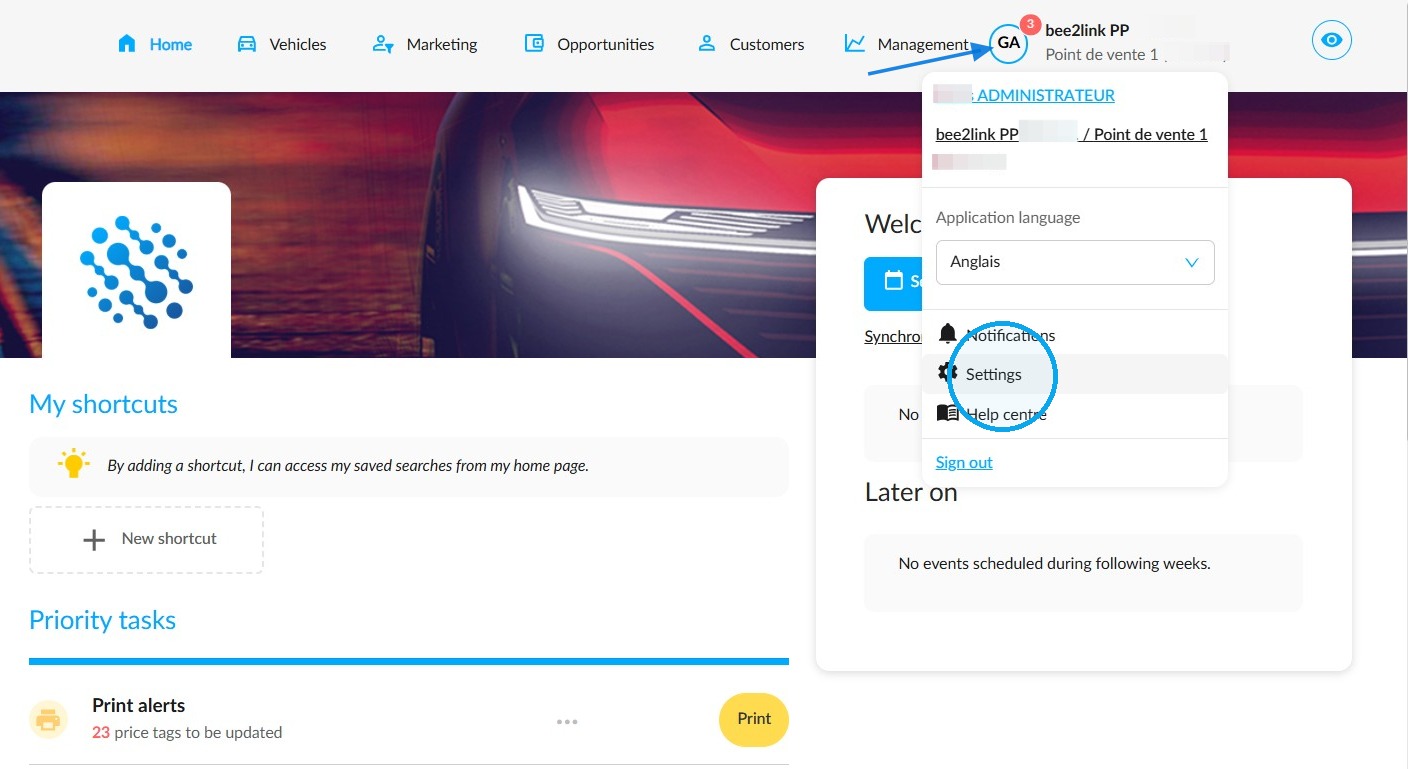
To do so, click on your initials on the OpenFlex homepage to access the platform settings.
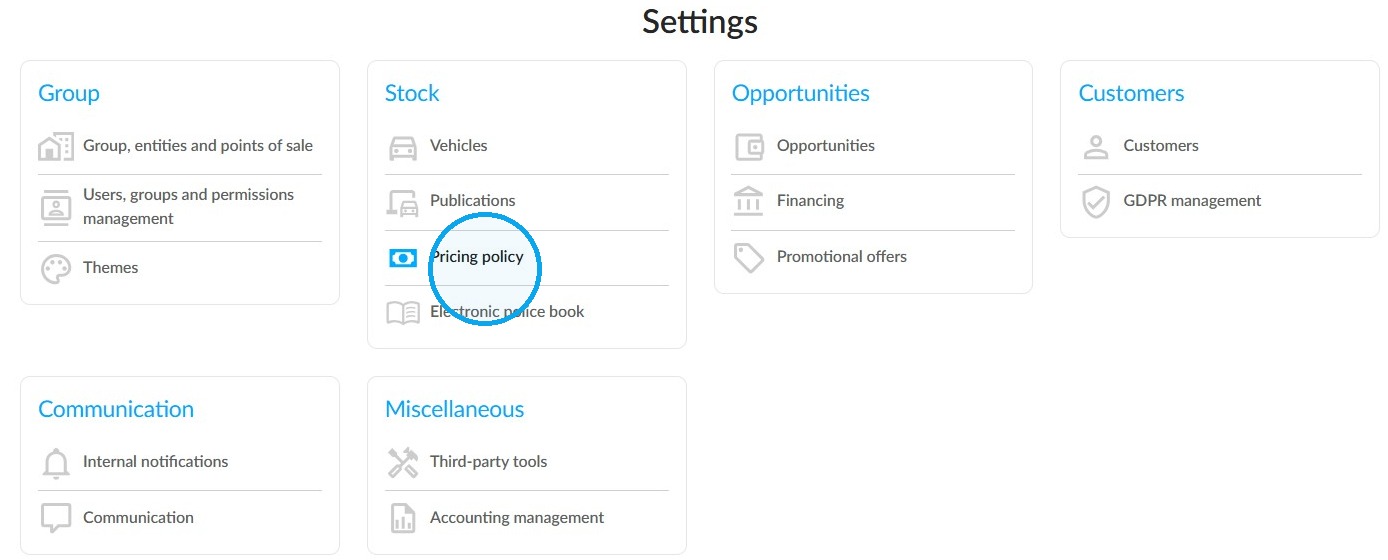
Then, go to the 'Pricing Policy' settings.
In the pricing policy overview, select the "Depreciation" menu, and then click the "Modify" button to set it up.
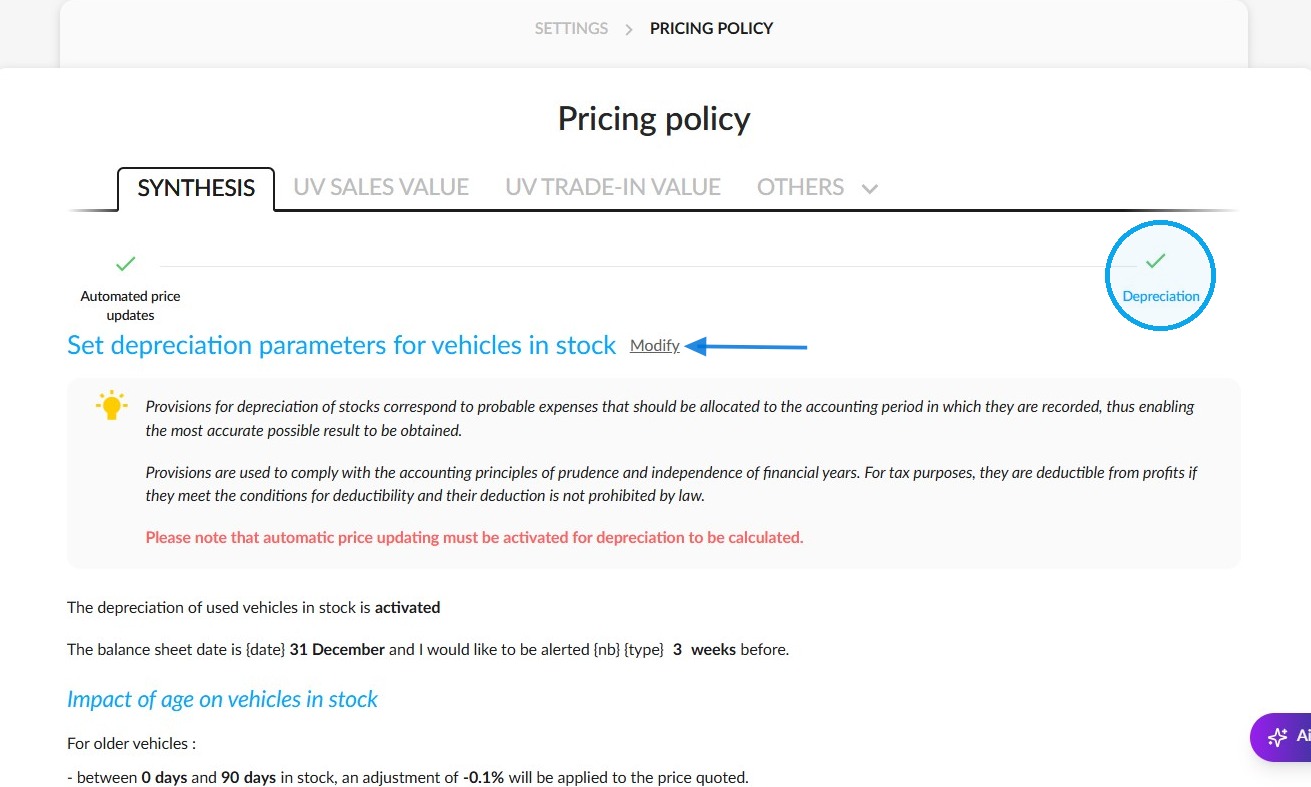
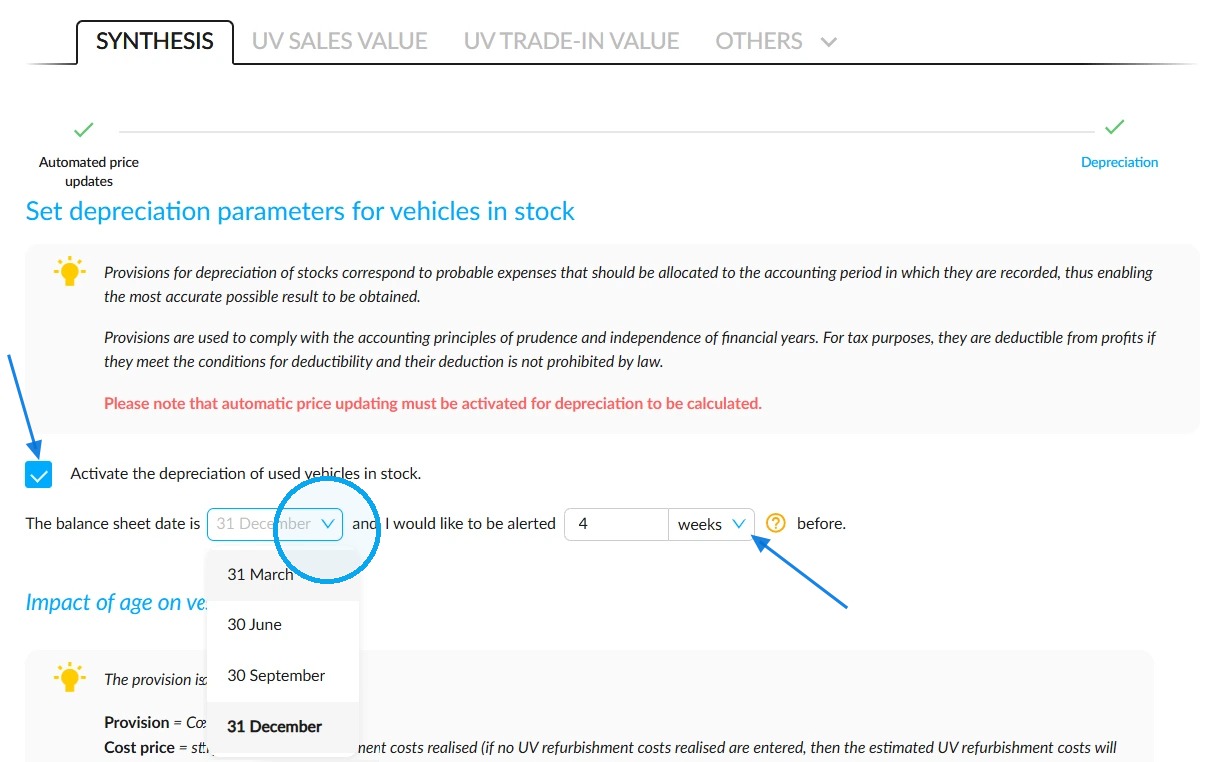
You can program the sending of an alert when you activate depreciation. This alert warns you about vehicles with no depreciation allowance before the balance sheet.
The deadline for receiving it can be set up in days or weeks and based on one of the dates available below:
Reminder:
The following are the provision calculation rules in the context of depreciation:
Provision = Cost Price - Future Price.
Cost price = Entry price + used vehicle repair costs paid (If no repair cost has been entered, we will consider the estimated repair costs).
Future price = Adjusted market value-Age impact, which is calculated based on adjusted market value.
There are two ways to determine the impact of age on future price calculations:
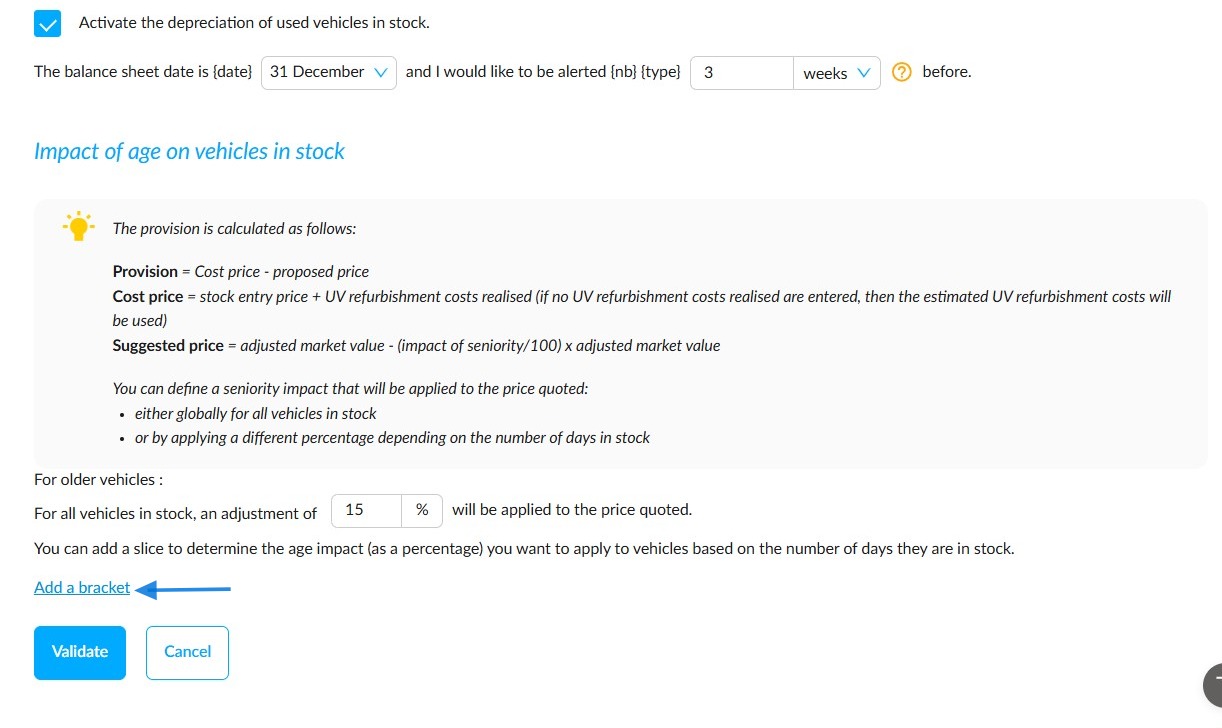
- You can apply a global adjustment to all vehicles, regardless of how long they have been in stock.
or
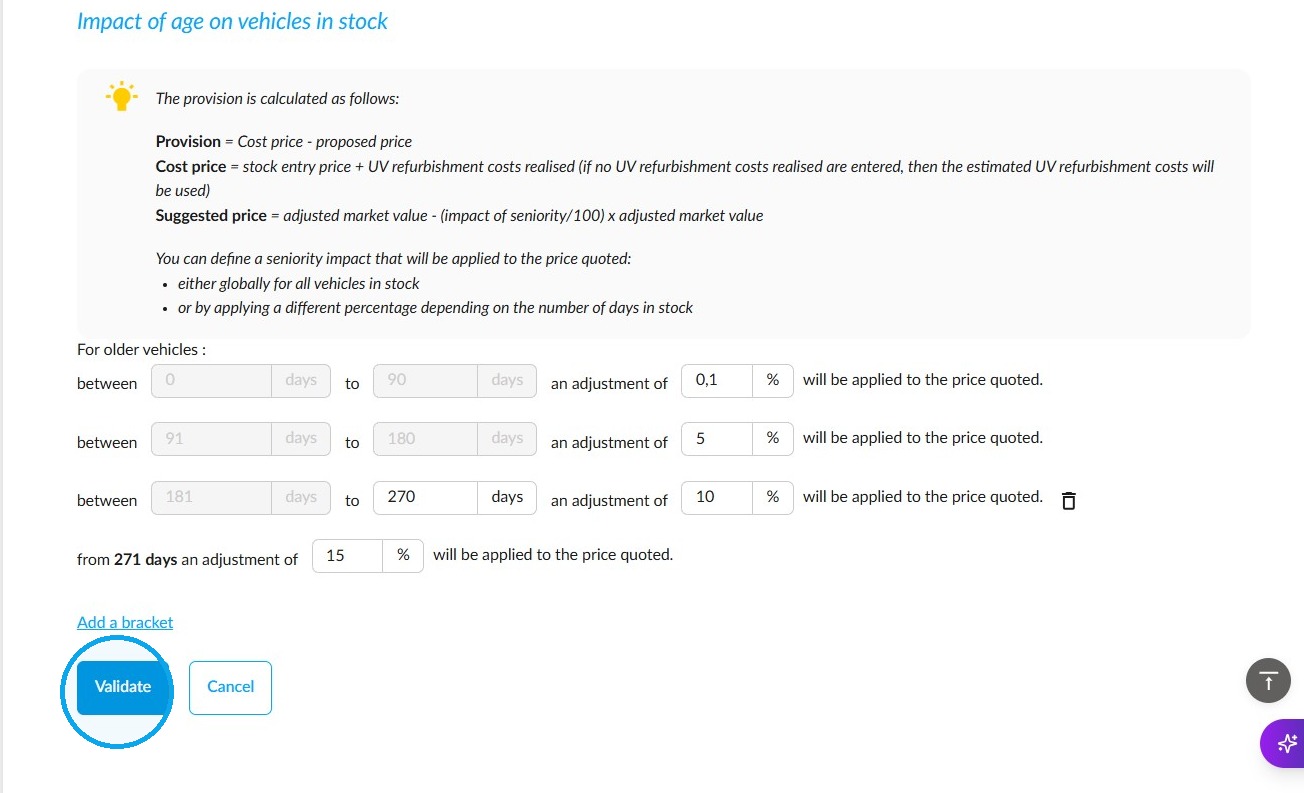
- You can also configure several additional adjustments across different age ranges within the stock.
If you prefer the second possibility, click on "Add a bracket".
The final adjustment bracket will apply to all vehicles that are older than the programmed threshold.
Reminders:
- Changes to percentages are not applied immediately. Instead, they will be applied at the next automatic price update. This update takes place after 7, 15 or 30 days, depending on the set frequency.
- All used cars are included in the list of vehicles to be depreciated, from ‘physical entry’ status through to delivery. Those intended for scrapping and those on consignment are not included.
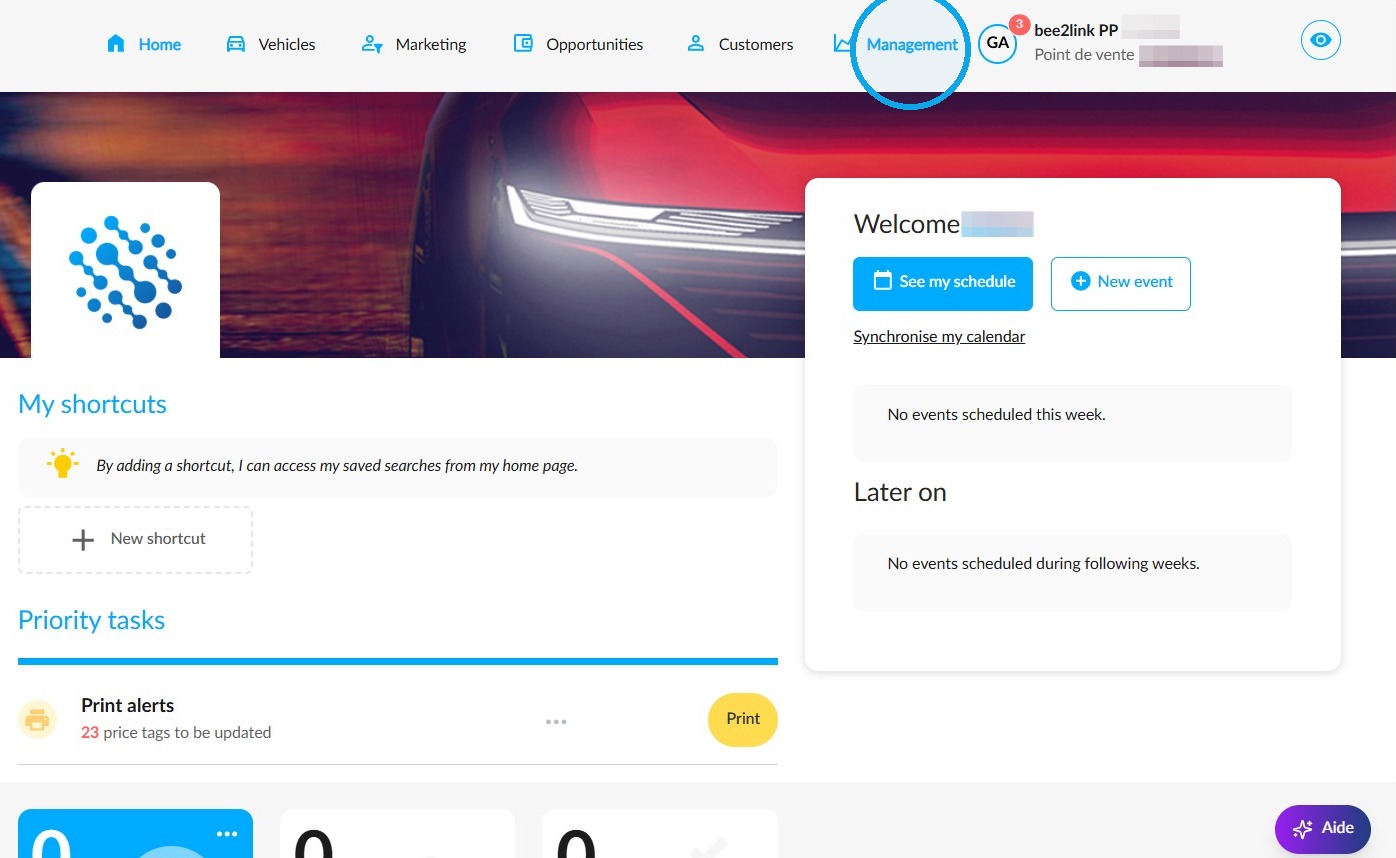
On the homepage, you can view depreciation reports in the Management area.
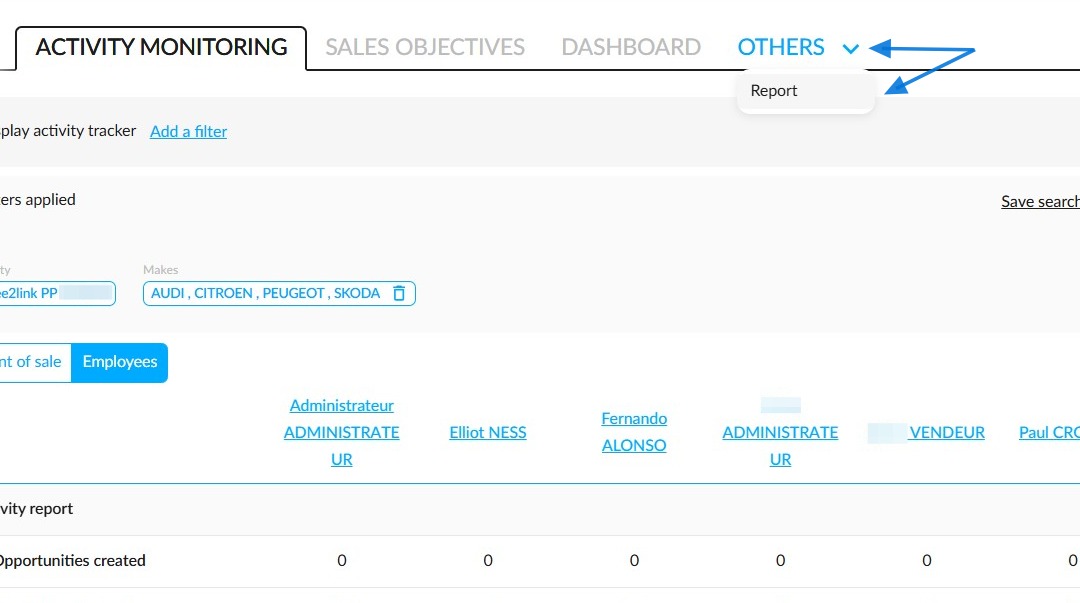
Access the depreciation reports by clicking on the 'Others' menu.
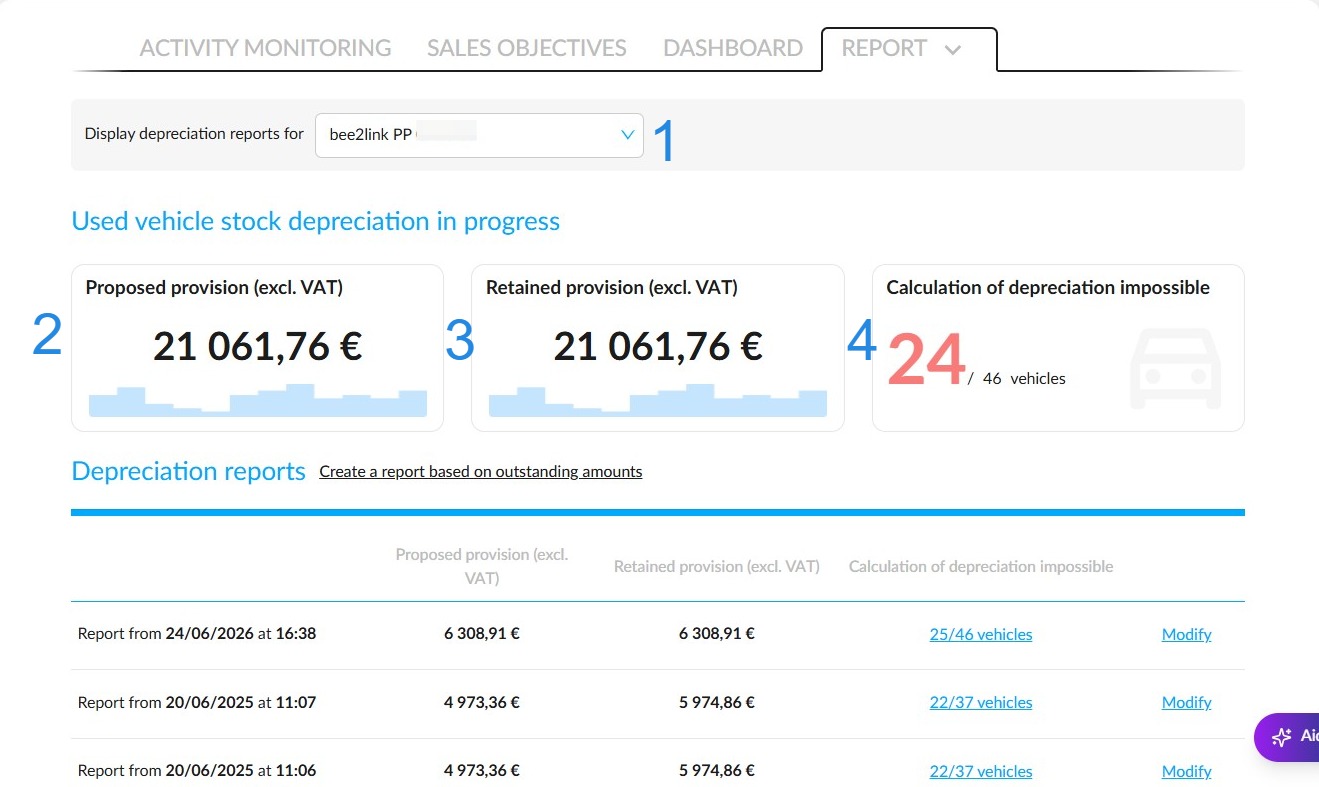
Depending on your access rights, you can view reports for all entities for which you have an account and the necessary permissions. (1).
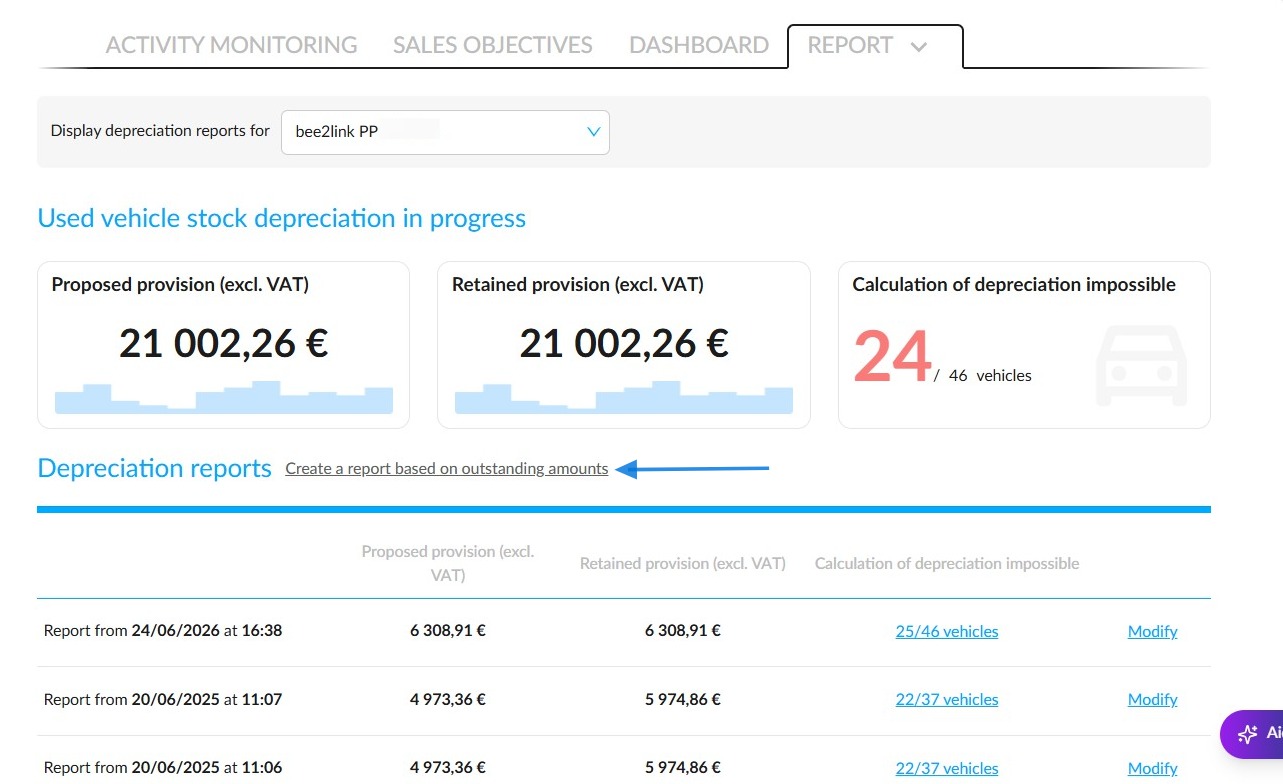
Three pieces of information are displayed at the top of the outstanding depreciation table:
The total amount of the provision proposal (excl. VAT). (2).
The total amount of provisions set aside (excluding VAT) (3).
And
A shortcut to the list of vehicles for which the provision could not be calculated. Please check this list before producing the report (4).
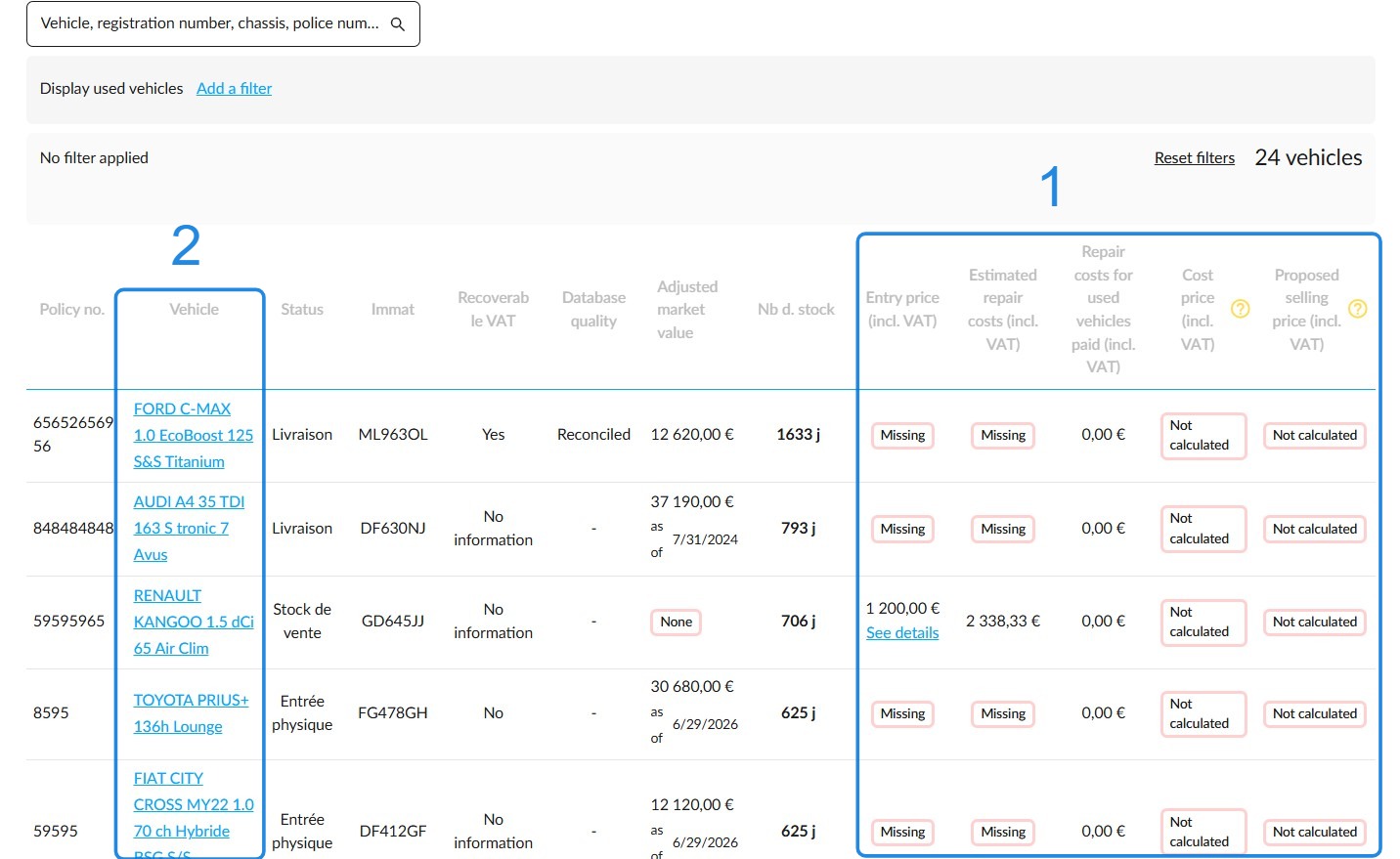
-This list contains all the motives that made the calculation impossible (1).
-If you click on the shortcuts that redirect you to the UVs files, you can fill in the required information to restart the calculations (2).
Clicking on a shortcut opens a new tab on the UV file that needs updating.
Then click on the pencil icon and enter the missing information, which will enable the depreciation to be calculated.
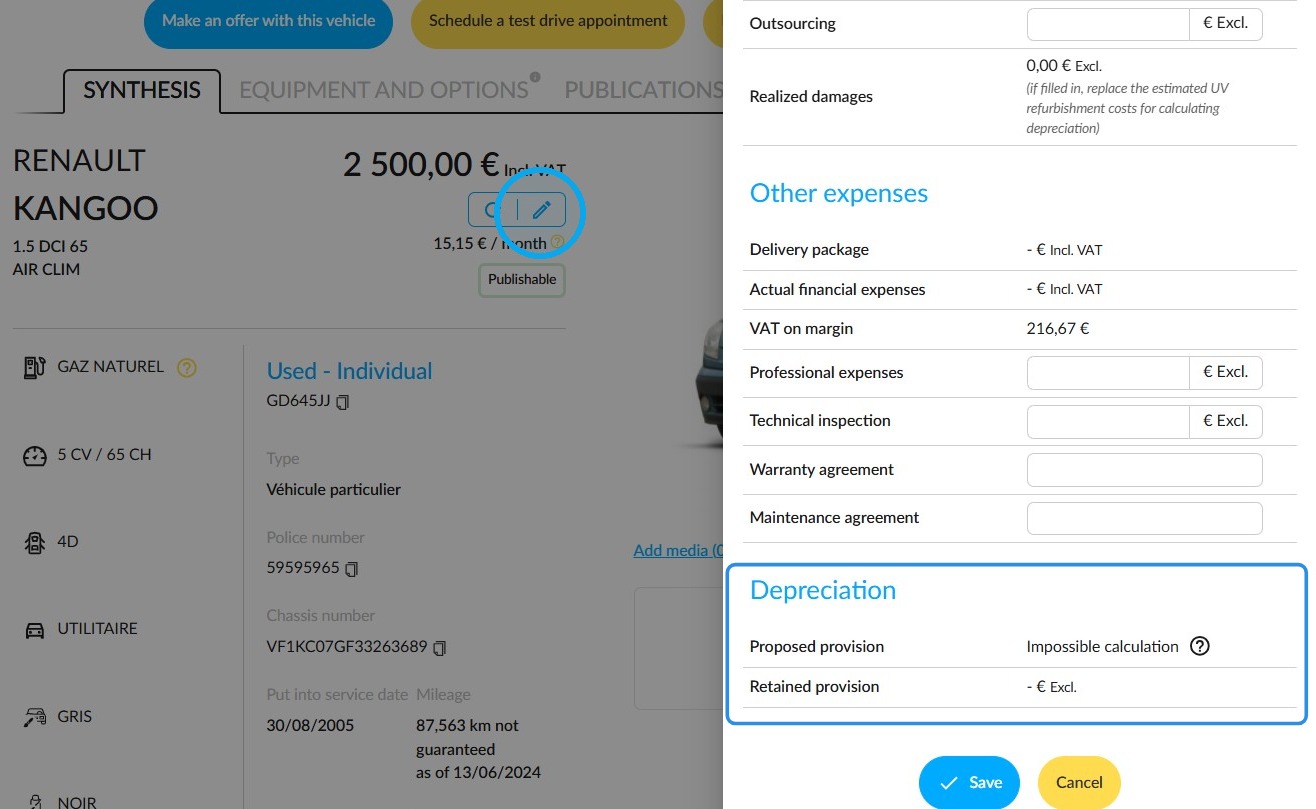
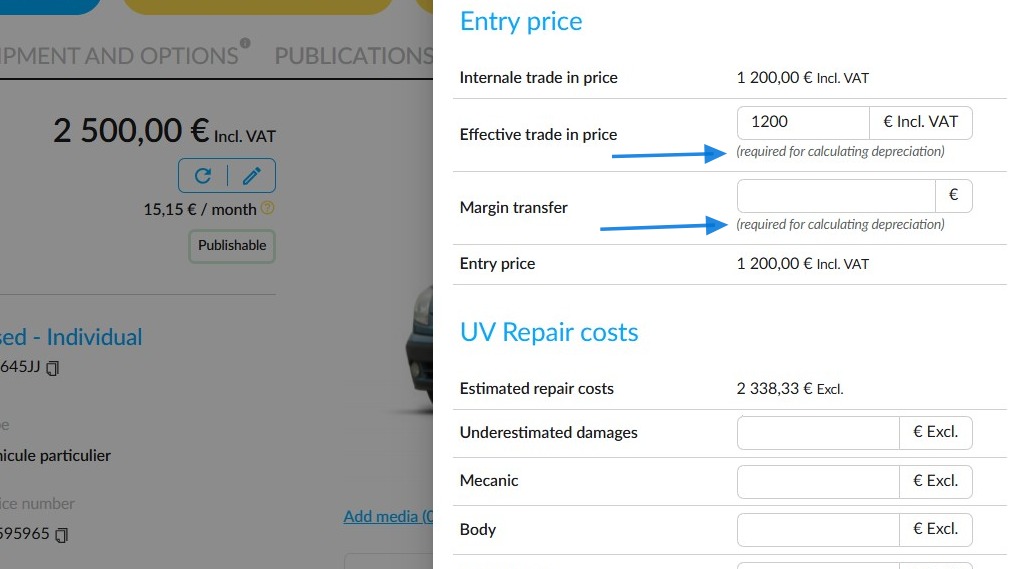
Indicators will show which fields need to be completed.
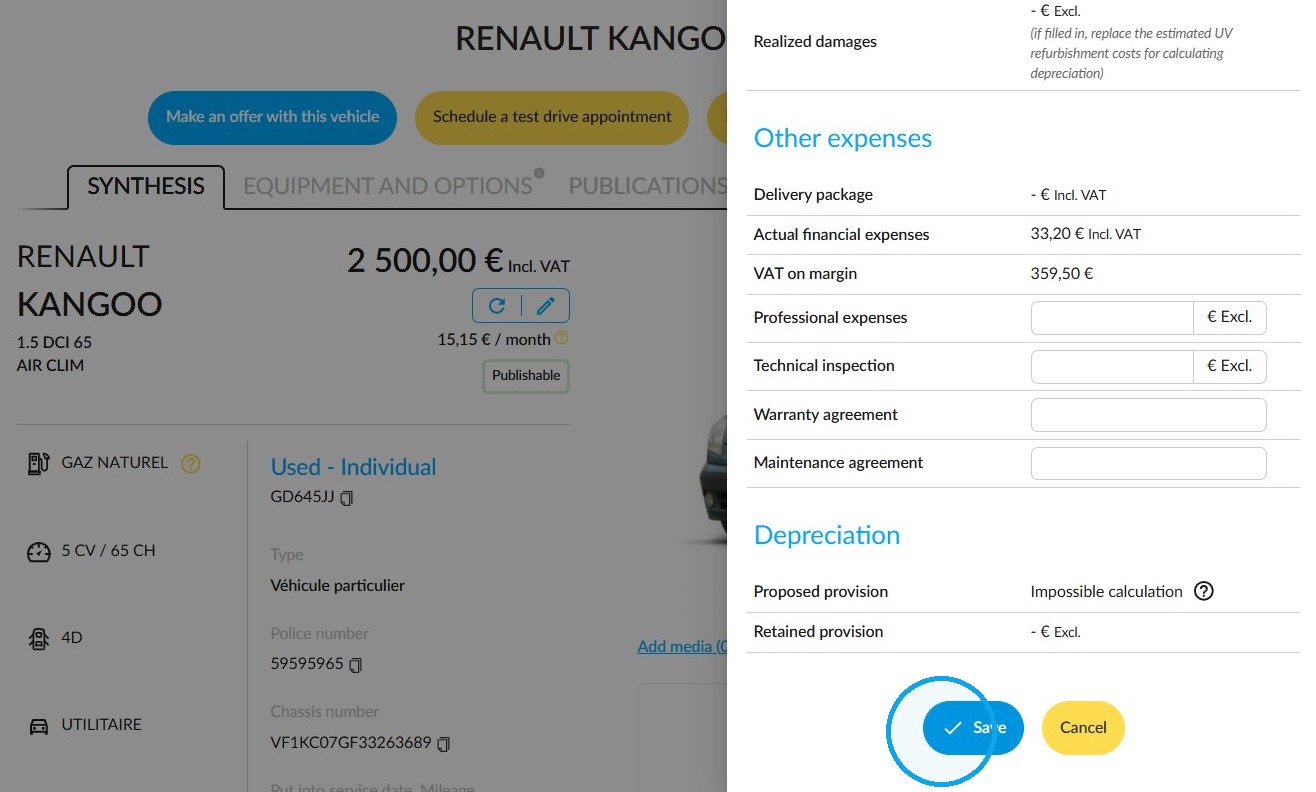
Then, save your changes to allow the calculation of the provision proposal and close the drawer.
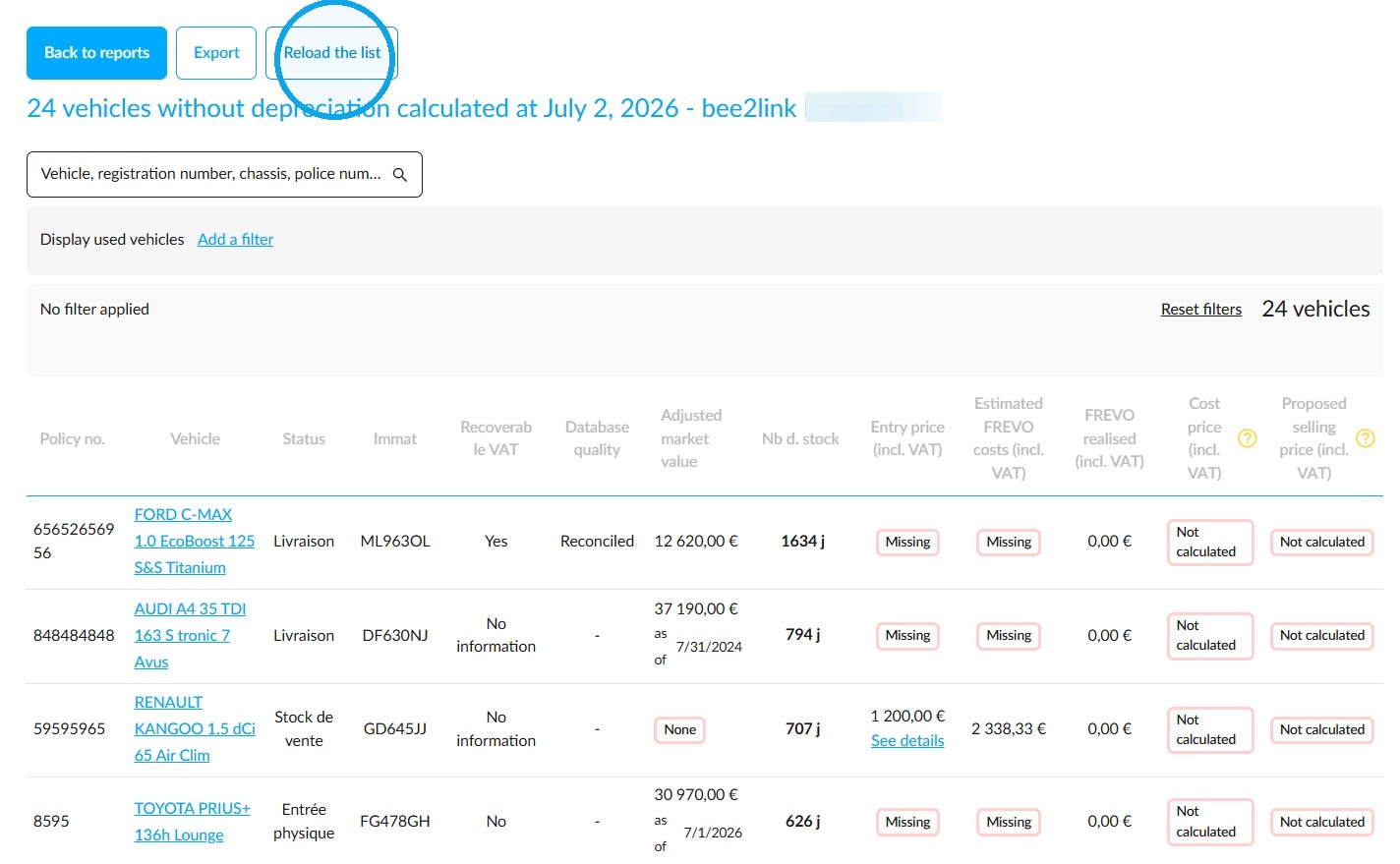
Simply click the "Reload the List" button to update the list of vehicles to be processed.
Once the stock is up to date, click on "Create a report based on the outstanding amounts".
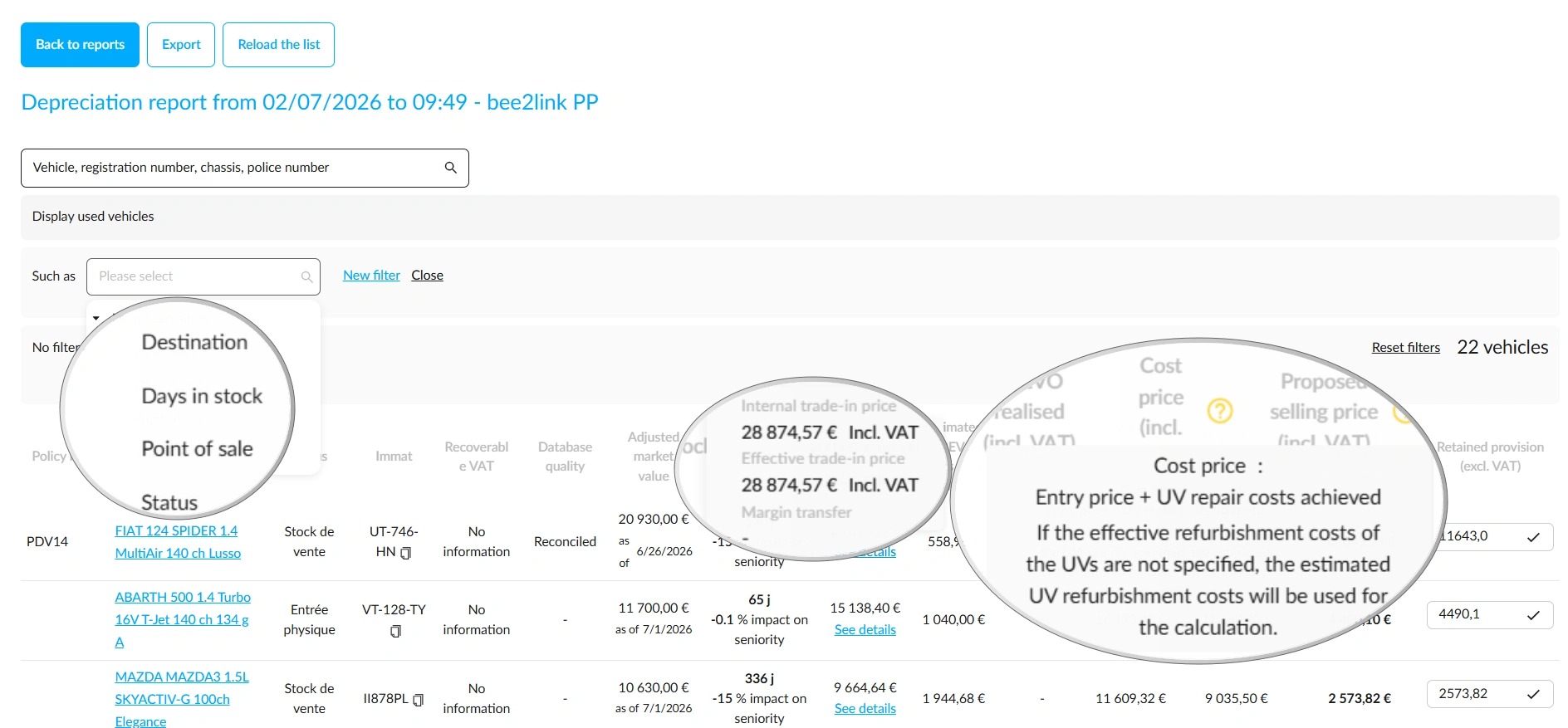
Once you are on the new report, you will see several filters that you can use to sort the displayed results.
To view the breakdown of the entry price (incl. VAT), hover your cursor over the "See details" label.
Tooltips at the top of the table columns will explain how the cost price (including VAT), selling price (including VAT) and provision (excluding VAT) are calculated.
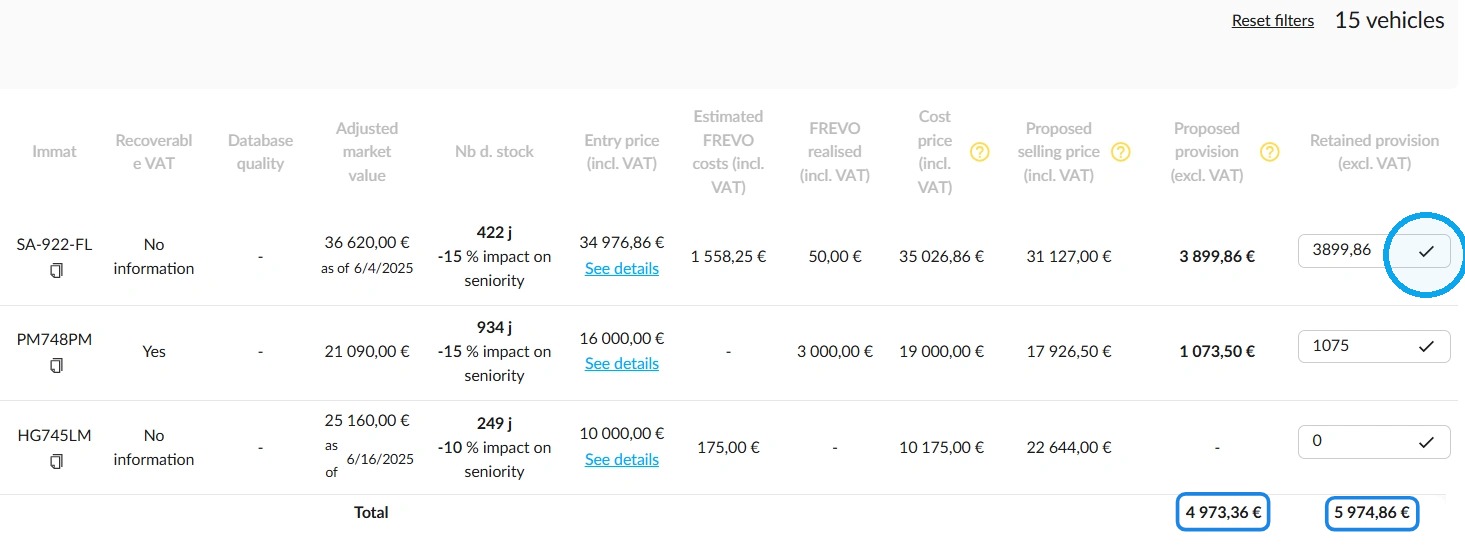
By default, vehicles are displayed in descending order according to the amount of the provision proposal (excl. VAT), so that you can process the highest amount first.
Enter the amount of the provision you want to set in the last column, then save to ensure it is considered.
Repeat this process for each provision proposal that you have to process.
The total amounts of the proposed provision and of the established provisions (excl. VAT) are shown at the bottom of the table.
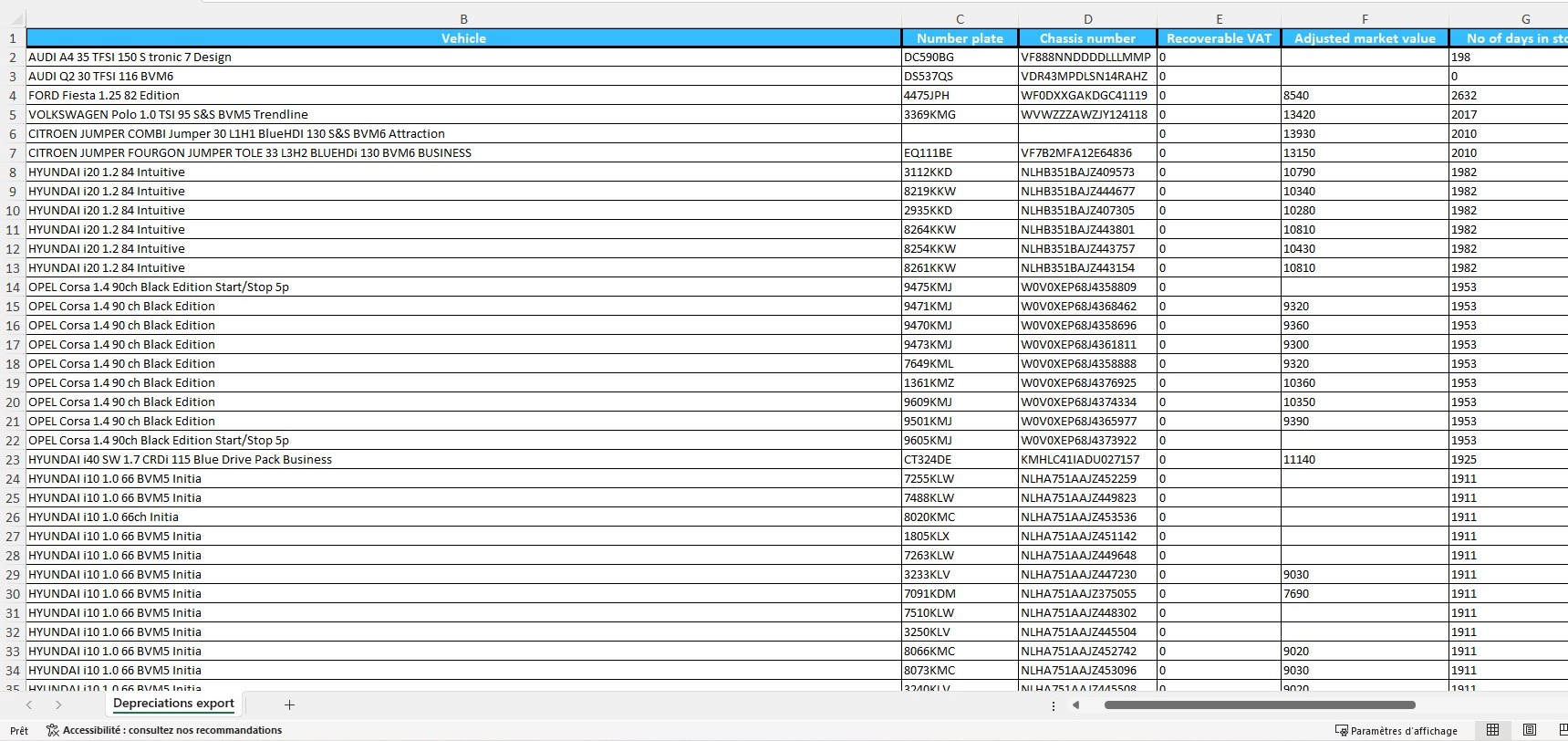
You can then export the depreciation report as an XLS file.
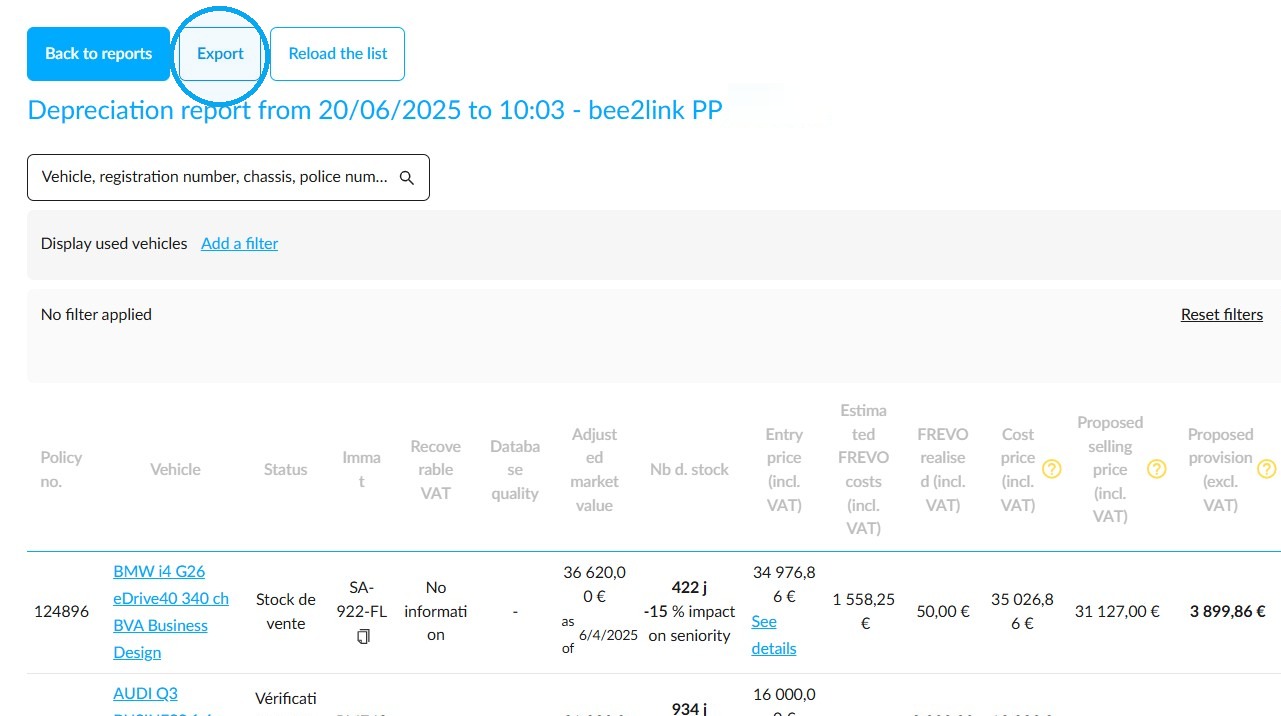
Below is an example of an exported depreciation report:
Comments
0 comments
Article is closed for comments.