
Find out the new features available on the OpenFlex platform

Vehicles
1) Mass printing of documents in the 'Vehicles' module:
It is now possible to edit massively all kinds of documents from the vehicles module.
The concerned documents are:
-Price displays in portrait and landscape formats.
-The documents showing the information of the vehicle.
-The documents which enable to create the administrative file (insurance certificate, car registration document transfer certification).
-Repair requests and delivery notes.

To achieve this, we recommend applying filters to target the documents you want to edit, depending on the vehicle type (NC, DC or UC).

Here is an example with DVs and UVs intended for individuals with the 'Sales stock' status.
Press the 'Print' button once you have added the desired filters.

Select all the necessary documents for each vehicle type.

Notes:
-Documents that can normally be modified for individual printing cannot be modified for mass printing. The system will keep information that was entered on a document before getting edited again during a mass printing.
Documents which can be selected during a mass printing will match the types and specificities of the vehicles that have been filtered previously.
Once you have made your choice for each kind of vehicle, click on the 'Print' button.

A notification will appear on the screen to let you know that the documents for mass printing are being prepared.
The preparation time will depend on how many documents are required.

Once the documents are ready for download, click on the notification to download a ZIP file containing all the requested documents.

The documents in the ZIP file are organised by vehicle type.
You will need to extract the documents from the file before printing them.

2) Changes to the way unlimited reservations work:
The 'unlimited reservations' system is changing. From now on, you can choose to make vehicles that have been reserved for an unlimited duration available for sale and publication.

When you click on the 'Reserve the vehicle' button, a new window will open offering you two options.
'Block the sale and publication': this works in the same way as before the platform updates (vehicle on standby in stock = not publishable or sellable).
Or:
'Authorise the sale and publication': a new process that allows you to put the reserved vehicle on sale until the 'Validated offer' phase (valid for individuals and traders). The vehicle will also be available for test drives and publication.

Warning: if you allow the sale, the order will be blocked until the unlimited reservation for the vehicle is removed.

Any actions carried out when an unlimited reservation is placed will be listed in the reserved vehicle's history.

3) Optimising the history of price changes:
To help the manager keep track of all price changes, the history of NVs/DVs and UVs will show details of all actions carried out, including the author, date and time of each action.

For NVs, changes to catalogue and selling prices, along with their respective amounts before and after the modifications, will be presented in the history.
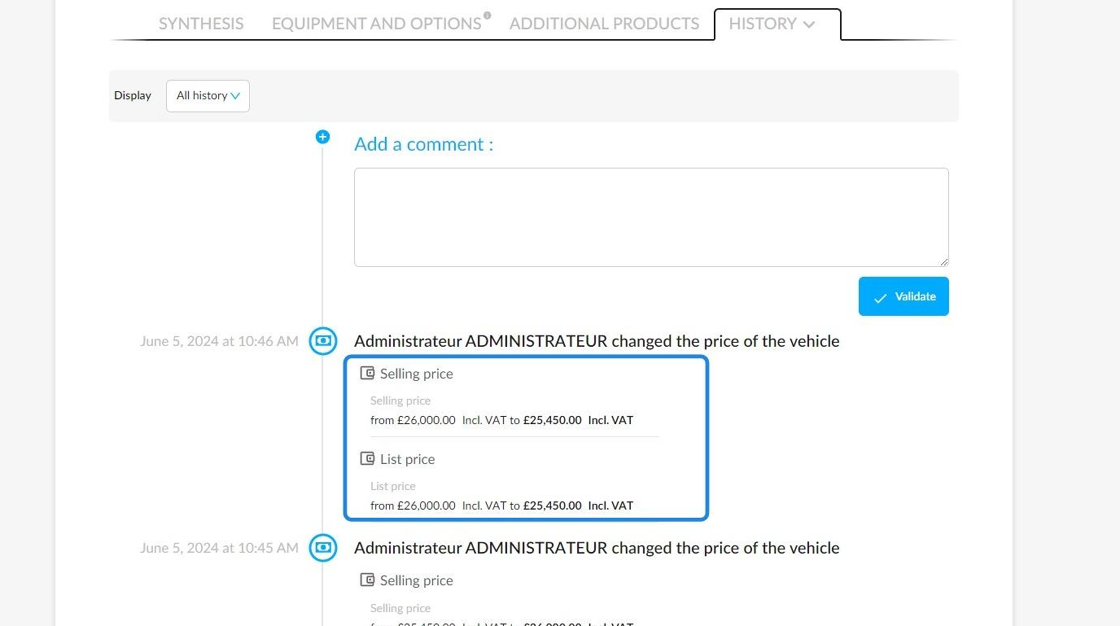
The applied discounts, along with their amounts and impact on the selling price, will also be recorded in the NVs history.

In the case of the UVs (both individual and professional), details of all price-impacting modifications will be written in several sections.
- Selling price.
- Entry price.
UVs restoration costs
- Other costs (professional costs and vehicle safety inspection).

Here is an example with the restoration costs:

Detailed view:

Improved filtering of lifeline statuses:
In order to filter clearly the statuses when a user can access several entities, we have optimised the display of customised statuses in the vehicles module filters.

Therefore, customised statuses added to the lifelines of entities that are accessible to users will be gathered in one dedicated section.

Example with the customised status 'Cosmetic preparation':

Notes:
If a customised designation is identical across several entities that form part of one group, it will only be visible once in the filters.
Selecting this filter will display all vehicles with statuses matching this wording across the various entities.

However, if the wording of the customised status spelling is similar although different from another customised status designation on one of the group's entities, then a additional filter will be generated in the selection.

As a result, you will need to select two filters instead of one to be able to see all vehicles with similar statuses in a group.
Example:

New: processing of vehicles to be entered for administrative registration:
In order to make it simpler to monitor the UVs stock and the trade-ins billing, a new filter entitled 'Purchase to be confirmed' is available in the vehicles stock table.

When you select it, you will be able to find the UVs from a trade-in linked to an order that have been billed by the DMS.

Depending on the situation, you can then either place the vehicle in stock or remove it.
A detailed reminder will appear at the top of the sheet for the relevant UVs.

Opportunities
1) Creating an 'Existing trade-in estimate' alert:
An alert will be generated in OpenFlex when a trade-in estimate is detected as already existing on one of the entities in a group.
The alert will apply to trade-in estimates less than 6 months old for in progress opportunities.
An already existing trade-in detection will be based on registration and chassis numbers.
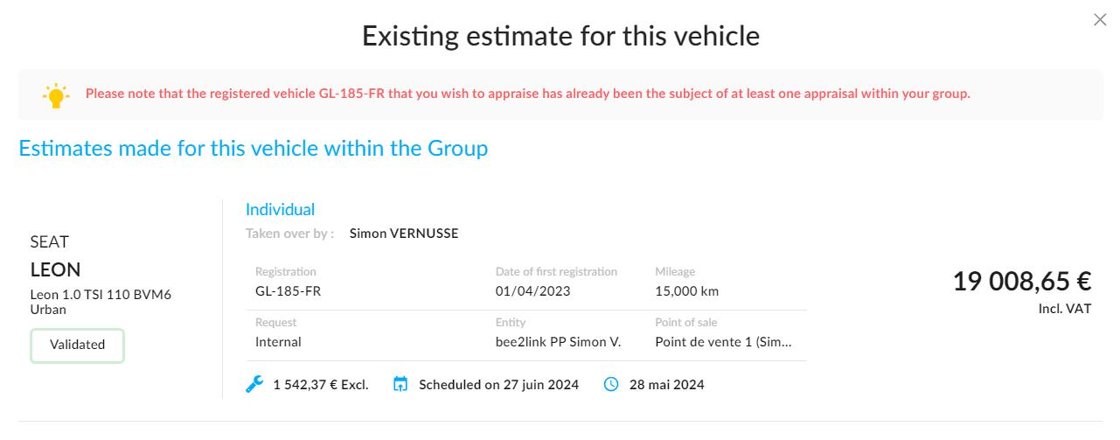
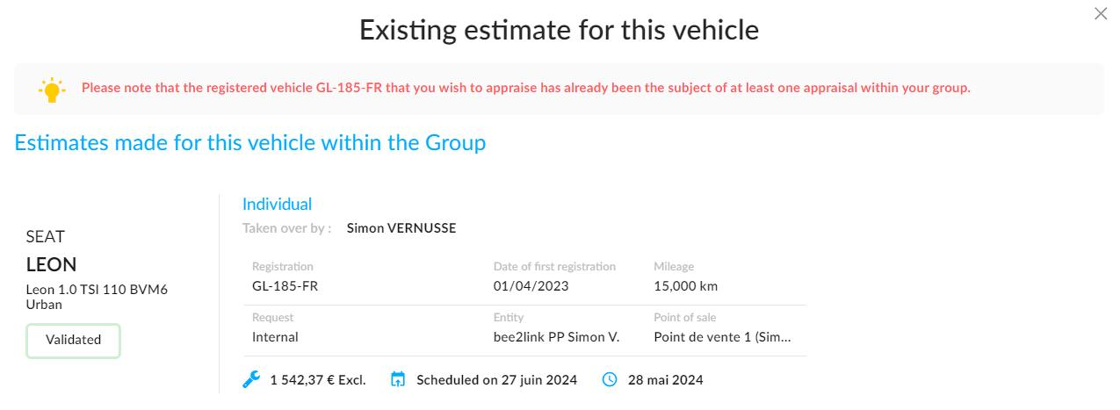
There will also be a notification in the estimate to warn you. It will contain a link to other existing estimates.

Example:

In this case, if a seller does not have the right to validate trade-in prices himself, he will not be able to see the previous trade-in prices:
On the contrary, users with the permission to confirm trade-ins (Managers, autonomous sellers) will be able to see the previous trade-in prices:

2) New: managing the price of a trade-in intended for professionals:
Prerequisite: have the permisison to confirm trade-in offers.
From now on, you will be able to influence the trade-in price offered to customers when they intend to trade in their vehicle with automotive professionals.

Based on the price given by the professional and the expected margin, it will be possible to:
- Round up the trade-in price offered to the customer.
Reduce the trade-in price offered to the customer
Or
- Ask the manager for a higher trade-in price if you do not have the right to validate trade-in offers.

Example:
Trade-in price generated by the algorithm with a value that has to be completed:

Modification of the customer trade-in price, updated margin calculation:
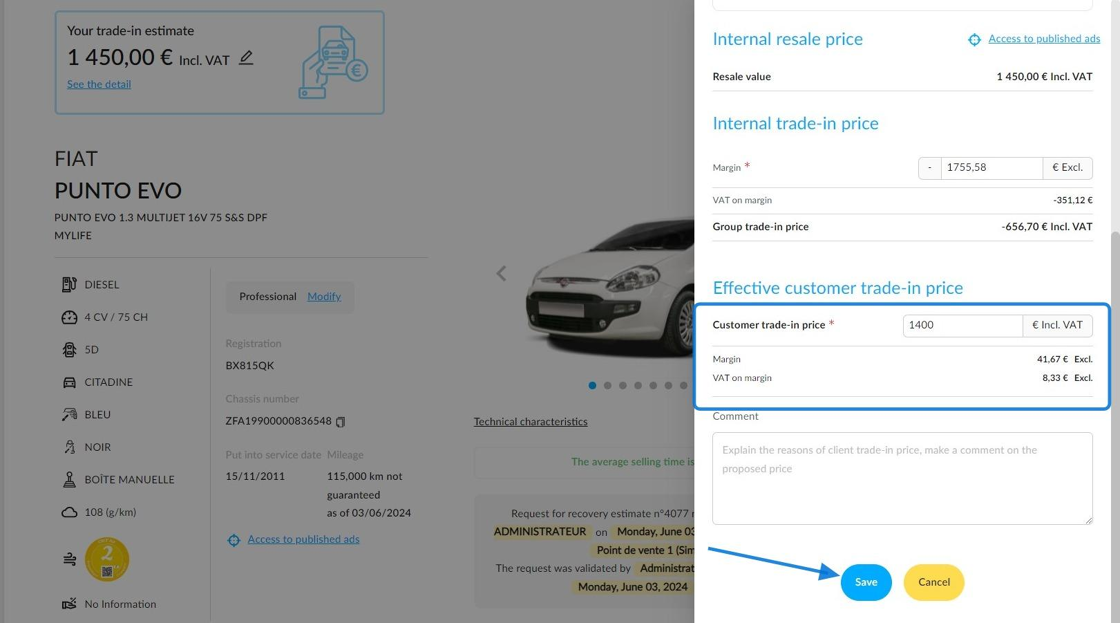
Final trade-in price:

Management
1) Integration of a new filter in the ‘Management’ module:
A new filter is available in the 'Management' module: filtering by source of purchase.
It is available in the 'Sales objectives' and 'Dashboard' menus.

Consulting the sales opportunity indicators and filtering by source of purchase will only take into account the source of purchase of sold vehicles.
You can select several purchasing sources in the associated drop-down menu.

When consulting the indicators for trade-in opportunities, filtering by source of purchase will only consider the source of purchase for trade-in vehicles.
You can select several purchasing sources in the associated drop-down menu.

When consulting the 'Sales objectives', filtering by purchase source will only consider the source of the vehicle sold.
You can select several purchasing sources in the associated drop-down menu.

Comments
0 comments
Article is closed for comments.