

Vehicles
1) Optimising information display:
The information display in the Vehicles module has been improved to make managing and monitoring vehicles in stock easier.
Coloured vertical bars have been added to help you differentiate between vehicles belonging to your entity and those belonging to others.

The format of the vehicle type display has been changed as follows:
Before this update, the column describing the vehicle type included the following wording:
For UV: 'Used individual/Used professional'
For DV: 'Demonstration'
For NV: 'New'
From now on, the vehicle type display will be as follows:
For UV: 'UC Individual/UC Professional'
For DV: 'DC'
For NV: 'NC'

The column showing the vehicle version has been widened:

The column showing the vehicle status has been widened:

As well as the one showing the warranty:

The display of points of sale and physical locations has been changed to remove the wording 'physical locartion' and 'points of sale' from the corresponding columns.
Example: the new point of sale display.

Example: old display

2) Simplifying NV/DV/UV price management interface:
Before this update, several operations were necessary to access the menus that allowed you to manage NV/DV/UV selling prices. You had to click on the 'See details' button and then on 'Manage prices'.

Therefore, to simplify access to selling prices and discounts, a new button has been added that allows you to make changes with one click.

Here is an example of a change in catalogue price, with the addition of a discount on a DV:

Here is an example of a change in the selling price of a UV:

This button has also been added for trade-in estimates for users with the apprpriate rights:

3) New: creation of the customer mode
You can now hide 'sensitive' commercial information from customers during business appointments by switching to 'Customer Mode'.

In 'normal' mode, the standard data used for managing a stocked vehicle is visible.

In 'Customer' mode, the sales representative can show a prospect pictures or data about the vehicle history at the bottom of the page without displaying information about trade-in prices, margins and market values.

4) Hamonising and simplifying functioning of filters:
The date-based filtering system has been updated to make managing stock in the Vehicles module more intuitive.
Previously, it was possible to filter dates in various ways. For example, you could filter by a date that was greater than a specific day, or by entering a date range.

To make using filters simpler, a new method is now available.
This applies to filters that allow you to search for cars by date. The relevant filters are as follows:
First registration date
- Entry into stock date
Order date
- Delivery date
Extreme delivery date
Forecast entry date
Exit date:
You will be able to order them by time period.
Day
Week
Month
Quarter
year.

For example, filtering by the date of first registration and sorting by month:
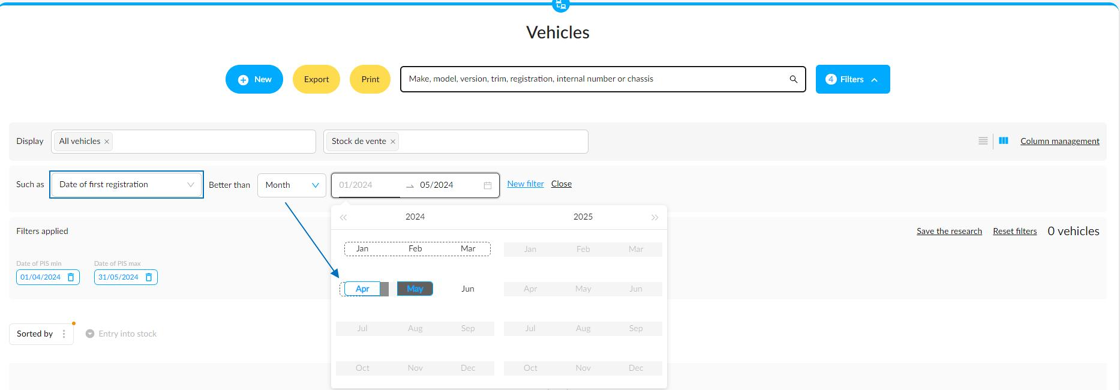
For example, filtering by the date of first registration and sorting by week:

5) New: adding video links on vehicle sheets
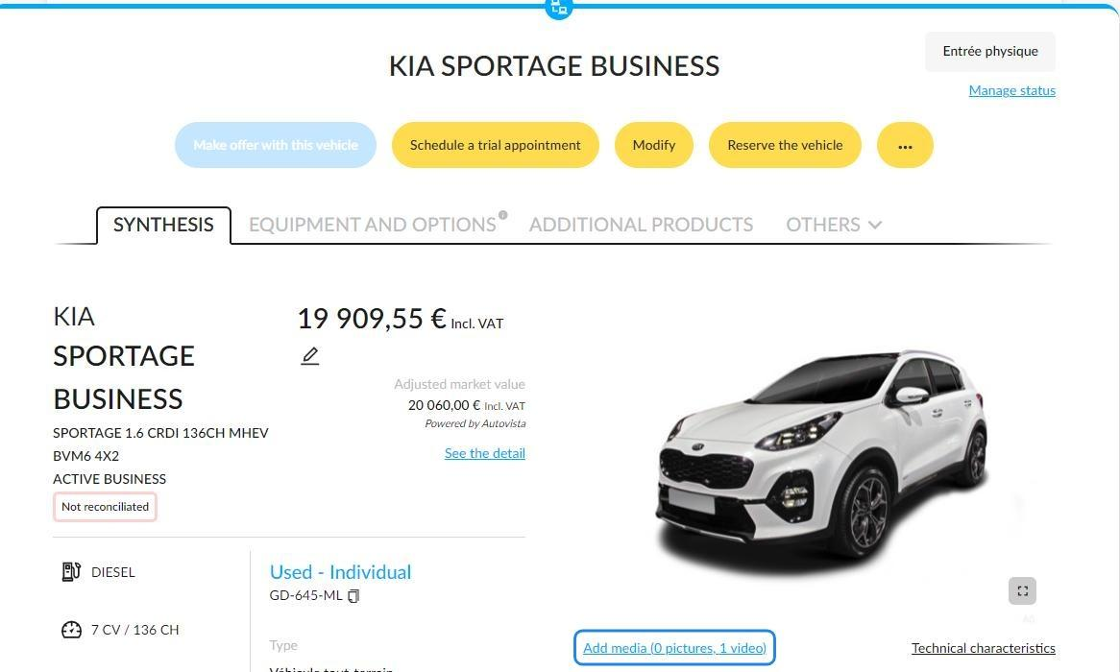
A dedicated space for storing video links has been added to the visuals section of vehicle data sheets.

To add a video, simply paste the vehicle video link into a template.
The template wording will correspond to the elements presented in the video.
• Exterior
• Exterior
• Showroom
• Other

Example:

A coloured circle indicates the presence of video links and photos in a vehicle file.

The number of video links added to a vehicle file is counted.
6) New display of customised features in filters
You can modify the features of a vehicle on a vehicle sheet when it has been 'customised' or when the reference database provides incorrect data.

Before this update, manually modified elements could neither be filtered nor viewed in the stock management table.
They were also not visible on sales documents or presentation posters. They were also not visible in publications.
Here is an example of a UV with a manually added energy (ethanol) that differs from that suggested by the database (petrol).

View of the energy column in the table showing the UV stock: only the energy 'Petrol' is displayed.

View of the available filters by type of energy: 'Ethanol' cannot be selected.

The features customised by users will now be taken into account in the following:
- tables presenting the stock of vehicles.
- filters by energy, body, gearbox, type and family (the family filter is only available for motorcycles).
- Sales documents (offers, order forms, description sheets, trade-in estimates, second opinions, etc.).
Presentation posters and publications.
When selecting a filter, you will be able to filter by the customised data that you have added or by data from the database that matches the default features.

7) Highlighting the UV adjusted market value:
Previously, you had to click on 'See the details' on a used vehicle listing to view its adjusted market value.

The adjusted market value of UVs will be visible directly in the synthesis, making it easier to read the data that enables a trade-in price to be corrected.
If a UV does not have a market value, no data will be displayed.

The adjusted market value will be hidden when customer mode is activated.

8) Redirecting to the database matching lock area:
In the past, after completing a database search, users would switch to the file of the vehicle they had just checked. They then had to return to the homepage to access the lock area again, where all vehicles to be reconciled are listed.

To make stock managers' work easier during database reconciliation processes in the lock area, we have redesigned the system to enable vehicles to be qualified successively.
After a database match, they will remain in the lock area to continue processing vehicles without interruption.

Opportunities
1) Sending automatically vehicles without a market value intended for bidders:
Prerequisite: automatic trade-in validation must be set up for vehicles intended for professionals.
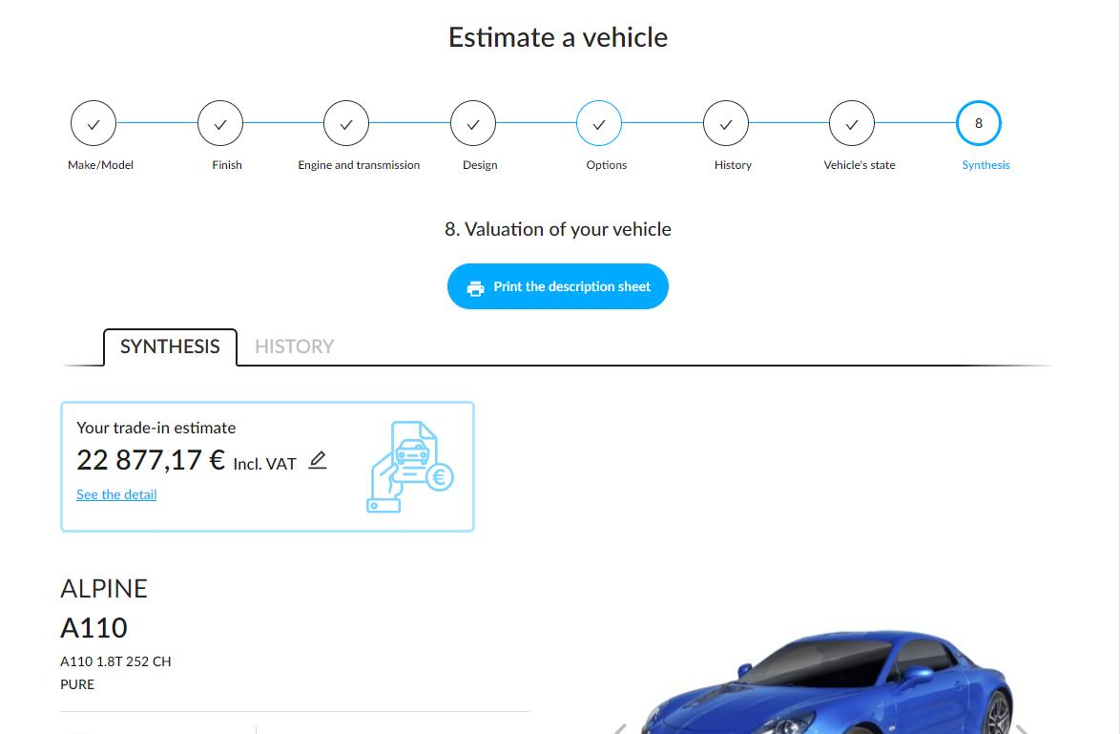
In the past, when a vehicle without a market value was traded in and intended for professionals, a user with permission to confirm trade-ins had to intervene to send the vehicle to bidders.
From now on, if the settings are correct, vehicles without a market value intended for automotive professionals will be sent to bidders automatically, without any intervention being necessary.
2) Sales to professionals: entry of administrative costs (optional).
When selling to an automotive professional, you now have the option of entering administrative costs. This is optional.

TThe amount of the invoiced fees can be added to the offers in two different ways:
1) Enter the amount covering all administrative costs of the sale in the 'Total' field. In this case, the administrative expense cost will be distributed automatically between each vehicle in the offer.

-2) Entering administrative expenses for each vehicle of the offer manually. The total amount will be calculated automatically.

A new section corresponding to the administrative costs you previously entered has been added to offers and order forms for professionals.

3) New display of trade-in prices:
Before this update, the trade-in prices displayed in the management menu were shown in fields that did not clearly indicate the destination of the trade-in vehicle.
For example, when a trade-in was sent automatically to professionals:

From now on, the trade-in price corresponding to the chosen or automatically allocated destination will be highlighted in contrast to the other displayed prices.
Here is an example of a display intended for individuals:

Customers
1) PriceBack: connecting merchants with all the entities in a group
Prerequisite: configure the sharing of customer files between group entities so that the merchant contacts are visible to each partner entity.
Before this update, it was necessary to connect the merchants who participated in the PriceBack campaigns one entity at a time in a group.

To save you time, you can now set up connections between merchants and entities within groups all at once.

The invitation email sent to the merchant will include a list of the distributors who will be partnering with them.


On the distributor's side, a new button labelled 'Manage connections' has been added to the customer sheet for automotive professionals.

Clicking on the designation of an entity connected with the merchant will make the 'Modifying connections' button appear.

Clicking on 'Modifying connections' will prompt you to confirm your actions.

Clicking on 'Yes' will delete the connection between the selected entity and the professional. Clicking on 'No' will maintain the connection between the entity and the merchant.

Comments
0 comments
Article is closed for comments.