
Please find out what's new on the platform.
Vehicles
1) Recognition of warranty wording entered using keyboard:
To avoid having to scroll through all the drop-down menus when selecting a warranty, it is now possible to manually enter the name of the warranty you are looking for, making the search more efficient.
This new feature has been integrated into all fields where a warranty is entered when adding or modifying it during the following steps:
• modifying a vehicle;
• changing the status;
• ownership transfer of a vehicle.

2) New way of managing and monitoring automatic transfers:
As part of the automatic transfers, employees responsible for processing transfers will now be notified by email to enter the transfer price of the vehicle being transferred via an opportunity.
These employees will be the same ones designated to validate transfers manually from stock to stock.

The process will be as follows:
An alert is generated in the form of an e-mail sent to the employees responsible for monitoring transfers. They will be asked to enter a transfer price following the validation of an order for a transferable vehicle.

Clicking on the link in the email will take them to the list of transfers to be validated. They can then indicate a transfer price by clicking on the 'See price details' button.

The entity making the transfer request will be notified once the transfer price has been entered:

Filters have been added accordingly to monitor the processing of manual and automatic transfers.

The type of transfer will also be indicated on the thumbnail of each vehicle displayed in the table.
The status of the transfer will also be displayed (Validated/Refused/Transfer price to enter).

3) Stock auctions: new commentary for automotive professionals:
A new field has been added to the 'Other data' section, that allows users to insert comments for professionals. This can be done from the vehicle fle.
Vehicles/Synthesis/Modify/Other data/Comment destined to professionals.

Once added, the comment for professionals will appear at the bottom of the synthesis under 'Additional information':

Car professionals can see it by consulting the details of vehicles put up for auction.

Opportunities
1) Importation of pictures related to the vehicle's counter-estimate:
In the case of a counter-estimate for a used vehicle, you can now add images of the trade-in.
The 'Trade-in' tab has been renamed 'Valuation and costs' to cover situations where the trade-in is conducted using tools outside OpenFlex.
You can access this tab from the used vehicle file.
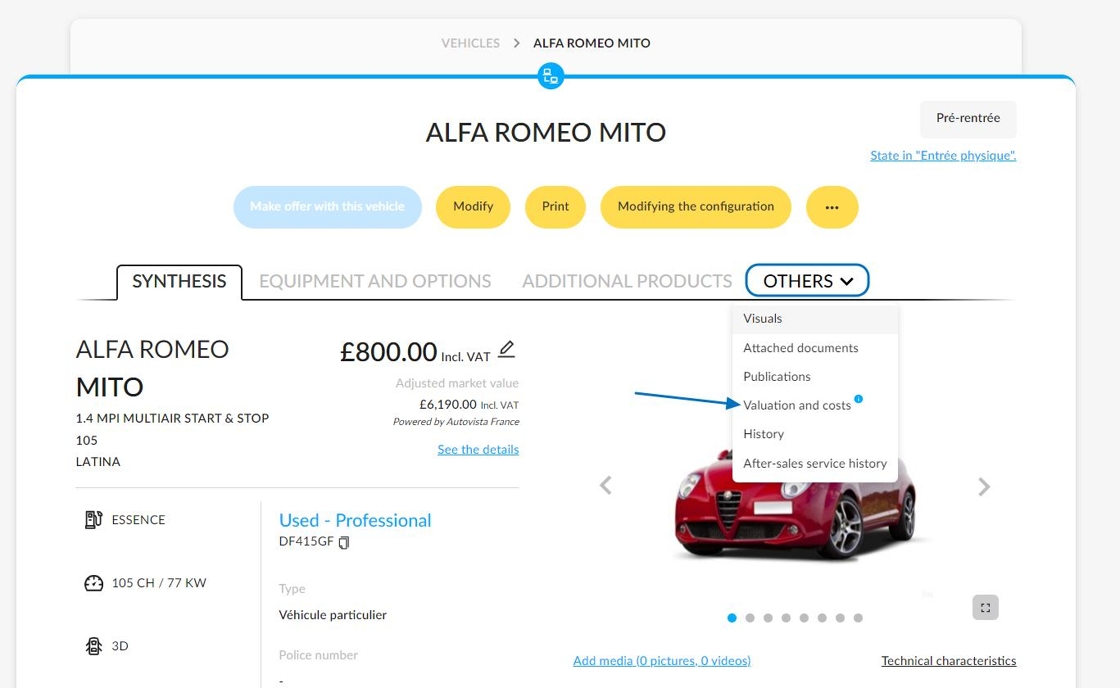
A specific insert has been designed for integrating images:

You can preview, download or delete an image by hovering your mouse over it.

A new 'Trade-in' filter has been added to the vehicle stock page to make it easier to search for traded-in vehicles.

This information is displayed in a 'Trade-in' column. This column must be added manually using the 'Column Management' tool.

There is also a sorting system in place to distinguish between vehicles that are trade-ins and those that originate from elsewhere.

2) New button to duplicate a saved search:
To make it easier to adapt searches to different situations, it is now possible to duplicate saved searches.
To do this, click on 'Modify search'.

An editing window will open, offering a variety of options. You can duplicate a search and adapt it to different needs.

If you wish, you can share the duplicated search before saving it.

3) Availability of offers for merchant lot orders:
A new intermediate stage is now available for processing orders intended for merchants.
You can now print an offer to make a proposal to an automotive professional.
This step is optional and printing an offer does not constitute validation. To finalise your opportunity, you can place the order directly.

The offer will always exclude VAT by default.

Example:

4) Optimised scheduling of test-drive appointments.
Previously, the following information was available when creating a test-drive appointment:
- The schedule of staff accompanying customers
- The customer's first and last name
- The number of the opportunity linked to the appointment
- The model being tested and its registration number
- The name of the point of sale where the test drive will take place.
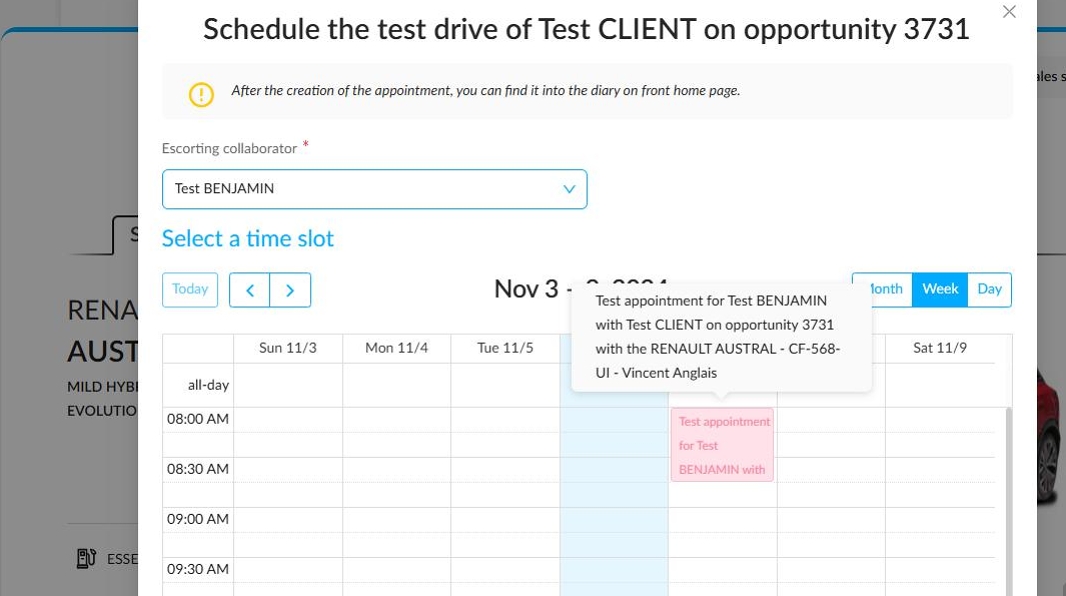
To optimise and respect the schedules of employees at points of sale, we have introduced a new display showing the availability of test vehicles and sales staff when users want to schedule an appointment.
When scheduling a test drive appointment, the calendar will show vehicle availability in the left-hand column and sales assistant availability in the right-hand column.

In addition to the information that was previously visible by hovering over an appointment, a wide range of information will be displayed:
- The name of the salesperson who will accompany the customer during the test drive.
- The name of the employee using the vehicle (if no employee has been assigned to this vehicle, no data will be displayed).
- The name of the sales assistant responsible for customer follow-up.
- The reason for cancellation and the name of the person who carried out an action that led to the cancellation of the test drive (unlimited reservation, 48-hour reservation, sale, etc.).

You will also be able to see this data when you view an employee's schedule:

It is not possible to schedule test drives for two different employees at the same time, nor is it feasible to assign two test drive follow-ups to a sales assistant at the same time.
This display is also available when an appointment for a test drive is changed.

Settings
1) Predefined integration of the point-of-sale stamp on sales documents:
We have adopted the point of sale stamp used for electronic signatures. This stamp will appear by default when sales documents are edited. This will save time. It will also avoid having to add the stamp of the point of sale where the user is connected to each sales document.
This stamp can be found in the settings for groups, entities, and points of sale. Go to the 'Others' tab to find the 'Stamp' menu.

If there isn't one already, you can add a stamp by downloading it from your computer or dragging it onto the page with your mouse.
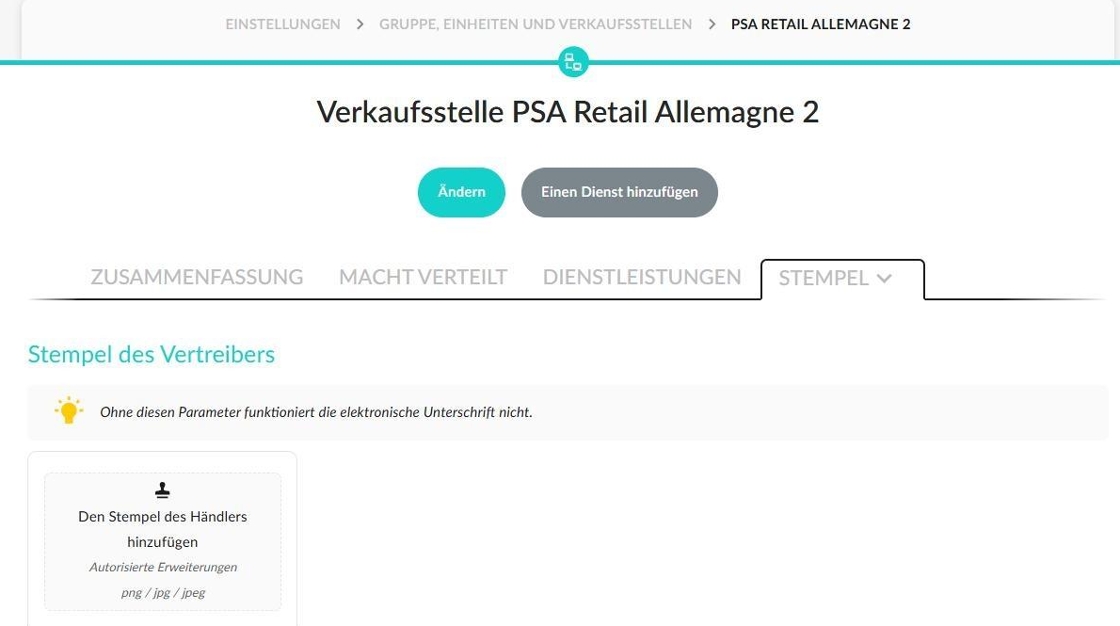
You can preview, download or delete it by hovering over it with the mouse.

Only generic documents will benefit from this innovation.

2) Restrictions on trade discounts applicable to DVs and UVs:
You can now set maximum authorised discounts for DVs and UVs in the Opportunities settings.
These discounts can be configured by destination (individuals/companies) and entered as a percentage or a maximum sum not to be exceeded. They can also be set up from a 'HOLDING' type entity for all the entities in a group.
For DVs, the maximum authorised discount percentage is applied to the vehicle price including options.
Settings/Opportunities/Managing authorised discounts

For UVs, the maximum discount percentage allowed will be based on the vehicle's selling price.
Alternatively, it will take into account the maximum discount amount that must not be exceeded if a sum has been entered.

Example:
adding multiple discounts to a DV. The discount percentage entered in the settings cannot exceed a certain amount.

Example: Adding a discount to a UV that exceeds the maximum authorised amount.

3) Managing publication contacts by advertiser contract:
Currently, publication contacts can be set up for each point of sale in a group.
Settings/Vehicles/Publications/Managing publication contacts

Choose your preferred point of sale and click the 'Modify contacts' button.

Then, two methods will be available for defining a contact for publications.
The first solution is to define a contact that will be used as the default for all advertisers displaying ads from the relevant point of sale.
The default contact's details can be those of the point of sale or a customised contact.

At this stage, you can select the contact of a member of the sales team from the point of sale.
Alternatively, you can add a specific contact for each advertiser contract by ticking the box entitled 'I wish to add a contact by advertiser contract'.

In this case, each advertiser who has a contract with the point of sale will have their own contact. This must be entered manually.

4) Harmonising terms in user accounts settings:
To improve clarity and understanding of the terms used in the user account management settings, some wording has been changed and the presentation of some displayed data has been optimised.
For example, the 'New user' button has been renamed 'Add a user'.
This new wording will also be used on the account creation page.
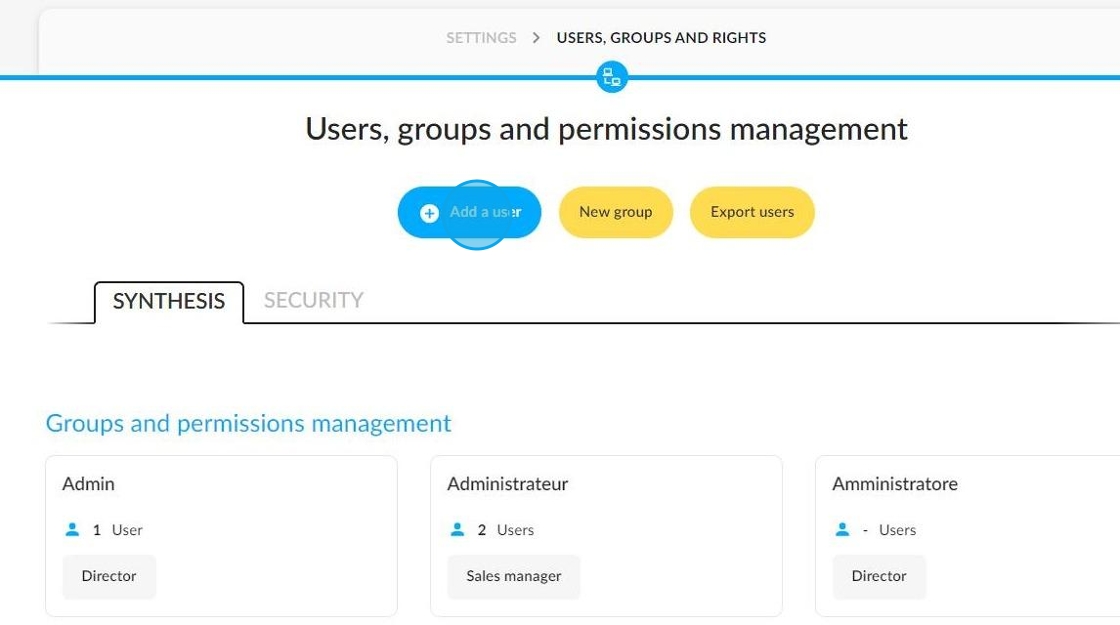
Example:
This is a view of the previous layout of the user account creation page:
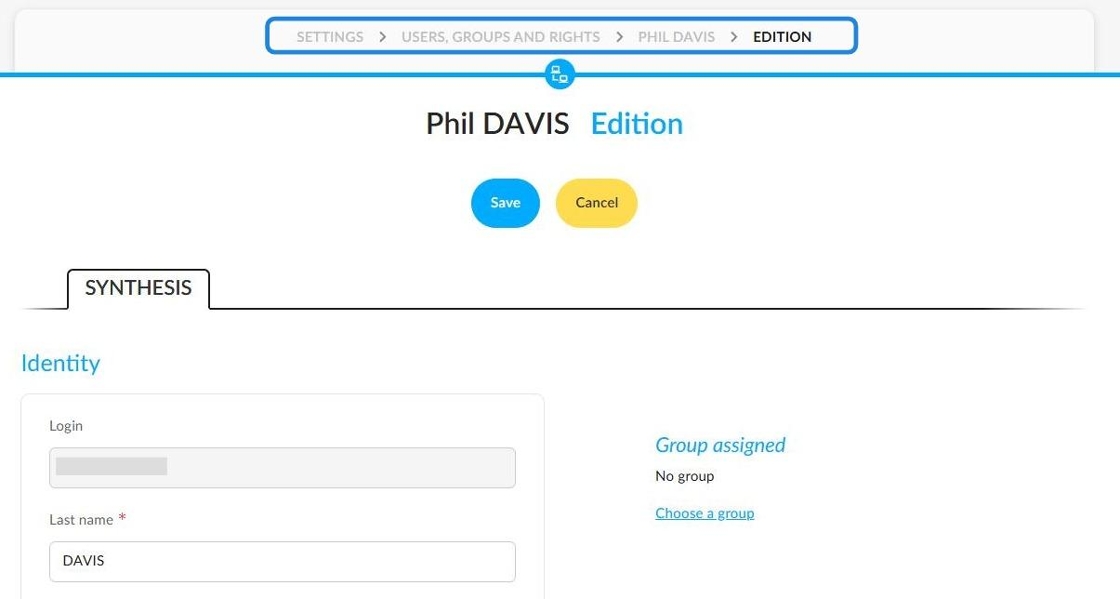
This is a view of the updated presentation, which incorporates the new wording used when creating an account and in the page title.
Note: if you try to add an account that already exists from another entity, the behaviour when you click on the 'Cancel' button has changed.
Previously, the account manager would be redirected to the page of the user they were about to add to their entity. From now on, however, they will be redirected to the initial page for managing accounts and user groups.

5) Management of user groups at holding company level:
To make managing user groups more consistent and efficient, changes have been made to their administration, allowing only parent companies to manage user rights and permissions. This avoids the need to manually reproduce group settings for each entity in a group.
At the holding company level, the platform administrator will be able to create and share groups. They can then define the rights and permissions of each group member.
The group administrator will have access to the following buttons:

Ticking the box below will allow the administrator of a holding company to activate the sharing of this user group between all entities.
This setting will be represented by a tick box:

The options available to a simple administrator from an affiliated entity are different:
they will not be able to modify or delete this group. Only the holding company will have control at this level.

The holding company will also retain the right to set the permissions of group users.
Administrators of this entity will only be able to view the rights of the various modules, but not modify them.

Comments
0 comments
Article is closed for comments.