
When creating an opportunity that leads to the configuration of a new vehicle, you can change the prices of the vehicle options, packages and paintwork and upholstery, as well as the service contracts. This feature could be useful if the prices provided by your configurator or the manufacturer are outdated.
1) Modifying a catalogue price following a new opportunity
1. Prerequisites: you need administrator's rights, the right to manage and the right to view prices.
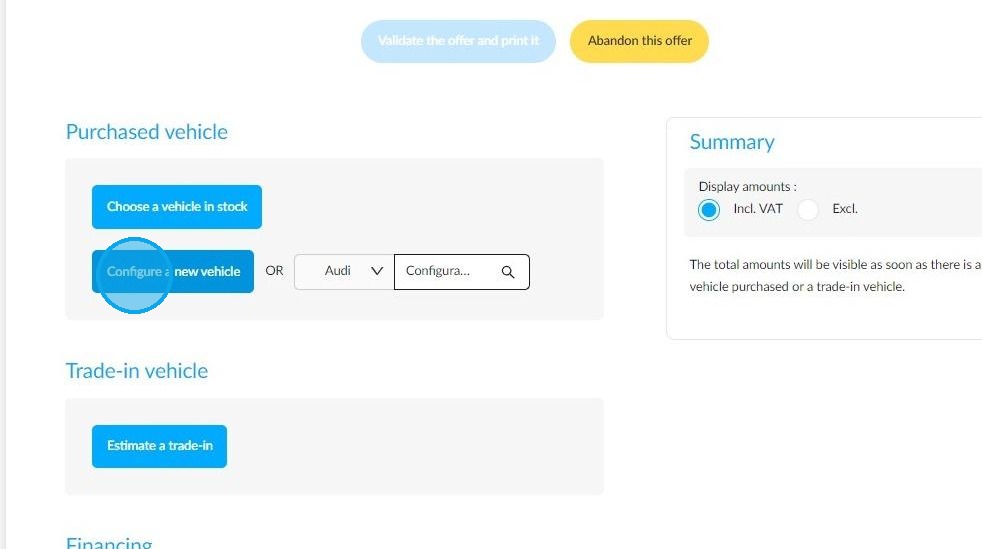
To configure a vehicle which has to be produced in the factory, make an offer by creating an opportunity and then click on "Configure a new vehicle".
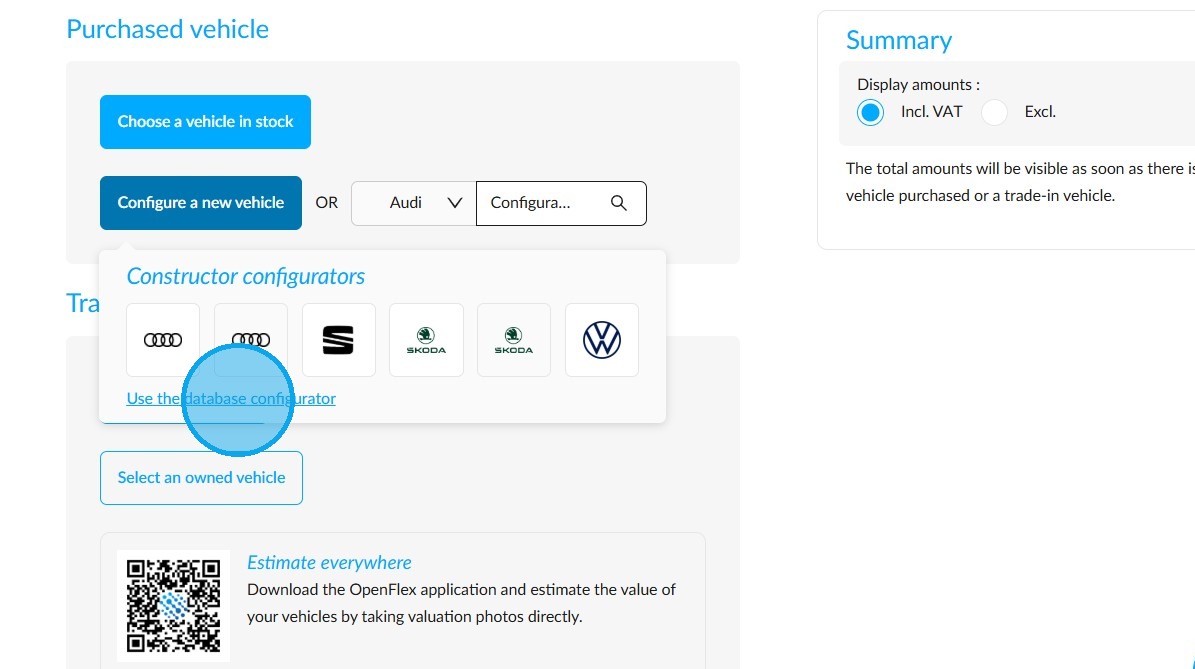
2. Click on "Use the database configurator" to choose the model of your choice.
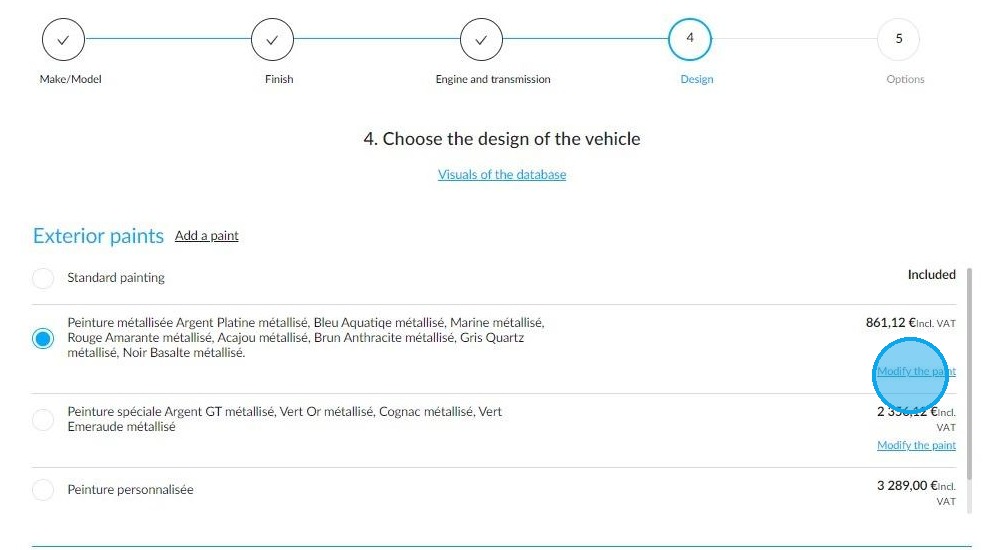
3. You can configure the vehicle of your choice by selecting the colours and the options requested by the client. Each item can be modified if needed.
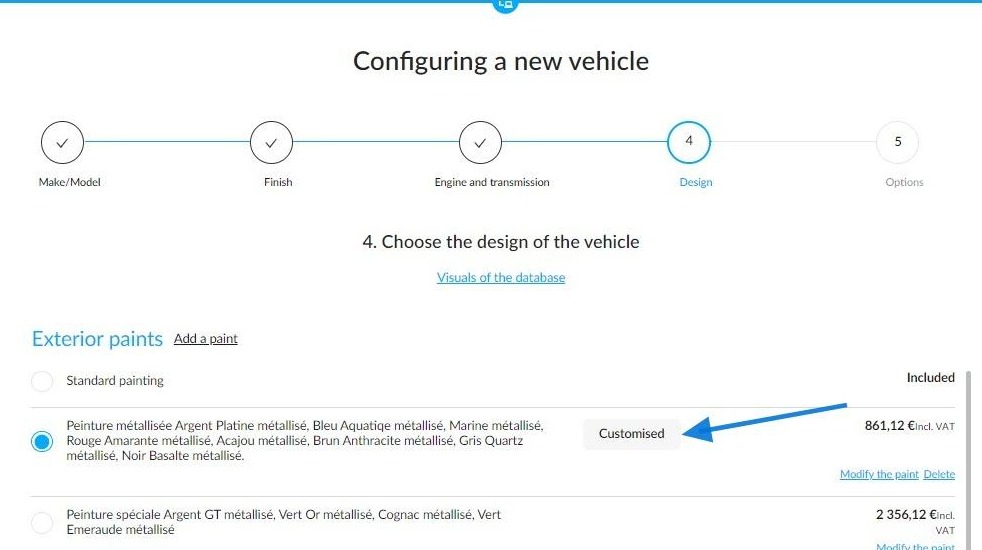
Example of paint price change when configuring the vehicle:
Click on "Modify the paint".
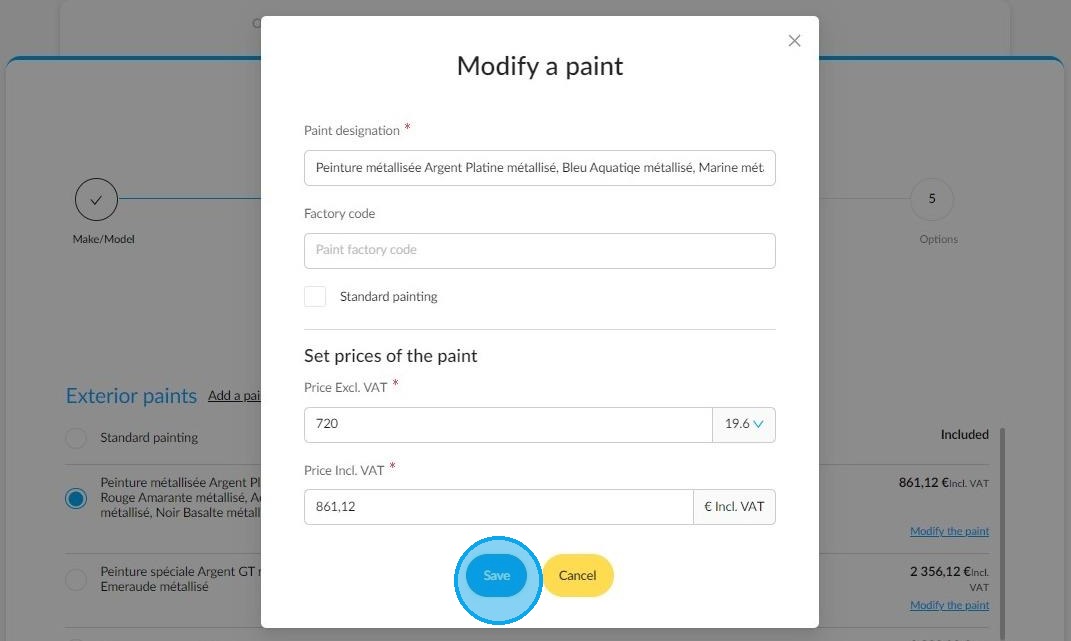
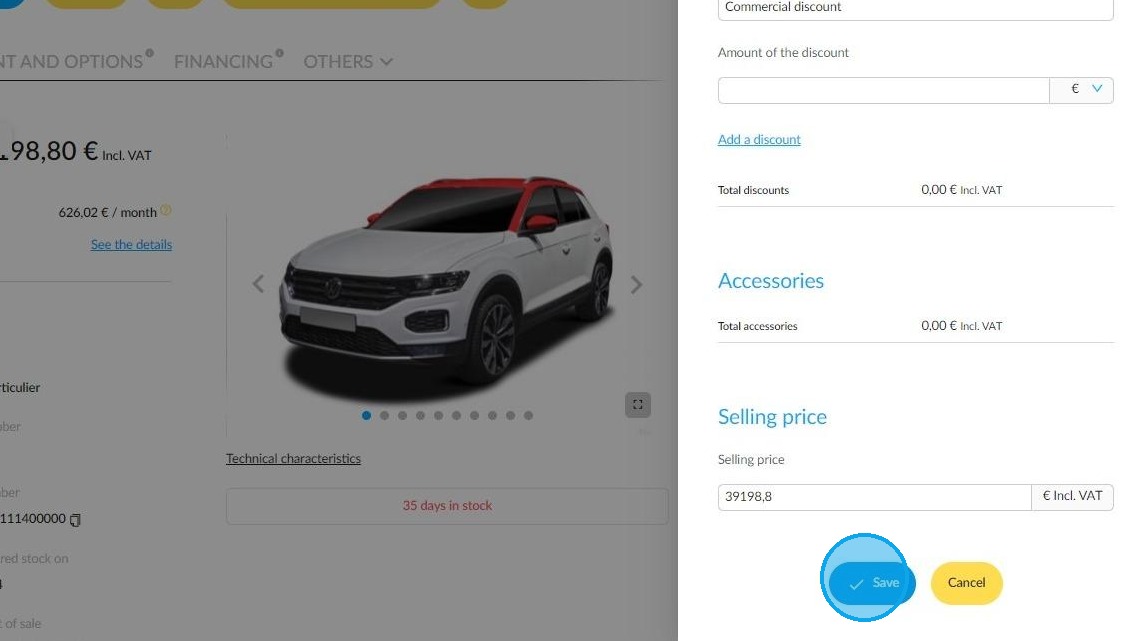
4. A window opens on your screen for you to be able to insert the price that suits you and change all the available fields as you please. Click on "Save" to save all your settings.
5. The "Customised" wording is used to identify all the features that you have modified.
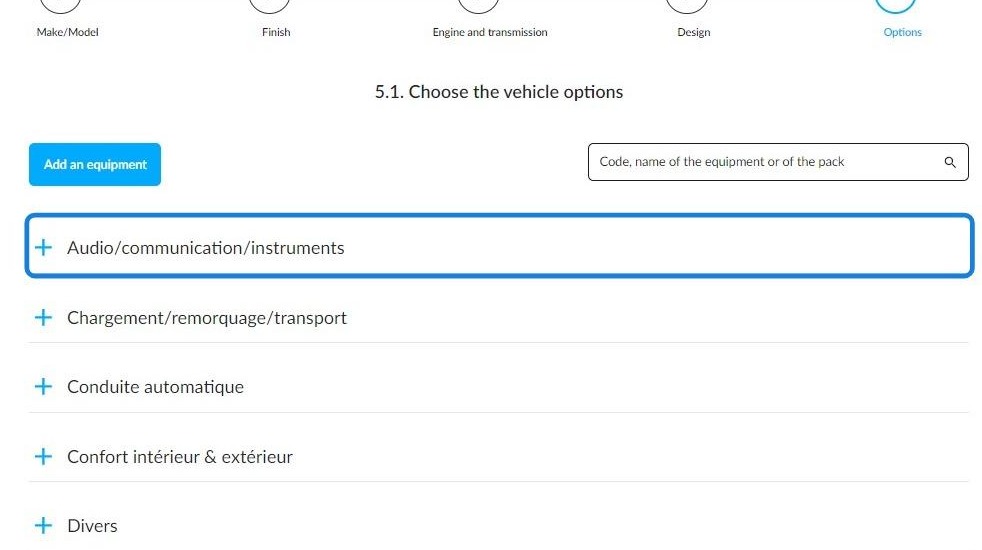
6. It is possible to transpose the previous action to the vehicle's equipment. Click on the desired category to display the options.
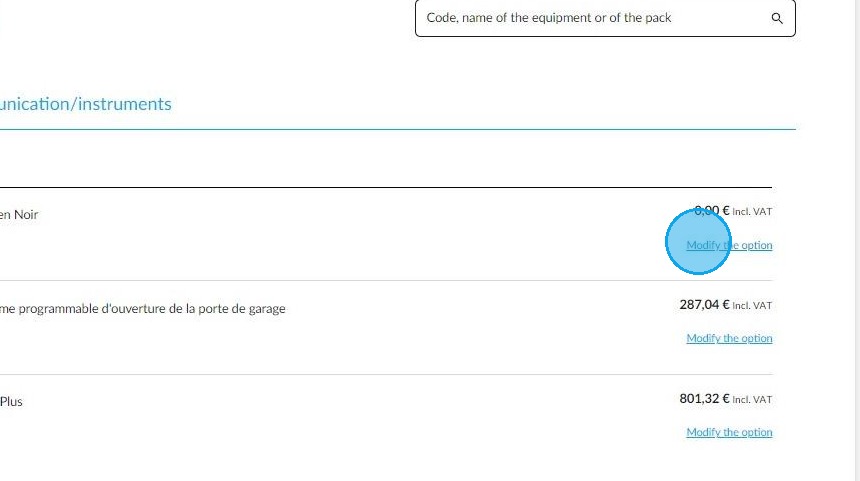
7. The "Modify the option" button il located under the price.
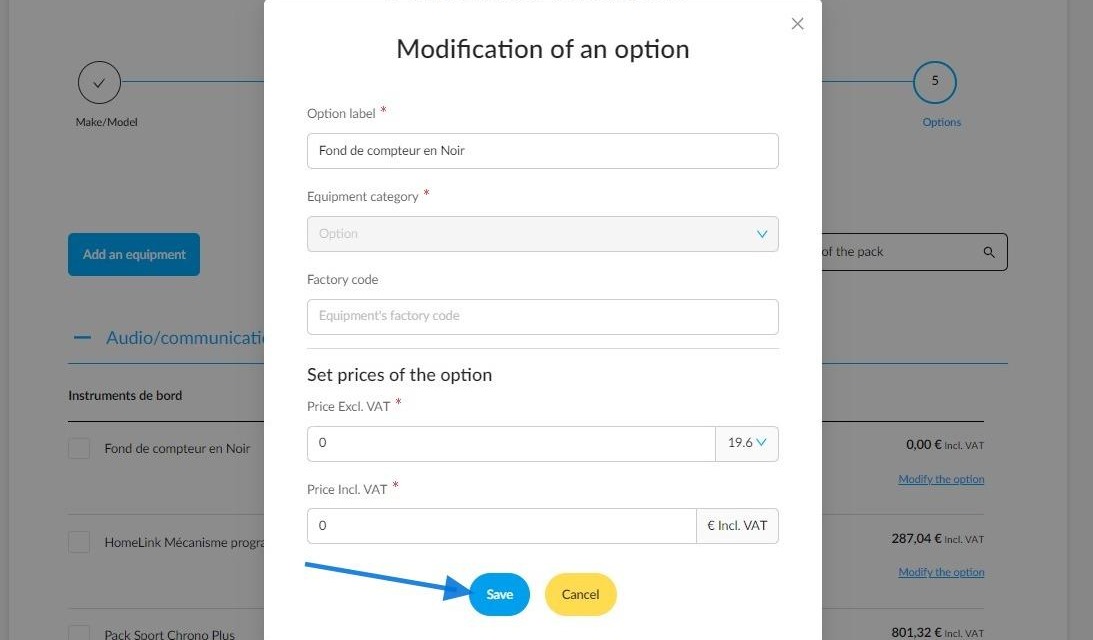
8. You can customise the fields as you wish, then click "Save" in the option edition window.
9. On the offer summary, you will notice a "Modify" button which lets you change the price provided by the manufacturer.
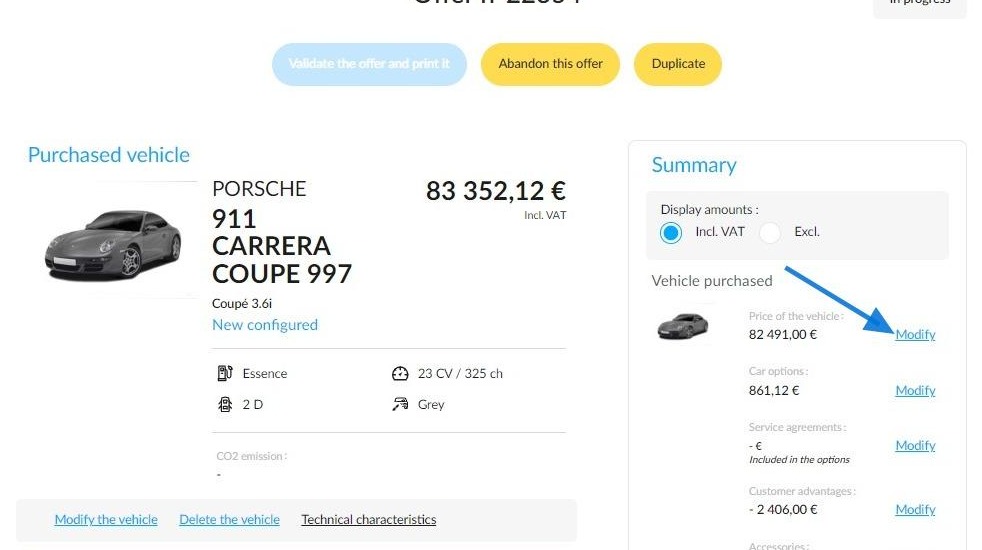
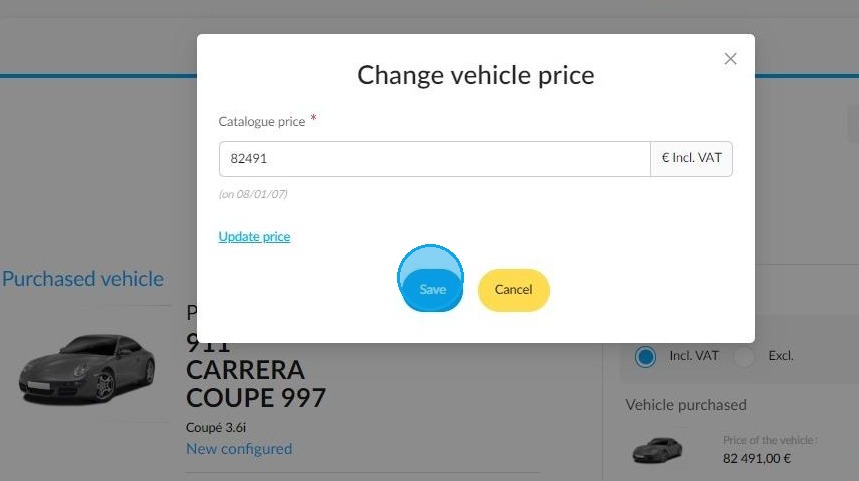
10. When clicking on it, you are able to change immediately the catalogue price in the window.
- If the proposed catalogue price is not the mot recent one known to this date, click the "Update" button to update it.
- If necessary, you will also be able to enter and edit the price yourself.
Save it to update it.
2) Changing the catalogue price directly in the DV/NV stocks
11. You can change the list price of new vehicles and demonstration vehicles from their files.
For that, please click on the pencil situated next to the price in the synthesis.
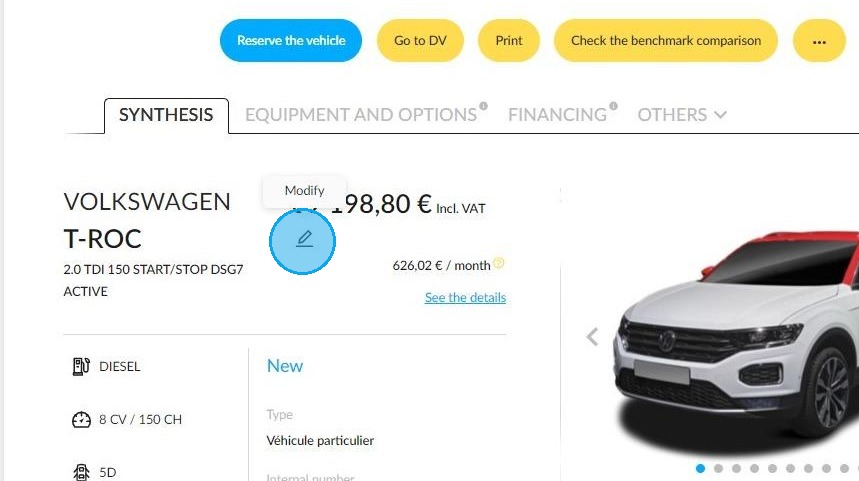
12. The catalogue price shown at the top of the "Manage vehicle prices" box can be changed for NVs and DVs. UVs price can only be viewed.
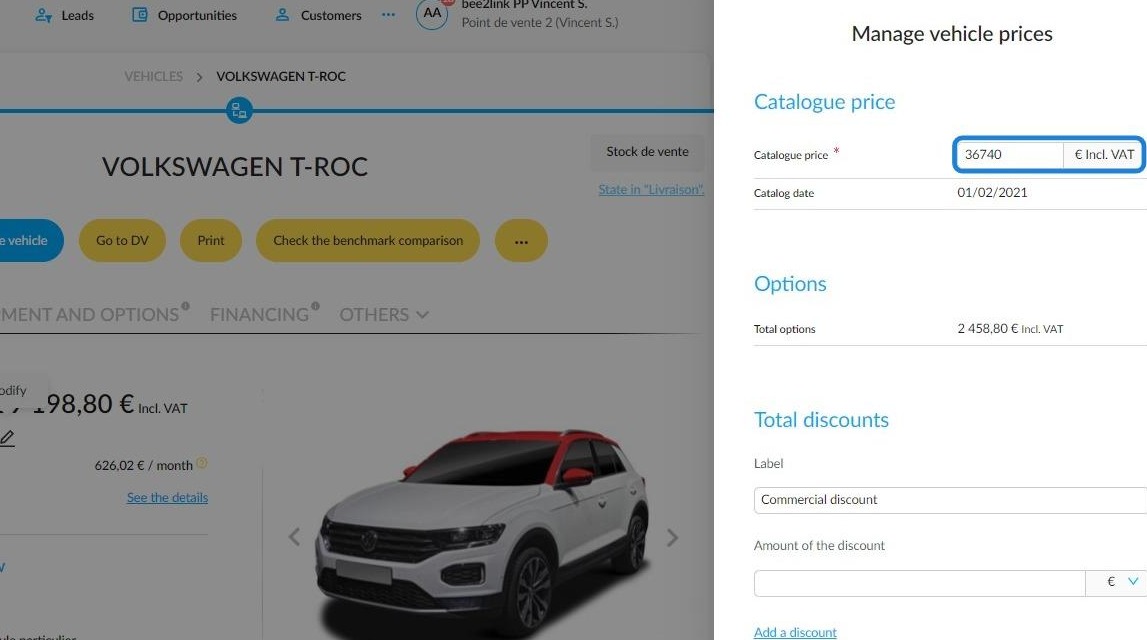
13. Save the changes that you have made with the button at the bottom of the page.
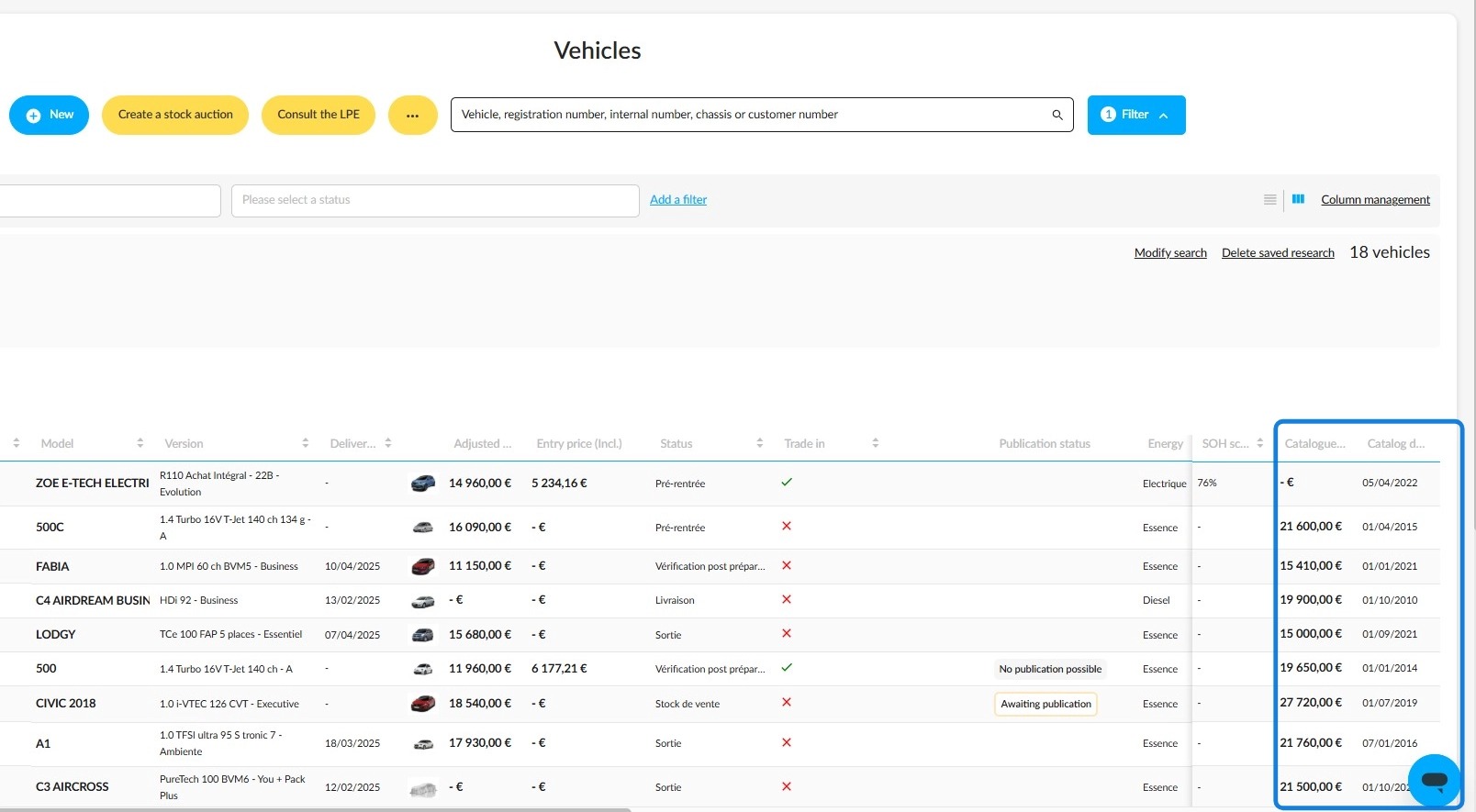
14. The list price and list date can be added as columns to the vehicle table. This data can be exported.
Comments
0 comments
Article is closed for comments.