
Find out how to successfully confirm and finalise a vehicle order via the Openflex platform. This guide simplifies the process, ensuring your transaction is completed accurately and efficiently.
Prerequisites:
- You must be authorised to approve orders.
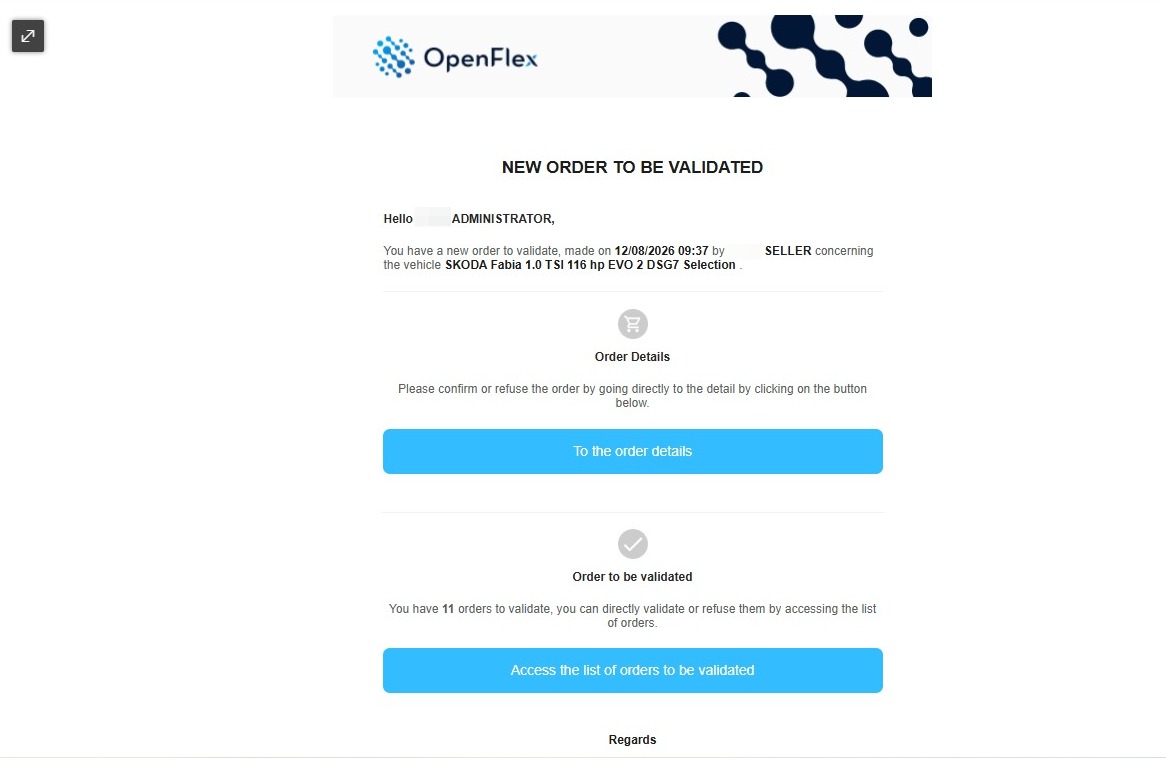
Whenever an order needs to be validated, the person responsible for approving it receives an email alerting them to the fact that they need to take action.
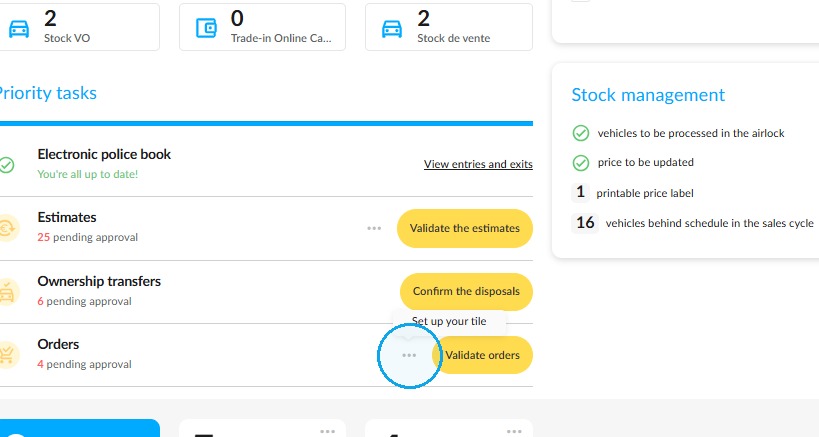
Reminder: Sort order confirmation requests according to the sellers assigned to you. Click on the three dots to the right of ‘Orders’ on the home page.
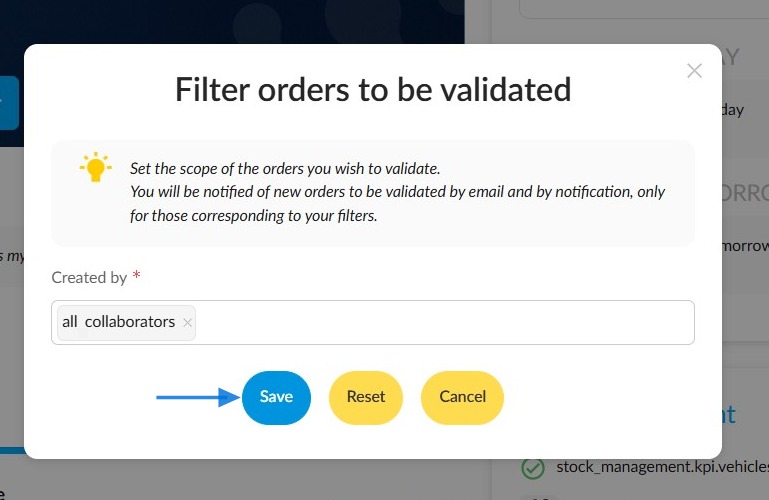
Select the relevant staff member from the drop-down menu and click "Save".
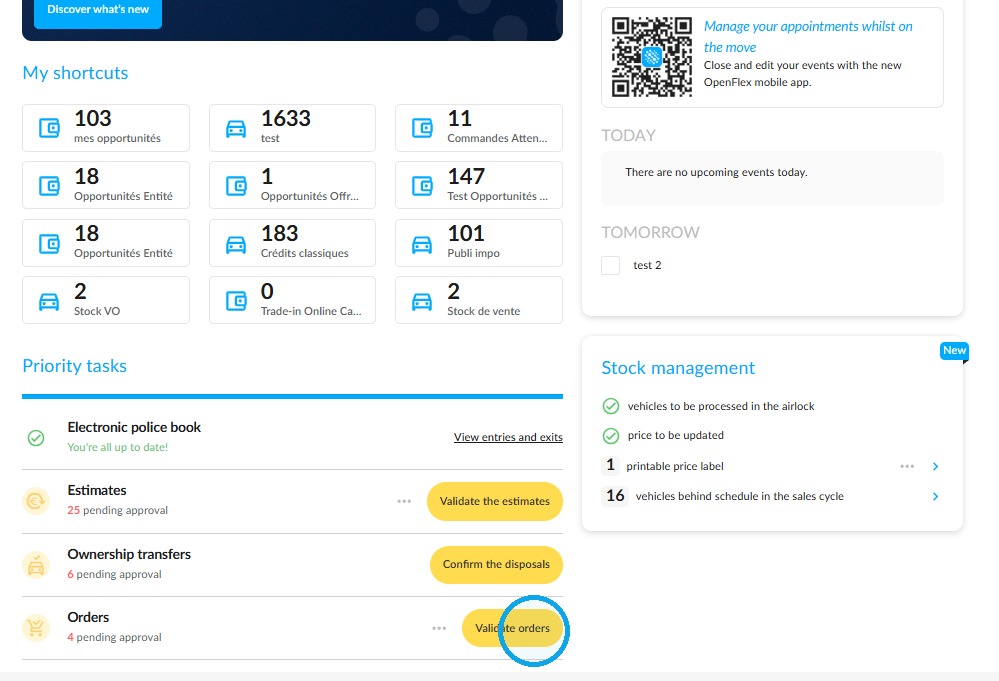
Once you have done this, click on 'Validate orders' under 'Priority tasks' on the home page.
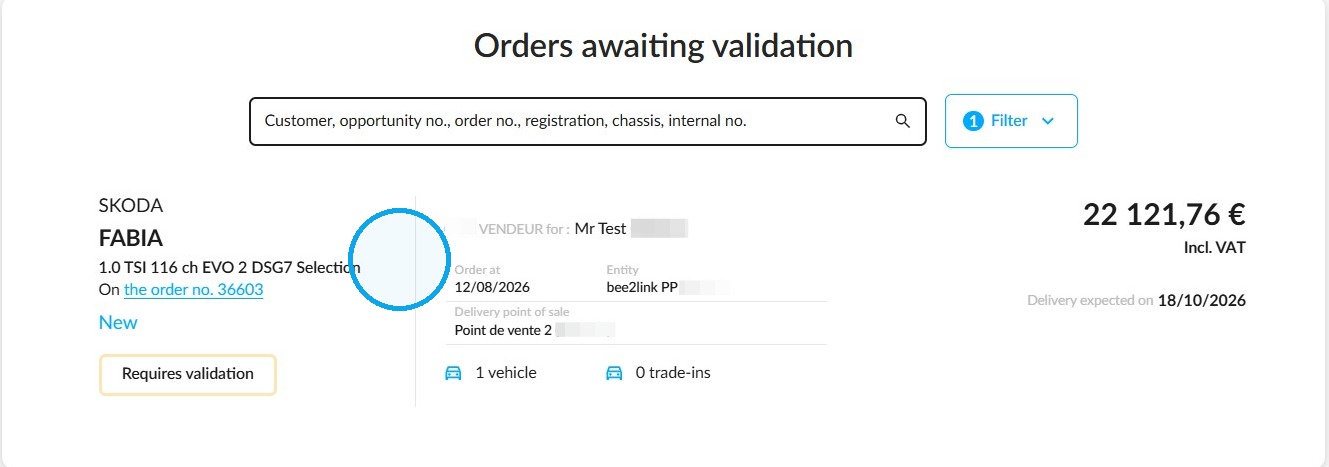
This page will display all orders awaiting approval. Click on the one you want.
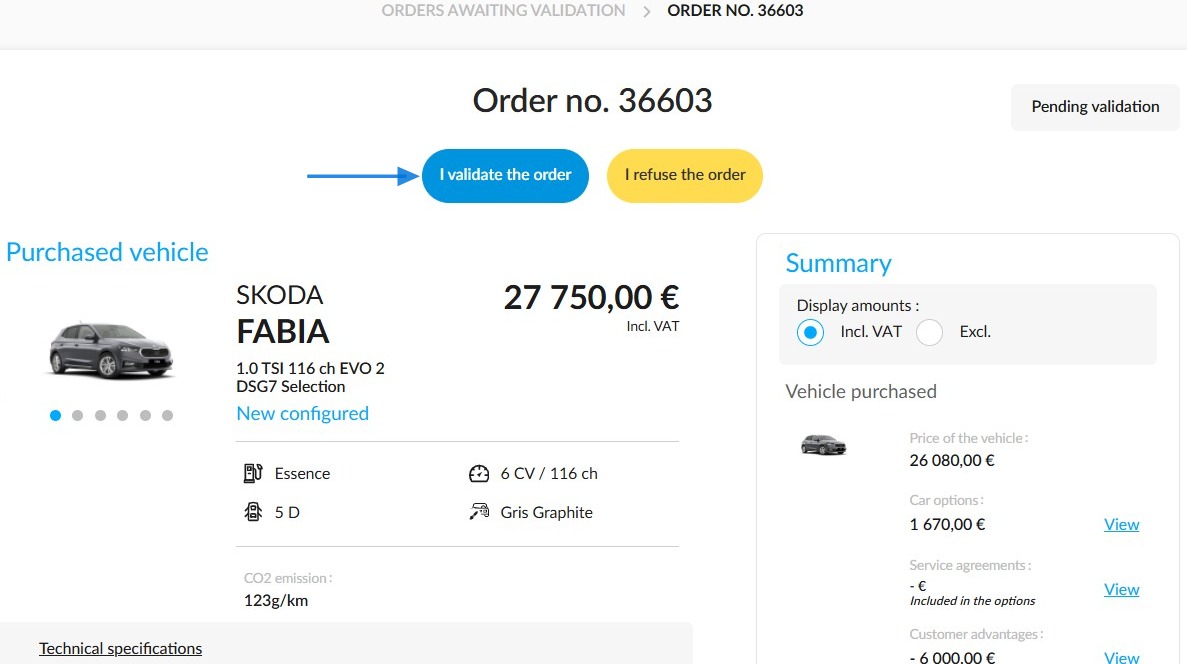
The order will be displayed. Two buttons will be available: "I validate the order", and "I refuse the order". To allow the seller to complete the sale, click on "I validate the order".
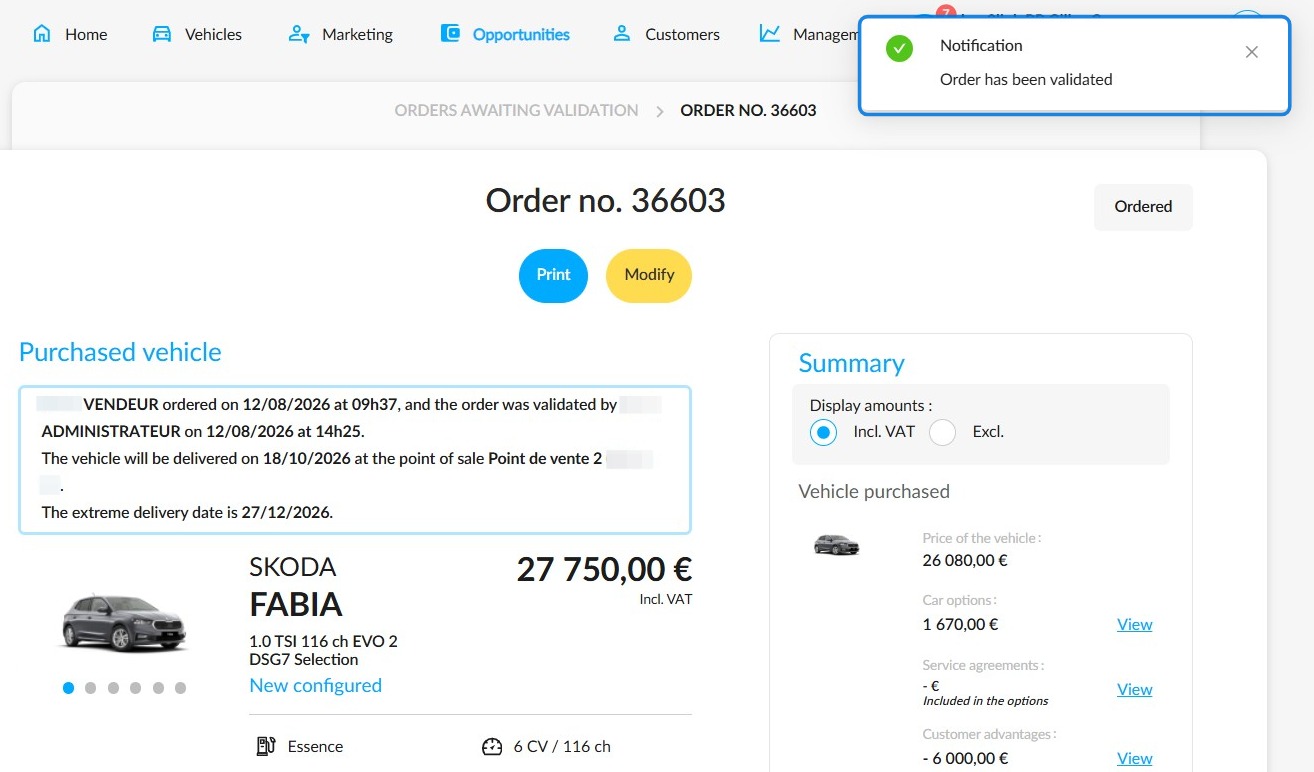
You will receive a message confirming that this order has been approved.
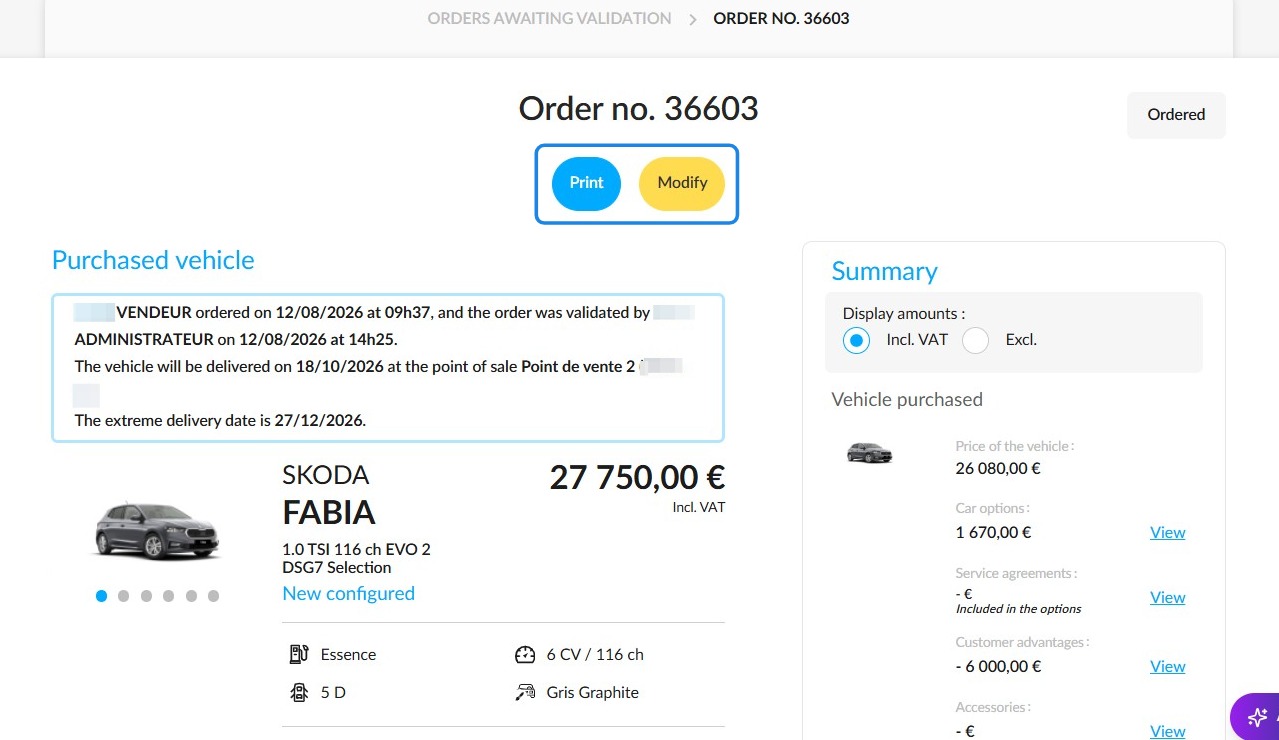
Then you will be able to print and edit it. If you edit it, a new offer will be created.
In turn, the salesperson will receive an email to inform them that the order has been validated.
Comments
0 comments
Article is closed for comments.