


Vehicles
1) Price updates: adding a comparison and summarisation pop-up:
In addition to the previous updates, we continued to optimise the tool that enables users to manage price updates (see OpenFlex update 1.74).
To this end, we have added a pop-up showing all the information needed to analyse vehicle prices and market trends.
There is no need to consult the files of each vehicle individually to access this data.
This window will appear in the 'Price updates' menu when you click on the 'See price details' button.

In this pop-up, you will be able to:
- access the published advertisements and to the market research
- carry out a comparative study of changes in tariffs before and after the automatic price update.

- update the selling price manually after examining the information provided
or
- 'Validate' or 'Refuse' directly the selling price proposed by the algorithm.

2) New exportable information from the vehicles list:
You can select new fields in the vehicles module to make your exportations more precise.
These are labelled as follows:
- publication comments
- date of first publication
- age of market value in days
- Natcode
- date of last manual price update
- order number

For the sake of consistency, the terms that designate the various vehicle fleets have been renamed to match the terminology displayed in the OpenFlex table.
The 'New', 'Demonstration' and 'Used' fleets are now named 'NC', 'DC' and 'UC'.
3) Recording the various exit modes in the history of vehicles:
In the past, details regarding the various exit modes were sometimes omitted from the vehicles' histories.
To ensure clarity and consistency, we have implemented technical updates to provide a clear record of how vehicles exit stock.
Thus, vehicle histories will contain much more detail regarding exit procedures, specifying how, when and by whom the exit of NVs, DVs and NVs has been carried out.

4) New: sorting by delivery declaration date
Prior to this update, it was not possible to sort the stock table by delivery declaration date to display dates according to their age.
Currently, it is possible to add a column labelled 'Delivery Declaration Date' to sort vehicles.

You can sort dates from the oldest to the most recent and vice versa.

Presentation of the sorting mode corresponding to the column:

5) New column for gearbox type:
In the 'Vehicles' module, a new column can be selected in the table to specify the type of gearbox that the vehicles in stock are equipped with.

This column's technical data can be exported in Excel format.

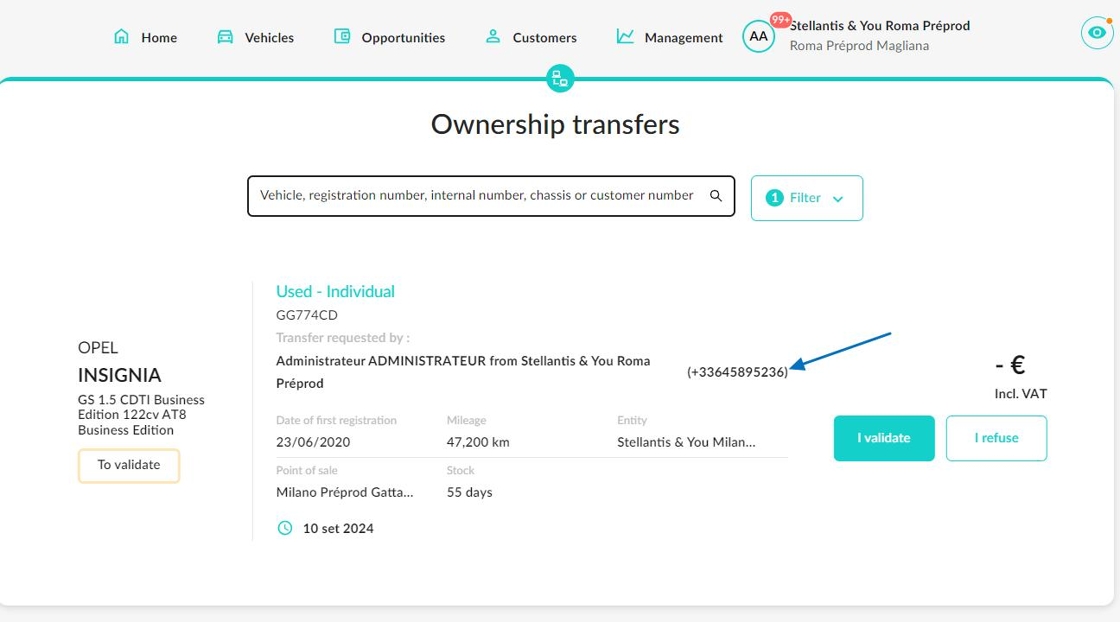
6) Adding the mobile phone number of the person who requests an ownership transfer:
To simplify communication during manual requests for ownership transfers, we have added the mobile phone number of the person who requested the transfer.
You will be able to view a range of data, including:
- the identity of the person who requested the transfer;
• the entity they work for
- their mobile phone number, or their landline number if this is the only contact information provided.
This last element will be visible in various places, such as:
- the table in the 'Vehicles' module when you hover the mouse over the words 'Ownership transfer in progress' (when the transfer is awaiting validation).

- The file for the vehicle affected by the transfer request.

- The e-mail received by the employee responsible for validating or rejecting transfers,

- The page accessible via the 'Ownership transfers awaiting validation' tile, available on the homepage of employees responsible for processing ownership transfers requests.
If the person who requested the transfer did not provide their phone number, no contact details will be displayed.
7) Optimising database reconciliation:
The database qualification system now offers new features to simplify the work of fleet managers:
-Explanatory texts have been added to clarify the difference between the statuses 'Reconciliation to be checked' and 'Not reconciled'.
-A filter has been incorporated to make it easier for stock managers to identify vehicles with a V.I.N number.

The VIN number can also be copied and used in programmes outside our platform.

The price of the equipment, excluding VAT, is now visible. References to packages, options and accessories can be copied for use in an external programme.
The wording of accessories can also be customised if needed.
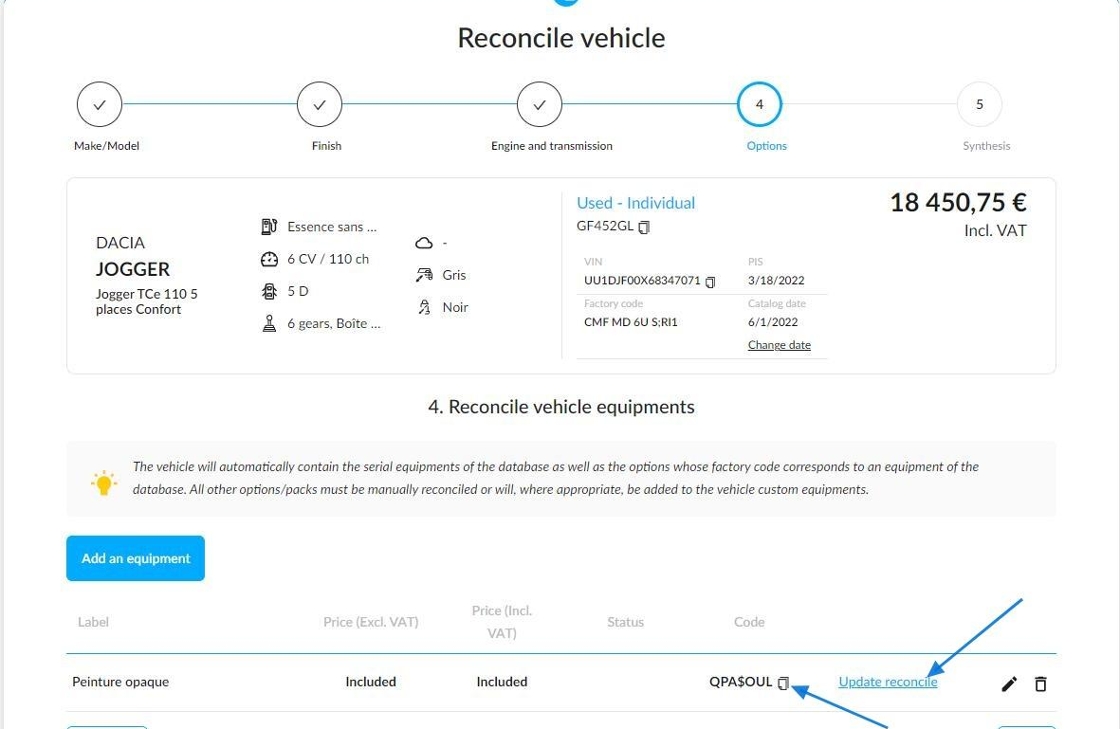
It is also possible to change the vehicle's catalogue date.

Example of window alllowing you to modify the catalogue date:

8) Market analysis data upgrade:
Requirements: To see all the data mentioned below, it will be necessary to have the rights to view and manage the prices.
In terms of market research, the graphs showing the vehicle's position on the market have been placed at the top of the page to facilitate comparison. The market analysis will be calculated automatically based on the current date.
Additional data has been integrated into the graphs.
The synthesis of the vehicle's current position includes:
• The selling price.
- The real commercial margin.
- The adjusted market value difference.
For the market analysis:
• The proposed price, if available.
• The actual commercial margin.

A new section entitled 'Projected Selling Price' has been added to the market study. This section is only available to users with price management rights.
It provides the following information:
- The vehicle's entry price
-The vehicle's selling price and the option to amend it
- the vehicle's actual commercial margin.
All data will update instantly when prices are changed.

Opportunities
1) Adding a fleet manager field when creating an opportunity for a company:
Before this update, a user could only add the fleet manager of a company when placing an order if the contact had been created via an opportunity.

The procedure has been simplified to link fleet managers to company customer files as soon as an opportunity has been created.

2) Sending of the batch orders by e-mails:
It is now possible to send batch orders via email. When an offer has been drawn up, a new 'Send order' button will appear for this purpose.

Presentation of the window used for sending emails:

3) New rules for managing validity dates of offers and orders :
To maintain consistency, the validity dates of offers and orders currently reflect the dates established by the platform administrator and those of commercial operations.

When confirming an offer or an order, the validity dates that can be selected will comply with the deadlines set in the settings while taking into account the end dates of current business operations.
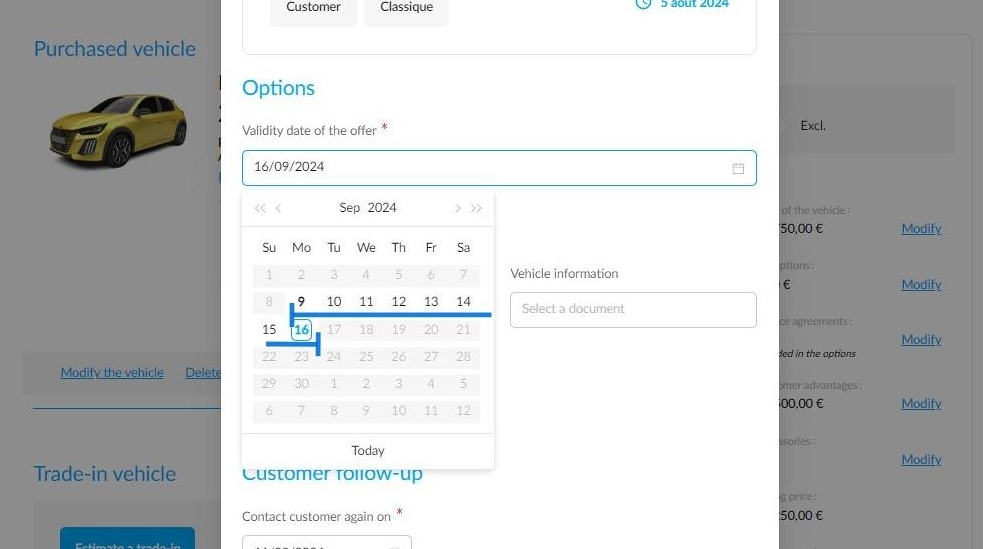
To that end, several rules have been introduced to define the validity period, which will be displayed on offers and order forms.
If an offer/order is involved in a sales operation without an end date, the deadlines added in the settings will be taken into account.
If an offer/order is involved in a commercial operation with an end date after the deadlines added in the settings, the deadlines added in the settings will be taken into account.
If an offer/order is affected by a commercial operation that ends before the set deadlines, the end date of the commercial operation will be taken into account.
If an offer/order is affected by several commercial operations that end after the set deadlines, the deadlines added in the settings will be taken into account.
If an offer/order is affected by several commercial operations, one of which ends before the pre-established deadlines, the date of the commercial operation with the earliest deadline is taken into account.
4) Detection of vehicles similar to those configured in a NV catalogue offer:
A new tool is available on the platform when creating opportunities for new vehicles in the catalogue to encourage the sale of new vehicles (NVs), demonstration vehicles (DVs) and used vehicles (UVs) in the sales stock.
It detects vehicles which are similar to those that have been configured, enabling customers to be offered an alternative in the short term.
This tool takes the form of a new button called 'X similar vehicle(s)' which will appear as soon as an offer for a factory-ordered NV is created.

Clicking on it will open a new window showing the list of vehicles that the system considers comparable to the configured vehicle.
The degree of similarity between the two vehicles will be indicated in the form of a star 1 (average, great or perfect similarity).
To compare the displayed vehicle more precisely with the one you have configured, select it by ticking the relevant box 2 and clicking the 'Compare' button 3.
Please note that to ensure the vehicles proposed in the comparison are relevant, the system will take several factors into account, such as the level of similarity and the price difference between the configured vehicle and those in the sales stock.
If there is a difference of more than €2,000 between the selling price of the vehicles in stock and that of the configured NV, it will be excluded from the comparison page.

Customers
1) Improved search of professional customers:
Previously, it was more difficult to find a customer with a compound name.
The sensitivity of the search bar in the 'Customers' and 'Vehicles' modules has been enhanced to make it easier to find professional customers.
The platform will now detect all wordings that match your input, proposing as many relevant results as possible to help you select the customer sheet you want.

For example, consider the company SA Young Timer and Co. The system identified the company by entering one of the terms in its compound name.

2) New exportable column from the Customers module:
Previously, exporting customer files did not include any data relating to monitoring by the sales teams.
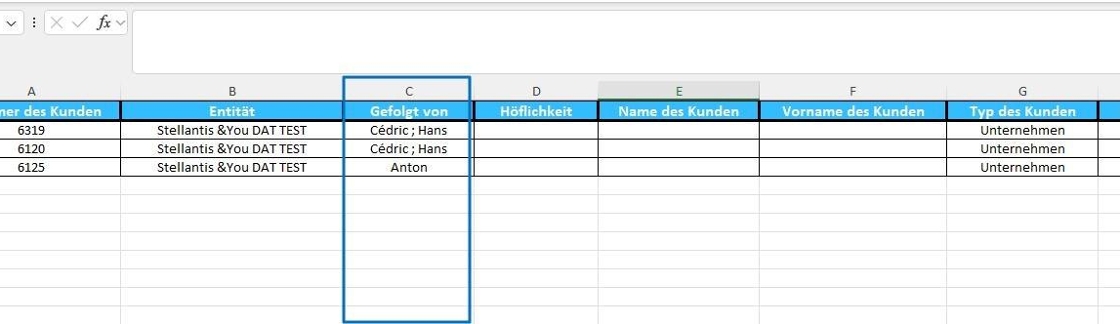
To address this issue, an additional column called 'Followed up by' has been added to the table. This lists the names of the sales representatives responsible for following up on the contacts in the generated file.

This column is located next to the 'Entity' column. If a client is being followed up by several sales representatives, their names will be listed in the same cell, separated by a semicolon.
3) Simplified access to company employee records:
Company sheets now provide direct access to employee files linked to a company.
A new 'Salespersons' tab lists employees declared as belonging to a company.

Example:

Settings
1) New feature: customising logo on generic UV documents
From now on, the platform's administrators will be able to customise the logo that will be displayed on generic UV documents available in the 'Vehicles' and 'Opportunities' modules.
To do this, click on your initials and go to the platform settings:

A new setting has been conceived for this purpose. It is called 'Themes'.

Insert your chosen logo by either dropping it or uploading it from your PC.
It must be in PNG, JPEG or JPG format.
For the best results, it should be no larger than 200 pixels.

Once you have added the logo, you can preview, download or delete it by moving your cursor over it.

2) Modifying stock entry deadline settings:
Prior to this update, a 30-day period for entering the vehicle into stock was entered by default for trade-in estimates, unless an administrator specified a different period in the settings.
To give salespeople the option to enter a more realistic stock entry date, the 'Opportunities' module settings relating to stock entry time have been changed.
These settings now allow you to manually enter the forecasted entry-into-stock date during an on-site trade-in.
For online trade-in campaigns, the 30-day period will continue to apply.

If no deadline is set by a platform administrator, the salesperson will be asked to enter the forecasted date of entry into stock that seems most appropriate manually during the trade-in process.

3) Indexation of repair expenses for used vehicles to age and mileage criteria:
It is possible to take age and/or mileage criteria into account to best qualify the amount of repair expenses for a trade-in.
As a result, the pricing policy settings have been changed to manage UV trade-in values.

The new criteria can be configured in various places when inserting repair costs:
- by clicking directly on the exploded view of the vehicle, on the relevant part;
- by adding a new defect at the bottom of the page;
- by updating a already existing defect.

Some new fields are available when modifying a defect via the exploded view.
Depending on the case, you can enter criteria relating to the vehicles' age and mileage to improve the relevance of the repair expenses.
The age and mileage criteria can be configured cumulatively ('age + mileage') or separately ('age or mileage').
As soon as a vehicle in a trade-in estimate meets the established criteria for wear, the system will apply the corresponding refurbishment costs.

When you add a defect to the list, you will first be asked to name it and link it to a section (body part). You can then enter the same data as shown above. The condition will be visible once you have specified the age and mileage criteria.

This is a presentation of a page that allows you to modify an existing defect using the drop-down menu, which enables you to select the condition.

4) Automatic price update, authorisation to enter a negative margin:
In some cases, stock managers may need to set a negative margin on a vehicle's price if it remains in stock for too long.
This is why negative margins can be entered in the pricing policy settings when configuring automatic price updates.

Comments
0 comments
Article is closed for comments.