
Find out how to configure mailing lists to be able to send invitations to participate in stock auctions to the automative professionals of your choice.
Configuring mailing lists.
1. When organising a stock auction, distributors can compile mailing lists to select the automotive professionals who will be invited to participate.
If no mailing list has been selected or established, all professionals connected with the distributor will receive the invitation.
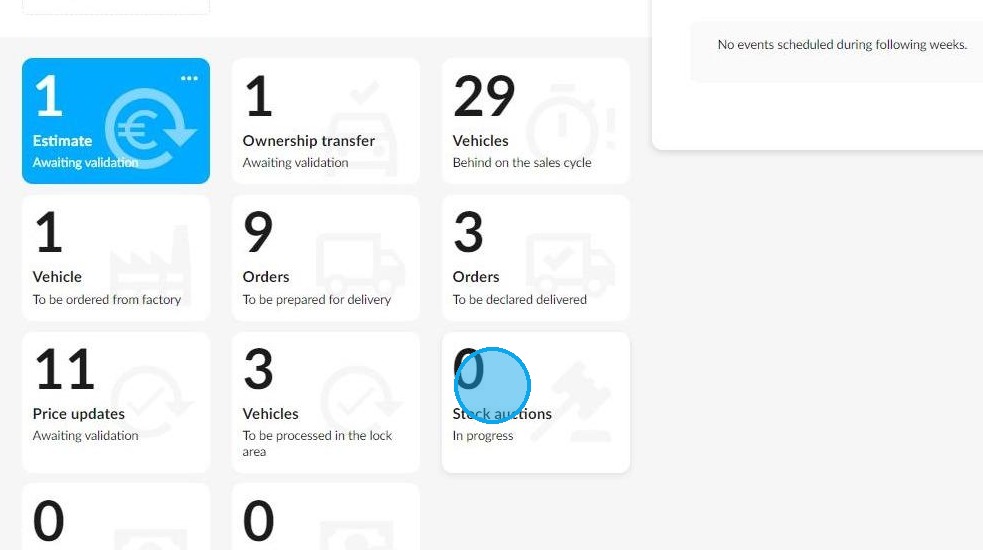
On the homepage, click on the 'Stock auctions' tile.
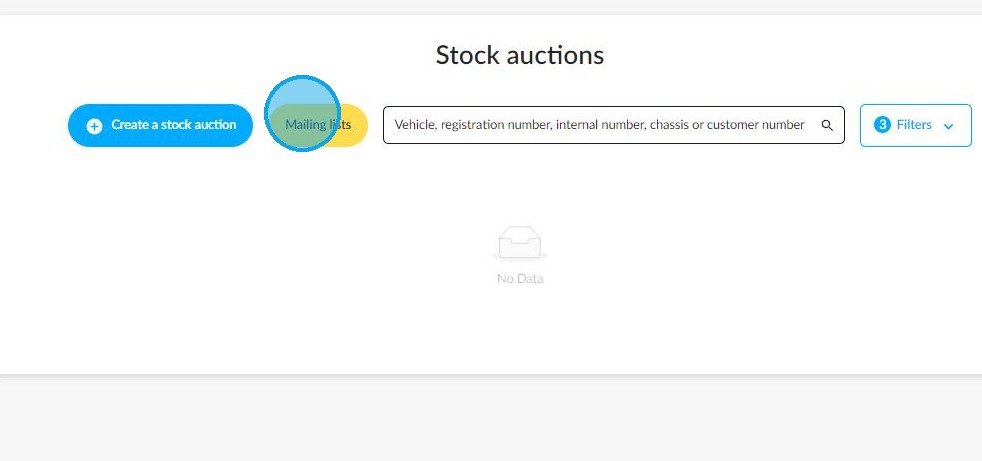
2. Then, click on "Mailing lists".
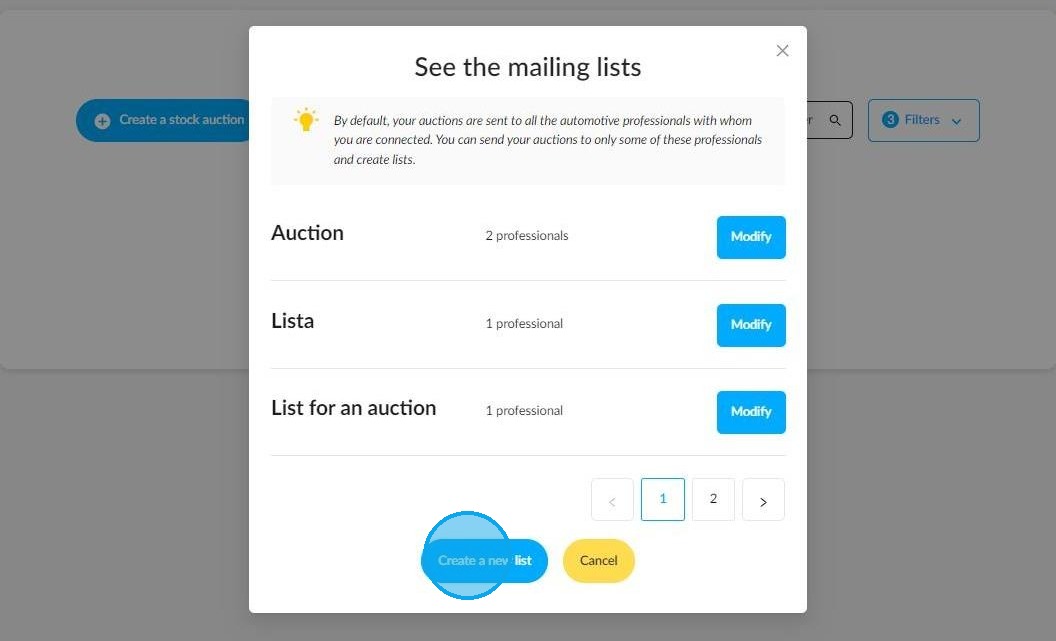
3. If any have already been created, they will appear in this window under the heading 'See the mailing lists'. The "Create a new list" button at the bottom of the window will allow you to create a new one.
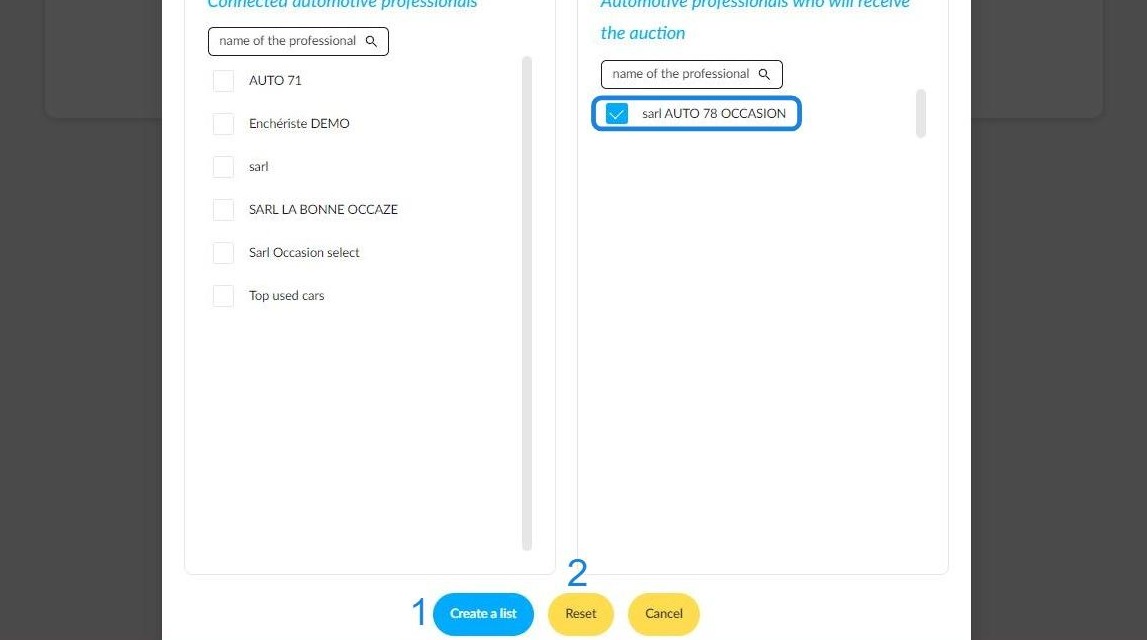
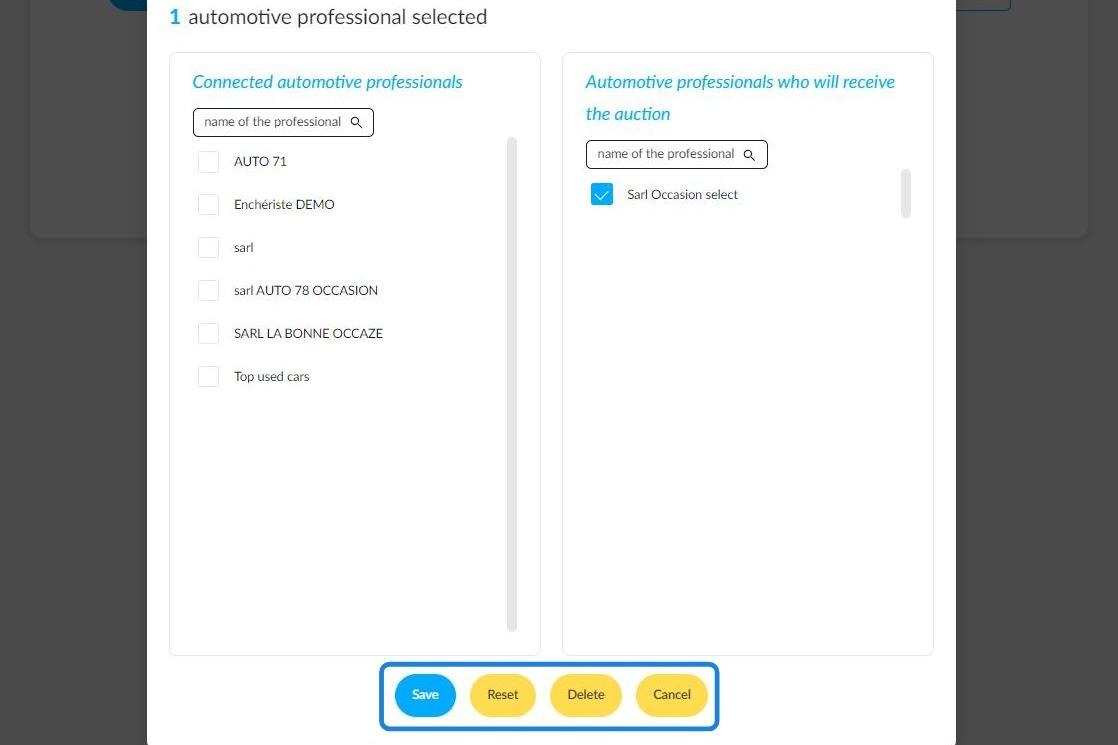
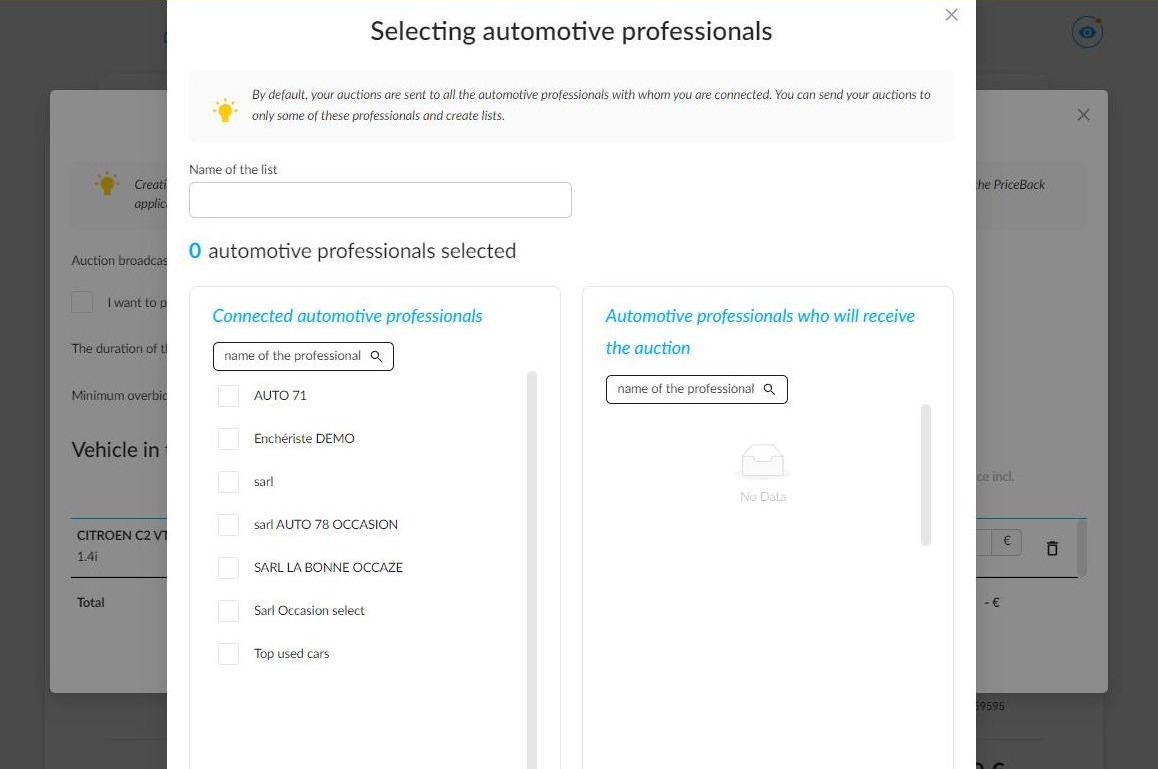
4. First, you will be required to fill in the name of the list, which is compulsory. Then, in the left-hand column, select the professionals to whom you wish to send invitations to the stock auctions by ticking the boxes next to their company names.
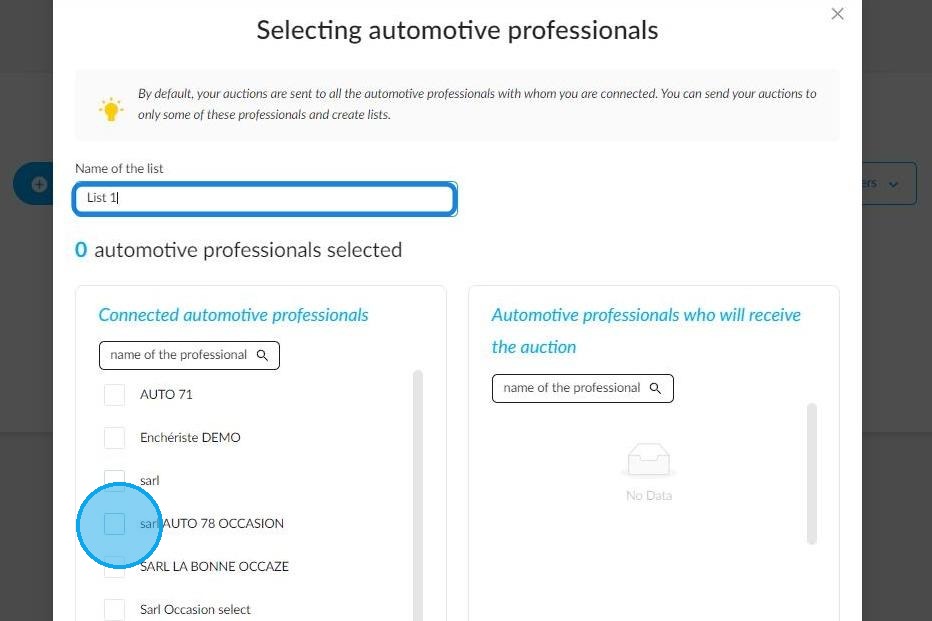
5. The automative professionals selected by the distributor will be listed in the right column.
Unchecking the box next to a professional's name in the right-hand column removes them from the list of recipients.
Once you have drawn up your list, you can save it with the "Create a list" (1) button located at the bottom of the screen.
If you notice an error, you can also start your list again from the beginning by clicking the "Reset" button (2) at the bottom of your screen.
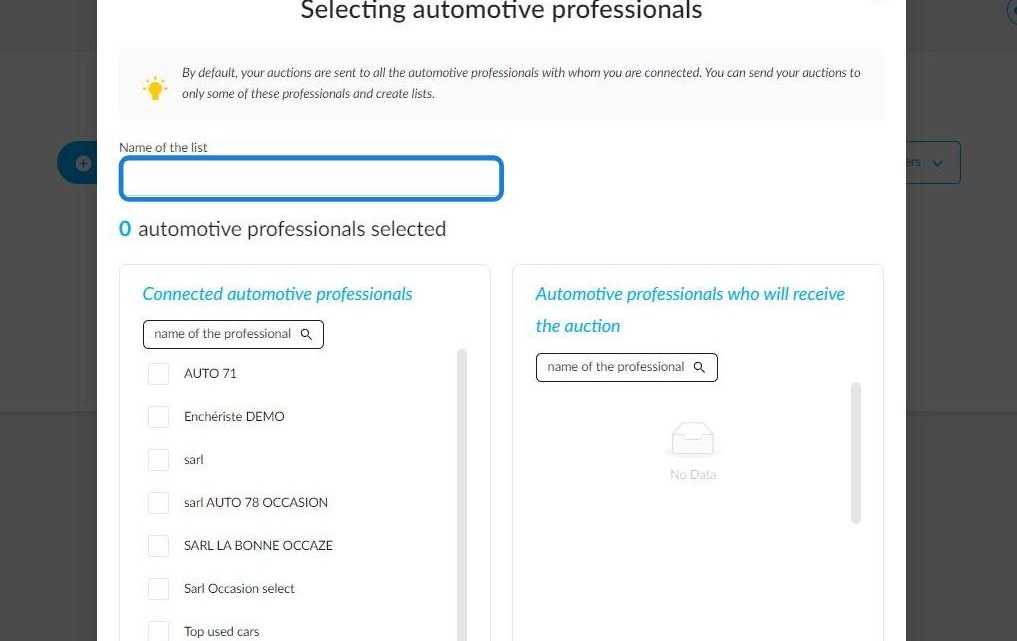
6. As soon as you click on "Reset", the name field and the right-hand column of the table will be empty:
7. Feel free to create as many lists as you like.
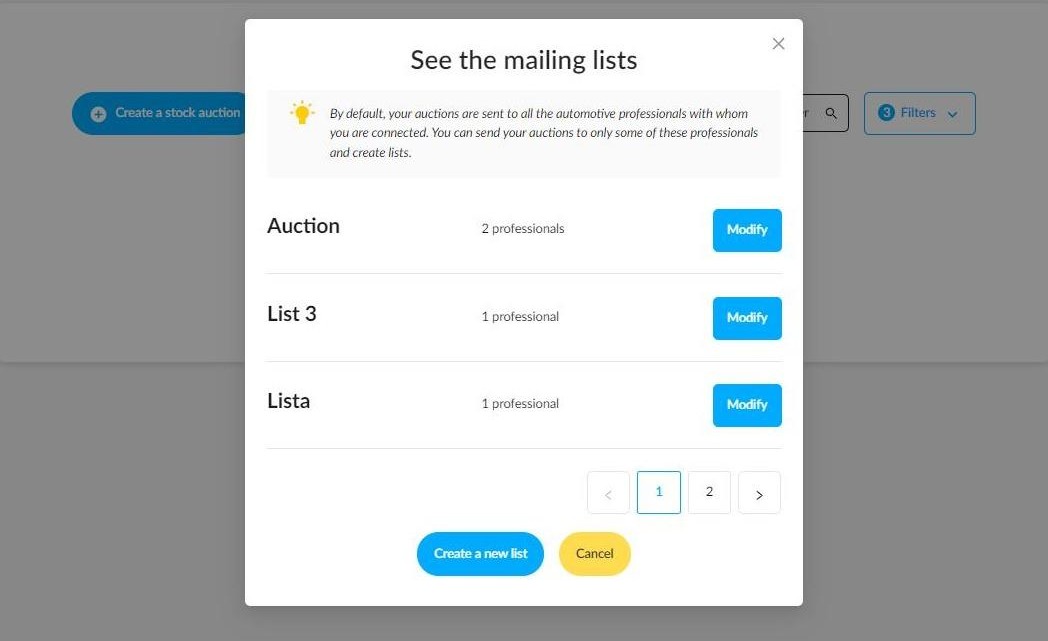
8. These can be edited at any time using the "Modify" button next to each list.
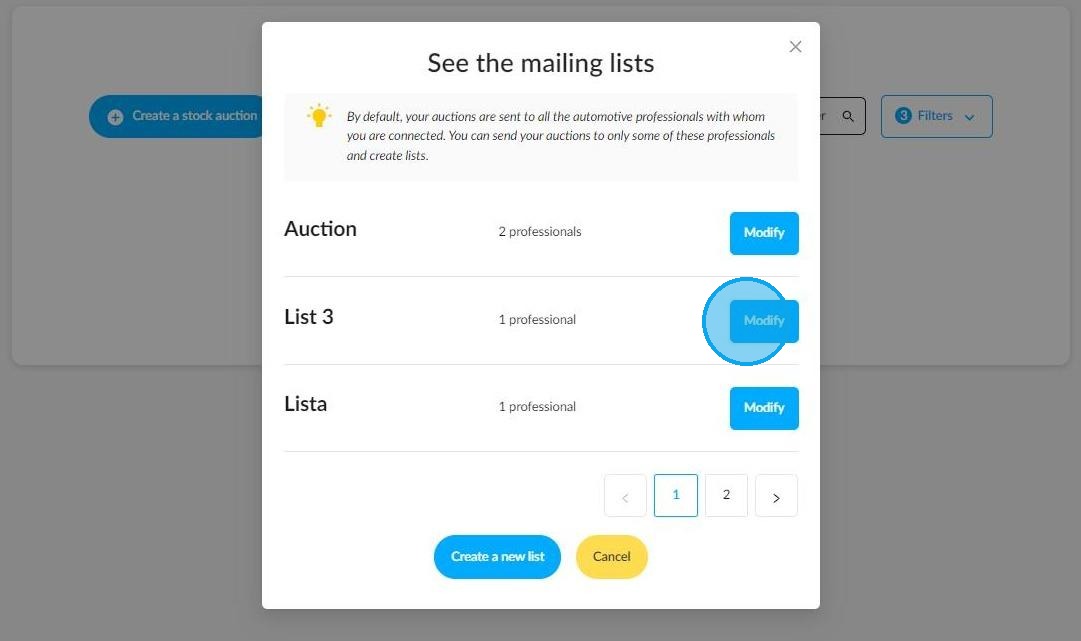
9. Once you have clicked on it, you will be taken back to the professional selection page. You can then repeat the steps described in step 4. If necessary, you can remove this list using the "Delete" button at the bottom of the page.
Selecting a mailing list when creating an auction.
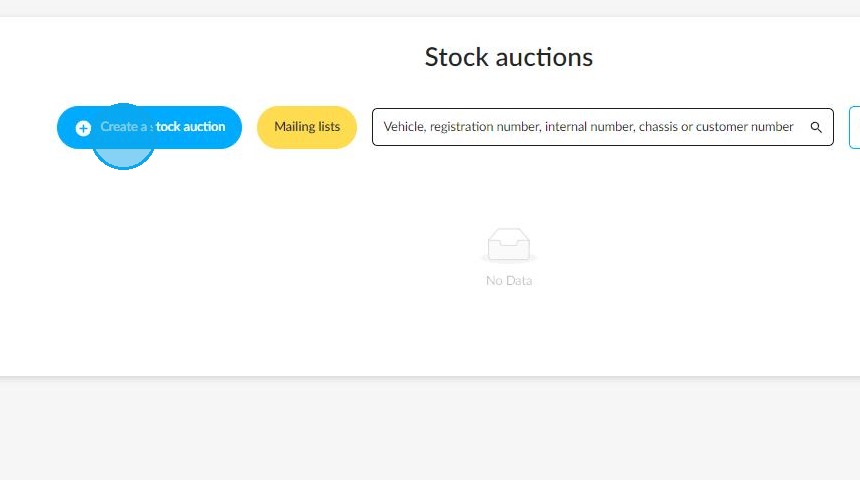
10. From your home page, click on the "Stock Auction" tile. Then, click on the "Create an auction" button at the top left of the page.
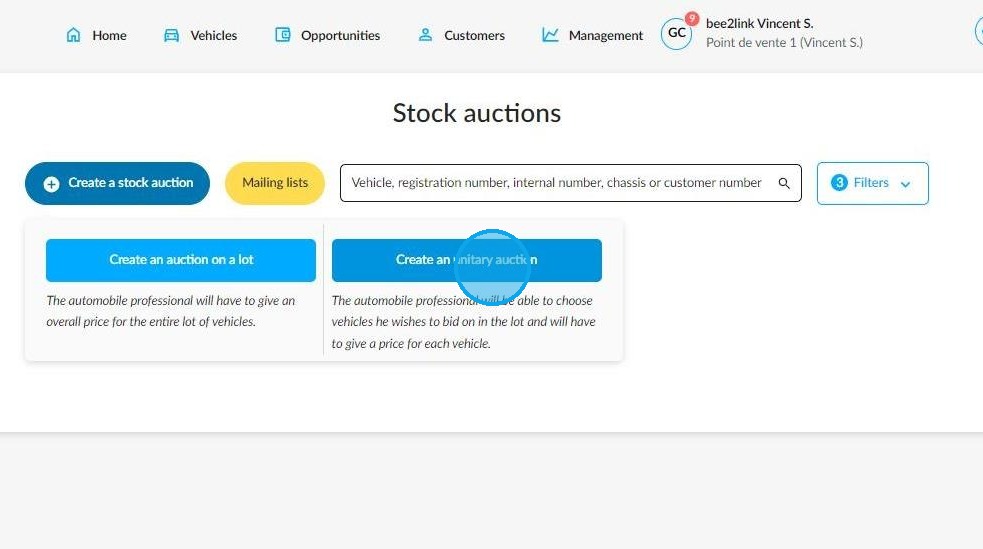
11. Select the type of auction you want: either by lot or by unit.
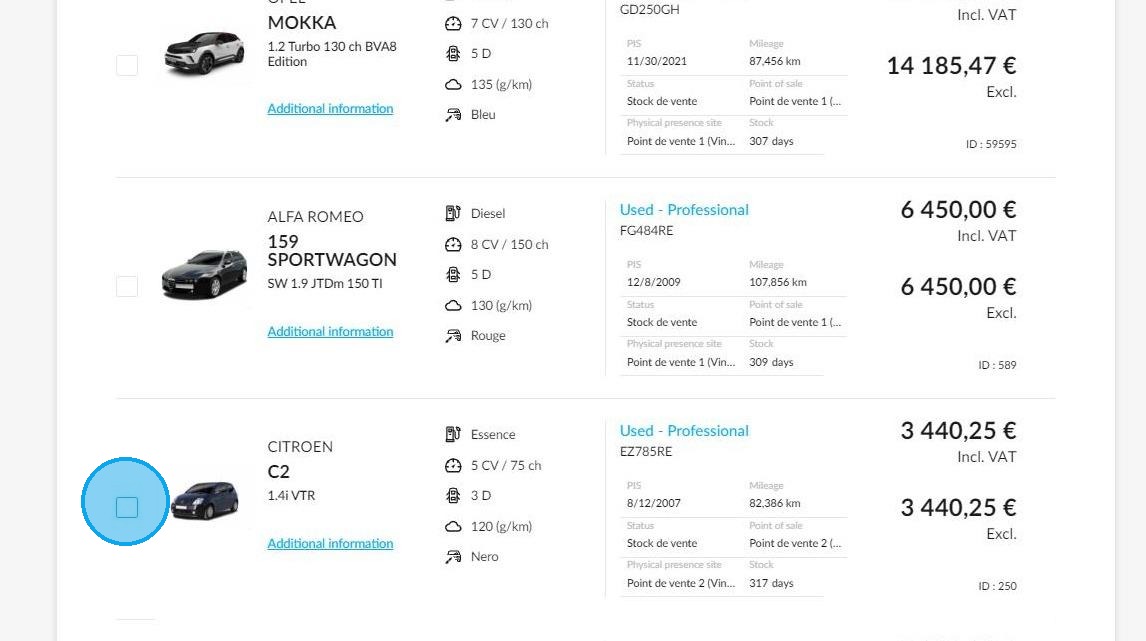
12. Select the relevant vehicle(s) by ticking the box next to their image
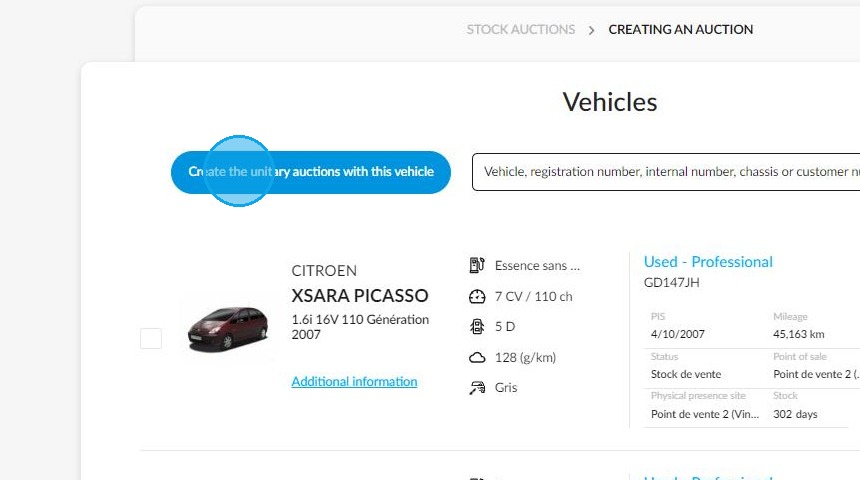
13. Next, click the "Create the unitary auction with this vehicle" button at the top of the screen, to the left of the search bar.
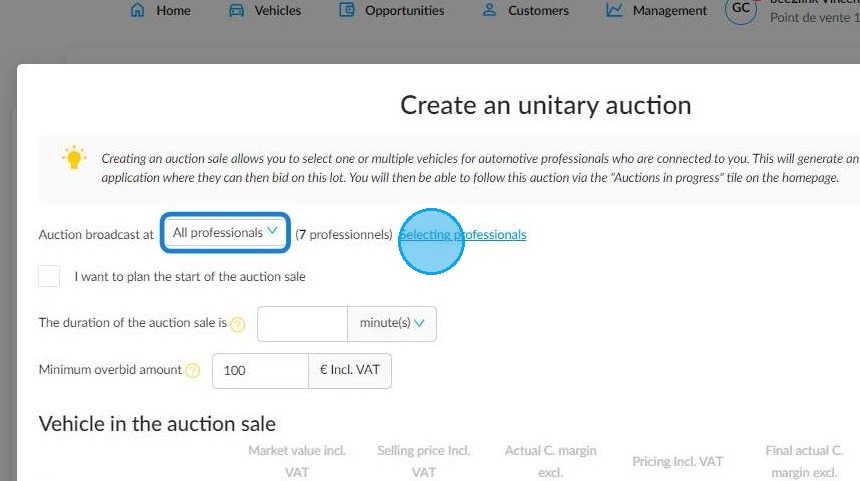
14. If a mailing list has not yet been set up, you can create one during this phase by clicking on 'Selecting professionals'.
15. The selection page for these will appear, and you can complete it as described in step 4 of the previous section.
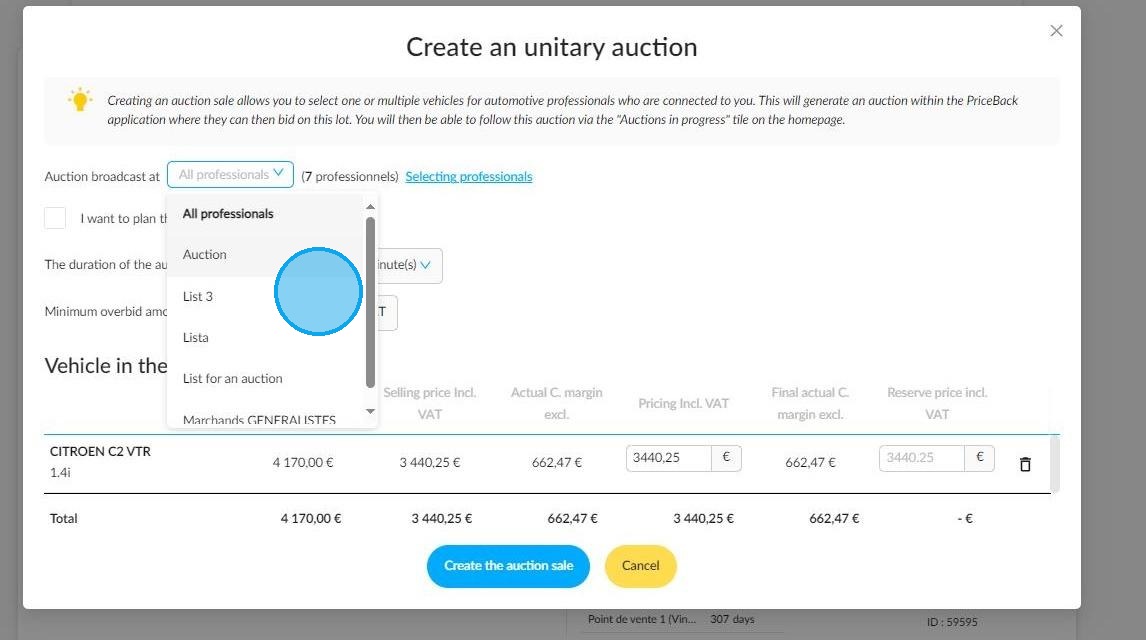
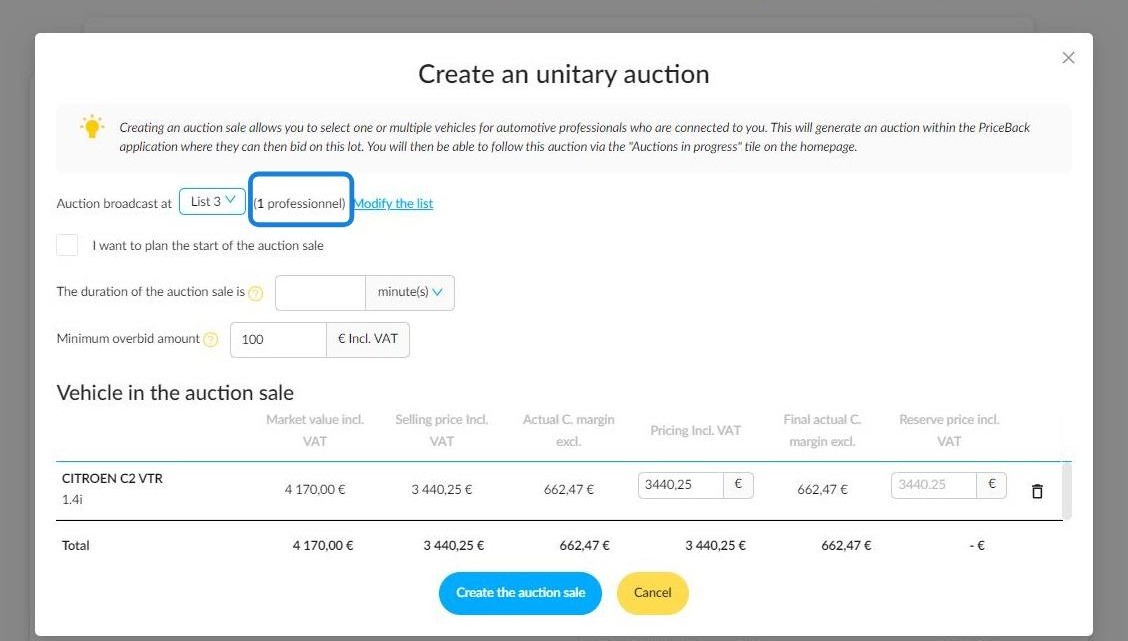
16. If a list is already available, you will find it in the drop-down menu. Then you can select the list of professionals that matches the type of vehicle being auctioned.
17. The number of participants in the auction will be indicated at the top of the screen. A "Modify the list" button located right next to it will allow you to make changes to the list.
Comments
0 comments
Article is closed for comments.