
Find out how to incorporate pictures which illustrate a vehicle's defects into a counter-estimate.
1. When providing a counter-estimate for a used vehicle, you can add images to illustrate any defects found.
Access the "Vehicles" module and then select the UV that insterests you. Go to its record.
Select the 'Others' tab, then select 'Valuation and costs' from the drop-down menu.
Vehicles / UV XXX/ Others / Valuation and costs

2. A specific insert labelled "Counter-estimate - Vehicle inspection" has been designed to incorporate pictures of the important details identified during the counter-estimate. Click 'Add a visual' to upload an image.
Its size must not exceed 20 MB.

3. Once you have uploaded the visual, you can hover over it with your cusor and click the "eye" icon to preview the picture, the "arrow" icon to download it or the "bin" icon to delete it.

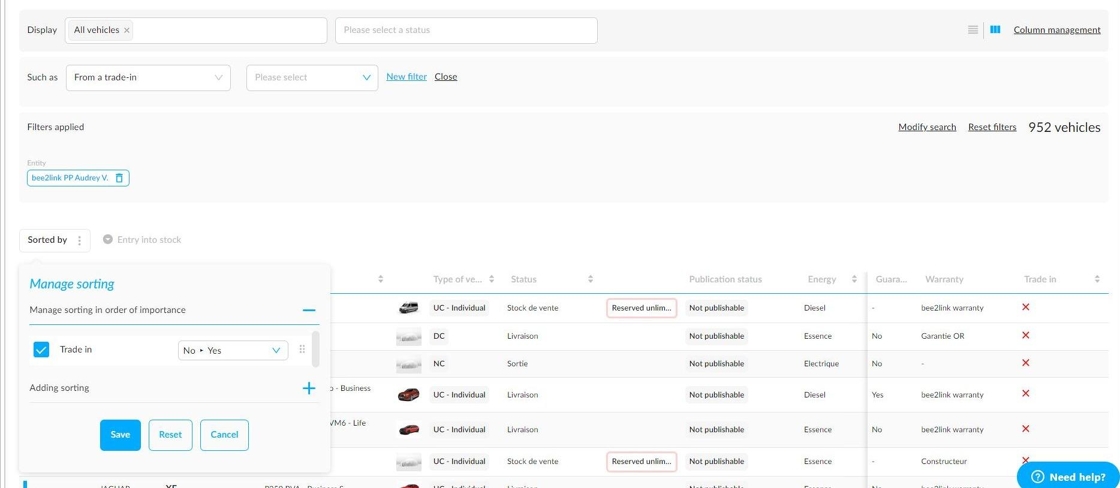
4.The "Trade-in" filter in the vehicle stock table allows you to easily search for traded-in vehicles. Select 'Yes' or 'No'.

5. To display this information in the table, you need to manually add the 'Trade-in' column via the 'Column Management' menu on the right-hand side of the screen.
Green ticks will indicate 'yes' and red crosses will indicate 'no' if the UV comes from a trade-in.

6. There is also a sorting system in place to distinguish between vehicles that are trade-ins and those that originate from elsewhere.
Comments
0 comments
Article is closed for comments.