
Configure the tiles on your homepage so that you only receive order validation and cancellation requests from employees under your responsibility.
Prerequisites: you must have the right to validate orders and the right to confirm order cancellations.
Settings/Users, groups and permissions management/User group - Permissions/Permissions of opportunities / Validate orders / Confirming order cancellations.
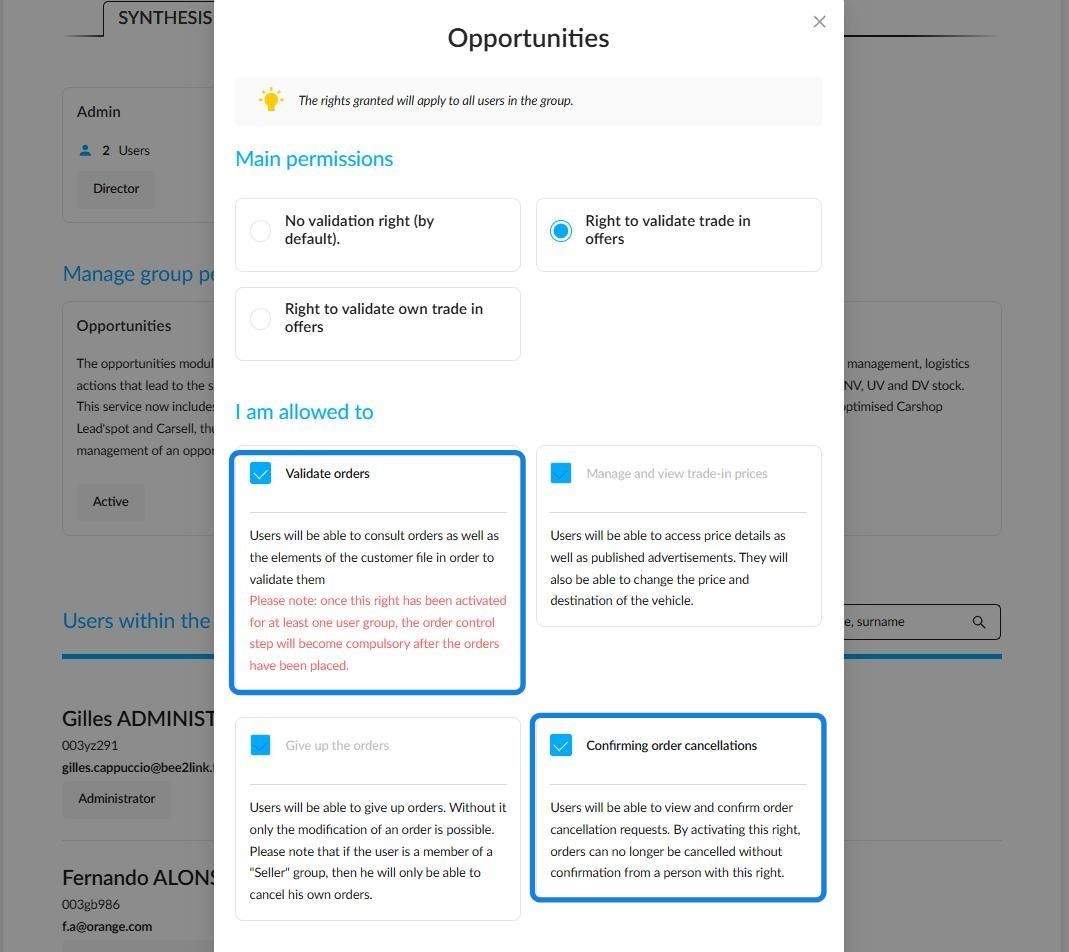
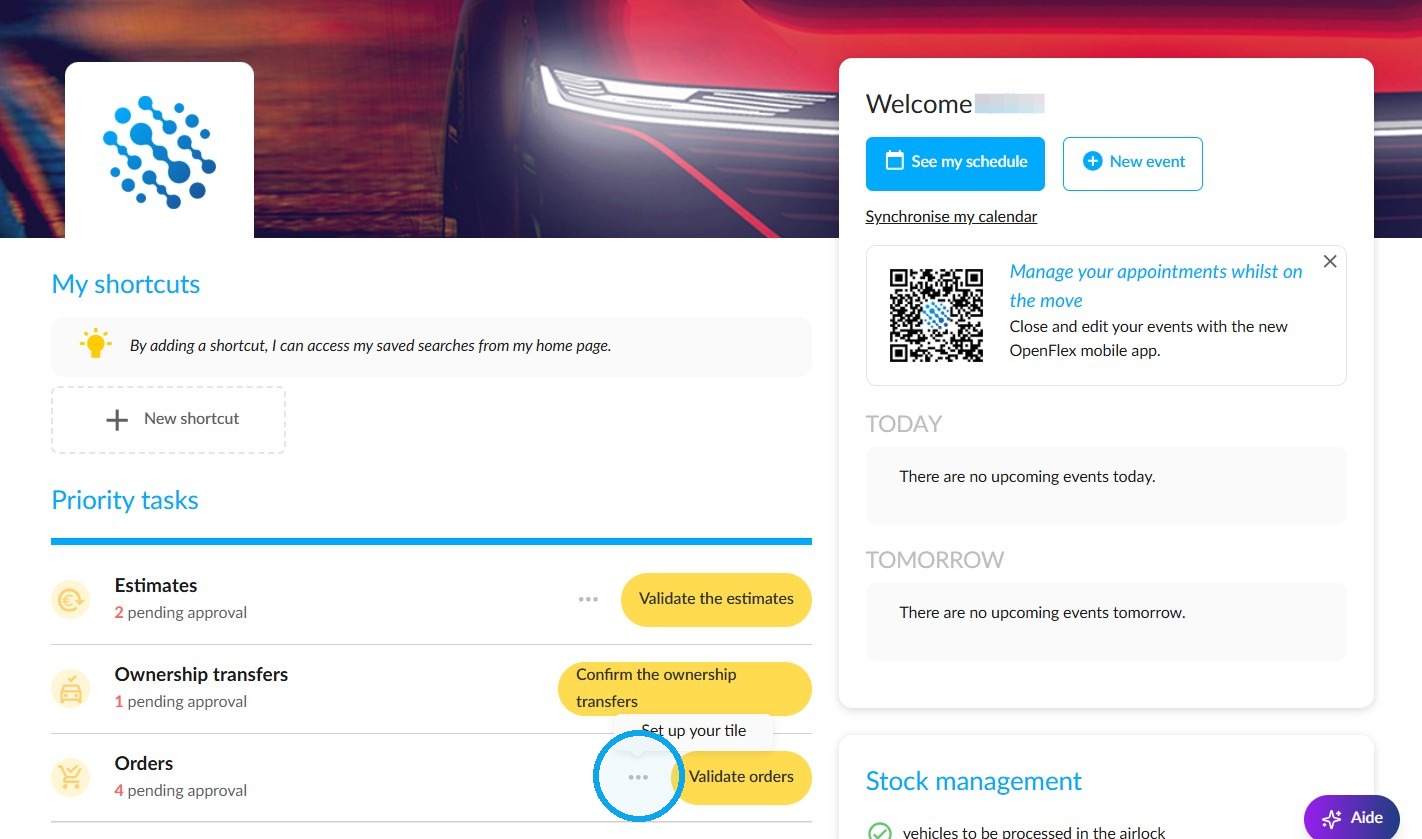
Order validation tile configuration:
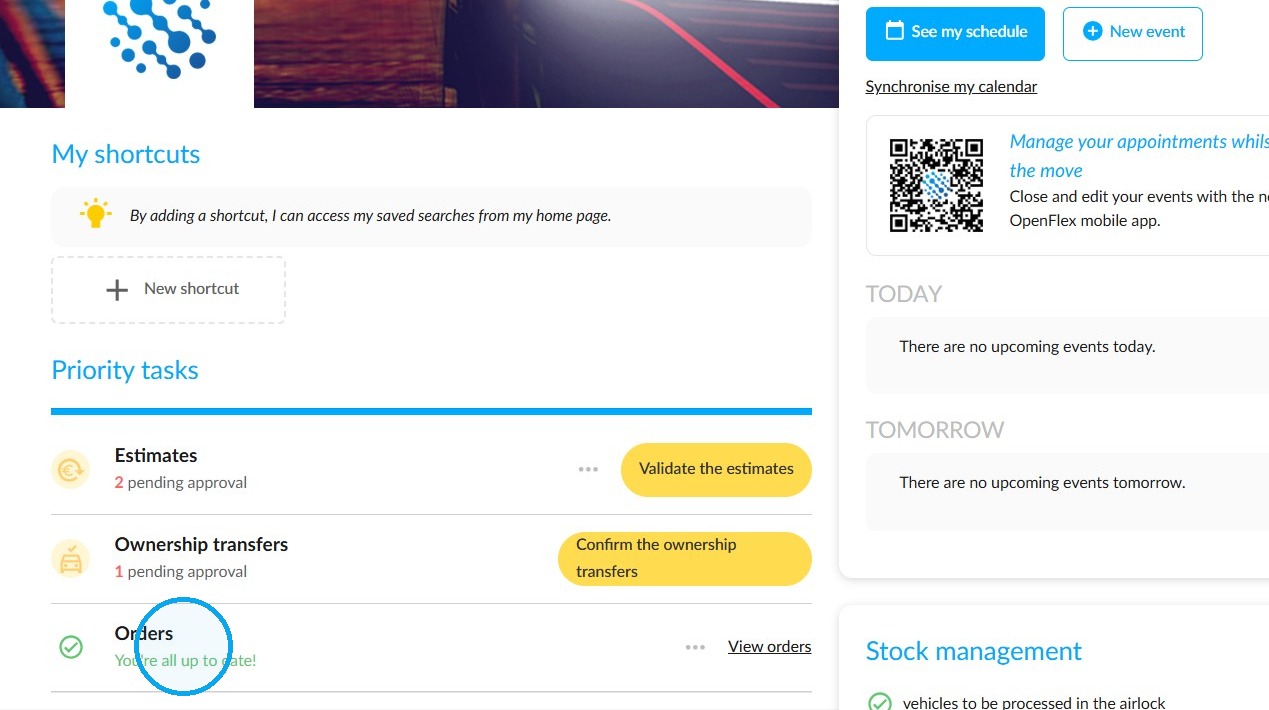
From the platform’s home page, hover your cursor over the three dots in the top-right corner of the tile labelled ‘Orders waiting for validation’ to configure it.
The "Filter orders to be validated" menu allows you to interact with the software. By default, the system will send you requests from all entities where you have a manager-type account with the permissions listed in the requirements.
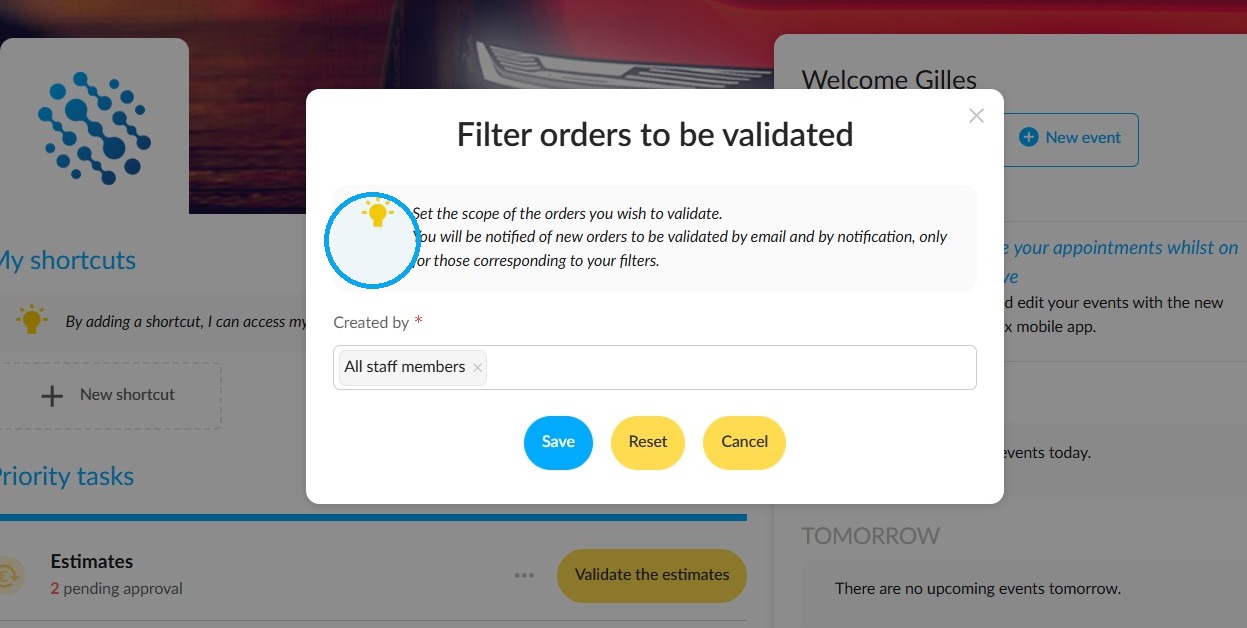
To receive order validation requests by email and notification for the employees for whom you are responsible, follow these steps:
-Click on the "Created by" field.
-Then click on the arrow to view the list of salespeople who can send you validation requests.
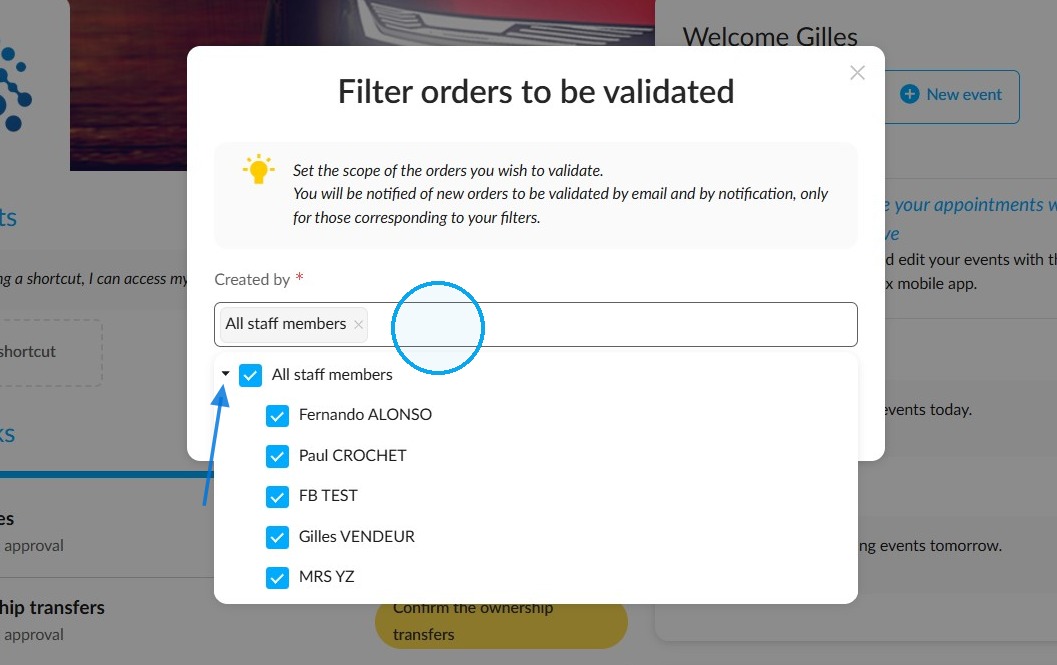
There are two ways to edit this list:
Method 1: Uncheck the boxes next to all request senders that do not apply to you.
To ensure that you no longer receive notifications from colleagues for whom you are not responsible, please uncheck the relevant boxes to remove them from the list.
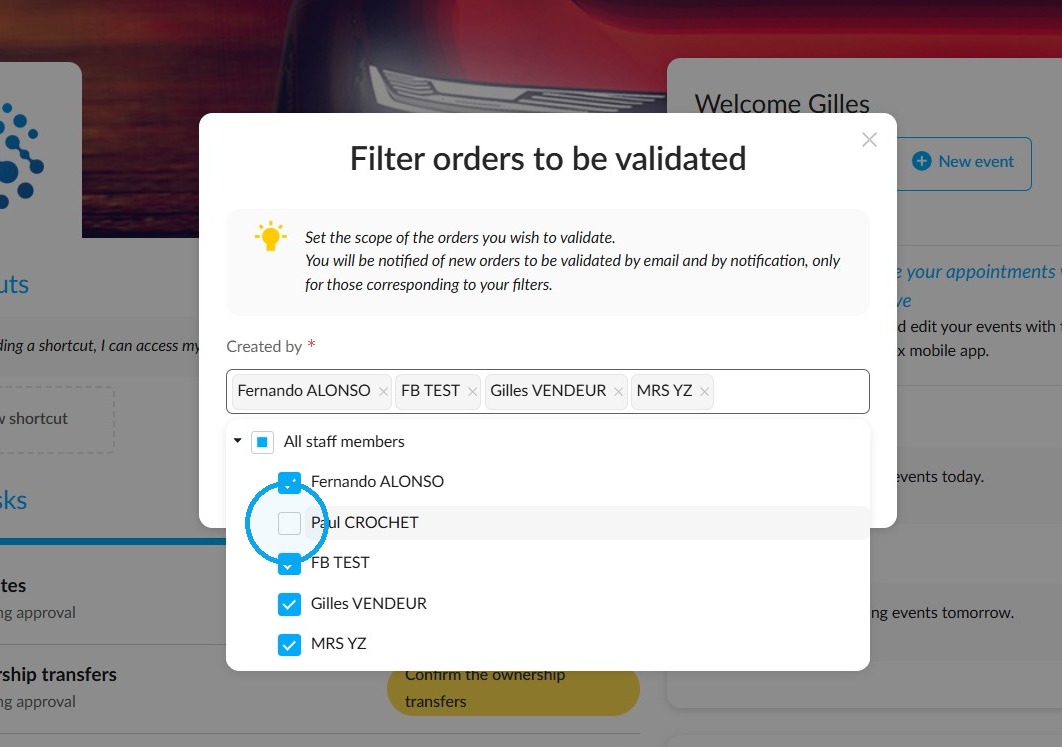
Method 2: Deselect all the boxes at once, then select the senders that apply to you.
Uncheck the 'All staff members' box to deselect all names that appear on the list with one click.
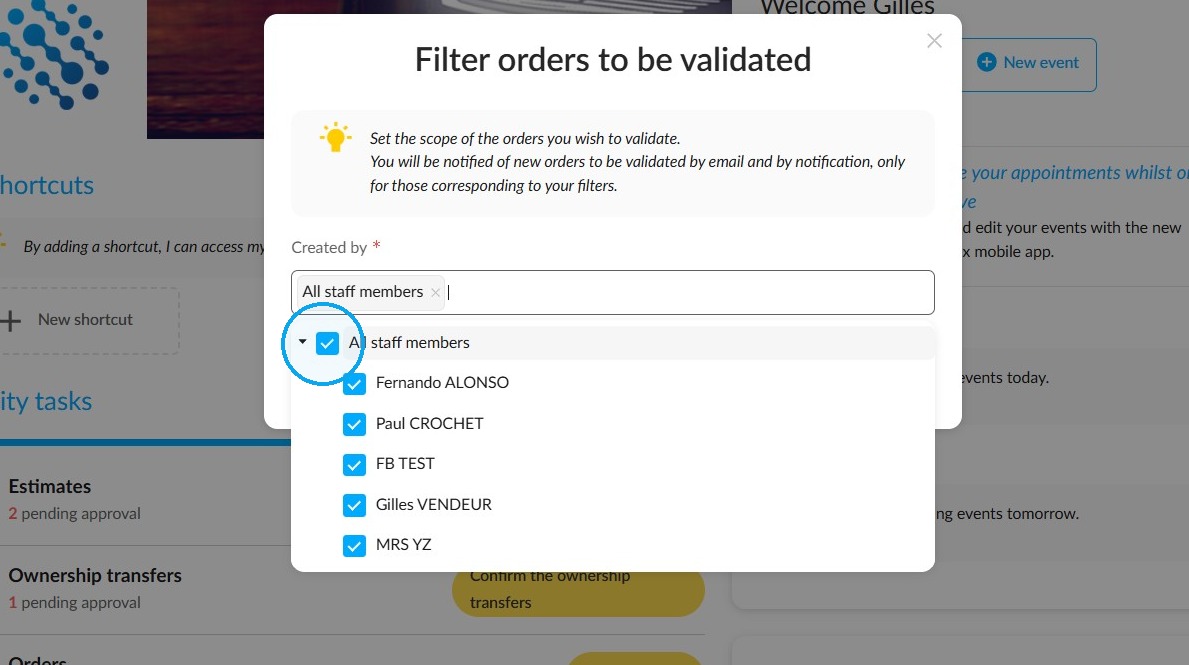
You can start over with an empty list to keep only the contacts of the employees under your responsibility.
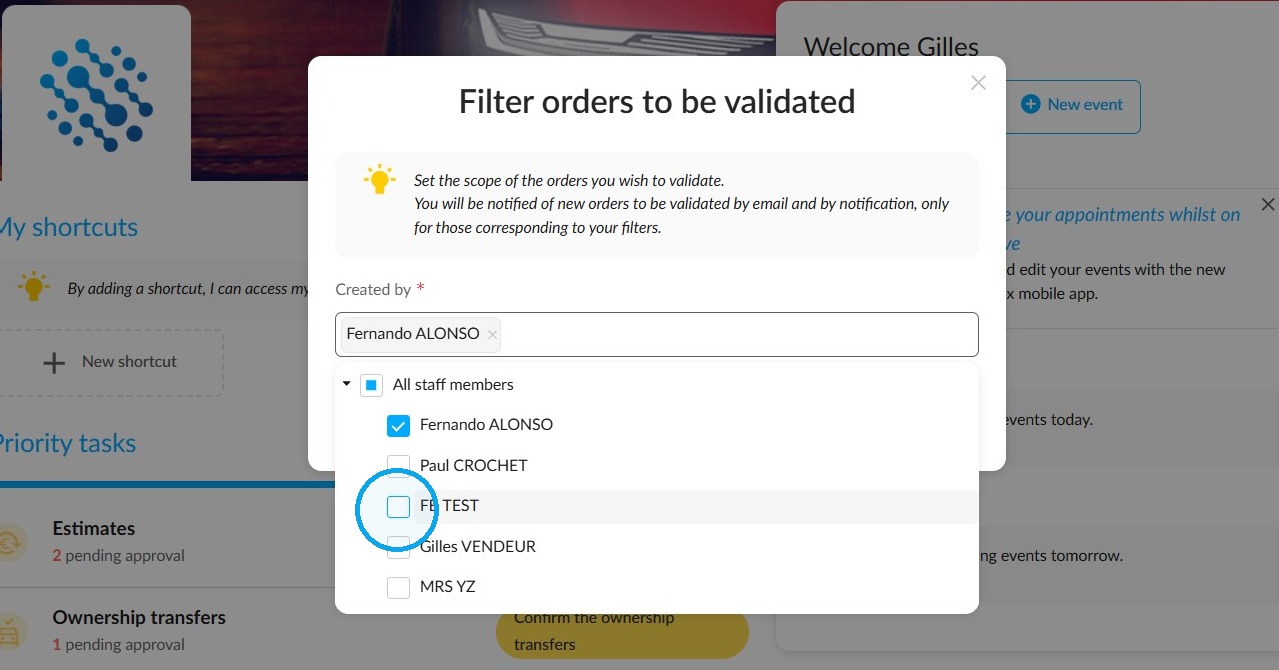
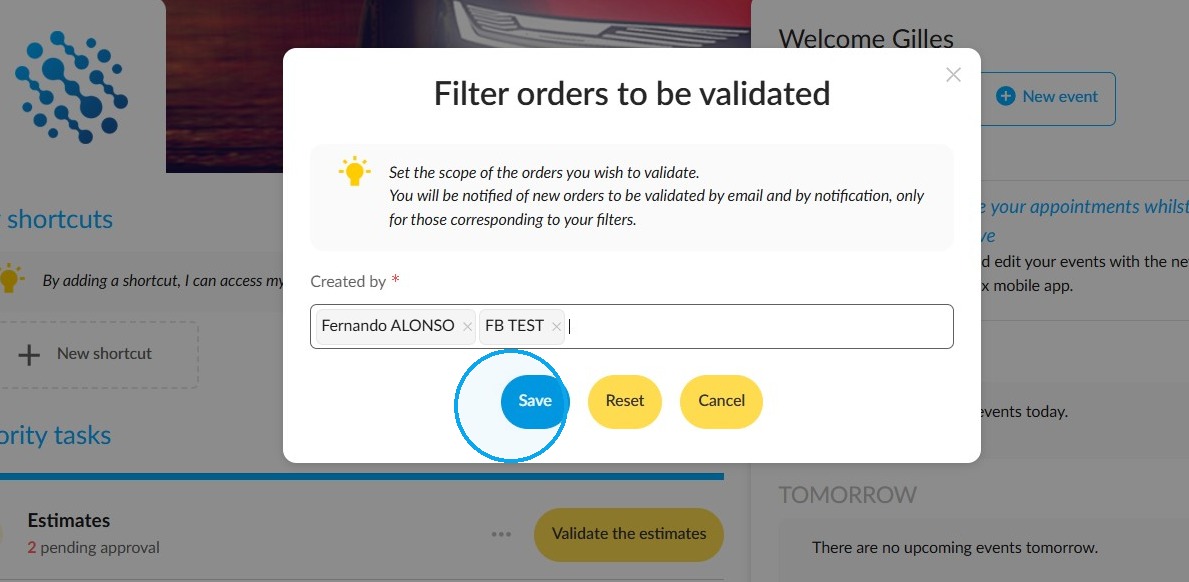
Once you have updated the list of employees for which you are responsible, click the 'Save' button under the filters and selection fields to save the configuration.
If necessary, you can revert to the original configuration. Click the 'Reset' button to do so. This is located next to the 'Save' button.
The number of orders waiting to be validated is updated automatically.
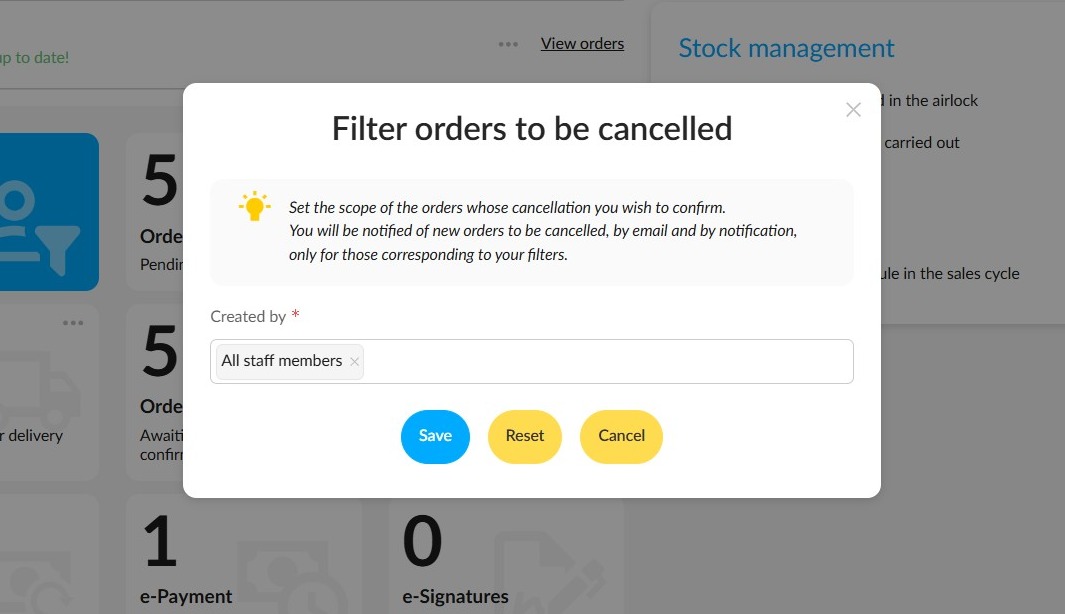
Configuring the tile for orders awaiting cancellation:
The settings for the tile used to process orders awaiting cancellation are the same as those for the tile used to process orders awaiting confirmation.
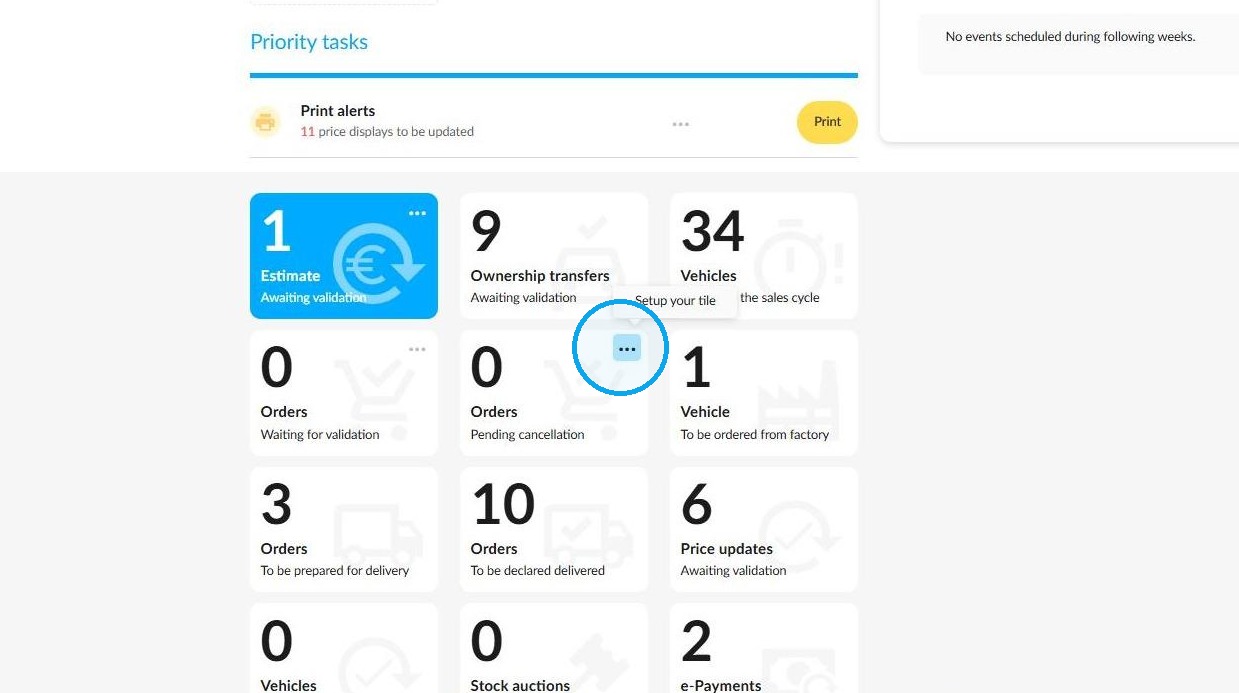
Please follow steps 1 to 5 outlined above to change the tile settings.
Comments
0 comments
Article is closed for comments.