
Learn how to set up your publications to automatically feed advertisers' websites and how to check the publication status of your vehicles.
Prerequisite: You need administrator rights
How to access the settings ?
To ensure your vehicles are published automatically, you will be asked to enter a series of criteria that will make them eligible.
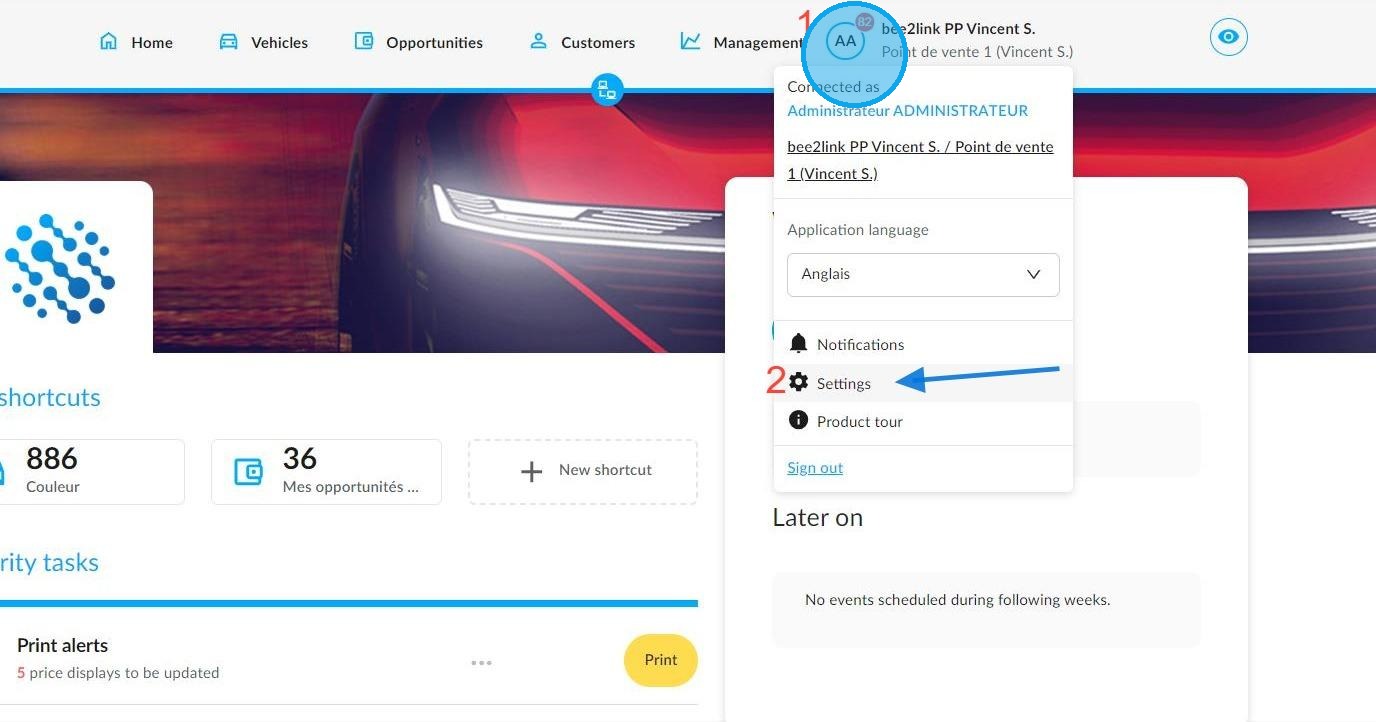
From the OpenFlex home page, click on your initials (1) to access to the ‘Settings’ (2) for the platform modules:
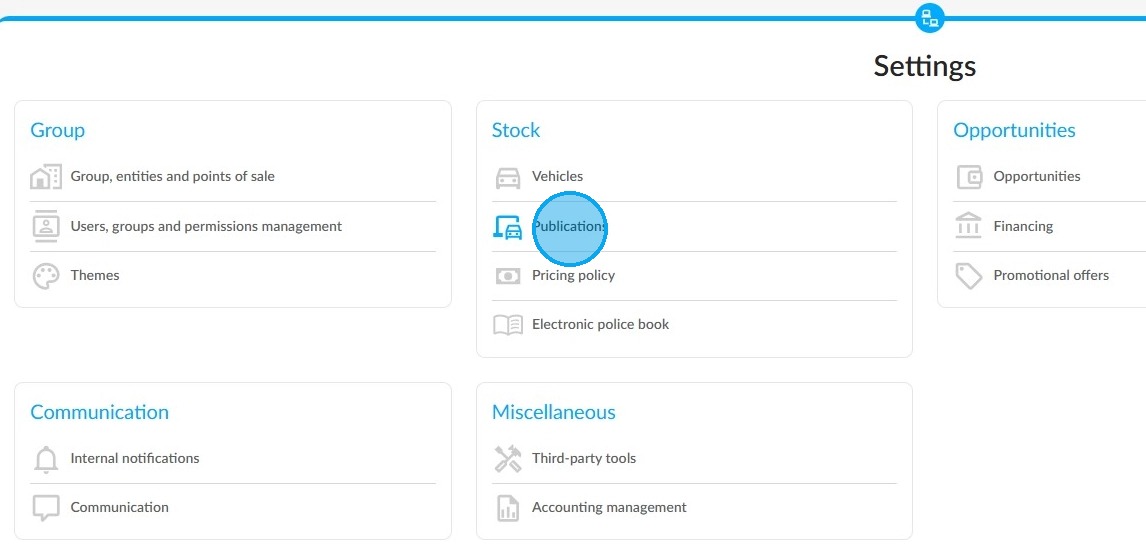
To manage ‘ Publications ’, click on the relevant heading:
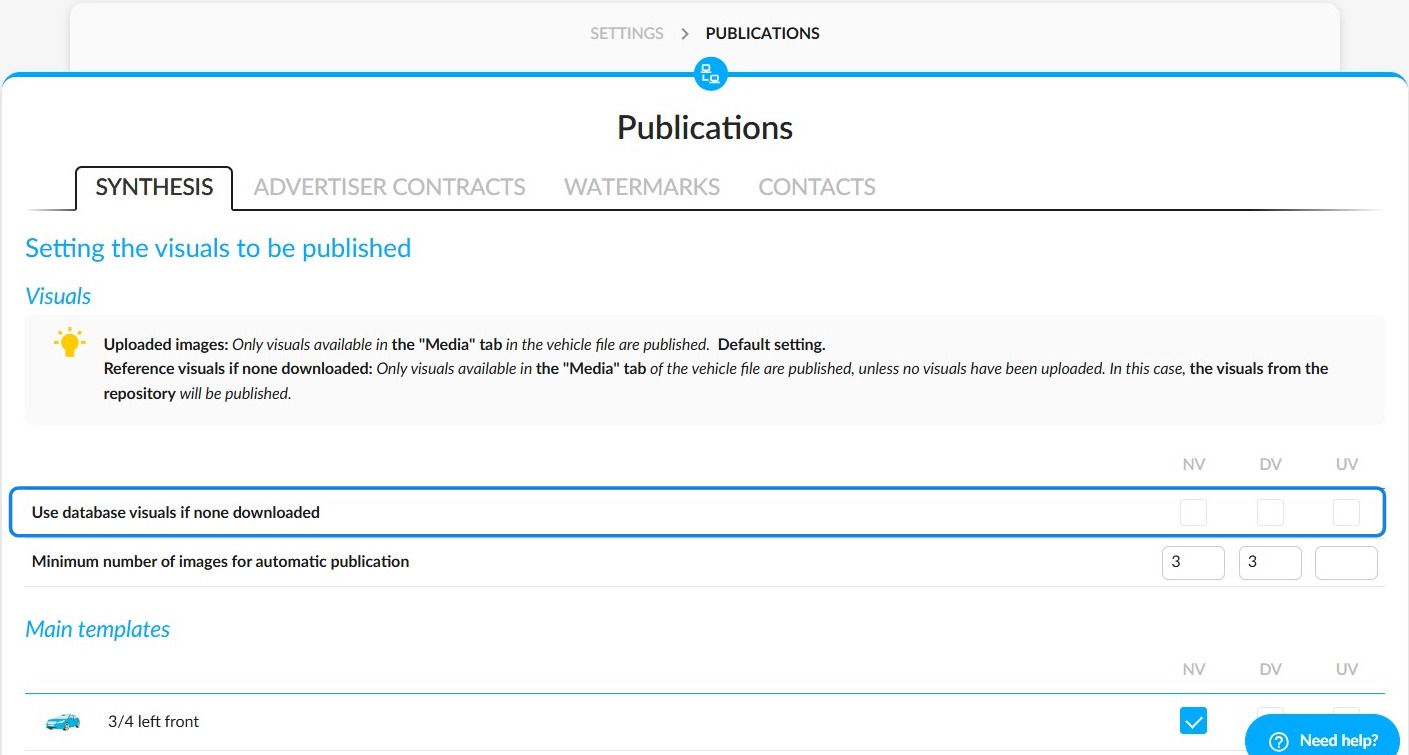
Setting the number of compulsory photos and templates:
The "Use database visuals if none downloaded" setting allows you to display the vehicle with images from the reference library if no photos have been uploaded to the "Media" tab of the vehicle listing.
Select the vehicle types to which you wish to apply the setting by ticking the corresponding boxes on the right-hand side of the page.
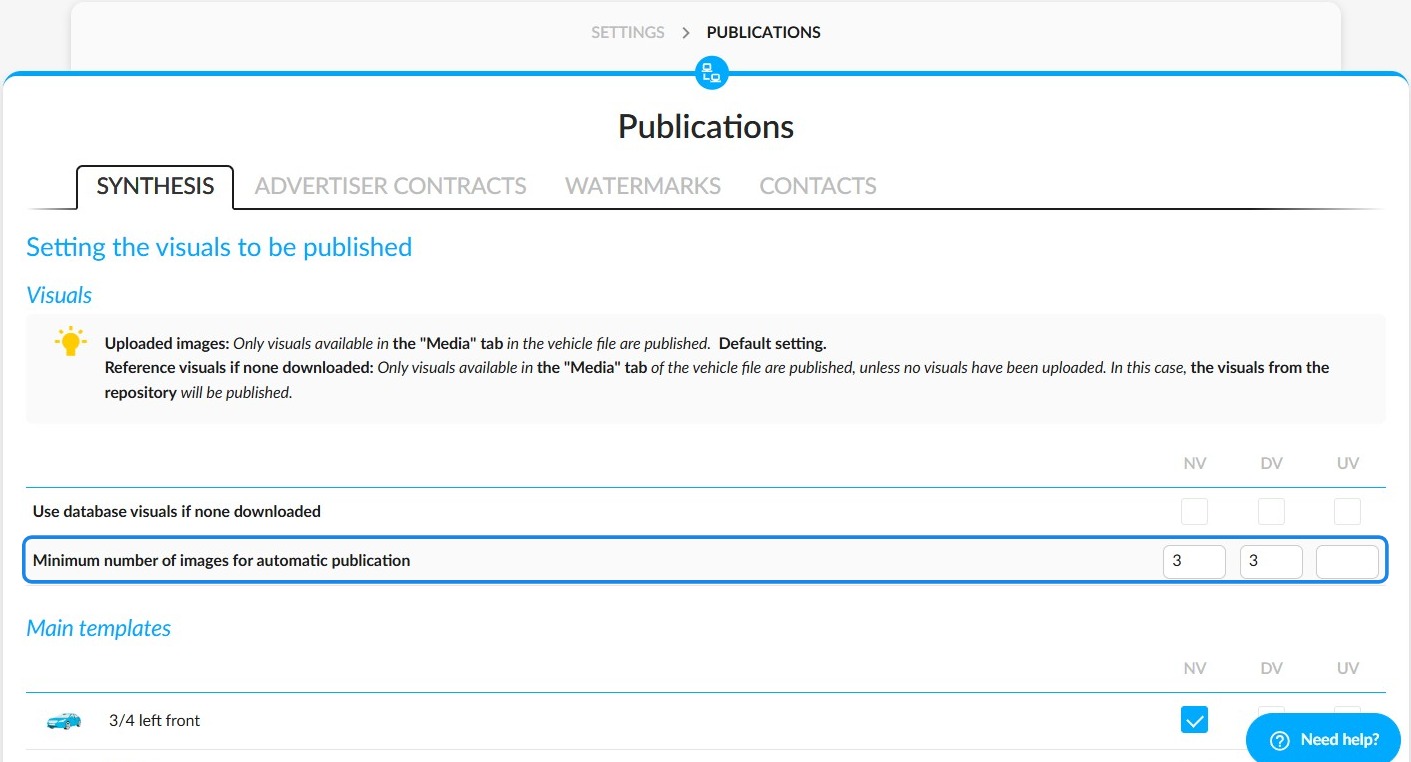
The second setting, titled 'Minimum number of images for automatic publication', enables you to specify the minimum number of images required for a vehicle to be published automatically in the corresponding box for the desired vehicle type.
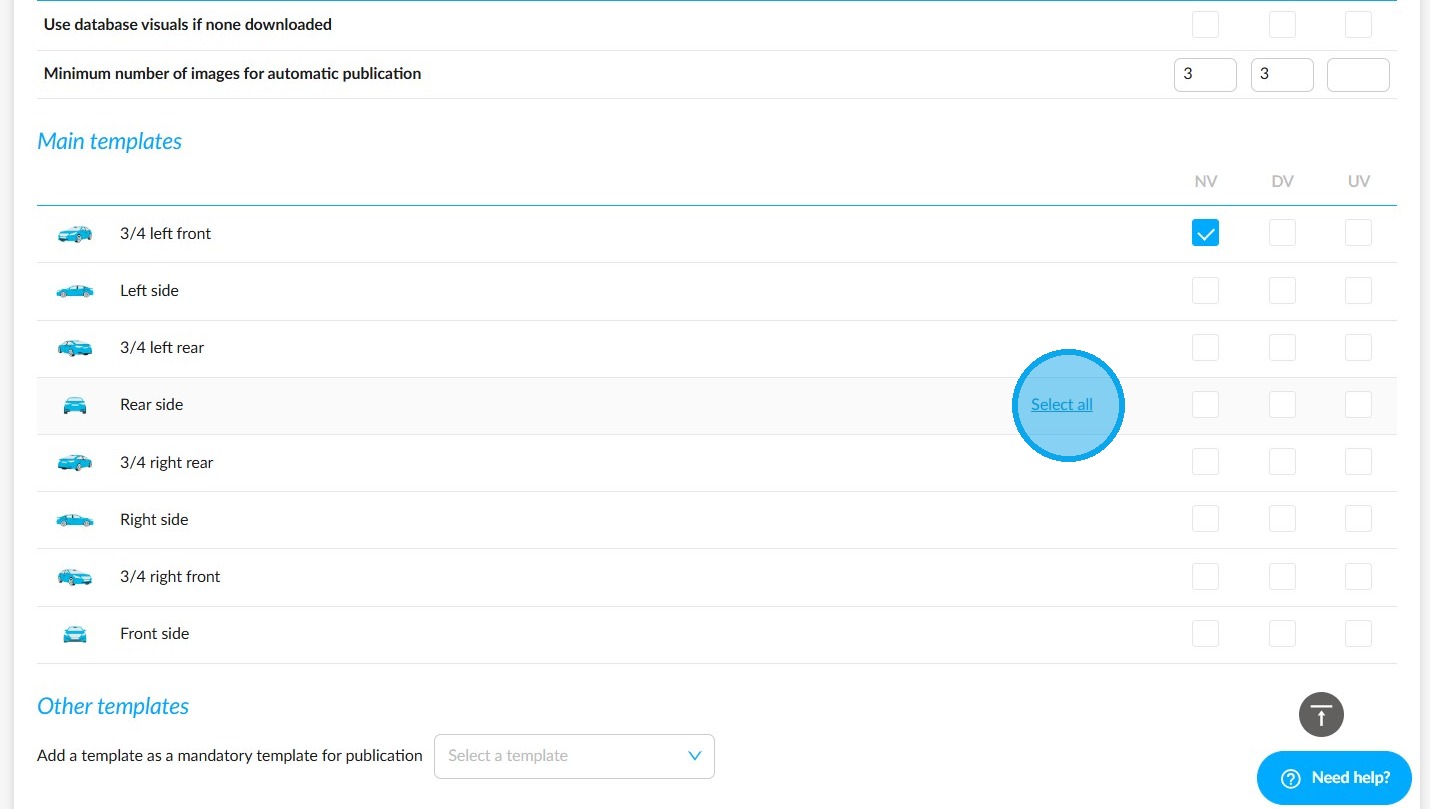
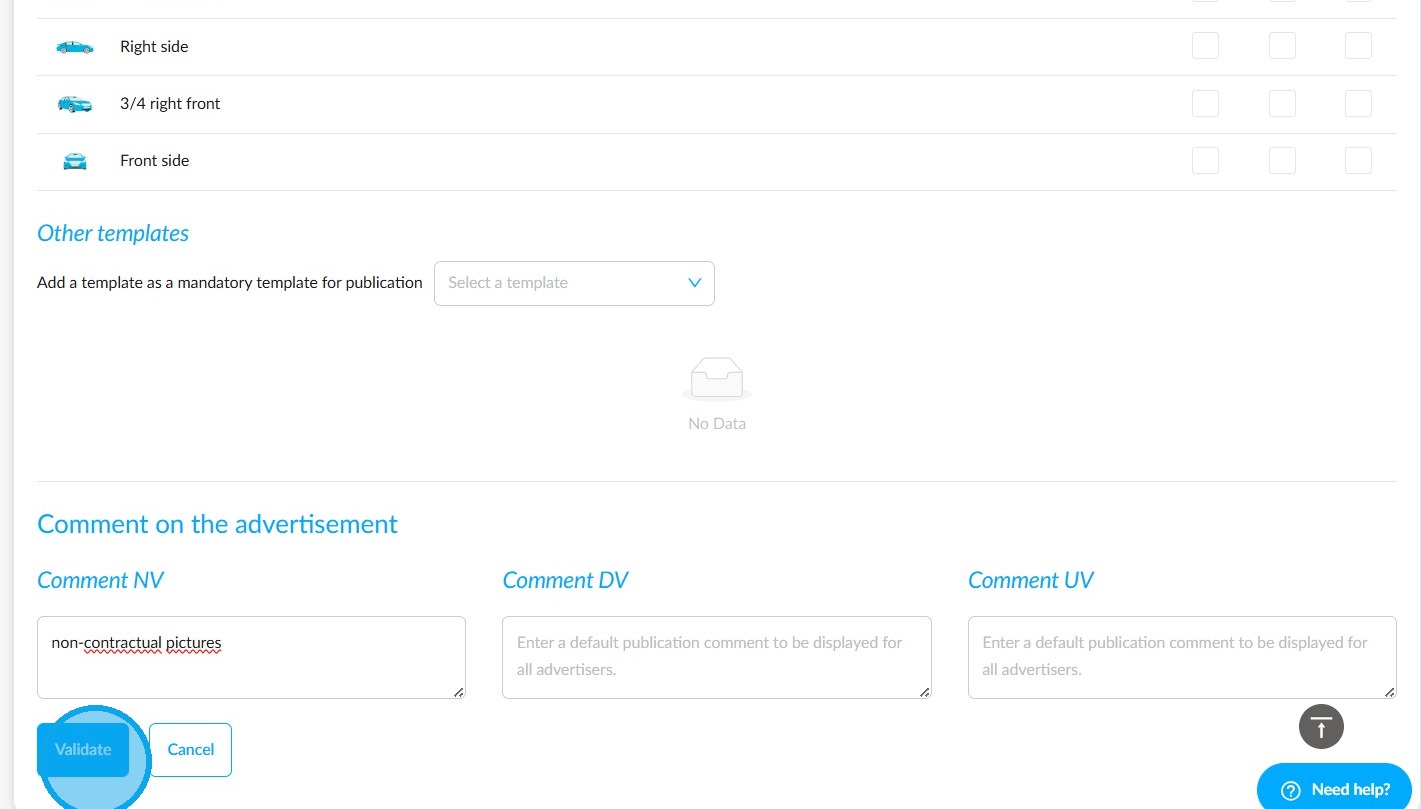
In addition to the required number of photos, you can also make it mandatory to complete certain views/templates that enable vehicles to be presented from different angles. To do this, tick the boxes corresponding to the templates for each vehicle type.
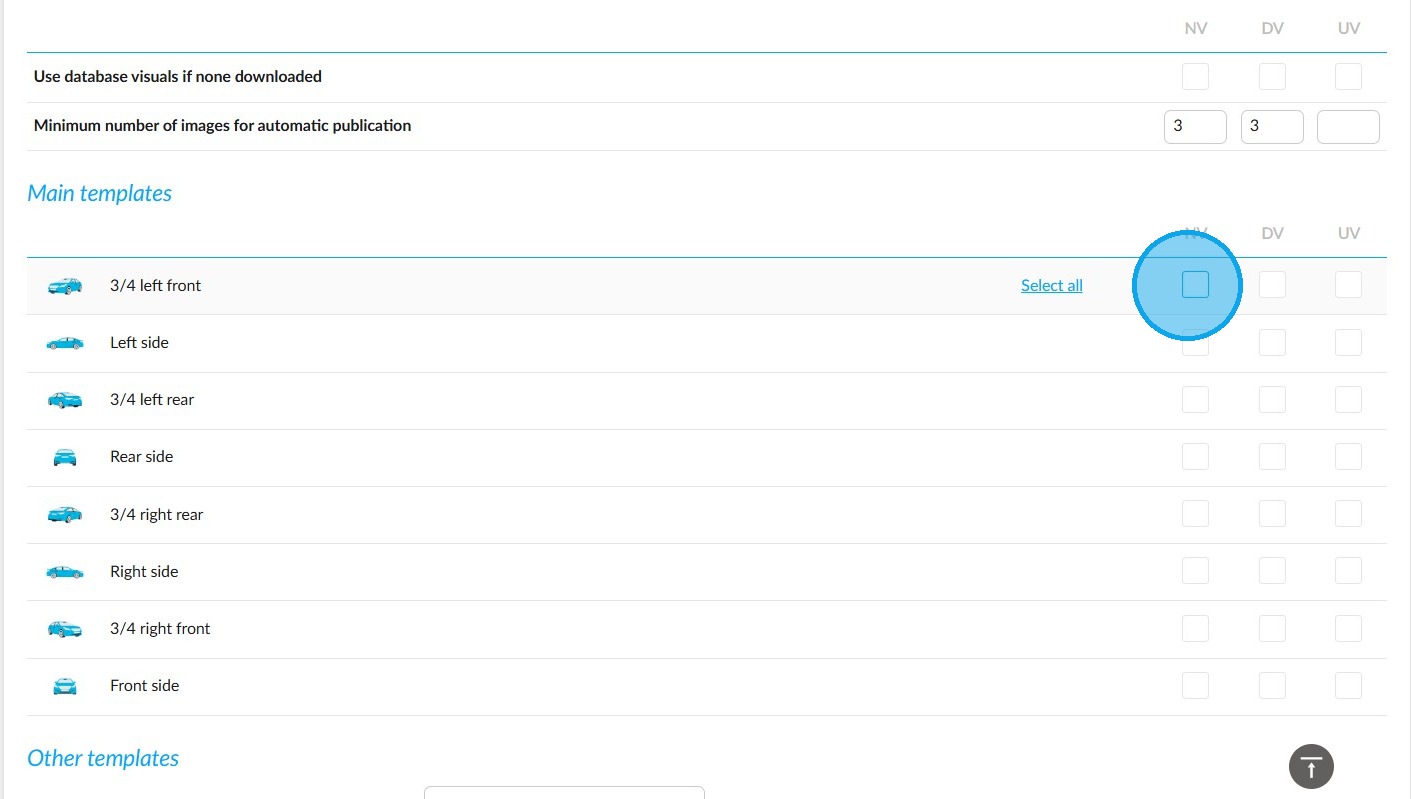
If you want to include all vehicle types directly, place the cursor on the template line and click 'Select all'.
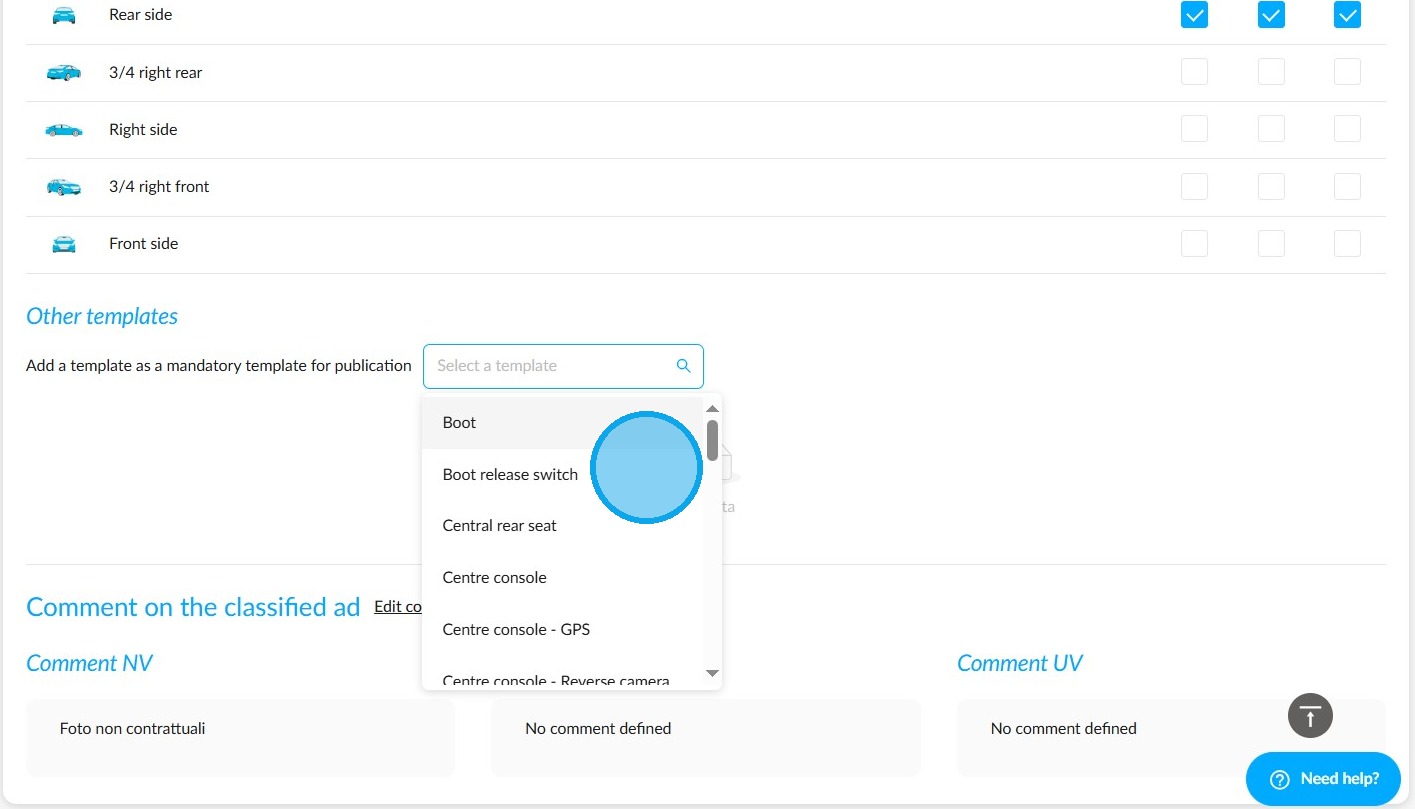
The "Other templates" section allows you to add additional viewing angles not included in the main ones. Select them from the drop-down menu displayed on the screen.
The "Comment on the advertisement" field enables you to add a comment that will be visible on all ads by default.
To do this, click on the "Edit comments" button.
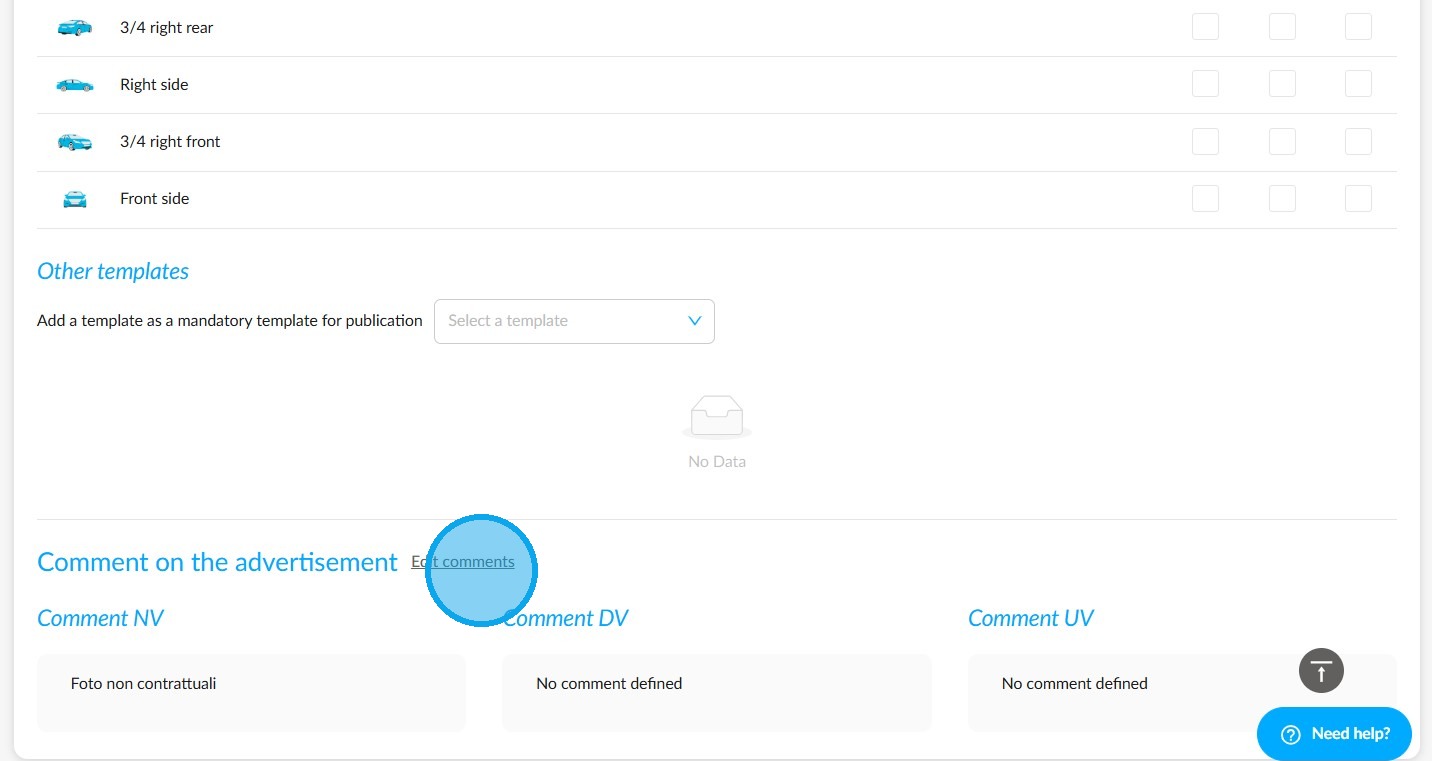
Then write your comments. Click on the "Validate" button to save them.
How can you identify publishable vehicles?
Filters are available in the vehicle stock table to easily identify published and unpublished vehicles.
To do this, click on the 'Add a filter' button and enter 'publication' in the drop-down menu. The relevant filter will then be displayed automatically.
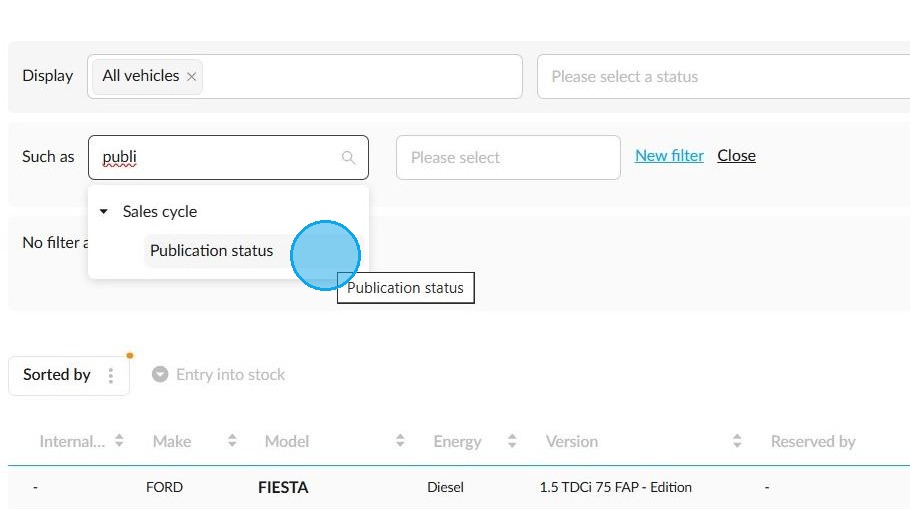
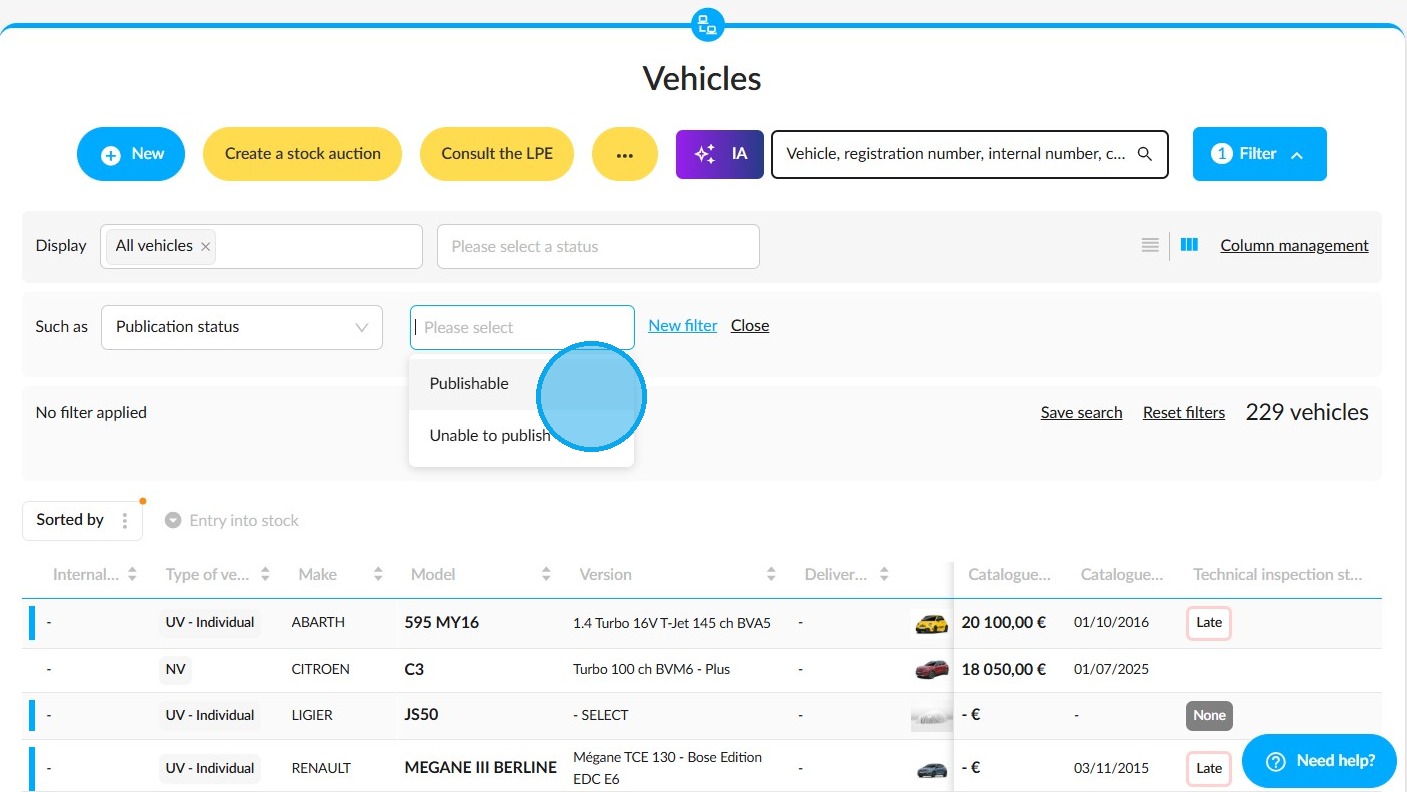
You can then filter the vehicle stock by publication status.
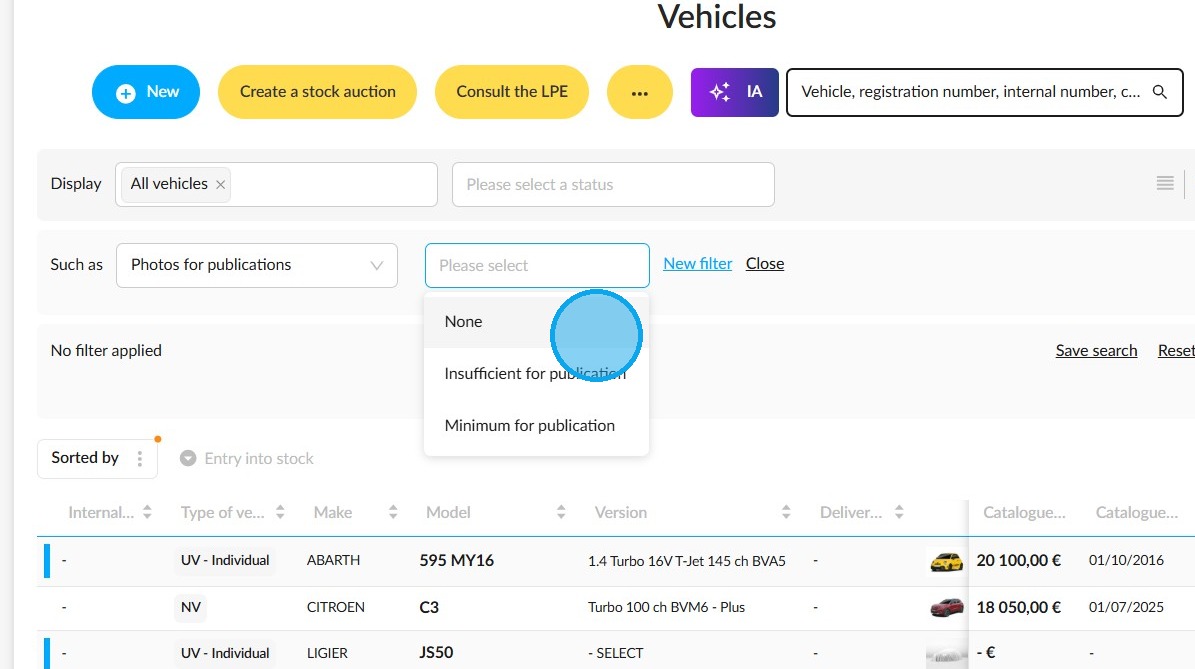
Similarly, you can search for vehicle records with or without enough photos to be published. To do this, use the 'Photos for publications' filter and select the required criteria.
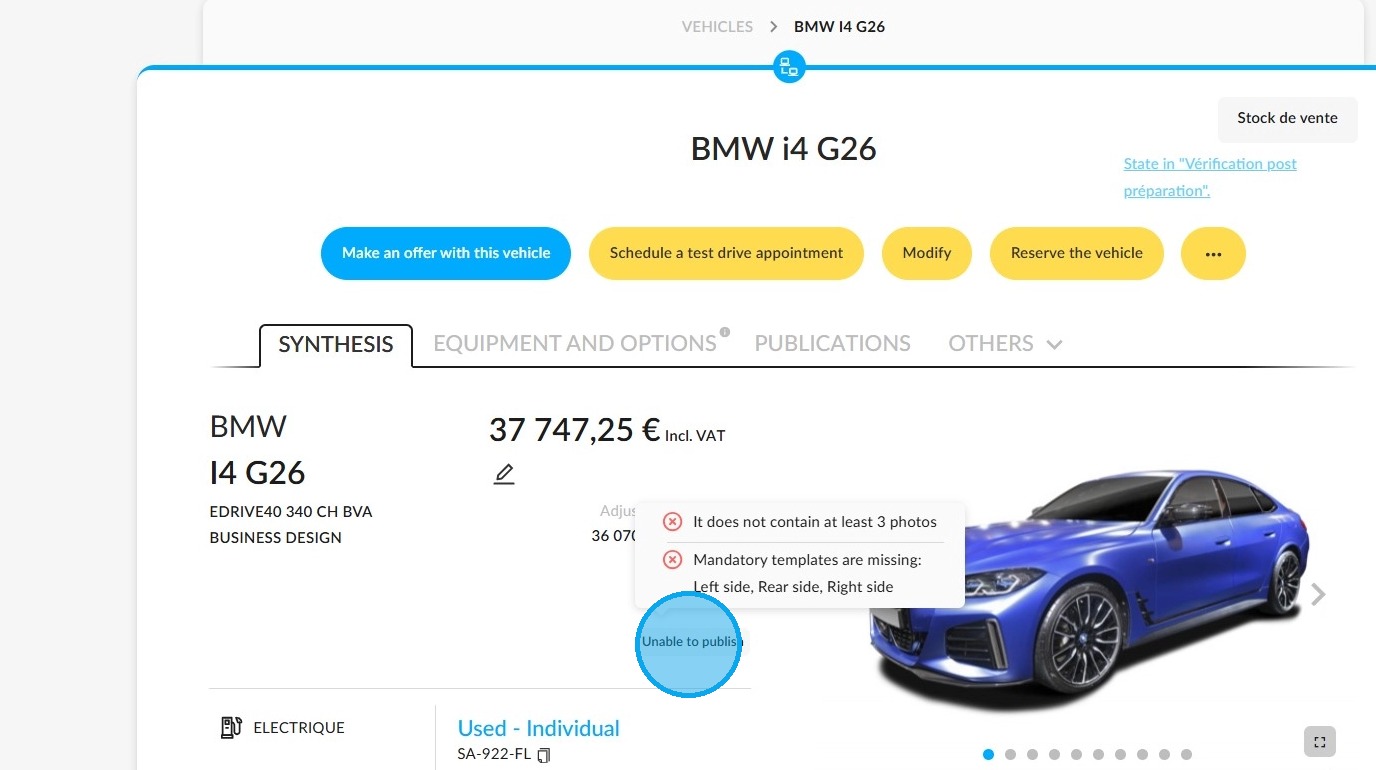
You can also check a vehicle's publication status by consulting its file. This information is provided under the vehicle's VAT-inclusive price.
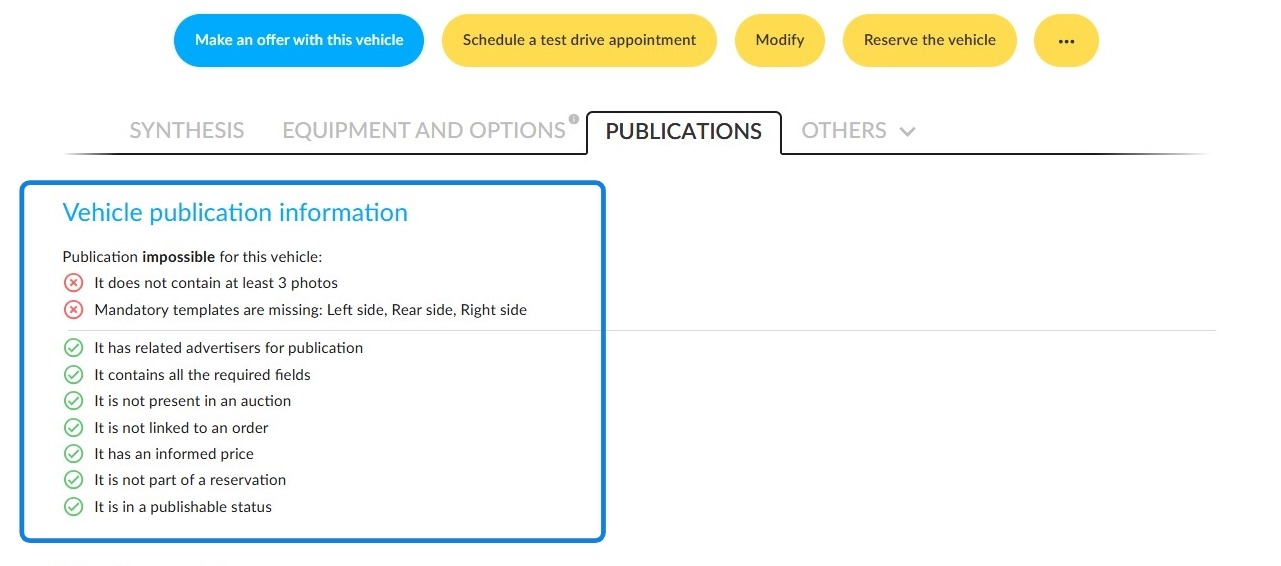
Click on it or on the ‘Publications’ tab to access the details.
The reasons why a vehicle will or won't be published will be explained in detail.
Comments
0 comments
Article is closed for comments.