
Find out how to export your stock list.
Prerequisites:
- Ensure you have the right to export customer data and display as much relevant information as possible.
- Filter the vehicle stock beforehand to display only those that meet your criteria. This will reduce the time taken to export the data.
Accessing stock & adding filters:
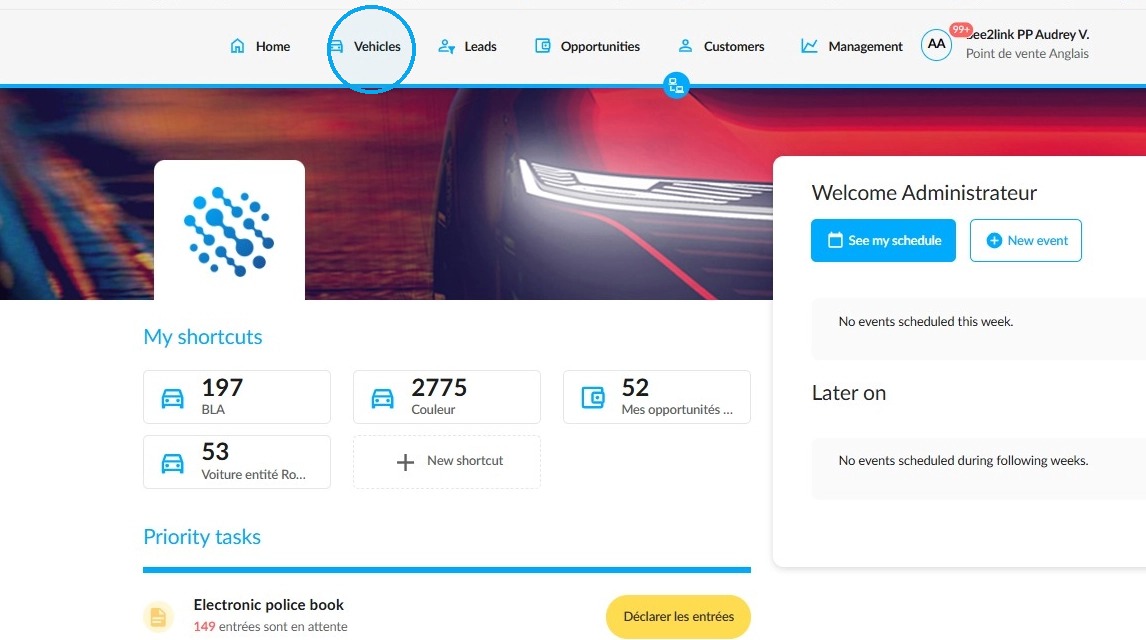
From the OpenFlex homepage, navigate to the 'Vehicles' module.
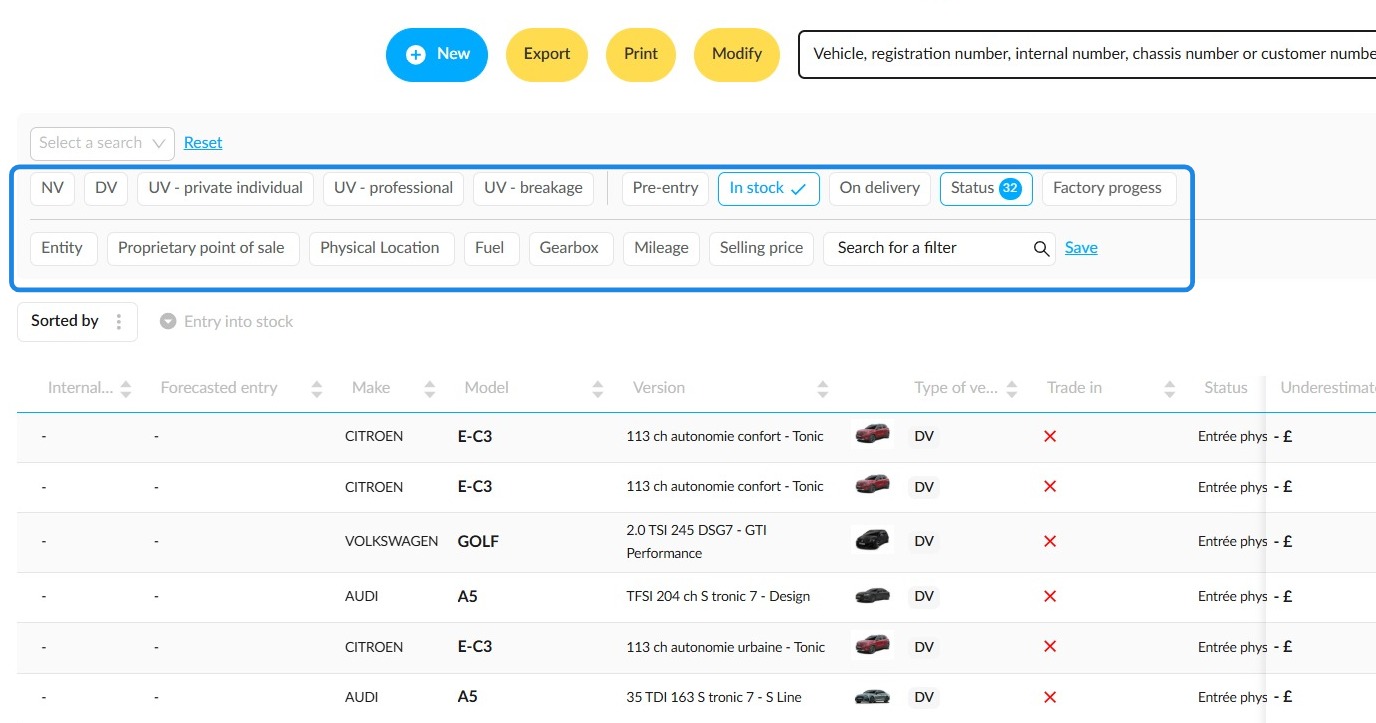
Next, configure the various filters to allow you to export only the results that you need.
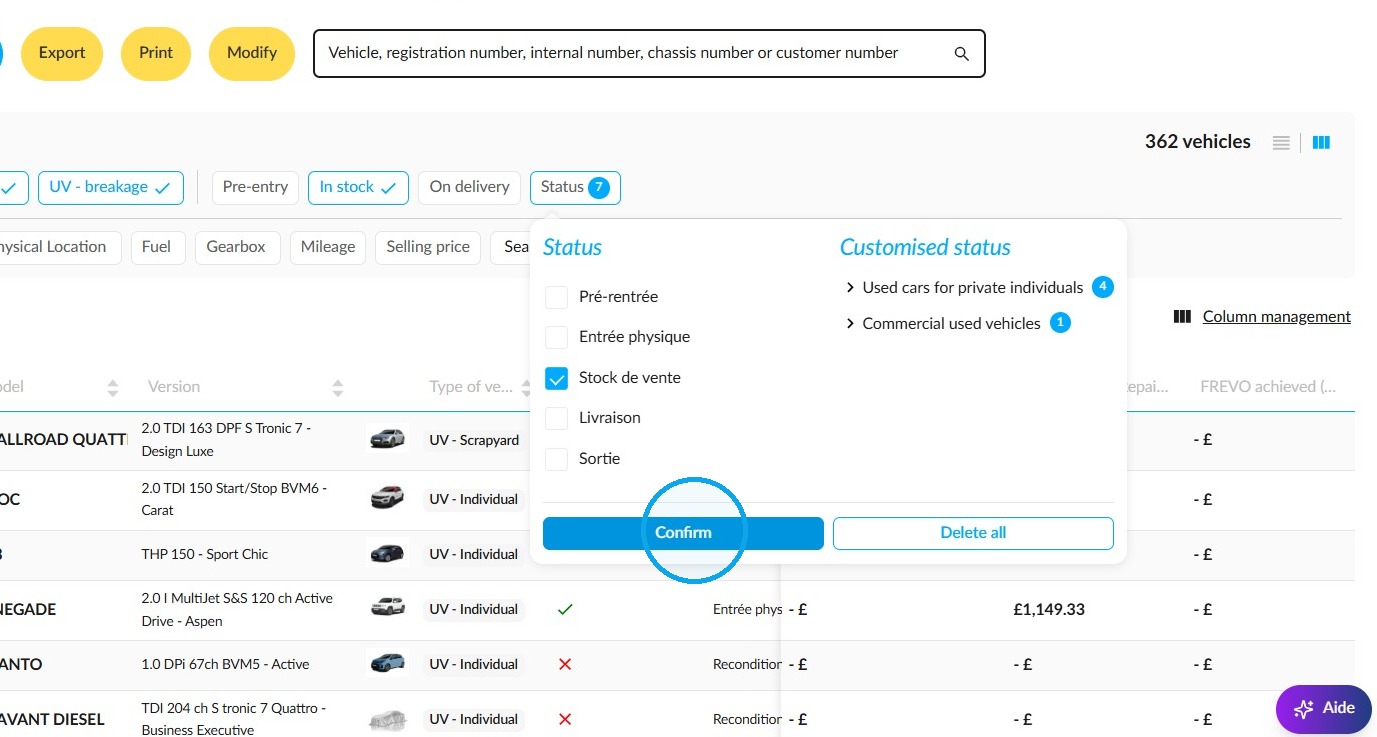
In the example below, we selected all UVs available for sale in a specific entity in order to limit the number of results.
Data exportation:
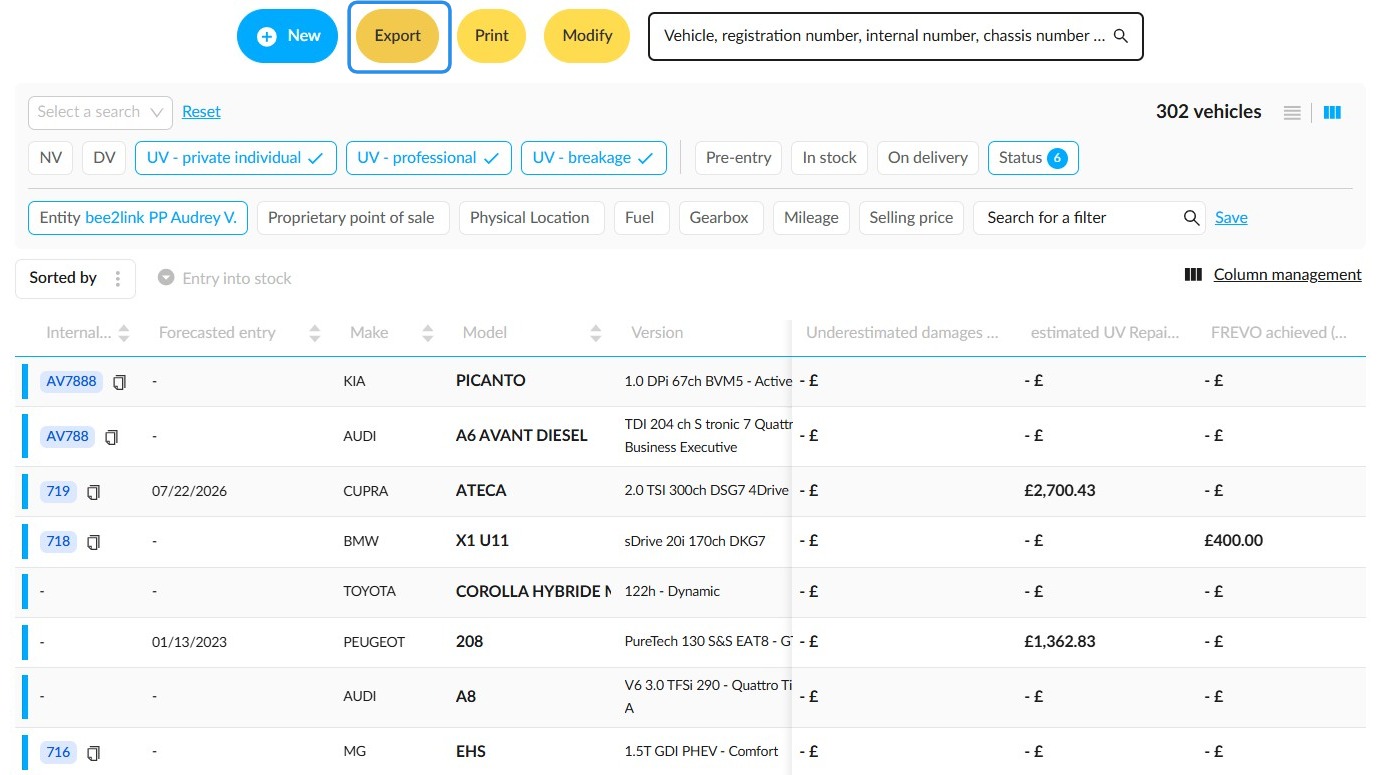
The data in the columns will be included in the retrievals.
When you hover over the three horizontal dots at the top of the screen, an 'Export' button will appear. Click on this button.
A new window will open to enable you to configure the data to be retrieved.
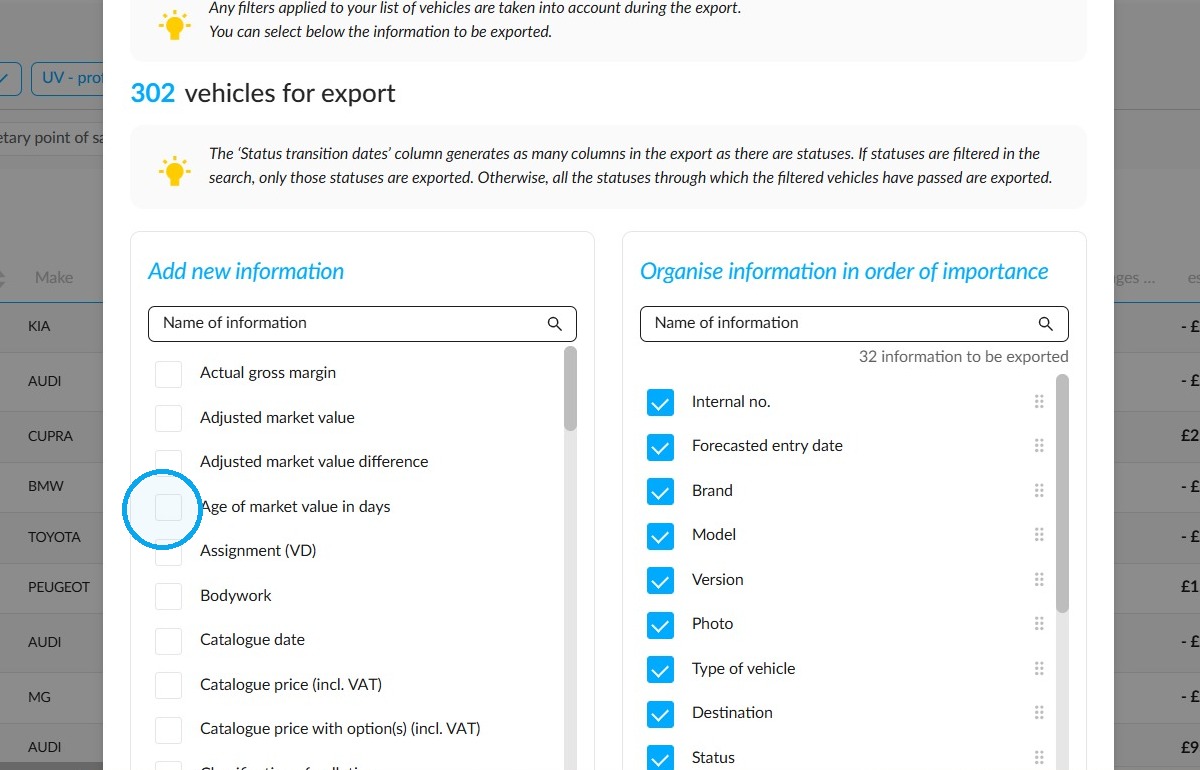
Additional information can be selected on the left-hand side of the screen by clicking on the boxes in front of their labels.
The selected options will then be dipslayed on the right-hand side of the screen.
To remove some of them, uncheck the boxes next to their labels.
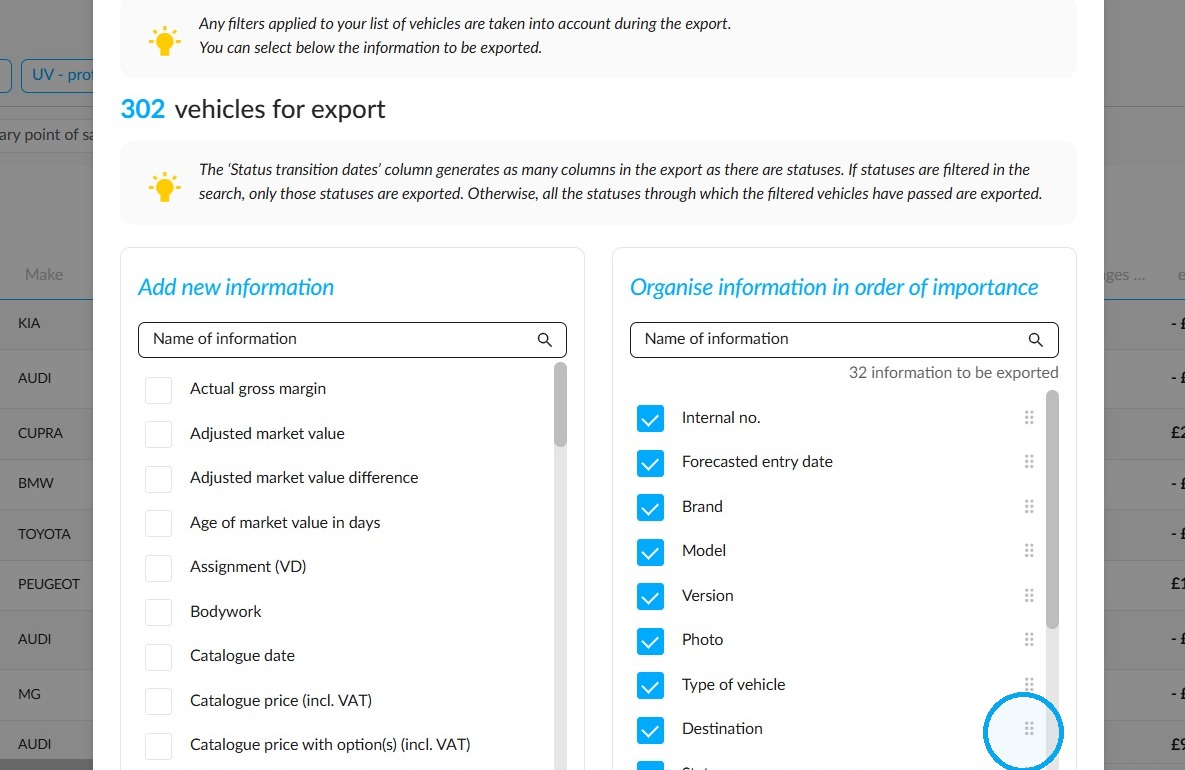
You can change the order in which information is displayed by clicking on the dots to the right of a column, then dragging and dropping.
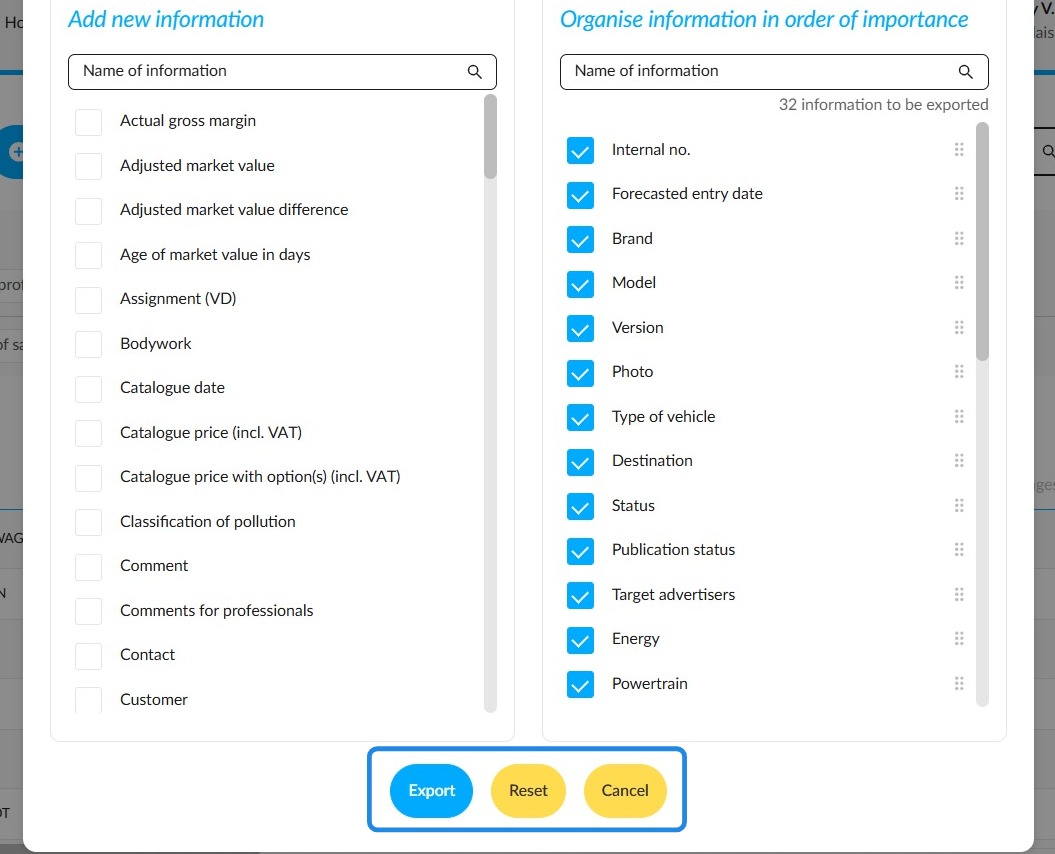
If you are not happy with the result, click the "Reset" button to review your selection.
The ‘Cancel’ button will take you back to the stock list if necessary.
Otherwise, click on the ‘Export’ button to start retrieving the data. It will be in XLS format.
The display order of the columns will be maintained during the retrieval. However, if you edit it in the window presented above, this new order will overwrite the previous display order.
Comments
0 comments
Article is closed for comments.