
Prerequisites:
- Possess OpenFlex administrator rights.
Setting up the parameter
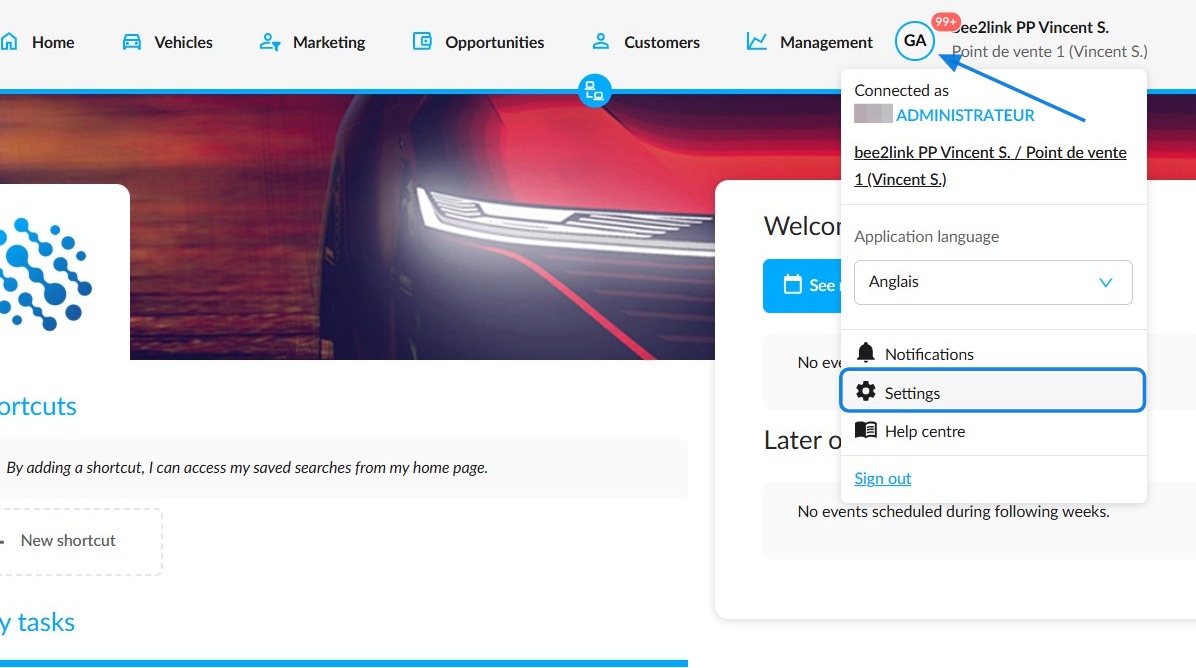
To view alerts regarding the expiry of your vehicles' technical inspection certificates and stay up to date so that you can sell them, start by hovering your mouse over your initials at the top right of the page, then click on 'Settings'.
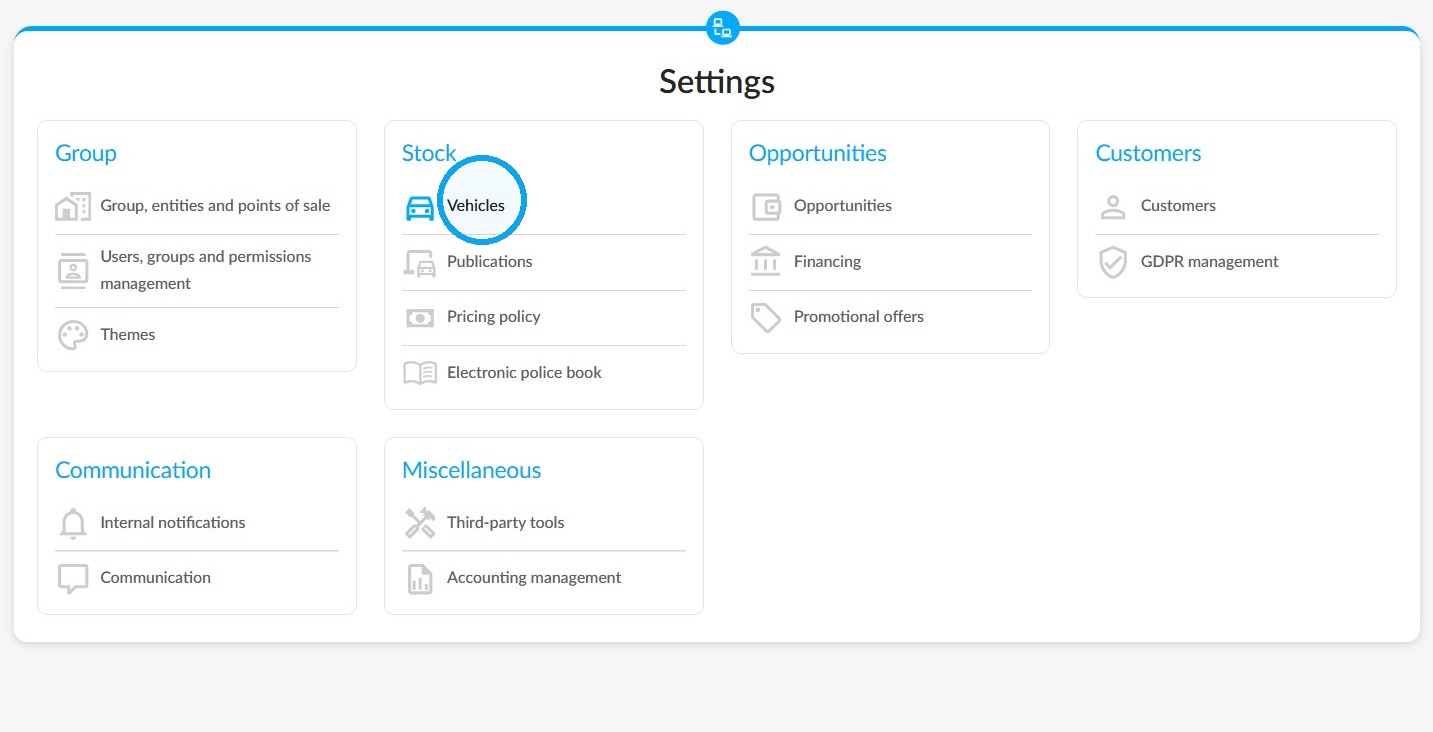
Click on Vehicles in the "Stock" section.
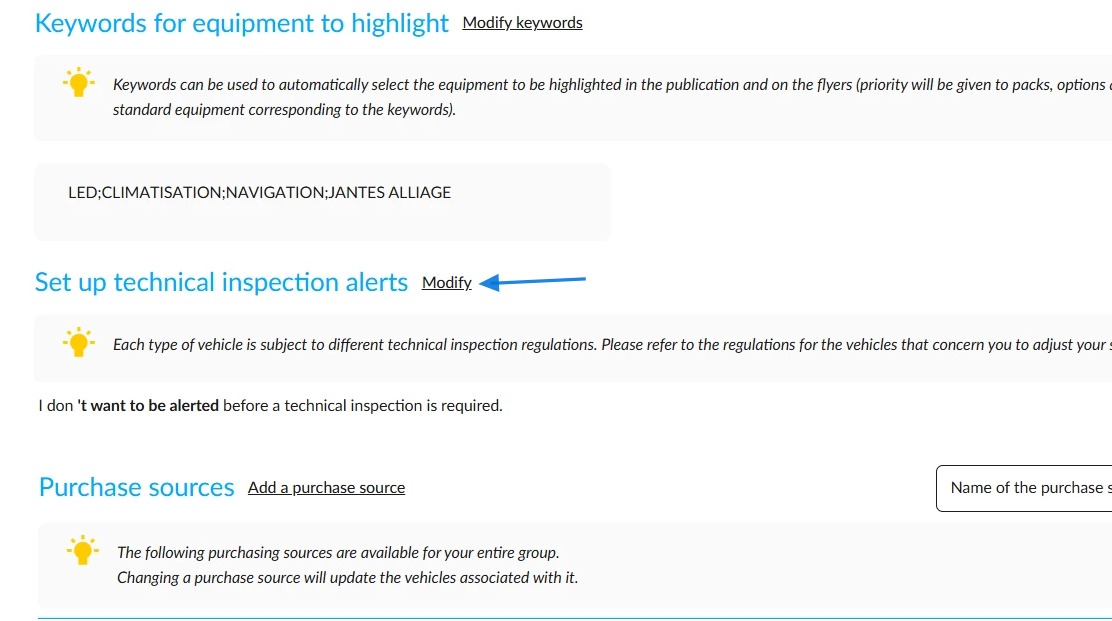
Remain in the "Synthesis" tab and click on the "Modify" button, located next to the "Set up technical inspection alerts" title.
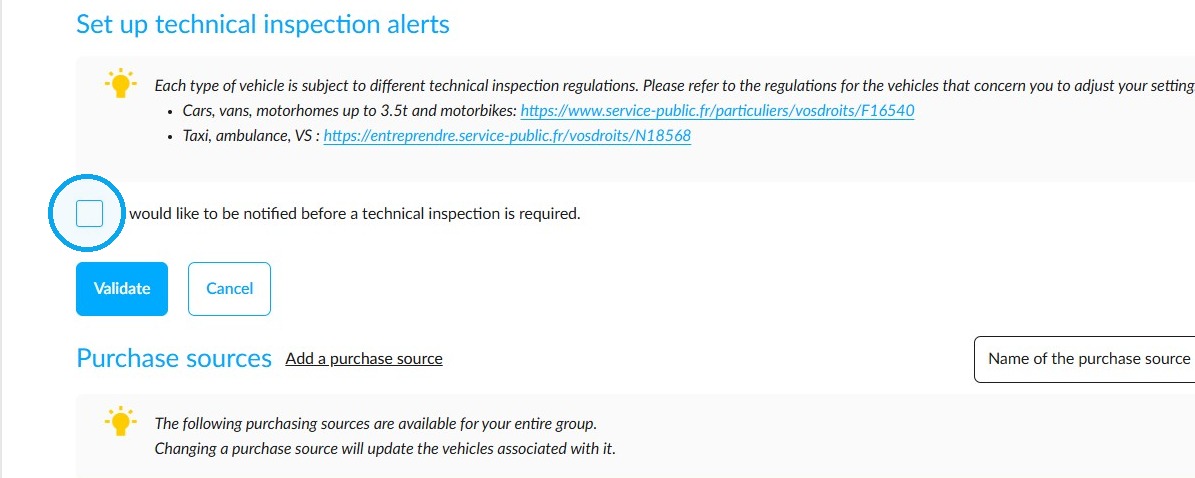
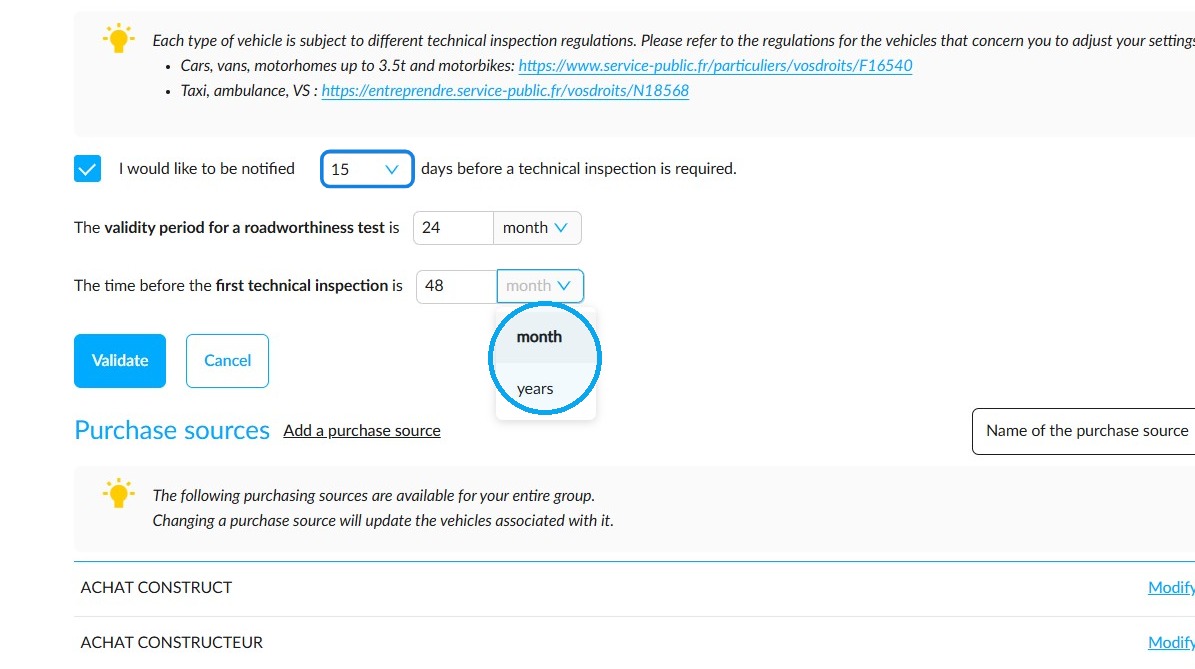
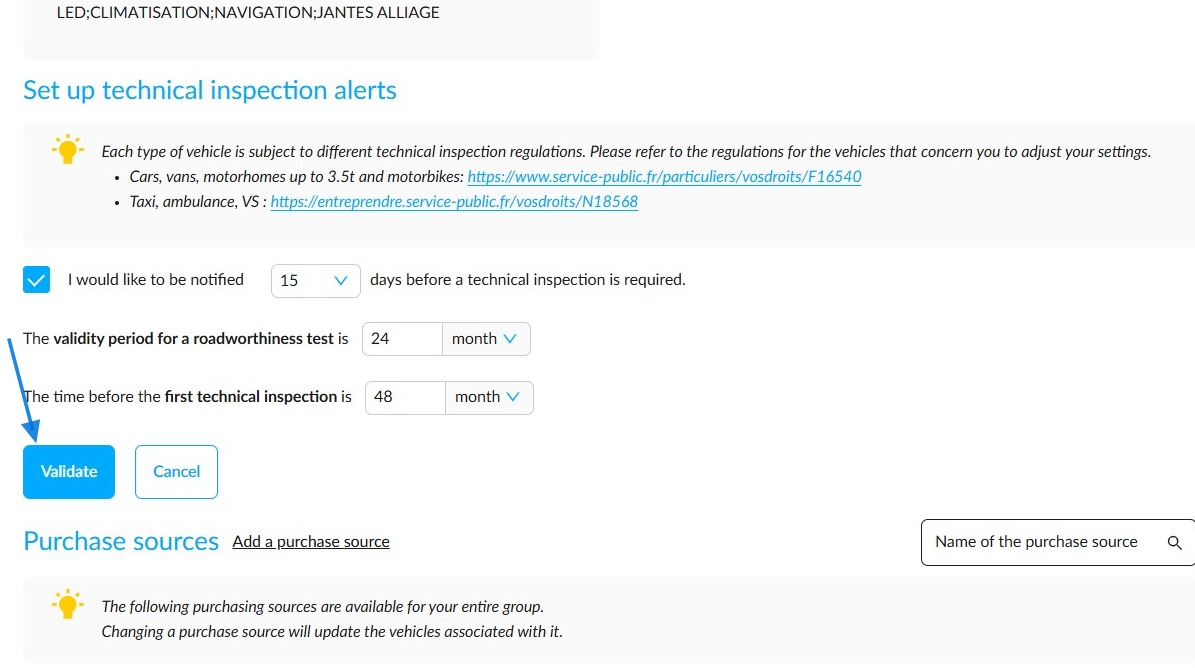
Tick the box labelled "I would like to be notified before a technical inspection is required". This will activate this setting.
Select the number of days remaining (7, 15 or 30 days) before a technical inspection is due to receive a reminder.
Then enter the validity periods for the technical inspections. You can do this in months or years by clicking on the small arrow to the right of the field.
Finally, click on "Validate".
Note: Your vehicles will be checked automatically once per night.
Stock table filter
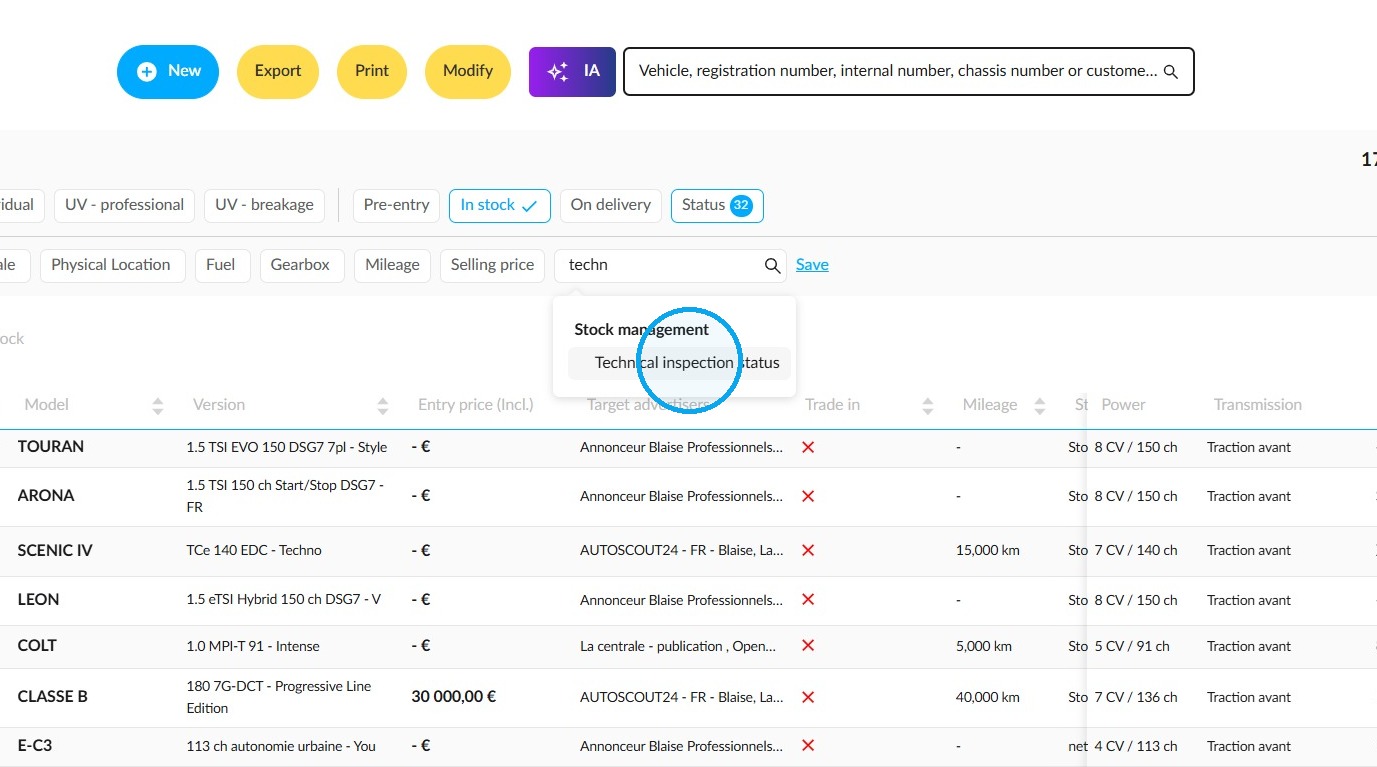
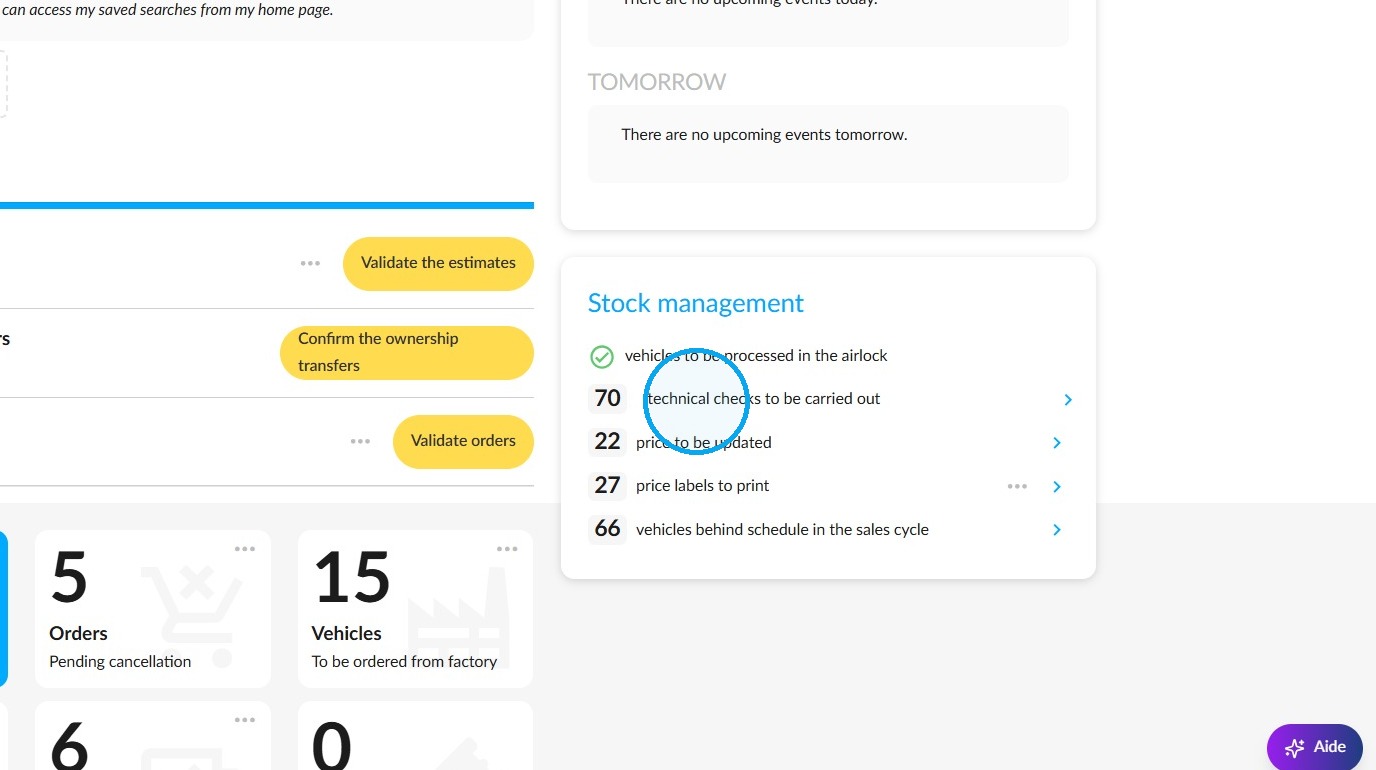
The "Technical inspection status" filter allows you to sort the vehicles in your stock according to their inspection status. Use the search bar to find it or search for it in the 'Stock management' section.
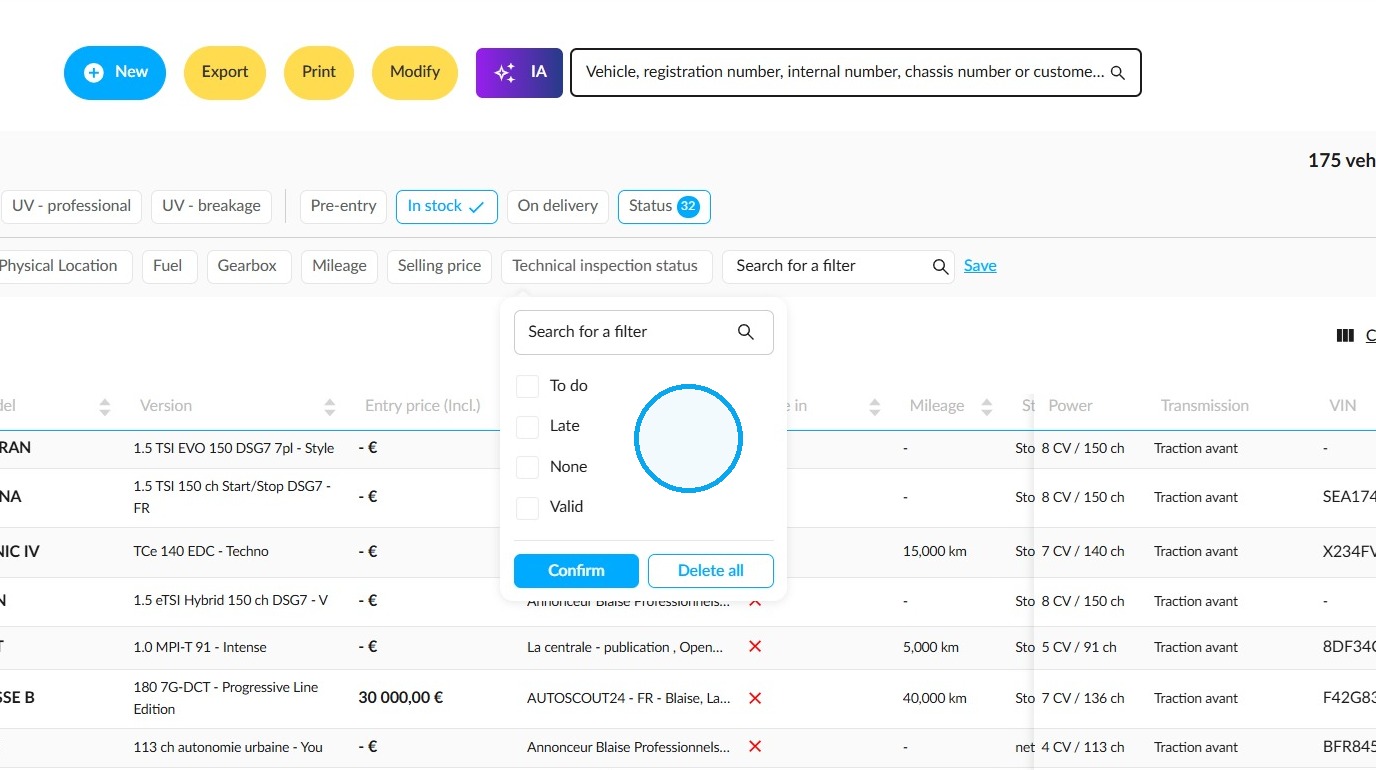
Select the desired option from the drop-down menu, bearing in mind that you can select more than one.
On the relevant vehicle records, a notification will also warn you when their technical inspection is due.
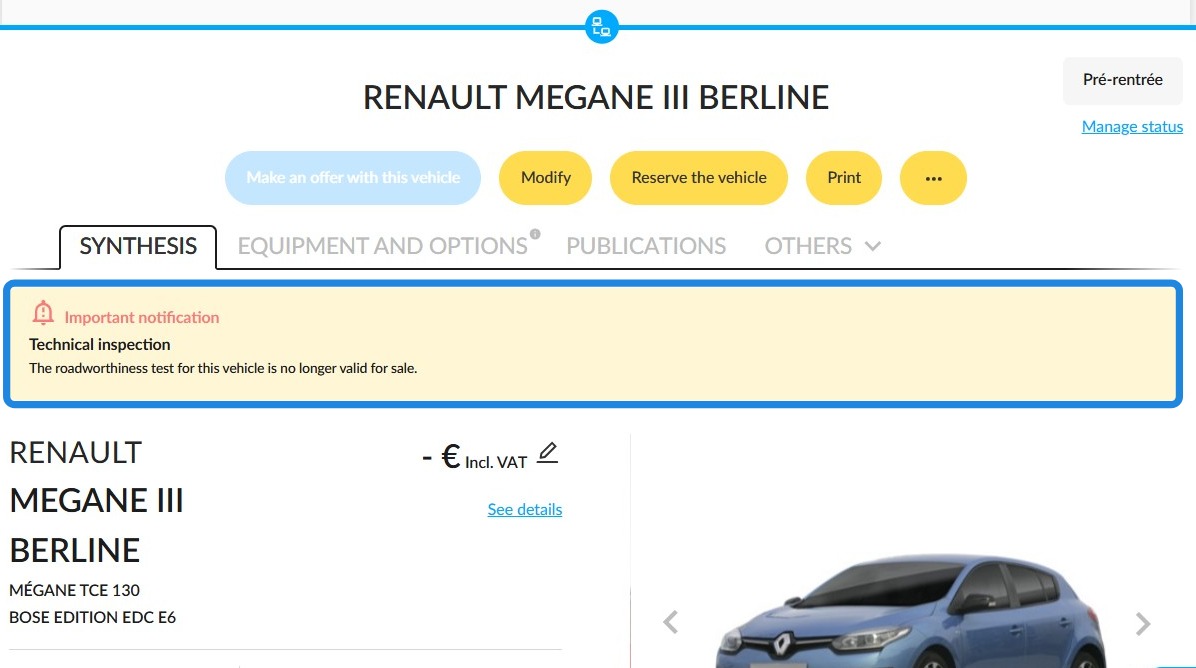
The alert will also appear on the home page, in the "Stock management" section.
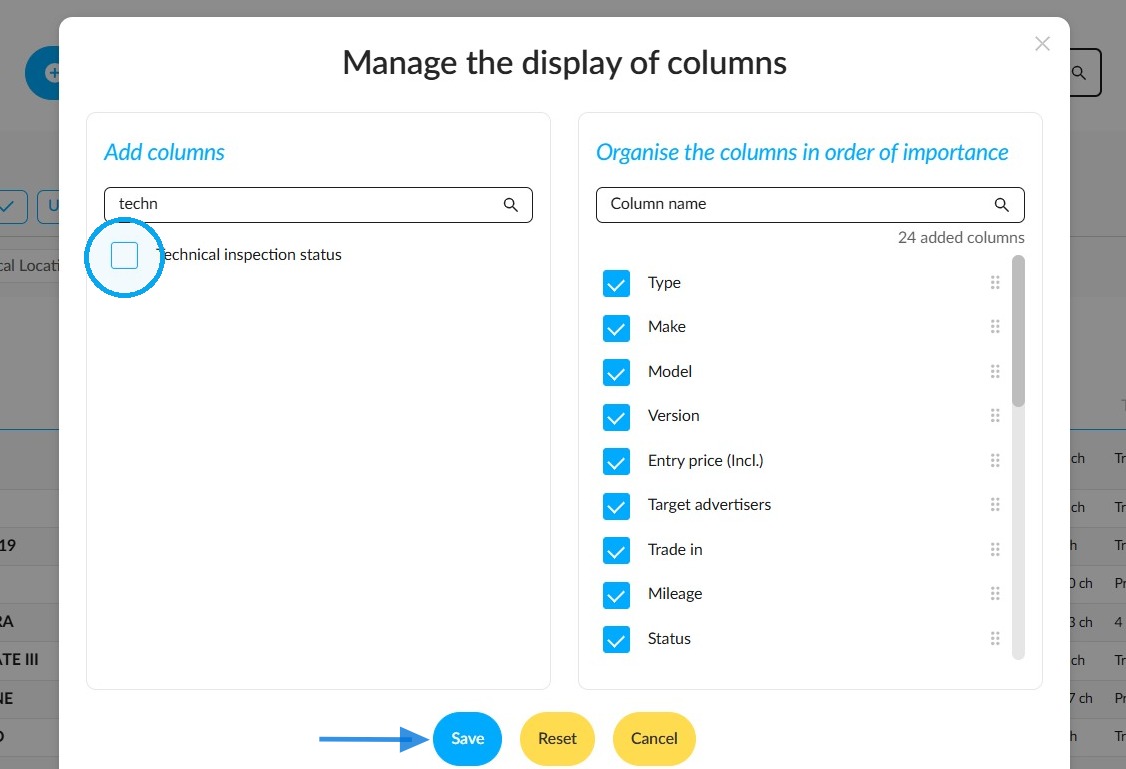
Adding the column
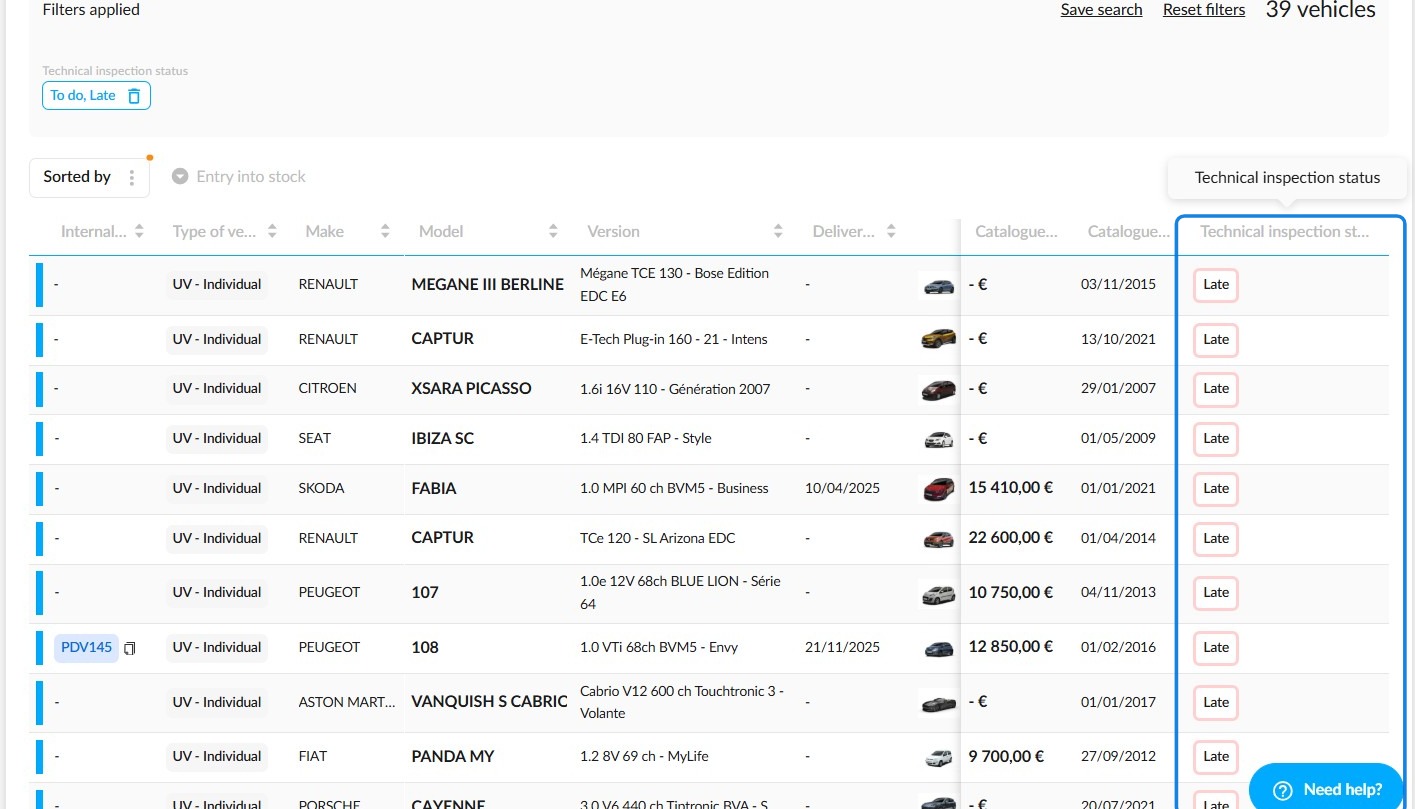
Add the "Technical inspection status" column to the vehicle table to keep this information handy. In column management, tick the name of this column, then save.
It will be exportable and will appear in the table as shown below:
Comments
0 comments
Article is closed for comments.