
Find out how to configure the equipment to be published.
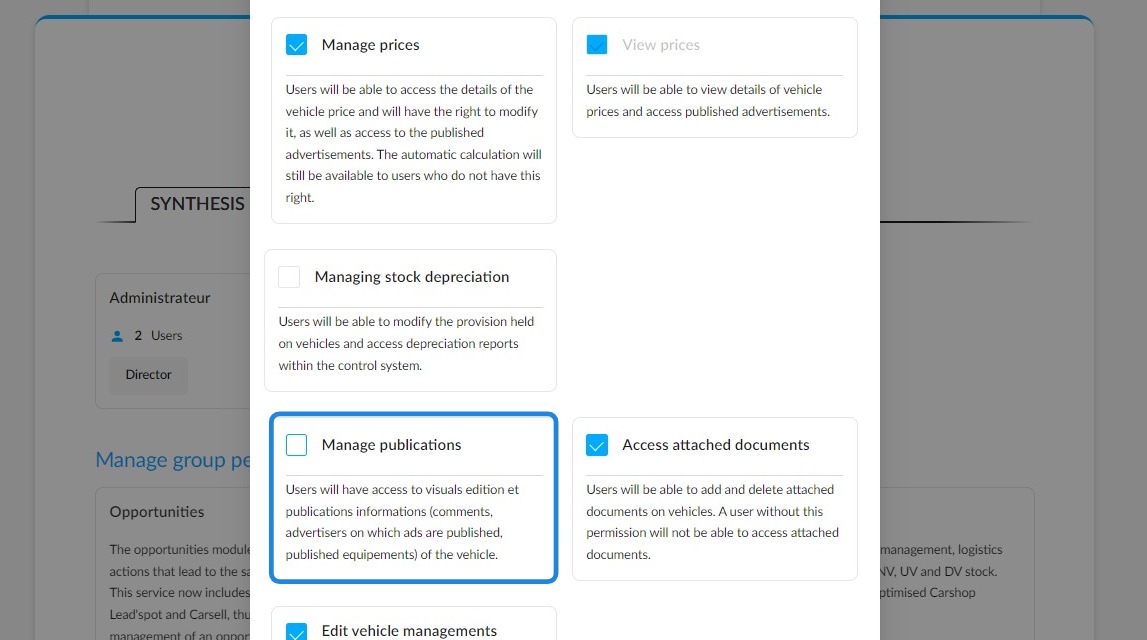
Prerequisites: have permission to manage publications.
Settings/Users, groups and permissions management/Vehicles/Manage publications
To ensure that the packages, options and standard equipment listed on generic posters and featured in advertisements are highlighted effectively, a setting is available on the new/used/demo vehicle details pages under the "Equipment and Options" tab:
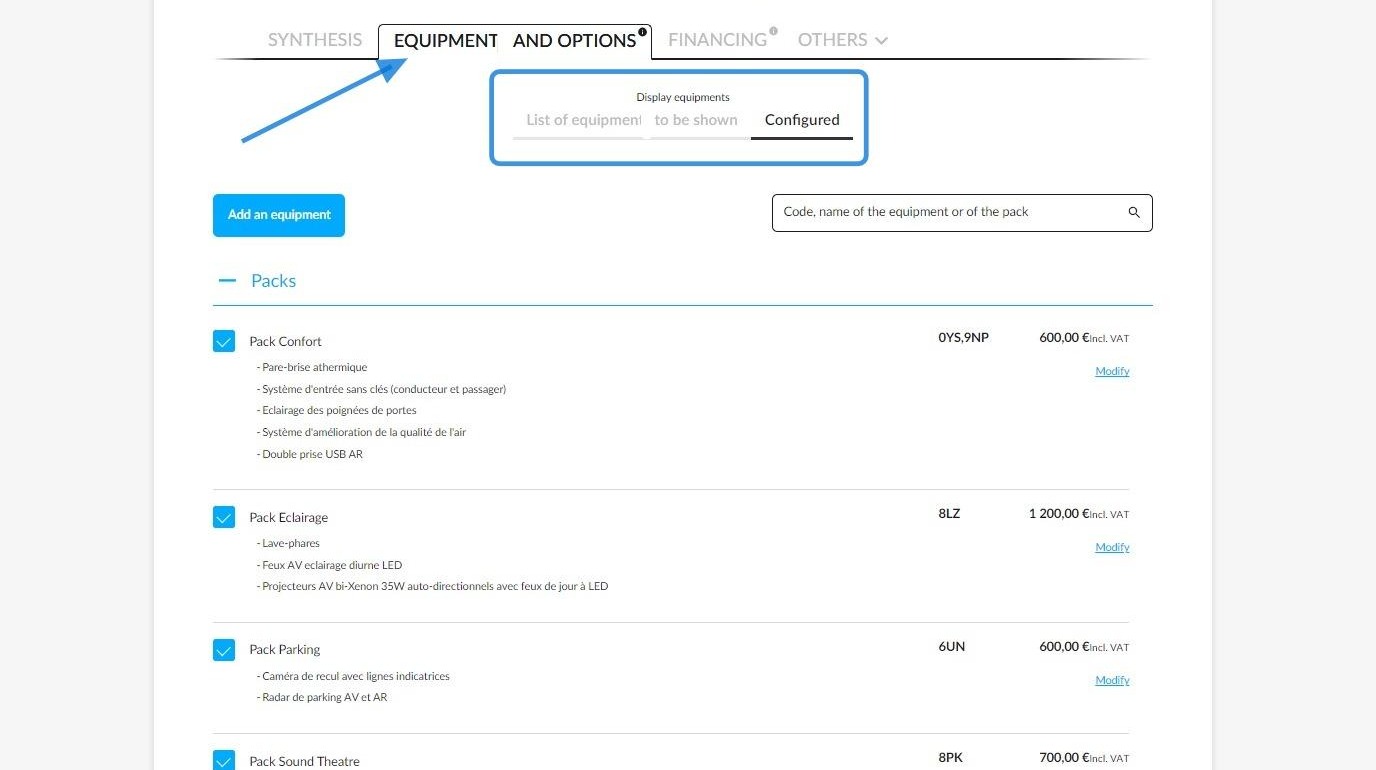
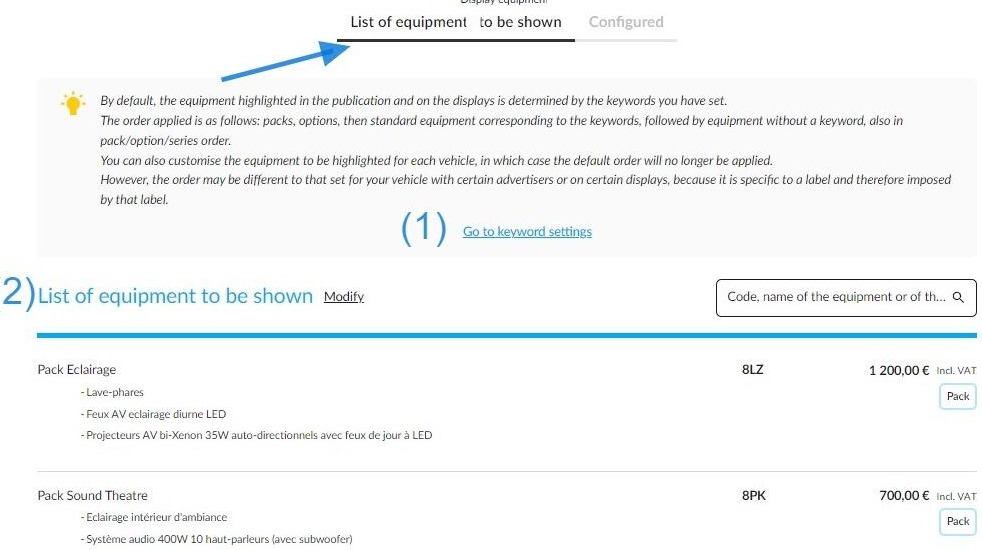
Before you begin, the list of highlighted features will display all the vehicle’s features across all categories.
They will appear in the following order: Packages, Options, Standard Features (1).
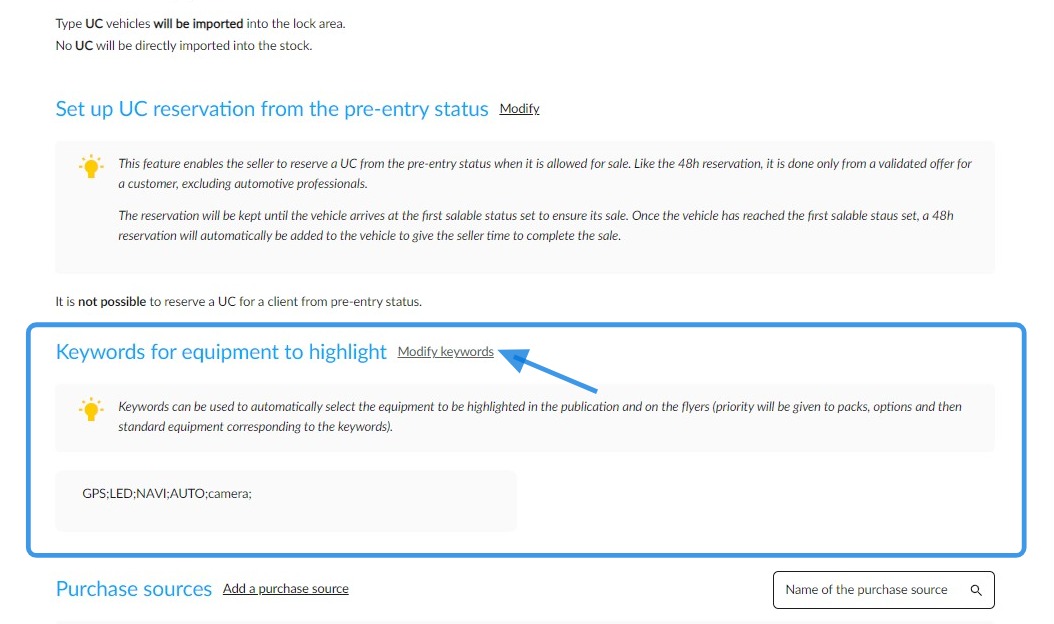
Reminder*: there is already a setting to automatically select the standard features you wish to highlight. A shortcut to this setting has been added to allow for quick adjustment (2).
Standard equipment items whose description includes any of the keywords entered here will be displayed at the top of the list of standard equipment.
To individually select the packages, options and standard equipment that you wish to edit and publish from those available, please click the 'Modify' button.
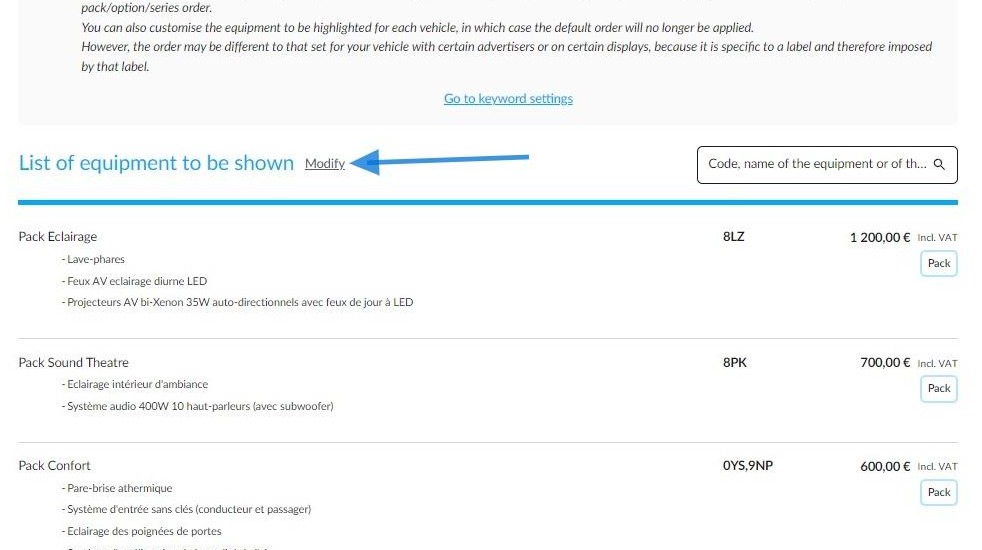
The list of featured equipment will be divided into two columns:
In the left-hand column, you will see the items you have deselected.
In the right-hand column, you will see those selected for printing and publication.
You can also deselect or select all the equipment chosen for printing and publication with a single click.
To deselect all the equipment, click on the button in the right-hand column:
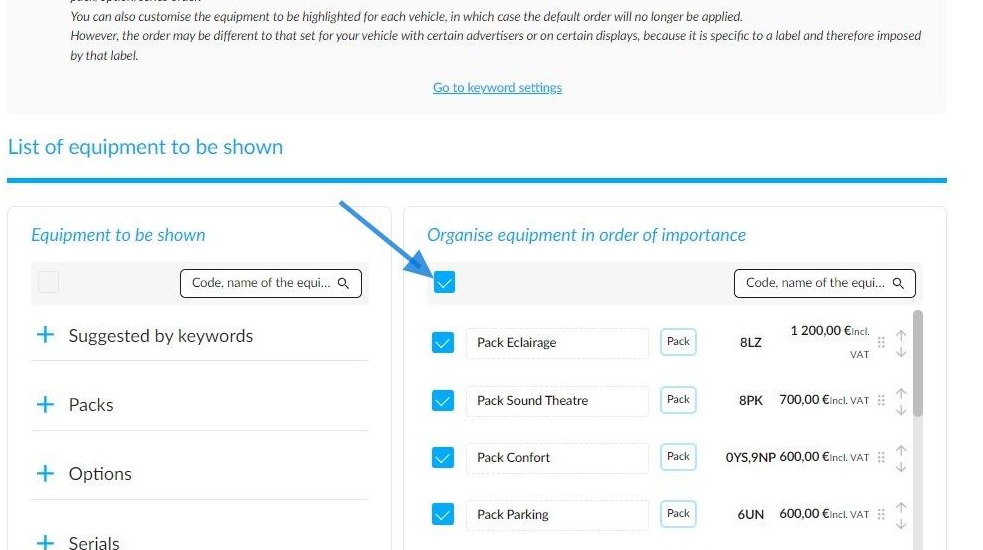
If you choose to unselect one item as in this example, you only have to click on the box next to it.
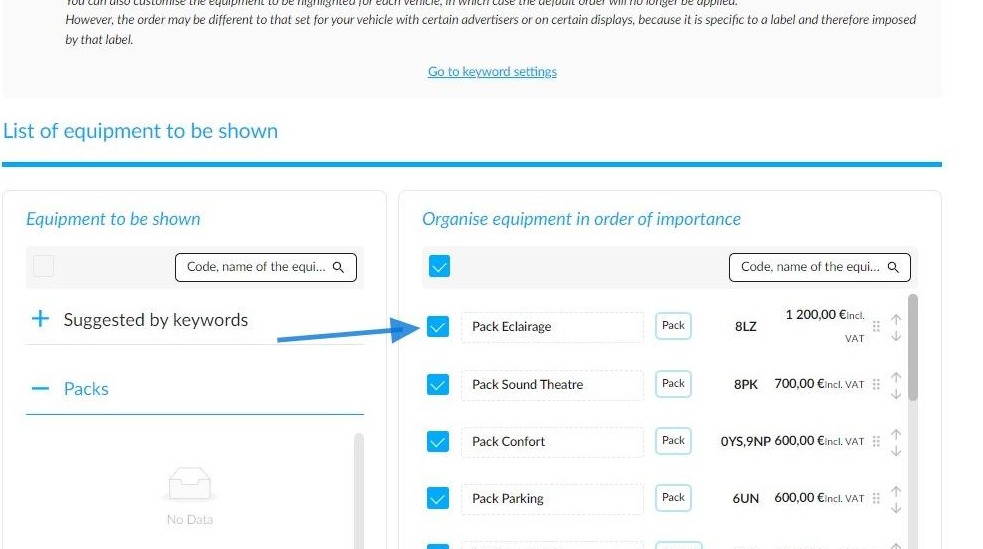
It will automatically move to the left side, with all unselected equipment.
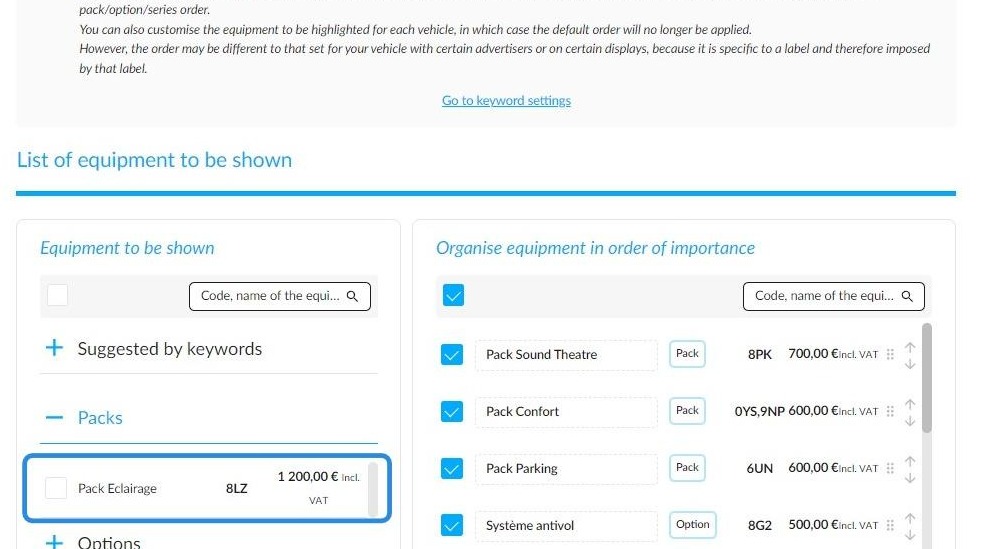
The left-hand column is organised into various categories, with each piece of equipment belonging to one of them. You can display the equipment corresponding to a category by clicking on it.
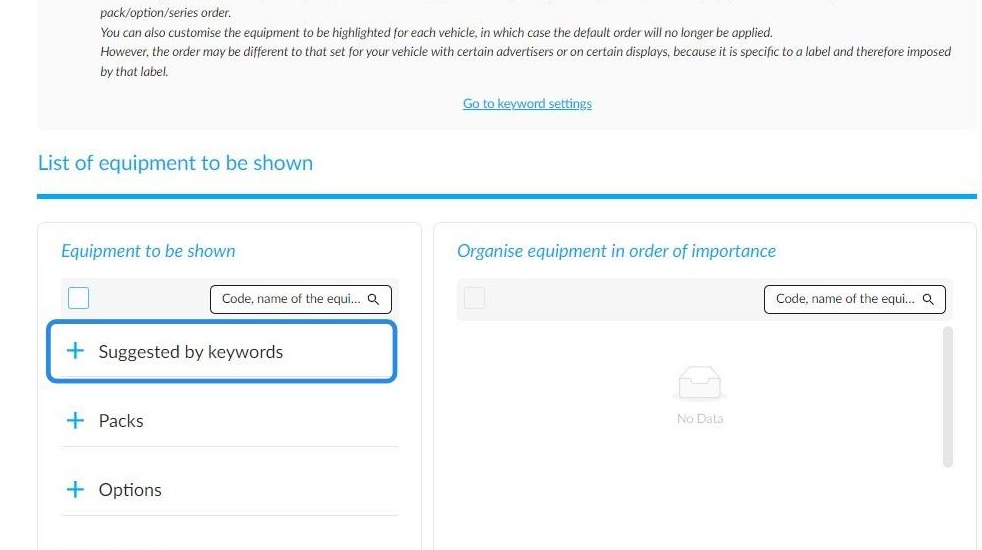
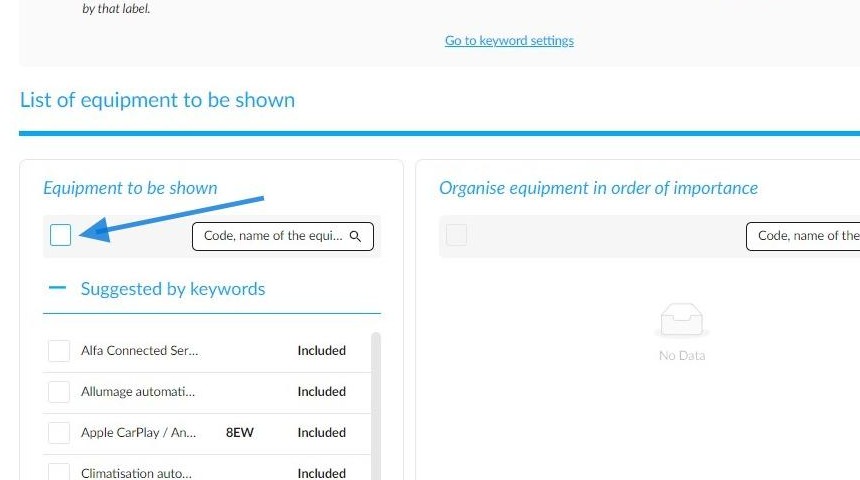
By clicking on the box at the top of the left-hand column, all equipment will be selected to be published, undependently of the category to which it belongs.
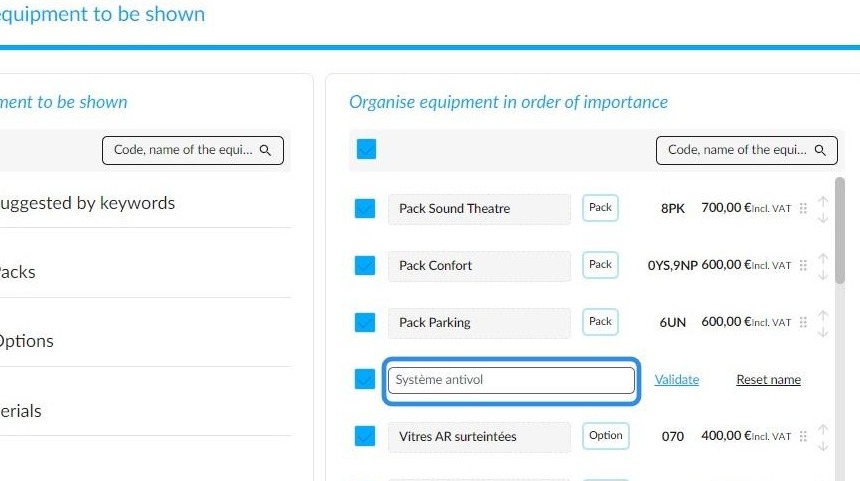
In the right column, it is possible to change the equipment name by clicking on it.
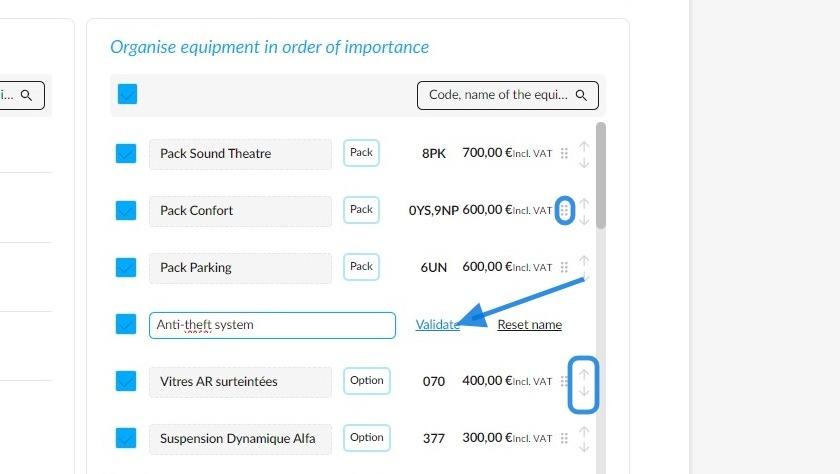
Once you have written the new name, click the 'Validate' button on the right.
You can also change the displaying order by placing the cursor on the dots or display an element at the top or bottom of the list by clicking on the arrows.
Warning*: when using the arrows, the equipment displayed at the top or at the bottom of the list will not take into account the displaying order of equipment categories.
Once you have modified all names and the order of equipment, all you have to do is click on the "Save" button.
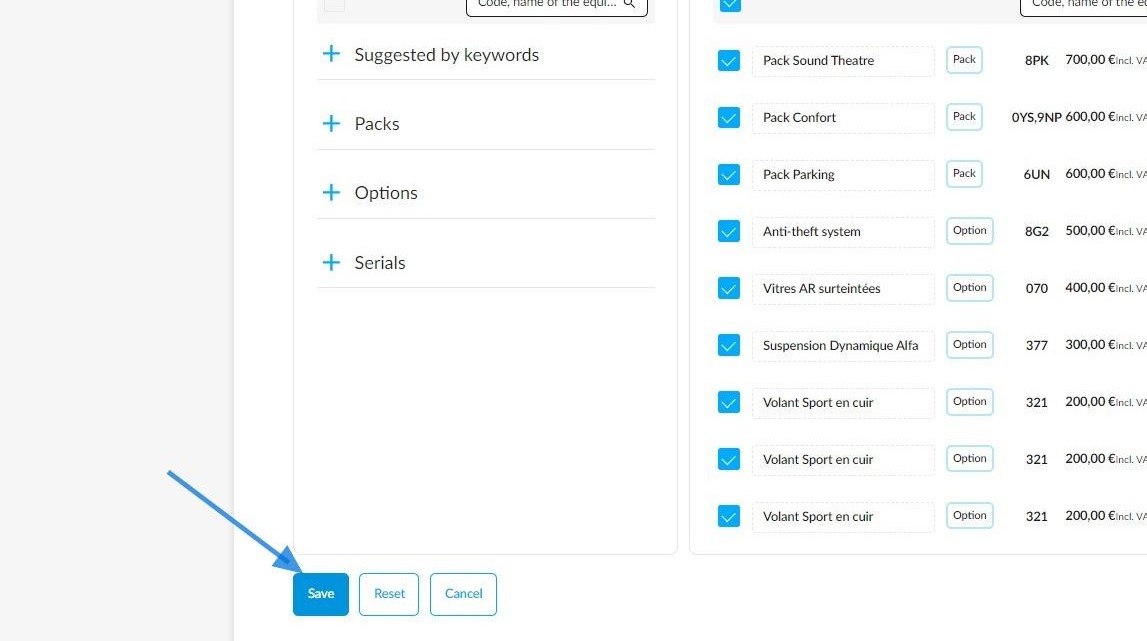
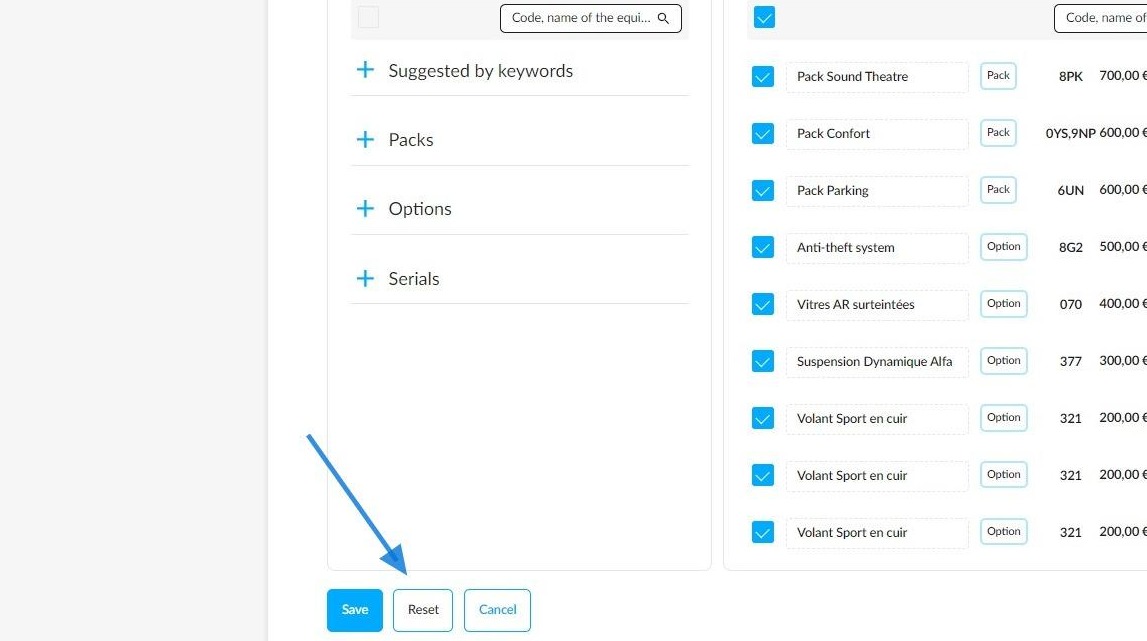
If you want to start again, you can reset all your work by clicking on the 'Reset' button at the bottom of the equipment window. This will return you to the original list.
Comments
0 comments
Article is closed for comments.