
This document provides step-by-step instructions on processing a factory-ordered new vehicle (NV) using the Bee2link platform.
1. Processing the order
Prerequisite: an order must have been accepted by a customer and must have the 'Won' status in the 'Opportunities' menu the order.
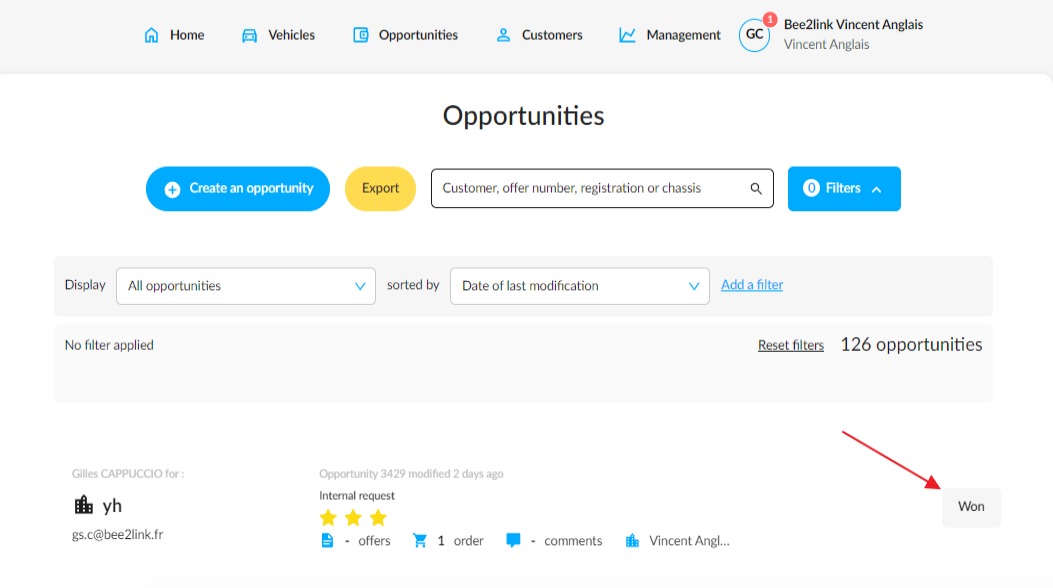
You now need to place your order with the manufacturer.
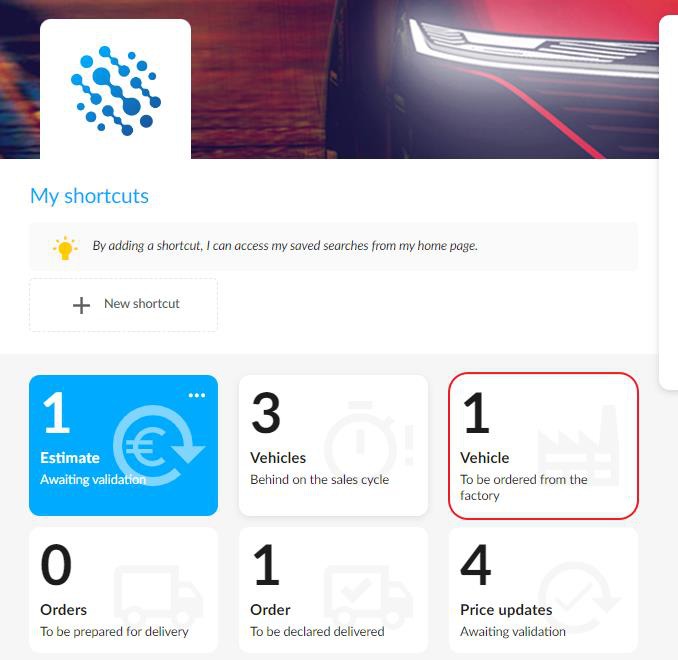
From the homepage, click on the « To be ordered from the factory » tile.
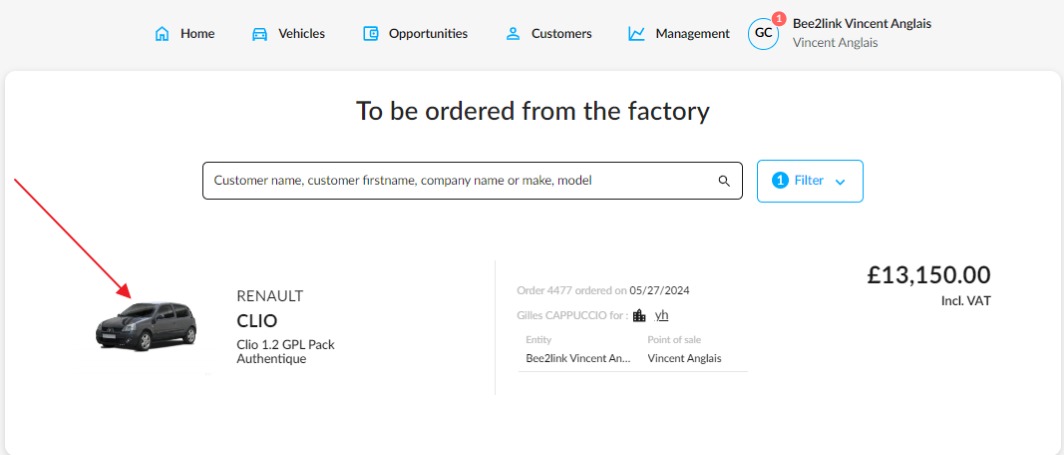
A list of all new vehicles for which the order has been finalised, but which are not currently in stock will be displayed. From this list, select the vehicle you wish to order to view its specifications.
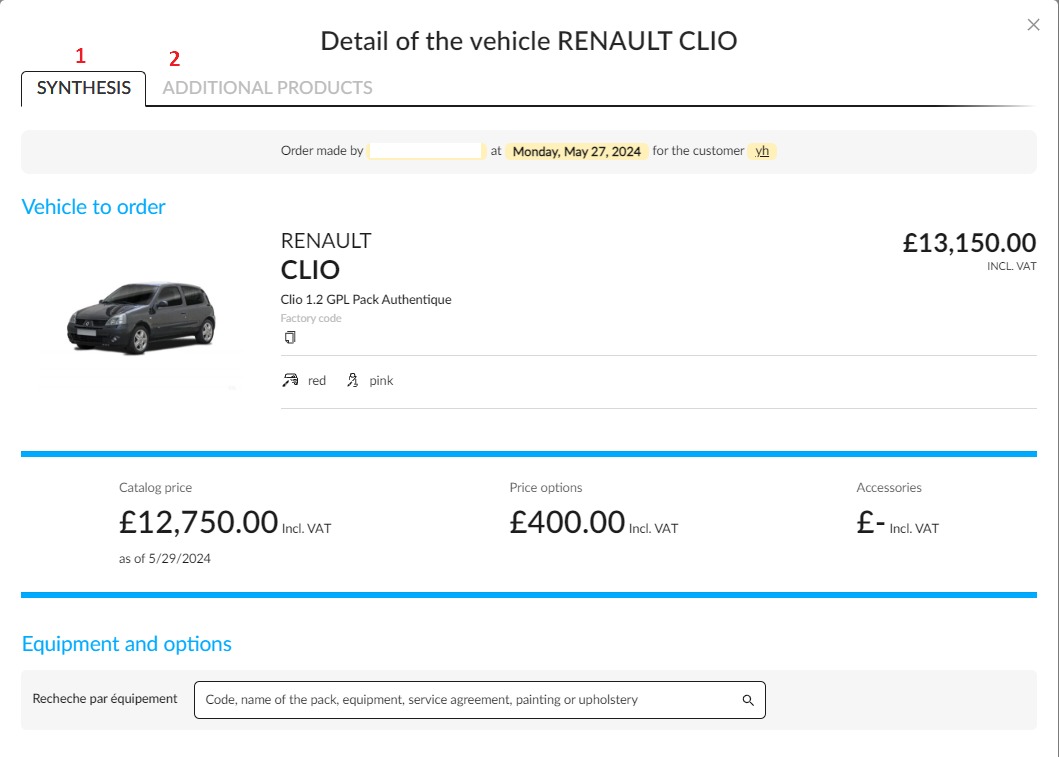
The vehicle details page will open on the « Synthesis » tab (1). The sub-menus containing the equipment and options chosen in the order will be opened by default.
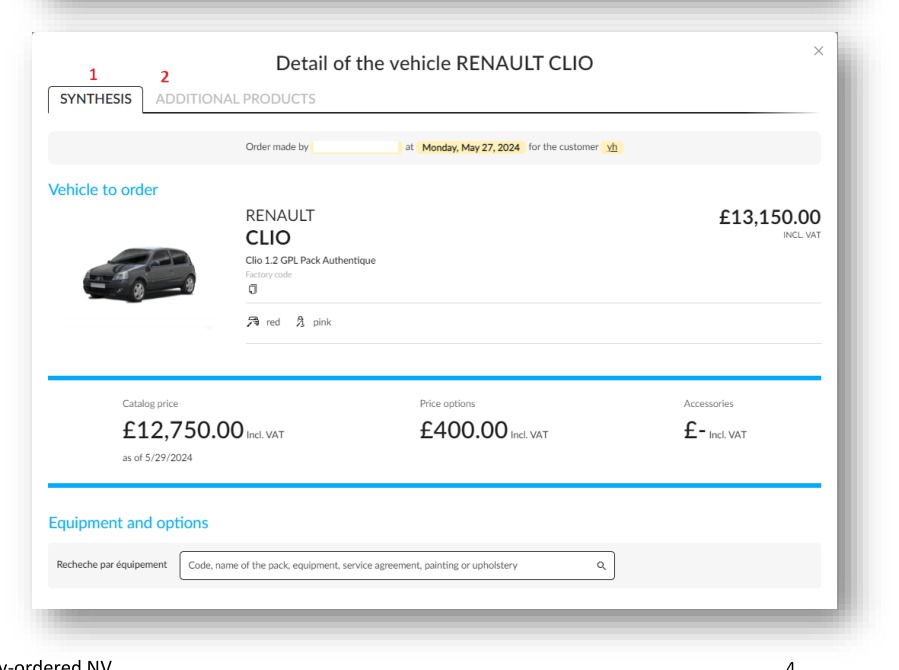
If the customer order includes accessories and services, you can find them by clicking on the 'Additional products' tab (2).
2. Options and buttons displayed on the vehicle details page and completion of the process
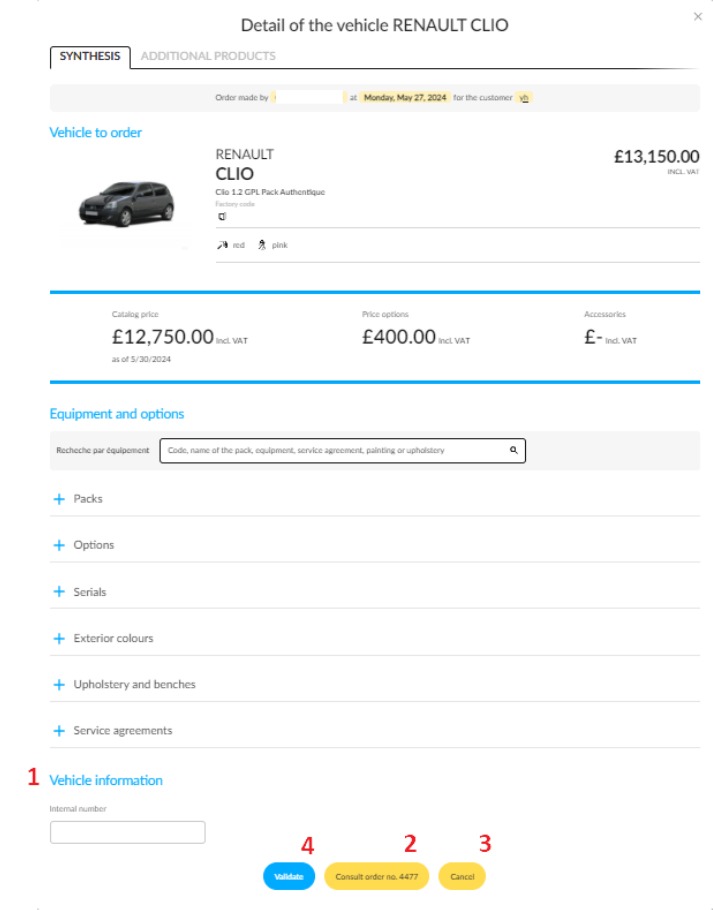
At the bottom of the window you will find various options:
- A field (1) labelled “Internal number” for entering the internal number of your order.
- There is a 'Consult order number XXXX' button (2) to access the customer order, which can be viewed, modified or cancelled.
- A « Cancel » button (3) will take you back to the new vehicles list « To order from the factory ».
- Use the 'Validate' button (4) once you have checked or reproduced the configuration of the ordered vehicle in the manufacturer's tool.
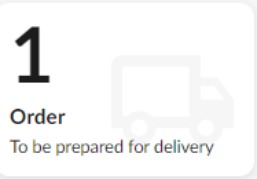
When validating the vehicle to be factory-ordered, the vehicle will switch to the « To be prepared for delivery » status. A tile displaying all vehicles at this stage is available on the home page.
Comments
0 comments
Article is closed for comments.