
Learn how to include all the relevant documents, such as invoices and receipts, in a trade-in estimate.
At the end of a trade-in process, you can add additional documents to the synthesis of a trade-in estimate.
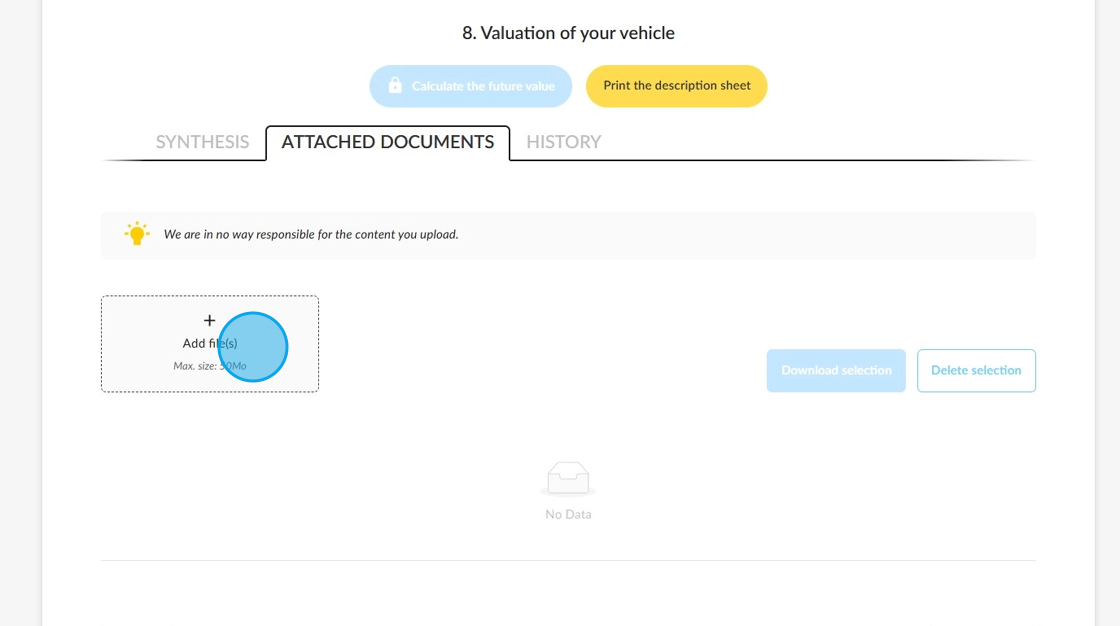
Click on the 'ATTACHED DOCUMENTS' tab at the top of the page. You can upload invoices, roadworthiness certificates or maintenance documents and store them in the vehicle file.

Click on the “Add file(s)” box to upload files in the following formats: PDF, JPG, PNG.
Their size must not exceed 50 M.o.
The titles of the attached documents can be changed by clicking on the ‘Modify’ button 1 visible on the right of the screen.
Customise the name of the document in question in the field to the left of the list 2.
Once you have made your changes, click on the ‘Save’ button 3 , which will be in place of the ‘Modify’ button.

If you wish to download or delete one of the documents, click on the three vertical dots at the far right of the list.

For greater efficiency, you can select all the items in one click by ticking the box at the top of the list of attachments.
They can be downloaded or deleted collectively in a single operation by clicking on the following buttons:
-Download selection
-Delete selection

The boxes can also be unchecked individually.

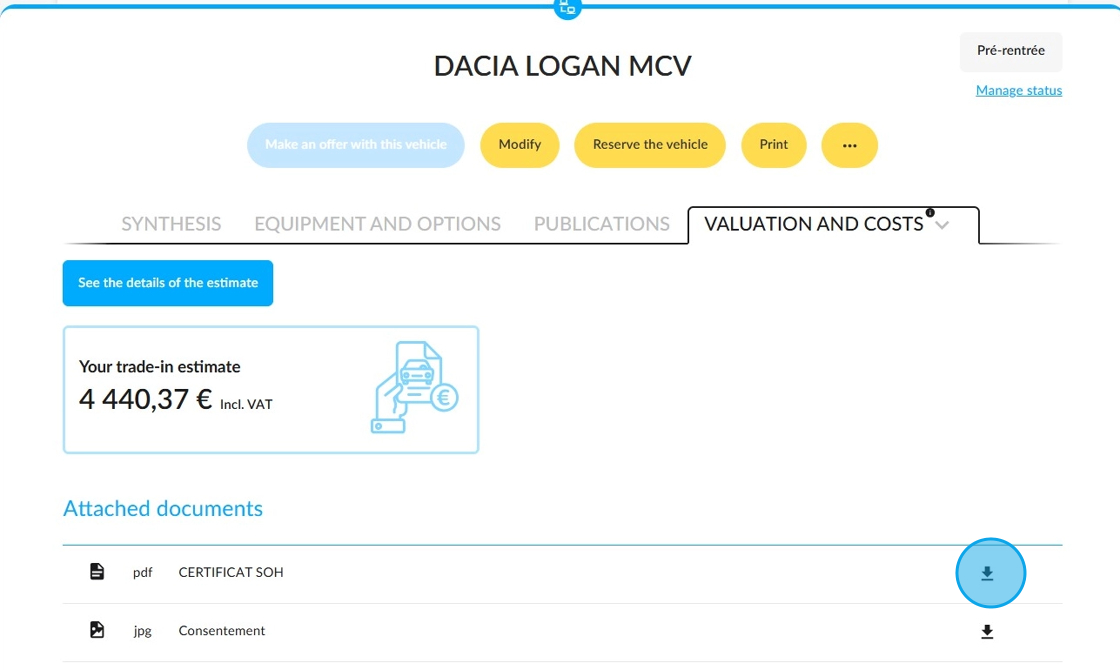
Once the vehicle is in the process of being added to the stock, the attached documents can be consulted from its file in the synthesis by going to the ‘Others’ tab and selecting the ‘Valuation and costs’ menu.

They can no longer be modified at this stage. However, they can still be downloaded.
Comments
0 comments
Article is closed for comments.