
This guide explains how to create a status on a vehicle’s lifeline and how to find it in the stock list.
Prerequisites: have administrator rights.
How can I add custom statuses to the lifeline?
If you can access the configurations, you can create customised statuses in the "Vehicles" module to organise your stock more effectively.
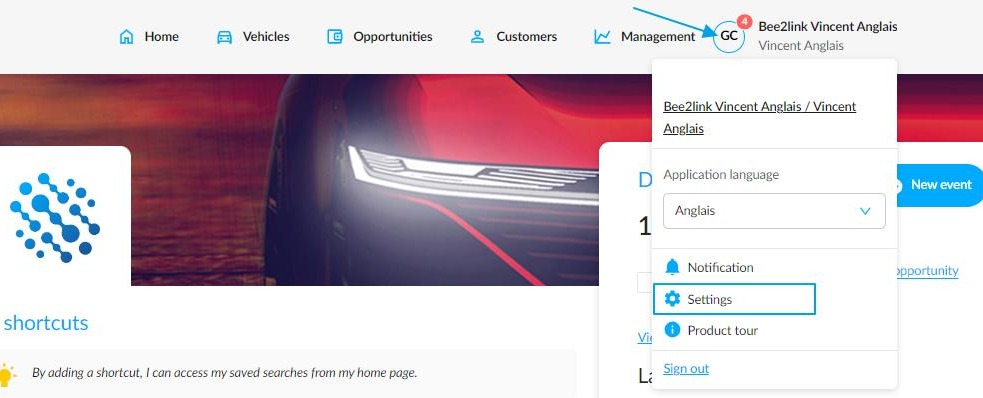
To create a custom status, click on your initials in the top right-hand corner of the homepage screen. Then click on "Settings".
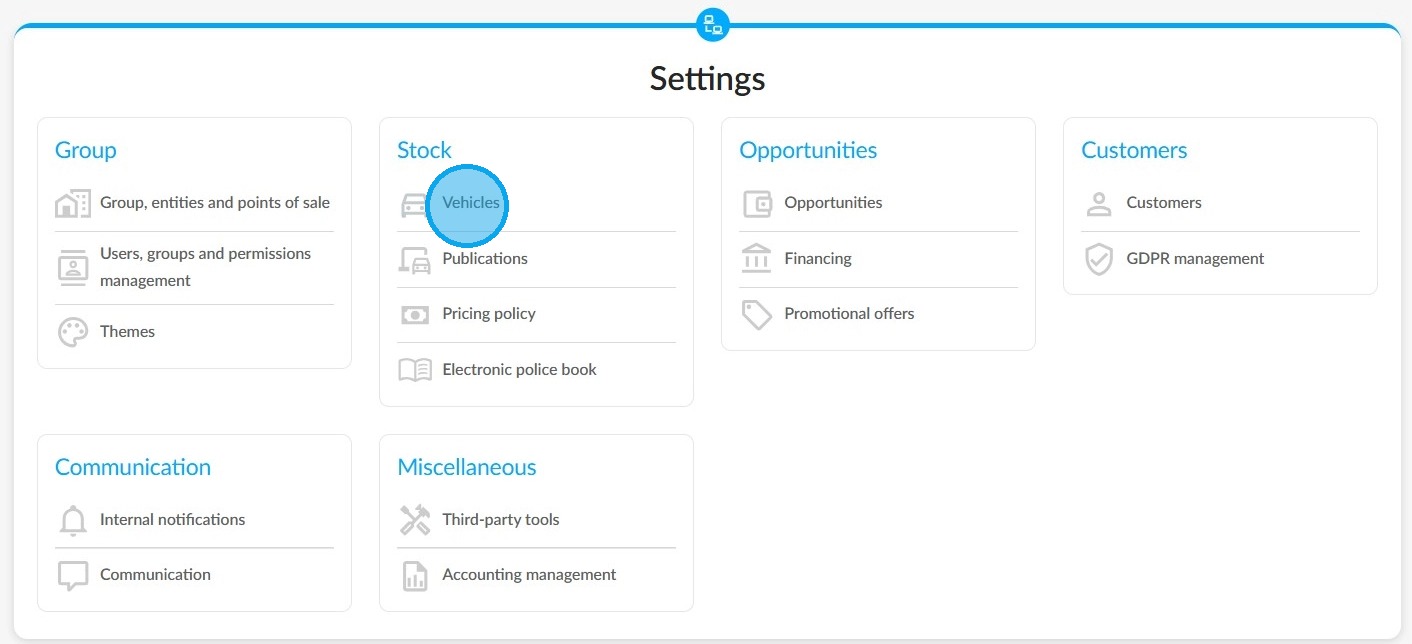
Click "Vehicles" under the "Stock" heading.
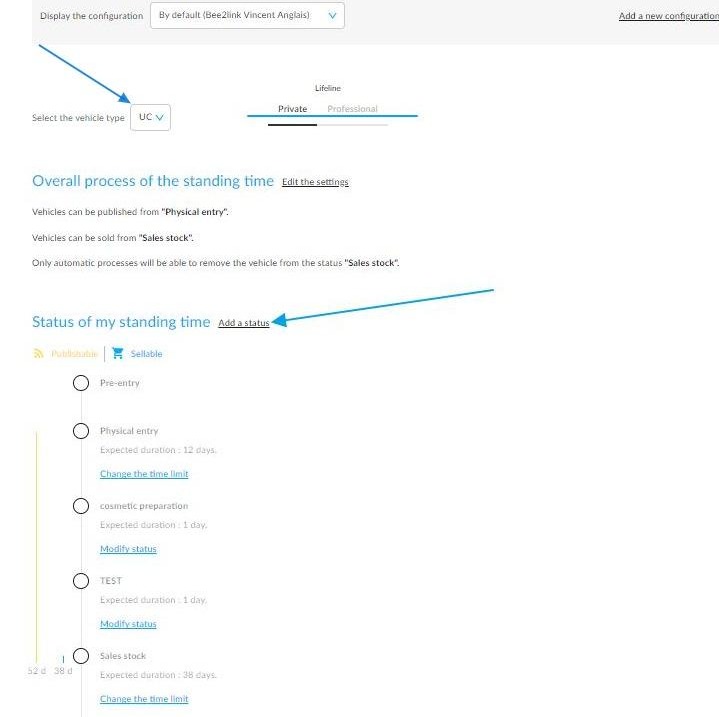
Click on the ‘Lifeline’ tab. There are several lifelines available to correspond to the different vehicle types (NV/UV/DV) and destinations (Private or Professional for UVs).
Start by selecting the lifeline for a vehicle type. Then click on "Add a status".
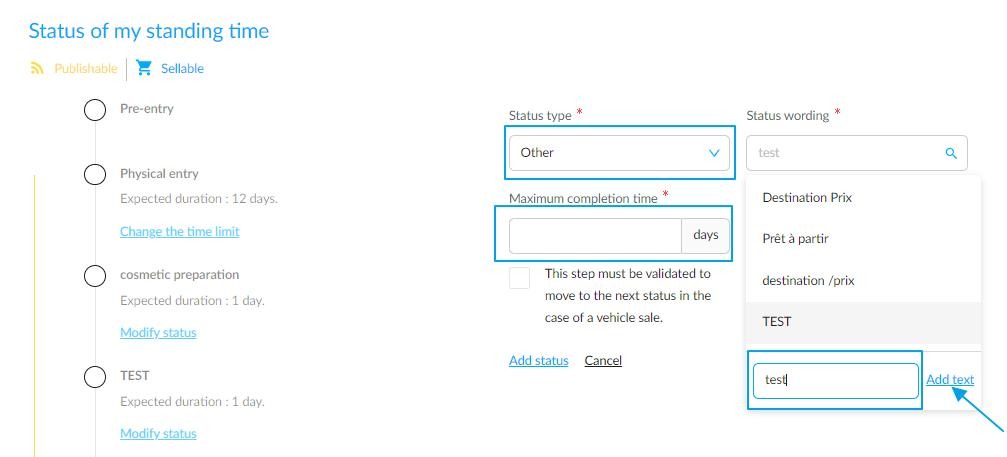
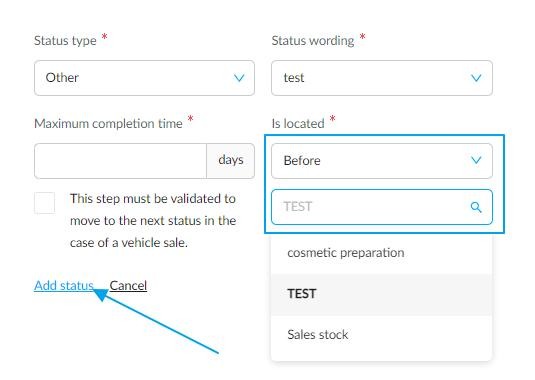
Then specify which kind of status you need (preparation, pictures, inspection). Enter the name of the new status and click on "Add text" to save it.
Furthermore, specify how many days your employees have to complete this stage.
Tick the box if this stage is required in order to progress to the next stage of the sale.
Furthermore, fill in the field to indicate the position of the status that you are creating on the lifeline: Before or After the stage that you select in the drop-down menu.
Once that you have finished the configuration, click "Add a status".
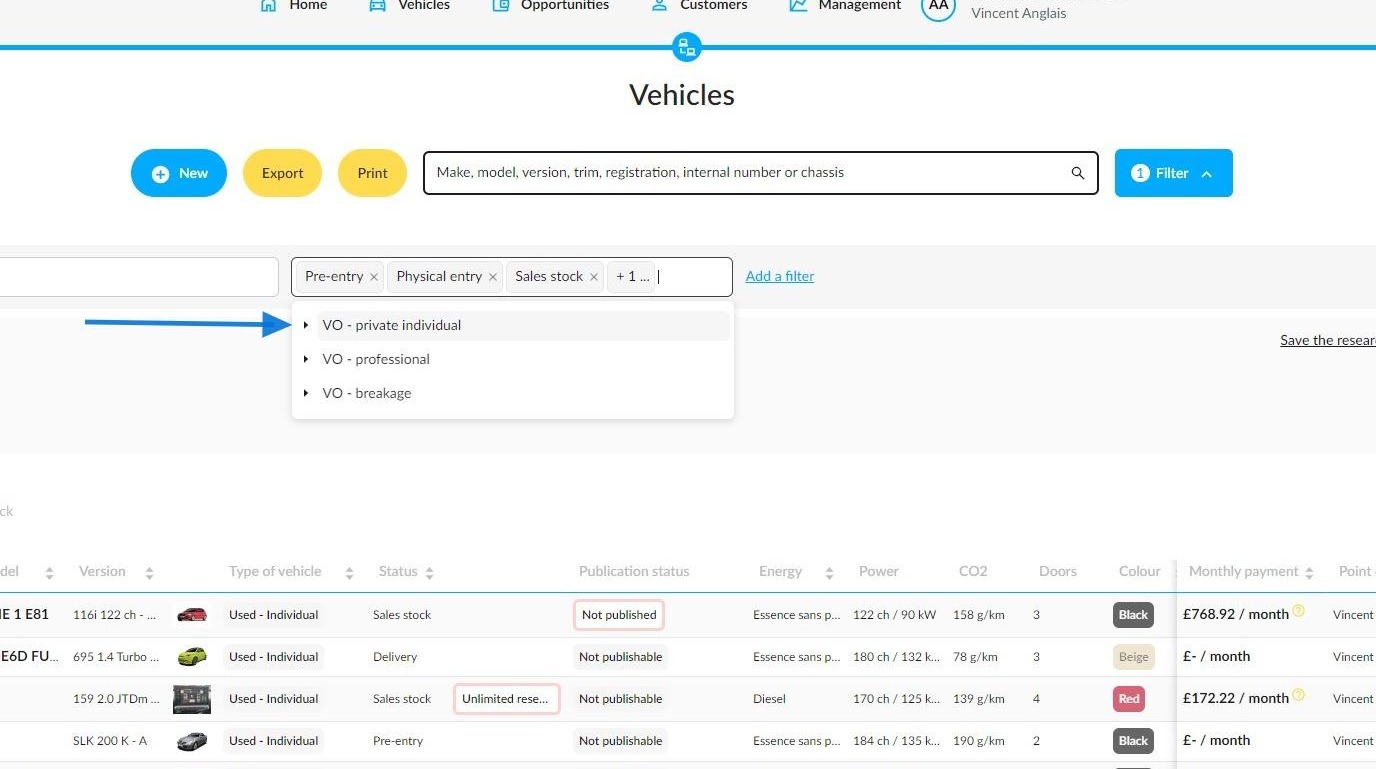
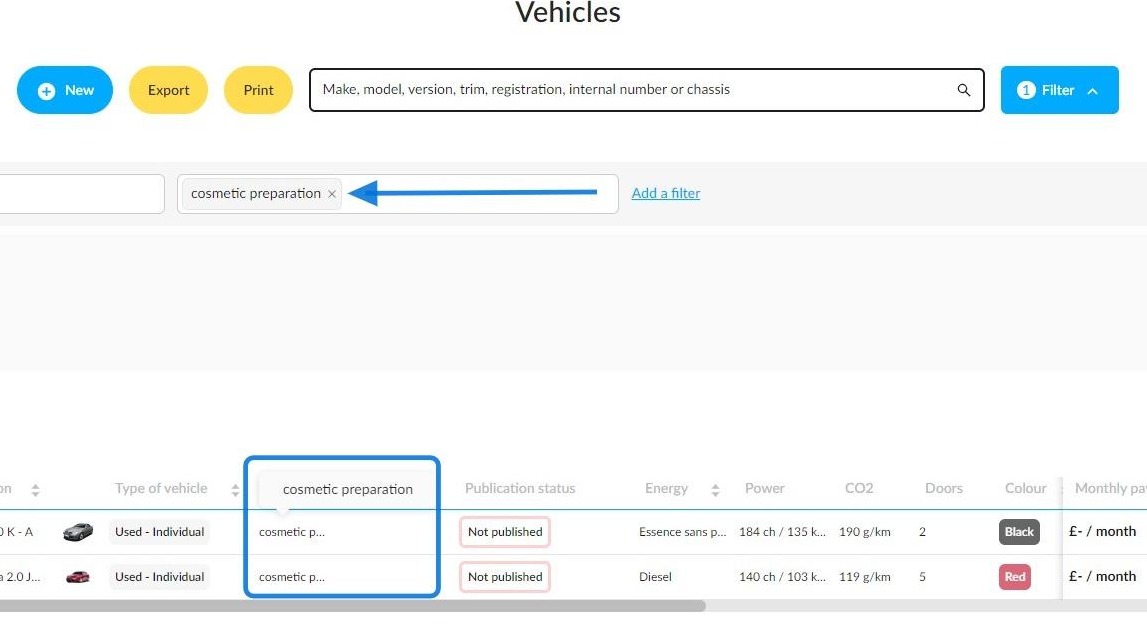
You can find the customised statuses in the 'Vehicles' module filters.
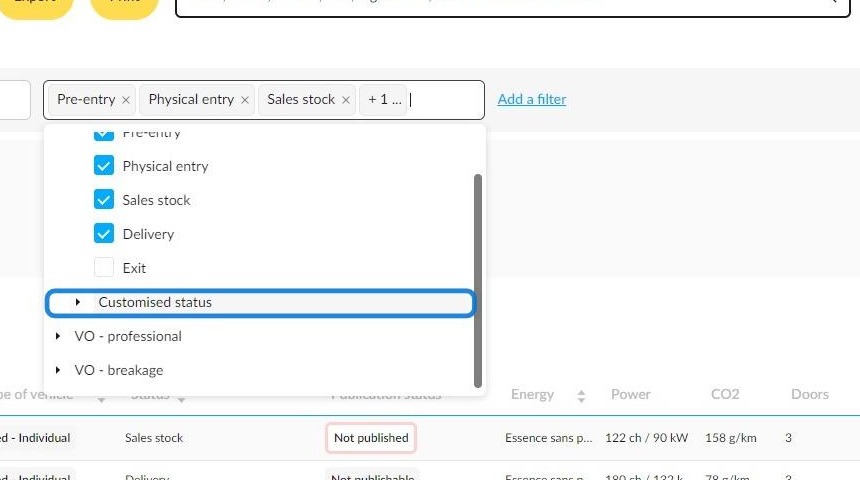
Therefore, custom statuses added to the lifelines on entities that users can access will be gathered in one dedicated section titled "Customised status".
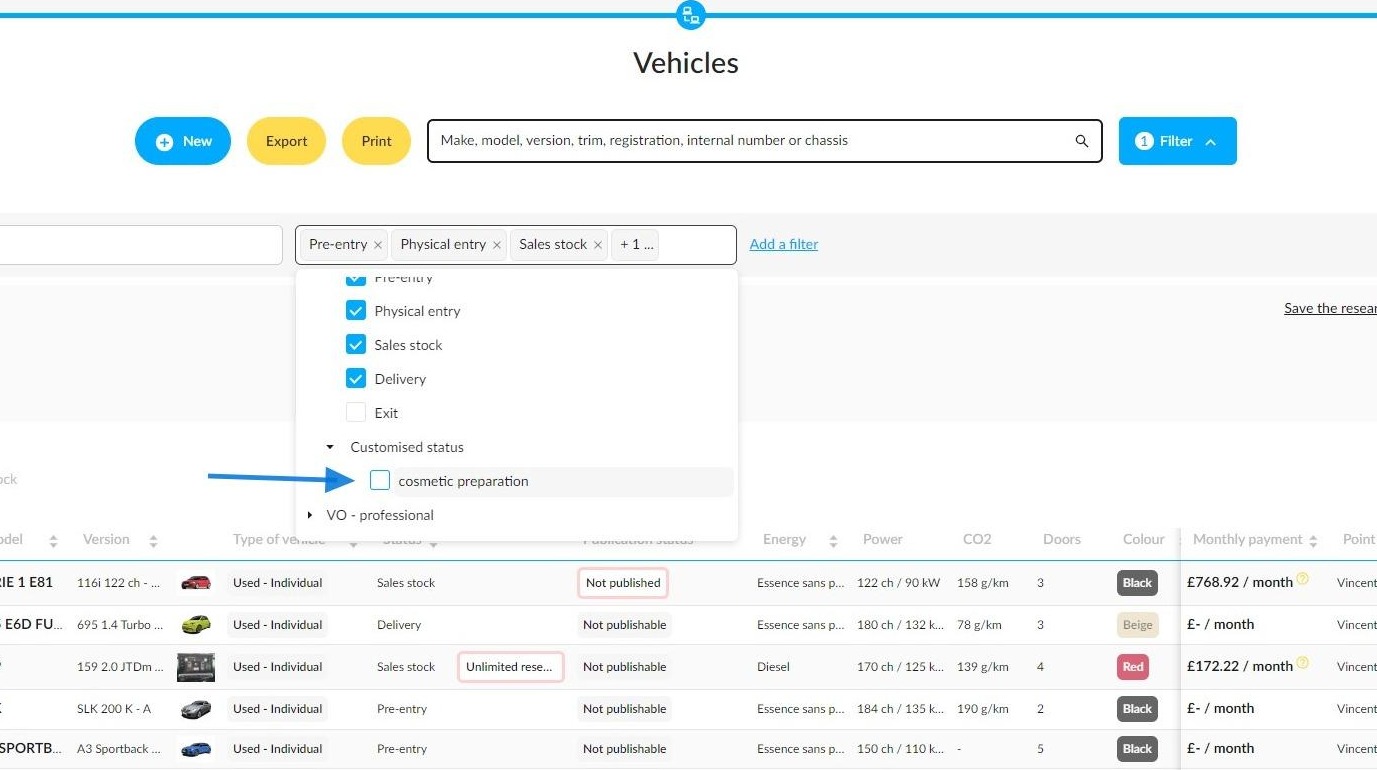
Example with the personalised status "cosmetic preparation".
Notes:
If a customised designation is identical on several entities which are part of one group, then it will be visible only once in the filters.
By selecting this filter, vehicles with statuses matching this wording in the various entities will all be displayed.
However, if the spelling of the customised status wording is similar although different from another customised status designation on one of the group's entities, then a additional filter will be generated in the selection.
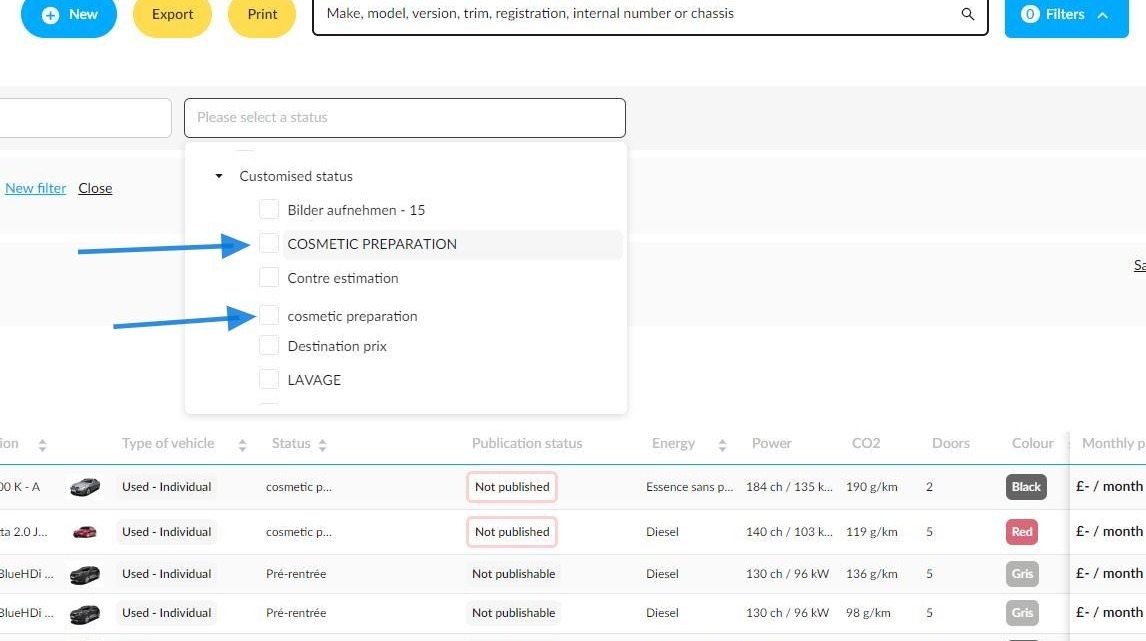
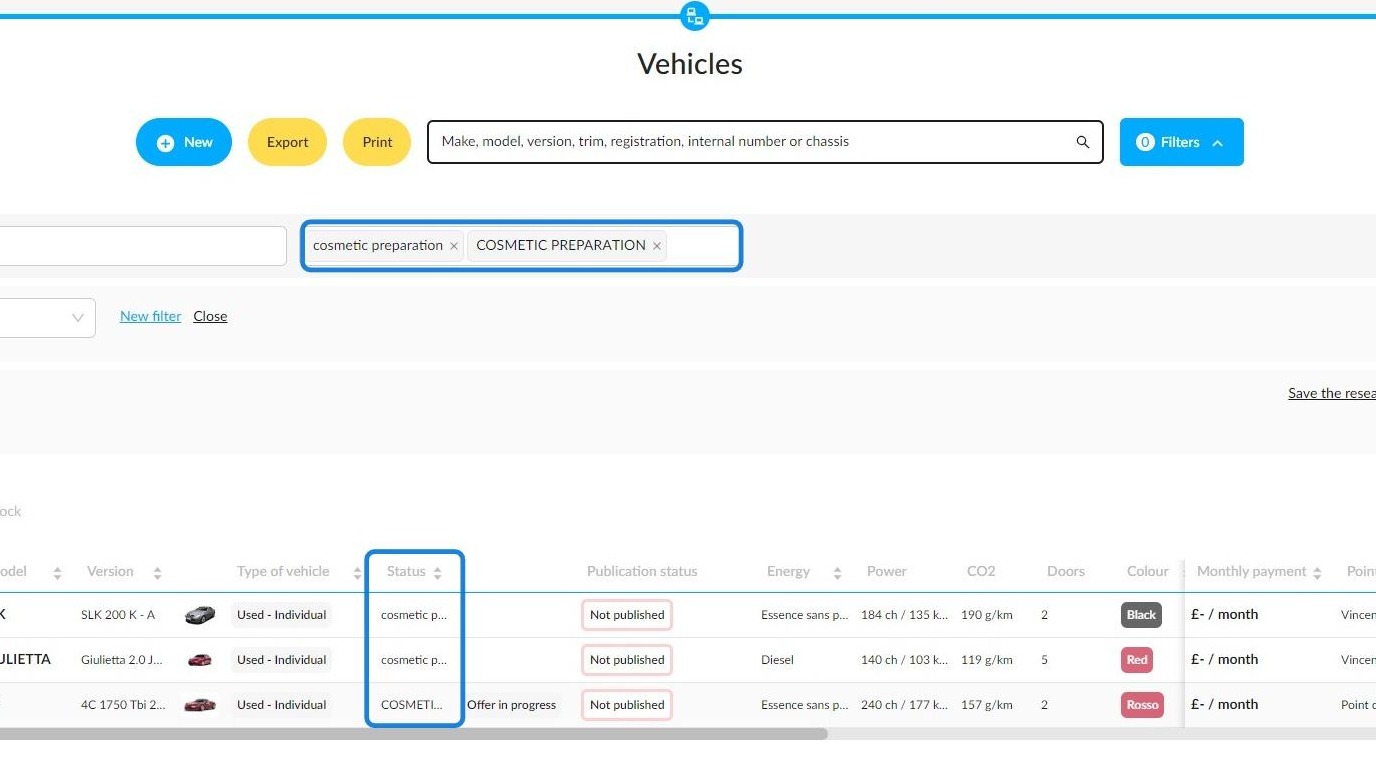
As a result, you will need to select two filters instead of one to be able to see all vehicles at similar statuses in a group.
Example:
Comments
0 comments
Article is closed for comments.