
This guide explains how to display a vehicle record for a customer while ensuring that certain details remain confidential.
How to use the customer mode?
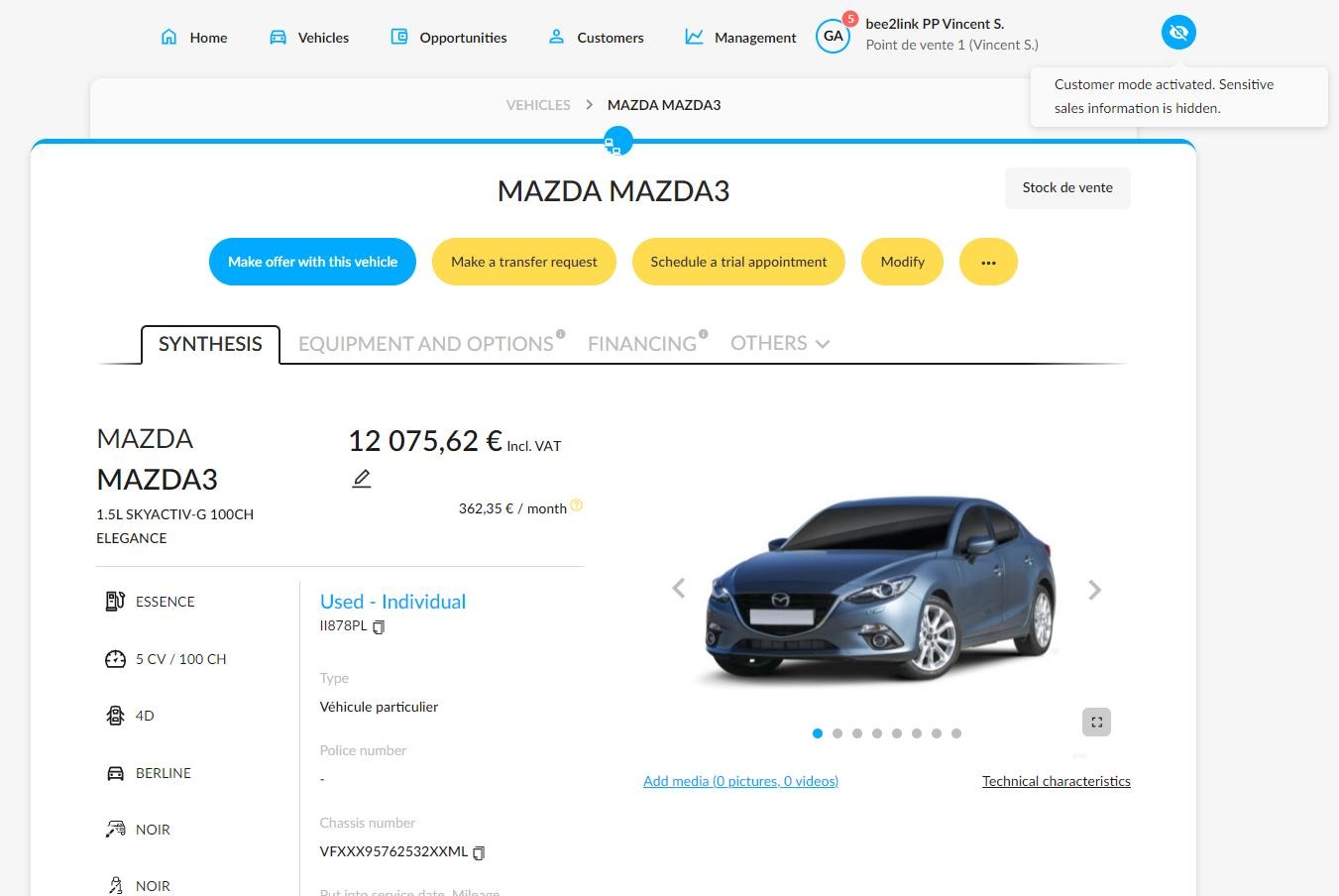
It is possible to hide sensitive commercial information that should not be shown to a customer during a business meeting. To do this, use the “Customer” mode in the top-right corner of the page.
The Customer mode is represented by an icon showing a crossed‑out eye when enabled and an open eye when disabled.
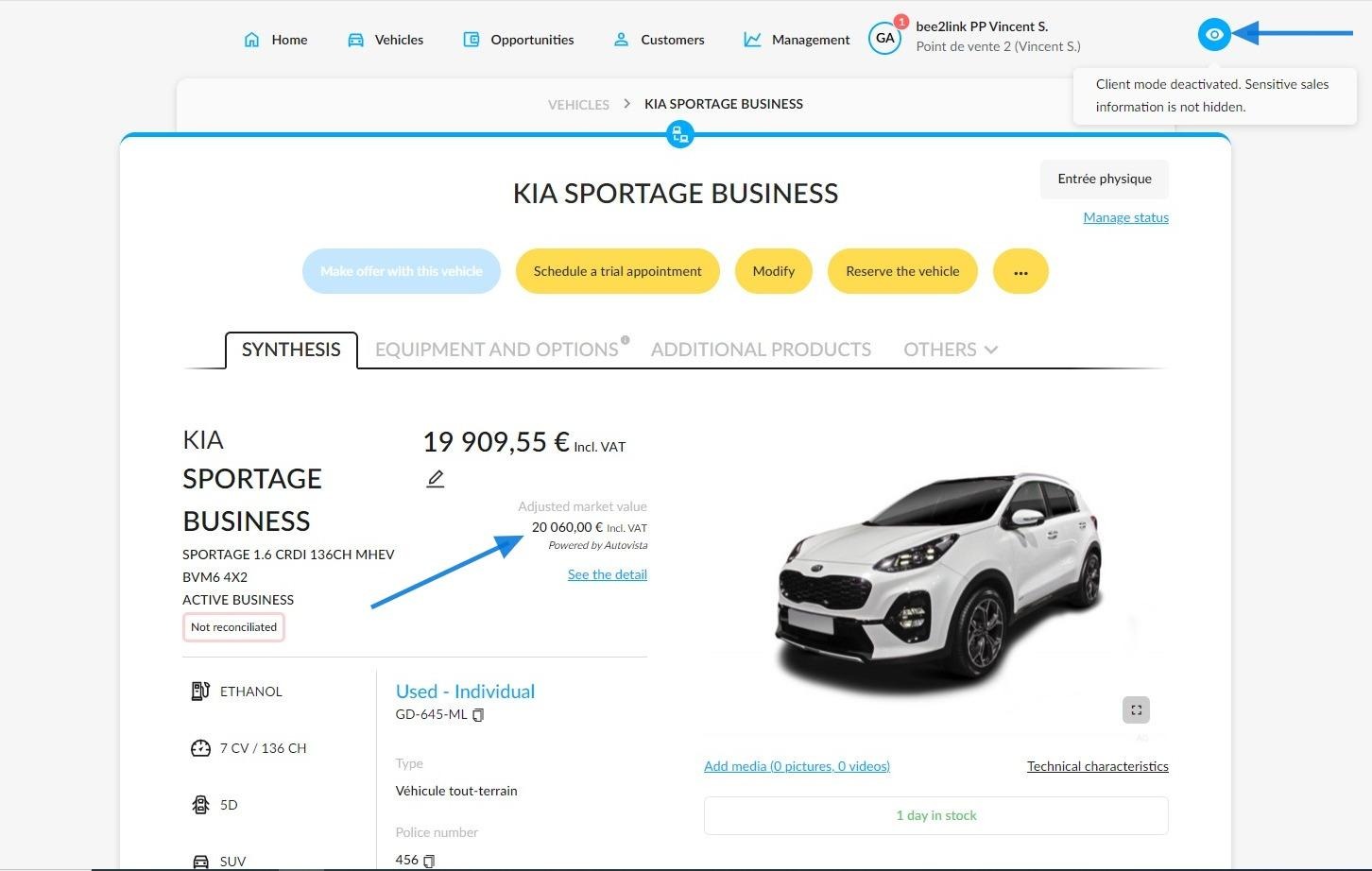
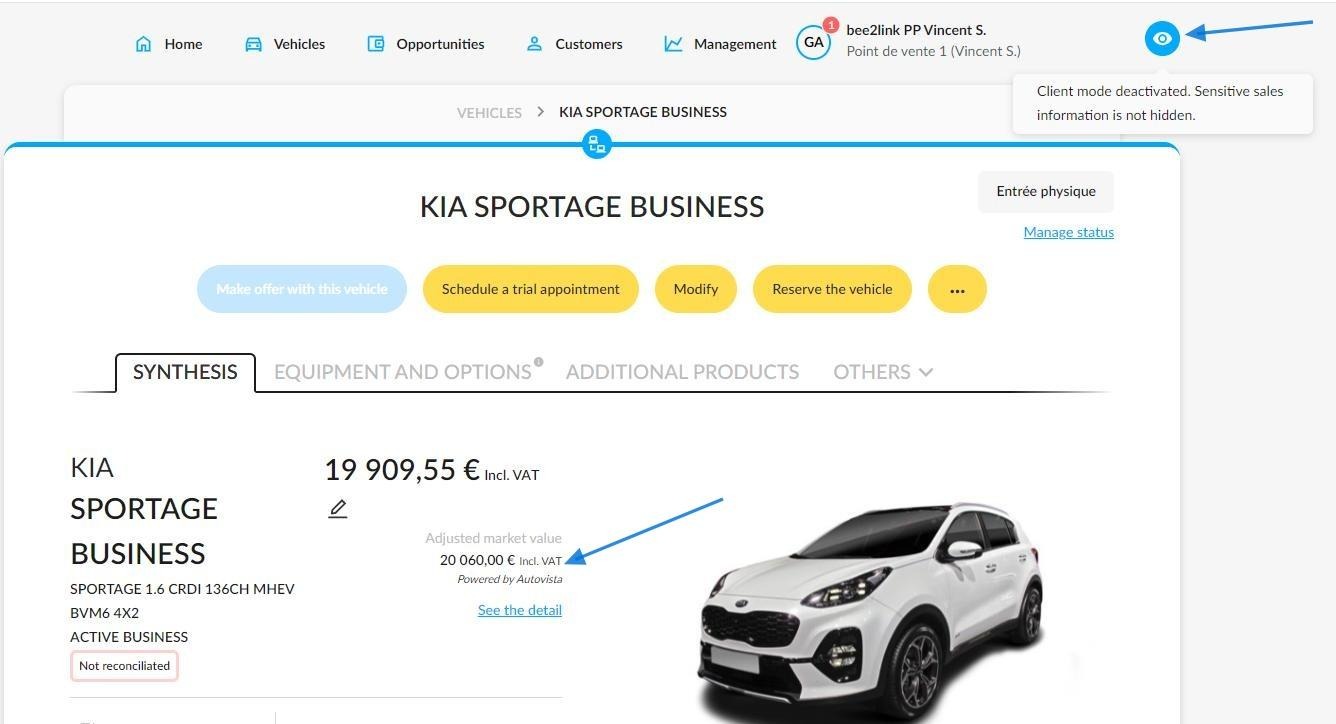
When disabled, the usual data used to manage a vehicle in stock is visible.
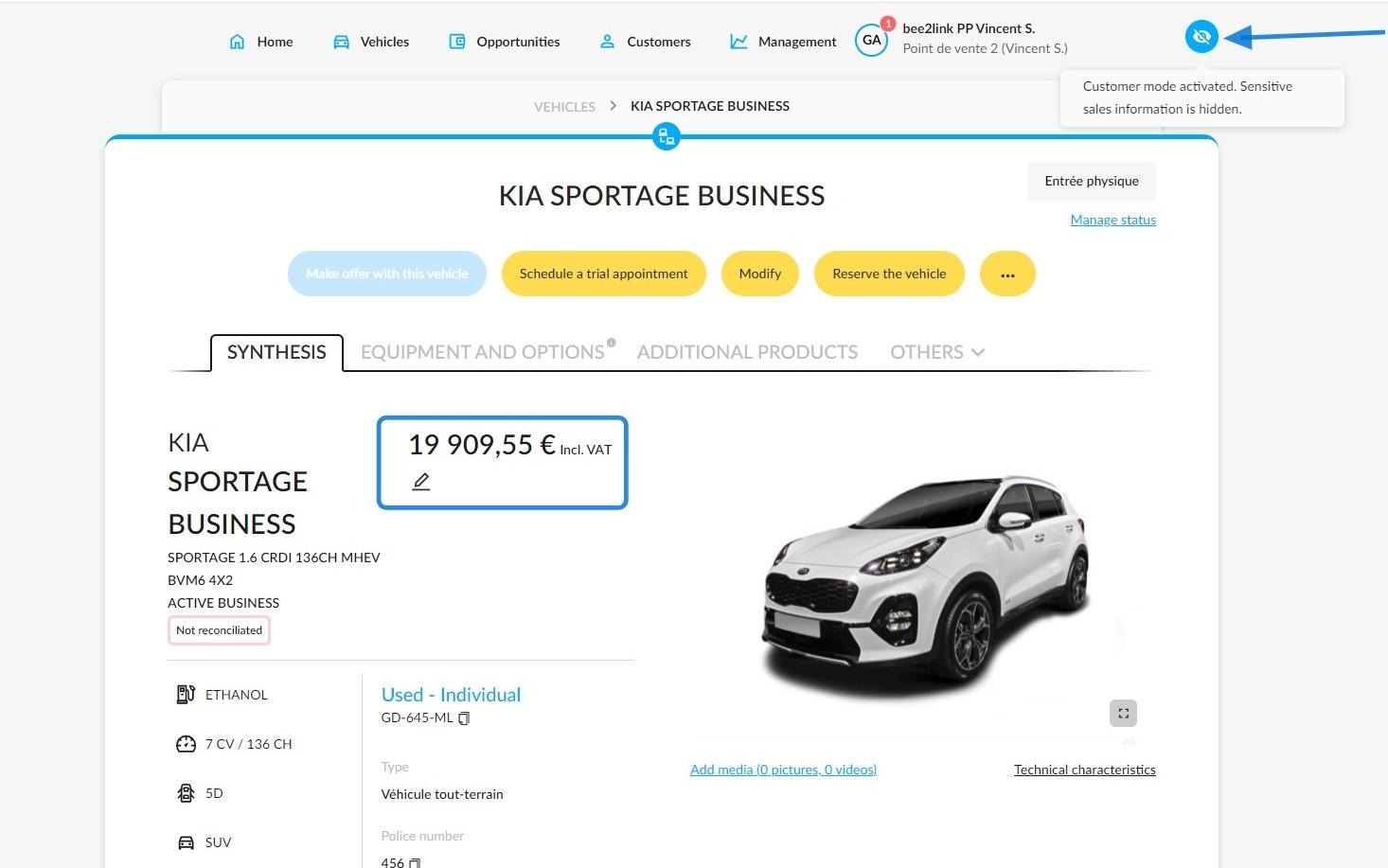
In 'Customer' mode, the sales representative will be able to show a prospect pictures or data about the vehicle history at the bottom of the page, without displaying information on trade-in prices, margins and market values.
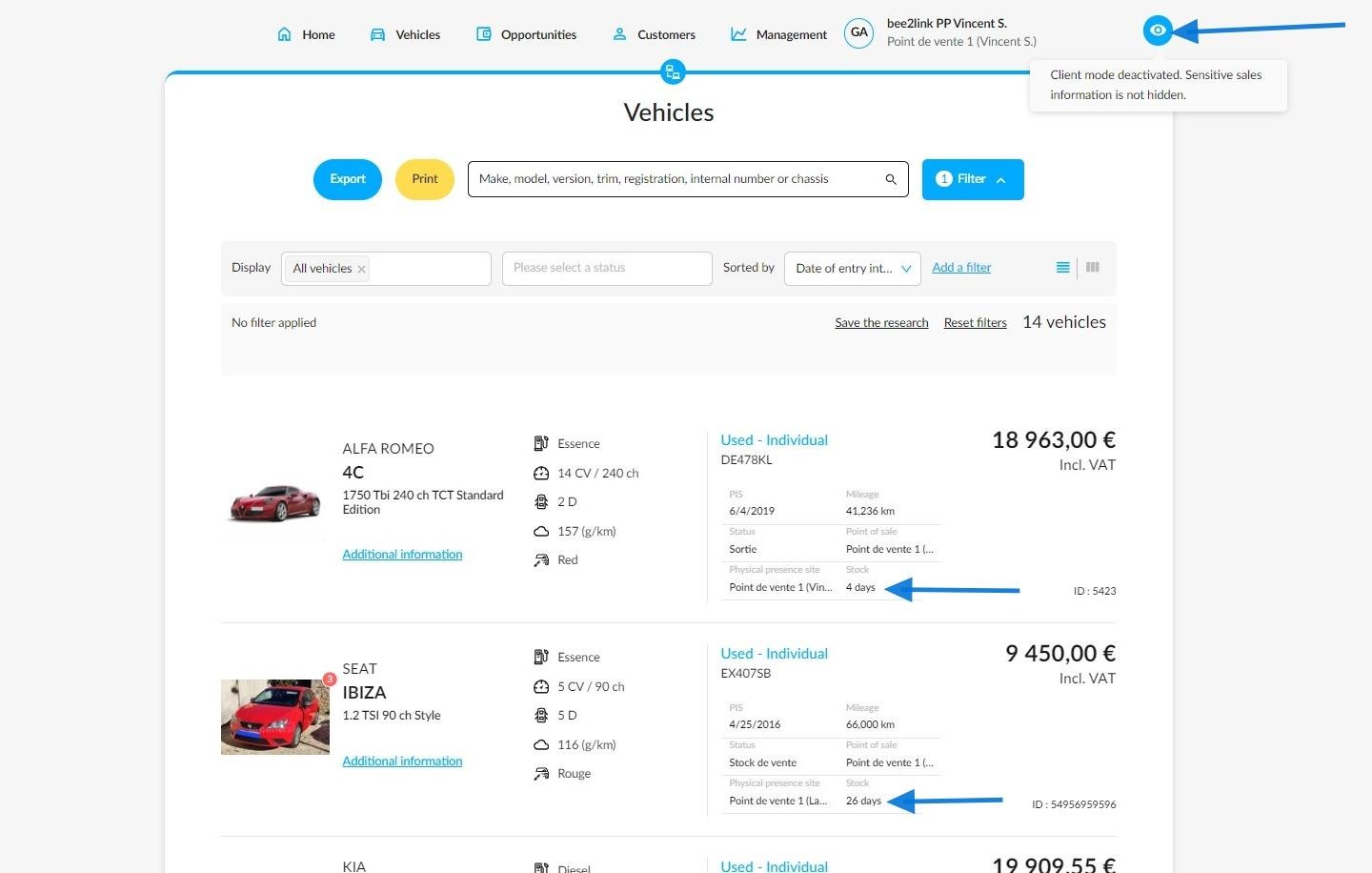
Example of a vehicle with the number of days in stock displayed at the bottom of the page:
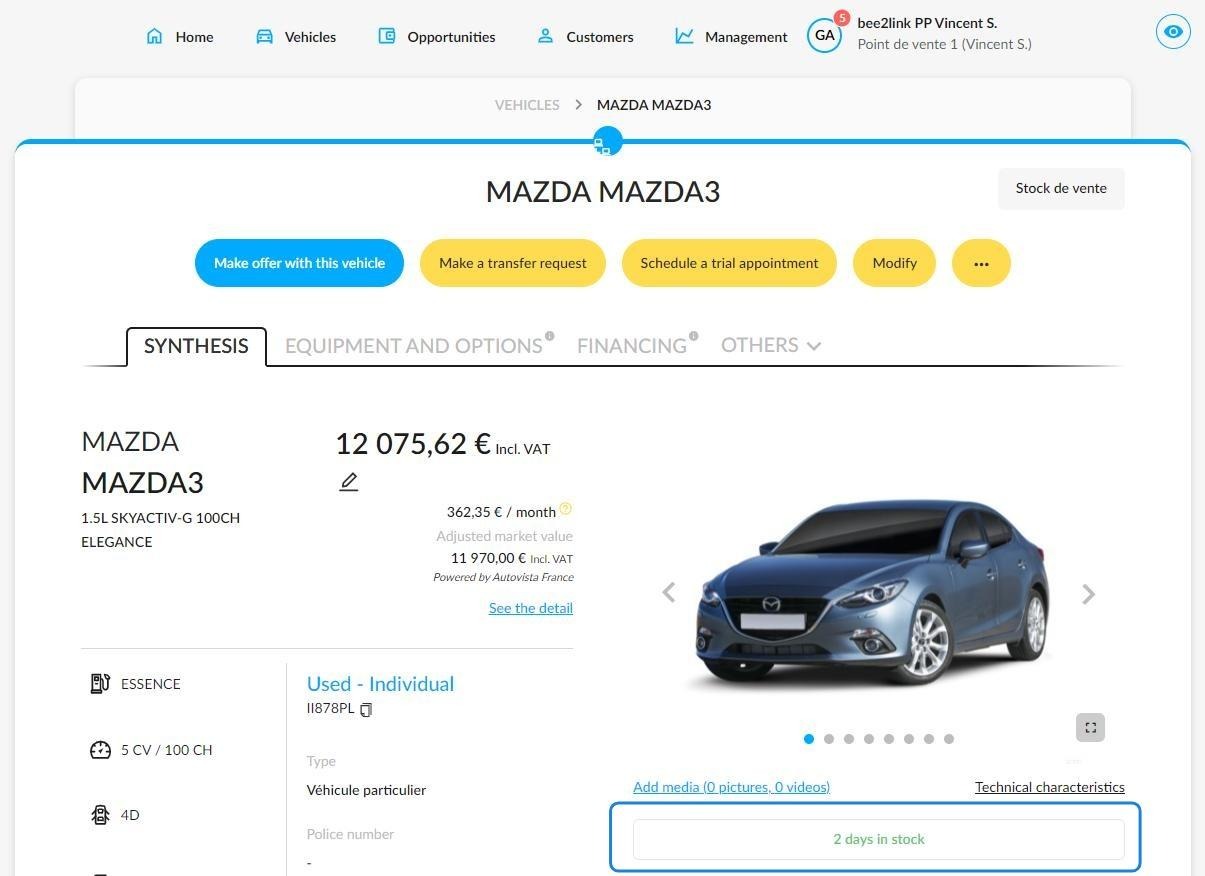
This data is hidden when the "Customer" mode is activated:
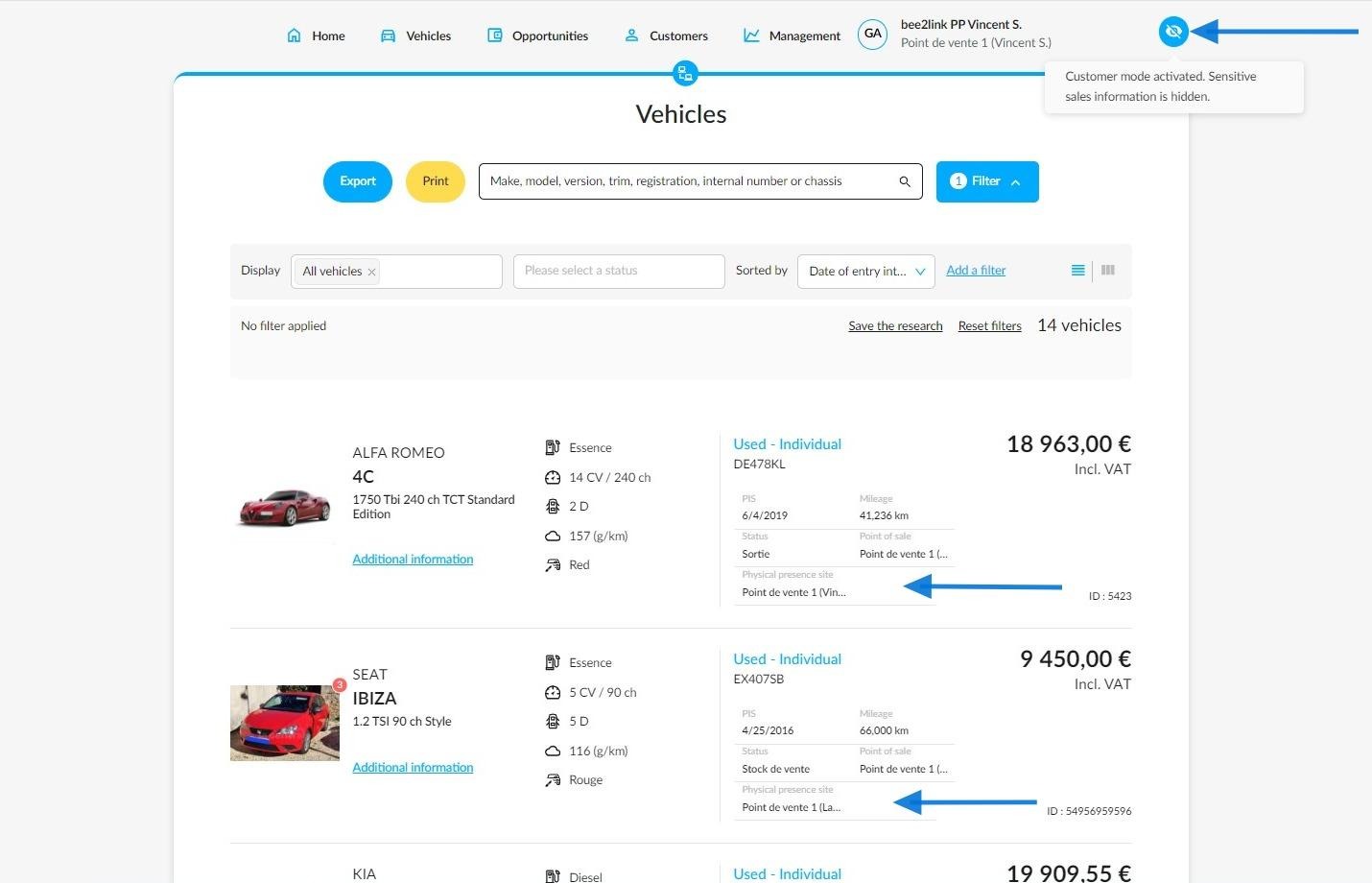
'Customer' mode is also available in the 'Vehicles' menu. It works in two different views: List or Table.
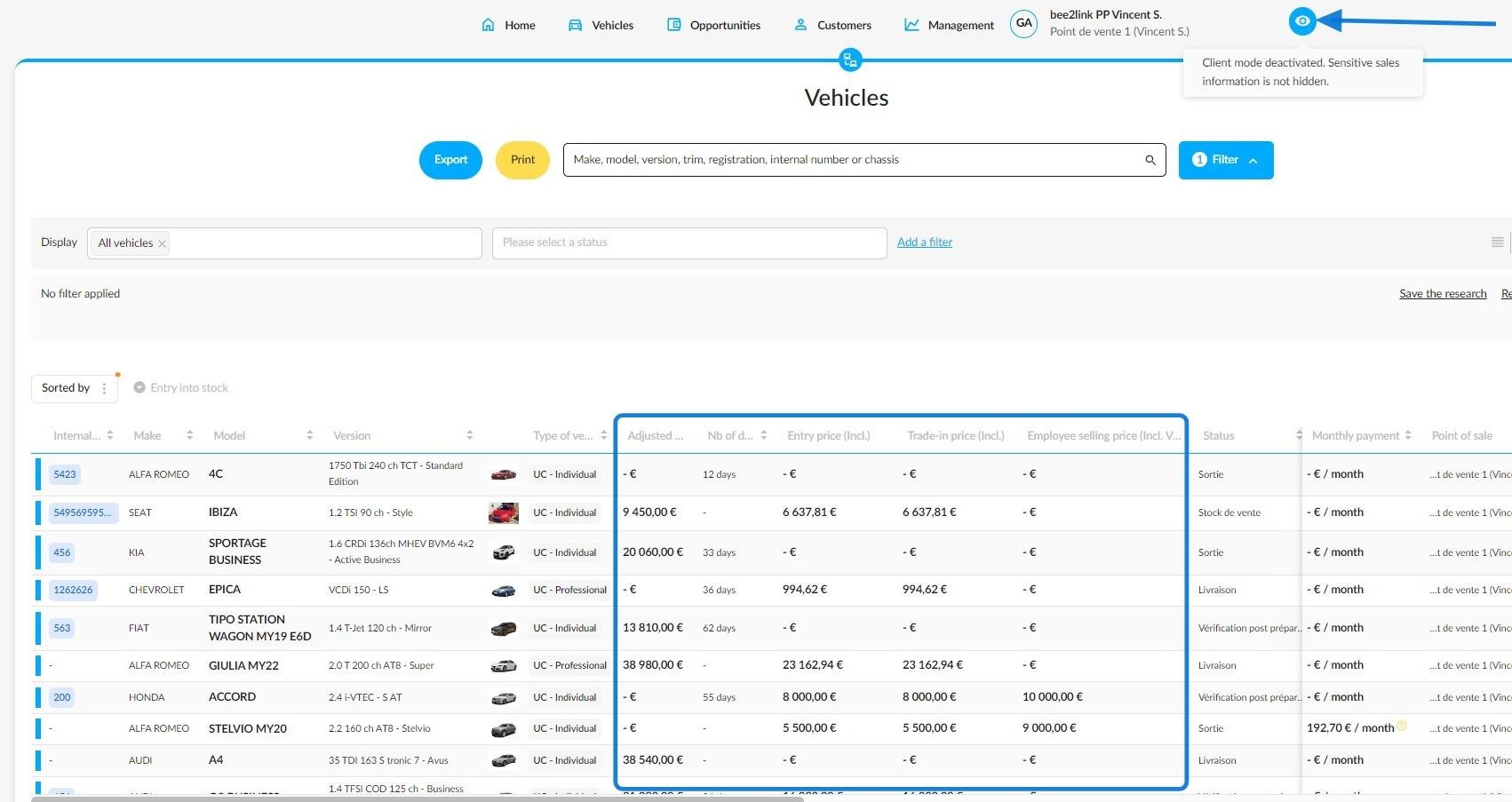
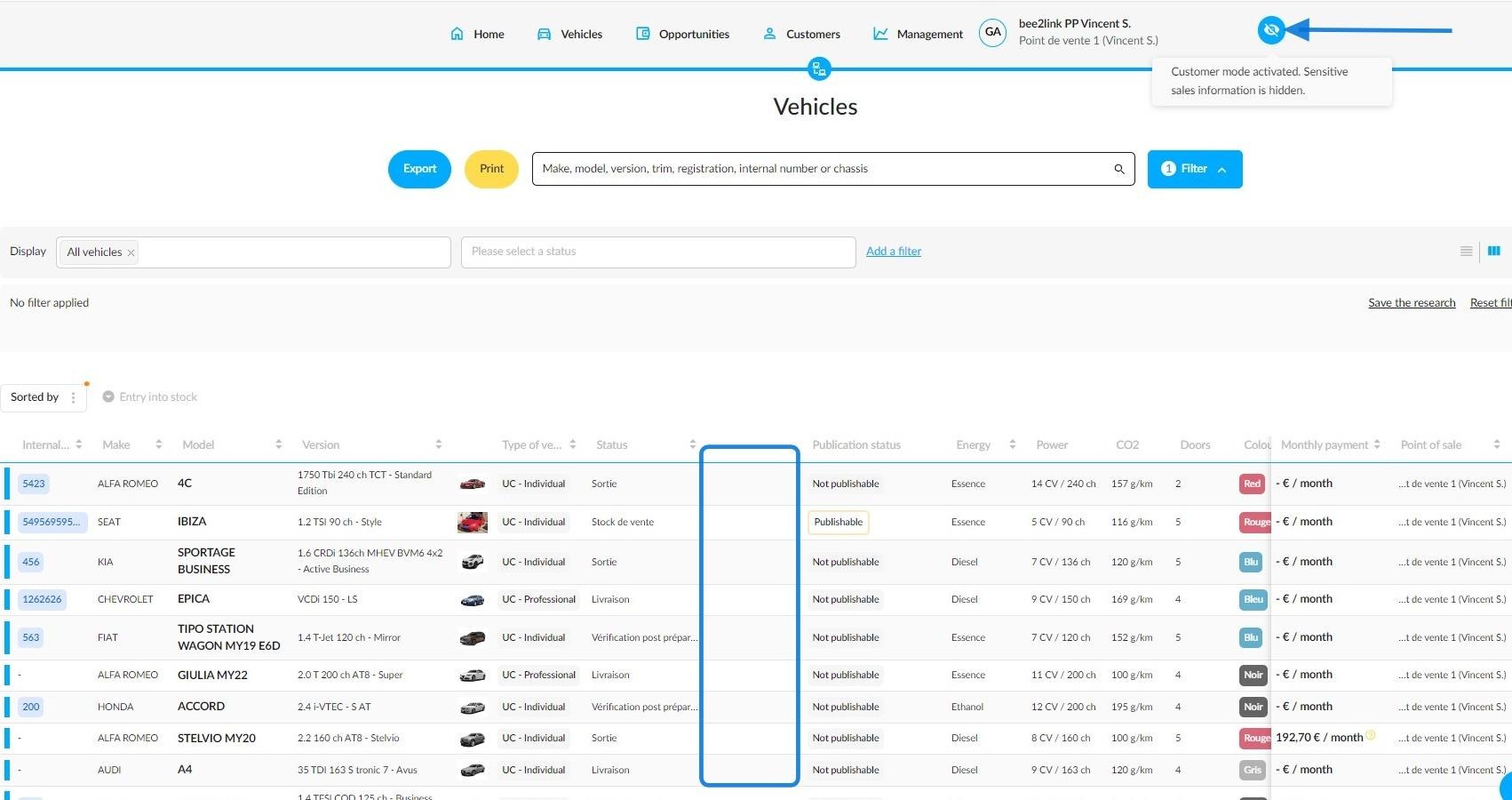
In table mode, several data will be hidden when you use the "Customer" mode:
• number of days since last price update
• date of entry into stock
• adjusted market value
• employee price incl. VAT
• entry price incl. VAT
• trade-in price incl. VAT
• professional price incl. VAT.
The image below shows the table with these columns that are visible when the "Customer" mode is disabled.
Presentation of the result with all sensitive details masked when the “Customer” mode is enabled:
In list view, the number of days a vehicle has been in stock is visible when the “Customer” mode is inactive:
In "Customer" mode, the number of days in stock is hidden:
Comments
0 comments
Article is closed for comments.