
This guide explains how to enable used vehicle reservations for a customer before the vehicles are added to stock.
Prerequisite: You must have administrator rights.
Basic rules:
-To reserve a vehicle for a customer with this setting, the vehicle must be in pre-entry and authorized for sale.
-Booking a pre-entry UV for an unlimited duration results in its removal from all advertising websites.
-In order to cancel the unlimited booking, you must abandon the offer on the vehicle.
-All offers for a reserved vehicle are blocked, except those intended for the customer for whom the car has been booked. To allow an offer to be made to another customer with the same vehicle, the reservation must be deleted.
-Once the vehicle reaches "physical entry" status, the unlimited reservation is converted into a 48-hour temporary booking.
-The seller who made the booking will then receive an email notifying them of the change in the vehicle's status and reminding them that they have 48 hours to complete the transaction.
-All reservations can be deleted by a manager.
-A record of all these actions will be kept in the vehicle's history.
Path to access settings:
If a seller is confident that they can sell a used car even before it enters the stock, it is recommended that they enable vehicle reservations as soon as the vehicle is in pre-entry.
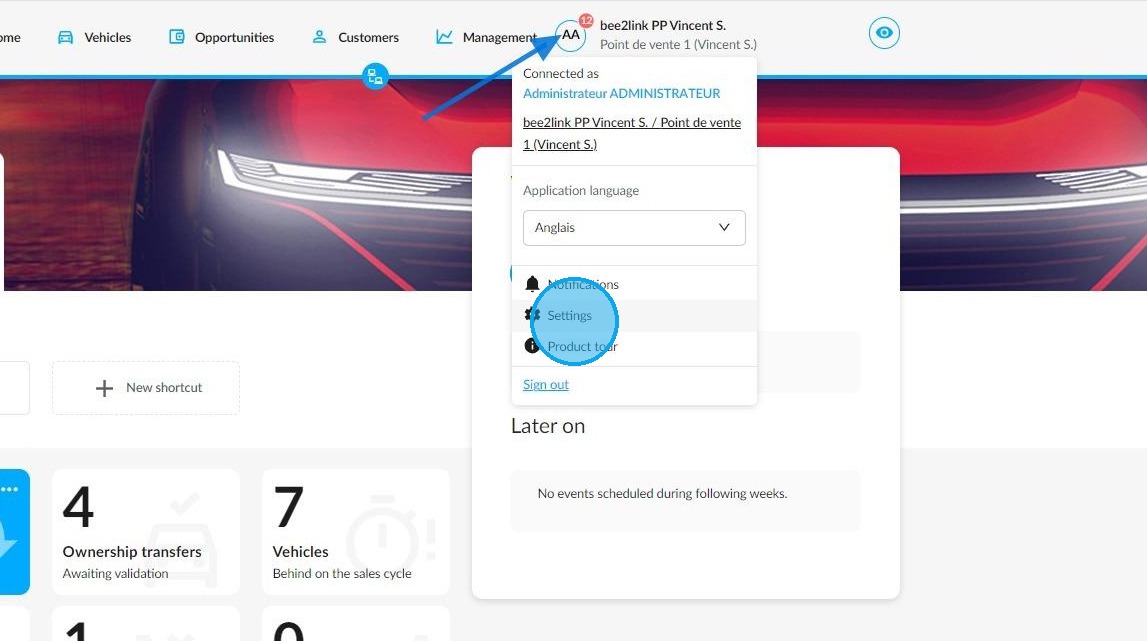
This process requires to have access to the platform's settings. You can access them by clicking on your initials and then on "Settings".
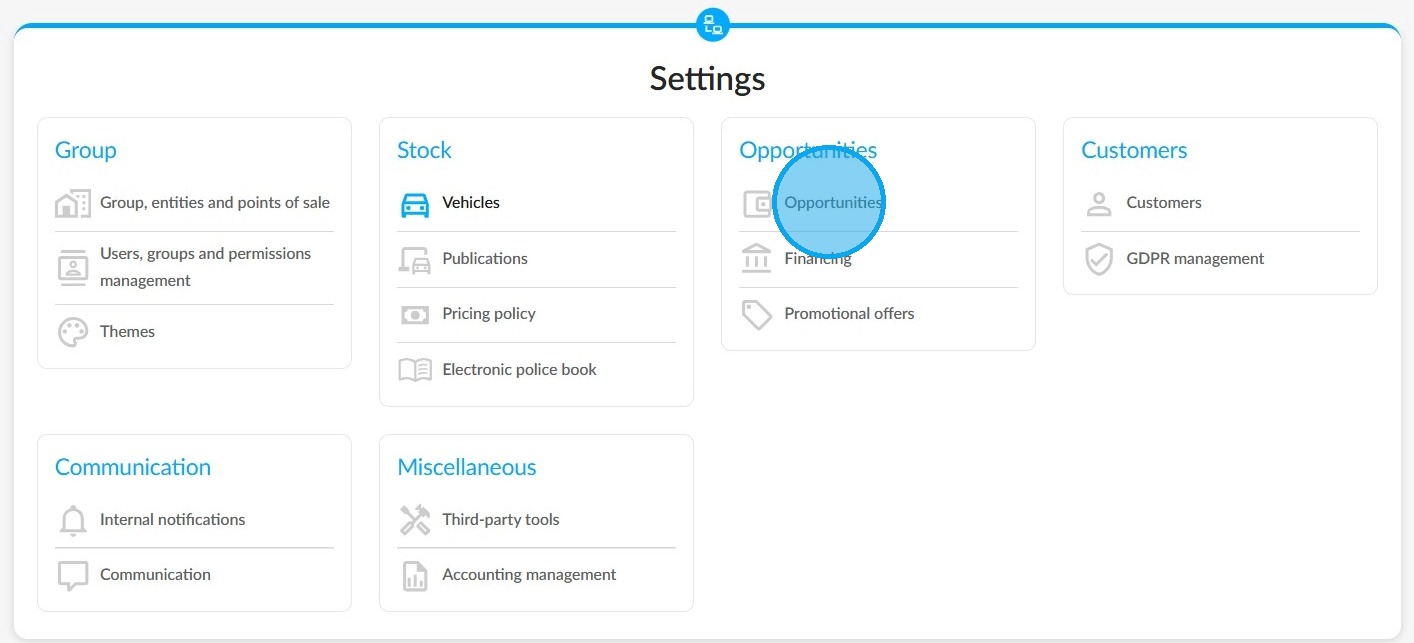
Choose to set up the "Opportunities" module in the "Opportunities" category.
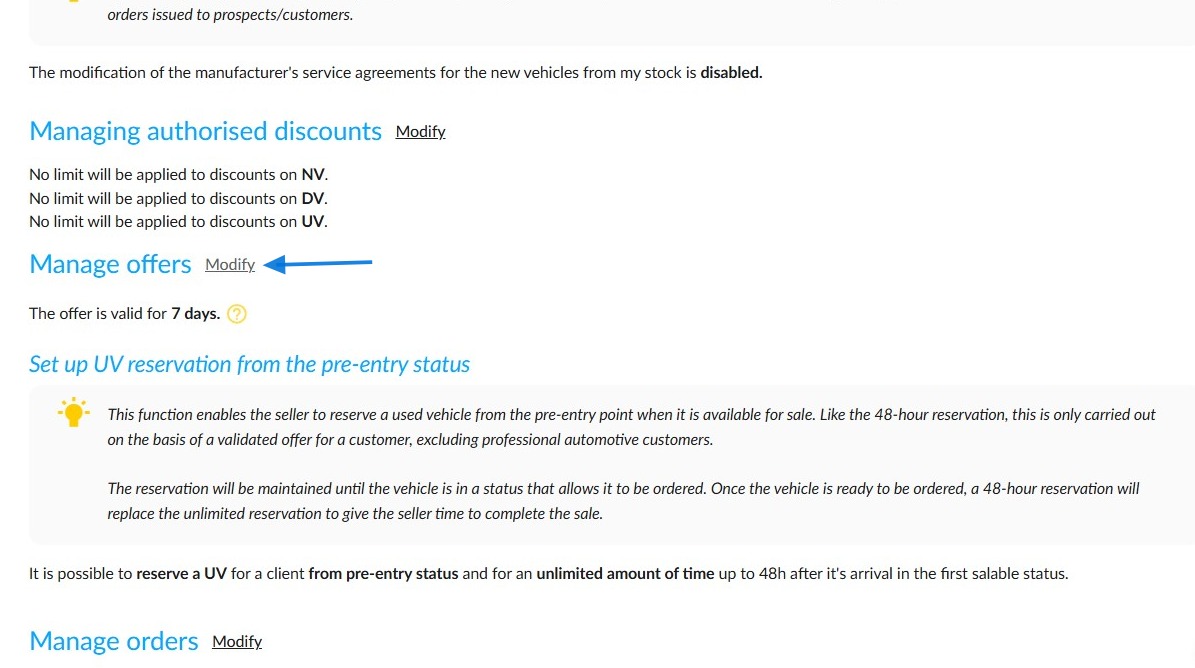
Enabling pre-entry bookings for UVs:
Click on the "Modify" button next to the section labelled "Manage offers".
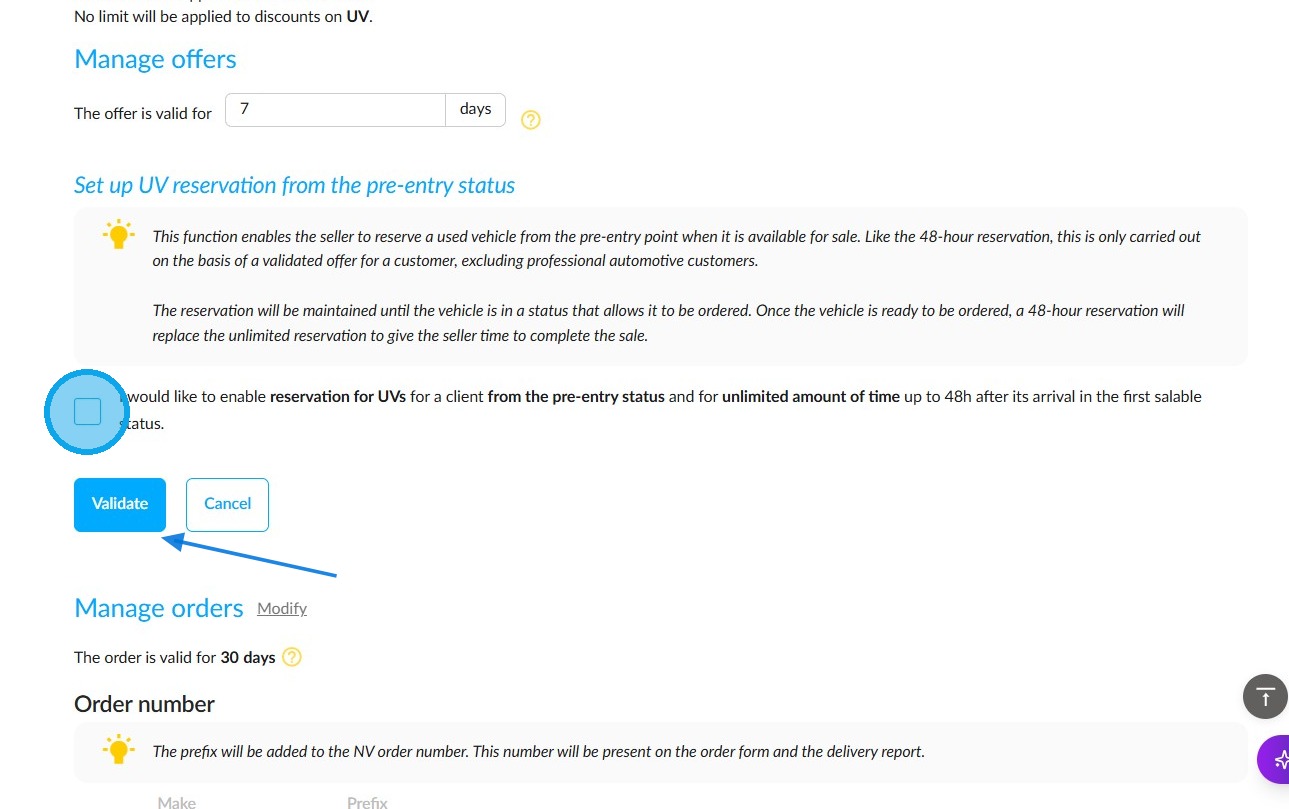
Please tick the box titled "I would like to enable reservation for UV for a client from the pre-entry status and for unlimited amount of time up to 48h after its arrival in the first salable status."
Finally, click the "Validate" button just below the box.
Search for reserved vehicles in the stock table:
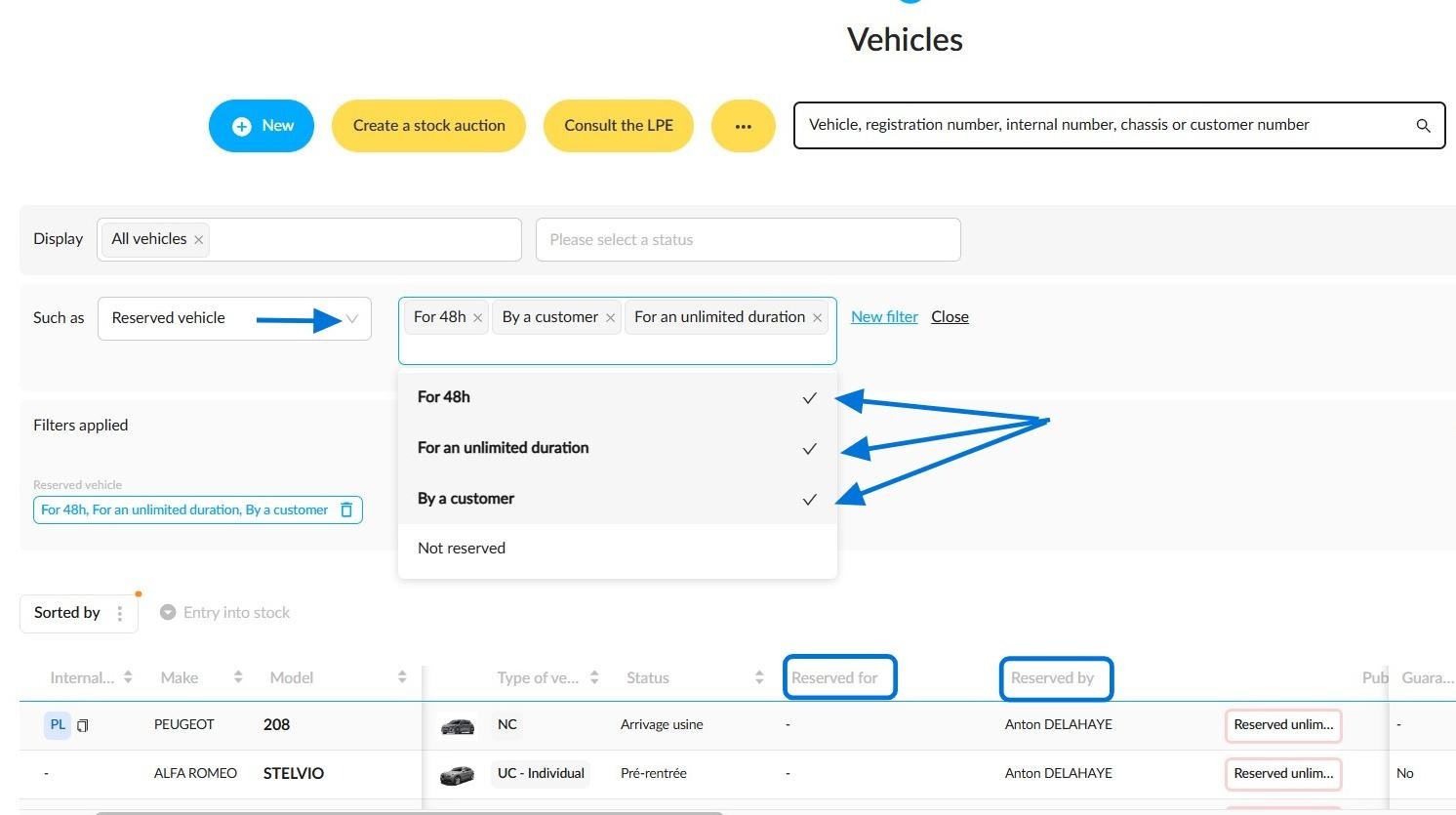
You can use the ‘Reserved vehicle’ filter, included in the ‘Stock management’ filters, to find out if some vehicles are reserved.
Four reservation modes can be selected to sort the displayed results :
-For 48h.
-For an unlimited duration.
-By a customer.
-Not reserved.
Please note that several reservation modes can be selected at the same time. Your choices may affect the consistency of the results obtained.
Furthermore, to identify which employees or customers have reserved the vehicles, you can add two customisable columns to the table entitled ‘Reserved by’ and ‘Reserved for’.
Sort by forecasted entry date:
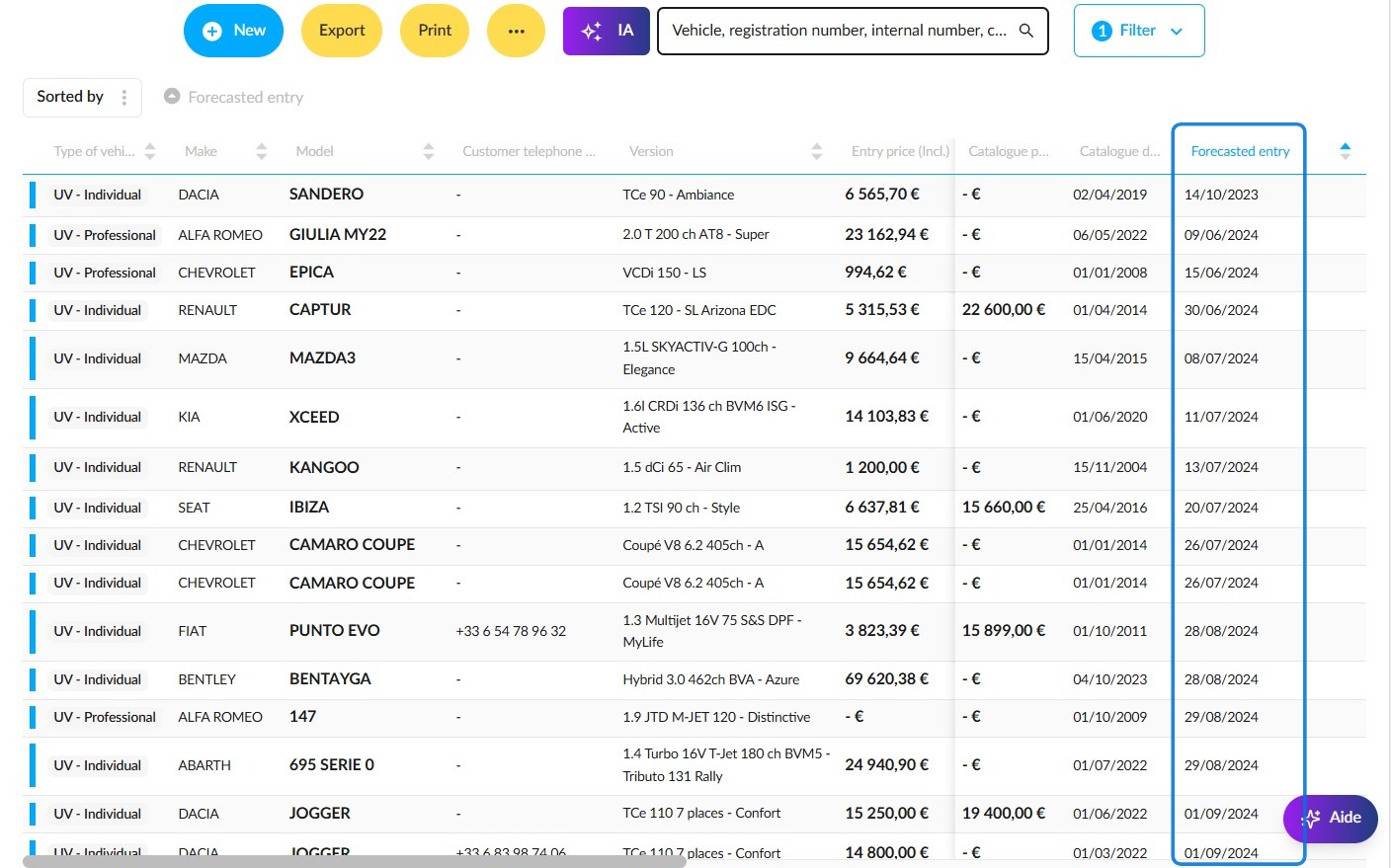
To view UVs entry dates, add the 'Forecasted entry' column to the stock table. You can also export this column.
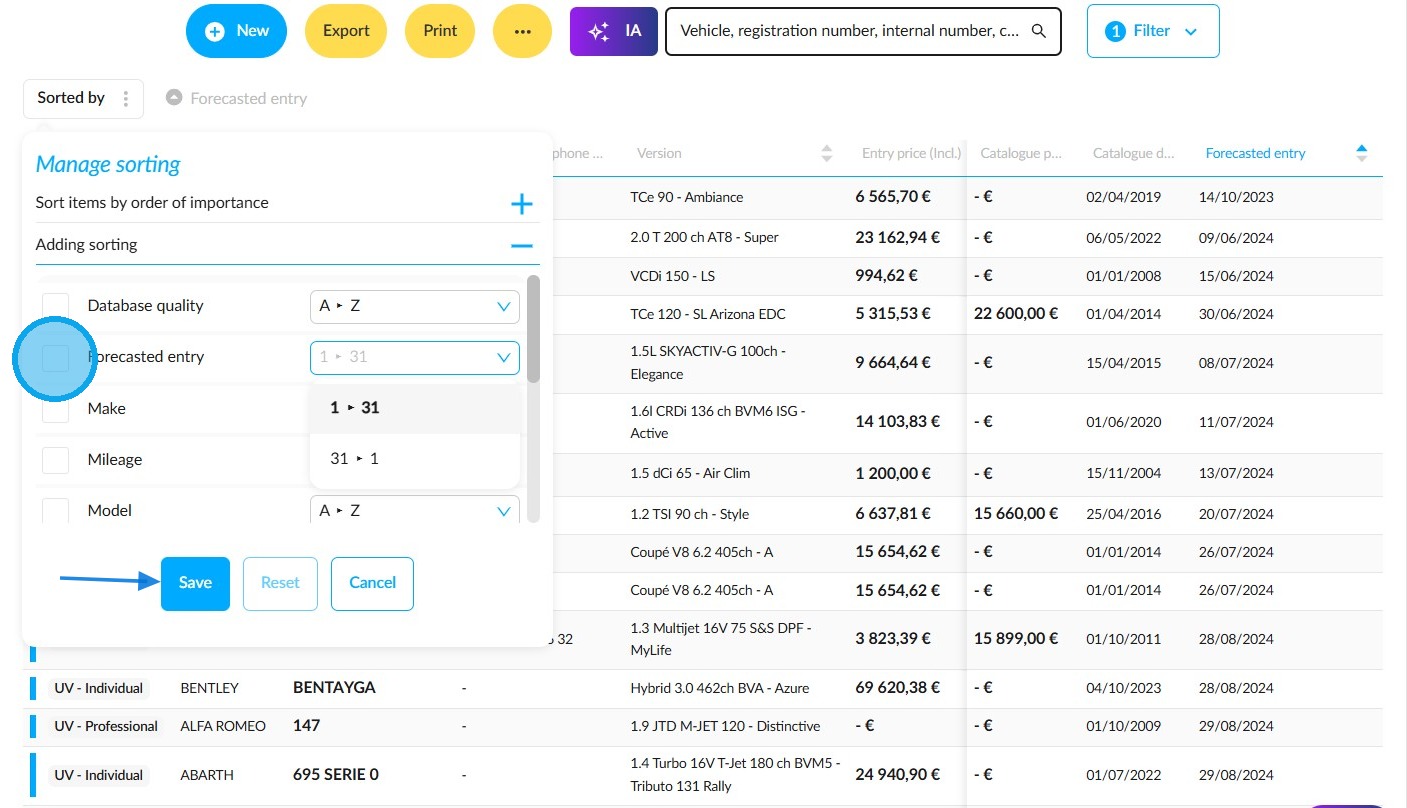
Sort vehicles by their forecasted entry date, either from oldest to newest or from newest to oldest.
Comments
0 comments
Article is closed for comments.