
Find out how to set a lead time for entering vehicles into stock.
Prerequisite: You need platform administrator rights to set the deadline for entering stock.
Accessing setttings:
You can customise the forecasted entry-to-stock lead time for a trade-in vehicle to suit each situation, or set it up in the opportunities settings.
Therefore, this lead time can be entered manually to allow salespeople to enter a more realistic date, or it can be set automatically.
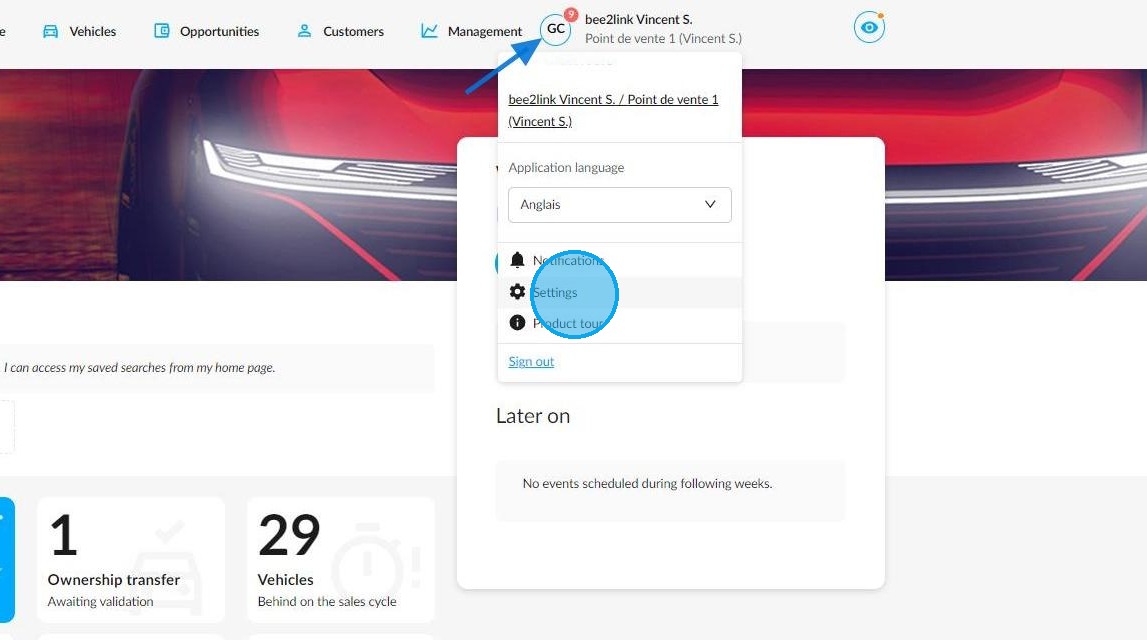
Start by clicking on your initials, followed by Settings.
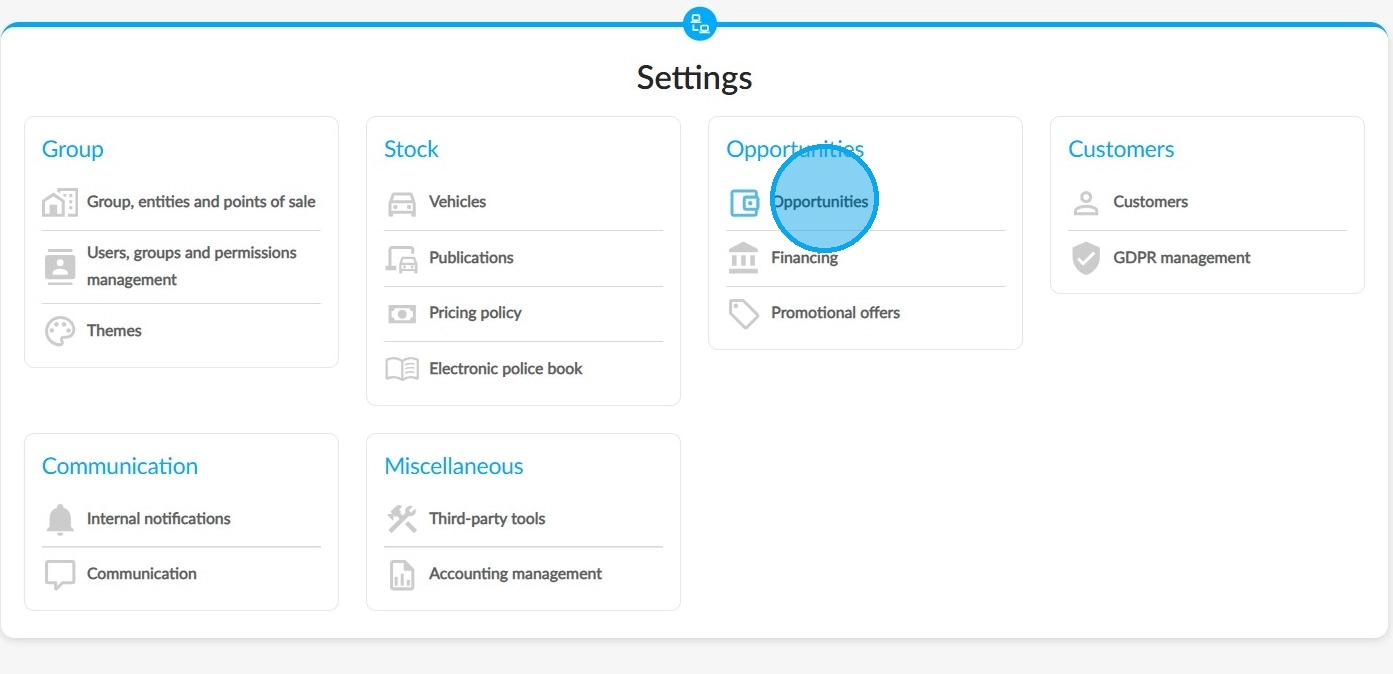
In the category of the same name, select the 'Opportunities' module.
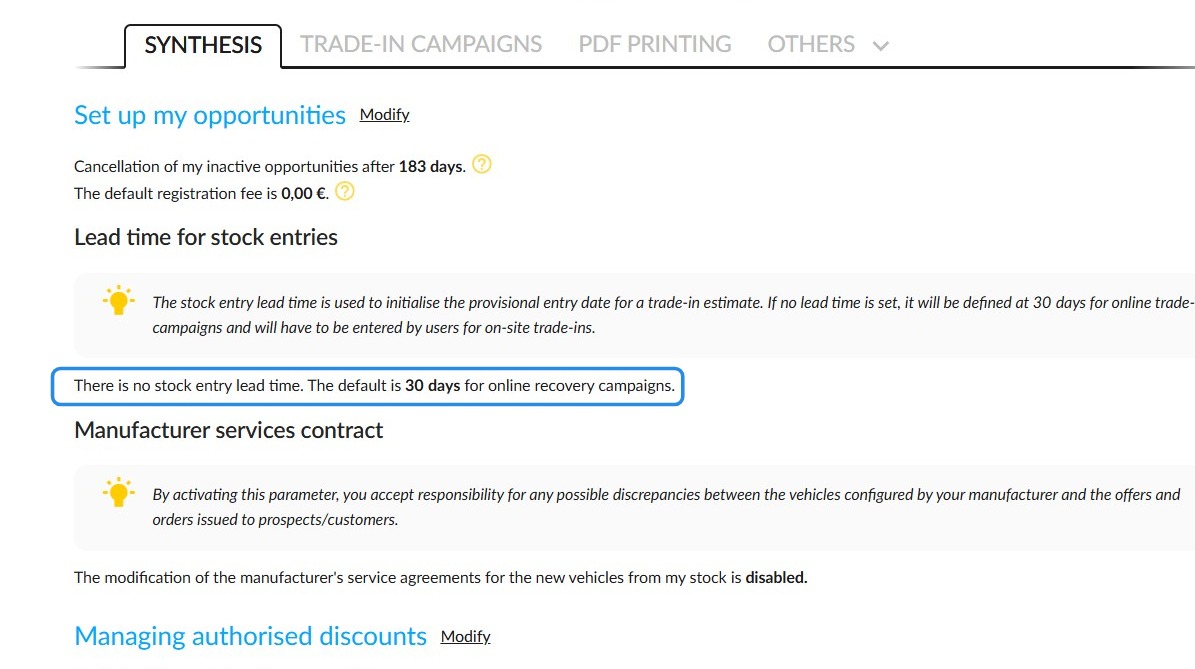
The forecasted stock entry date can be configured in the 'Set up my opportunities' section, under the 'Lead time for stock entries' heading.
Please note that if no lead time has been set, the estimated date of entry into stock is 30 days by default.
Setting up an automatic stock-in date:
To change the predefined setting, click on the "Modify" button.
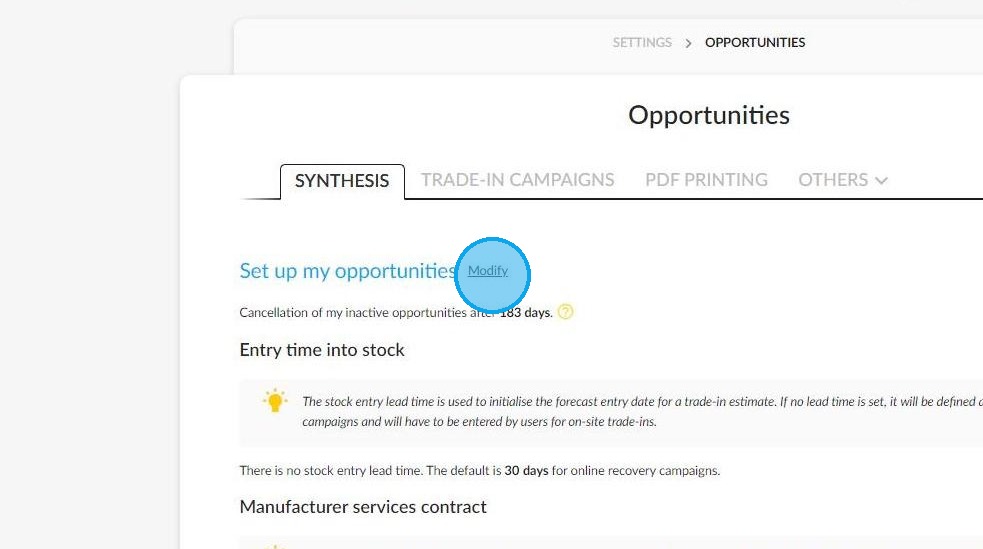
You can now tick the box labelled 'I would like to set a lead time for stock entries' to set a time limit for stock entries.
Otherwise, the salesperson will need to set this up when completing the trade-in configuration.
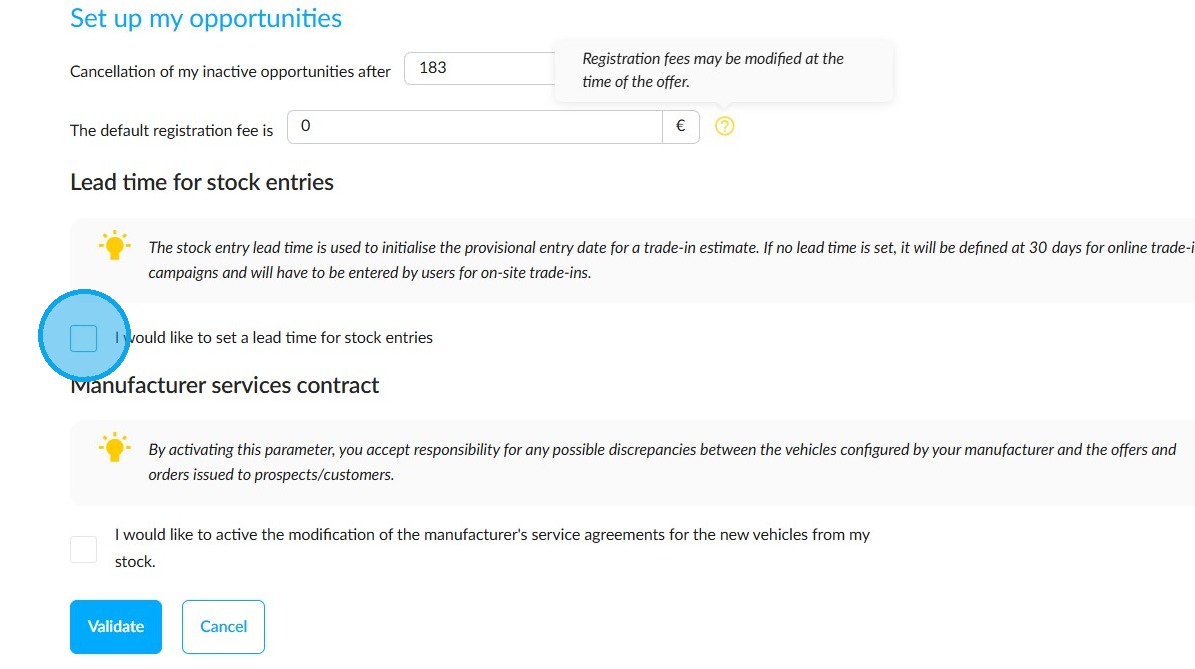
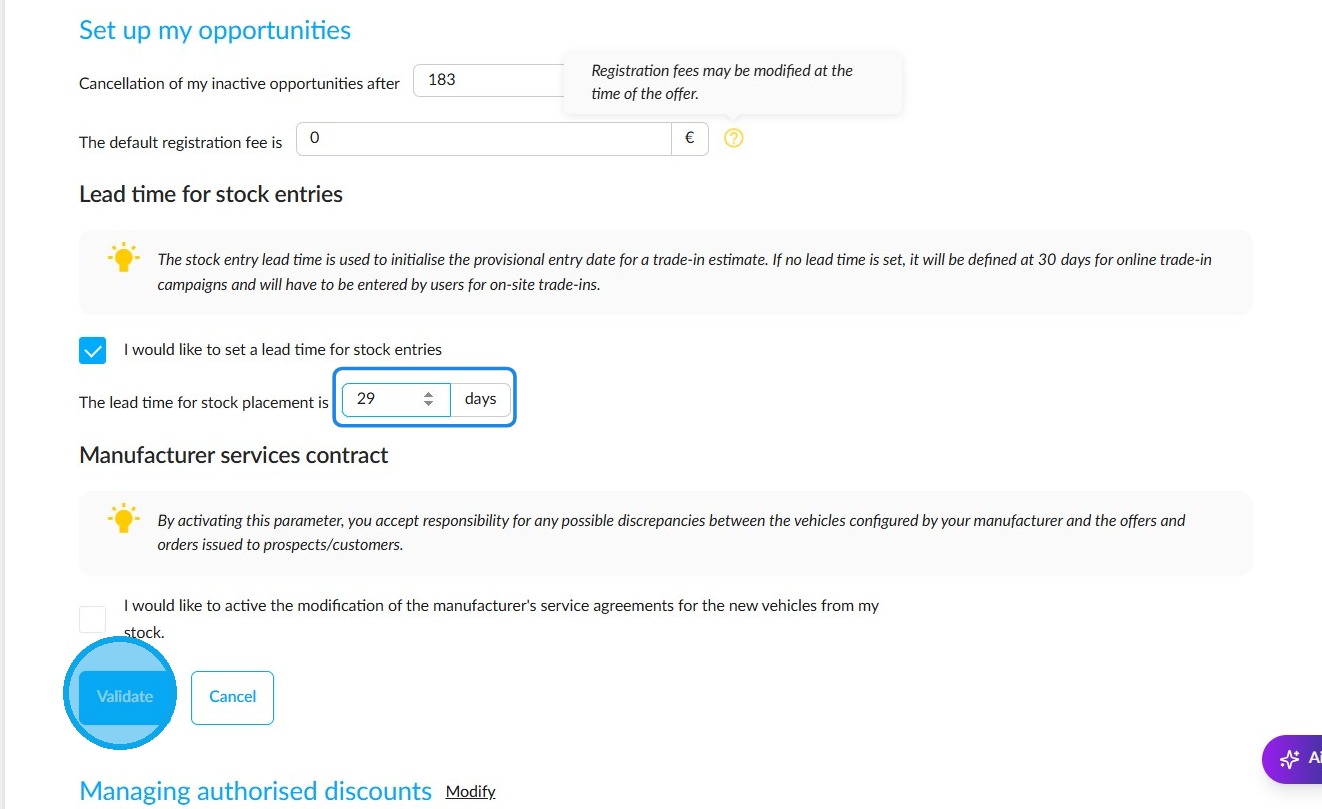
If you would like to set an automatic deadline for the entries into stock, tick the above-mentioned box. Specify the number of days in the box and then click 'Validate'.
Free input when trading in a vehicle:
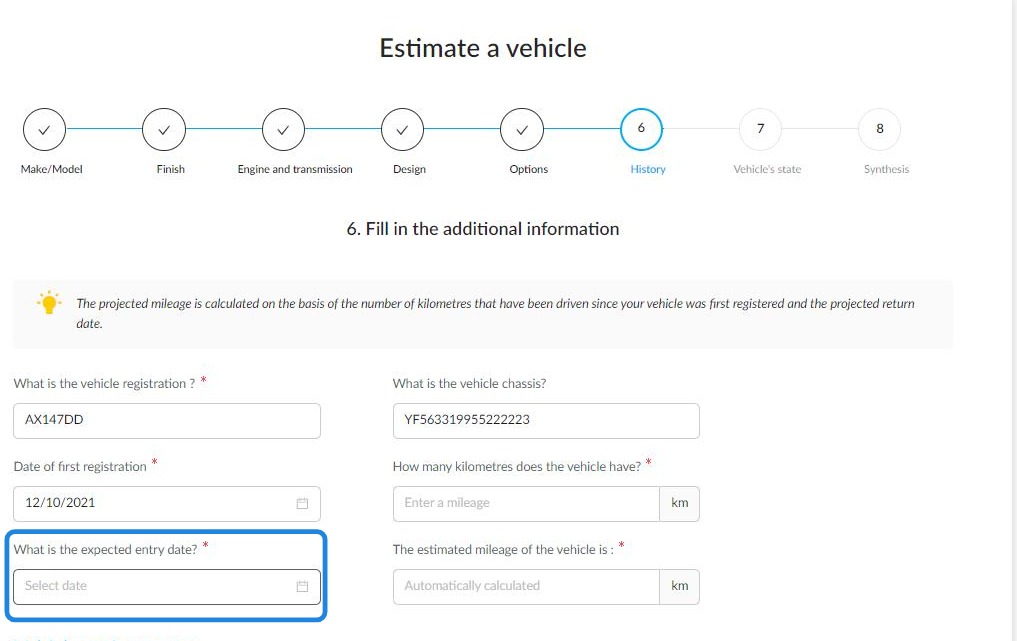
If the expected date of stock entry is entered manually, the sales assistant must do so during the vehicle trade-in process, at the 'History' stage.
Comments
0 comments
Article is closed for comments.