
Please read the procedure to create warranties in OpenFlex in order to add them to used vehicles.
Prerequisite: have administrator permissions on the platform.
Settings: creation of warranties
To access the settings, click on your initials on the OpenFlex home page.

Enter in the settings of the "Vehicles" module:
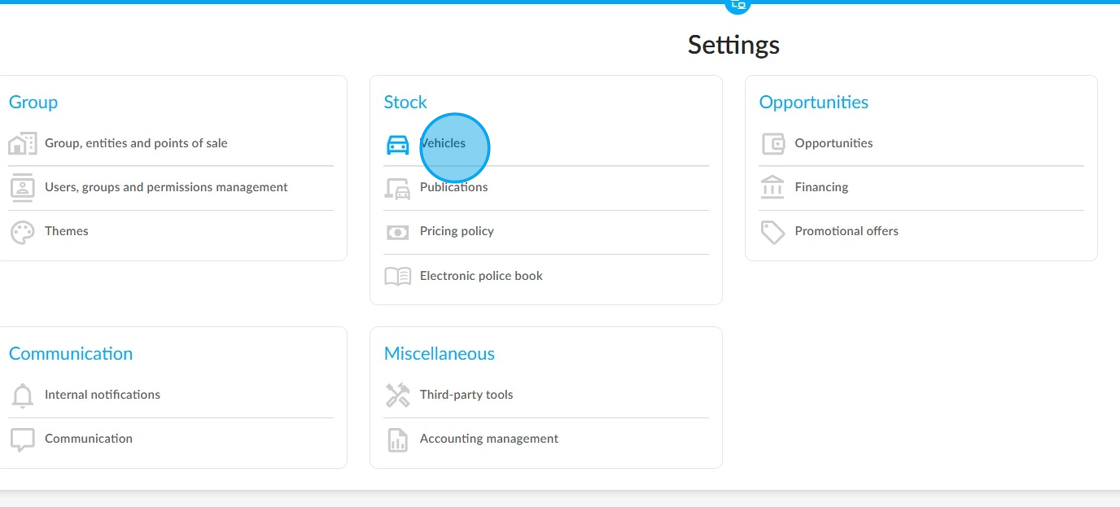
Afterwards, select the "Warranties" menu:

You will then view the list of the existing warranties. These can be modified or deleted by clicking on them.
If needed, click on the "Add a warranty" button to create a new one.

Start by filling in the wording of the new warranty before specifying for which type of vehicle it will be assigned (several possible choices: DV or UV // DV & UV):

Configure the criteria for age, mileage and, if necessary, duration in order to limit the validity of this warranty to only those vehicles that meet these criteria. Once you have configured the new warranty, click the "Save" button to save your work.
Add the warranty to the vehicle sheet.
Select the sheet of a DV or a UV intended for individuals in the vehicles stock.
Reminder: the warranties of sold vehicles cannot be changed. Please make sure that vehicles are covered by the appropriate warranty before putting them up for sale:

Once you are on the sheet of a vehicle, click on the "Modify" button to add or replace a warranty.

The section which is about filling in warranties is at the bottom of the page.

To select the warranty adapted to the vehicle (label criteria of age and mileage), click on the "Warranty name" field.

Next, indicate whether the warranty will be for a term related to its wording or if it will expire on a given date.
In our case, it will always be a duration related to the associated wording.
Examples :
Basic warranty = 8 months warranty cover.
Premium warranty = 12 or 24 months cover.

Example of selecting the warranty duration:

Some filters are made available for you in the "Vehicles" module to identify the various warranties of your DVs and UVs:
-Display: all DVs & all UVs for individuals.
-Filter by status: "Pre-entry, Physical entry, Sales stock".
-Additional filters: "Stock management" / "Warranty-Name".
For greater convenience, you can save this search.

Comments
0 comments
Article is closed for comments.