
Specify the margins you want to achieve, taking into account the destination, brands and vehicle model(s).
Prerequisites:
-You must have administrator permissions to create margin grids on the platform.
-Your margin settings are based on the resale value of used vehicles. Adding a margin grid enables you to create the desired margin brackets based on the resale price of the trade-in vehicle. These margins are set as a monetary amount or as a percentage of this resale value.
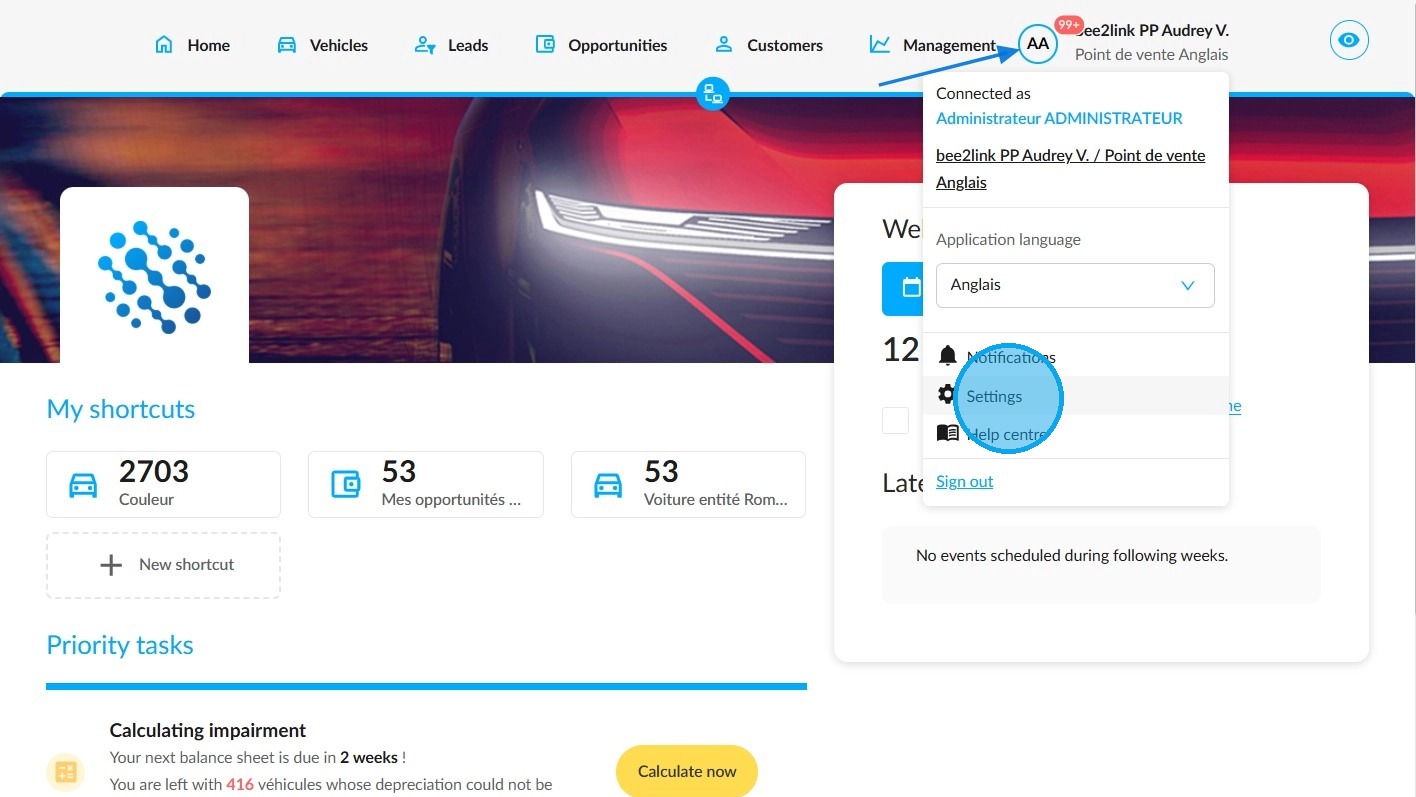
From the OpenFlex homepage, click on your initials to access the platform settings.
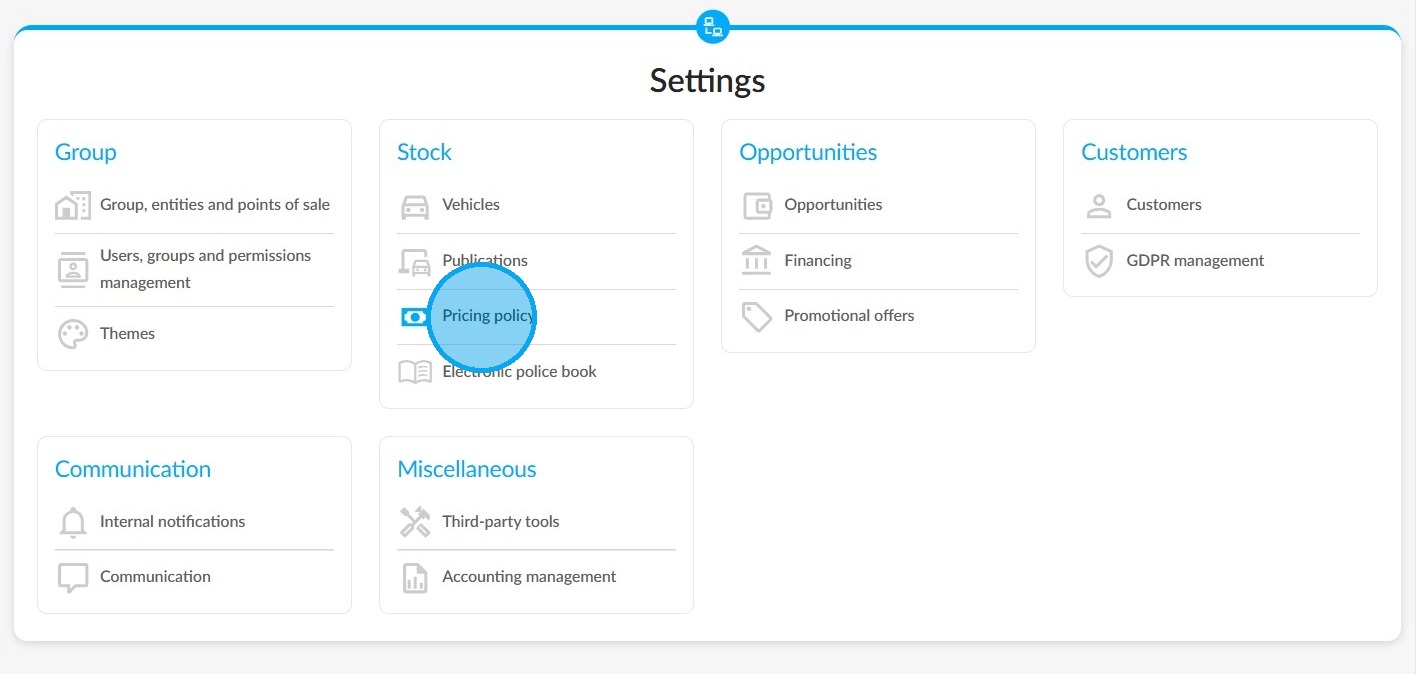
The margin grids can be configured in the ‘Pricing Policy’ menu, which is located in the 'Stock' category.
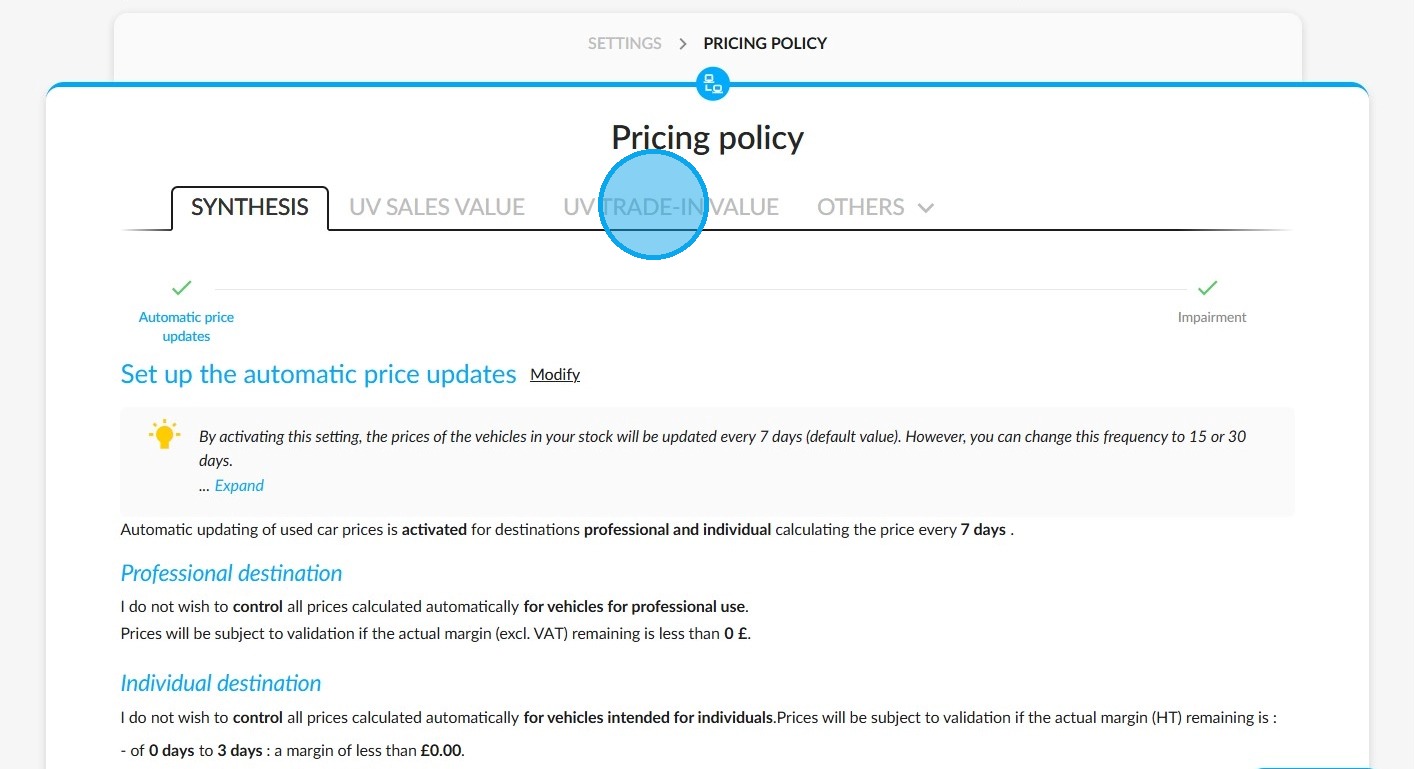
Then select the ‘UV TRADE-IN VALUE’ menu.
You will then be taken to the ‘Margins for professionals and individuals’ settings.
Example showing how to add a margin grid for individuals:
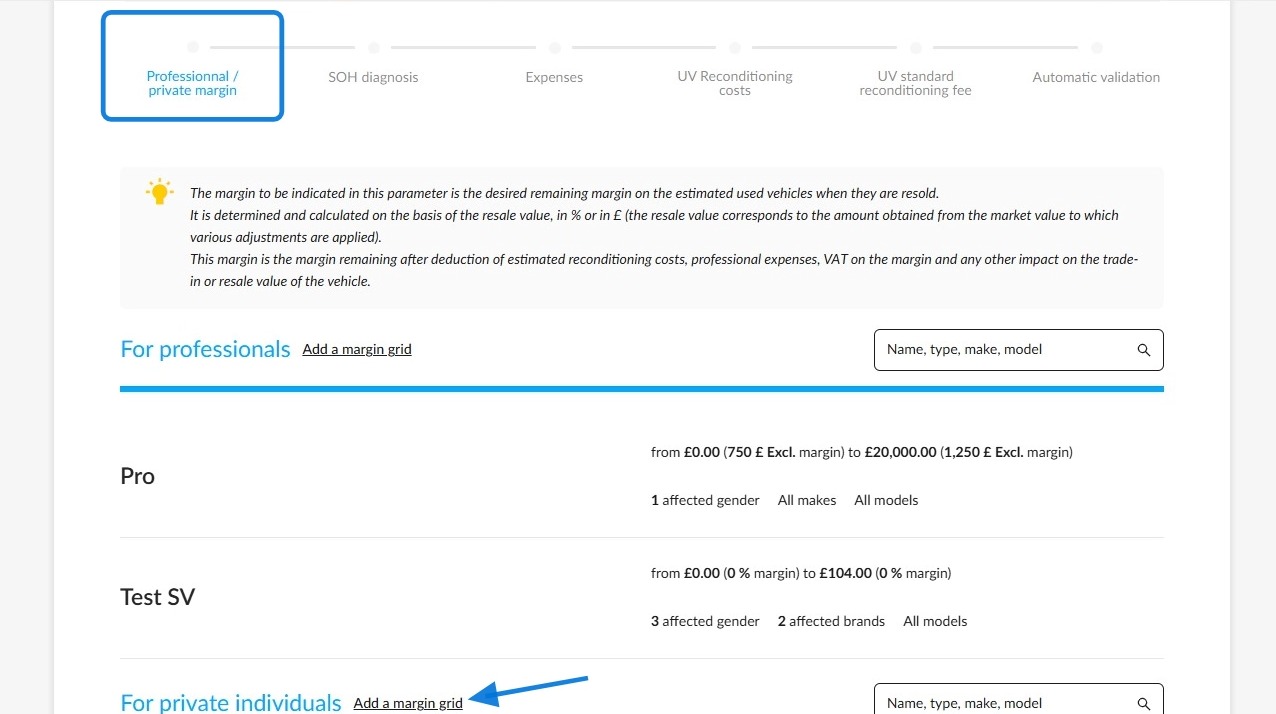
Basically, the new margin grid proposes the application of a single margin for all used vehicles. It does not make any distinction.
To make it more accurate and relevant, you can adjust the margins based on the selling price of used vehicles for private individuals by clicking on the 'Add a period' button.
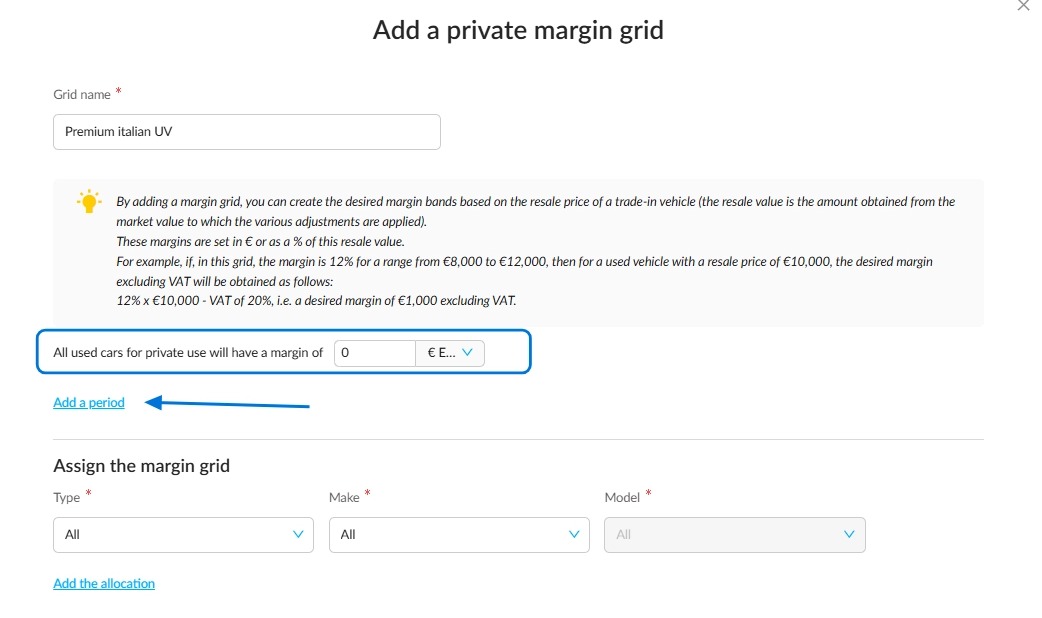
You can set as many price brackets as you want and specify the margin for each one in euros (excluding VAT) or as a percentage.
The final margin threshold will apply to all vehicles with a price higher than the last one set.
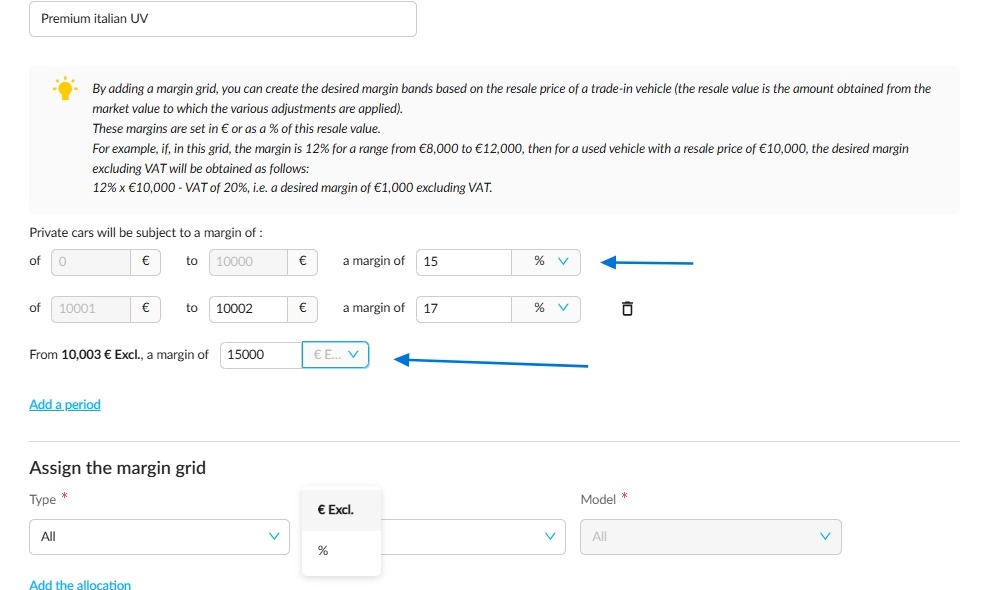
These rules will apply to the vehicles that you assign to this margin grid.
To select them, indicate the types of used vehicles affected (all, private vehicle, all-terrain vehicle, commercial vehicle).
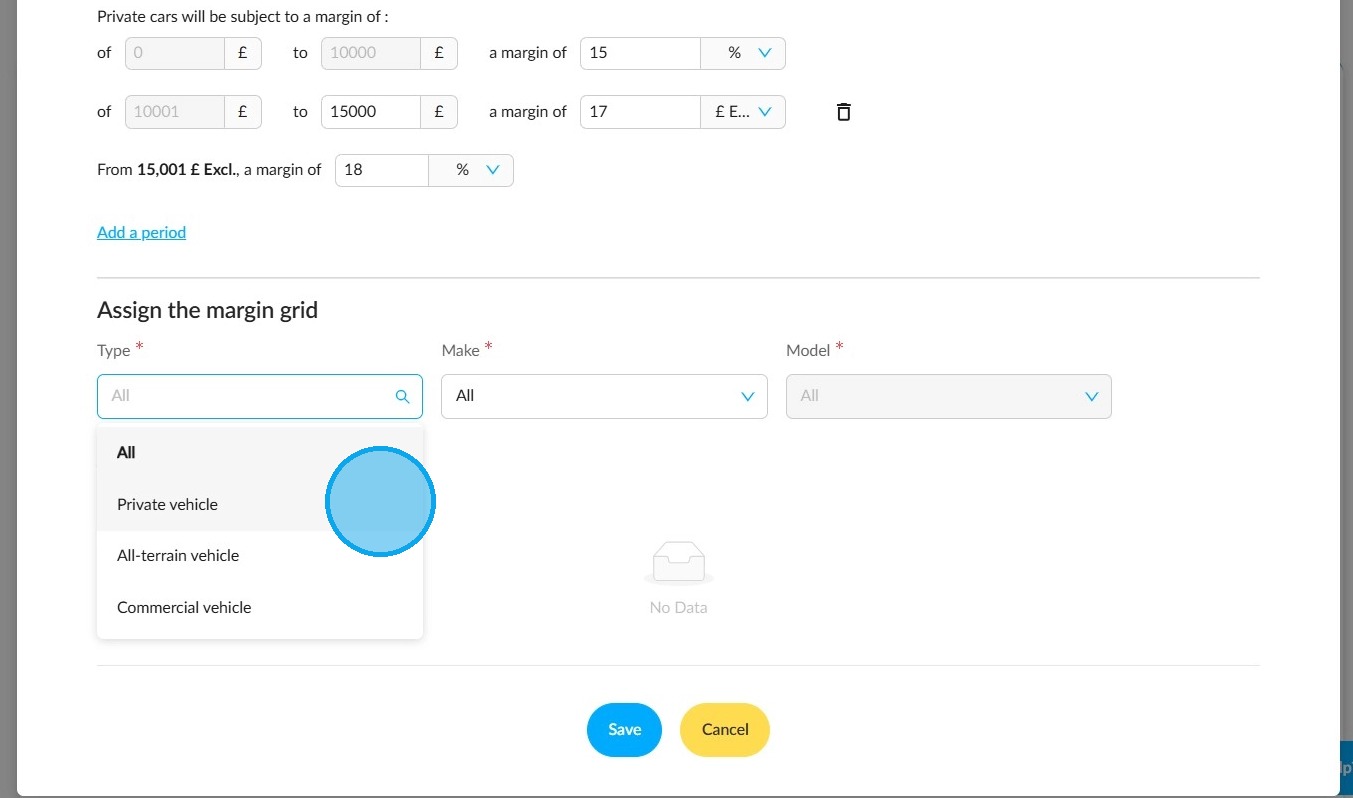
Once you have defined the type, assign this grid to the desired brand and, if necessary, to a specific model.
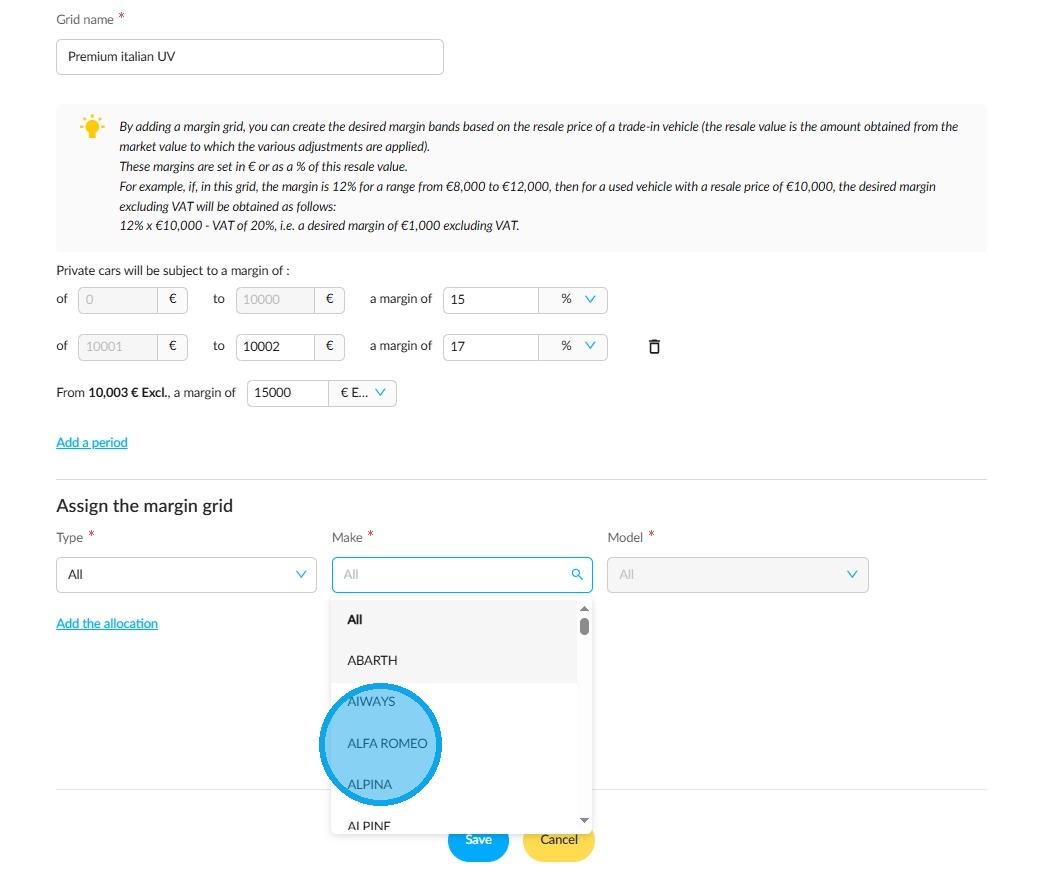
Once you have finished making your adjustments, click on the ‘Add the allocation’ button.
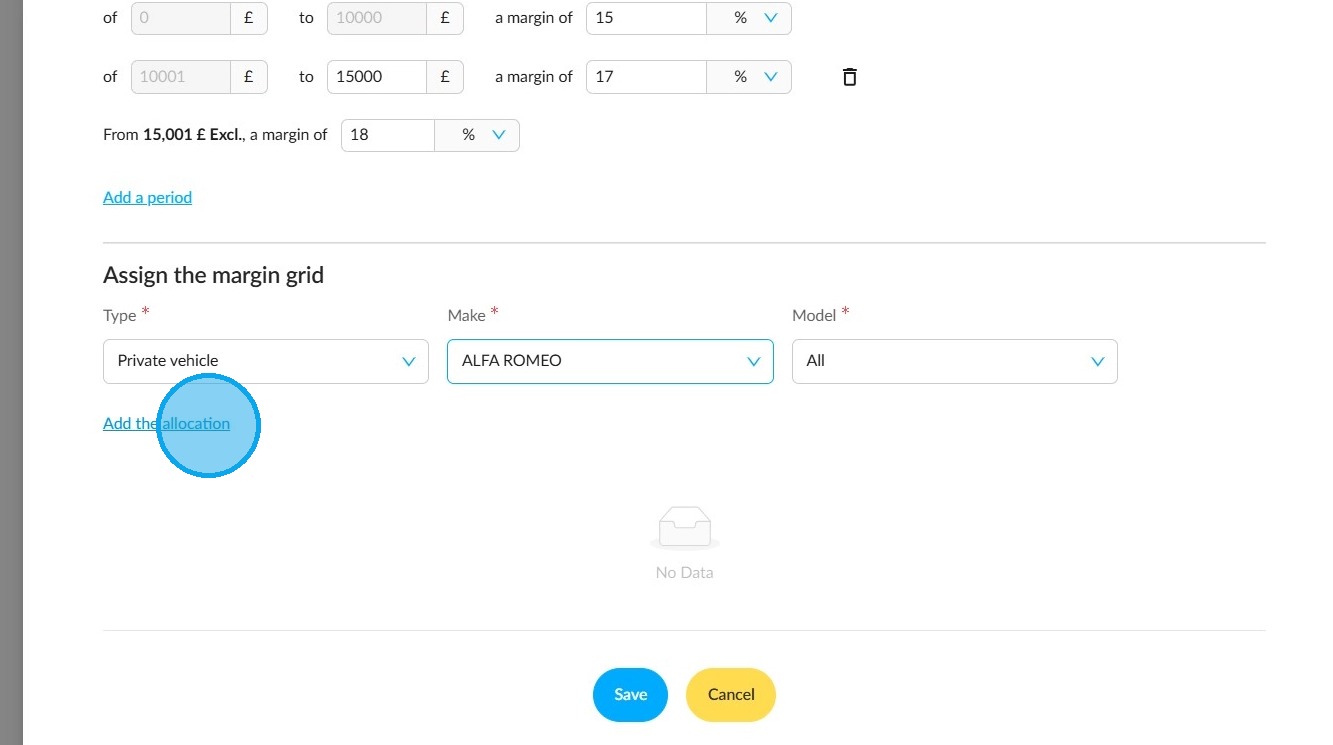
Repeat the above procedure as many times as necessary to assign vehicles of different characteristics to this margin grid.
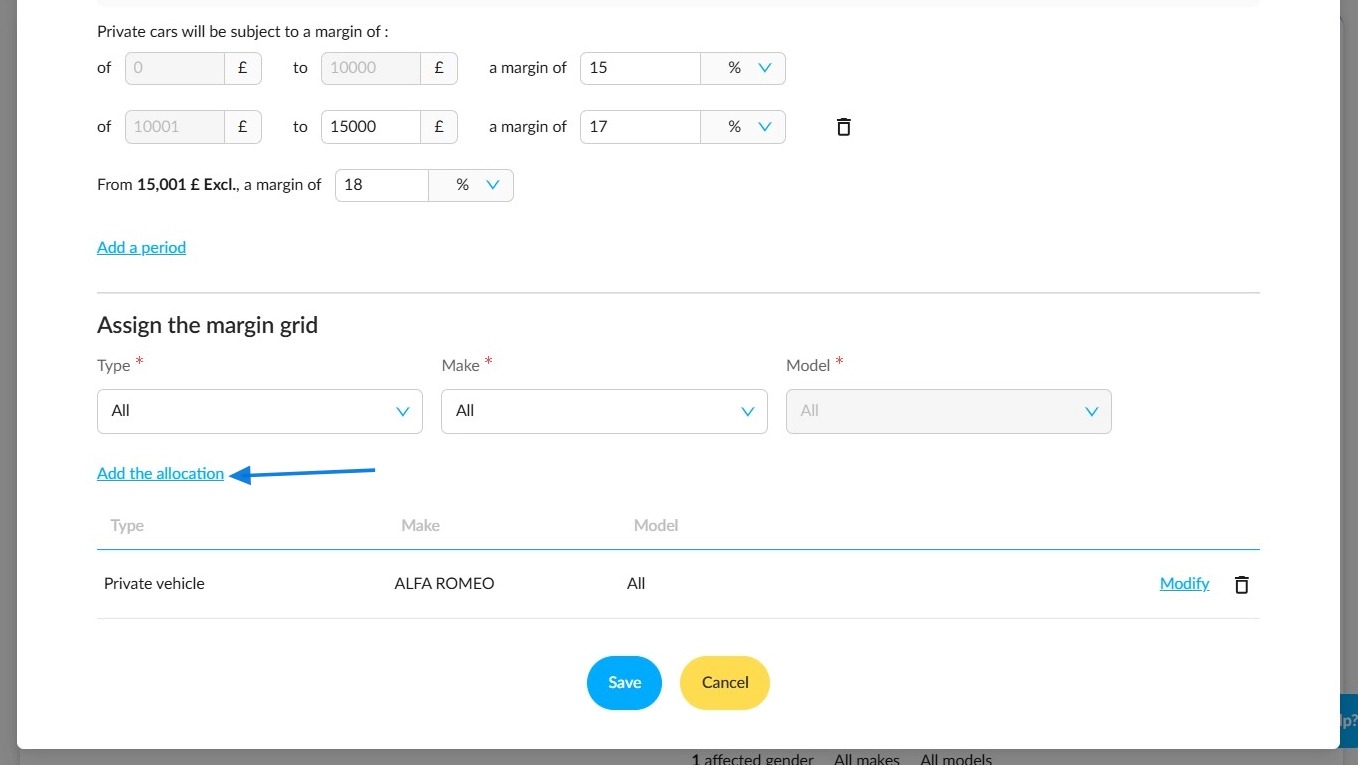
Once you have finalised the changes, save the grid to activate it.
As part of a process of continuous margin optimisation, the grid and its contents may be modified or deleted at any time.
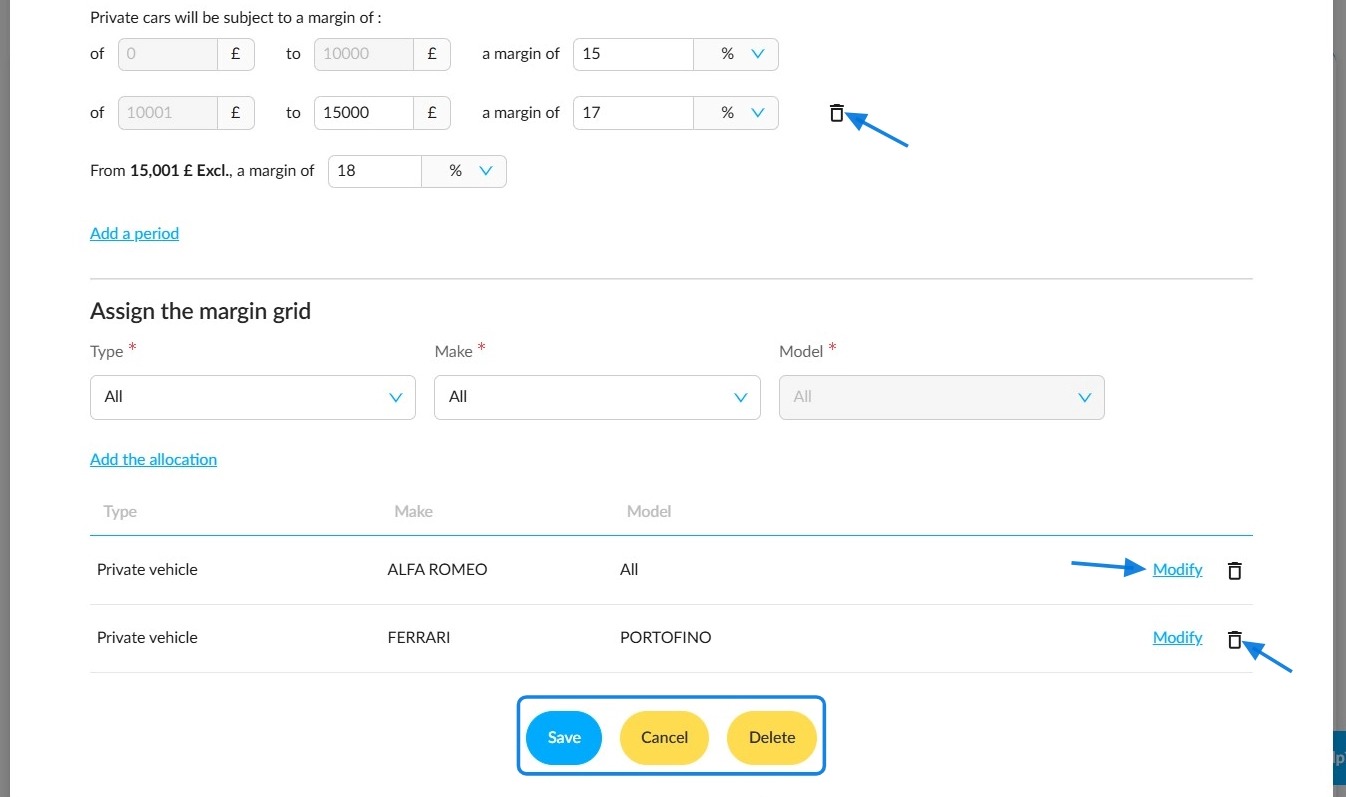
This shows the new grid that has been added to the settings.
Please note that inconsistent results may be obtained if similar or general criteria are defined in several margin grids.
Example:
The first grid applies to all makes, while the second grid applies to a specific make. In this case, the first grid will conflict with the second. This will lead to inconsistent results.
To avoid conflicts between different settings, please ensure consistency when setting criteria.
Comments
0 comments
Article is closed for comments.