
Please find out how to apply a maximum authorised discount amount for UVs and DVs based on their destination.
Prerequisites:
-Have administrator rights on the platform.
-Have an OpenFlex account on a holding entity.
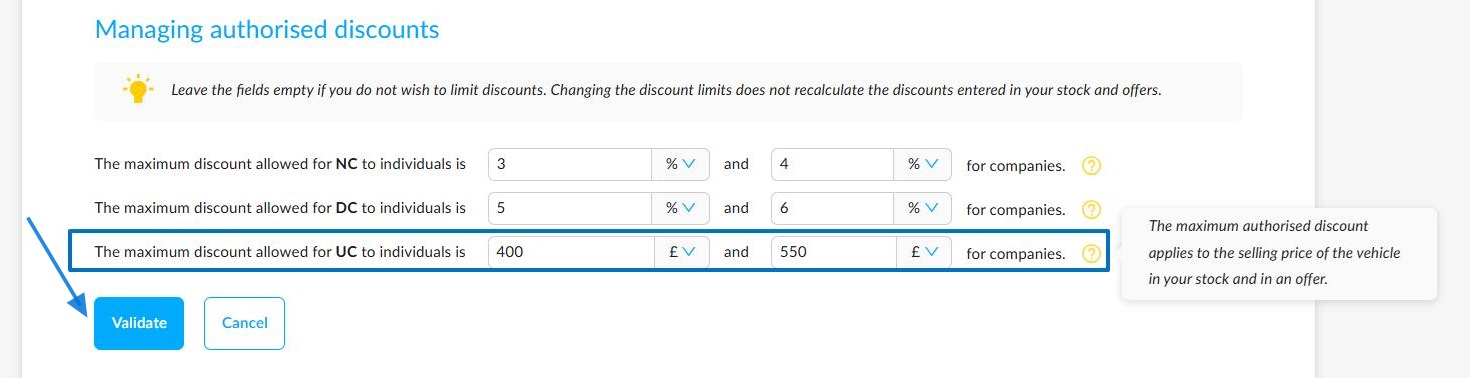
1. You can set the maximum authorised discounts for DVs and UVs in the Opportunities settings. These can be configured from a 'HOLDING' entity for all entities in a group. Any discounts that you have already indicated in your stock and current offers will not be affected.
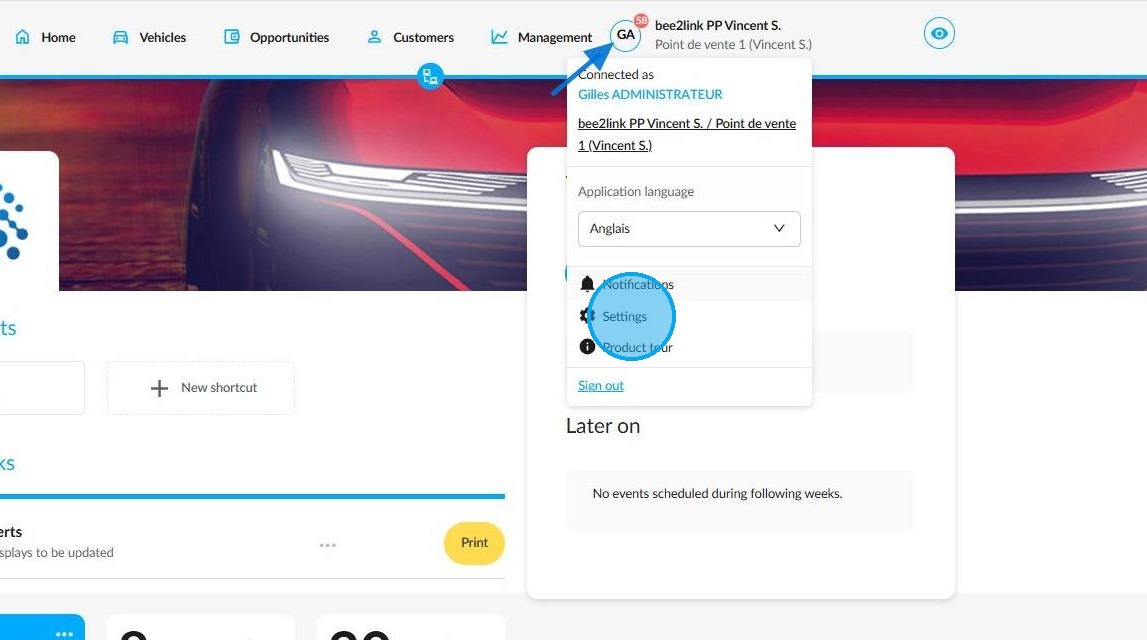
To start, go to Settings by clicking on your initials.
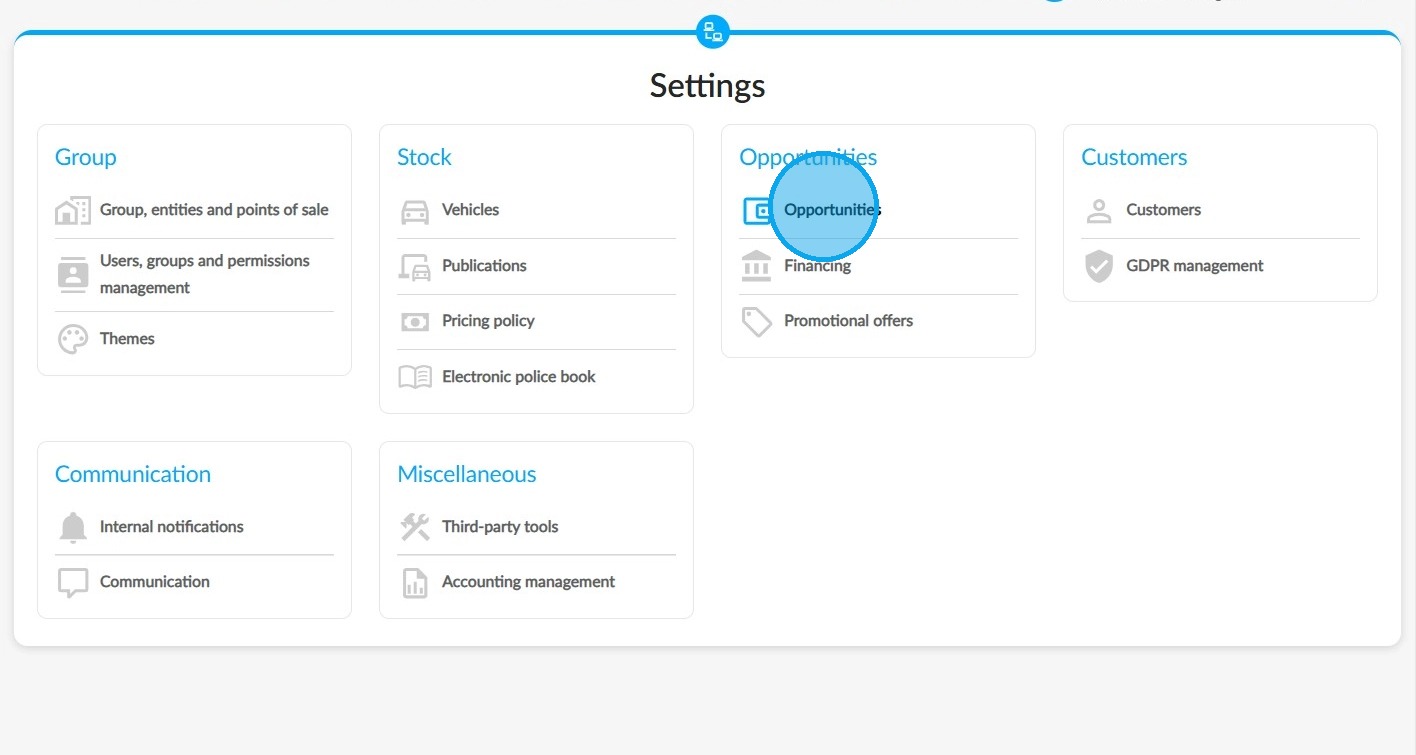
2. Select the 'Opportunities' settings.
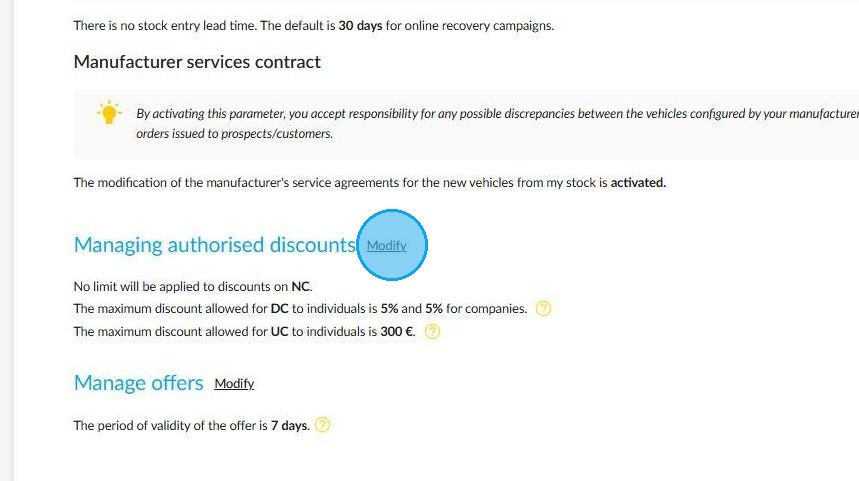
3. Go to the 'Managing authorised discounts' section. You will see a 'Modify' button.
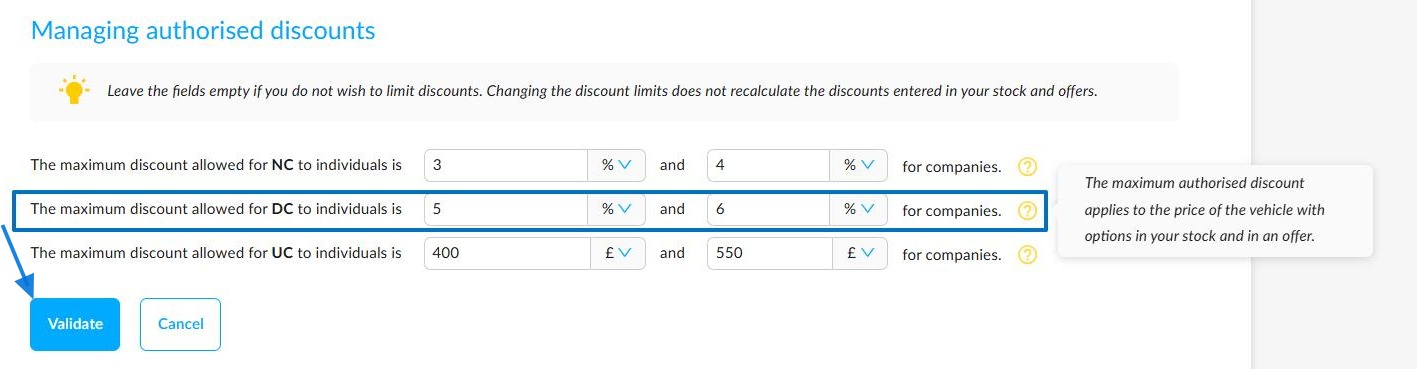
4. These discounts must be entered as a percentage or a maximum sum not to be exceeded, and can be configured by destination (i.e. individuals or companies).
Click the 'Validate' button located under the completed fields to save your settings.
For DVs, the maximum authorised discount percentage will be applied, taking into account the vehicle's price including options.
Settings/Opportunities/Managing authorised discounts
5. The maximum percentage discount allowed for UVs will be based on the vehicle's selling price.
Or
If a sum has been inserted, it will take into account the maximum discount amount that must not be exceeded.
6. Example:
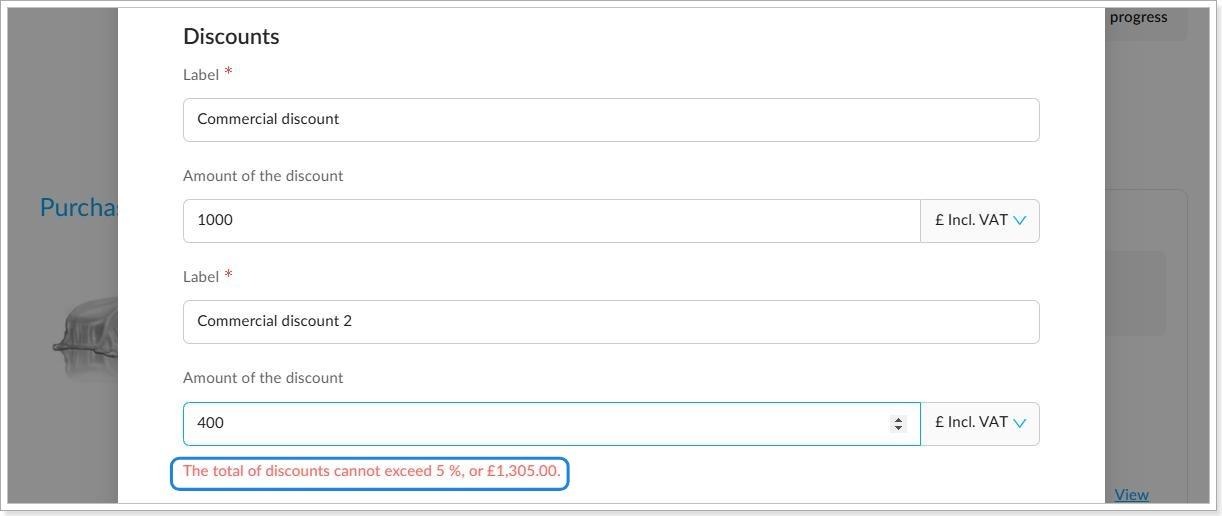
Adding multiple discounts to a demonstration vehicle. The discount percentage entered in the settings ensures that the total amount does not exceed a certain limit.
The total discount amount that cannot be exceeded for a vehicle will be shown under the discounts as a monetary figure or as a percentage.
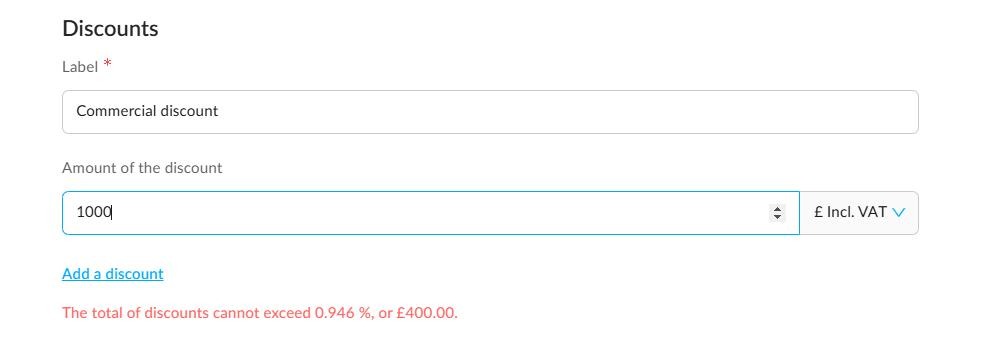
7. Example: Applying a discount to a used vehicle that exceeds the maximum permitted amount.
The total discount amount that cannot be exceeded for this vehicle will be shown under the discounts as a monetary figure or as a percentage.
Comments
0 comments
Article is closed for comments.