
Find out how to identify the vehicles you want to qualify and how to go about it.
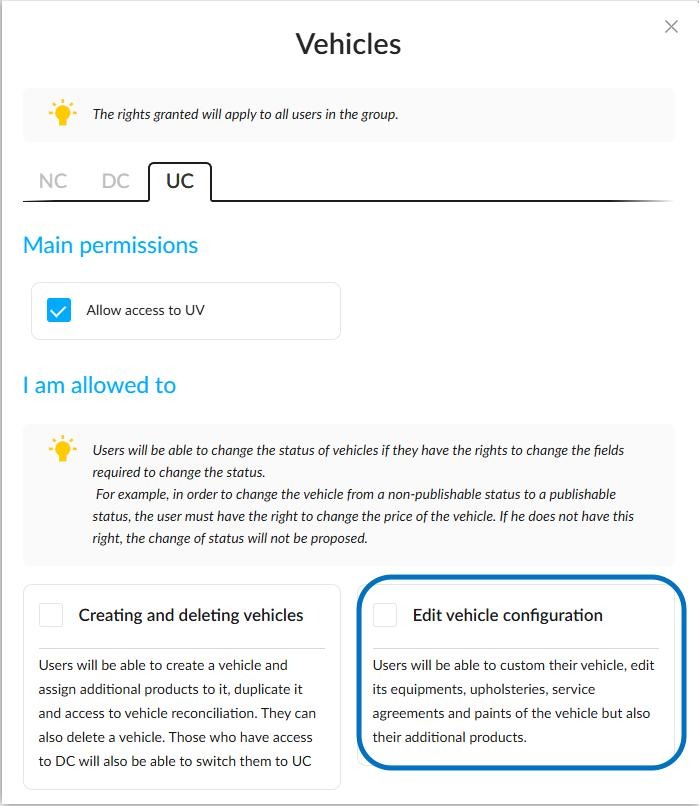
Prerequisite: you must have the right to modify the vehicle configuration for NVs/DVs/UVs.
Settings /Users, groups and rights management/Vehicles/NV or DV or UV.
1) How can I find the relevant vehicles?
Vehicles that need to be reconciled/checked with the database can be searched for in various ways.
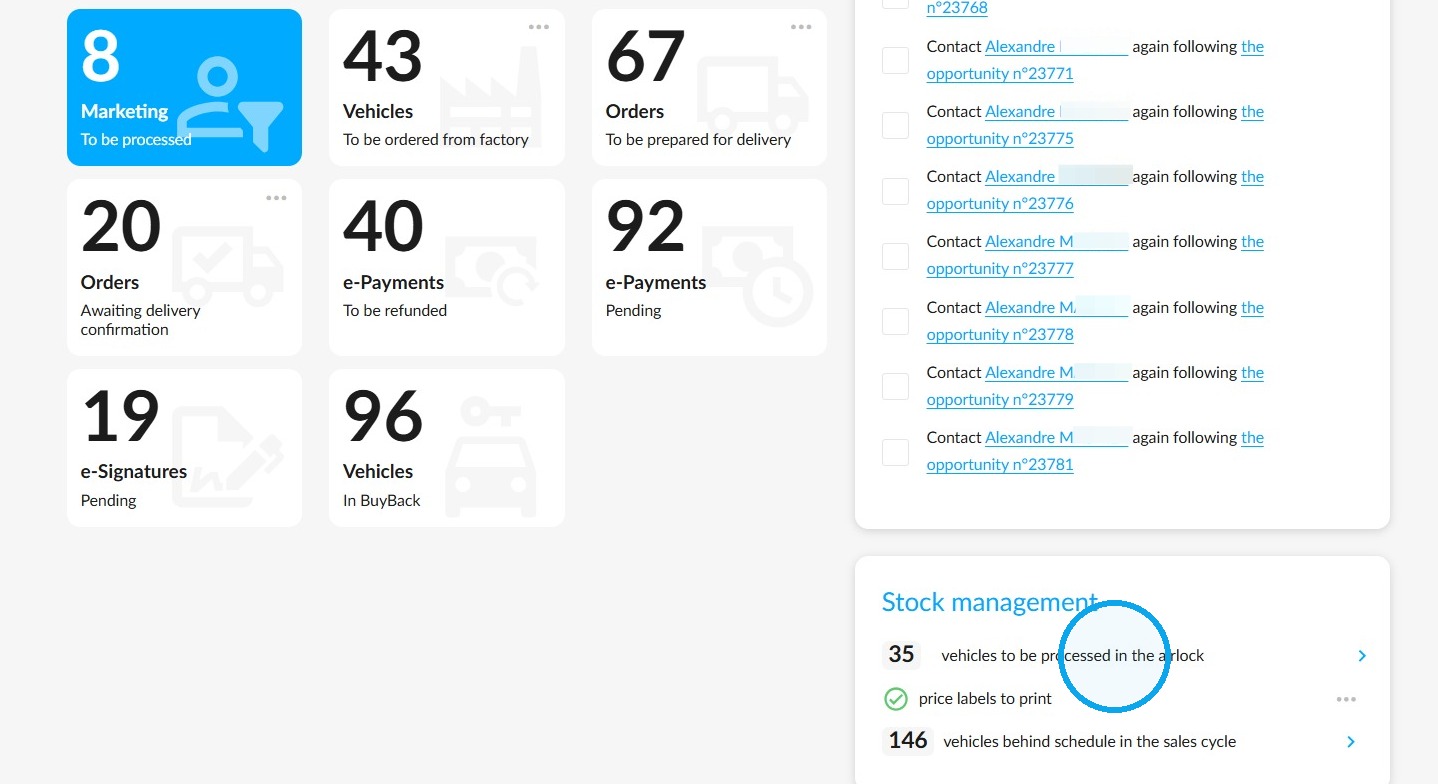
-The first method involves processing the vehicles stored in the lock area of database qualification by clicking on the relevant tile on the platform's home page.
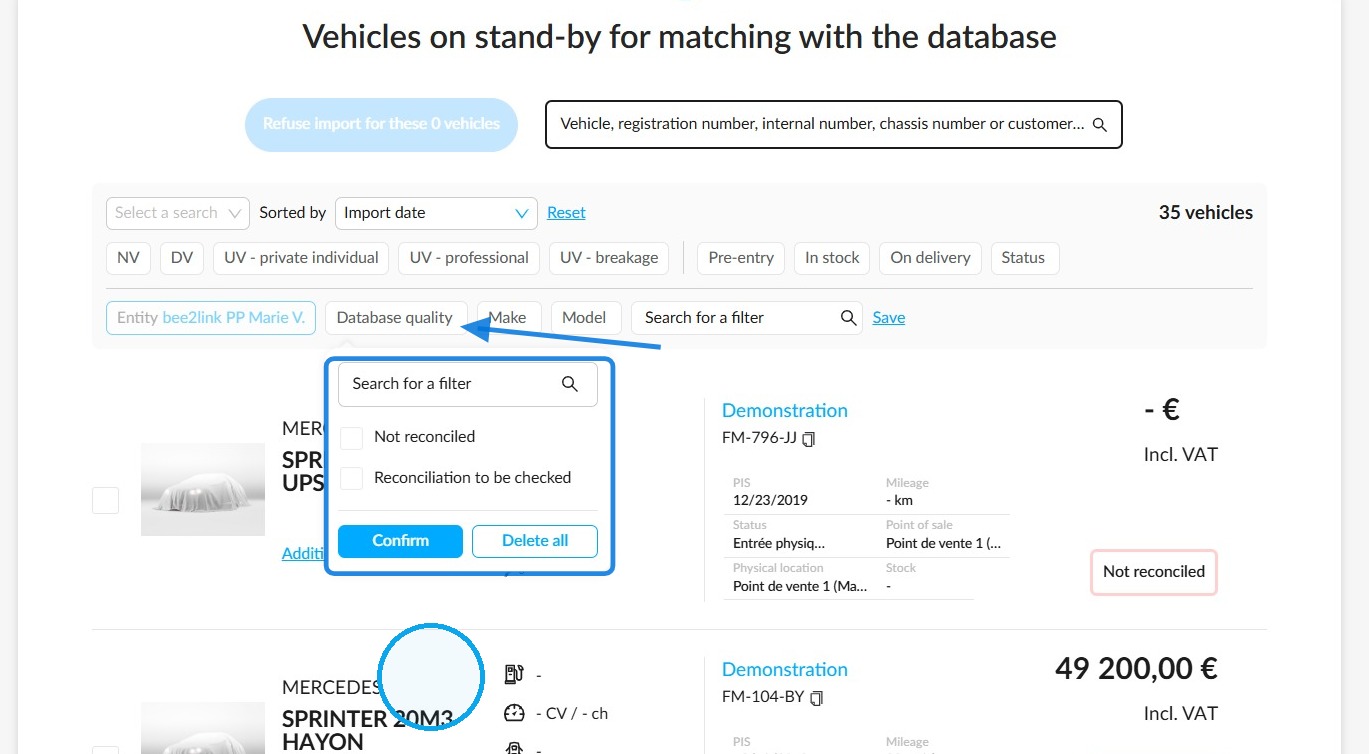
In this table, use the search bar and the filters available to find the vehicles that you would like to qualify with the database.
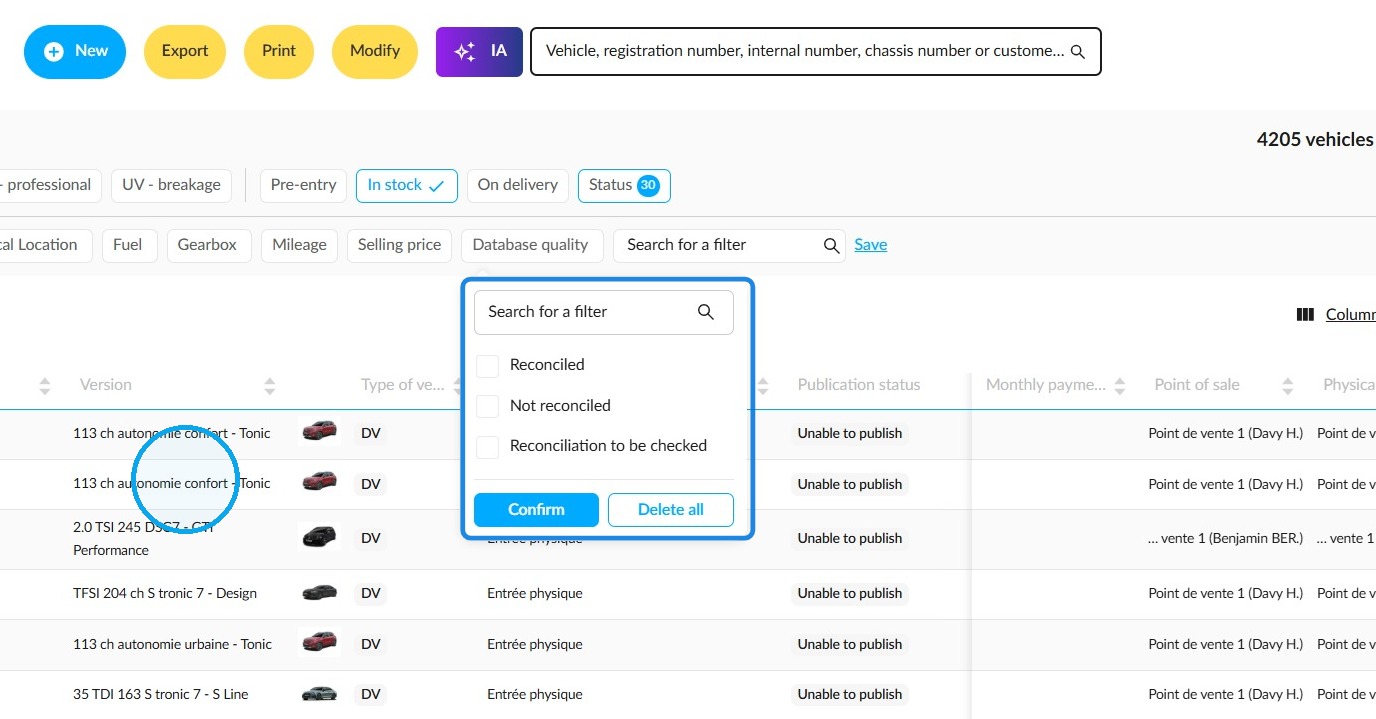
To do this, add the 'Database quality' filter, which can be found in the 'Stock management' category. Then select the state that you are looking for: 'Not reconciled' or 'Reconciliation to be checked'.
Once you have made your selection, click on the vehicle's name to start the database reconciliation process.
-The second method involves going directly to the “Vehicles” module to search for vehicles in stock to be cross-checked against the reference database.
To do this, use the filters provided in the “Stock Management” section.
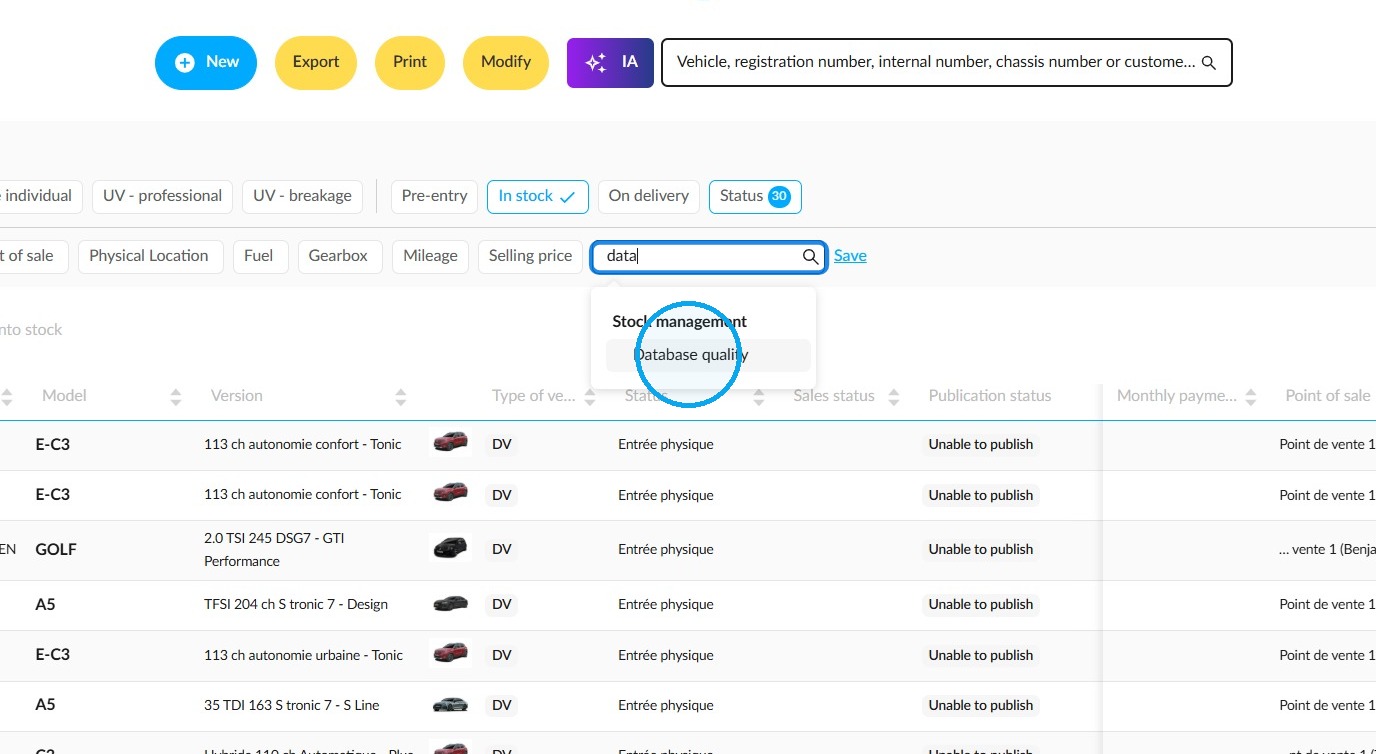
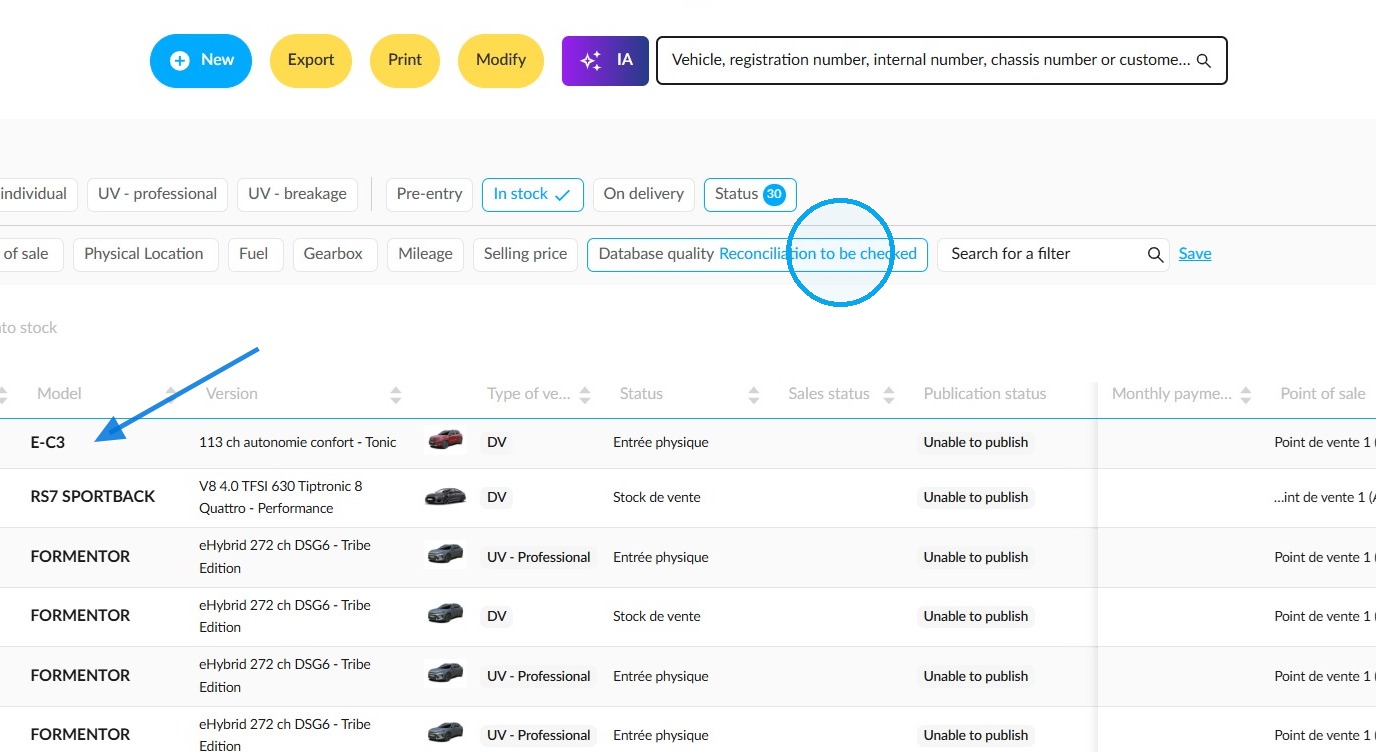
Select the 'Database quality' filter. Then click on the 'Not reconciled' and/or 'Reconciliation to be checked' statuses, depending on your requirements.
Once you have found the vehicle that needs to be reconciled, click on its name to open its file.
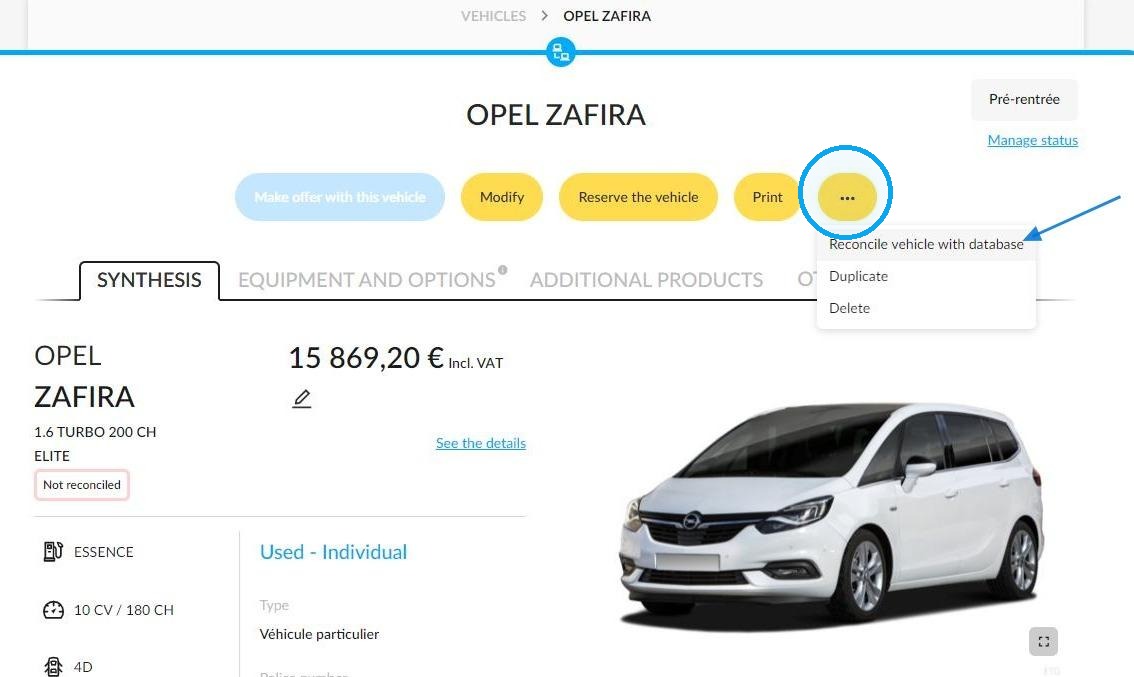
In the vehicle file, click the 'Reconcile vehicle with database' button in the top right-hand corner of the page. This is displayed by hovering your cursor over the button with three dots in the top right-hand corner of the page.
2) Matching a vehicle to the database using the registration search:
You can reconcile a vehicle with the database by searching for it by registration or performing a manual search to check its configuration.
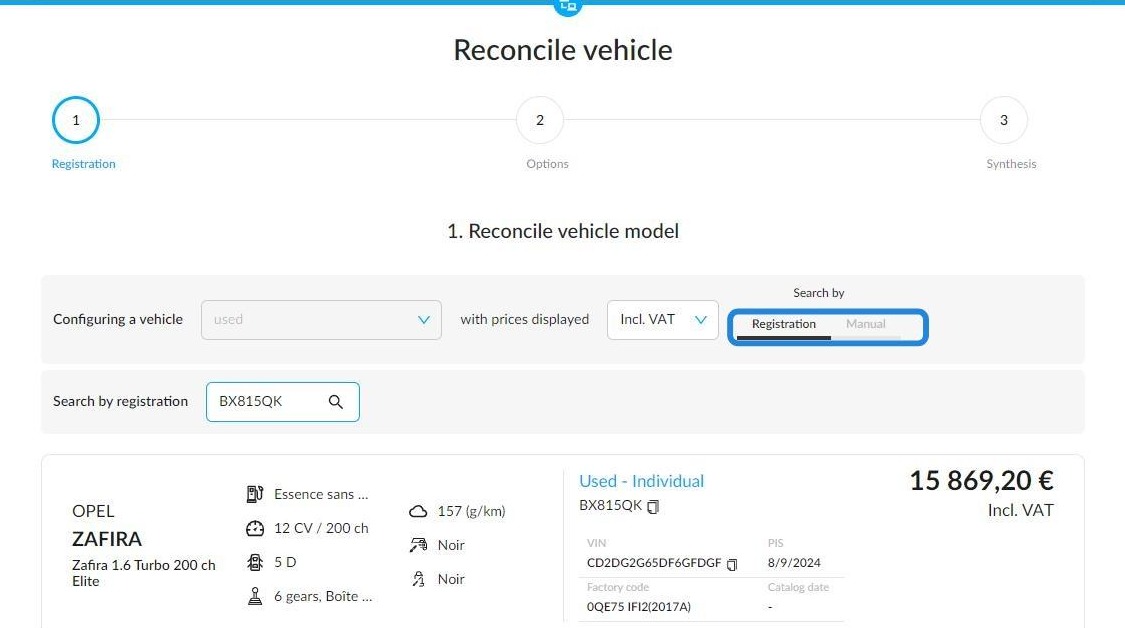
If you search by registration, engine power and the various versions / trims that match with the vehicle are displayed automatically.
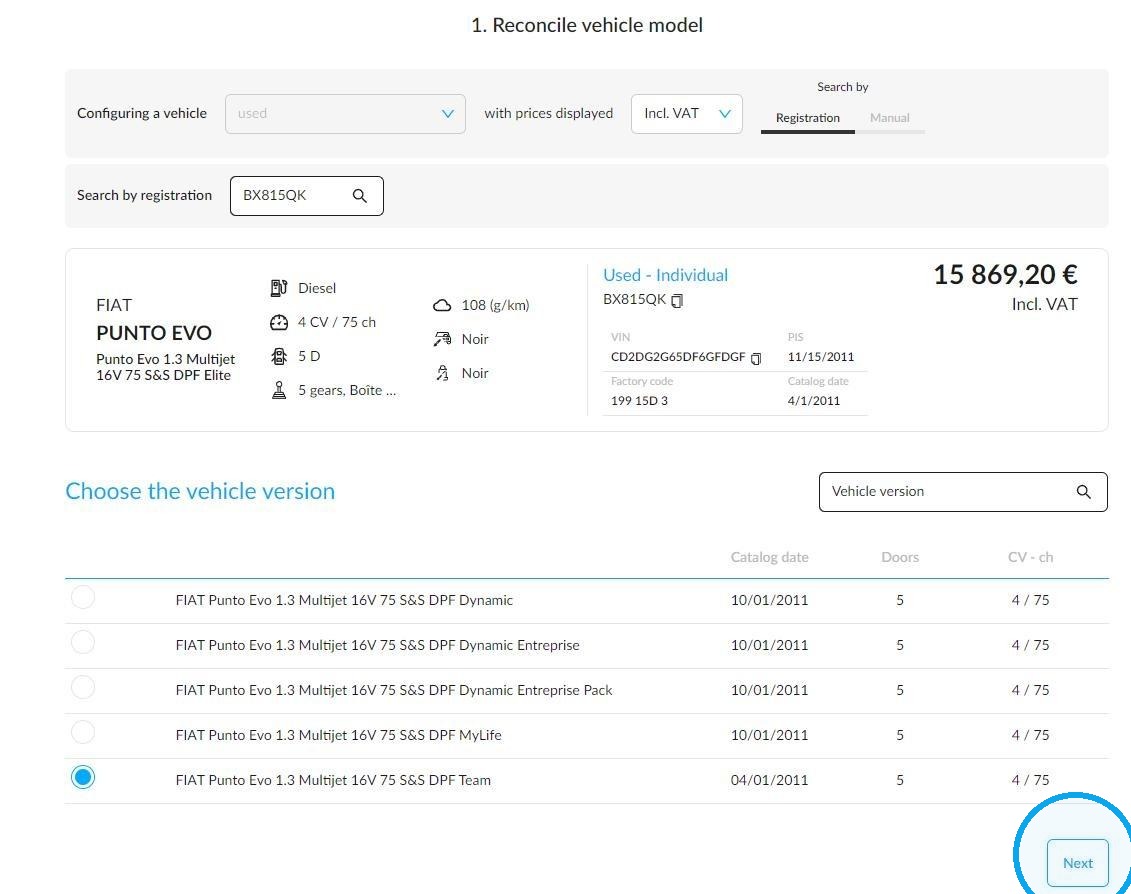
Once you have selected the version, you need to confirm the packages and options that the vehicle is supposed to have.
You can add other equipment if it's missing.
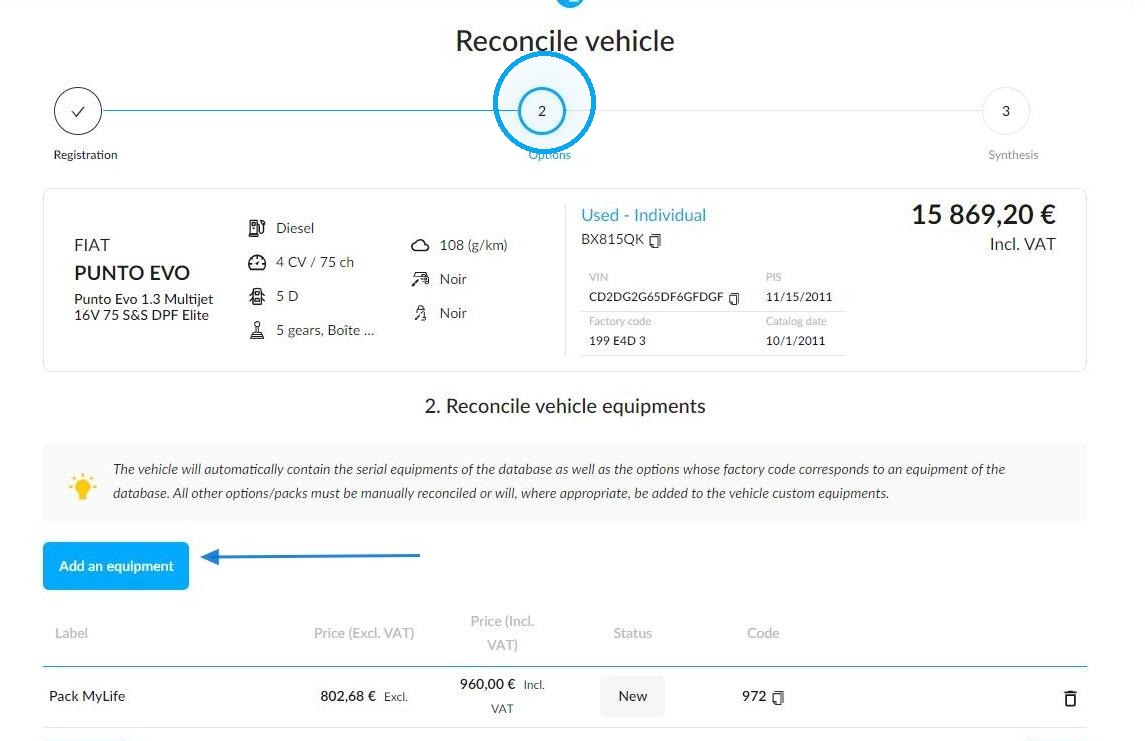
Then, you can switch to the synthesis of reconciliation procedure. A summary is displayed to let you compare the changes you have made.
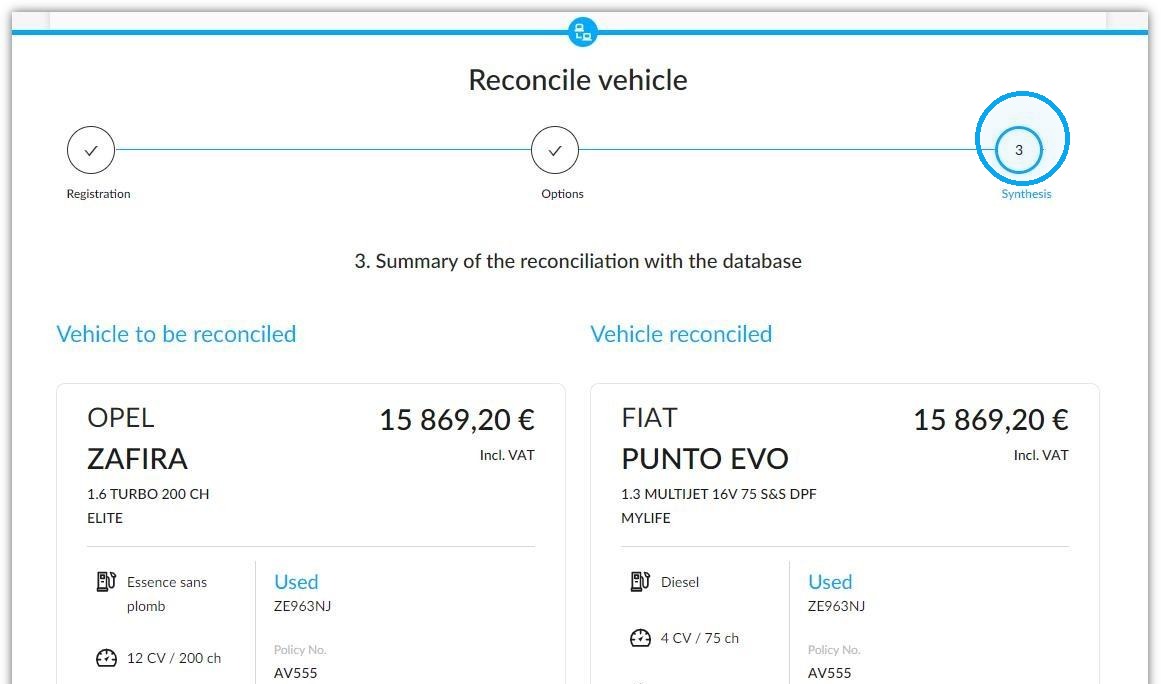
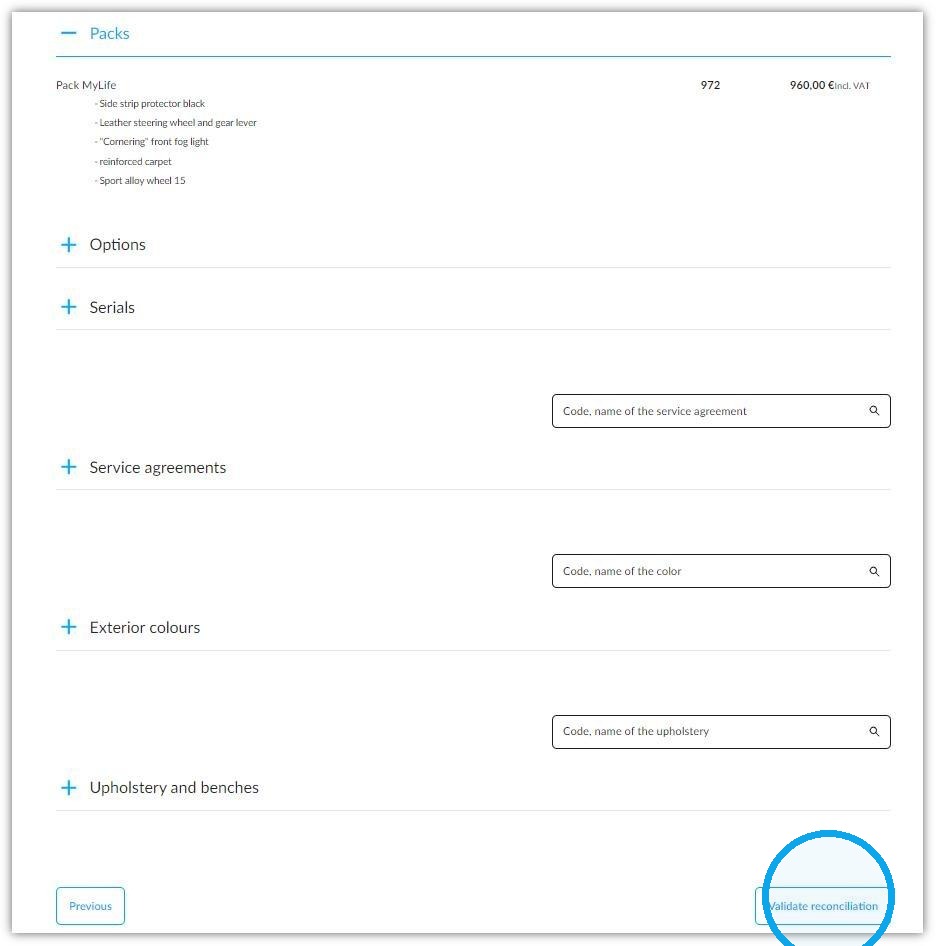
Added equipment and services will also be mentioned. If all is correct, click on the "Validate reconciliation" button at the bottom of the page.
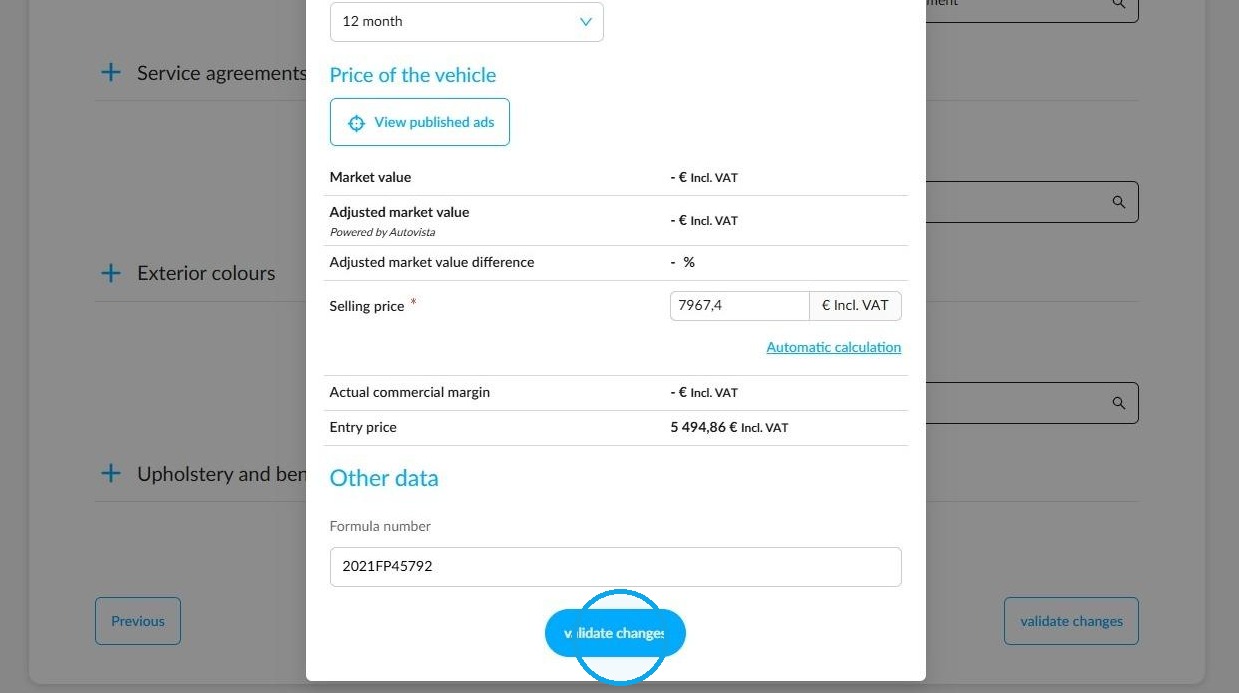
Then, a window will display to let you fill in the last compulsory information (Selling price).
Once you have entered the information, you will be able to finalise the reconciliation process.
3) Matching a vehicle to the database using manual search:
To perform a manual reconciliation, enter the vehicle's first registration date, make and model.
It is advisable to click on the "Expand the catalog" button to obtain the highest number possible of results. This feature enables you to display all the models which have been put up for sale with the configured label.
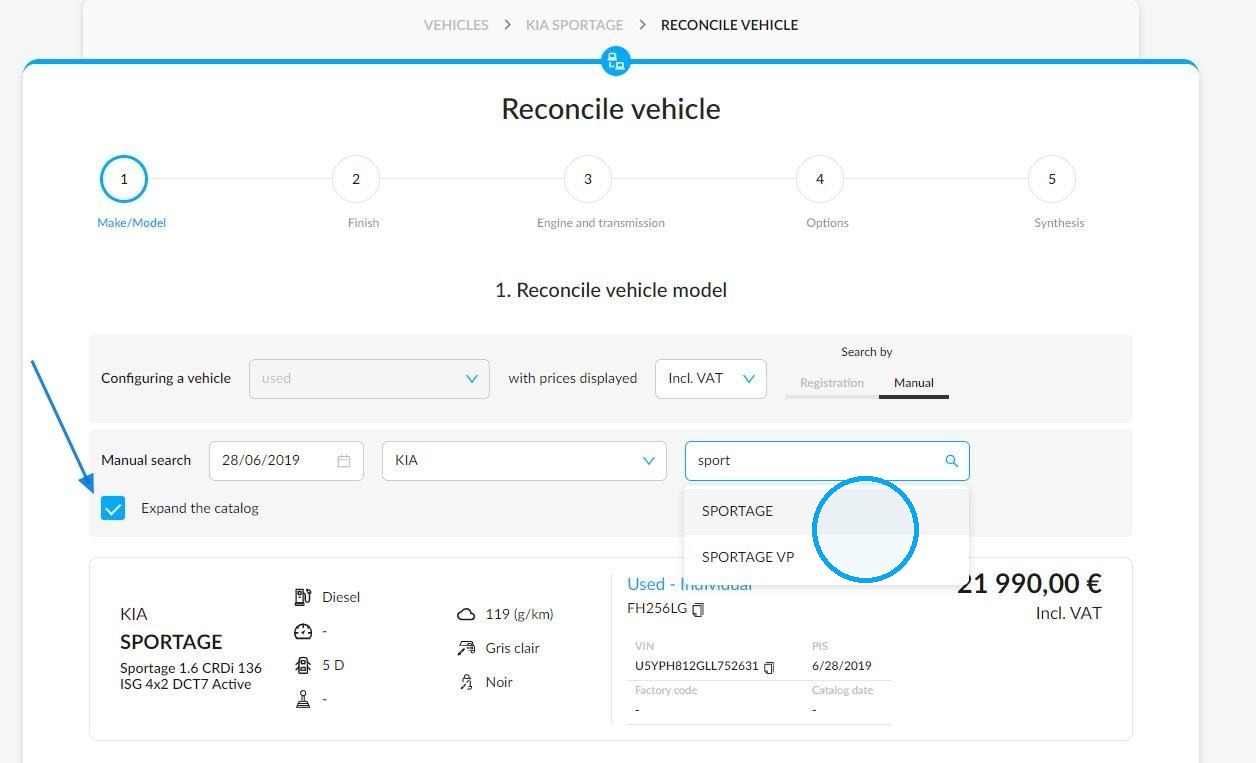
Select the relevant model.
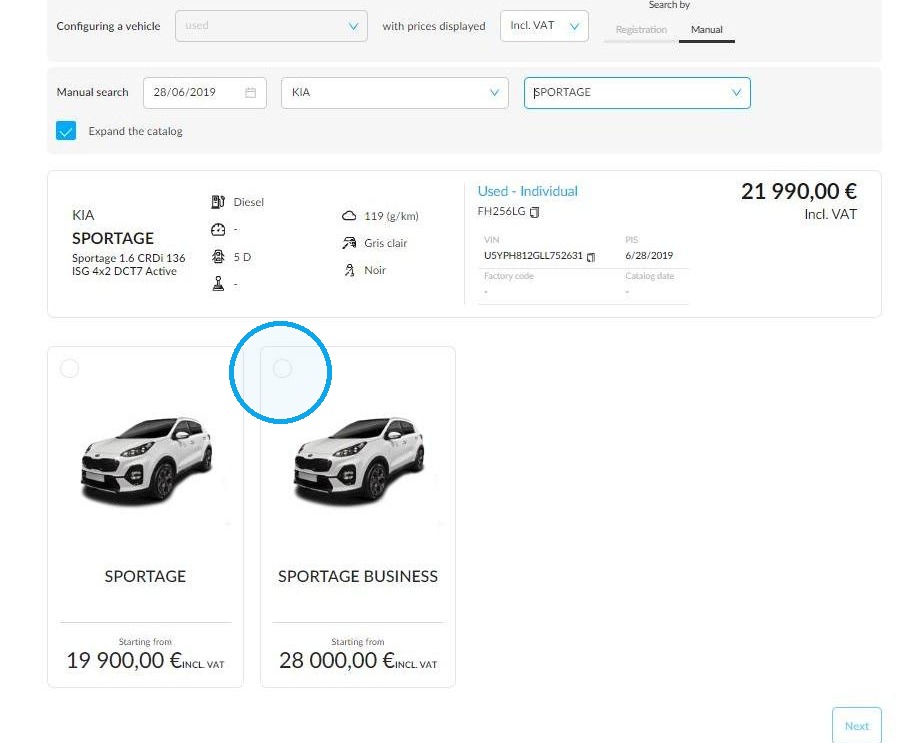
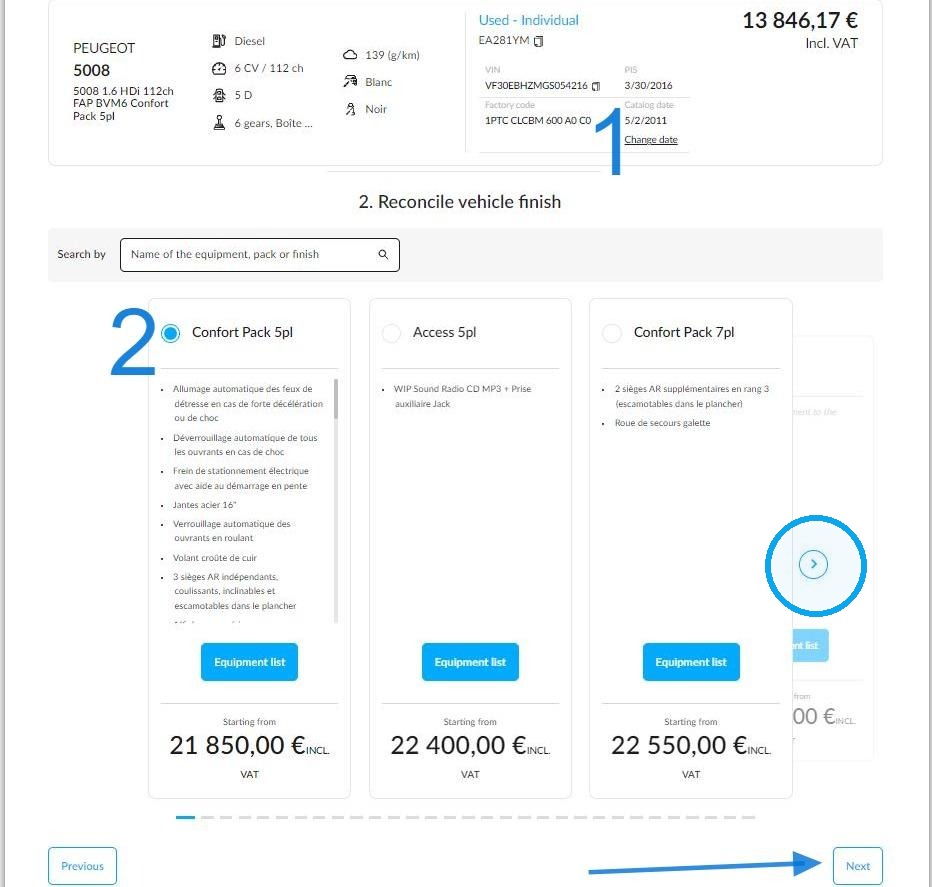
The various finishes are displayed alongside their respective prices. Click on the arrows that appear on each side of the screen to scroll through them.
If the prices or the trims do not correspond to what you are looking for, click on the "Change date" button 1 to search for other trims and equipment marketed at a different time.
Once you have found the right trim 2, proceed to the next step.
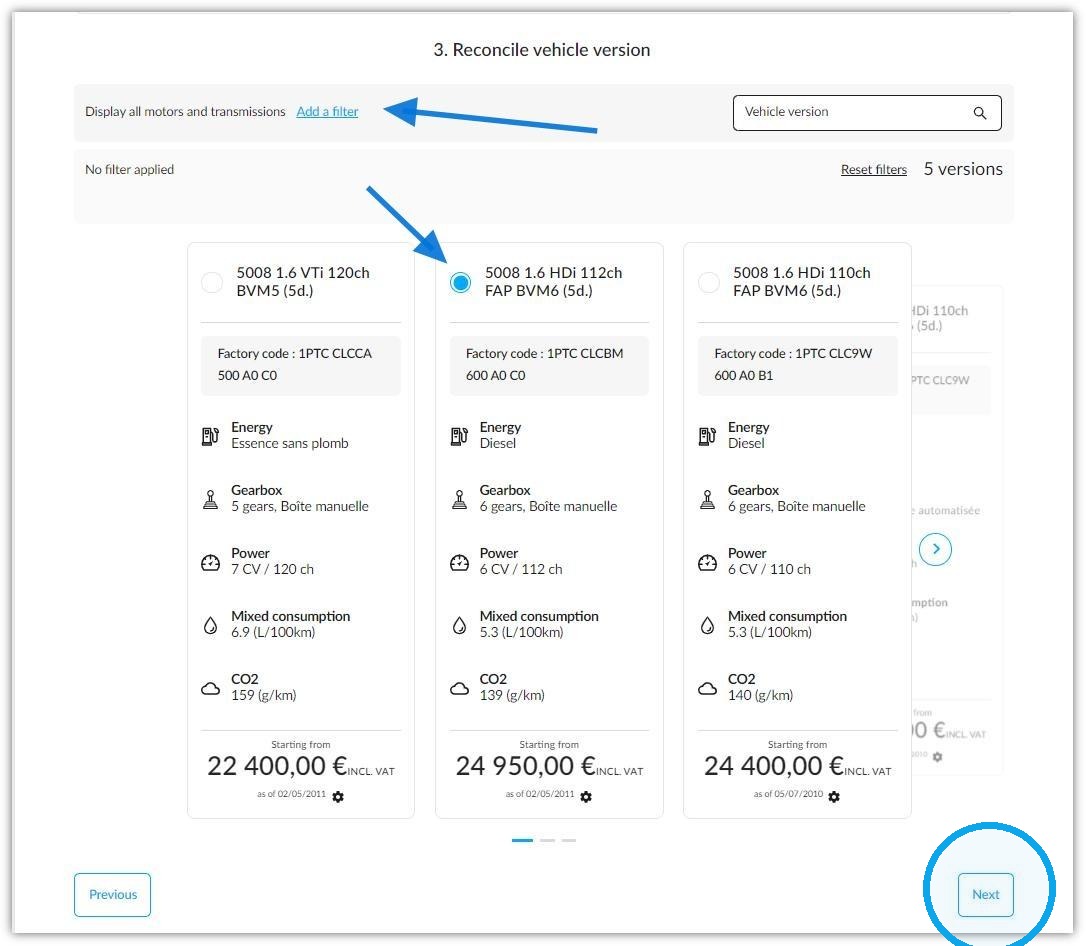
Then you will have to search for the vehicle's engine power and transmission.
You can use the filters to display results based on energy, transmission, gearbox and number of doors.
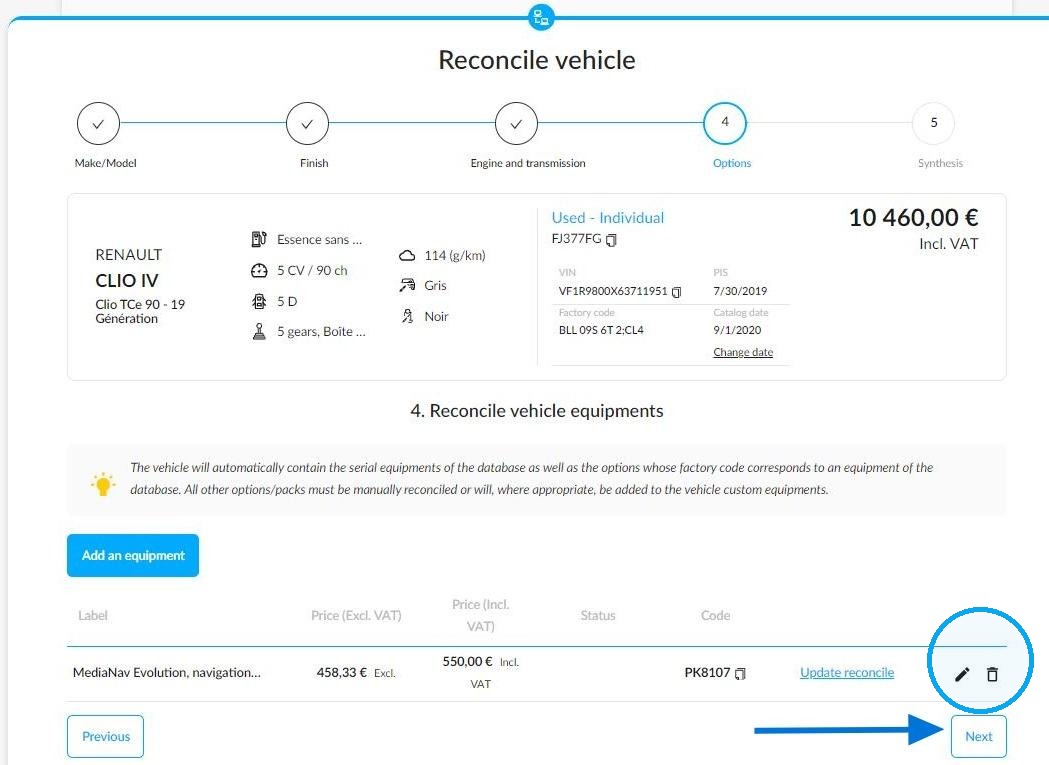
Next, you will move on to the stage where you check the packages, options, features and equipment that should be fitted to the vehicle to be matched.
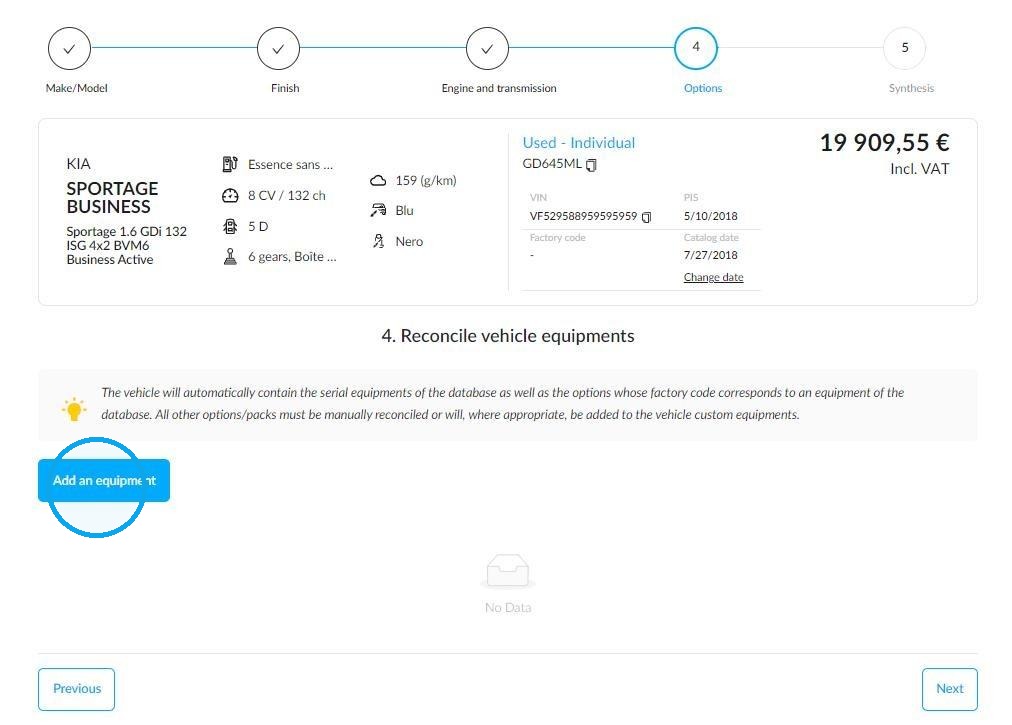
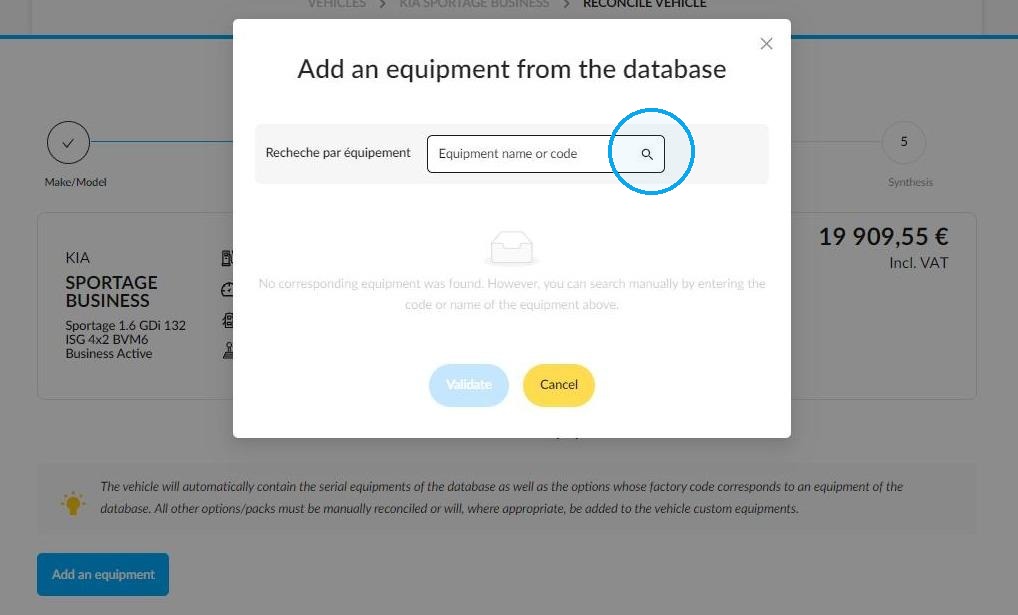
To add missing equipment, click the relevant button. This will open a new window that lets you search for the equipment manually in the database.
It can be searched for by inserting its wording or its reference code.
In certain cases, the database requires the user to confirm the presence of equipment by reconciling it.
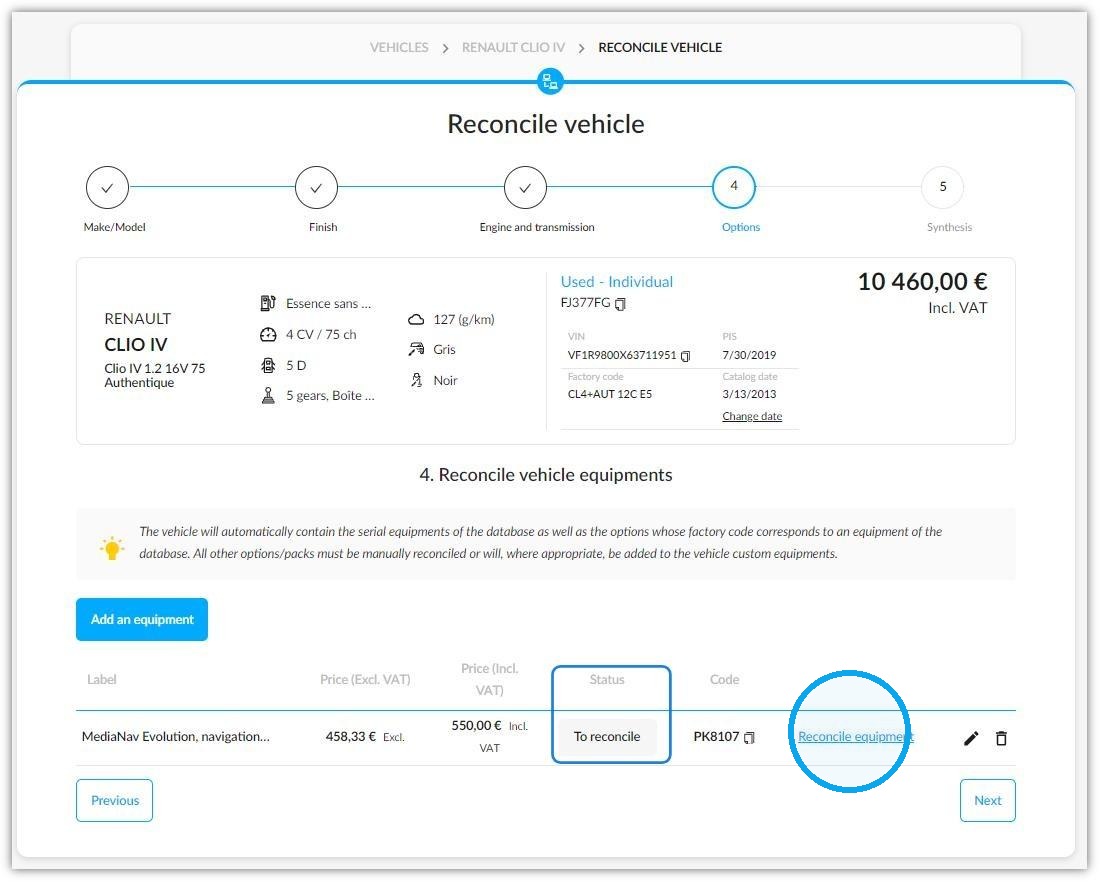
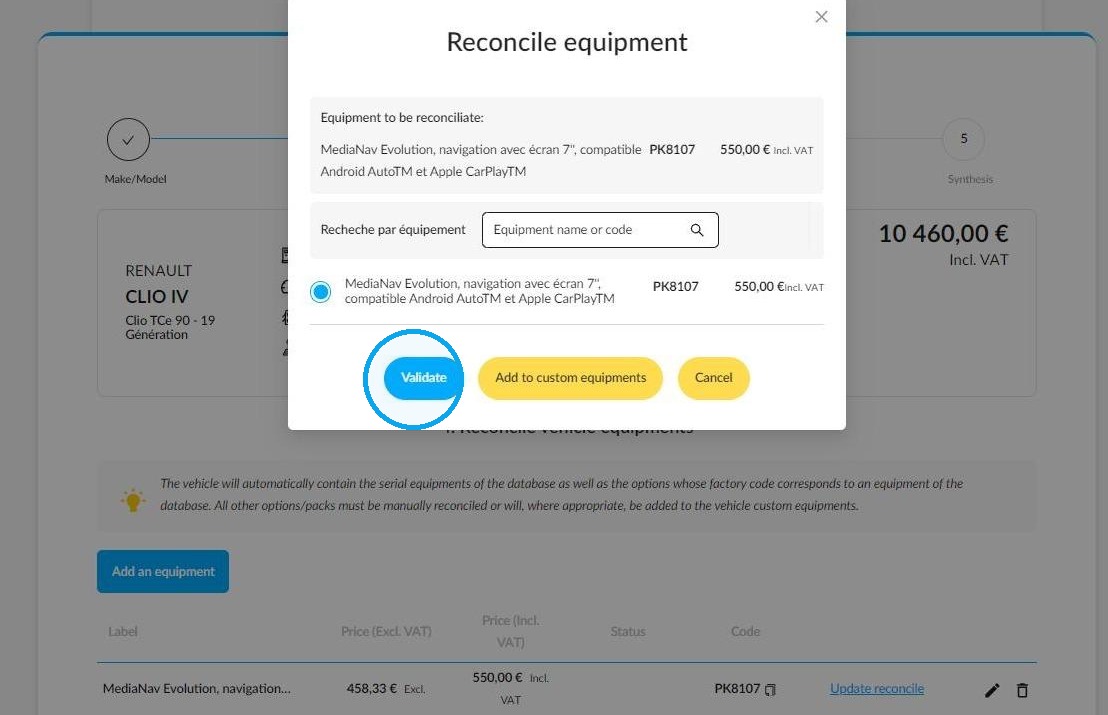
In the example below, two similar items of equipment with different reference codes can be fitted to the vehicle.
It is up to the user to indicate which one should be kept.
- This can be done by confirming its presence.
Or: - They can also add it as customised equipment.
Once a piece of equipment has been reconciled, you can modify or delete it by clicking the relevant button to the right of its name.
Once you have made your changes, proceed to the next stage.
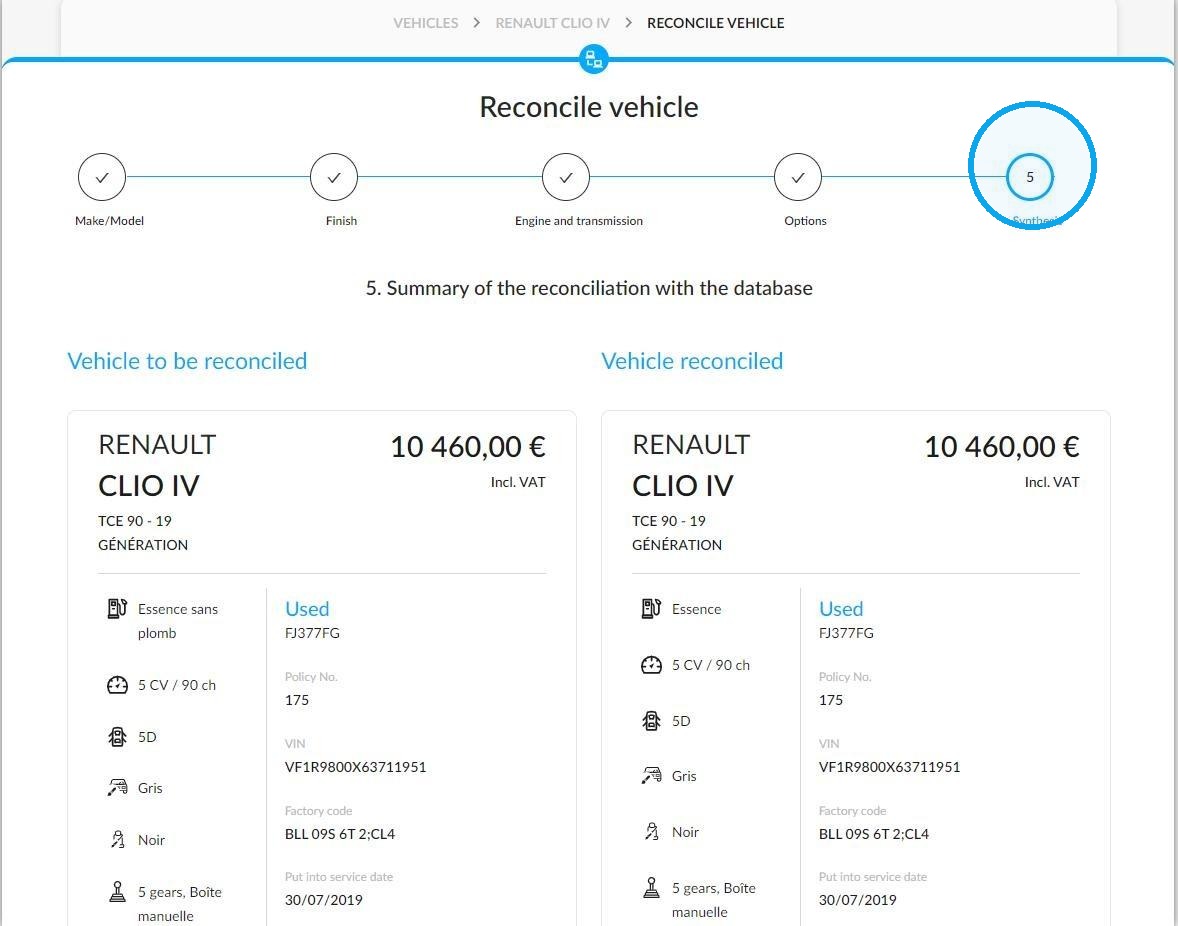
As mentioned in the chapter about reconciliation through registration search, the "Synthesis" stage finalises the database reconciliation of the vehicle.
Once you have checked the summary, validate the reconciliation.
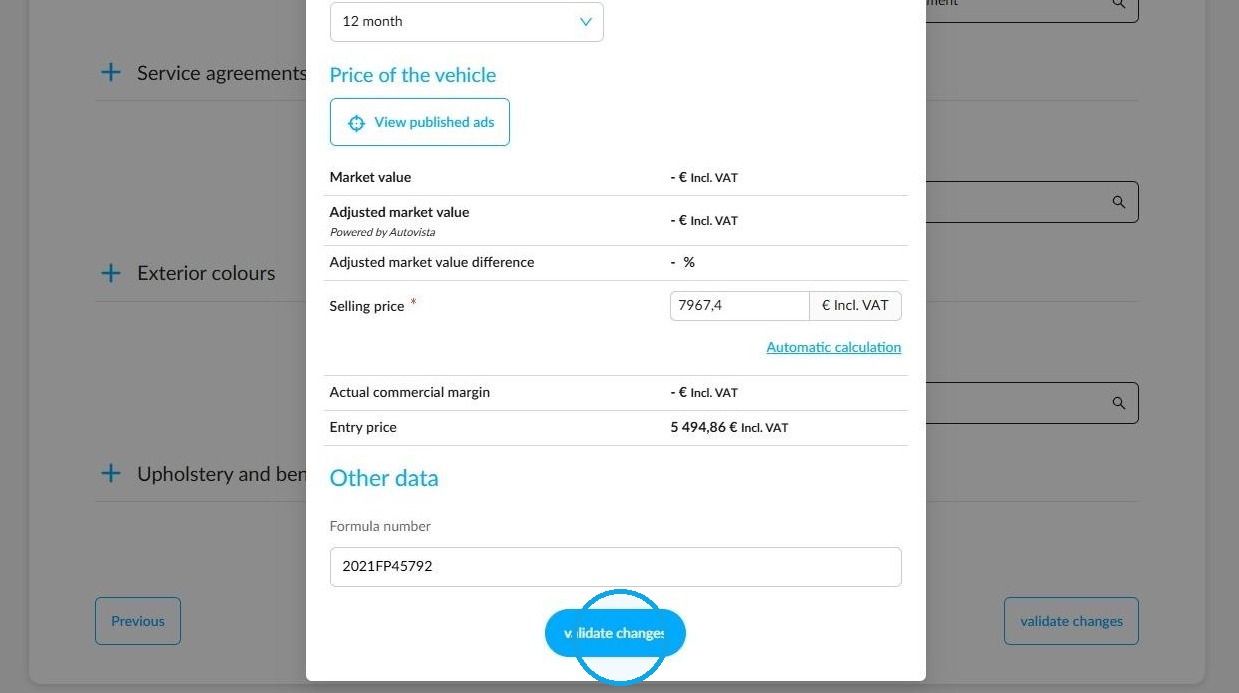
Then a window will open, allowing you to enter the remaining compulsory information.
You can finalise the reconciliation once you have inserted them.
4) Reconciliation to be checked:
Reconciliation of a vehicle should be checked when its configuration differs from that in the reference database.
To do that, open the vehicle file:
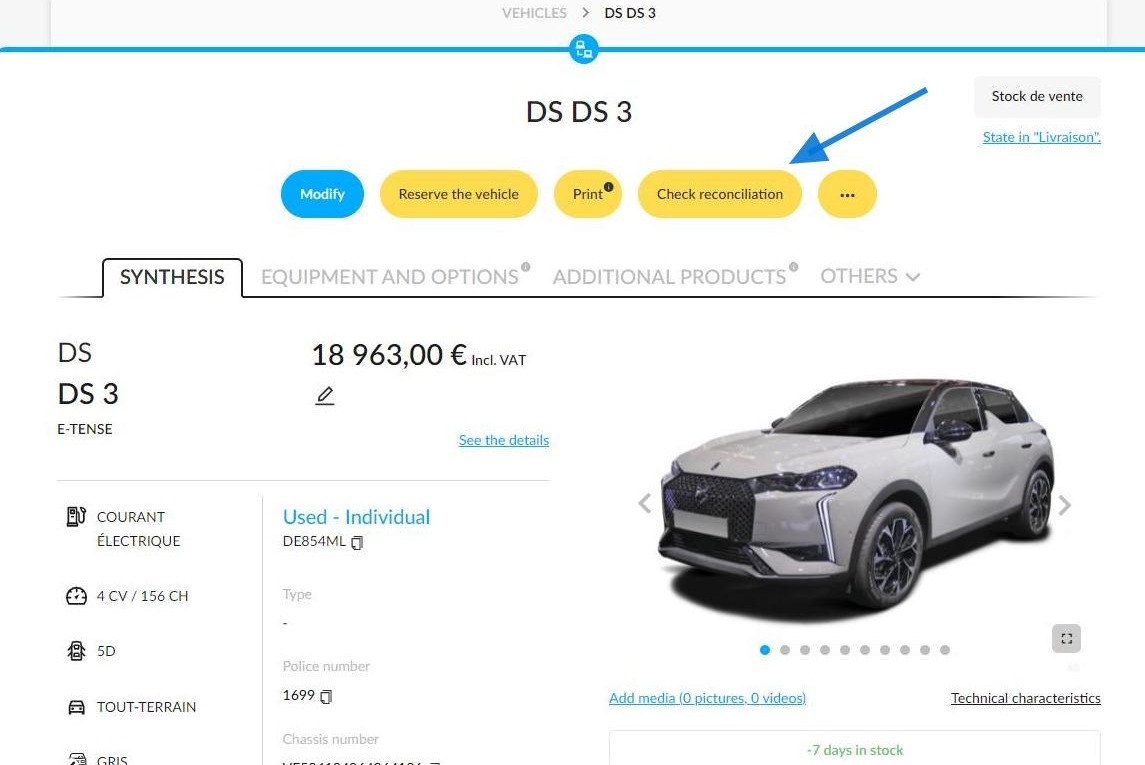
On the vehicle synthesis, click on the "Check reconciliation" button at the top of the page.
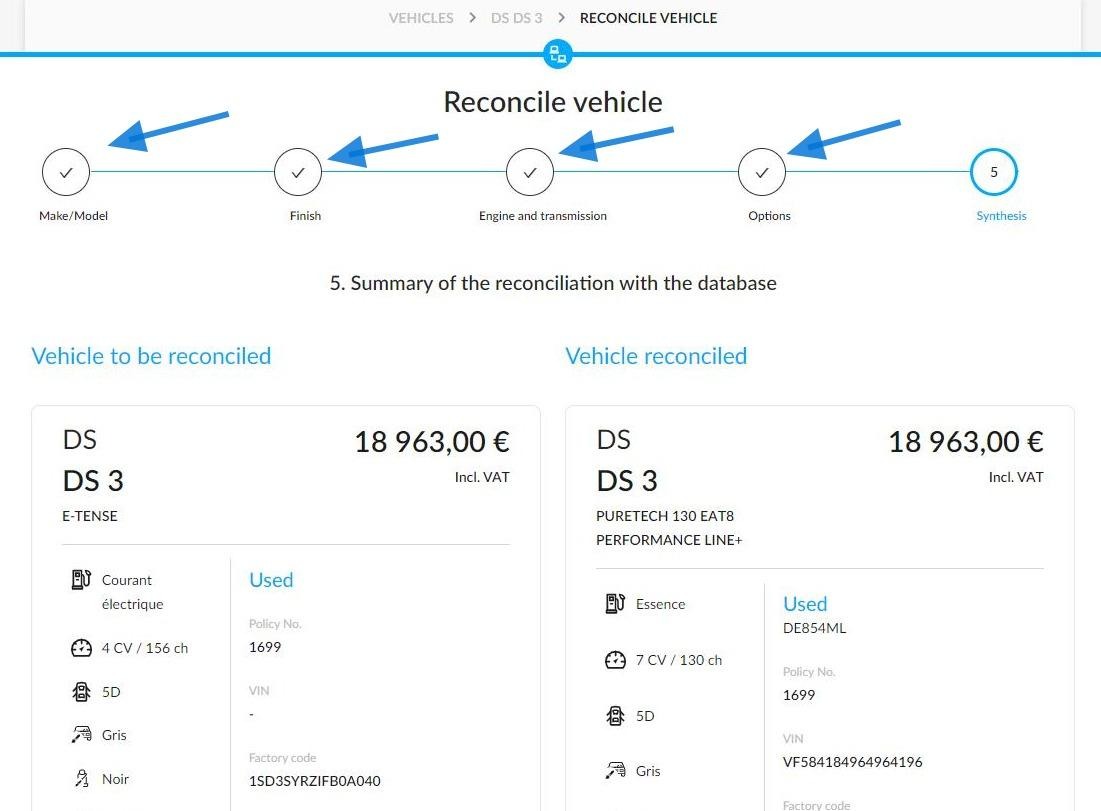
You will see the 'Synthesis' stage of the reconciliation directly, which provides a summary of the reconciliation.
If it does not require any change, confirm the reconciliation as shown to you in the previous chapters.
If any modifications are required, click on the reconciliation stage at which you need to intervene and amend the vehicle's configuration.
Comments
0 comments
Article is closed for comments.