
Find out how to create a user account or assign an existing one to all entities in a group.
Prerequisites:
Have an administrator account on a group's holding company.
Be an OpenFlex administrator with account management permissions.
1. As a platform administrator, you can assign users to all entities in your group.
Click on your initials to go to the settings.
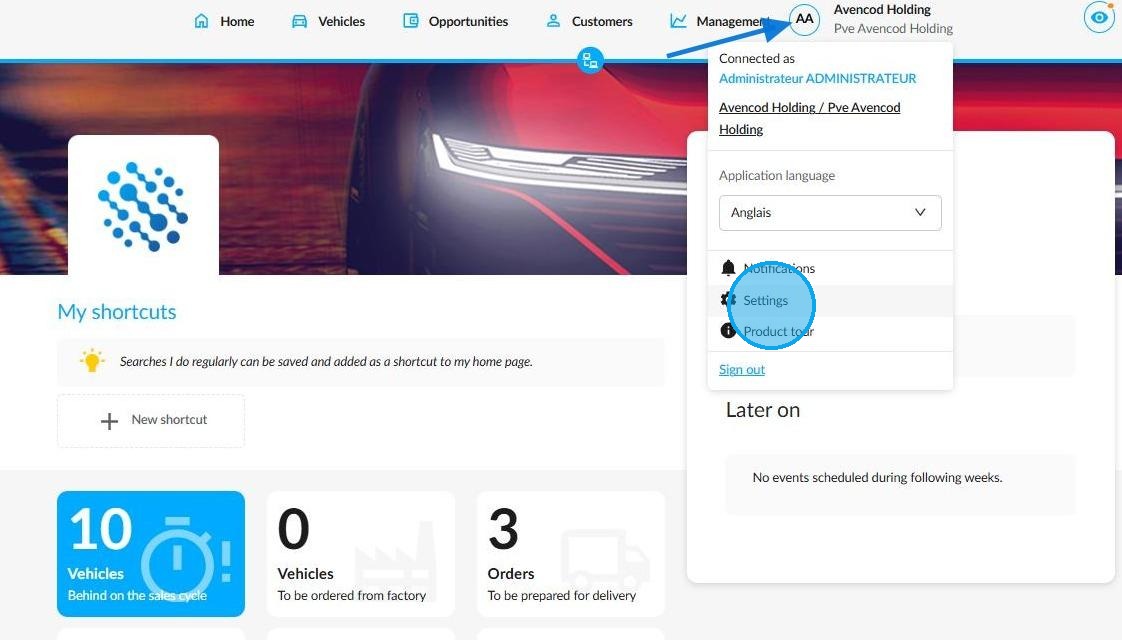
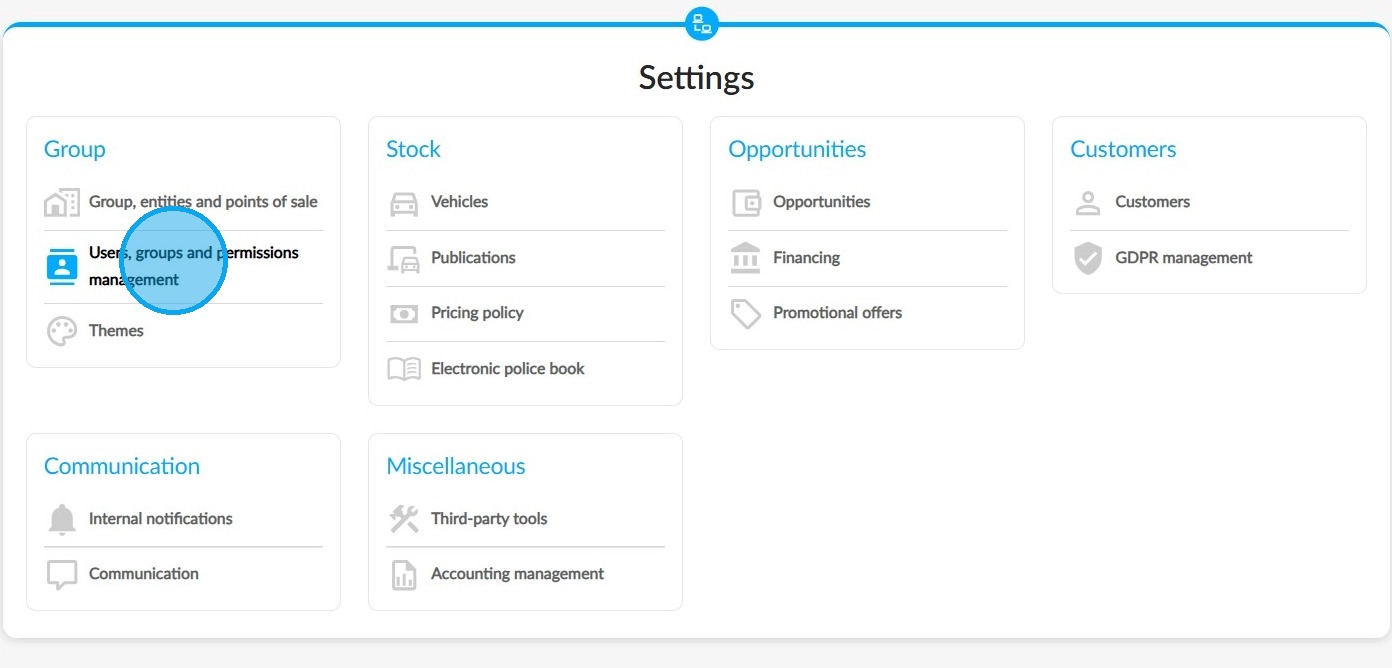
2. In the 'Group' section, select 'Users, groups and permissions management'.
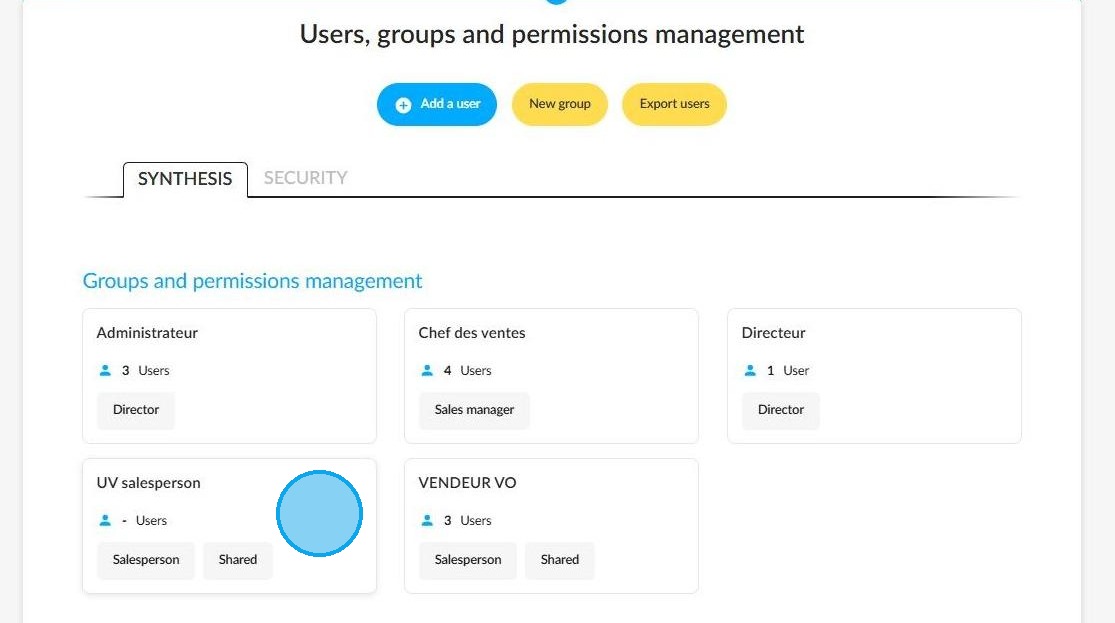
3. In the settings for users, groups and permissions management, select one of the Shared user groups.
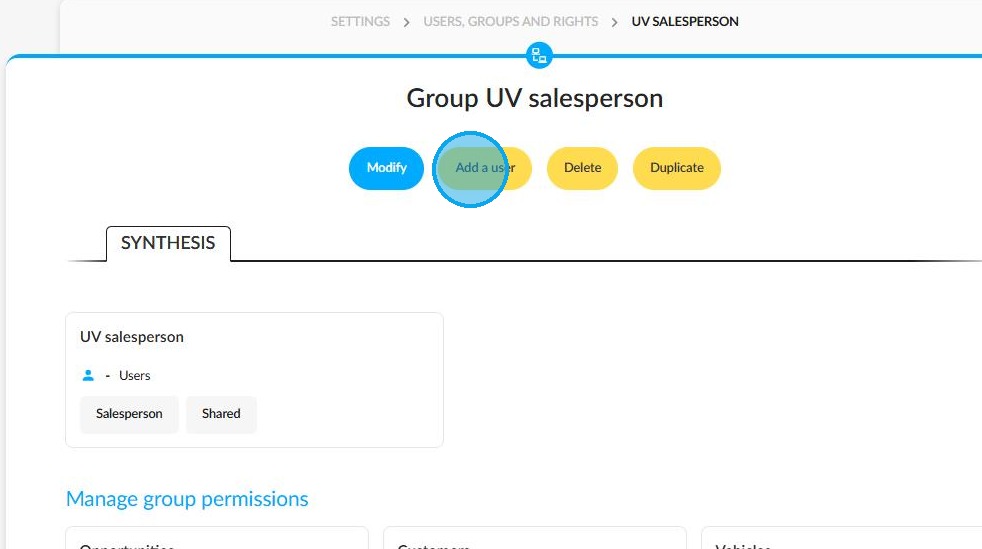
4. Once you have selected a shared user group, click on the 'Add a user' button.
5. A pop-up window will appear, allowing you to either create a new user or search for an employee with an active account.
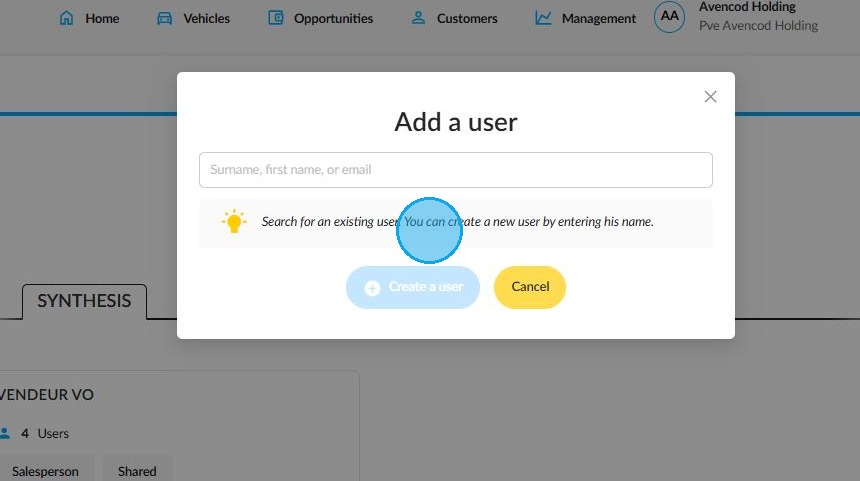
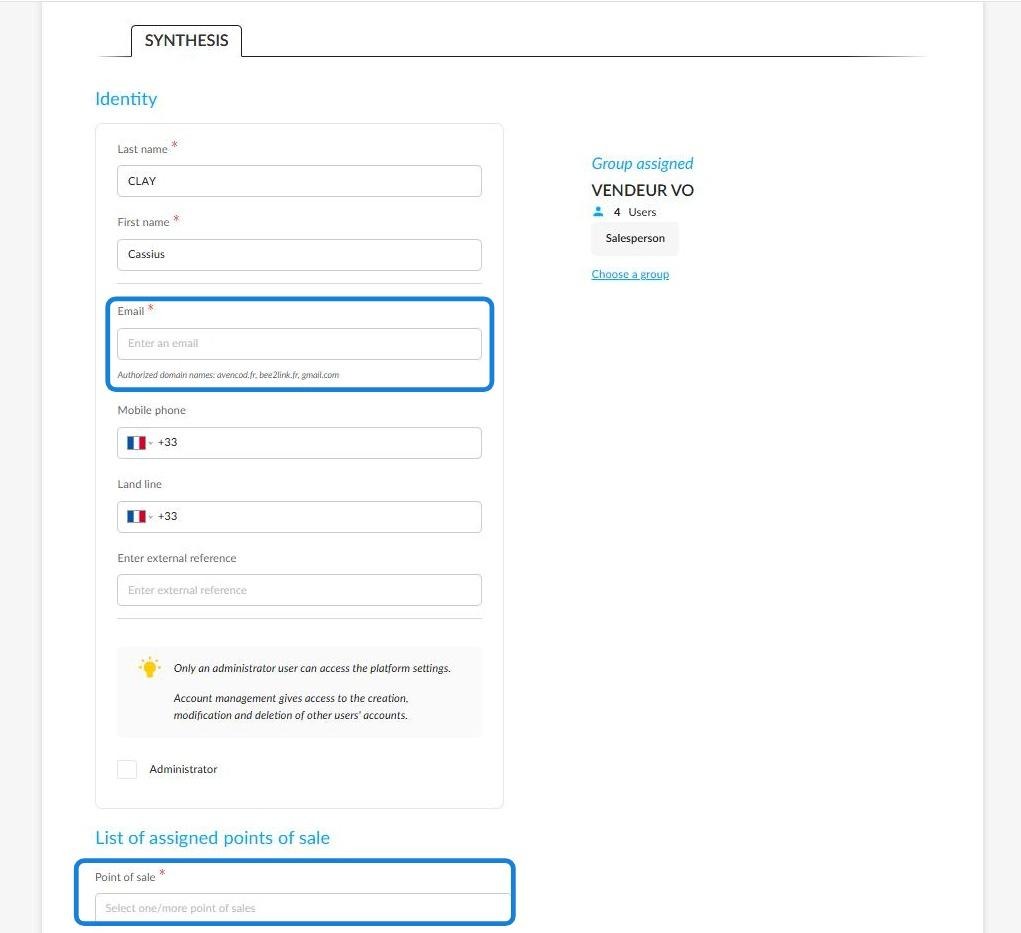
6. If you create a new user account, a form will request you to fill in their contact details.
You can then choose to give them administrator permissions and/or account management rights.
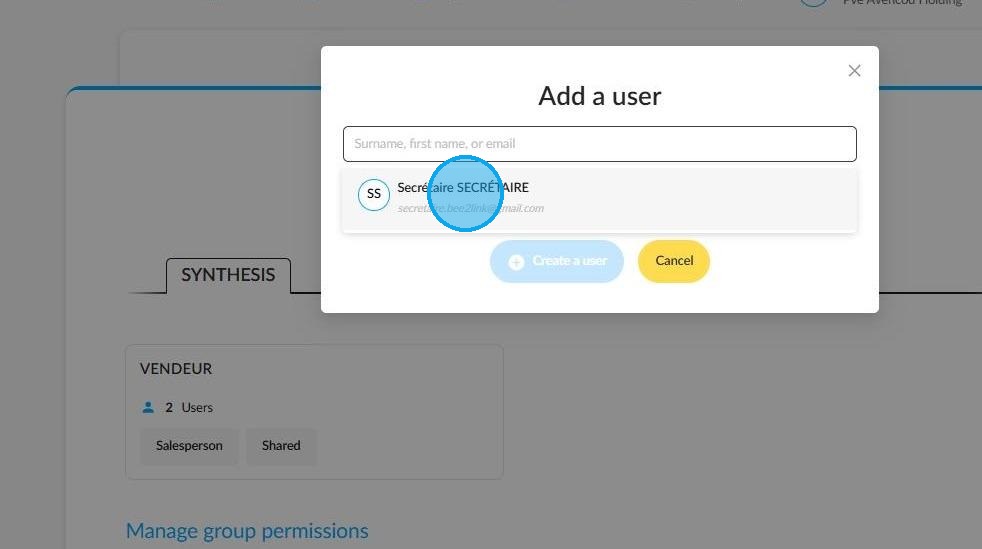
7. If you decide to assign a user who already has an account, enter their name to select them.
In this case, the user's details will be retained and you will not need to fill them again.
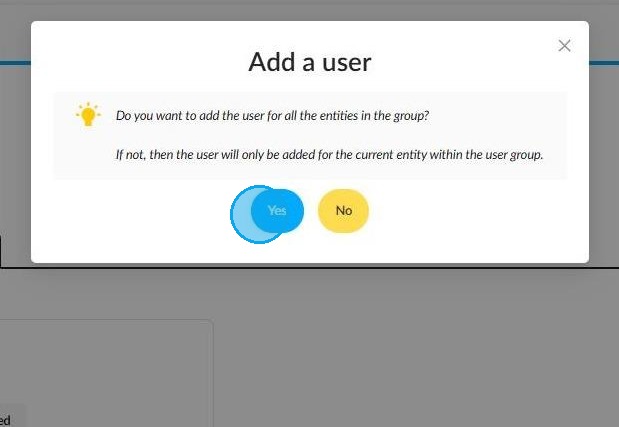
8. In both cases, the setup will conclude with a pop-up asking whether you wish to add the user to all entities in the group.
Clicking on 'Yes' confirms the addition of the account for all entities in the group.
Clicking on 'No' will only add the user to the entity that you are currently logged in to.
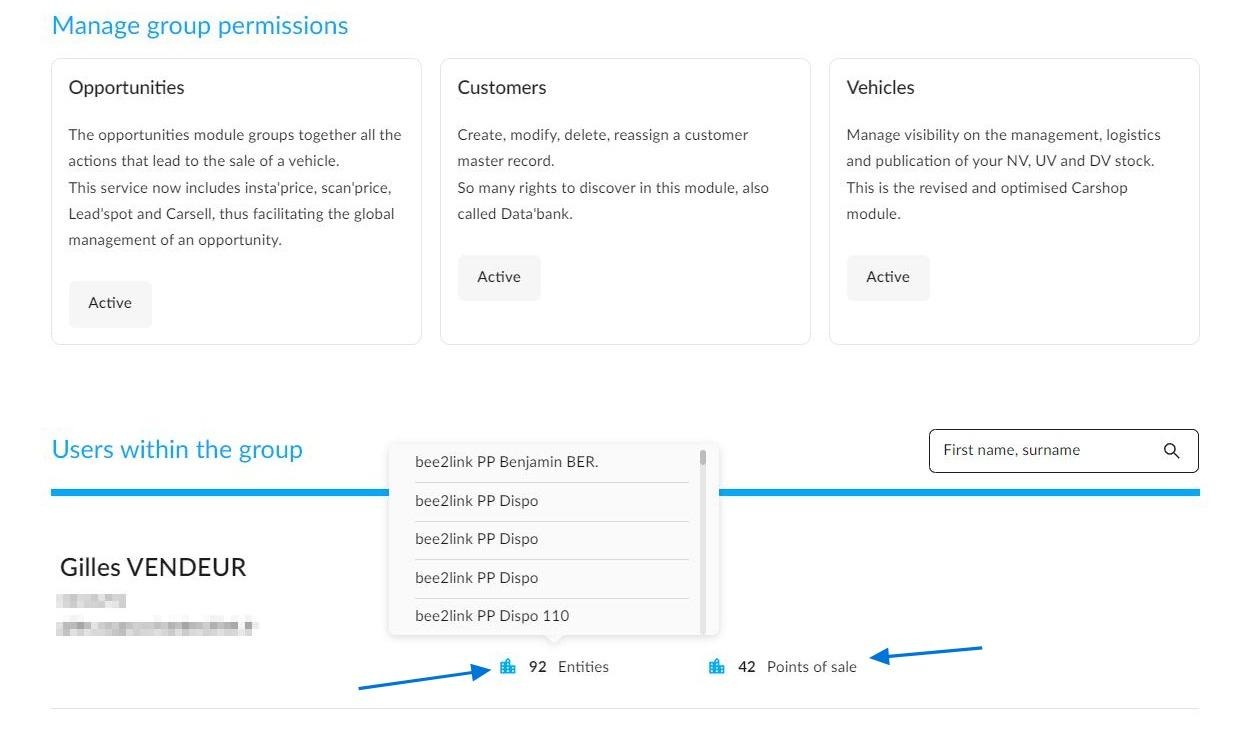
9. View a user account that has been added to all entities within a group. Hover over the 'Entities' and 'Points of Sale' labels to see the details of the assignments.
Comments
0 comments
Article is closed for comments.