
Find out how to set a watermark in the "Vehicles" module to better illustrate pictures of published vehicles.
Access to the settings for the ‘Vehicles’ module:
Prerequisites:
-Have administrator permissions on the platform.
-Use a visual of no more than 20 MB.
In order to better illustrate the ads of your vehicles, you have the possibility to set the insertion of a watermark on the photos of the published vehicles. So you can highlight the logos of your labels and your group.
To configure a watermark, click on your initilals on the home page of OpenFlex and select the "Settings" menu.

Then click on the "Publications" tab in the "Stock" section.
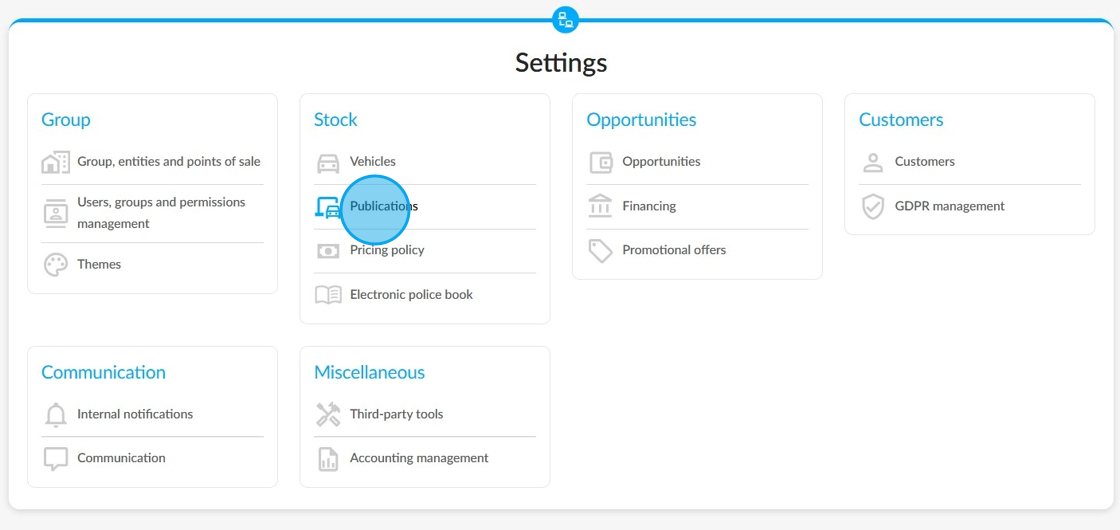
And select the "Watermarks" tab.

Click on "Add a watermark" next to the heading "Setting publication watermarks".

Adding a publication watermark:
Start by filling in the label of the new watermark and its location on advertisements:

Tick the box "Apply a background colour" to add one and make the watermark stand out.
If you choose to use one, a rectangular button for setting the colour to be applied will appear just below.

By clicking on it, a palette of colours will be made available to you.
To choose a background colour, place the cursor on the colour that suits you and click on it.
Your selection will be indicated by a dot in the colour palette. It will also be displayed below the palette and in the watermark preview (see next page).

You can display the watermark only on the first image published by ticking the box designed for this purpose.
To add a logo or an illustration, click on the "Add a visual" button.

When you put your cursor on the added image, you can:
view it in a preview using the eye icon,
remove it using the bin icon
or
download it using the arrow icon.

When adding a watermark to top and bottom of an image, it is essential to provide visuals to preview the background colour used.

Advertiser selection:
Once the watermark has been created, please click in the 'Advertiser' field below the image to select the recipients to whom the watermark will be applied for publication on advertisements.

Several options are available by ticking the corresponding boxes. Click on the "Save" button when you have finished the configuration of the watermark.

Reminder: Only one watermark can be associated with each advertiser. You will receive an error message if you try to add another.

Changing a watermark:
You can make subsequent changes to the watermarks added using the 'Modify' button to the right of each watermark.

You can then delete or update them.

In the file for a publishable vehicle, go to the ‘Others’ tab and then to the ‘Publications’ menu. Here you'll find all the watermarks configured for each advertiser on which the vehicle is published.

Deactivating a watermark:
It is also possible to deactivate a watermark so that it can be reused later. To do this, uncheck the box below the 'Active' field.

Deactivation of a watermark is subject to confirmation, which is displayed in the form of a pop-up window when the box is clicked. Click "Yes" or "No".

Comments
0 comments
Article is closed for comments.