
Find out how to change the type of a vehicle.
Prerequisites:
- Have access to the NV and DV fleets in your stock.
- Have the right to create and delete vehicles for the DV fleet.
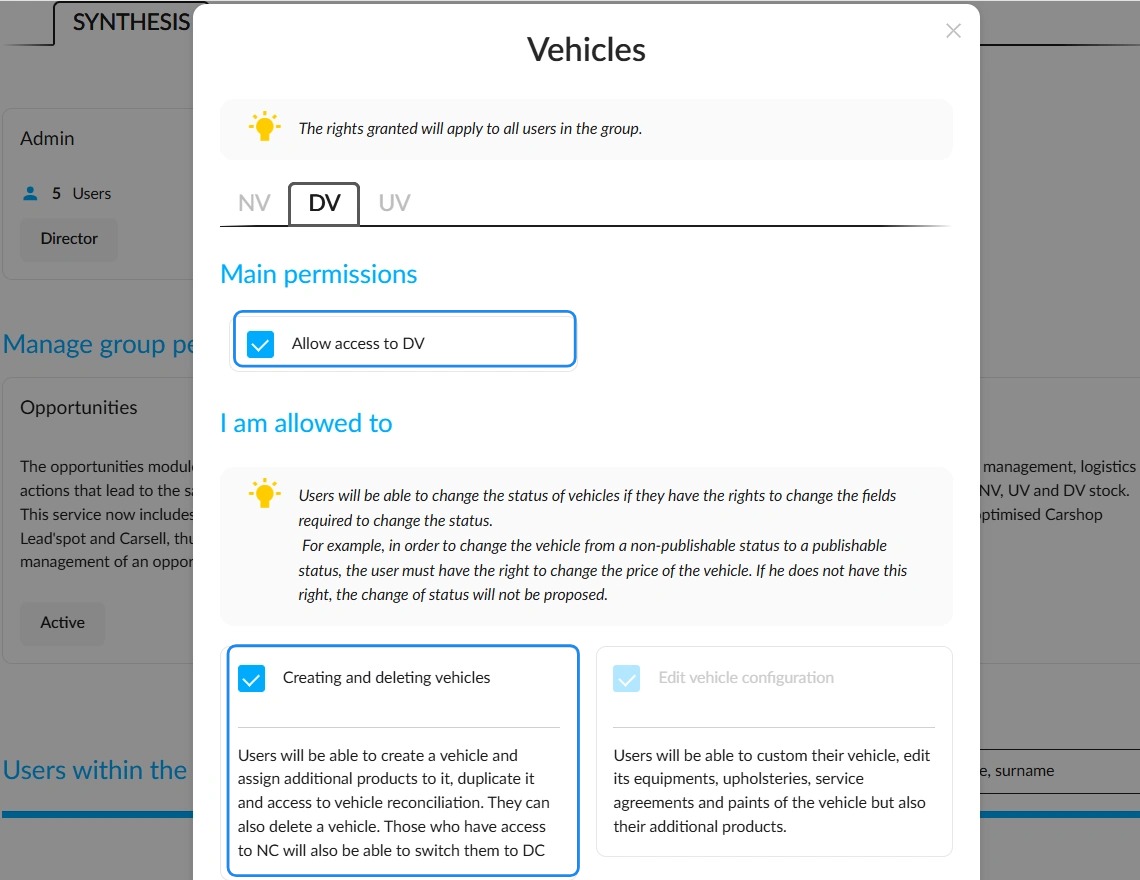
From the NV fleet to the DV fleet:
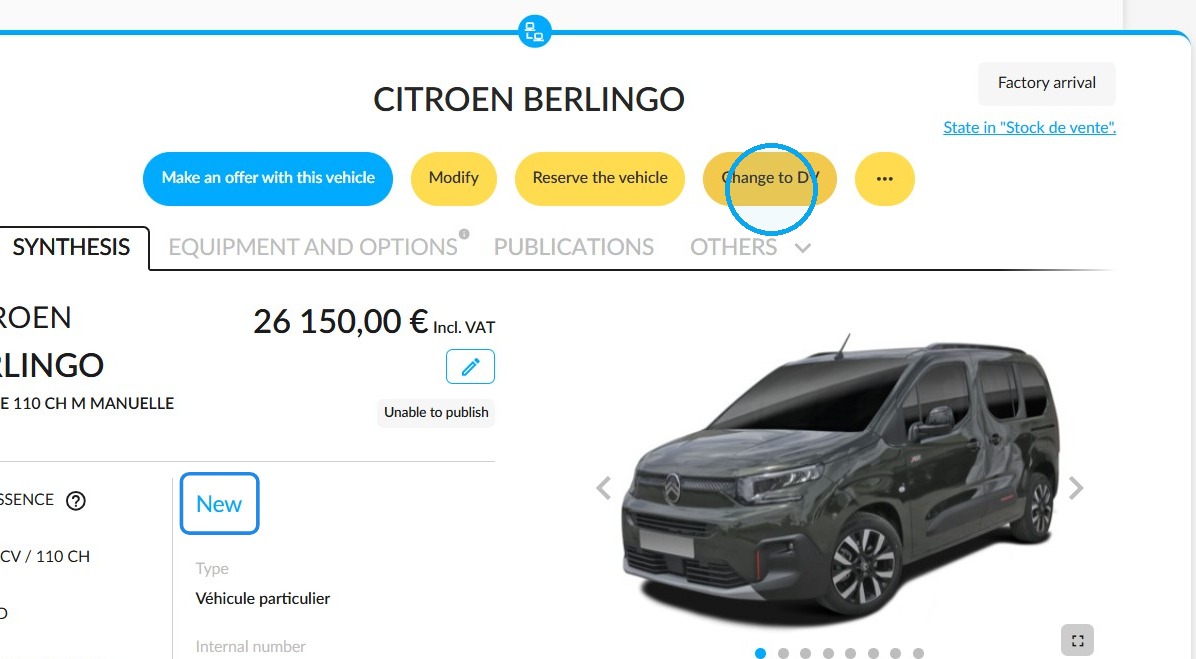
Please select the vehicle you wish to convert into a demonstration vehicle from your stock of new vehicles.
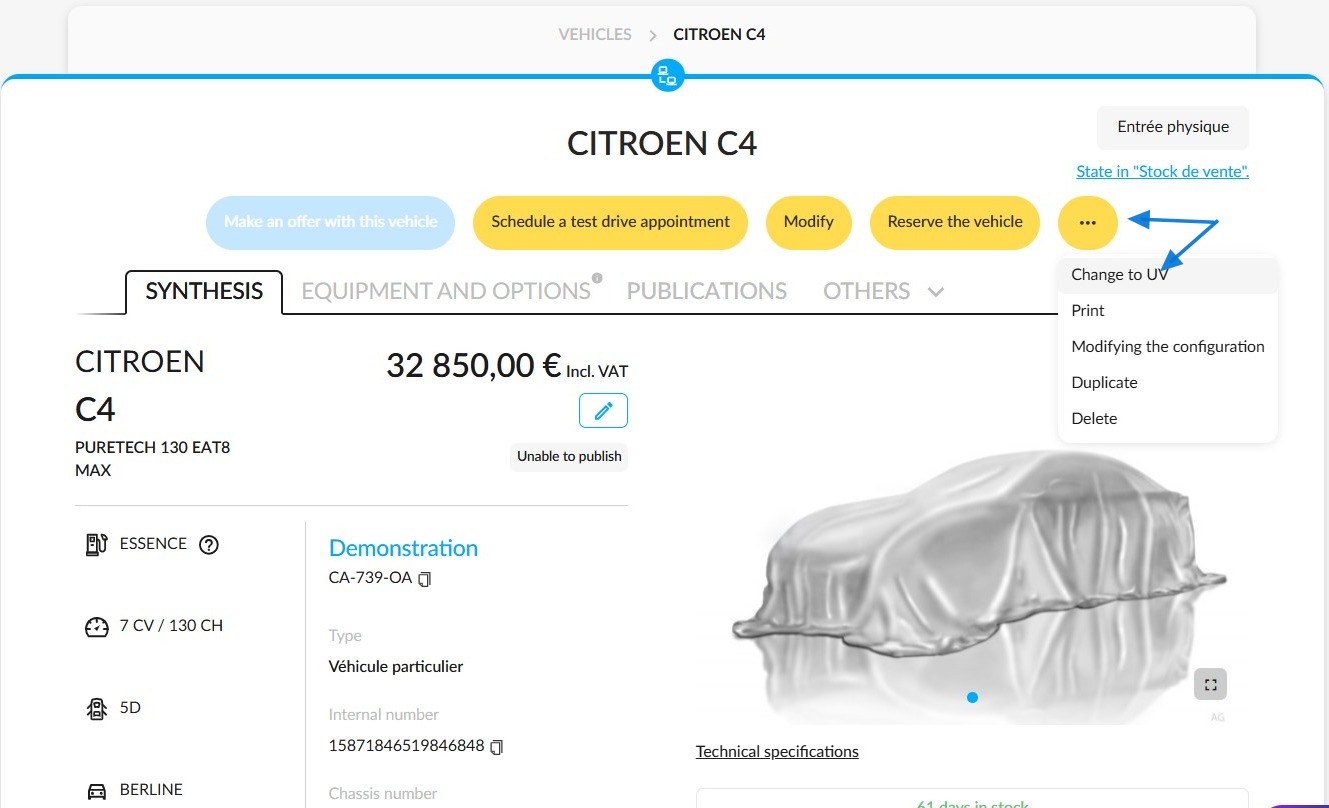
Once you are on the vehicle's details page, click on the button labelled ‘Change to DV’.
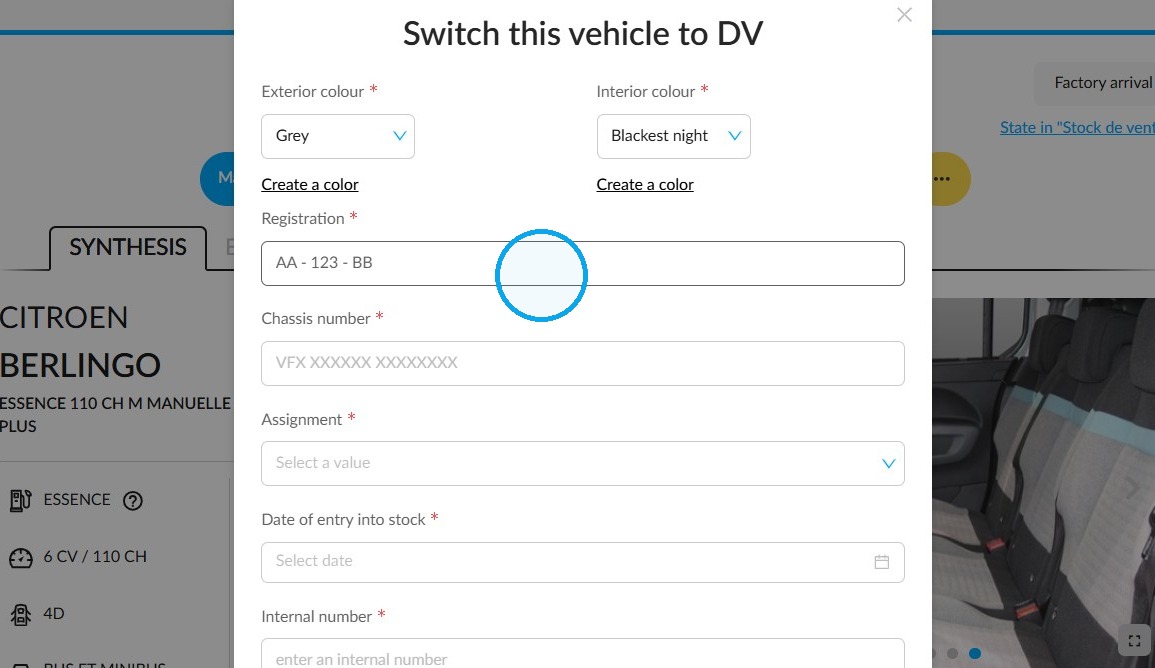
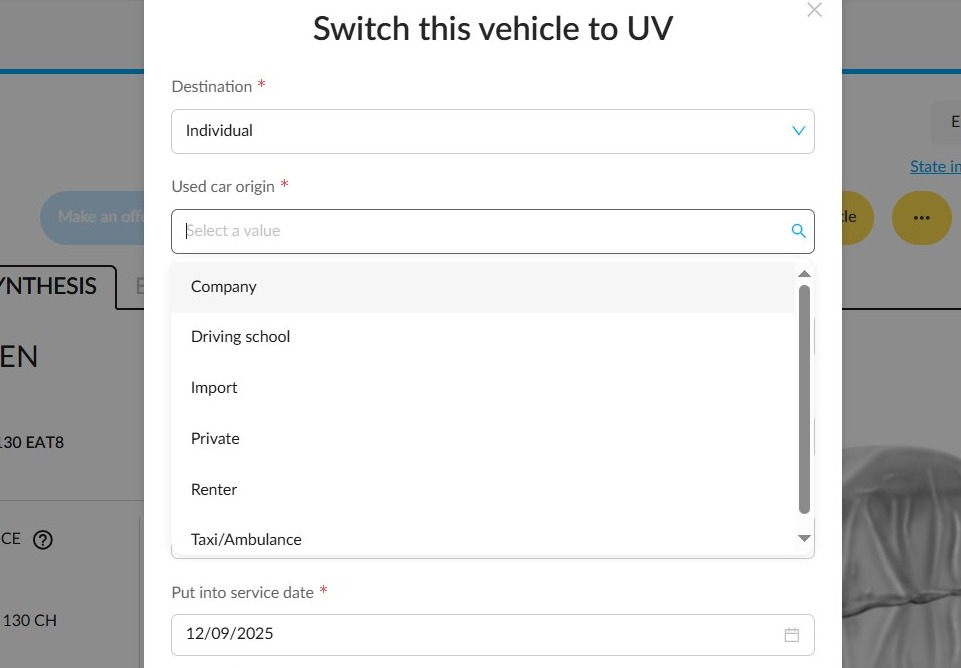
You will then need to fill in the mandatory fields in order to validate the change of vehicle type.
Examples:
-registration number;
-Assignment;
-Internal number;
-CO2 emissions.
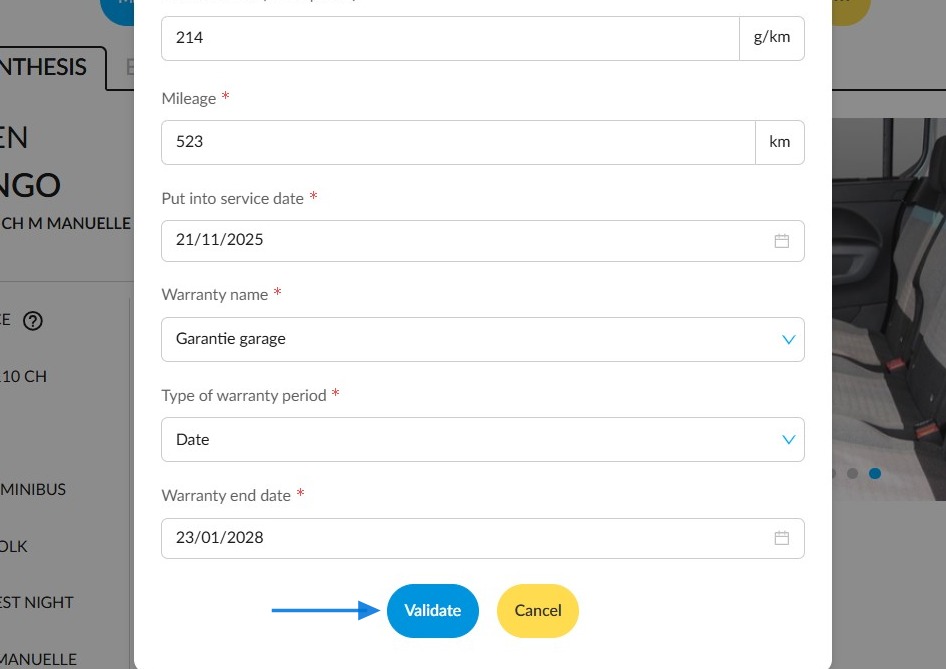
-Mileage
-Put into service date;
-Information about the warranty...
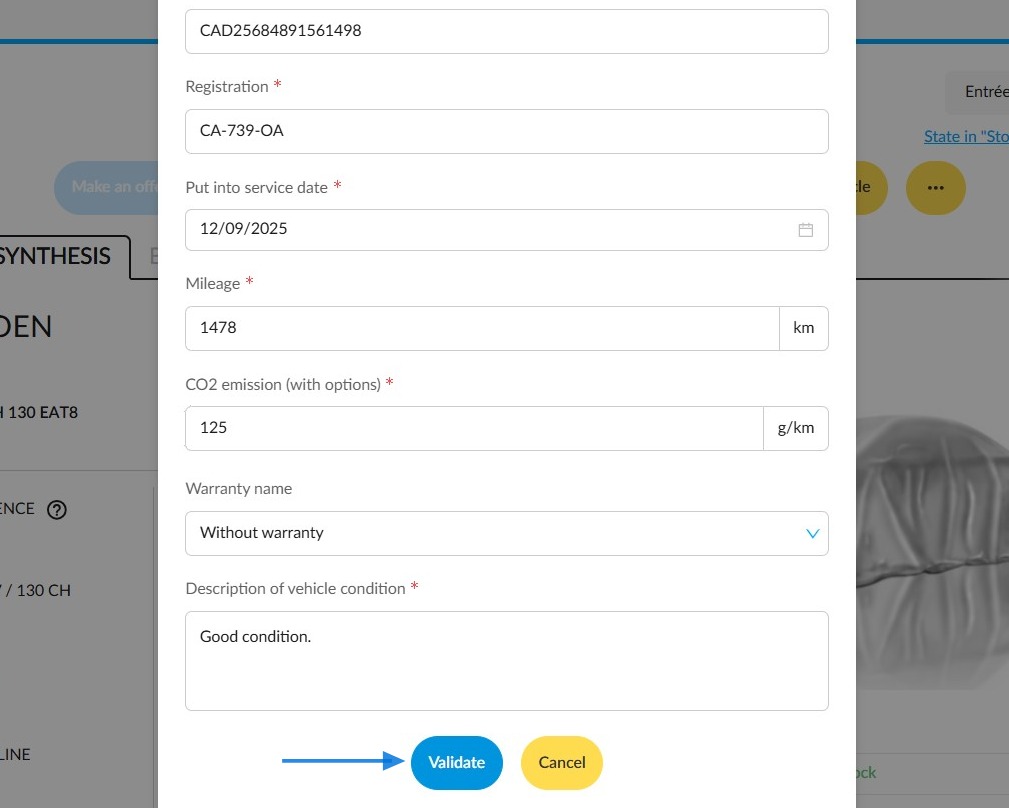
Then press the "Validate" button.
If necessary, you can change the vehicle details before saving.
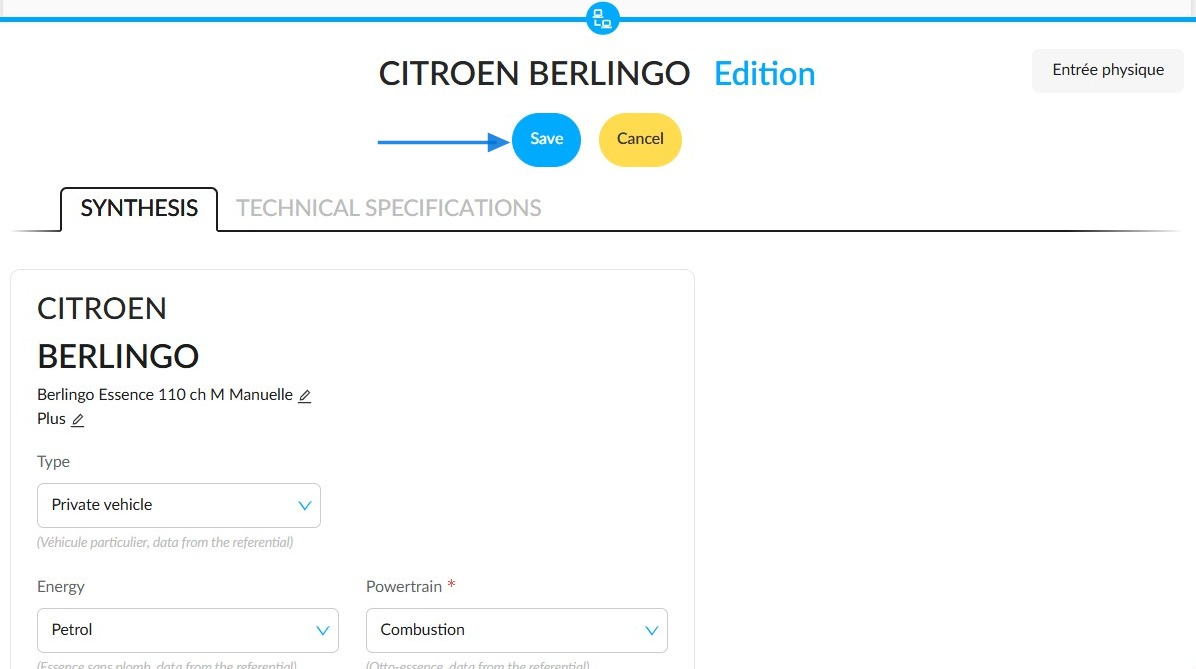
The change to the DV type will then take effect. The vehicle will have the status “Physical Entry” in the stock.
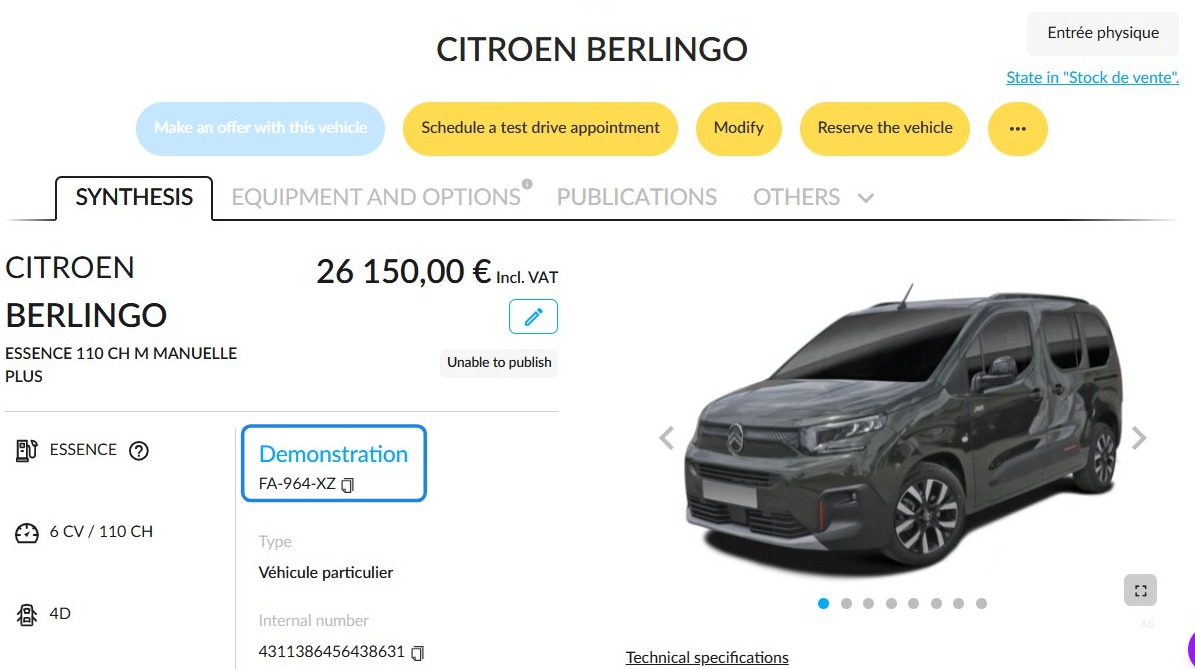
From the DV fleet to the UV fleet:
Prerequisites:
- Have access to the DV and UV fleets in your stock.
- Have the right to create and delete vehicles for the UV fleet.
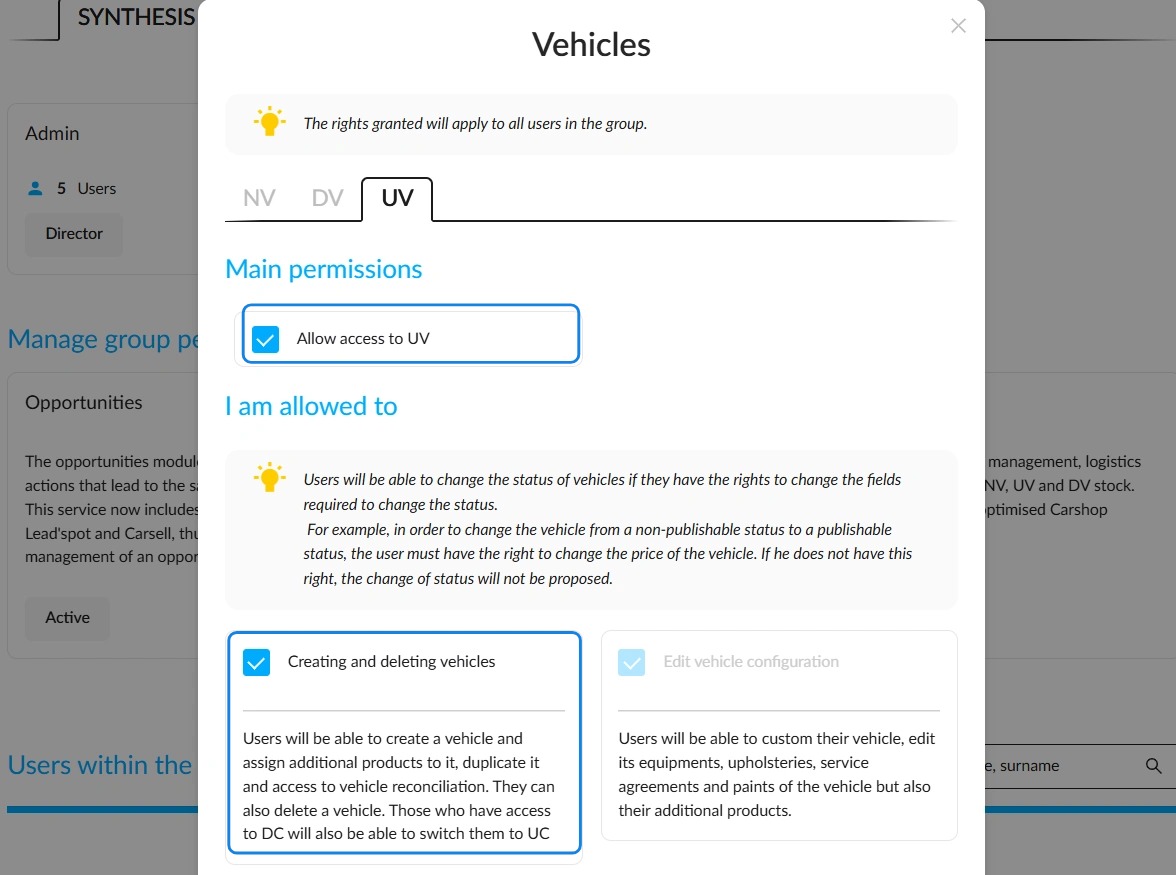
The same procedure can be followed to convert a DV to a UV.
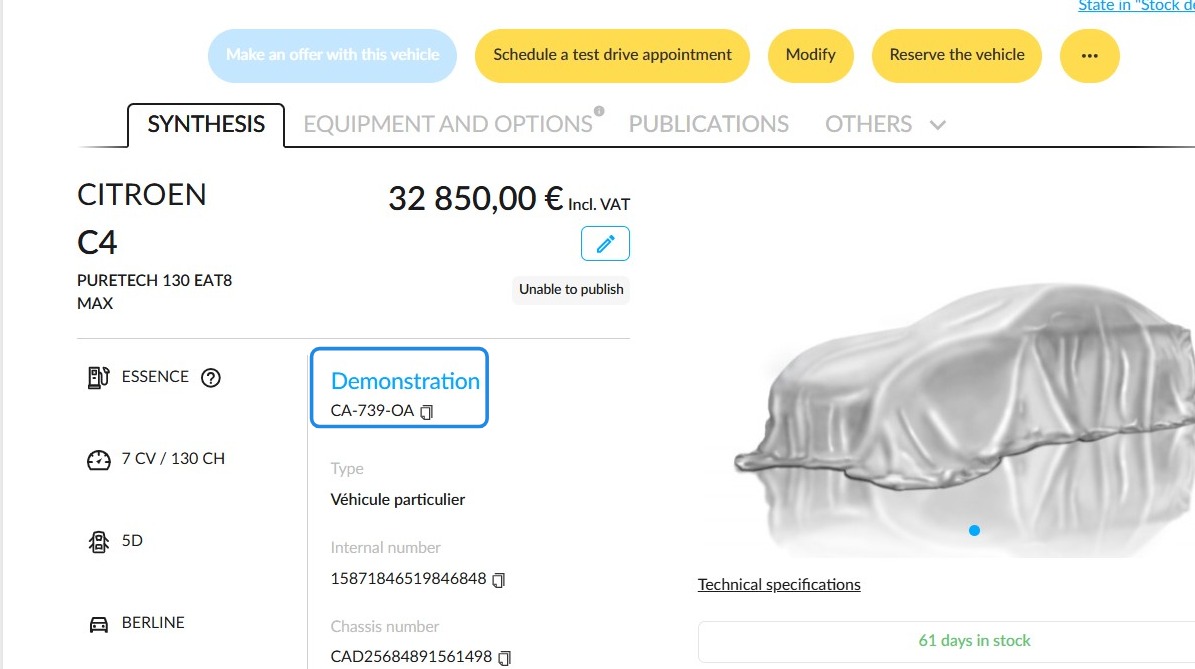
Example:
Position your cursor over the three dots and click "Change to UV".
Other mandatory information must be entered to record the change to UV.
Examples:
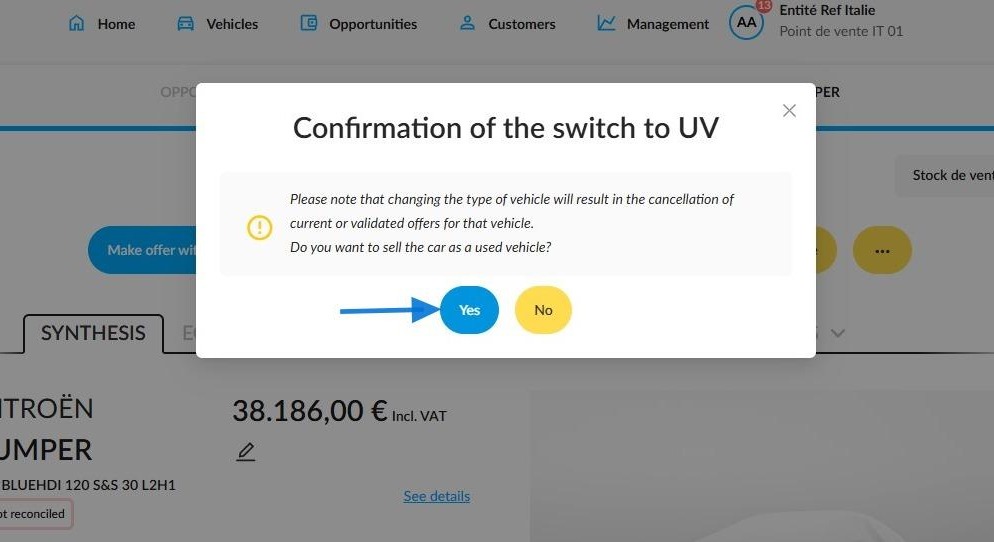
When changing the fleet of a NV or DV associated with a current or validated offer, a warning message will appear informing you that this action will result in the cancellation of the said offer.
Please confirm whether you wish to proceed with the action you have started by selecting "Yes" or "No".
Offers that have been cancelled will be visible in the new UV's history.
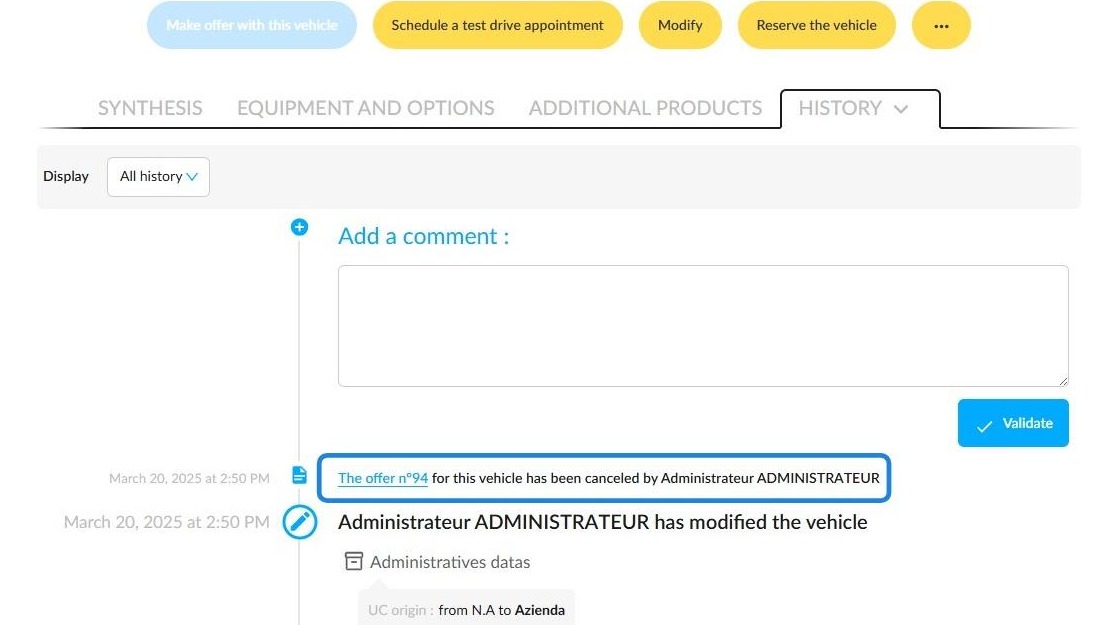
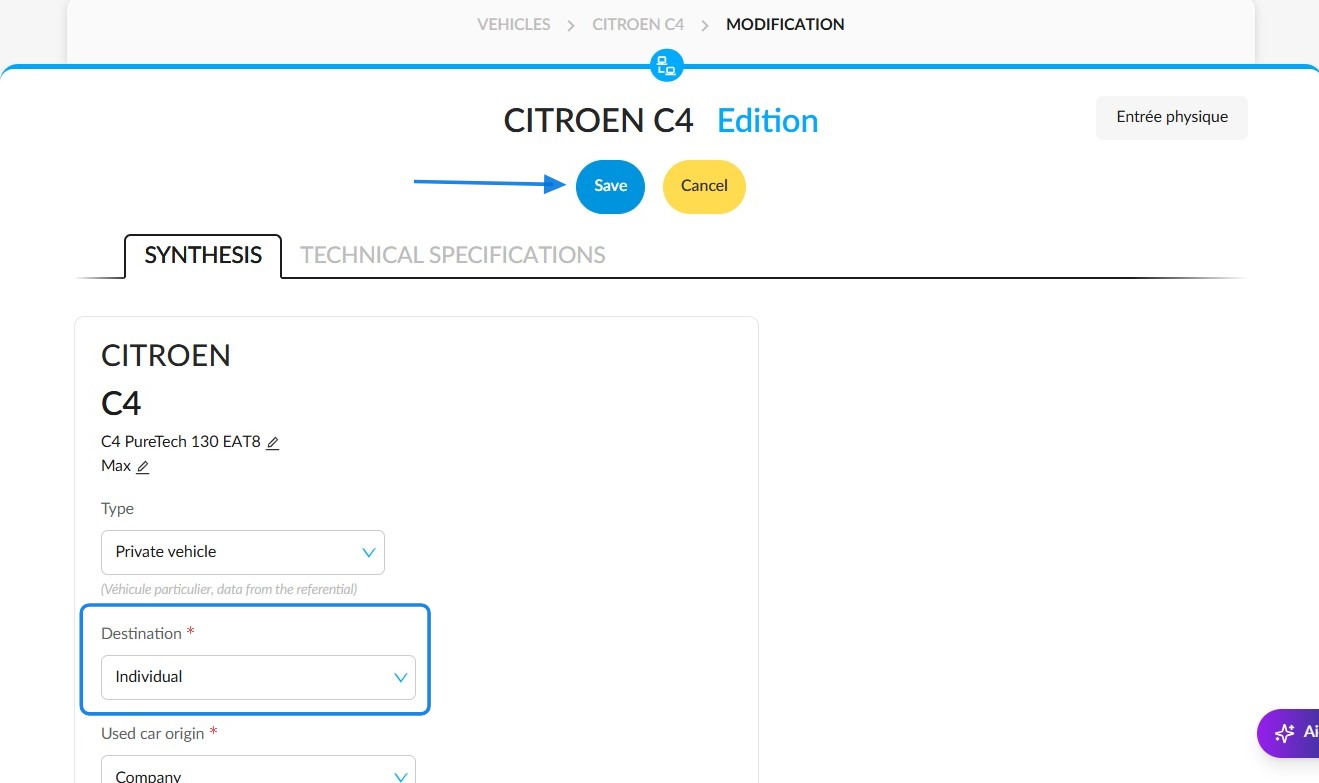
It is possible to define the destination of the used vehicle on the modification page (private, professional or scrapyard).
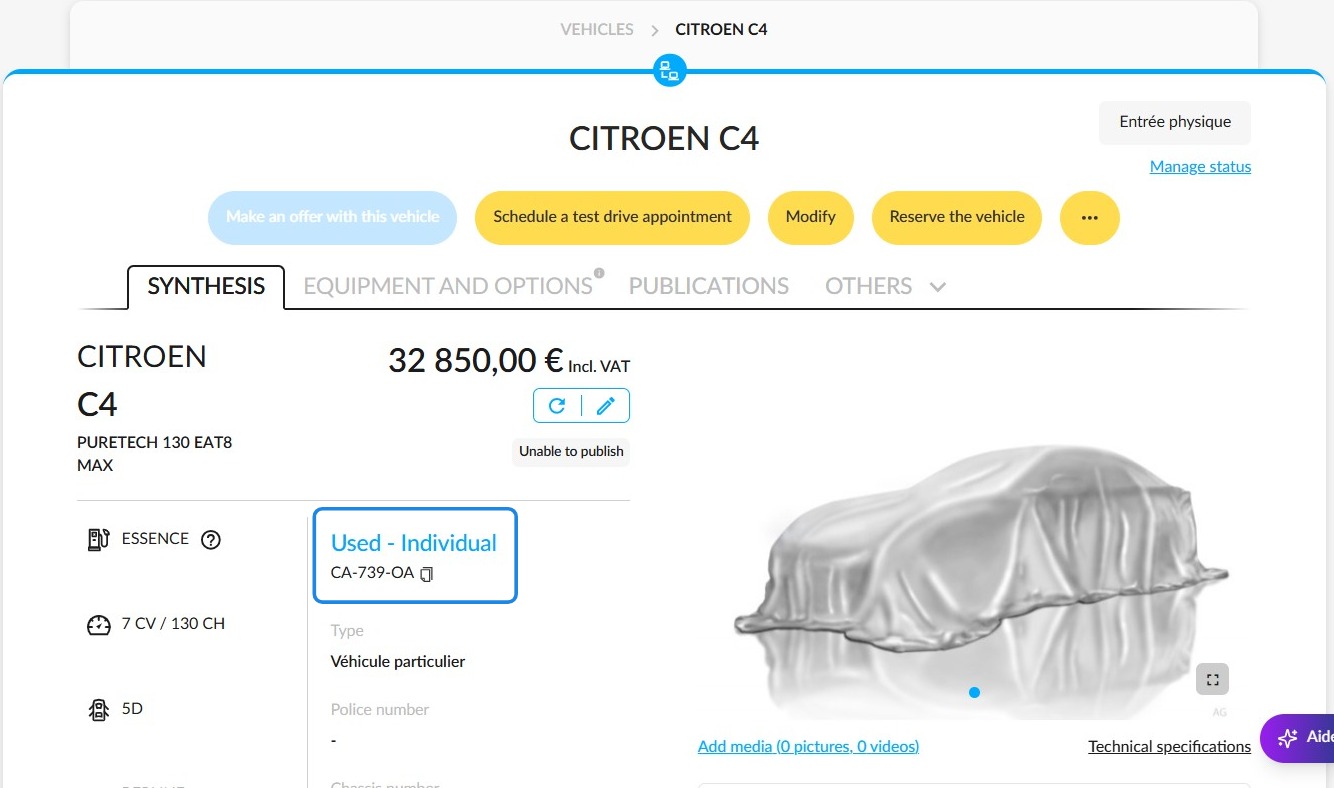
Once the changes have been saved, the UV will appear in stock with the 'Physical Entry' status.
History
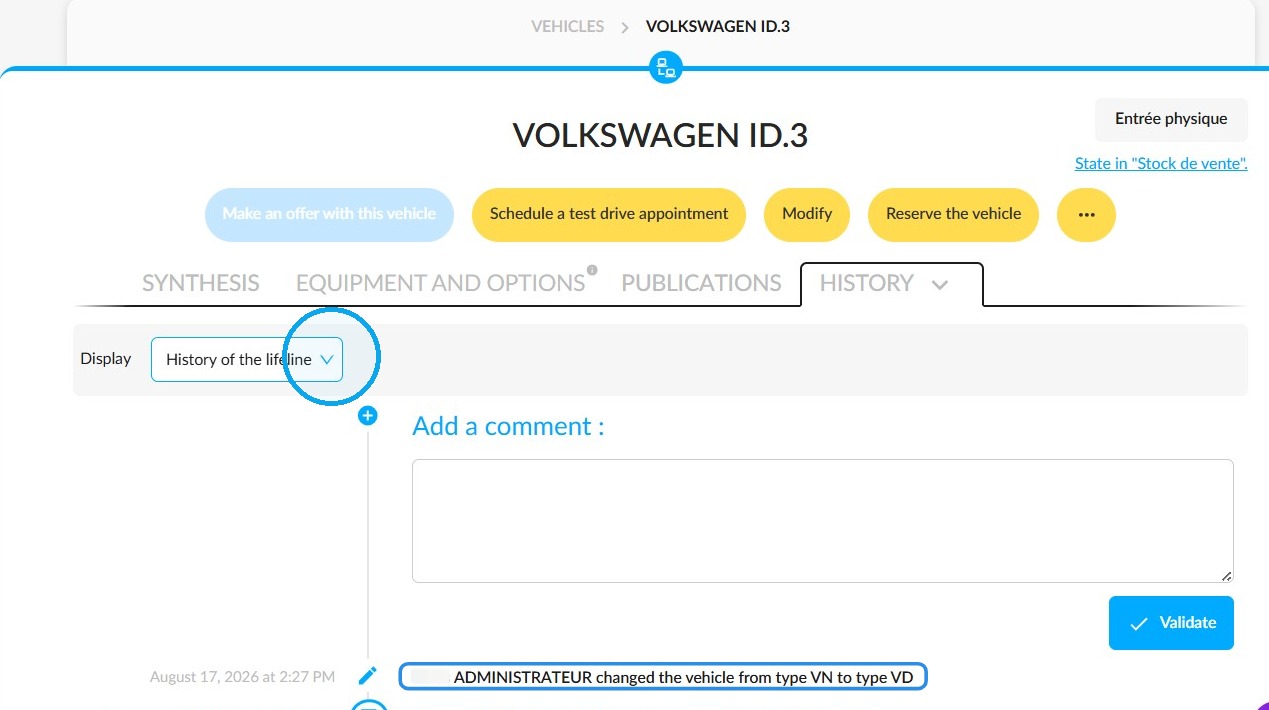
All configuration changes are recorded in the vehicle record’s history. To find the information more easily, filter the various history records in the ‘Display’ field and select ‘History of the lifeline’.
Comments
0 comments
Article is closed for comments.