
Find out how to configure your stock list in the "Vehicles" module.
Accessing stock & adding filters:
From the OpenFlex homepage, navigate to the 'Vehicles' module.
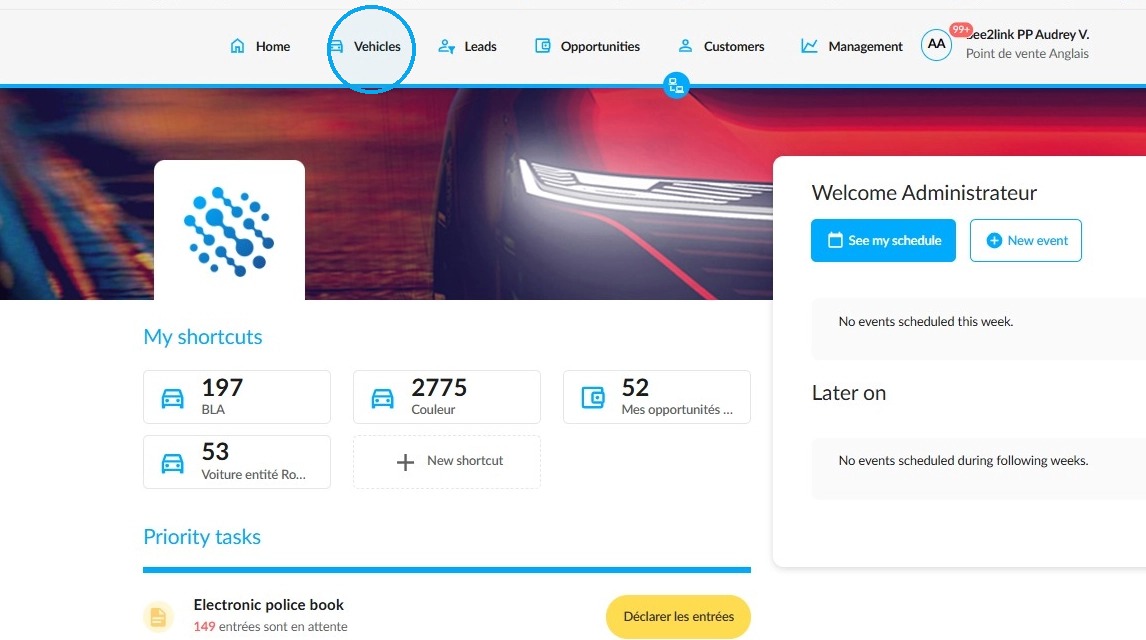
Next, set up the various filters that will help you display relevant results.
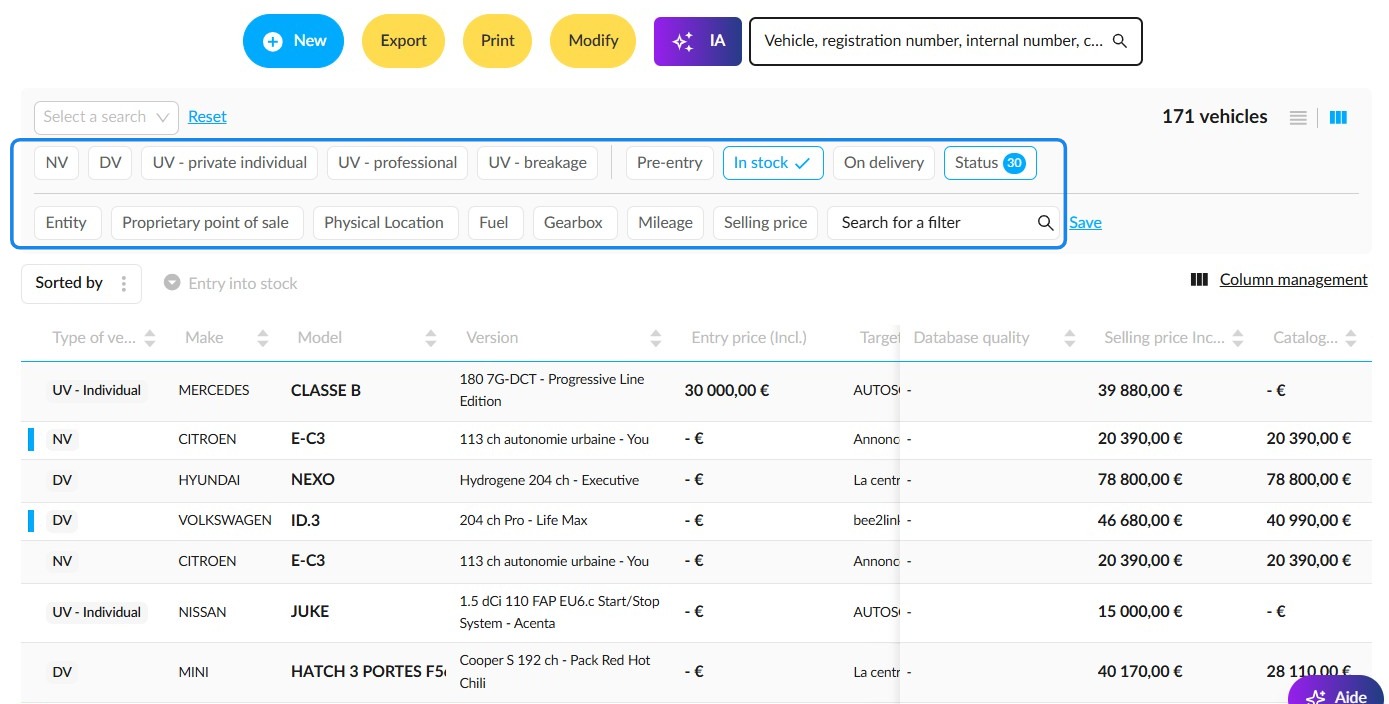
Example: selecting UVs available for sale on a given entity in order to refine the results.
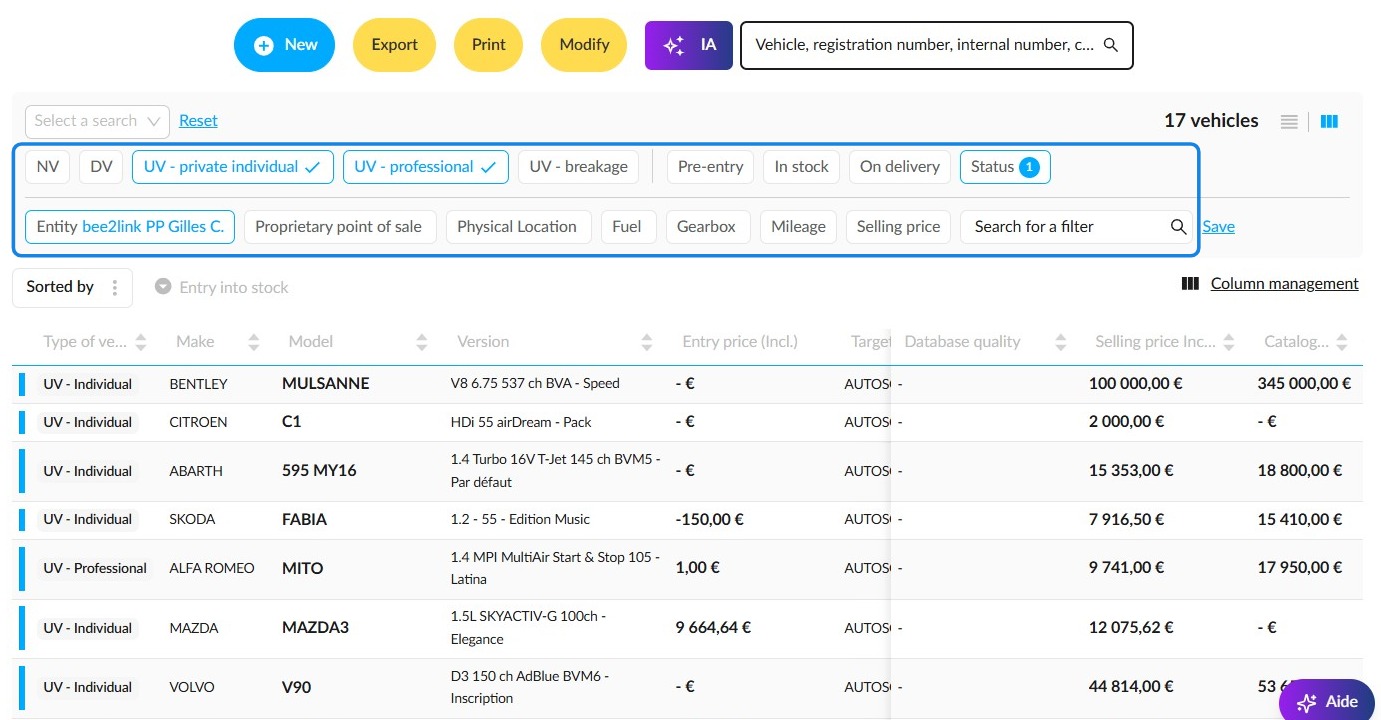
Organisation of the columns:
Next, configure the columns that will be make up the stock table by clicking on the "Column management" button.
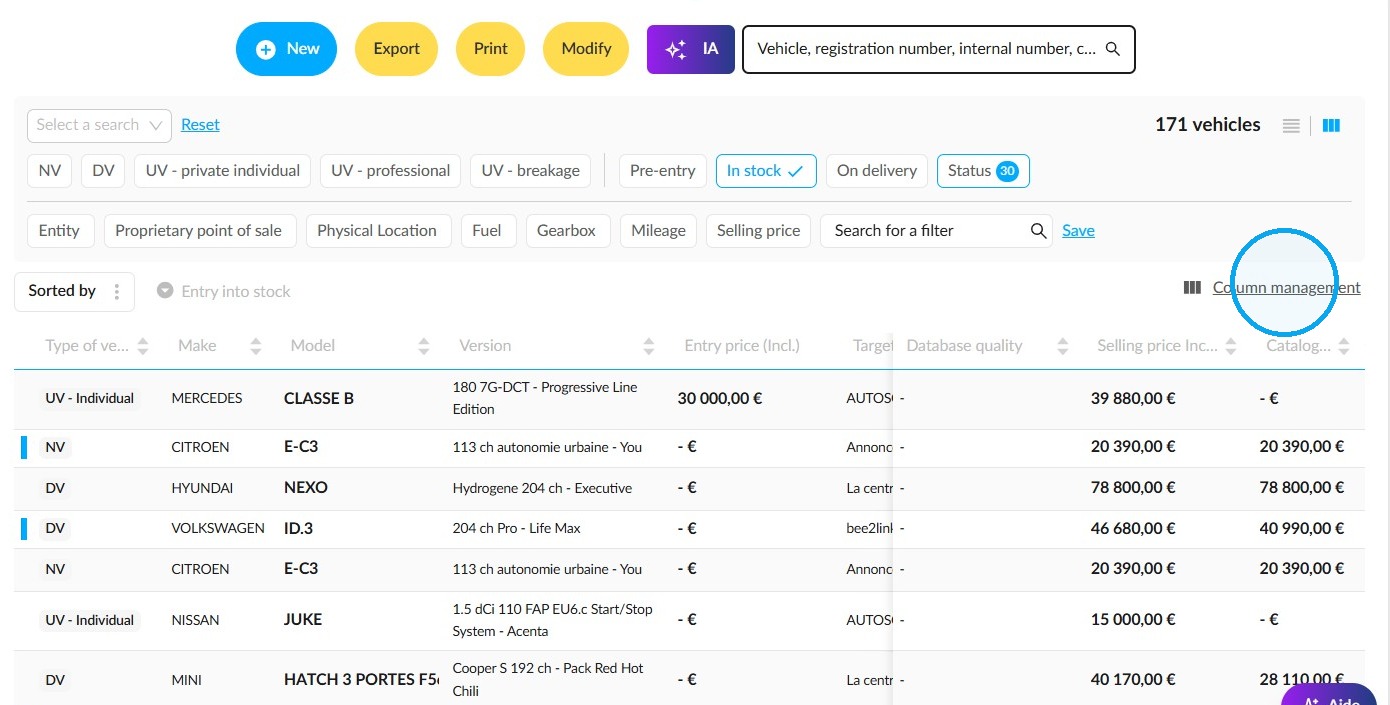
The ‘Manage the display of columns’ window will show the list and number of columns already available.
To make it easier to find a column, enter a keyword in the field provided on the left-hand side, under ‘Add columns’.
To include a column in the table, tick the box next to its label.
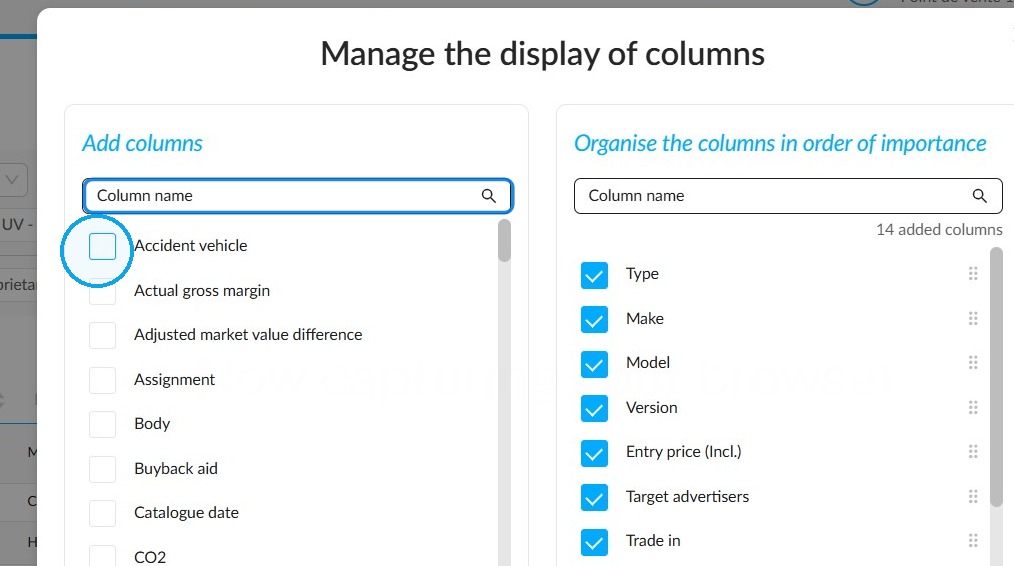
Each new column configured will appear at the end of the table.
To change their order, click on the dots to the right of a column label and drag it to the desired position in the table.
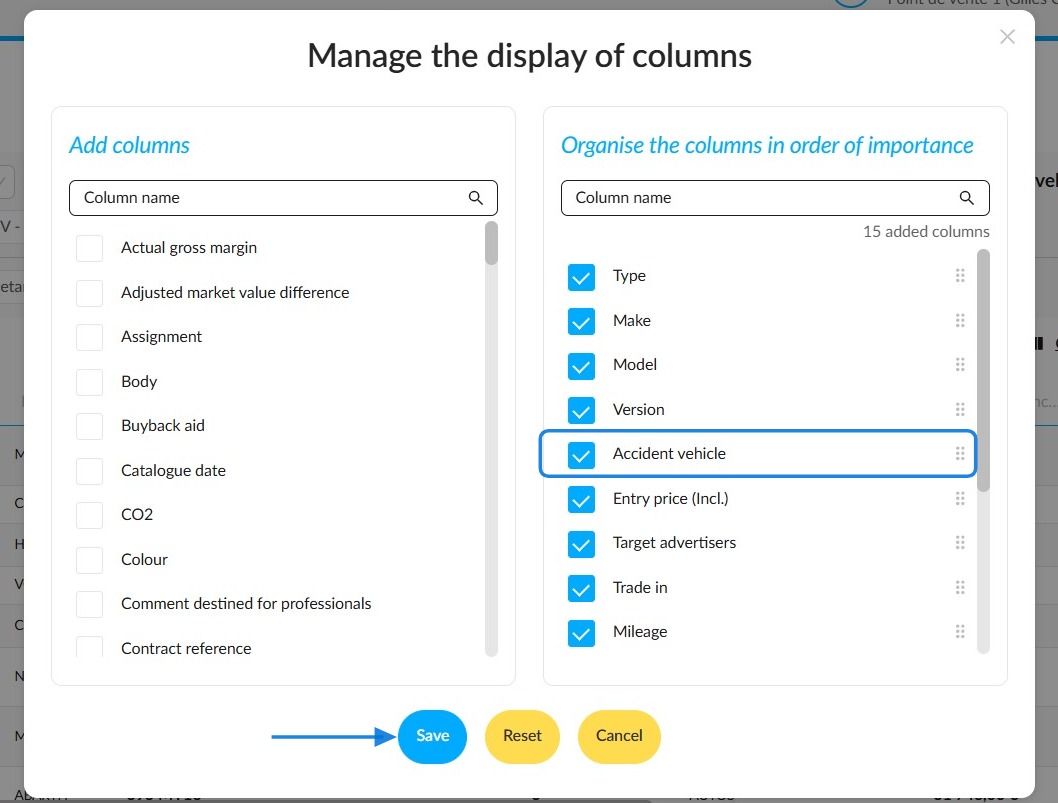
Example using the ‘Accident vehicle’ column, which has been moved among the columns at the top of the table.
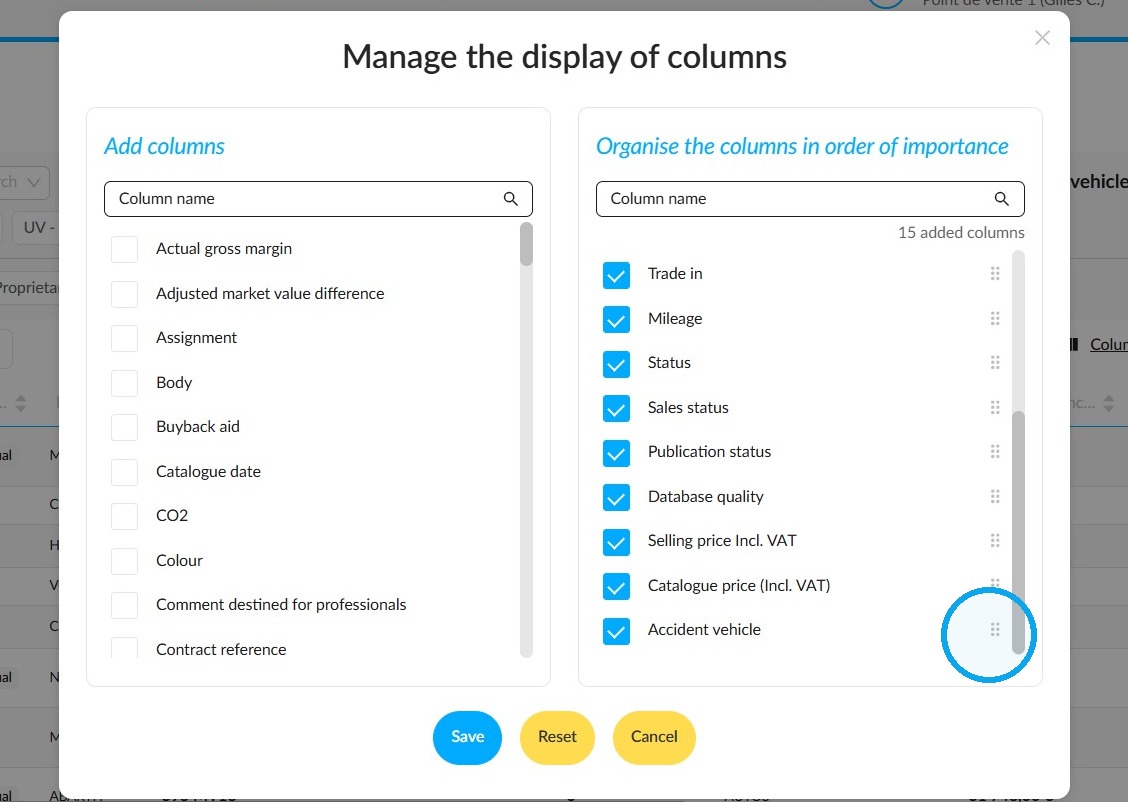
To confirm its location and display it in the table, click on the "Save" button.
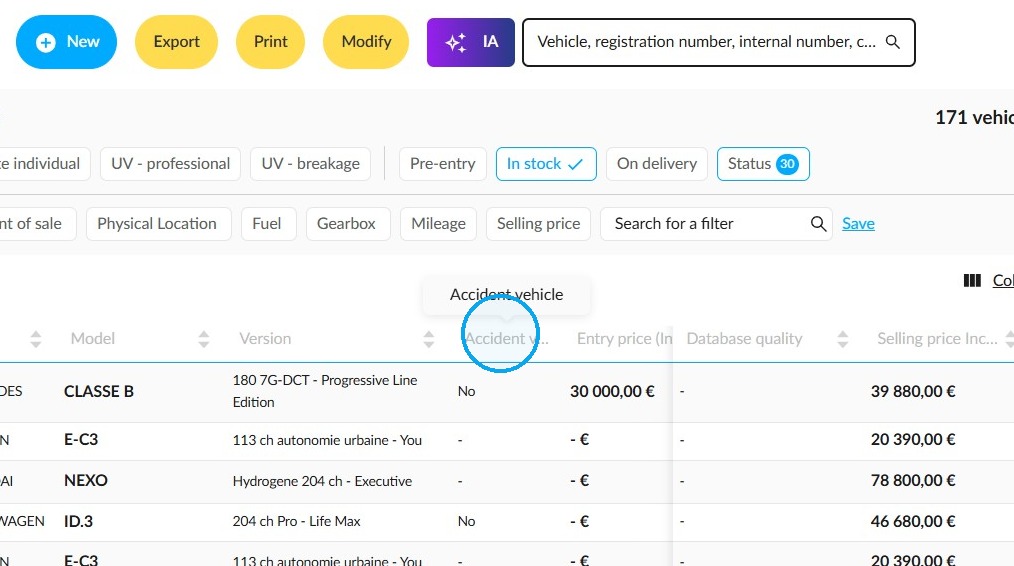
View of the column in the table.
Views:
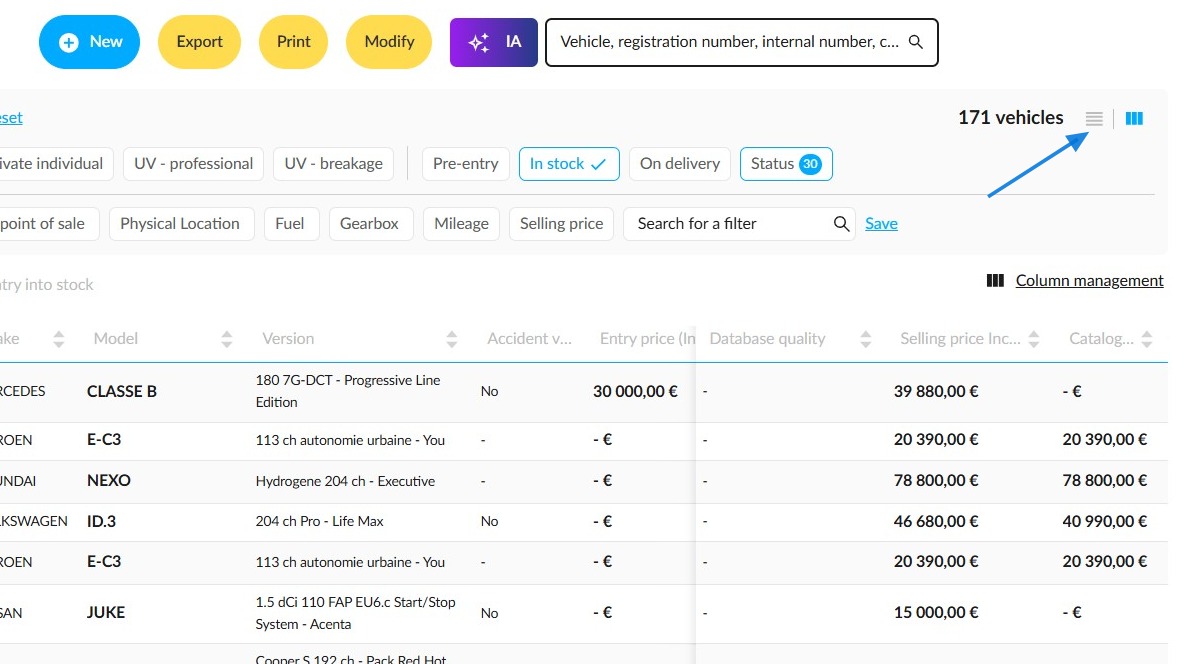
This picture shows the stock list in table view. To change this, click on the greyed-out display icon next to the column management tool on the right-hand side of the filters.
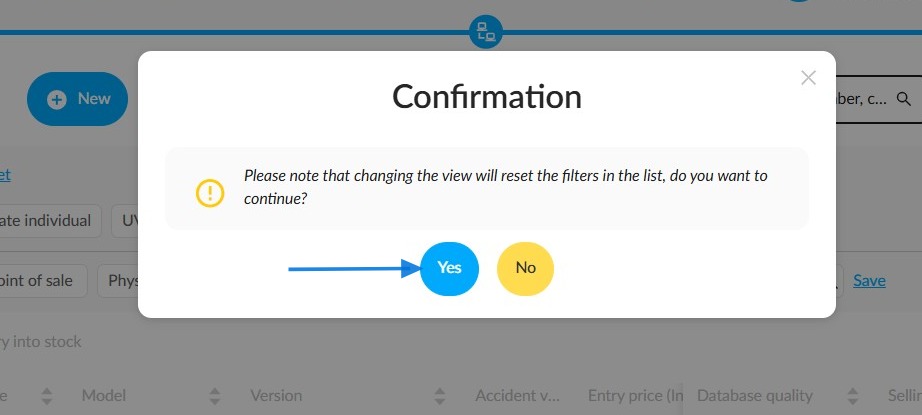
In the confirmation pop-up for changing the view, answer 'Yes' to the question.
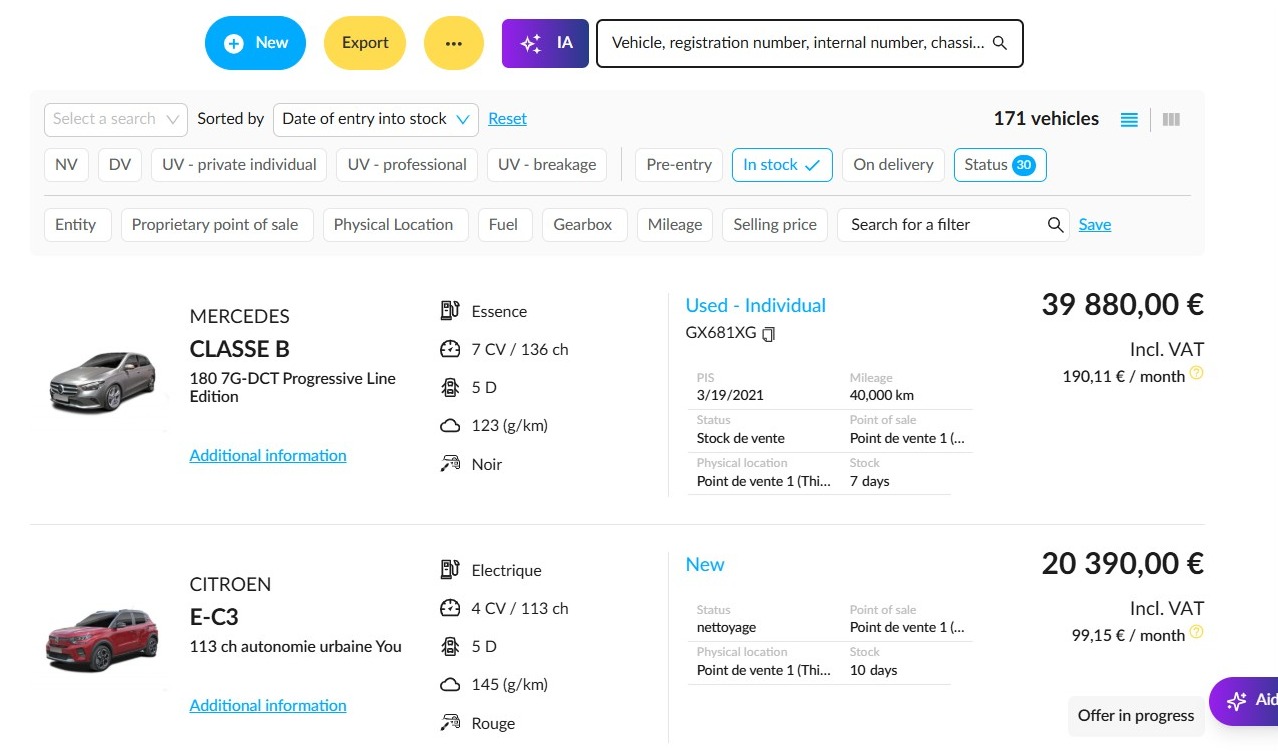
The vehicles will be displayed as a list. Each item will be a link that can be opened in a new tab for added convenience.
Vehicle sorting:
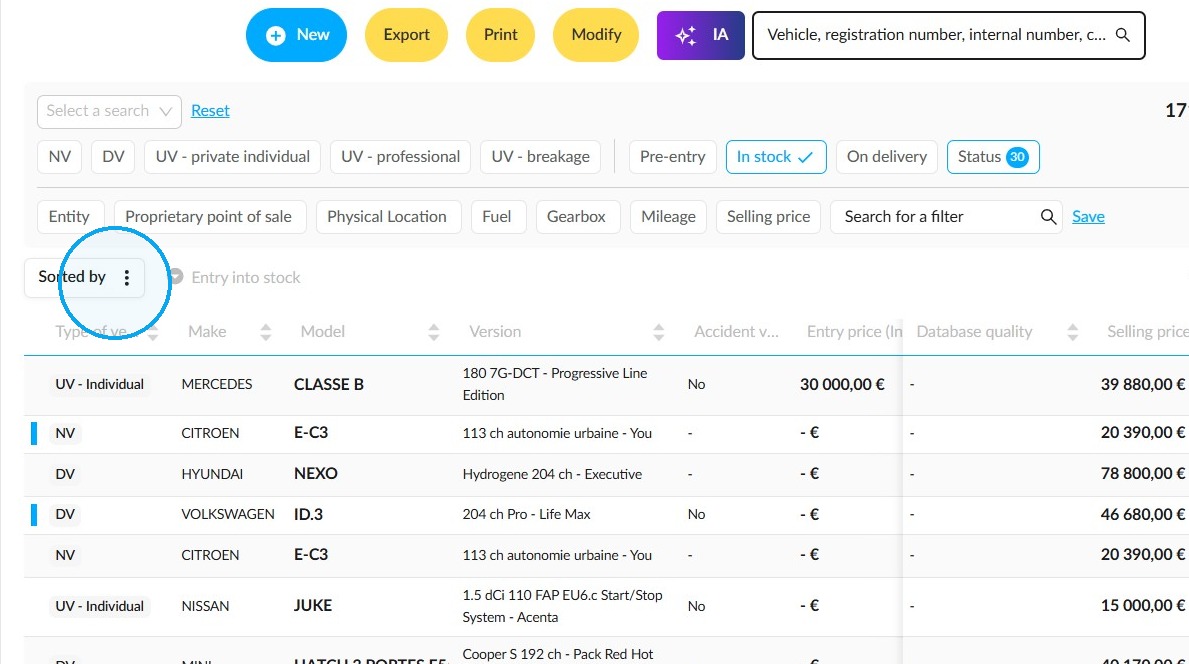
To sort vehicles, you need to display them in table view.
You can sort the vehicles according to certain criteria. To do this, click on 'Sorted by' above and to the left of the stock list.
In the “Manage sorting” window, tick a sort to add it.
-As soon as you select a sort, it is moved to the right-hand side, into the “Sort items by order of importance” section.
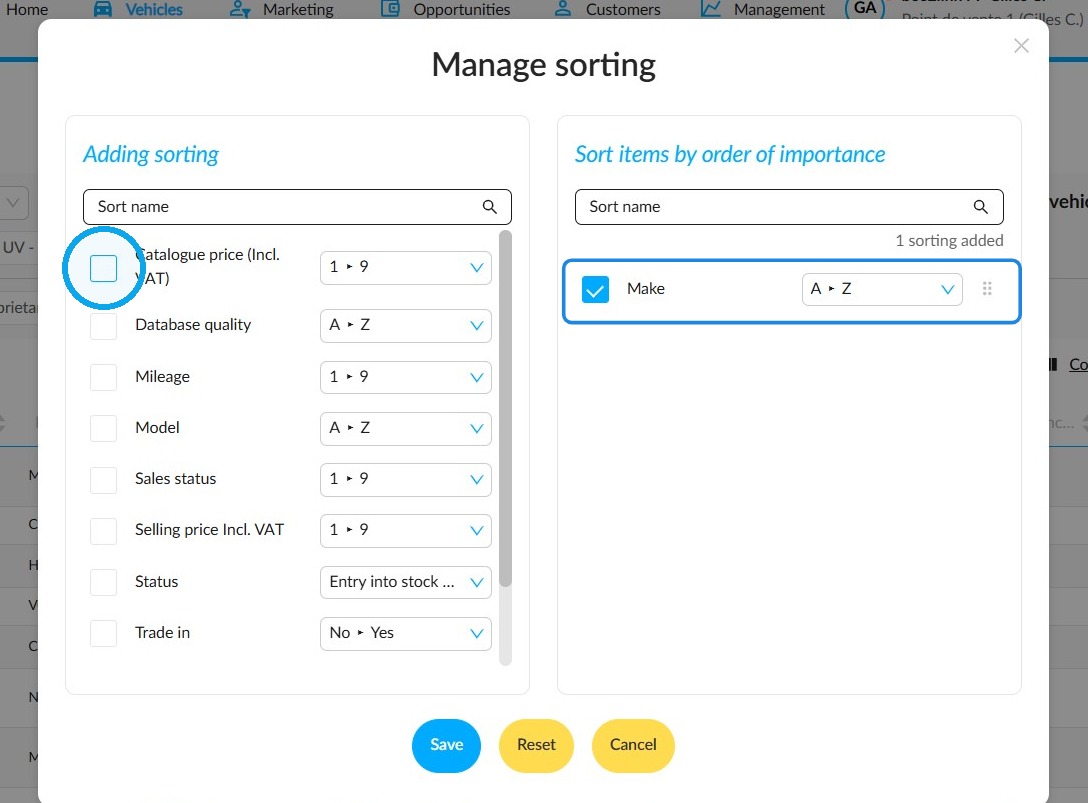
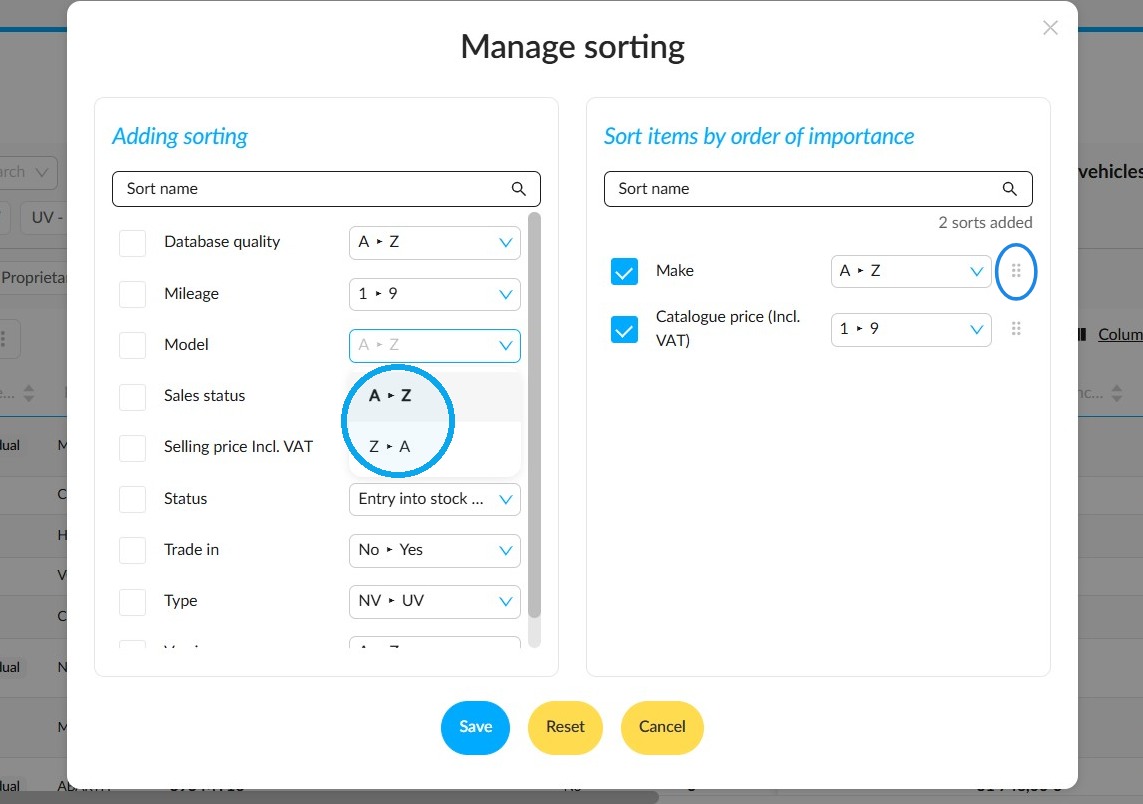
-You will be offered ascending or descending sorts, as well as others depending on the criteria.
-To change the display order, first click on the dotted line next to the relevant sort, then drag it to the desired position in the window. This is done in the right-hand column.
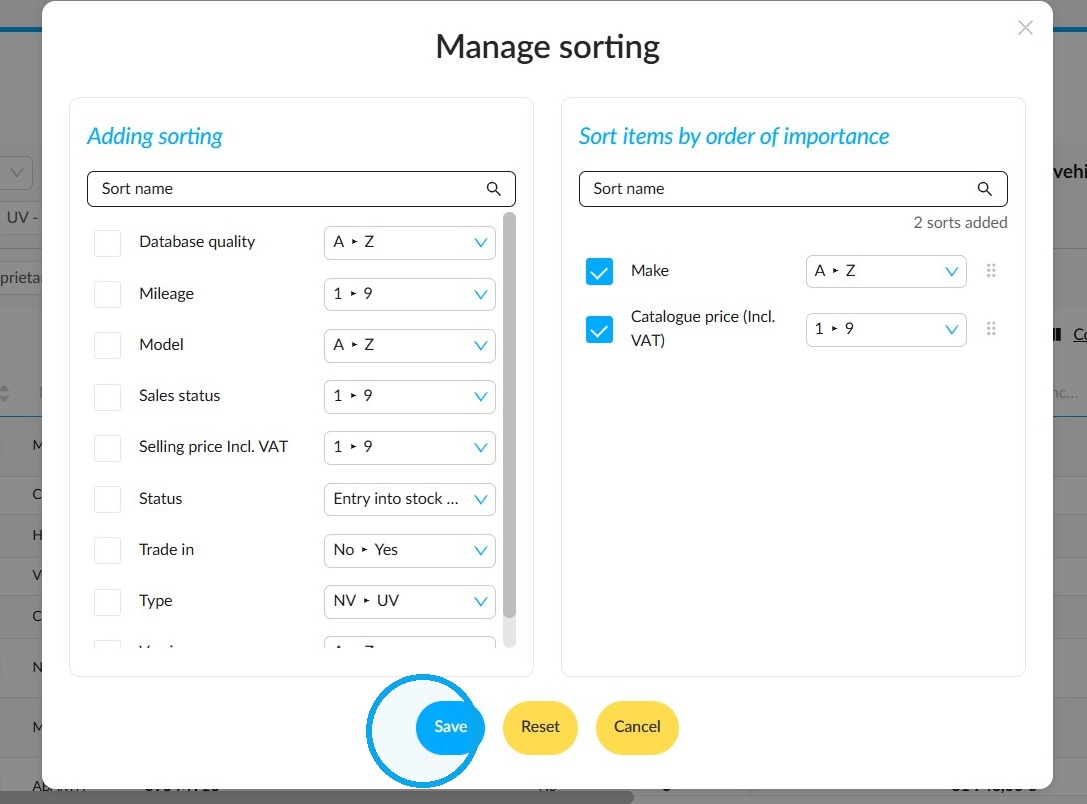
After setting up the desired sorting options, click on "Save". You can also reset the sorts to start again from scratch.
Comments
0 comments
Article is closed for comments.