
This guide explains how to change the price update settings for several vehicles at once.
Prerequisite: You require the permission to edit the synthesis information for vehicles in order to change how their prices are updated.
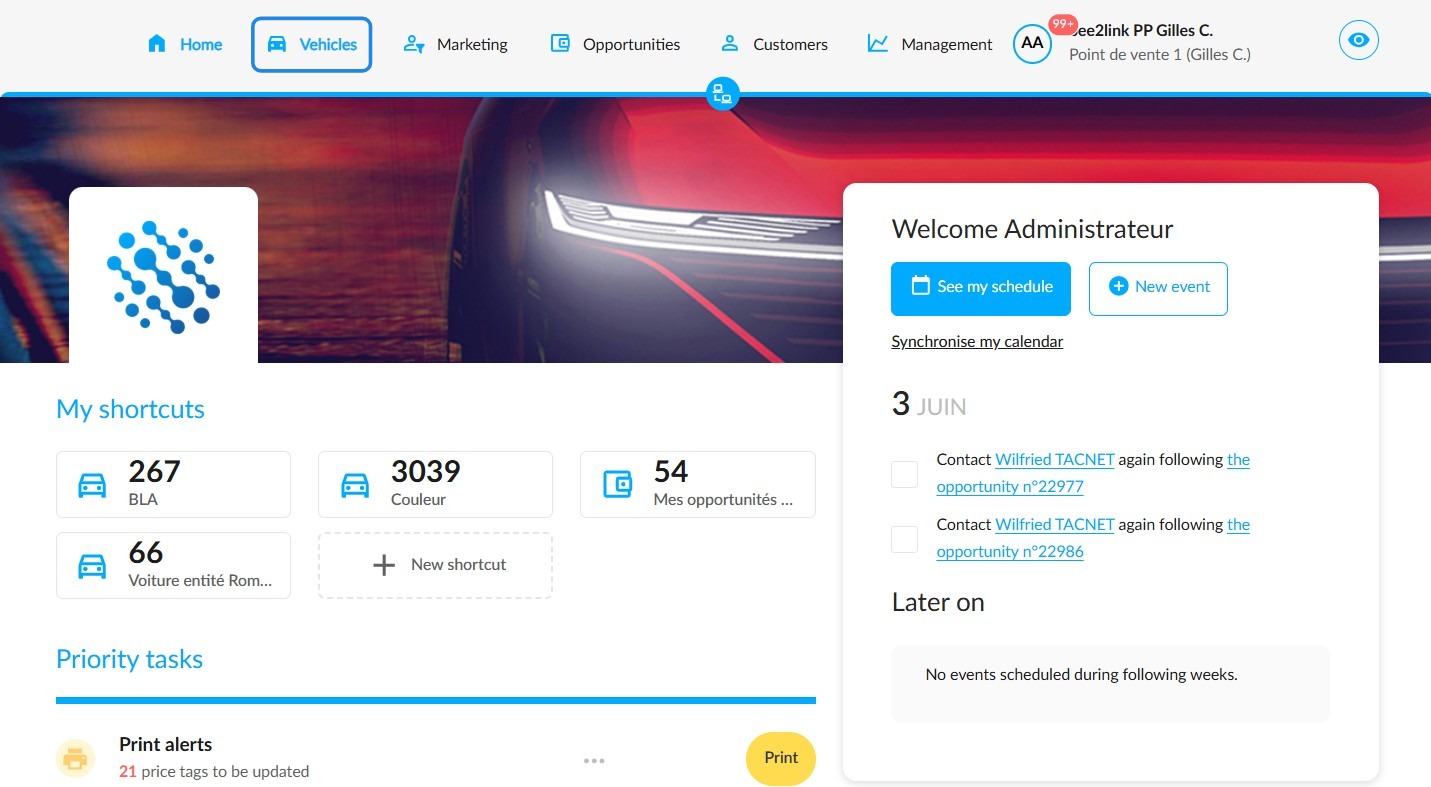
1. To edit the price update method for multiple vehicles at once, start by navigating to the ‘Vehicles’ module.
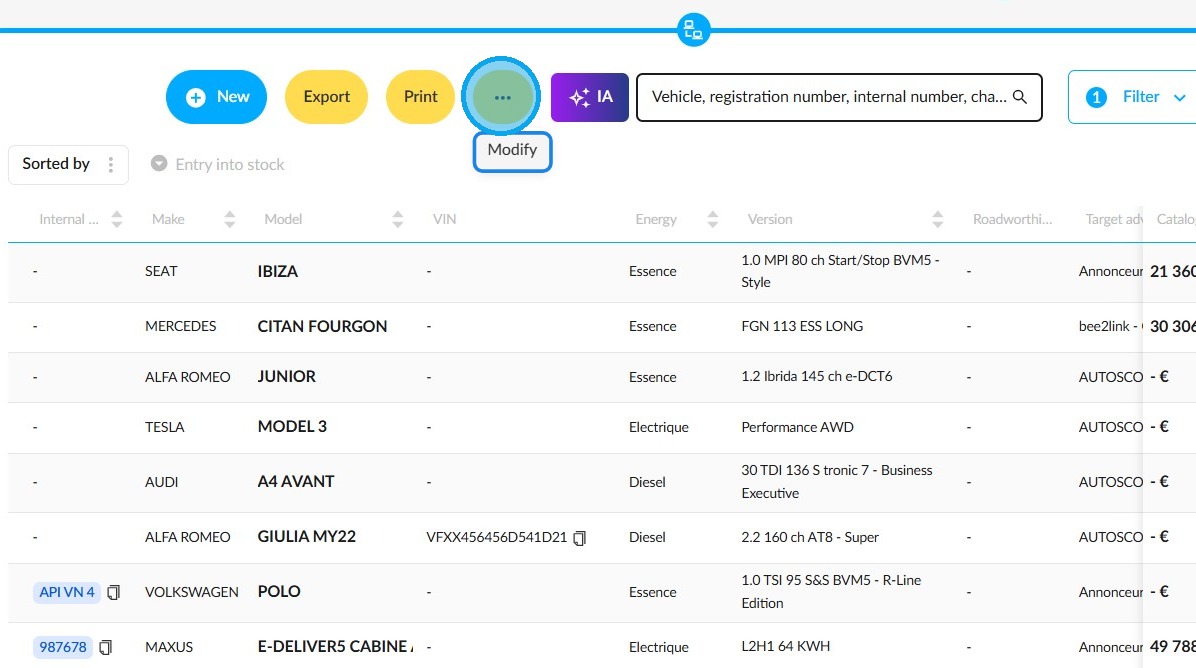
2. Click on the three dots, then on the ‘Modify’ button, which appears immediately.
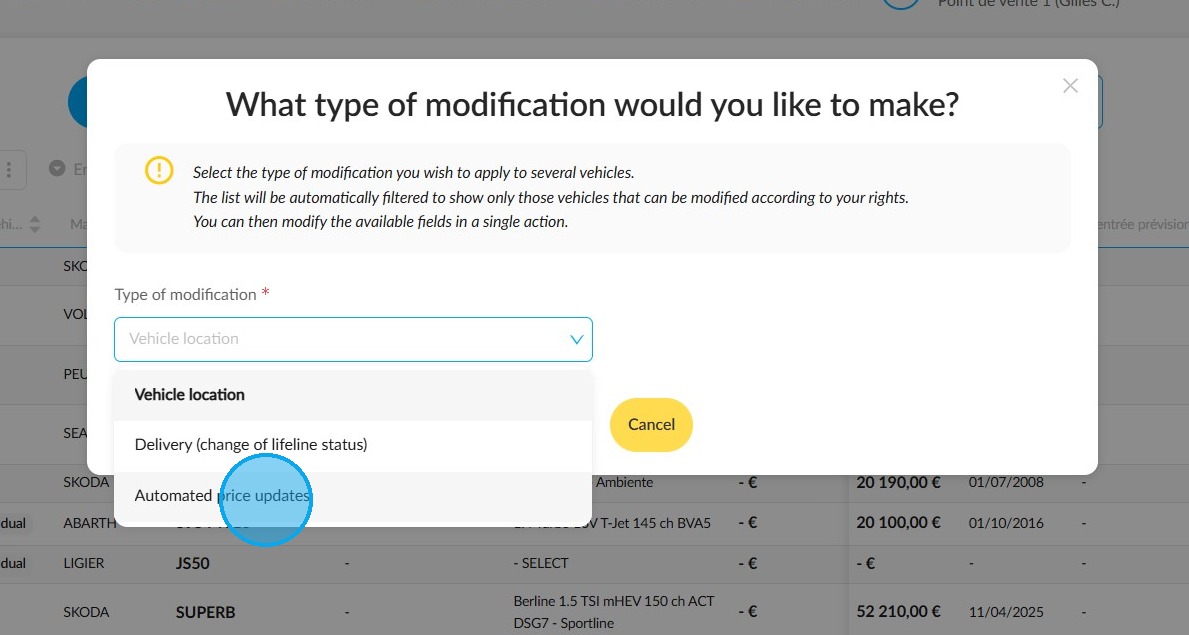
3. A new window will open titled ‘What type of modification would you like to make?’. In the ‘Type of modification’ field, select ‘Automated price updates’.
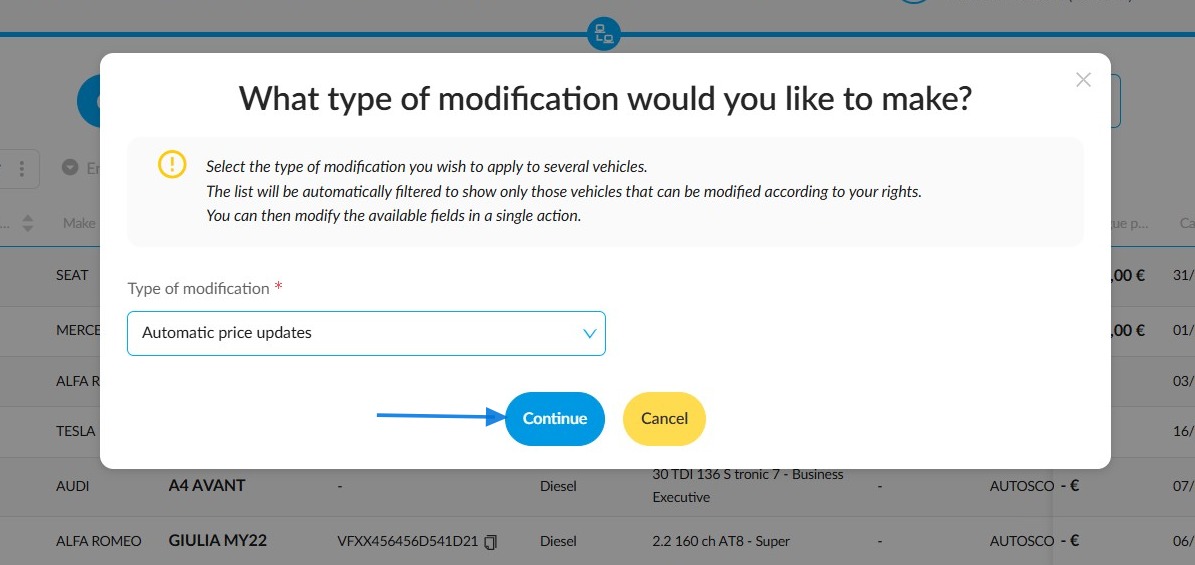
4. Then click ‘Continue’.
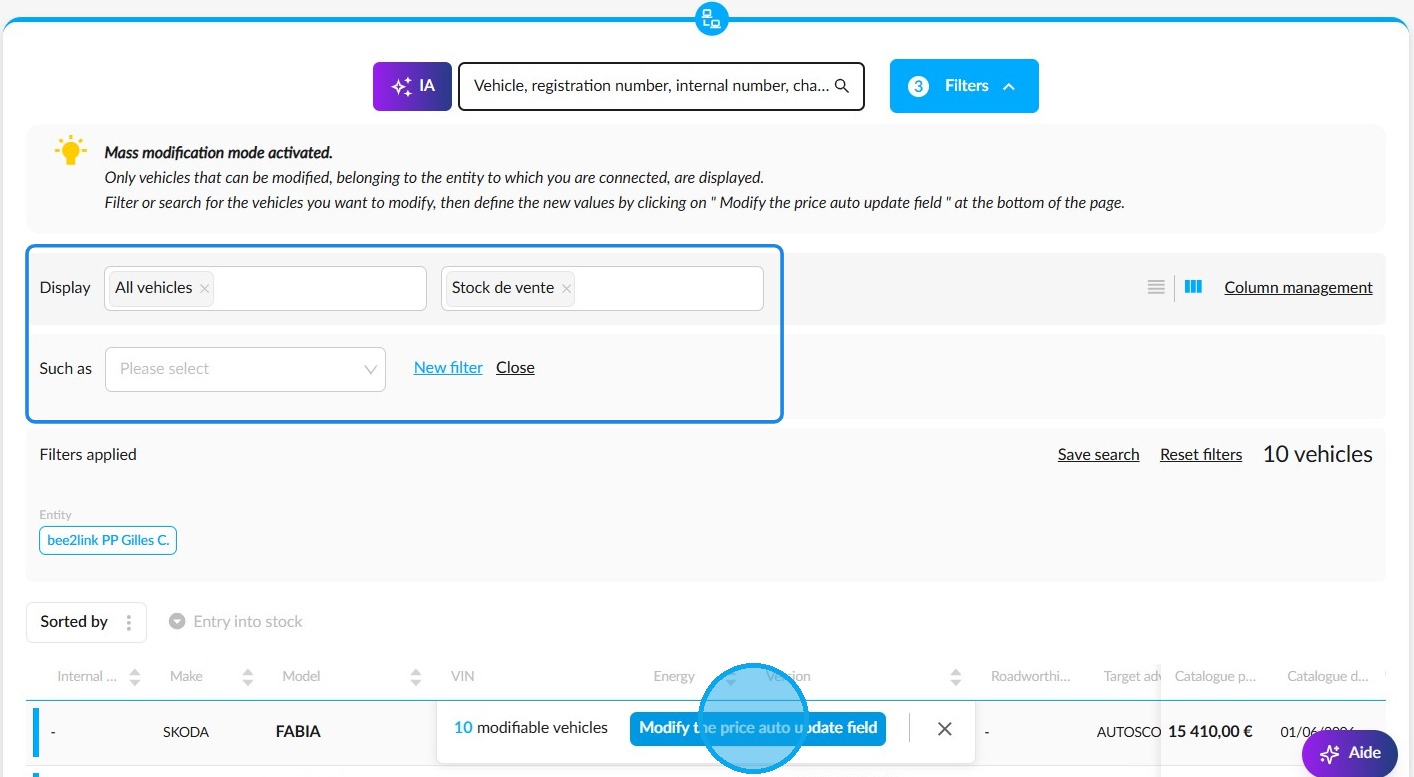
5. We recommend filtering vehicles to identify exactly those whose configuration needs to be changed. Then please click on ‘Modify the auto price update’.
Please note that saved searches are not available during a bulk edit.
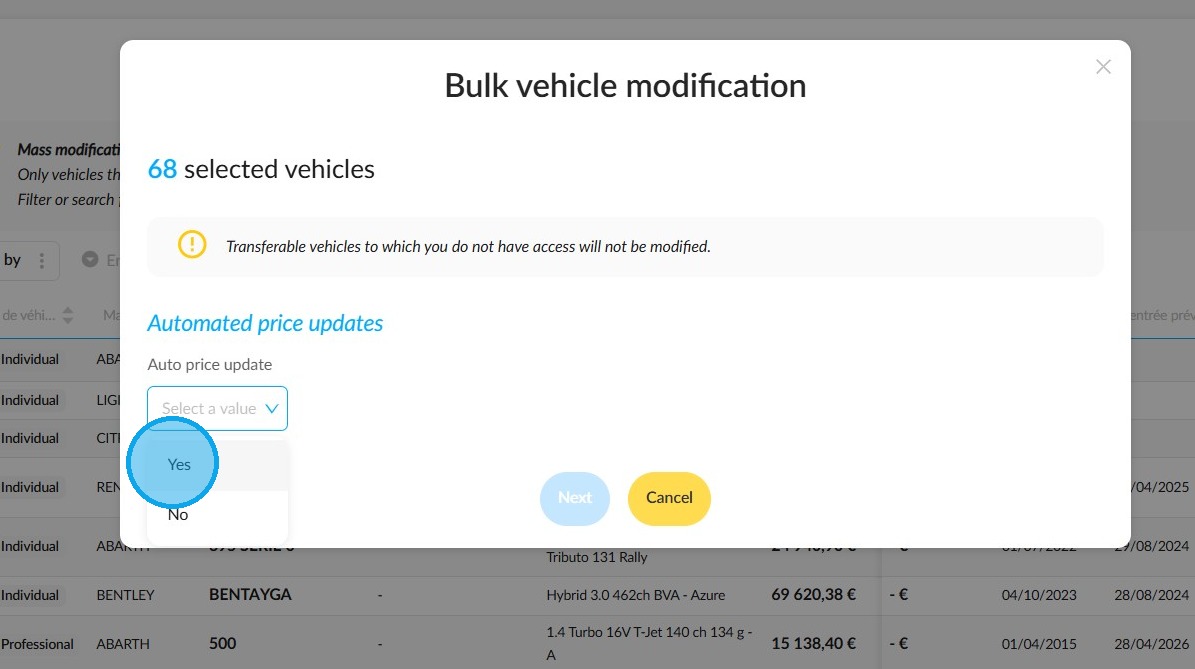
6. Use the ‘Auto price update’ field to select ‘Yes’ or ‘No’ to enable automated price updates for these vehicles.
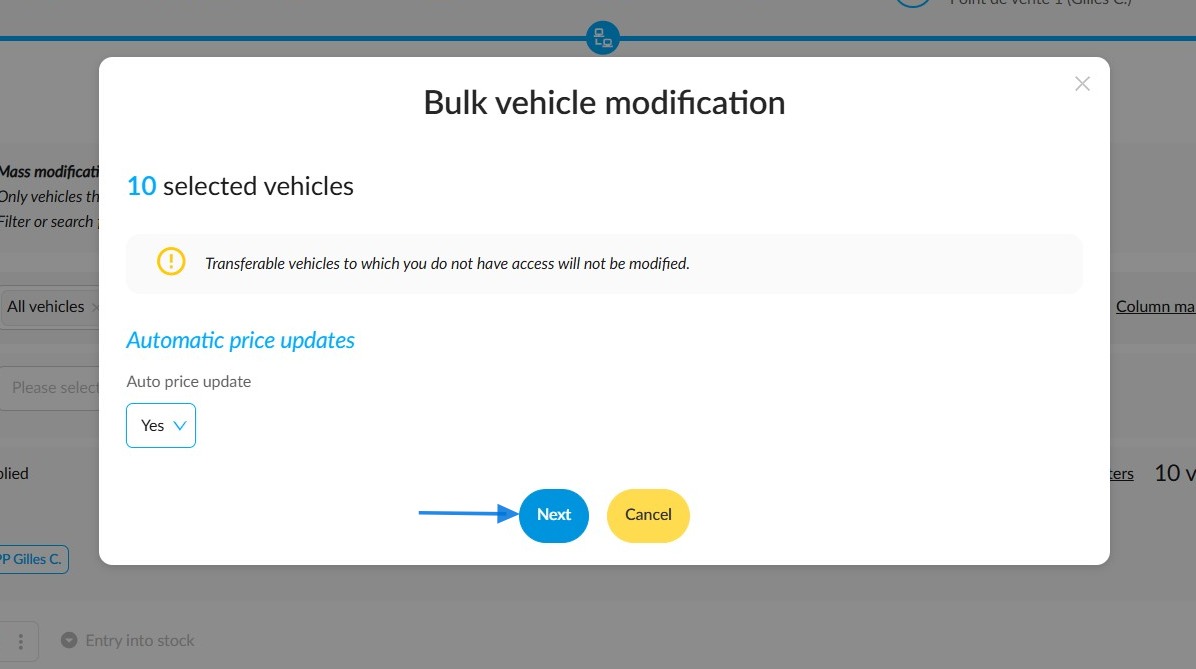
7. Click ‘Next’.
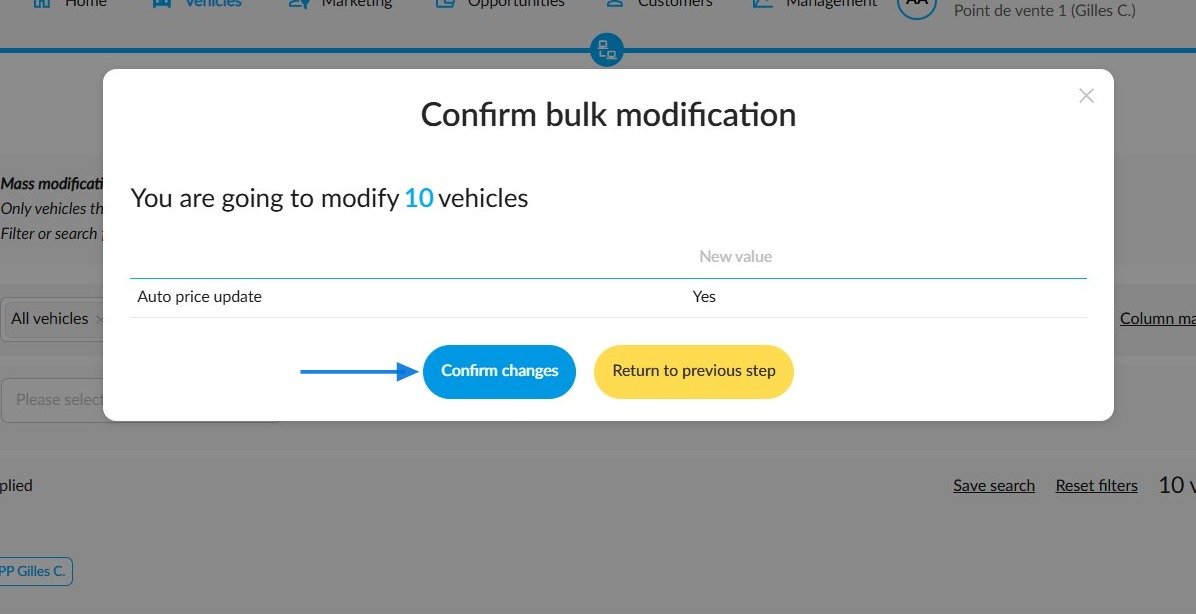
8. Click on ‘Confirm changes’ to complete the process. If you want to go back, click on ‘Return to the previous step’.
9. The update will then begin and you will be notified.
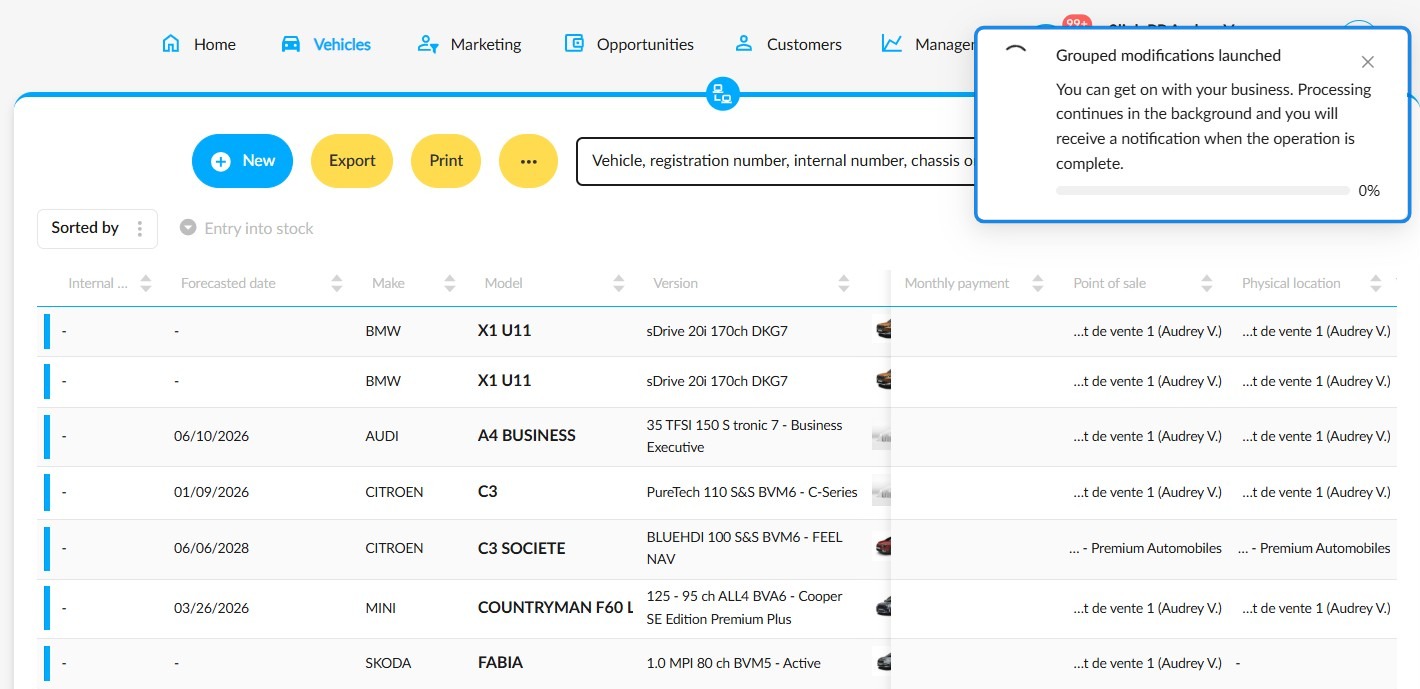
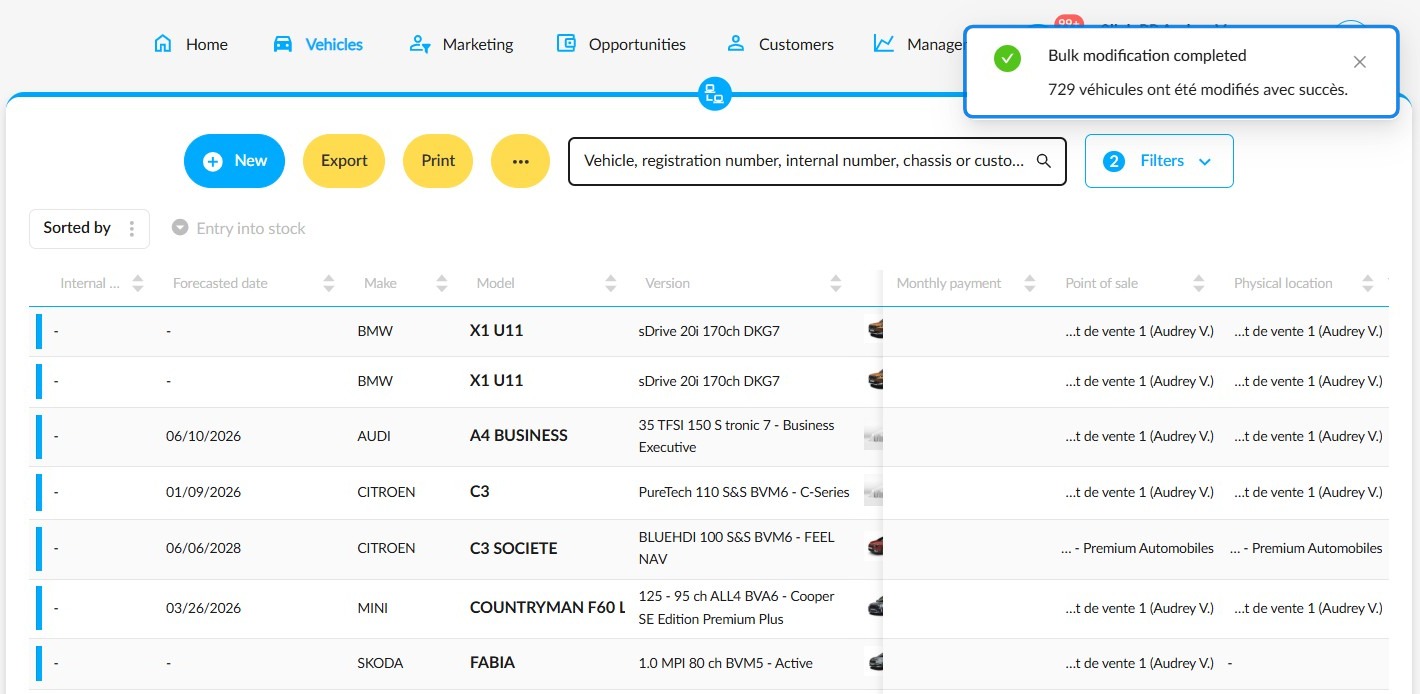
10. You will receive a notification confirming that the change has been made, along with the number of vehicles affected.
Comments
0 comments
Article is closed for comments.