
Find out how to set up and edit your favourite filters in the OpenFlex software. These filters will appear at the top of the page in the “Vehicles” module.
The default filters are as follows:
- Entity,
- Owning point of sale,
- Physical location,
- Fuel,
- Gearbox,
- Mileage,
- Selling price.
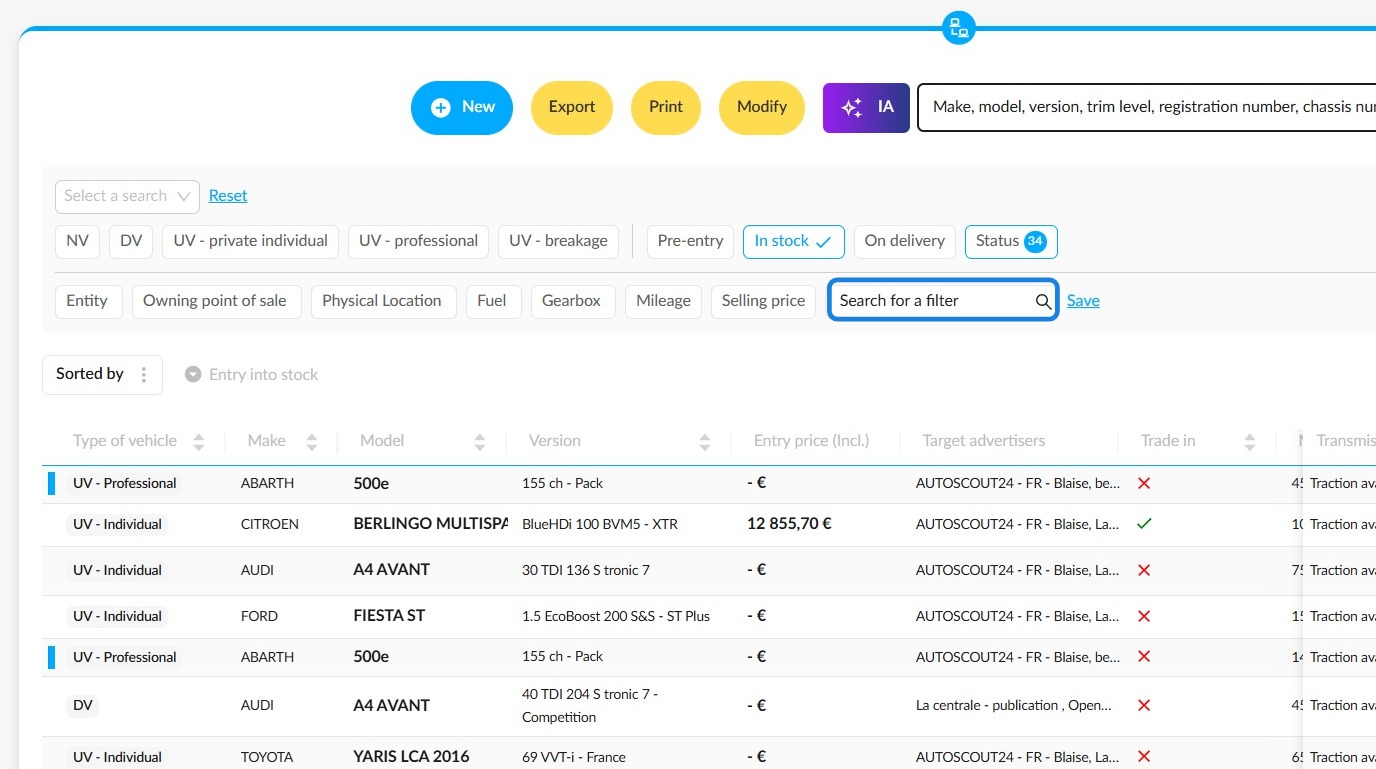
To edit these filters or change their order, click in the search bar labelled “Search for a filter”.
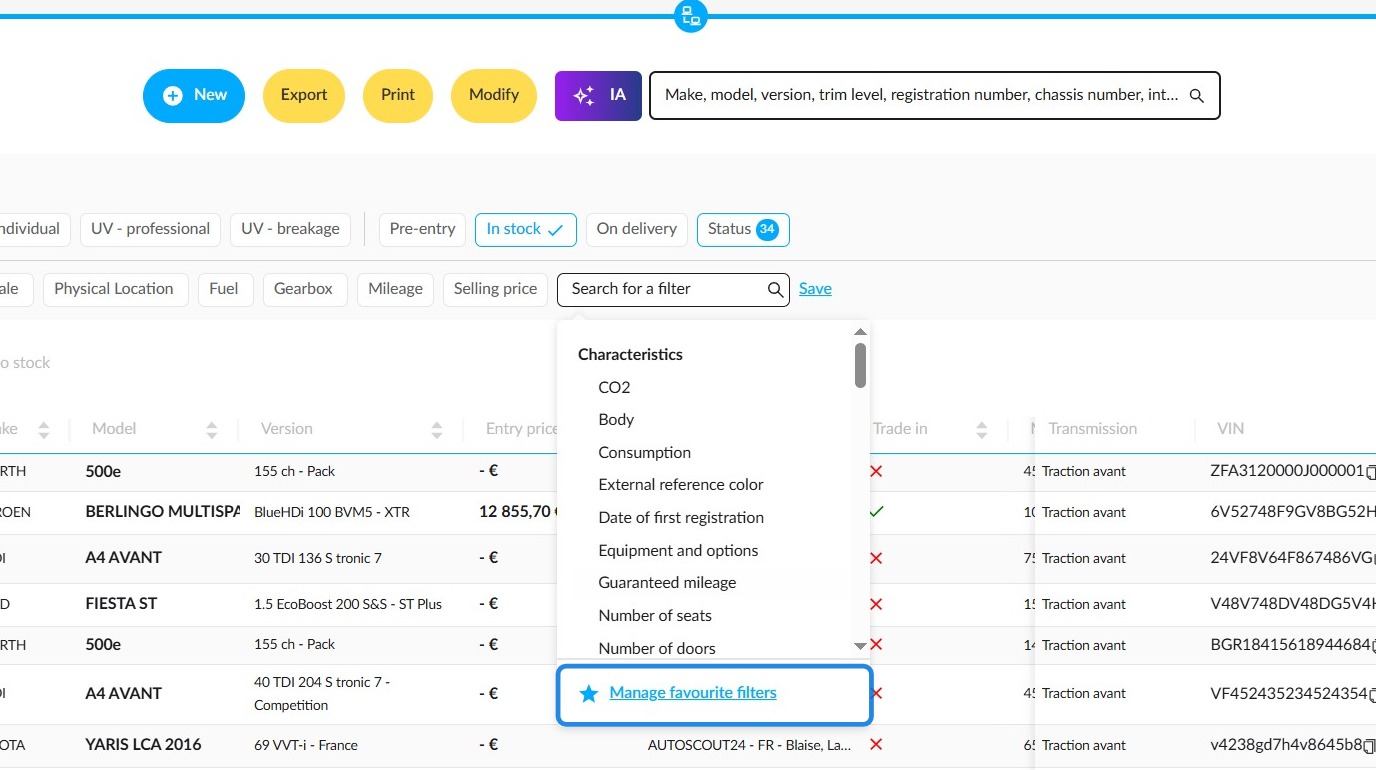
Then click on “Manage favourite filters”, below the options that appear.
The “Favourite filters” window will then open. It consists of two columns. The left-hand column lists the available filters that can be saved as default filters, while the right-hand column allows you to arrange the filters that have already been added to your favourites.
You can save up to seven favourite filters. If you try to add an eighth filter, the system will prevent you from doing so.
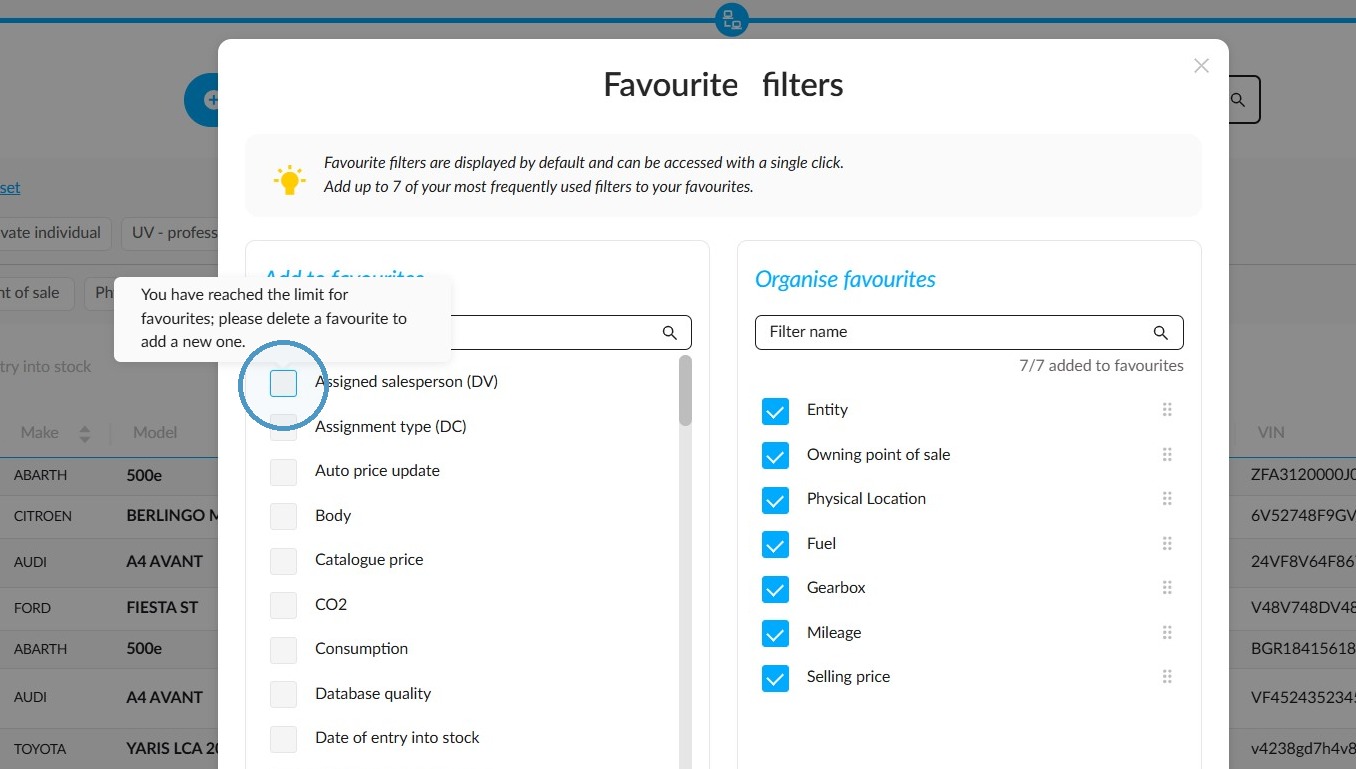
To remove a favourite filter, tick its checkbox in the right-hand column. It will immediately move back to the left-hand column.
To add a filter to your favourites, tick the corresponding checkbox in the left-hand column.
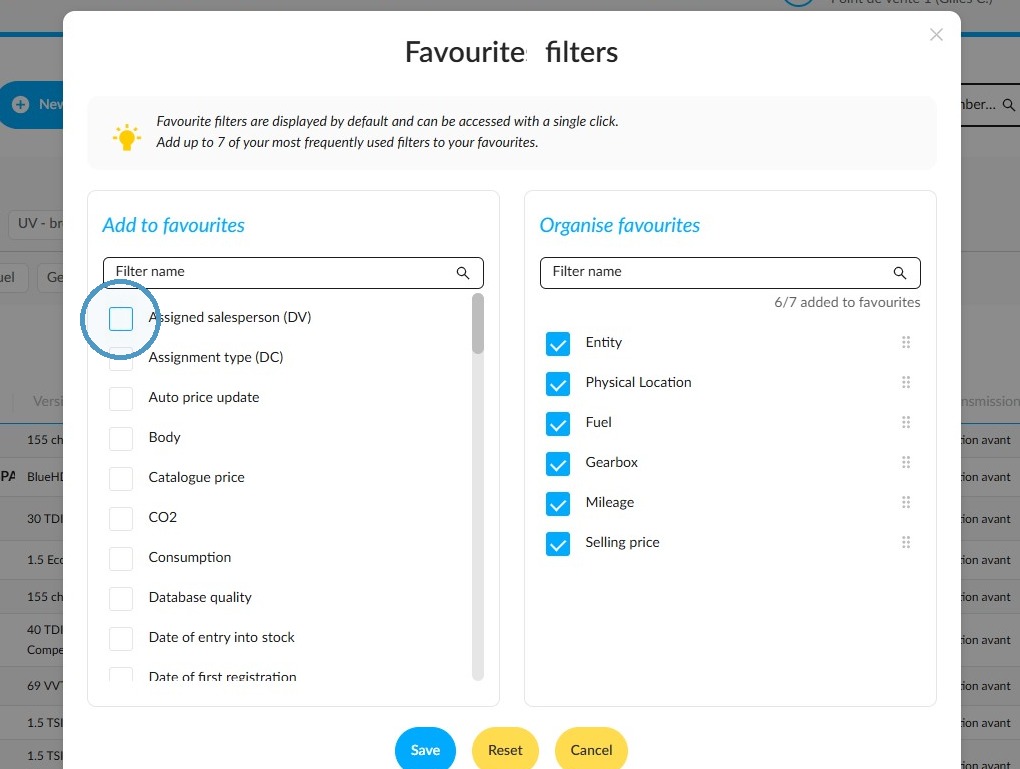
The new favourite filter will then be moved to the right-hand column.
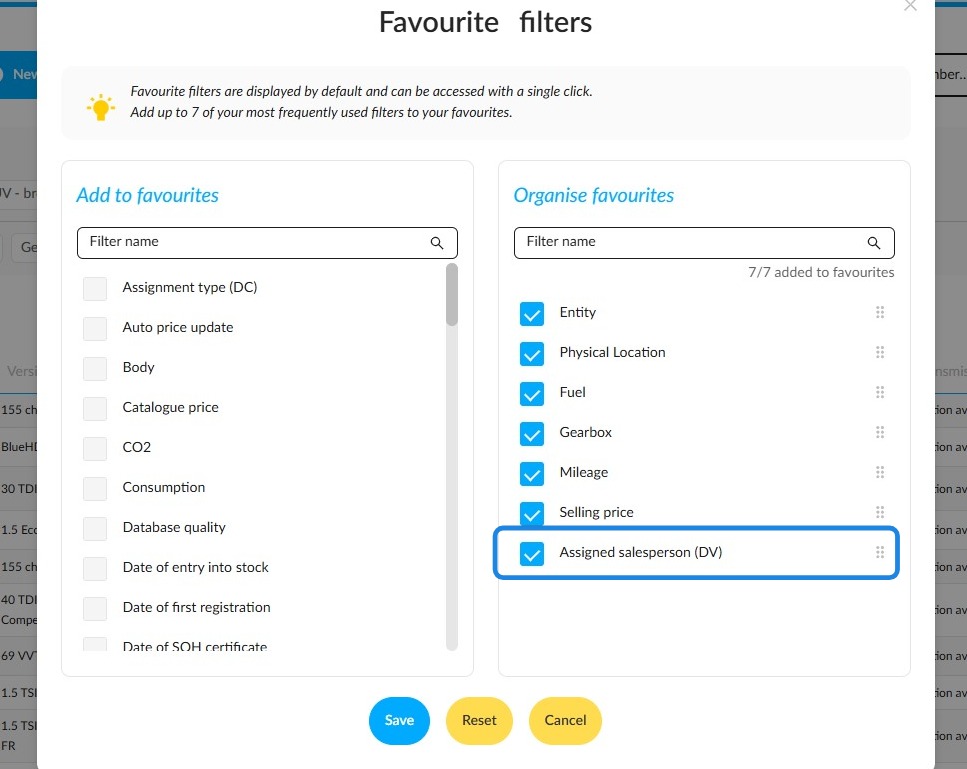
You can rearrange your favourite filters. To do so, drag and drop them using the dotted handle located to the right of each filter.
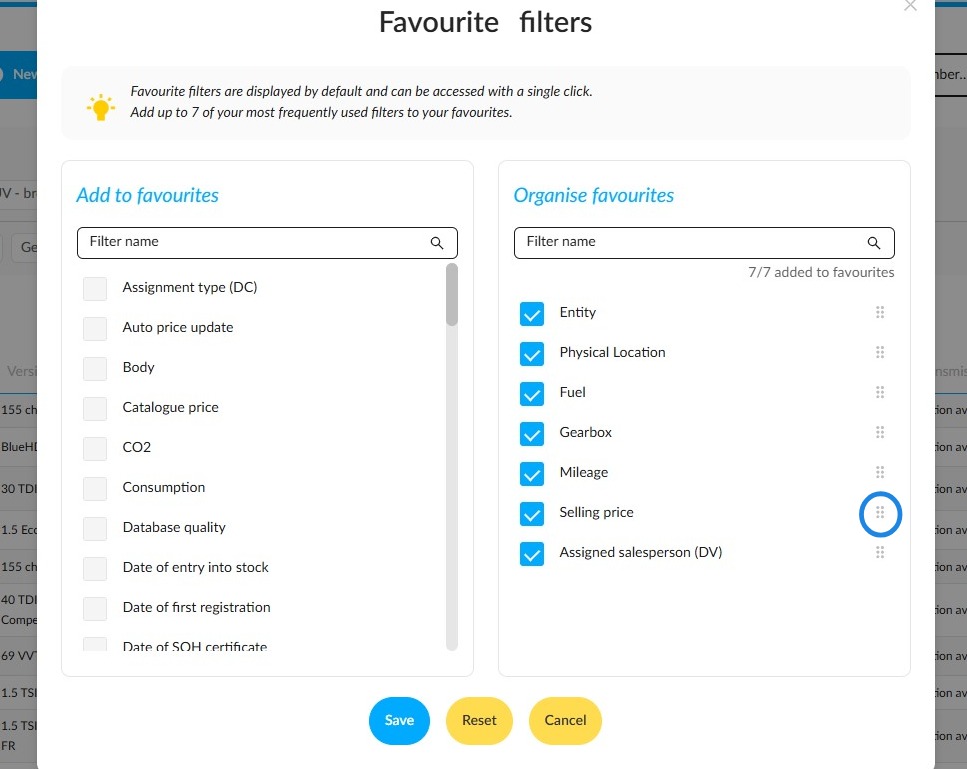
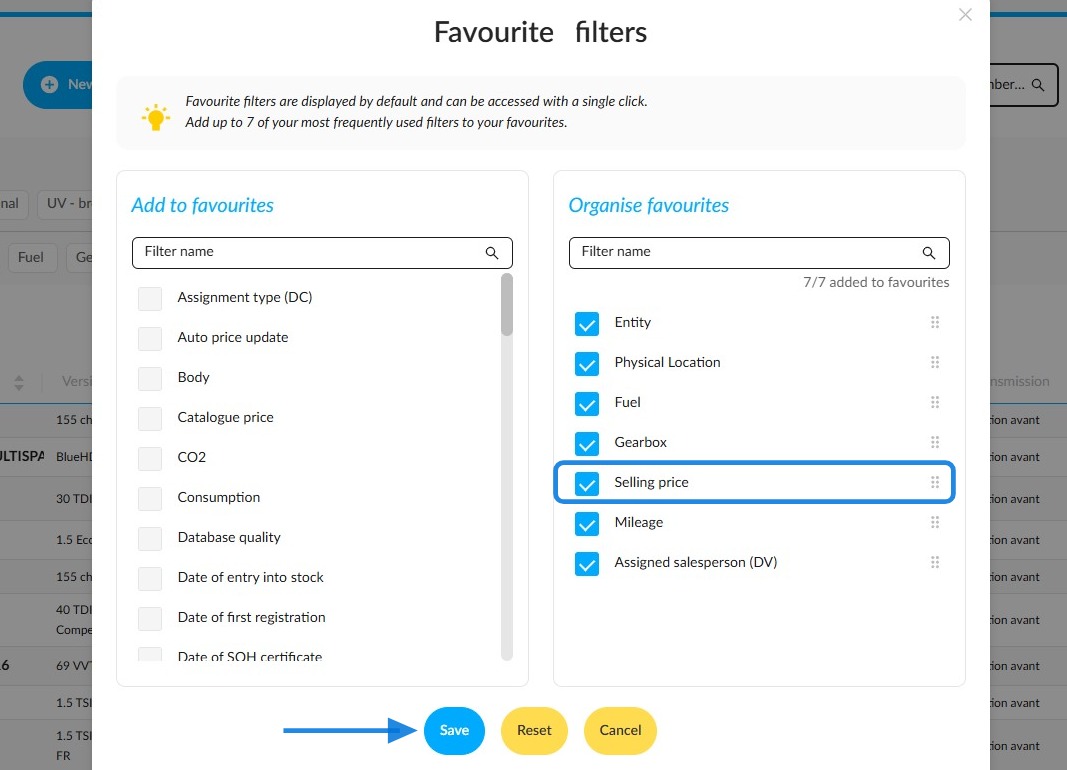
Once you have chosen the desired order, click “Save”. To restore the default favourite filters, click the “Reset” button. This will take effect immediately.
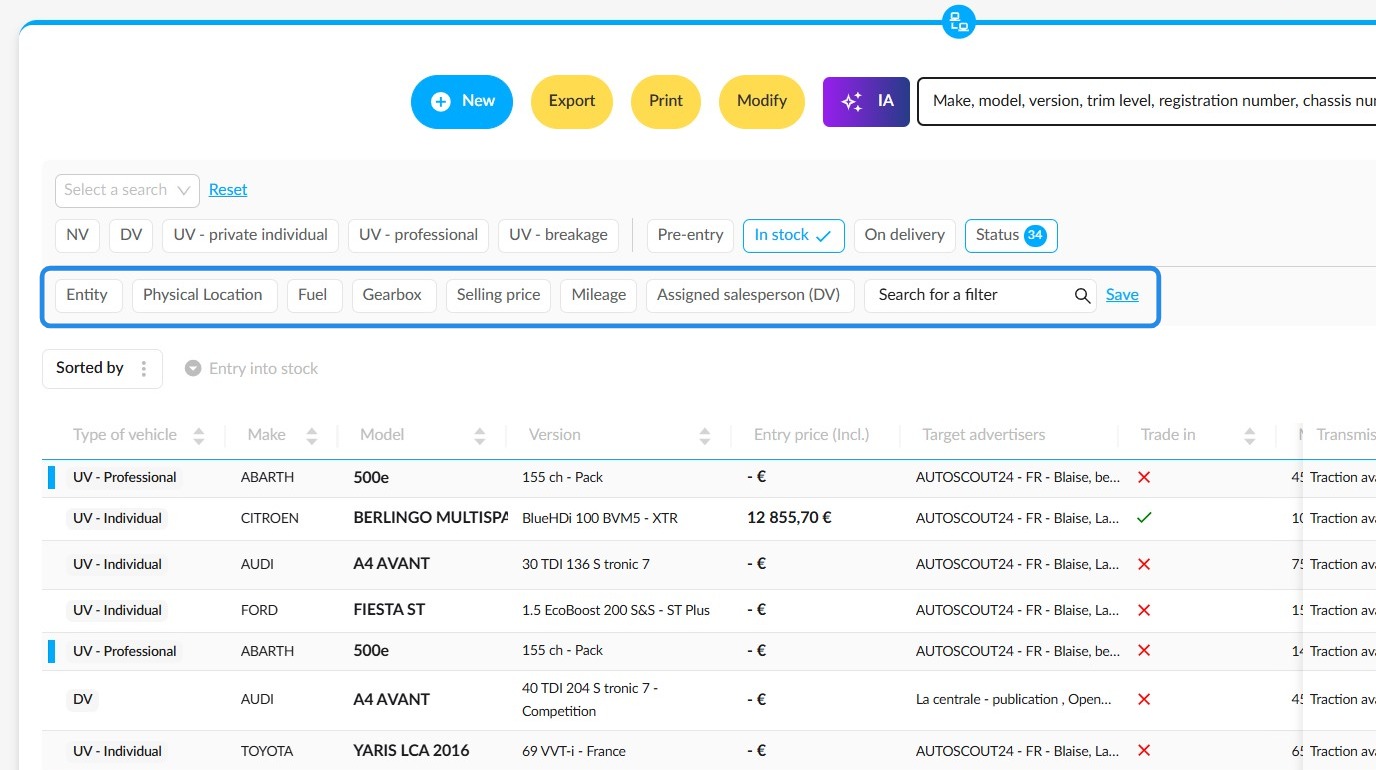
Your favourite filters will appear at the top of the “Vehicles” module, in the order you have selected.
Comments
0 comments
Article is closed for comments.