
This guide explains how to upload images of the exterior of your vehicles and link them to templates corresponding to the angle shown in the picture.
Linking a picture to a template
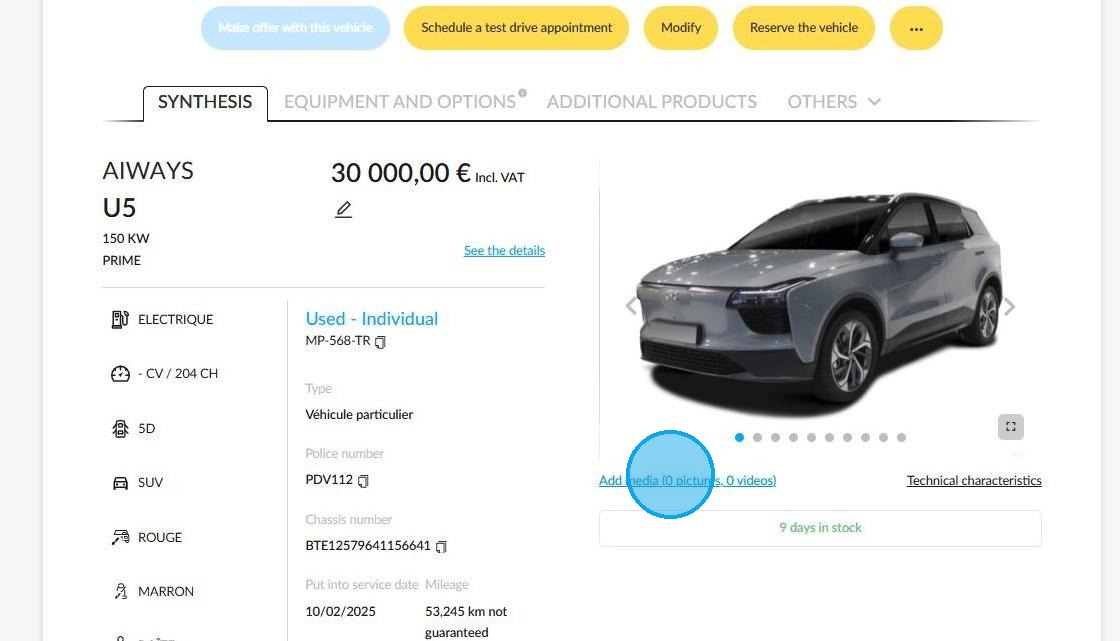
In the 'Synthesis' tab of a vehicle file, click on 'Add media', which is located just under the vehicle pictures.
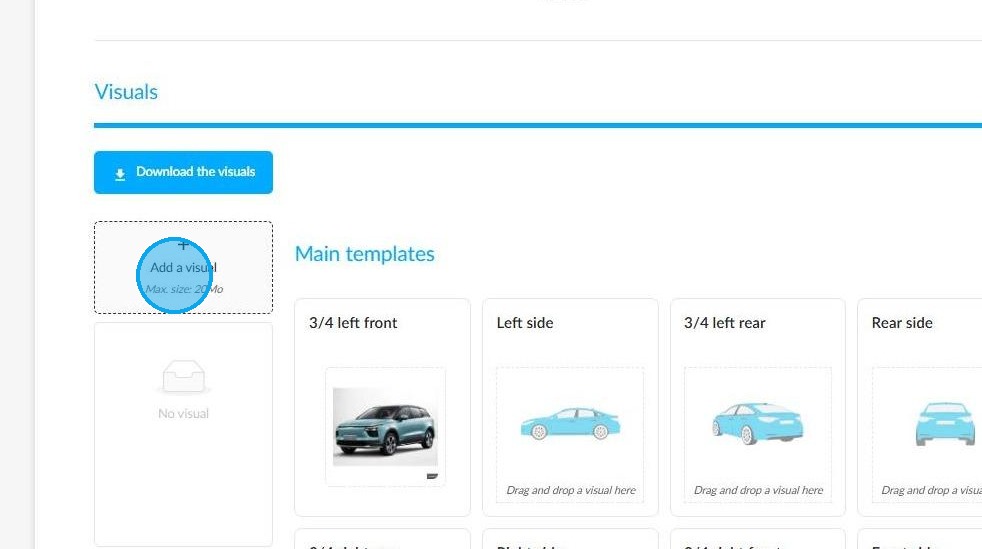
Click on "Add a visual" to upload pictures.
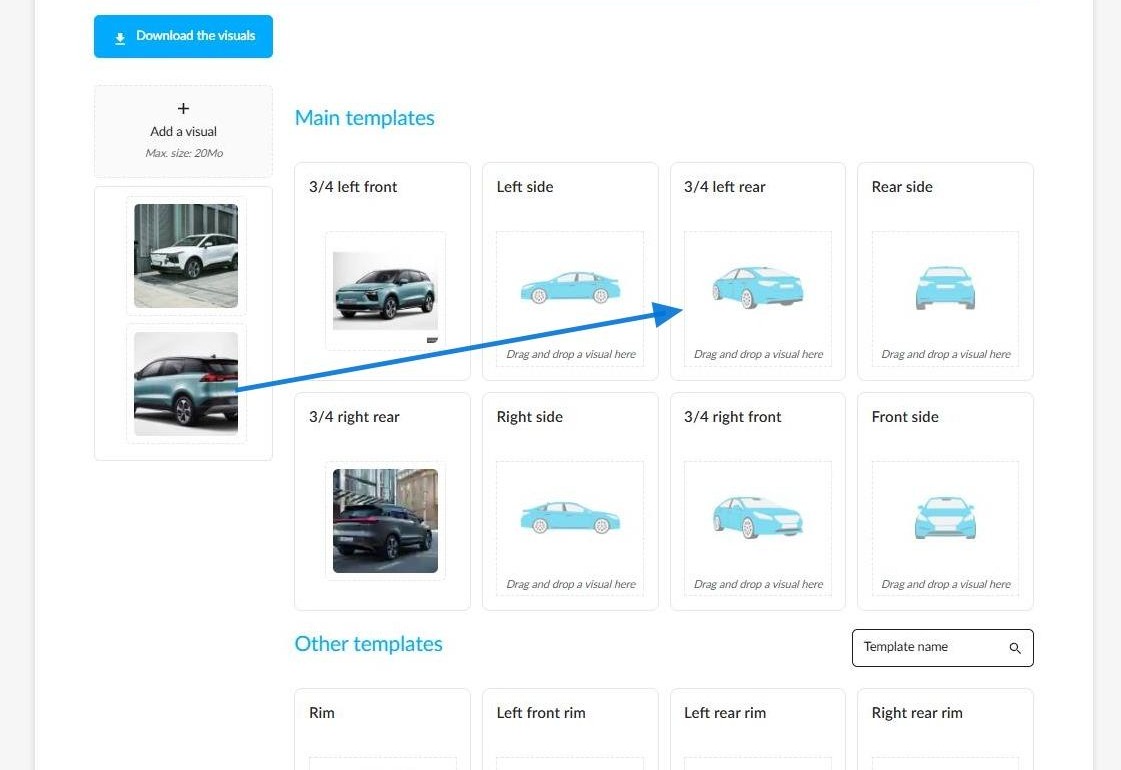
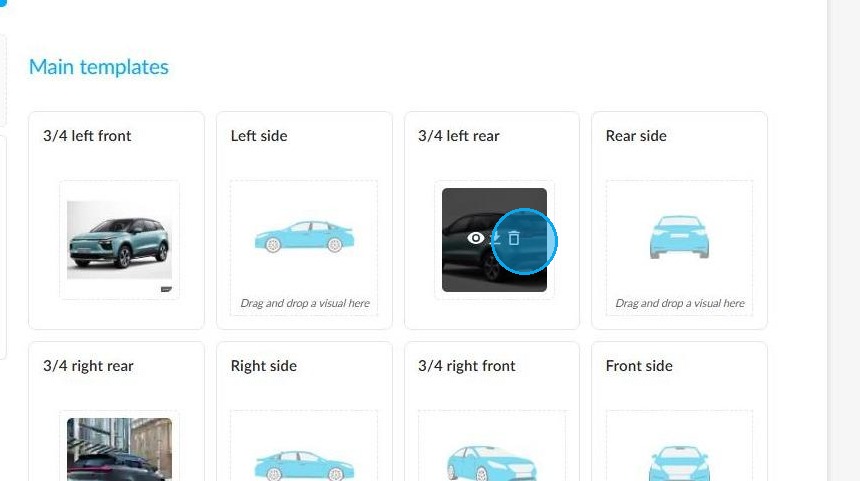
Drag the pictures into the corresponding templates.
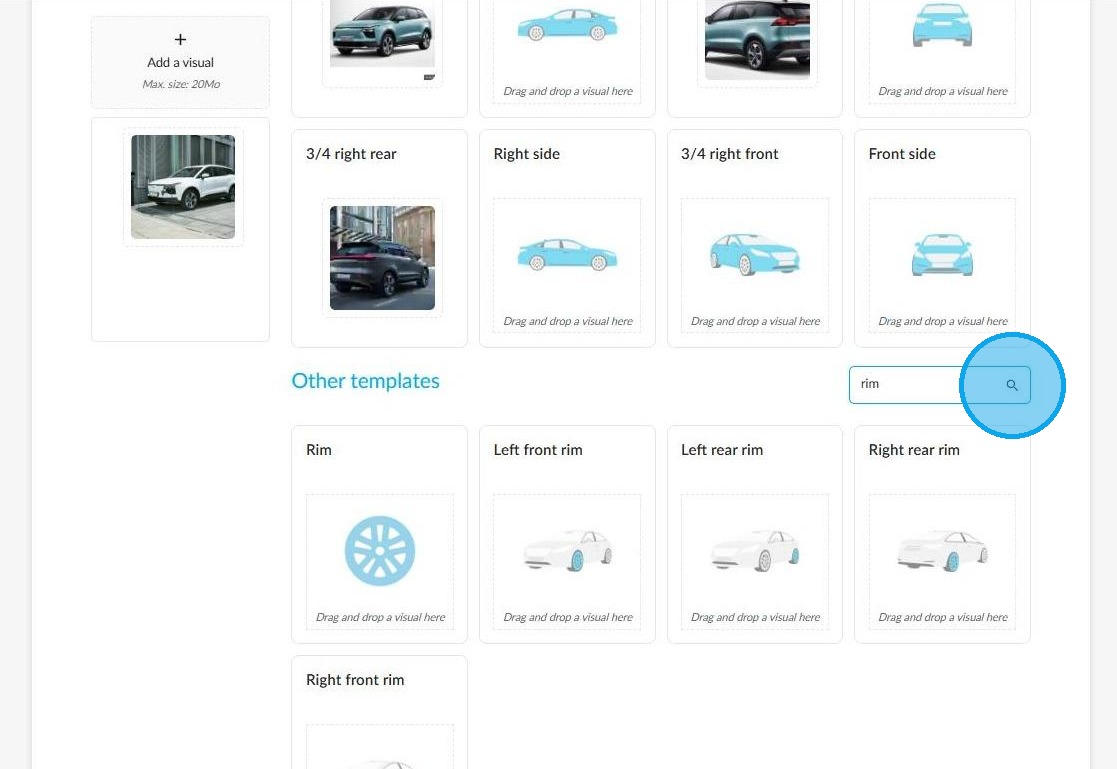
You can search for a visual template by name using the search bar.
Hover your cursor over an image to access three icons: press the "Bin" icon to delete a photo. Press the "Eye" icon to view the photo and the "Arrow" icon to download it.
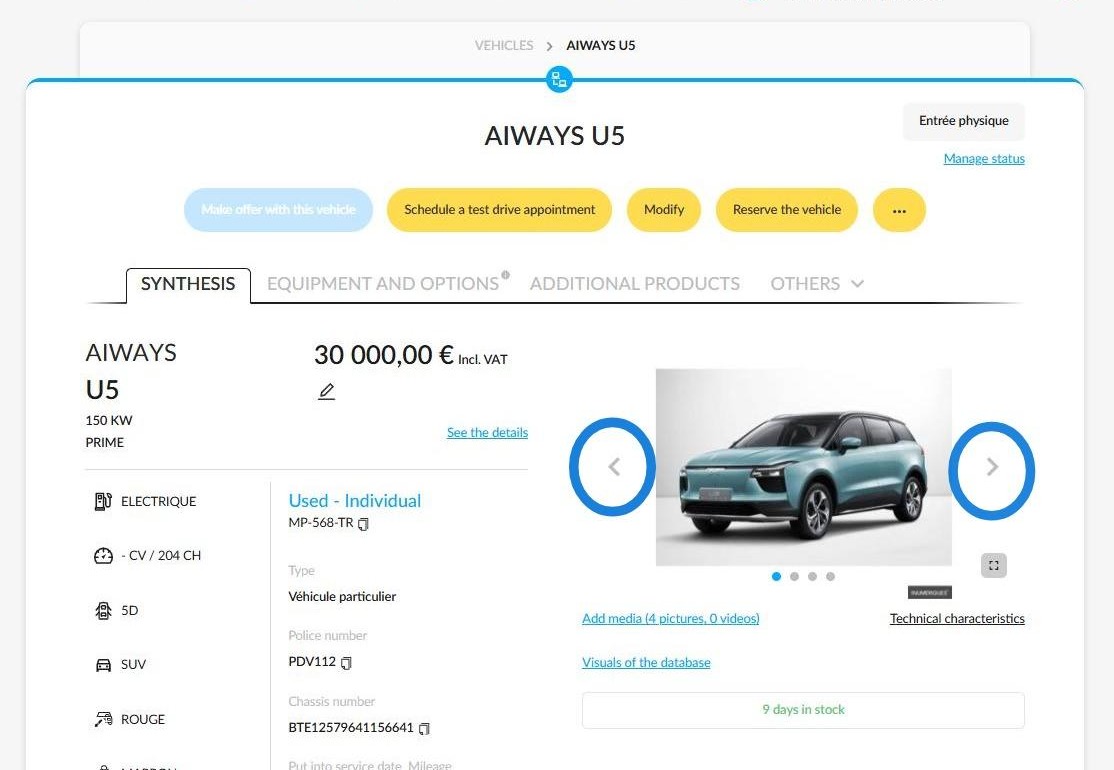
You can find all the visuals in the vehicle overview. Use the arrows on either side of the vehicle to scroll through them.
These can be used to advertise the car on websites.
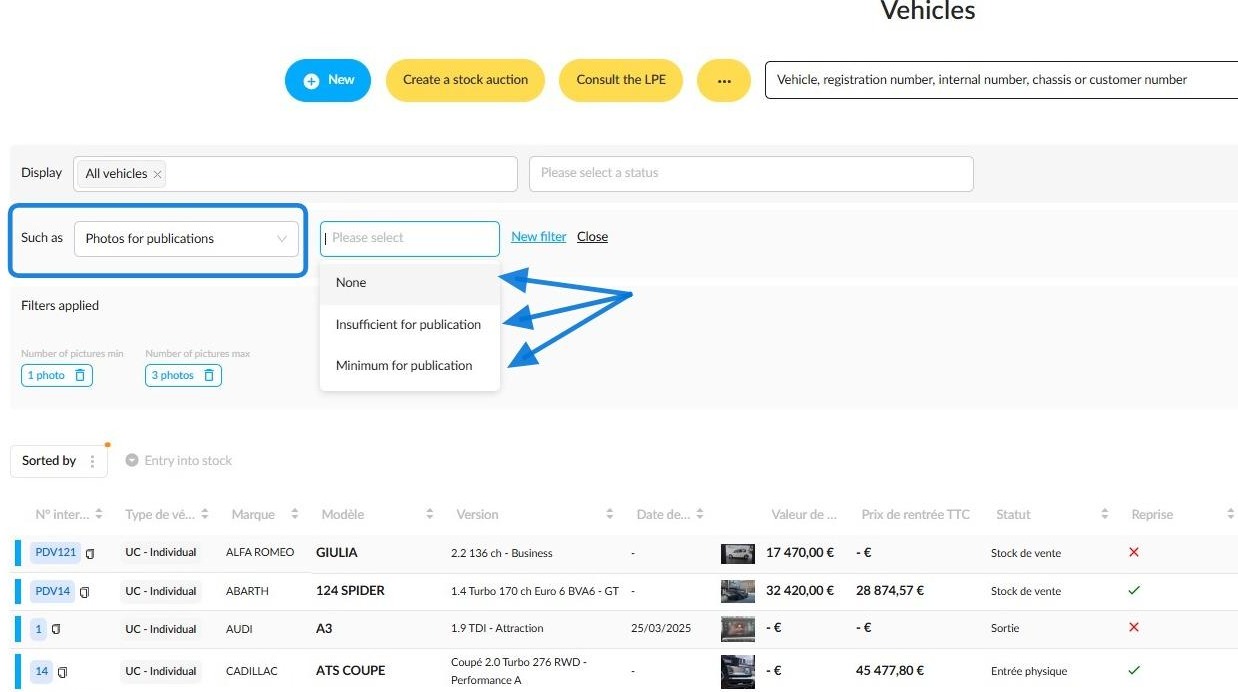
You can identify vehicles that have photos in their records by searching in the ‘Vehicles’ module. The "Photos for publications" filter was designed for this purpose. It enables you to find UVs and DVs that have no pictures, an insufficient number of pictures for publication, or the minimum number of pictures necessary for publication.
Reminder: Pictures from trade-in estimates are not included in this filter. Only photos uploaded by following the previous steps will be taken into account.
To improve the vehicle fleet management, you can save your search and keep the filters that you have set (See FAQ on this topic).
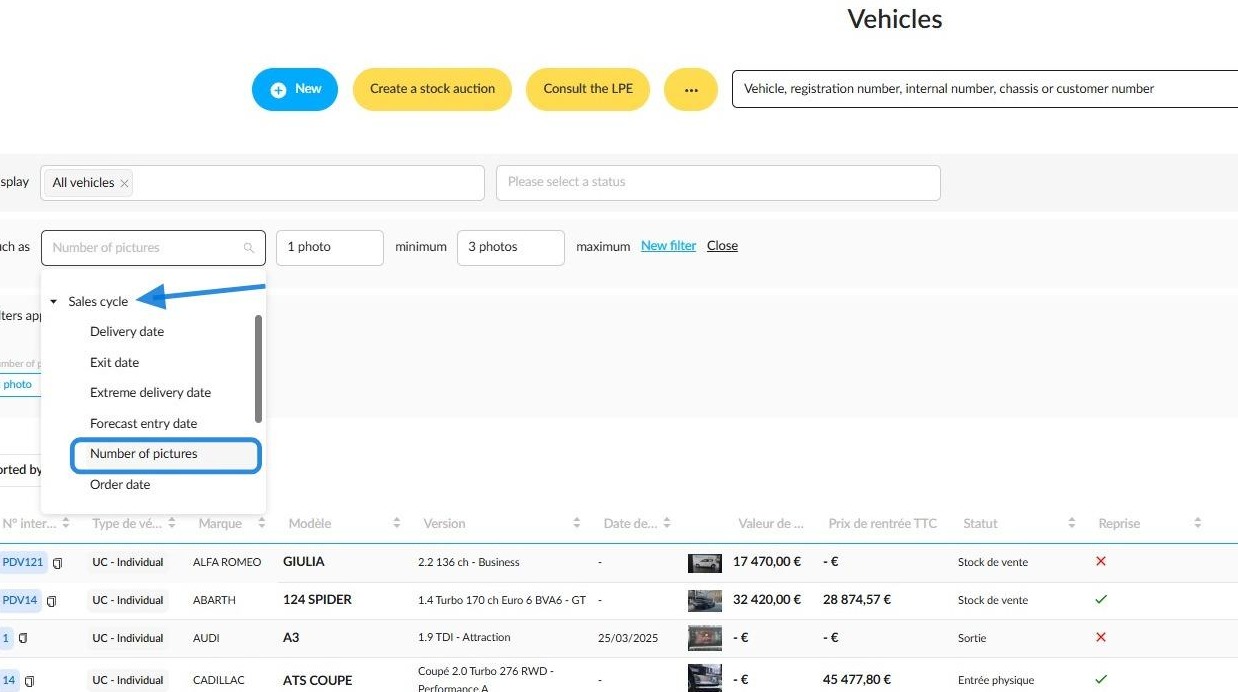
The 'Number of pictures' filter is located in the 'Sales cycle' section and can be used to filter vehicles according to the minimum and maximum number of photos contained in their files.
Comments
0 comments
Article is closed for comments.