
This guide explains how to incorporate and apply general terms and conditions of sale to specific brands or types of vehicle. You will find these terms and conditions on the order forms for the vehicles to which they apply.
Prerequisite: You must have administrator rights on the platform to access the setup of attached documents.
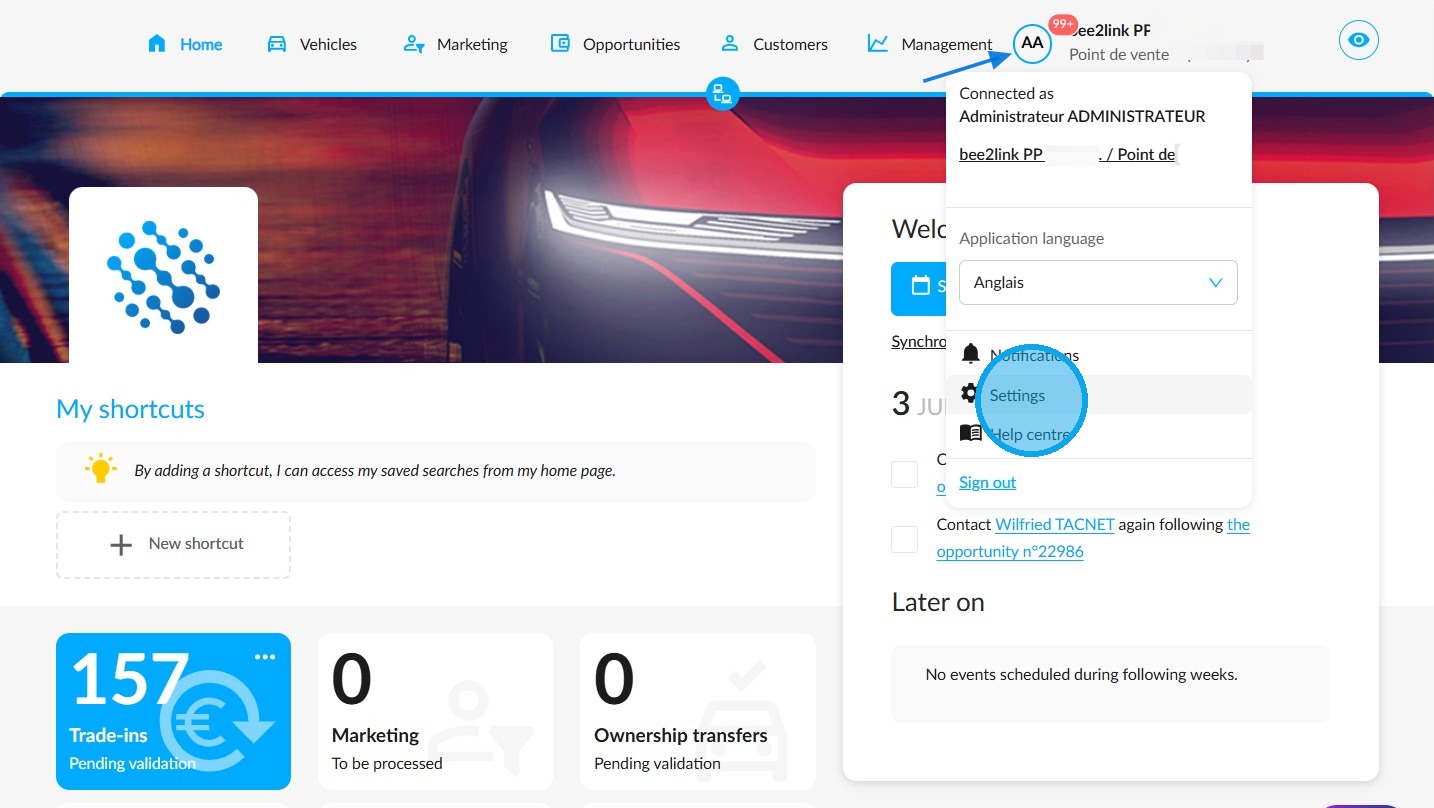
Start by hovering your mouse over your initials, then click on "Settings".
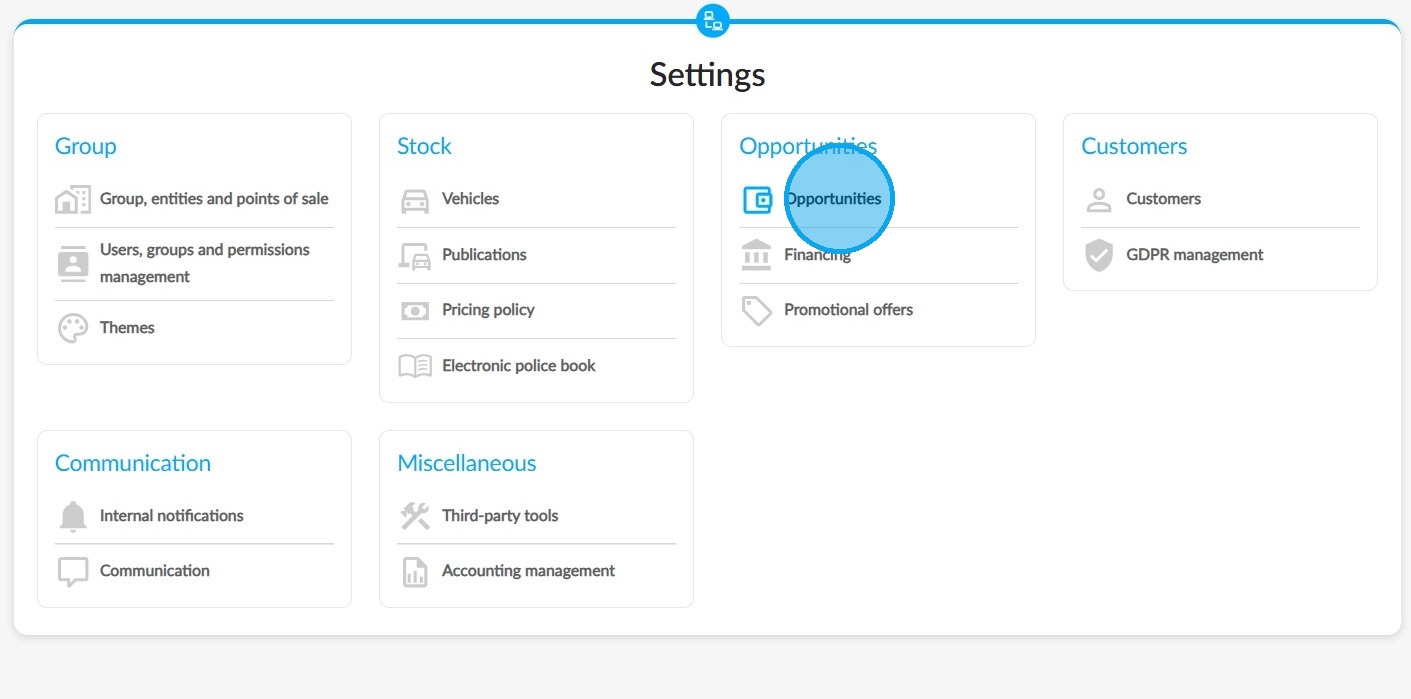
The configuration of the attached documents can be found in the "Opportunities" module settings, under the "Opportunities" heading.
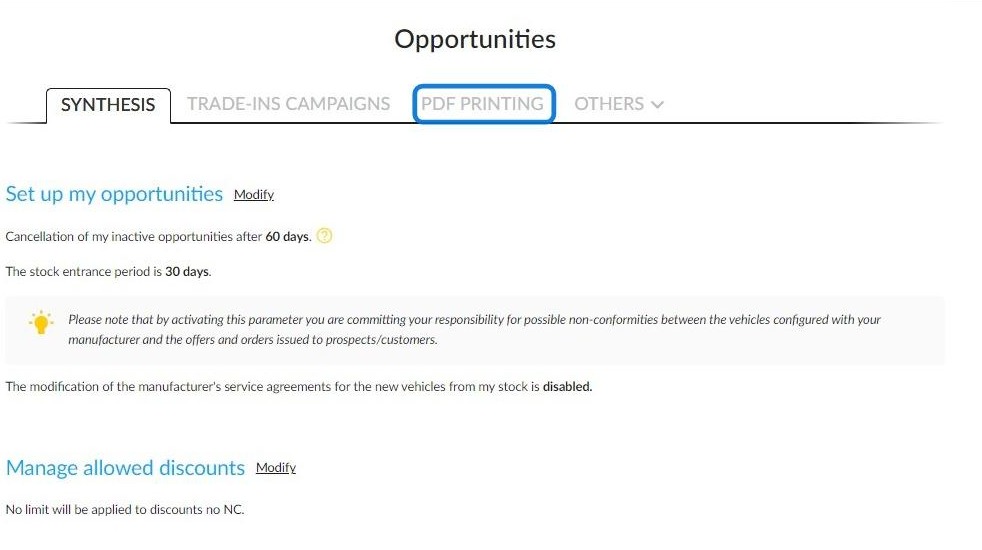
To add or remove an attachment, navigate to the "PDF printing" tab.
Then, scroll down towards the bottom of the page to find the "Set up supporting documents for the order" section.
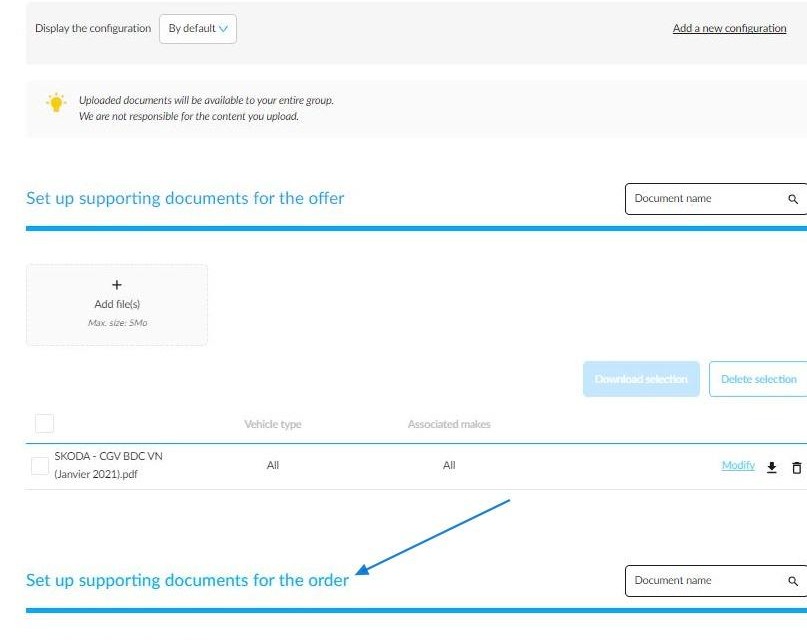
To upload the new terms and conditions that are stored on your PC, click on the "Add file(s)" box.
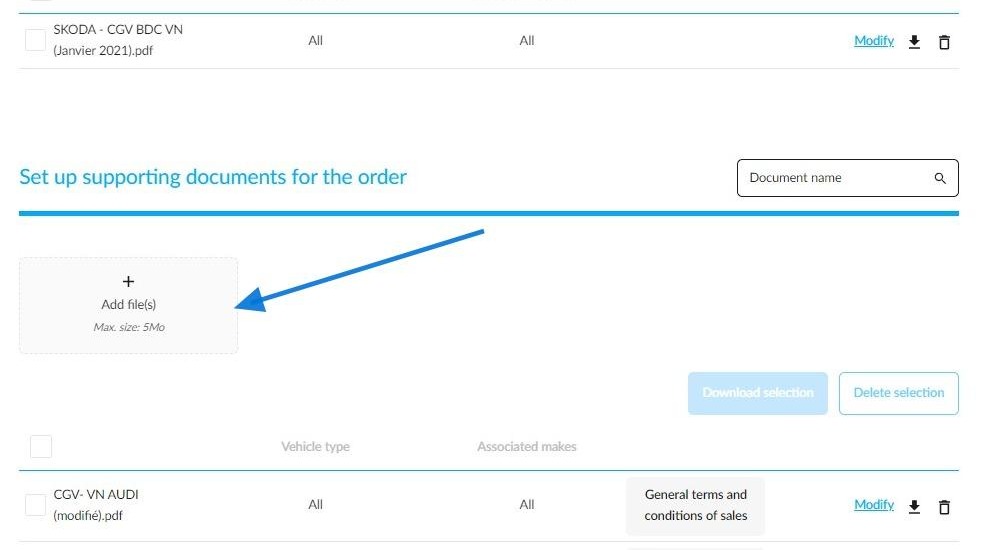
Once you have uploaded the General Terms and Conditions, click on the "Modify" button to edit their designation and configure their publication.
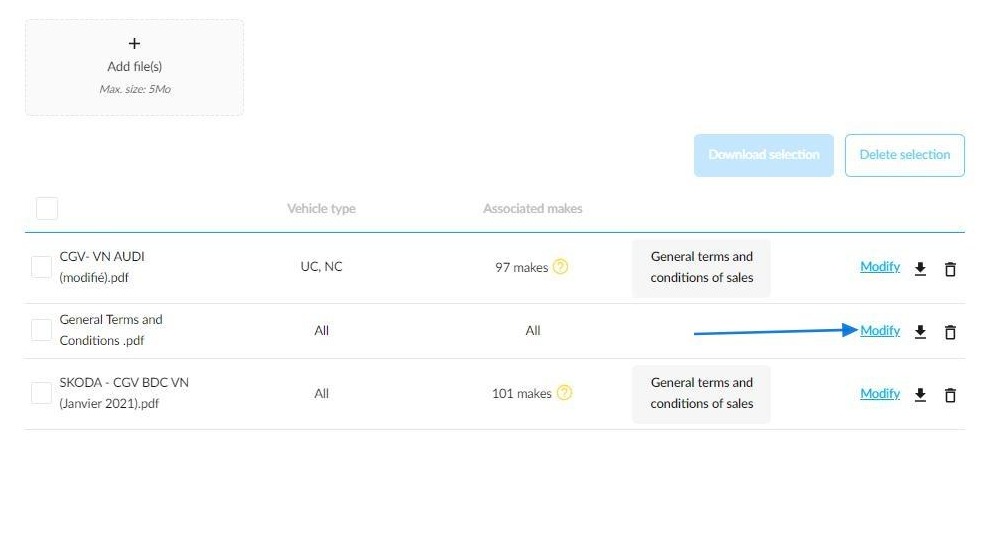
During this stage, you can:
- Change the designations of the Ts and Cs.
- Select the type or types of car to which they will be linked when editing an order form.
- Select the make or makes to which they will apply.
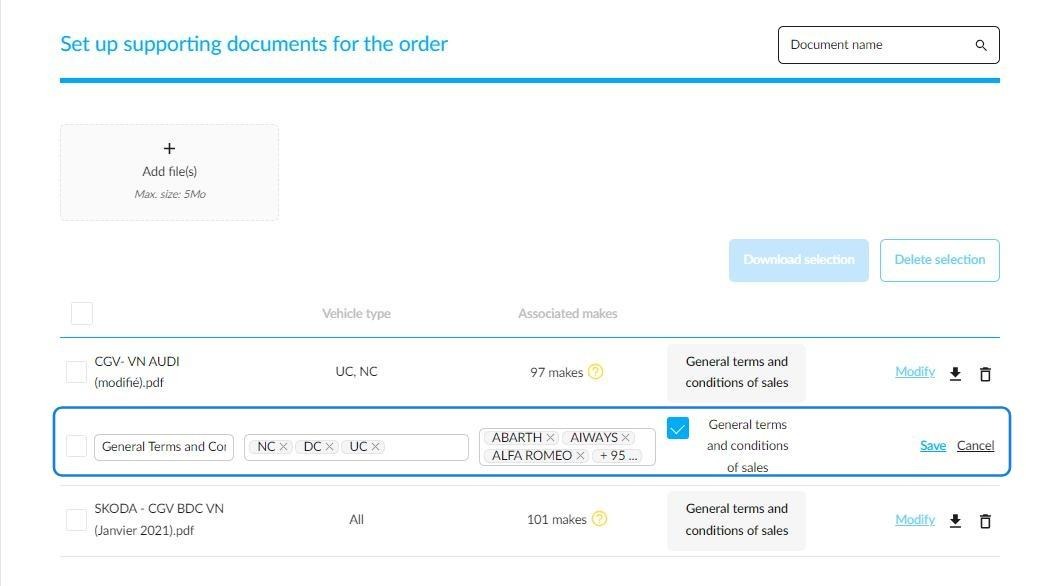
A field is available to choose the type of vehicle.
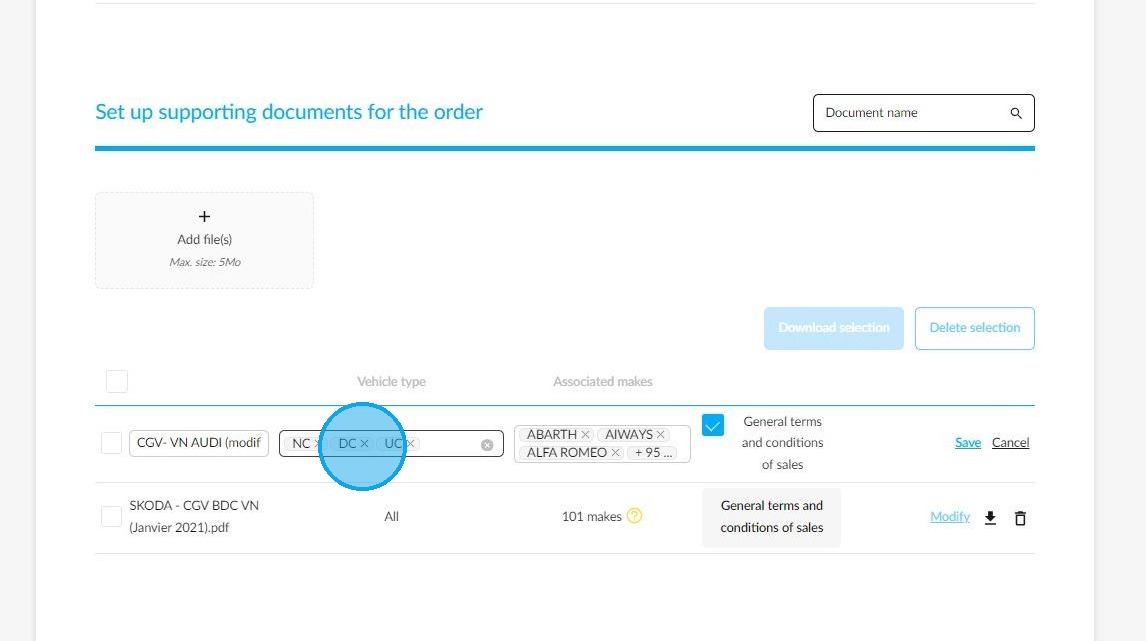
A field is available to choose the car make or makes covered by the Ts and Cs.
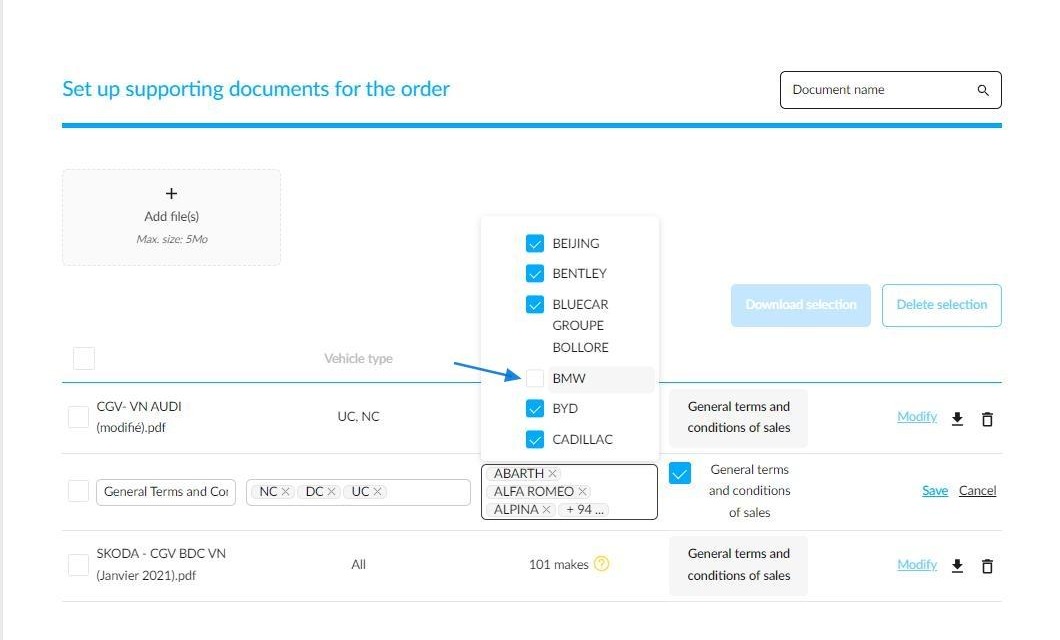
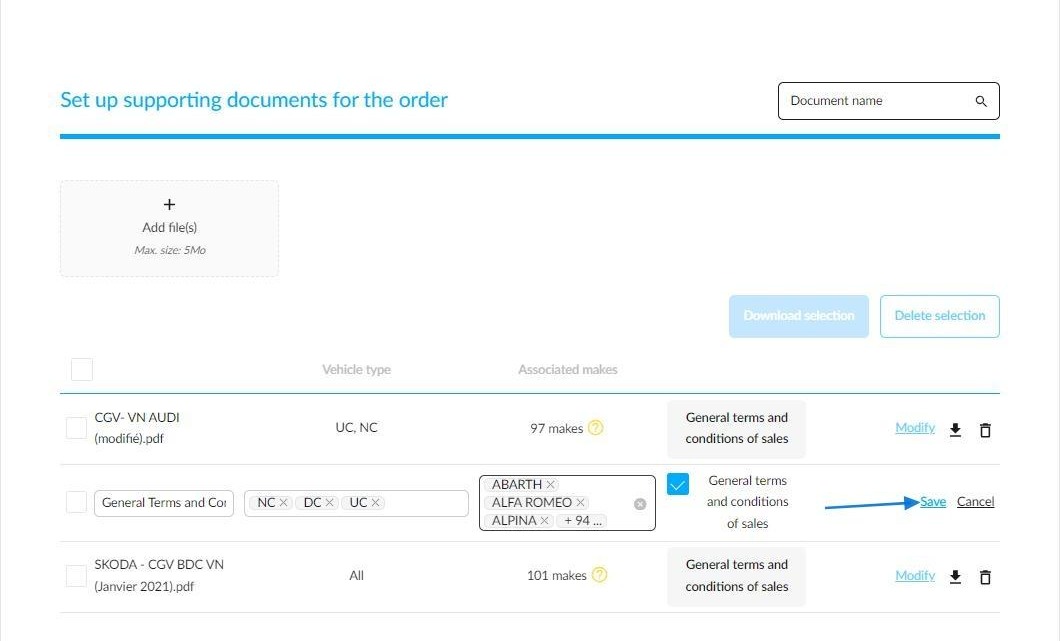
To specify that the attached documents you are adding are the general Ts and Cs, tick the box designed for this purpose, and save your changes.
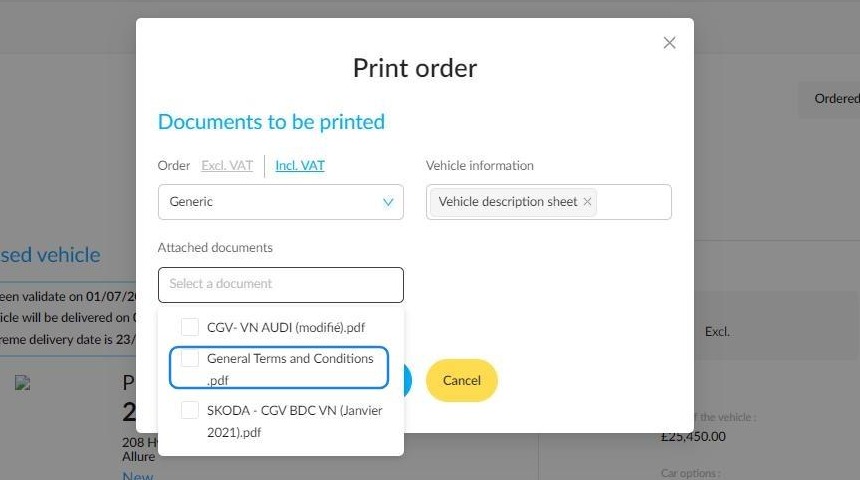
The new general Ts and Cs that you just integrated on the platform will then be available when printing your next orders.
Comments
0 comments
Article is closed for comments.