
This guide explains how to automatically publish your vehicles based on their physical location.
General principle:
Each vehicle in your inventory has a physical location. By default, this is your point of sale, i.e. the dealership where the vehicle was registered. No additional action is required.
You only need to specify a customised location manually on the vehicle's details page if this vehicle is being stored elsewhere (e.g. consignment sale or storage site).
The contract you set up with an advertiser defines which of your vehicles will be published on their website and in which locations.
Step 1: Check/enter the vehicle’s location (only if necessary)
From the stock list, open the vehicle record.
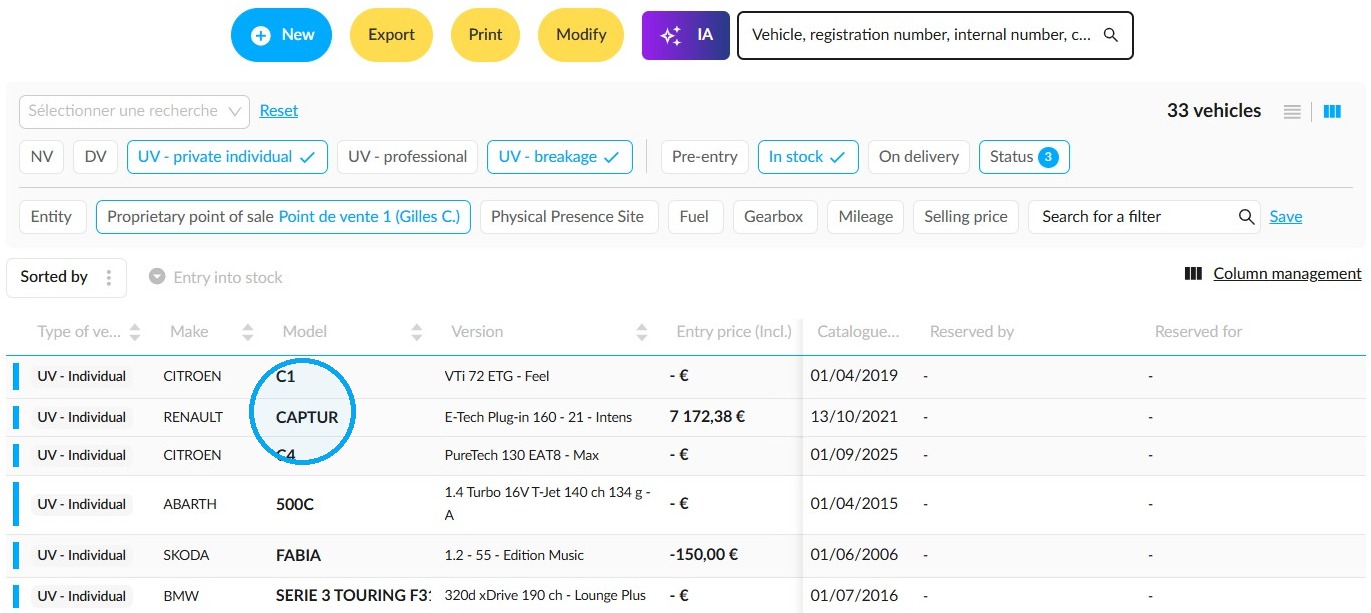
Go to the "Synthesis" tab of the vehicle file. Your default point of sale is already displayed in the "Physical location" field.
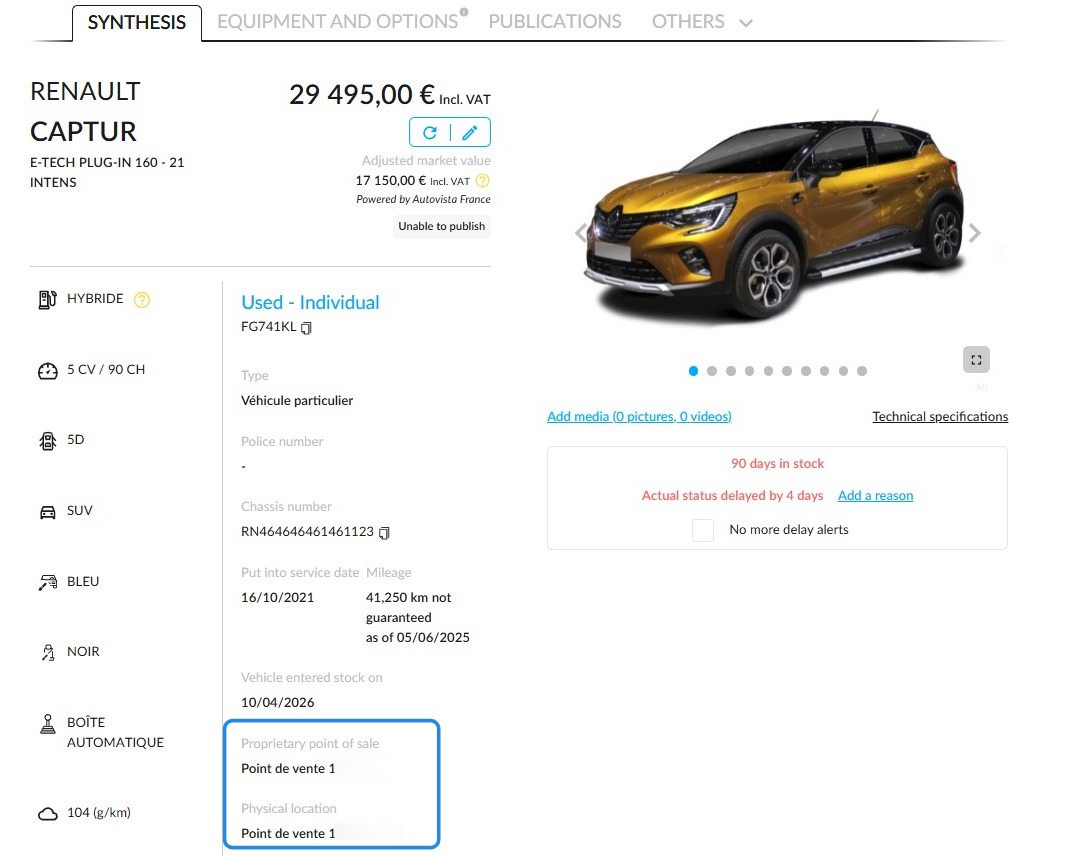
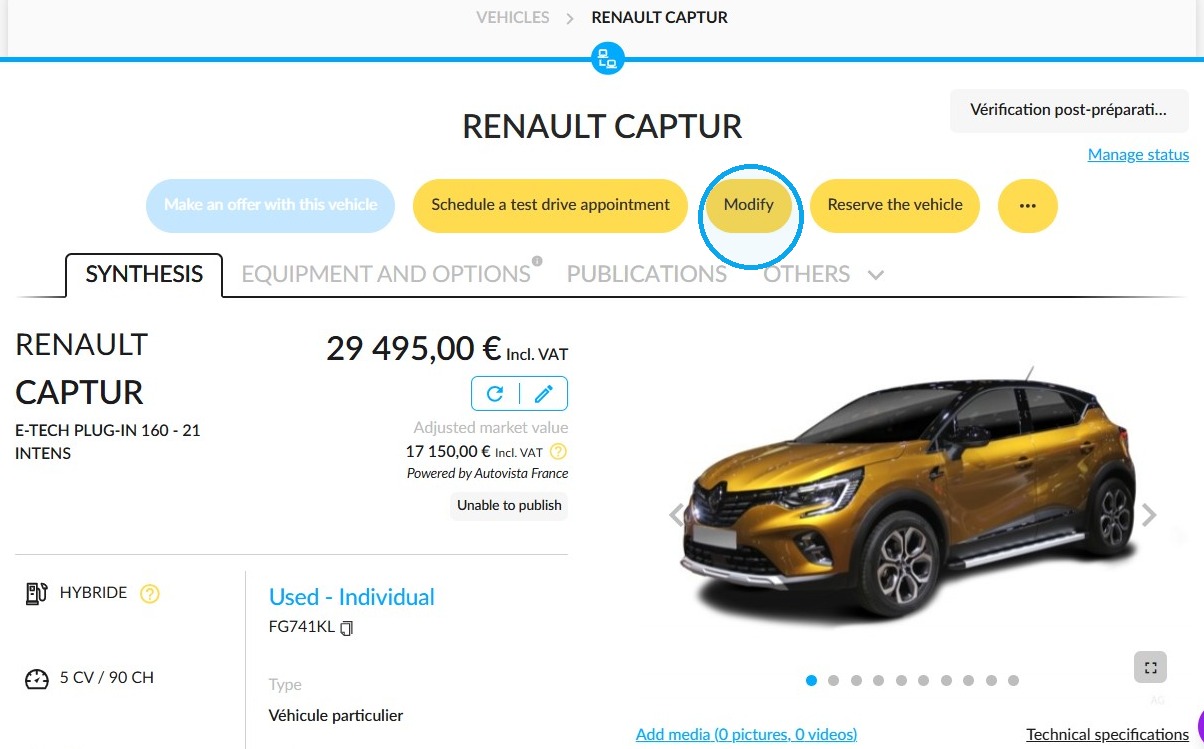
Only edit this field if the vehicle is not actually being stored at your point of sale (for example if it is on consignment, or in another location).
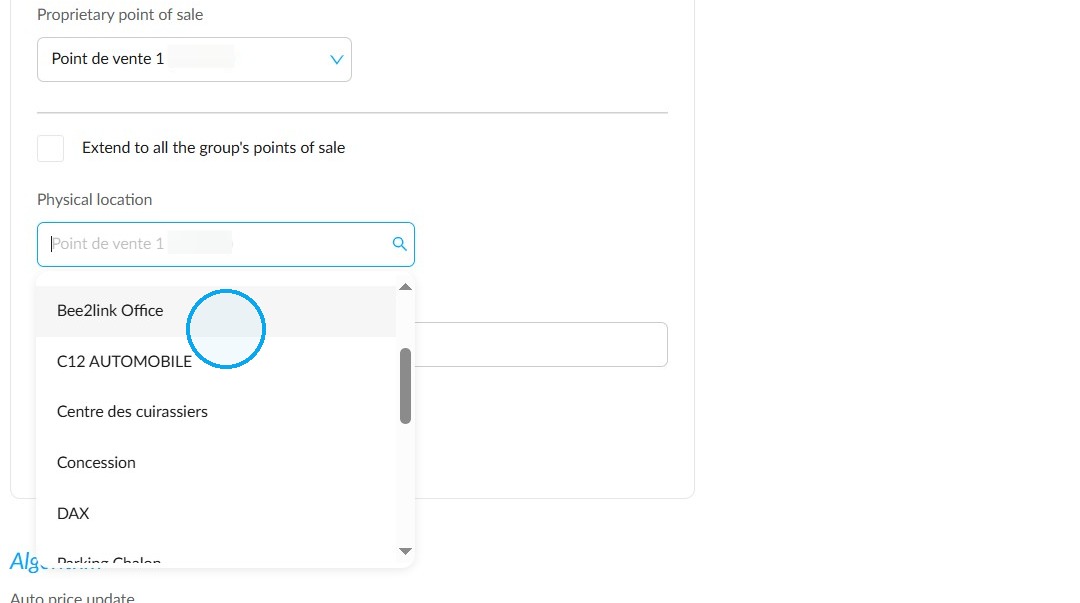
In that case, select the relevant custom location from the list.
Step 2: Set up the advertiser’s contract
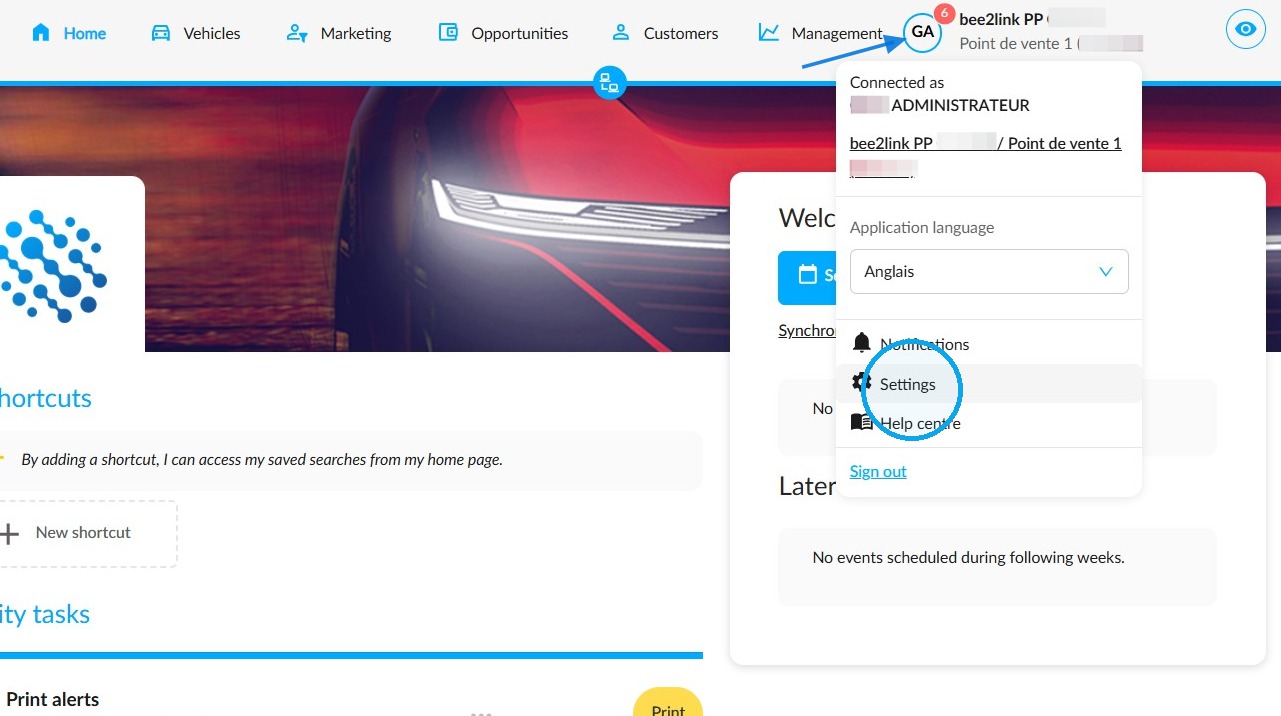
Click on your initials at the top of the screen, then click on "Settings".
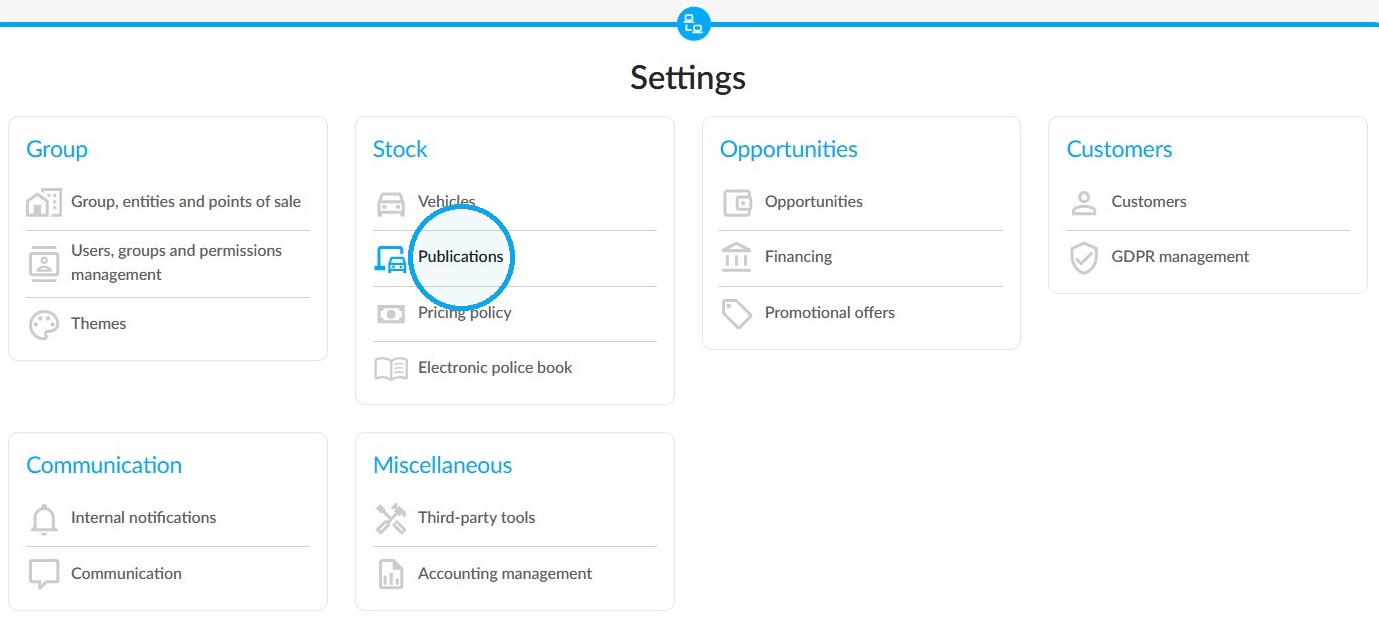
Go to "Publications"
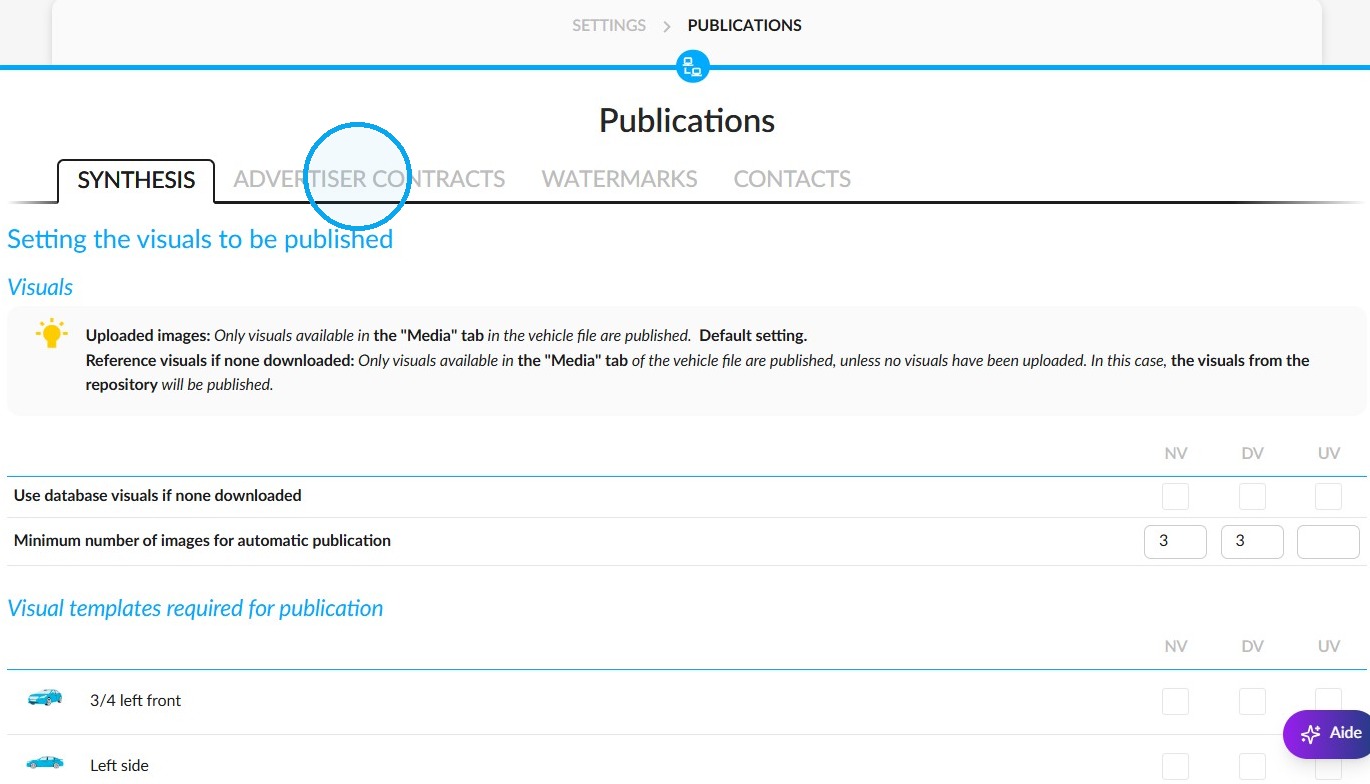
then go to "Advertiser contracts".
Open (or create) the relevant advertiser contract.
The contract has two tabs that need to be filled in:
a) The "Synthesis" tab of the contract
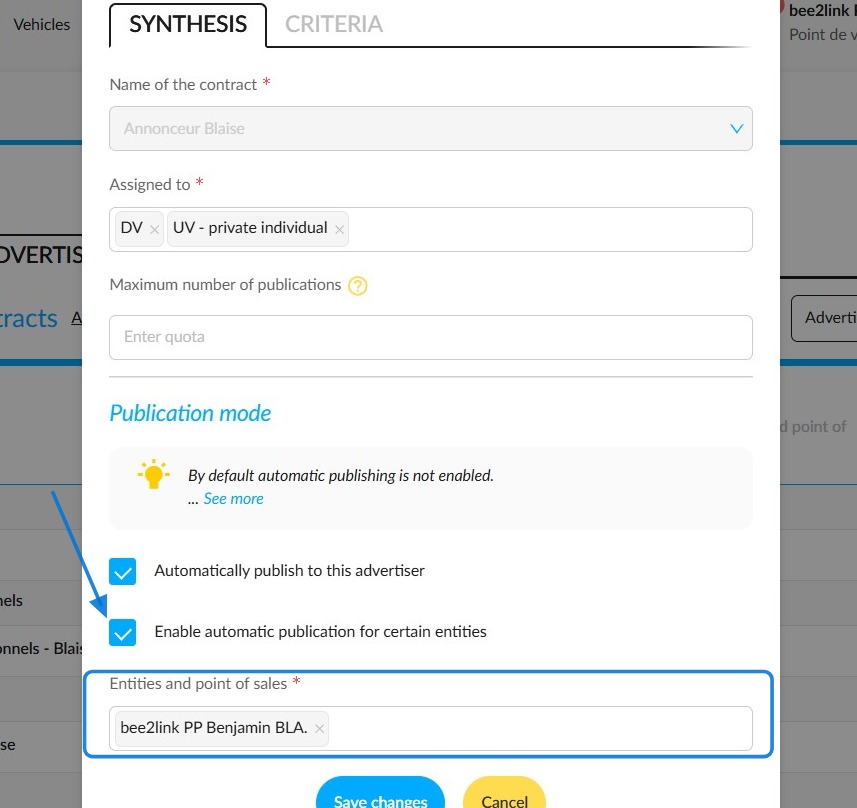
This is where you can define the general scope of the contract. Tick the point(s) of sale (your dealerships) to which this contract applies. It is the first filtering stage: a vehicle that does not belong to one of the points of sale selected here will never be sent to this advertiser under any circumstances.
Please note that these criteria only are visible in the context of an automated publication, and you have also to tick the box labelled "Enable automatic publication for certain entities".
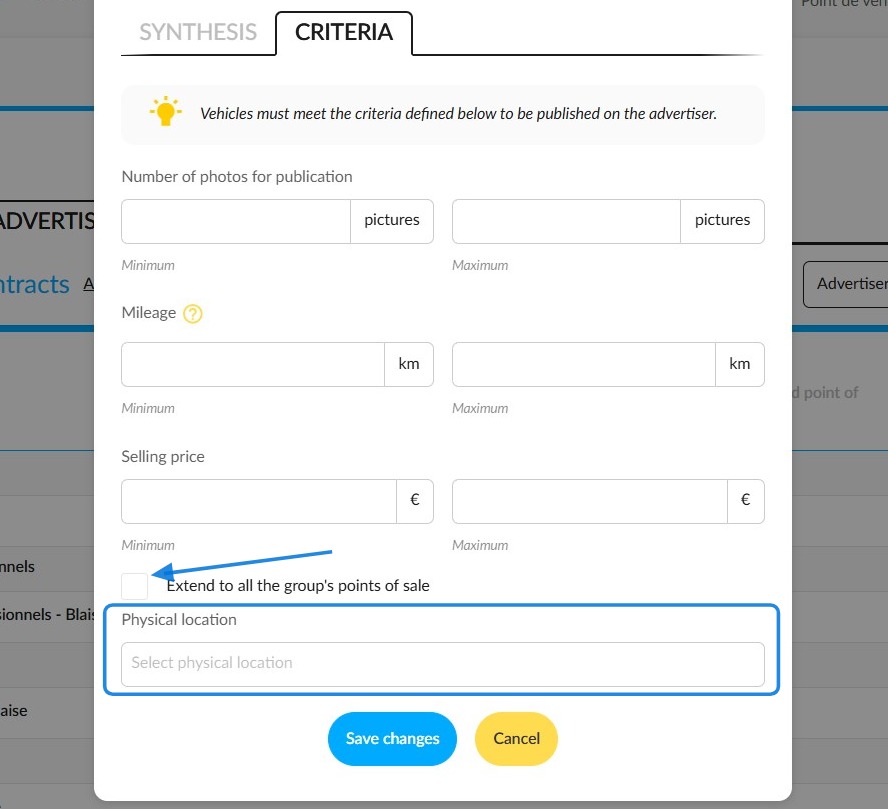
b) The "Criteria" tab
This is where you can filter by physical location. You can select one or several locations.
This filter is added to the selection of points of sale defined in the "Synthesis" tab. The "Synthesis" tab first selects all vehicles belonging to the inventory of the selected points of sale. This filter then further restricts the selection to vehicles that are physically stored at the selected site(s).
For this filter, you can select the "Extend to all the group's points of sale" option. If you leave this option unticked, you can only select sites belonging to your own entity. Ticking the box allows you to select storage sites belonging to other entities in the group as well.
For an explanation of the other publication criteria, see the advertiser contracts configuration guide.
How it works in practice
This is a two-phased process: the "Synthesis" tab first selects all the vehicles that belong to the selected owning points of sale. Then if you filter by physical location in the "Criteria" tab, the only vehicles that will be listed are those that match this filter.
Good to know
In the vast majority of cases, you don't need to do anything to the vehicle files; the location shown is the correct point of sale by default.
If you need to perform basic tasks, such as publishing all vehicles from one or several dealerships without specifying a more precise location, simply check the corresponding points of sale in the "Synthesis" tab. There is no need to filter by "Physical location" in the "Criteria" tab.
This physical location filter in the "Criteria" section is useful if, for example, you want to exclude from automatic publication vehicles that belong to a point of sale but are temporarily stored at another location.
If you disable a point of sale or cancel a customised location, any contracts that used this as a criterion will be updated automatically.
Comments
0 comments
Article is closed for comments.