
This guide explains how to set up automated price updates for your used vehicles. You can let the OpenFlex algorithm update prices, check them yourself, or set control thresholds based on remaining margin or price variation.
Prerequisite: you must have administrator rights on the platform to set up automated price updates.
Overview of the settings:
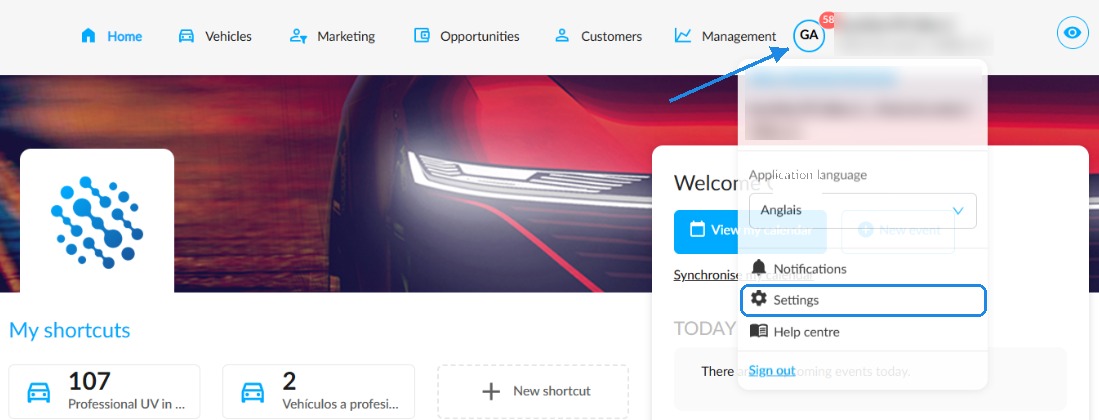
You can set up automated price updates for used vehicles in the “Pricing policy” menu. To do this, go to the OpenFlex settings by first clicking on your initials.
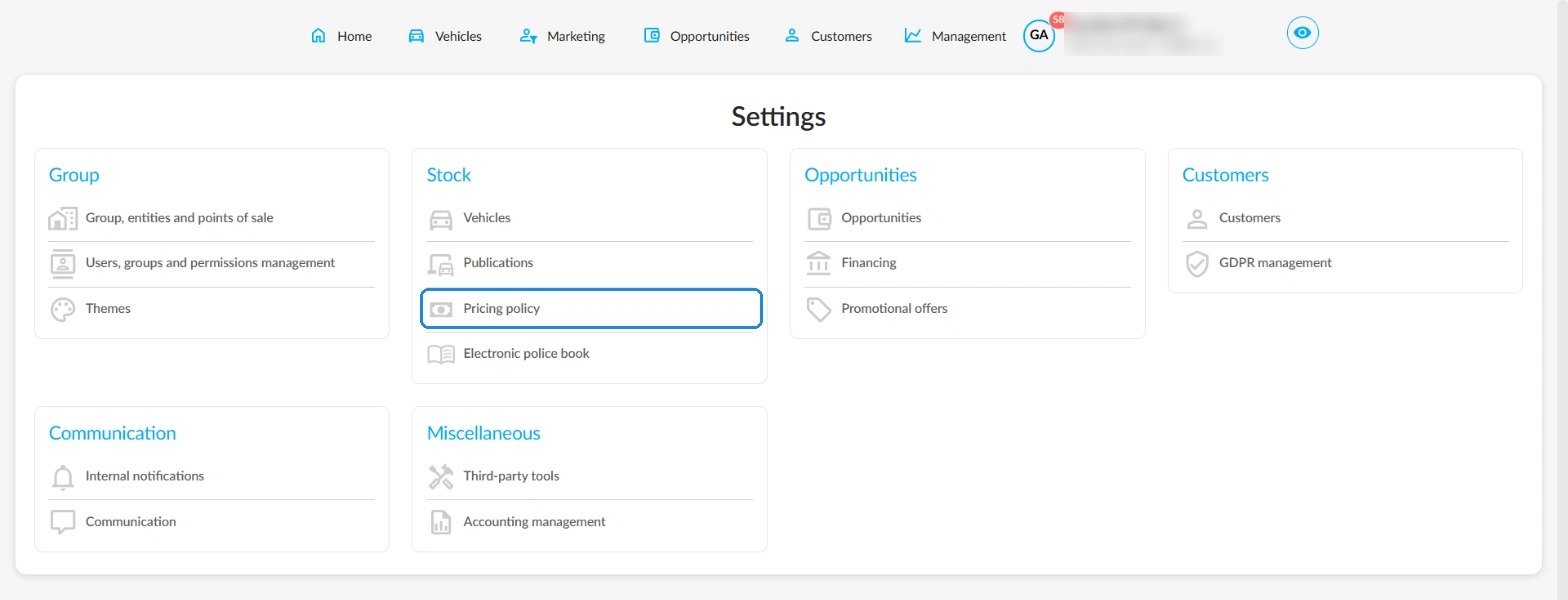
Click on “Pricing policy” in the “Stock” category.
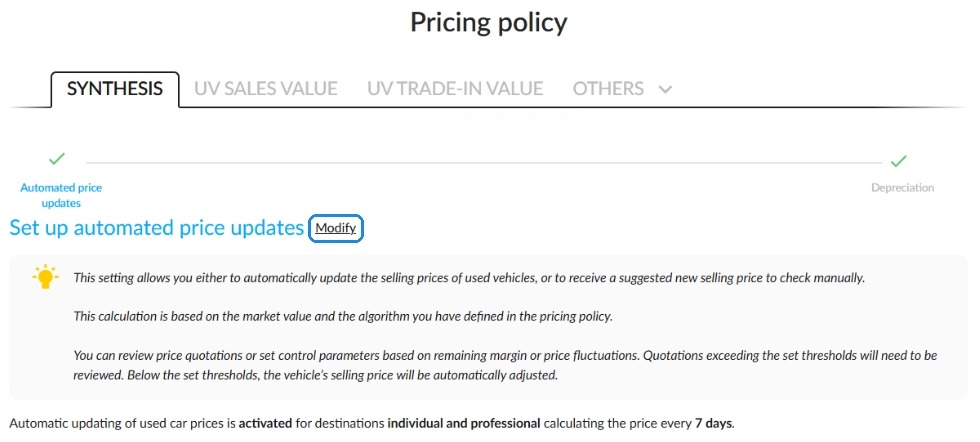
Then, click on the “Modify” button in the “Synthesis” tab, right next to “Set up automated price updates”.
Activating automated price updates:
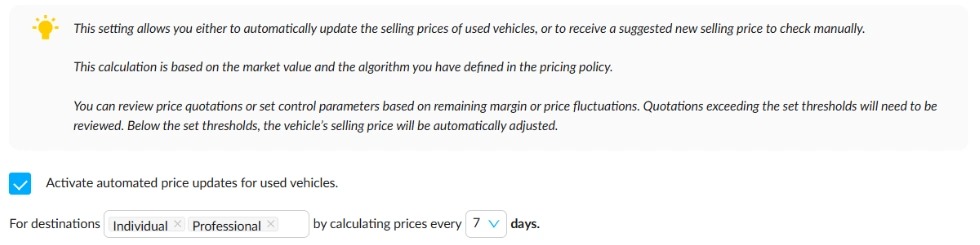
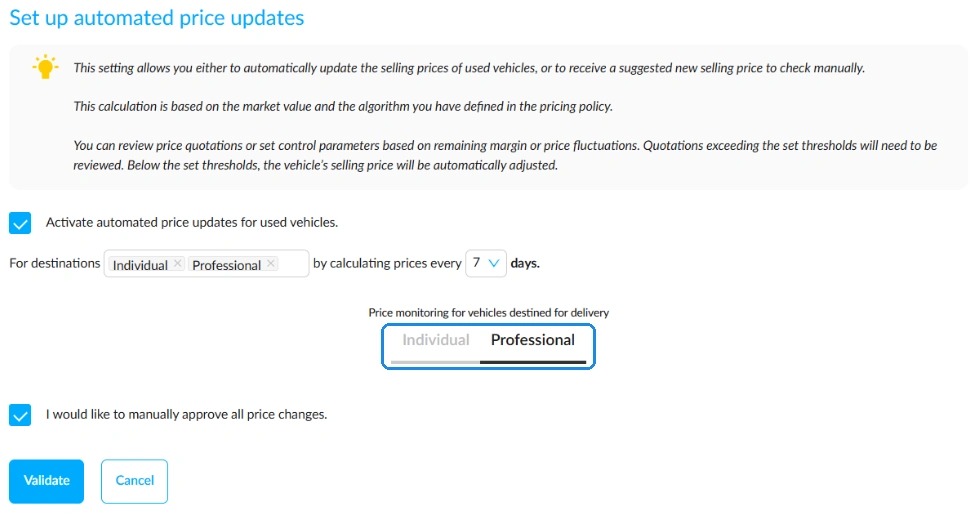
To activate automated price updates, tick the box on this page labelled “Activate automated price updates for used vehicles”.
Vehicle prices will be updated every seven days by default.
Several settings will then appear on the screen:
1)
The first one lets you define how often new prices are calculated automatically. Three options are available: 7 days (default), 15 days and 30 days.
2)
The second one lets you switch to manual management of automatically calculated prices, so that you can check and approve price changes.
3)
The third one applies “semi-automatic” management of price changes. In this case, the manager sets a minimum margin (excl. VAT) to be kept on vehicles.
All prices generating a margin (excl. VAT) below this threshold will be checked by a member of staff.
Otherwise, the new prices will be applied automatically.
4)
The fourth one lets you define maximum upward and downward price variations, compared with the previous selling price, beyond which the new prices must be checked.
A price that differs by more than 10% from the previous one, upwards or downwards, will require a manual check.
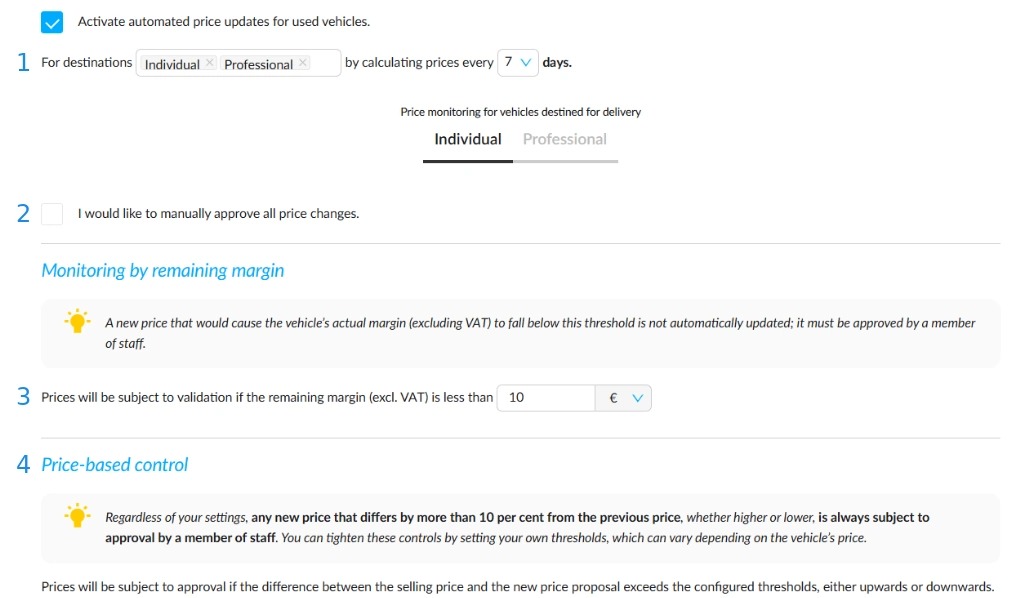
In the “Price-based control” section, you can set various thresholds depending on the vehicle's selling price before calculation. For each price range, enter the decrease and the increase beyond which the new price must be approved, in % or in €.
Click on “Add a price range” to create a new range, or on “Delete this range” to remove the last one.
Checking automated price updates manually:
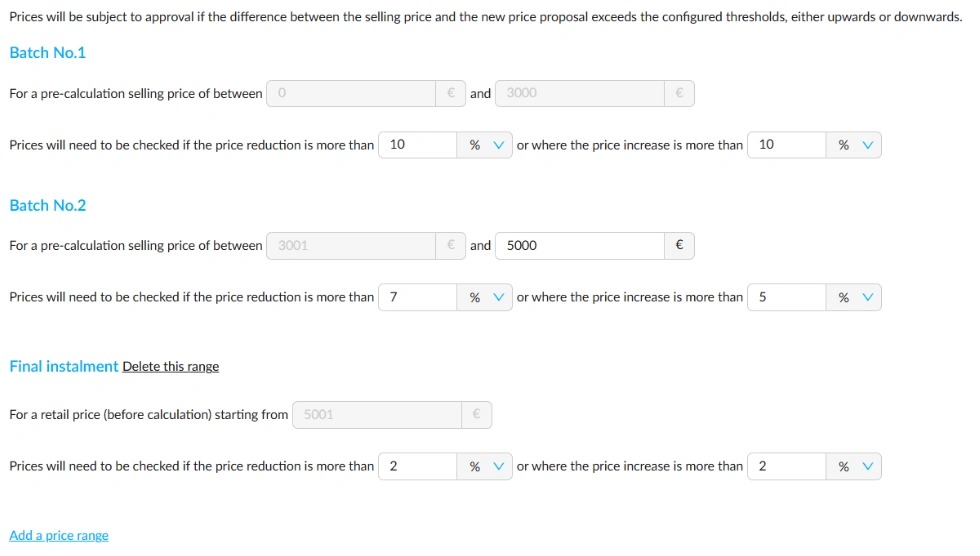
If you want to approve each new price yourself, tick “I would like to manually approve all price changes”. All selling price changes will then be subject to approval.
If the box is left unticked, changes will only be subject to approval when they exceed the configured control thresholds: remaining margin or price variation.
Setting up used vehicles intended for professionals:
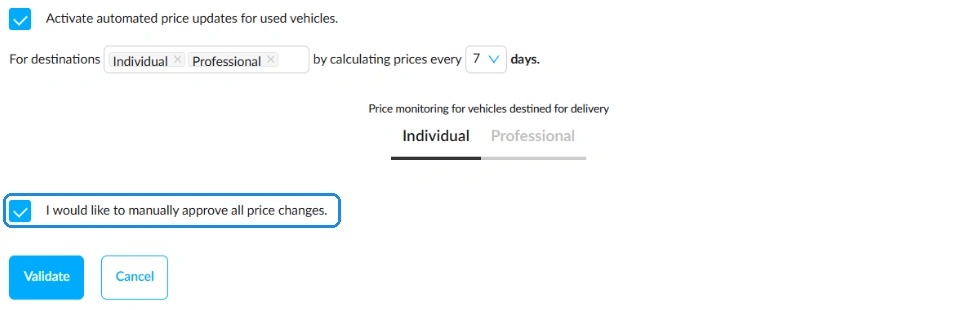
You can include used vehicles intended for automotive professionals in the automated price update algorithm. The settings are similar to those for used vehicles intended for individuals.
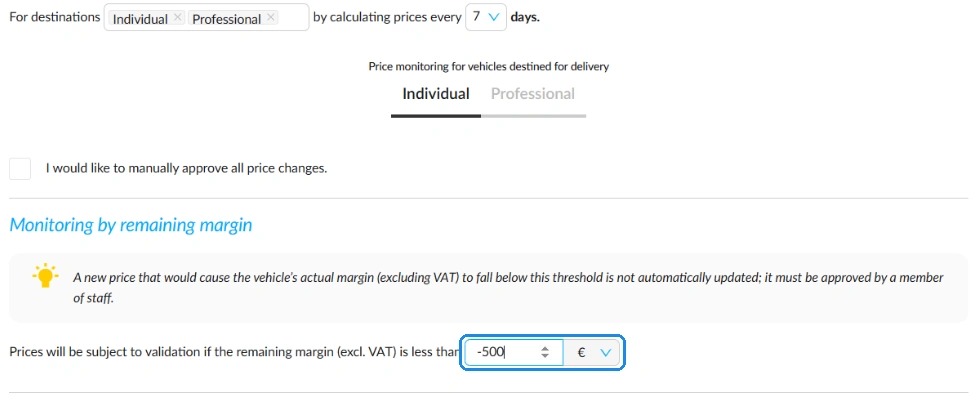
Option to include a negative margin:
In some cases, stock managers may need to update prices with a negative margin if a vehicle stays in stock for too long.
This is why negative margins can be entered when setting up automated price updates.
Comments
0 comments
Article is closed for comments.