
Depending on your company's internal processes, transfer requests may be handled in different ways within OpenFlex. The various options available are outlined below.
1) Setting up the ownership transfers in the 'Vehicles' module:
Prerequisites:
The links between the entities must be active to set the ownership transfer parameters. Contact our deployment department at deploiement@bee2link.fr to do this.
You require administrator rights.
By activating ownership transfers, your stock will be accessible to the designated entities/points of sale. They will have to do the same to authorize you to access their stock.
A vehicle cannot be modified during transfer.
In OpenFlex, transfer requests can be made from either the 'Vehicles' stock or the 'Opportunities' section. These requests can be managed manually or automatically.
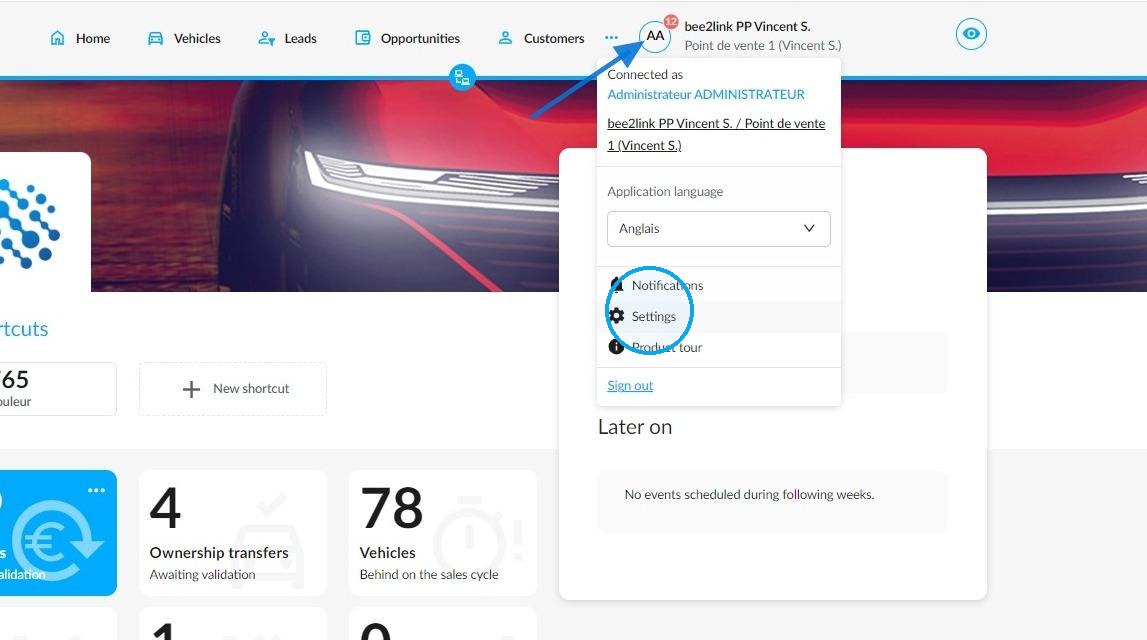
Ownership transfers can be configured in the 'Vehicles' module settings. To access these settings, click on your initials, then click on 'Settings'.
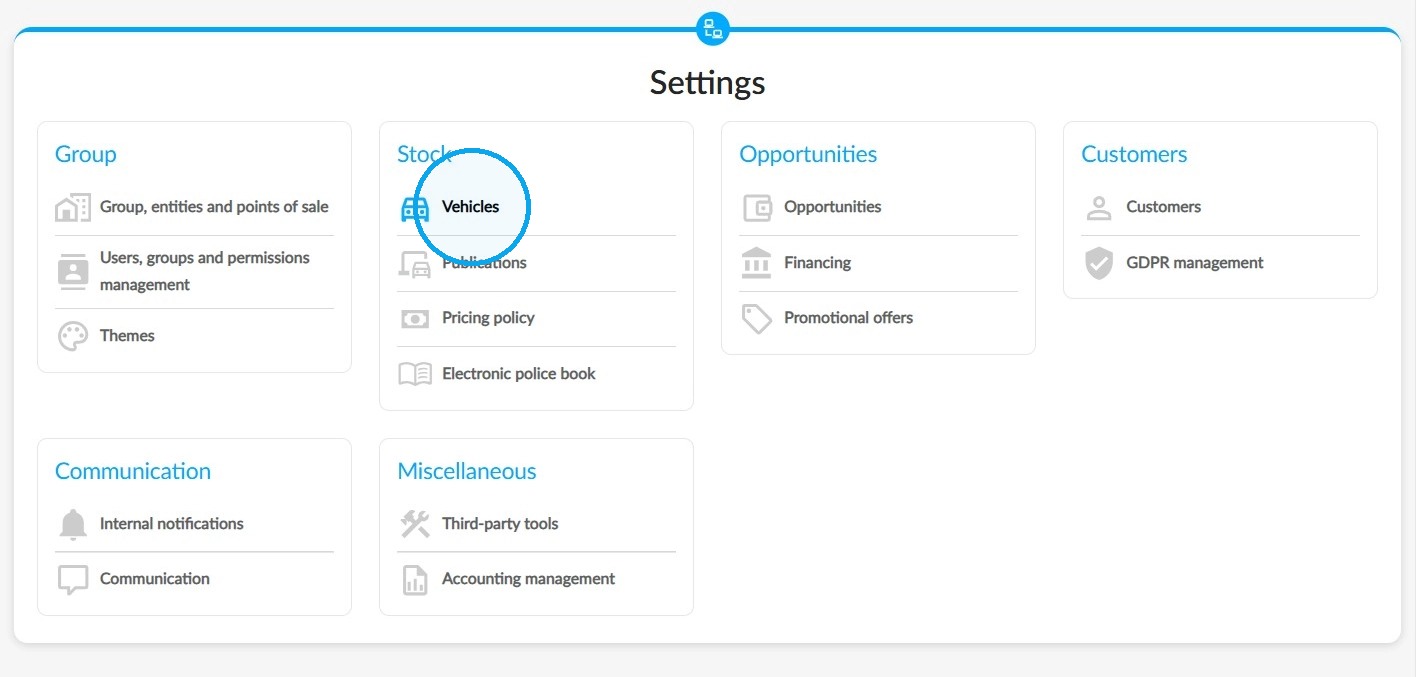
Then, select the 'Vehicles' module in the 'Stock' section.
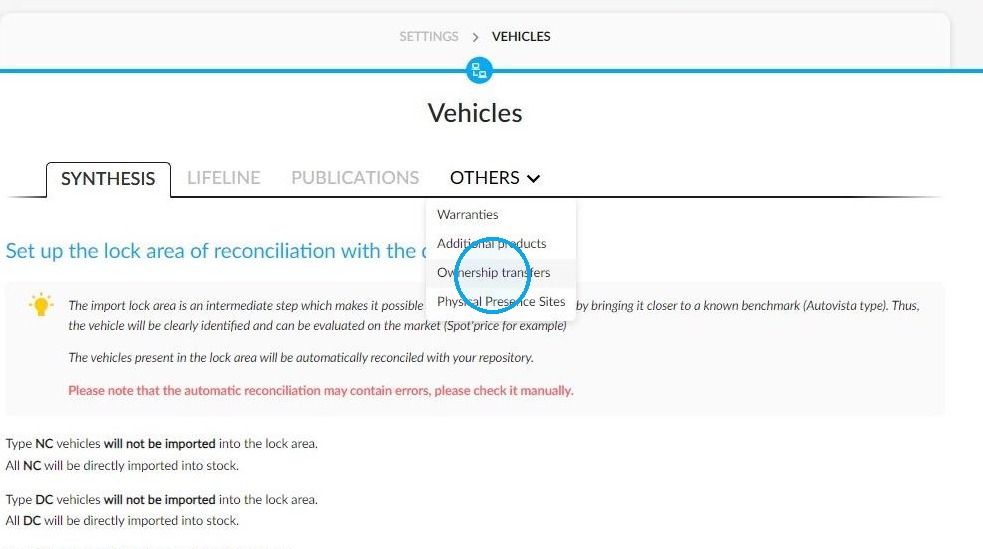
Click on 'Others' and go to the 'Ownership Transfers' menu.
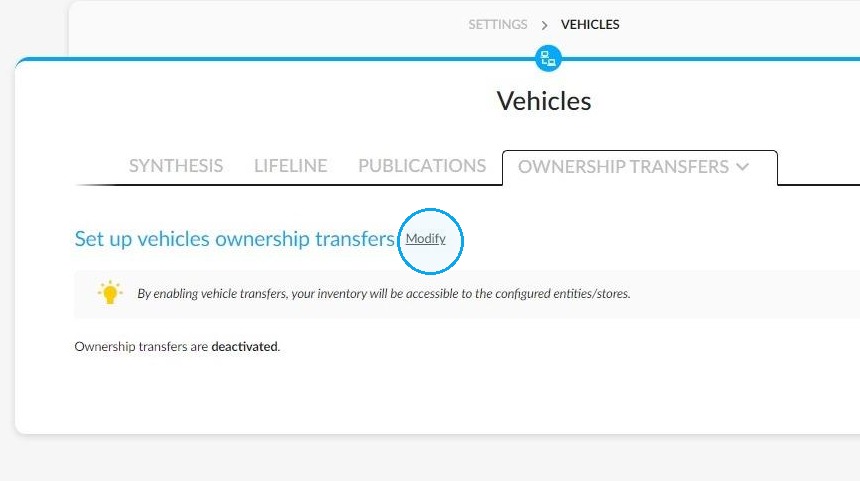
Click on the 'Modify' button to open the ownership transfer configuration.
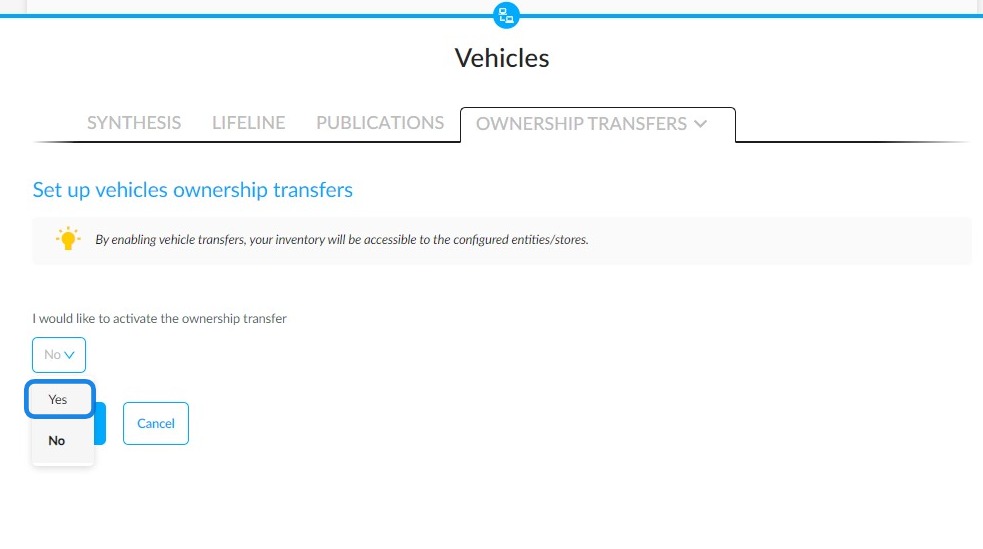
To do that, expand the drop-down menu labelled 'I would like to activate ownership transfers' and select 'Yes'.
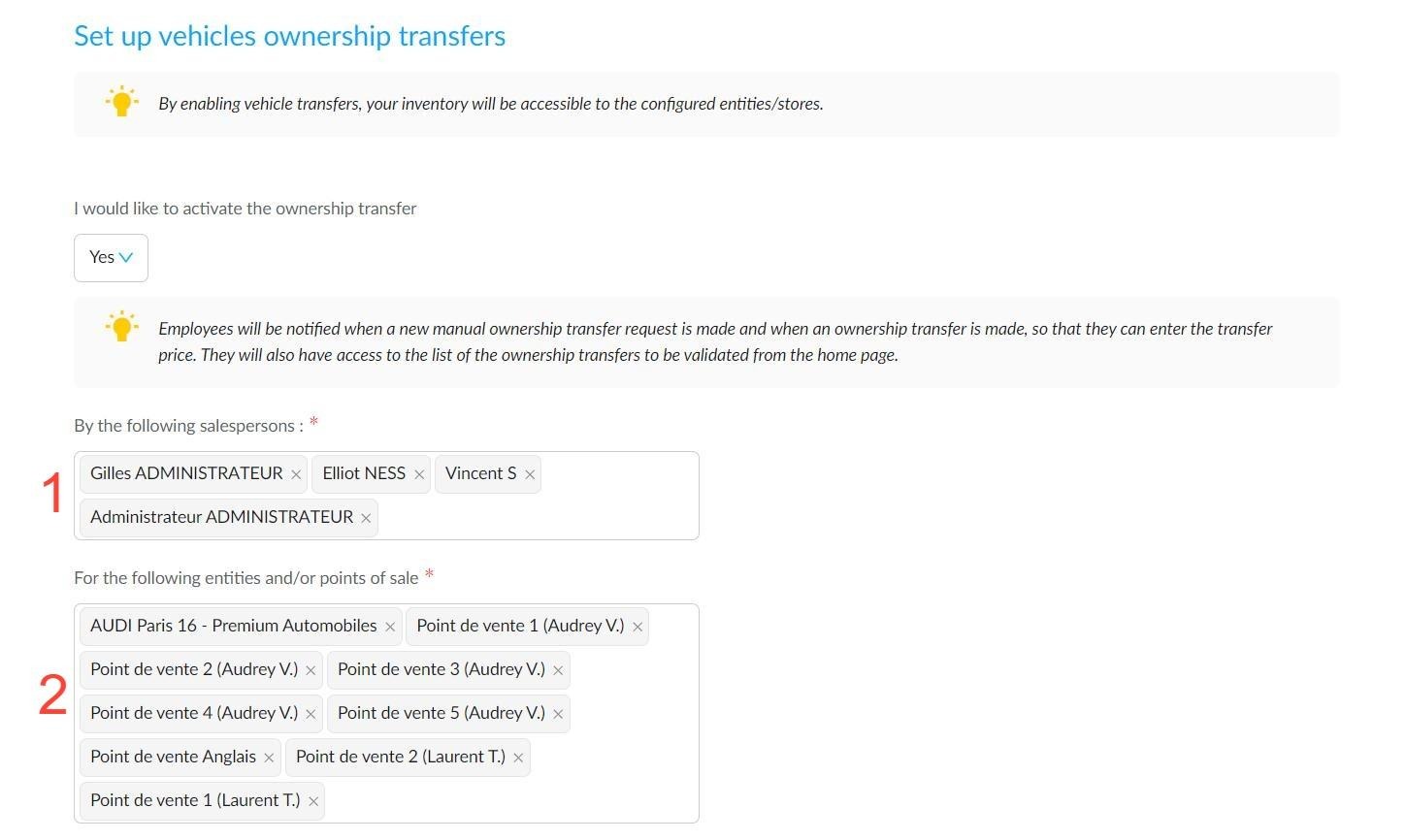
Then, in the 'By the following salespersons' field, enter the names of the employees responsible for processing and monitoring ownership transfer requests. 1.
They are responsible for the following:
- if you decide to manage transfers manually, they will approve transfer requests coming from the 'Vehicles' and 'Opportunities' modules.
or
- If you have enabled automated transfers, the ownership transfer price will be entered for any vehicles transferred and linked to an order placed by a seller assigned to a different entity.
Finally, in the field labelled 'For the following entities and/or points of sale', specify which entities and/or points of sale are entitled to make ownership transfers 2.
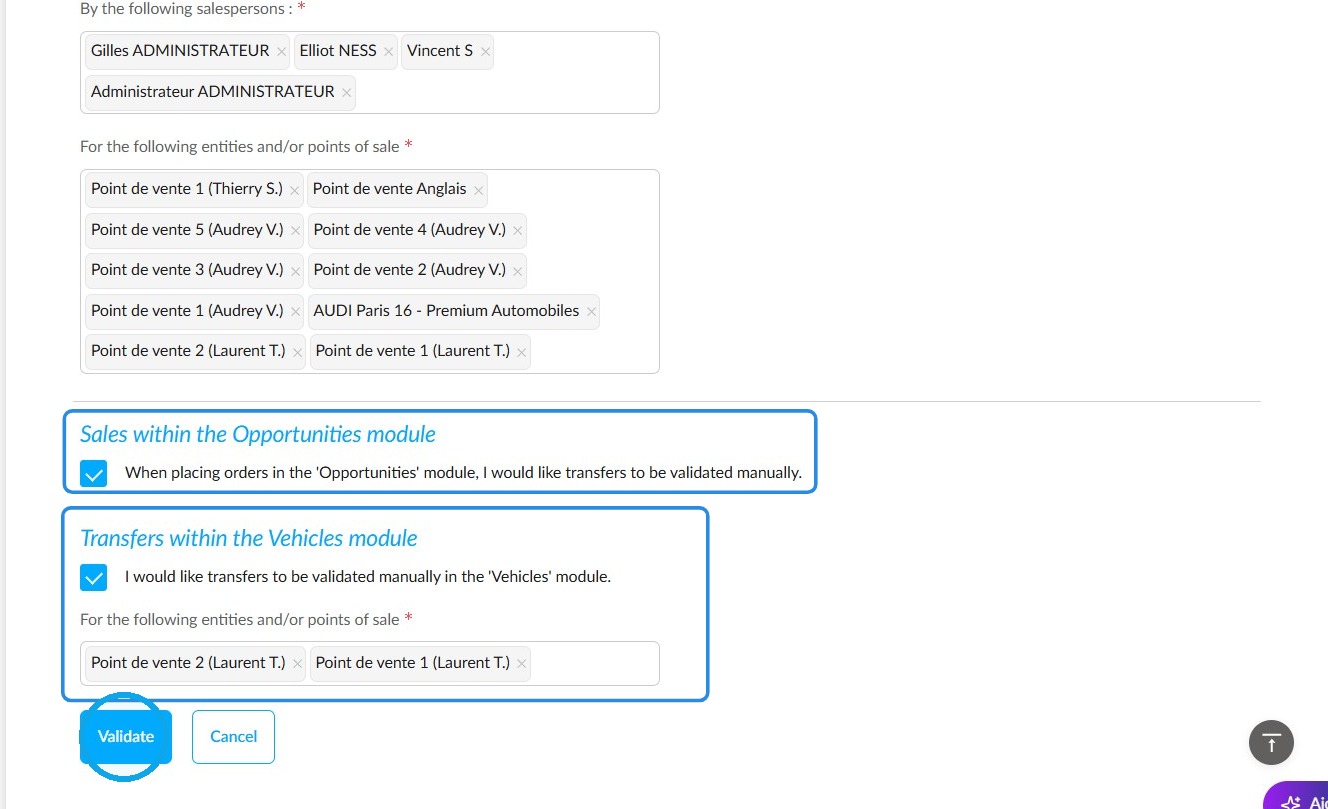
To gain greater control, you can process requests manually, whether they are made from stock in the 'Vehicles' module or following an opportunity.
To do this, tick the boxes labelled:
- "I would like transfers to be validated manually when an order is placed in the 'Opportunities' module." (In this case, requests sent following the validation of an opportunity will come from all entities where transfers are active).
- "I would like transfers to be validated manually in the ’Vehicles' module" (You will be asked again to select the points of sale or entities covered by this practice by entering them in the field next to the corresponding checkbox.).
Finally, click the 'Validate' button at the bottom of the page to confirm your settings.
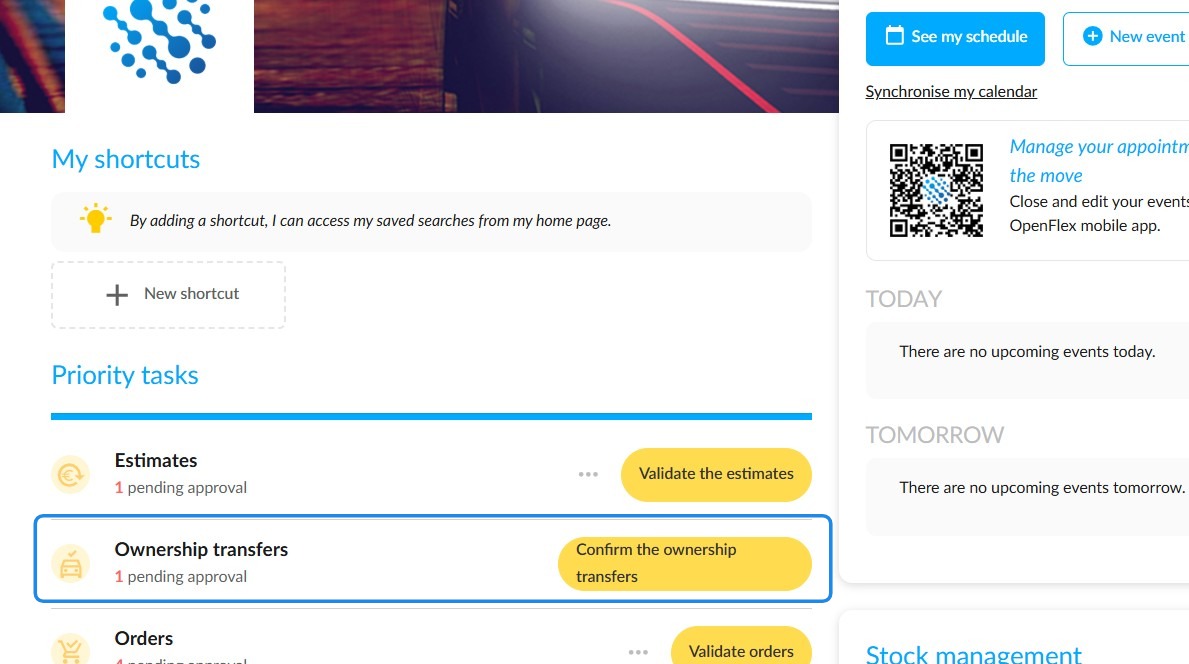
Employees designated to validate manual ownership transfers and ownership transfer prices will have access to a tile on the homepage to monitor and manage requests. It is titled 'Ownership trnasfers pending approval'.
Users can filter ownership transfers by type (automatic or manual) and status (validated, pending validation or rejected) by selecting this box. They can use the drop-down menus and filters at the top of the page to do this.
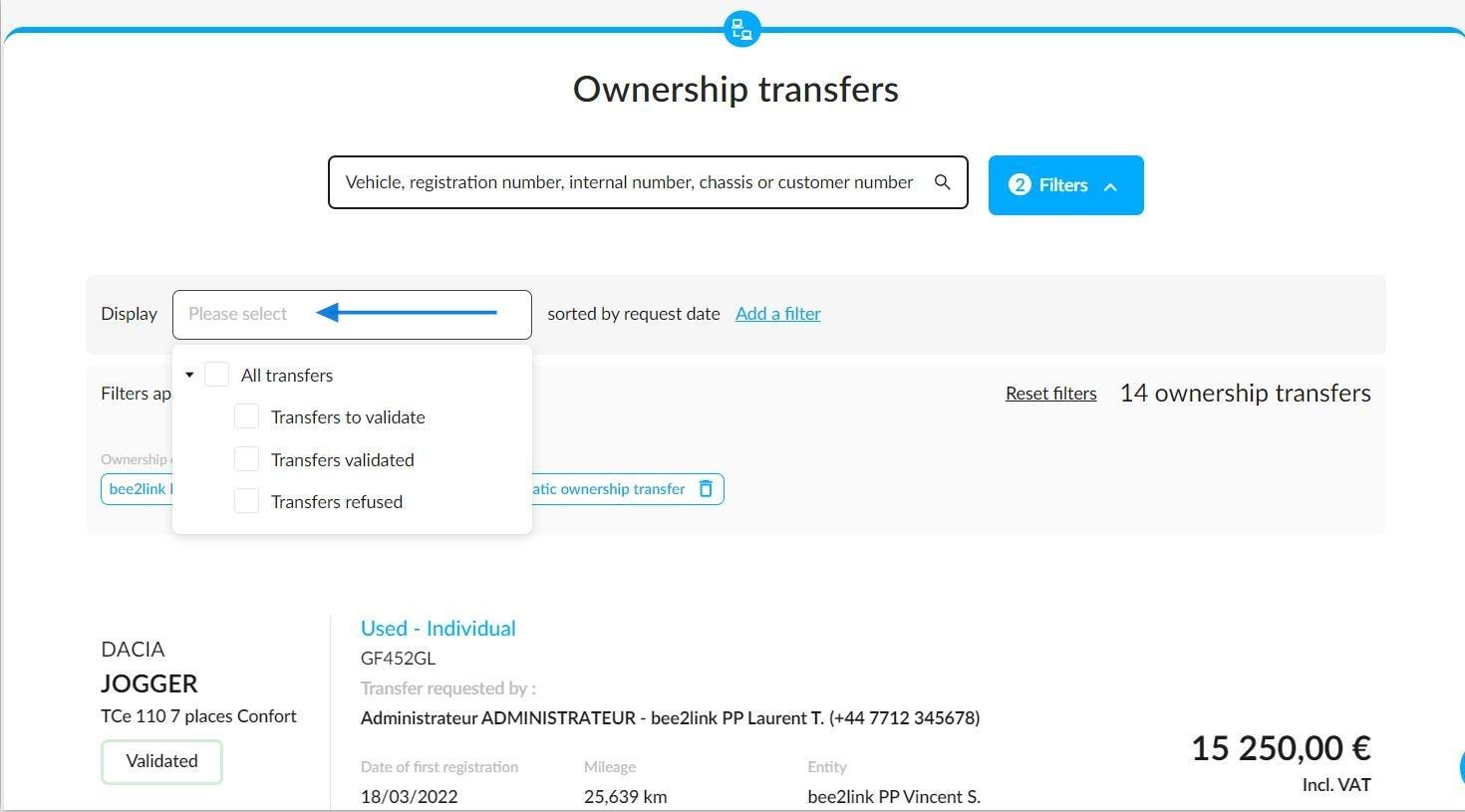
The following example shows the filters by ownership transfer type:
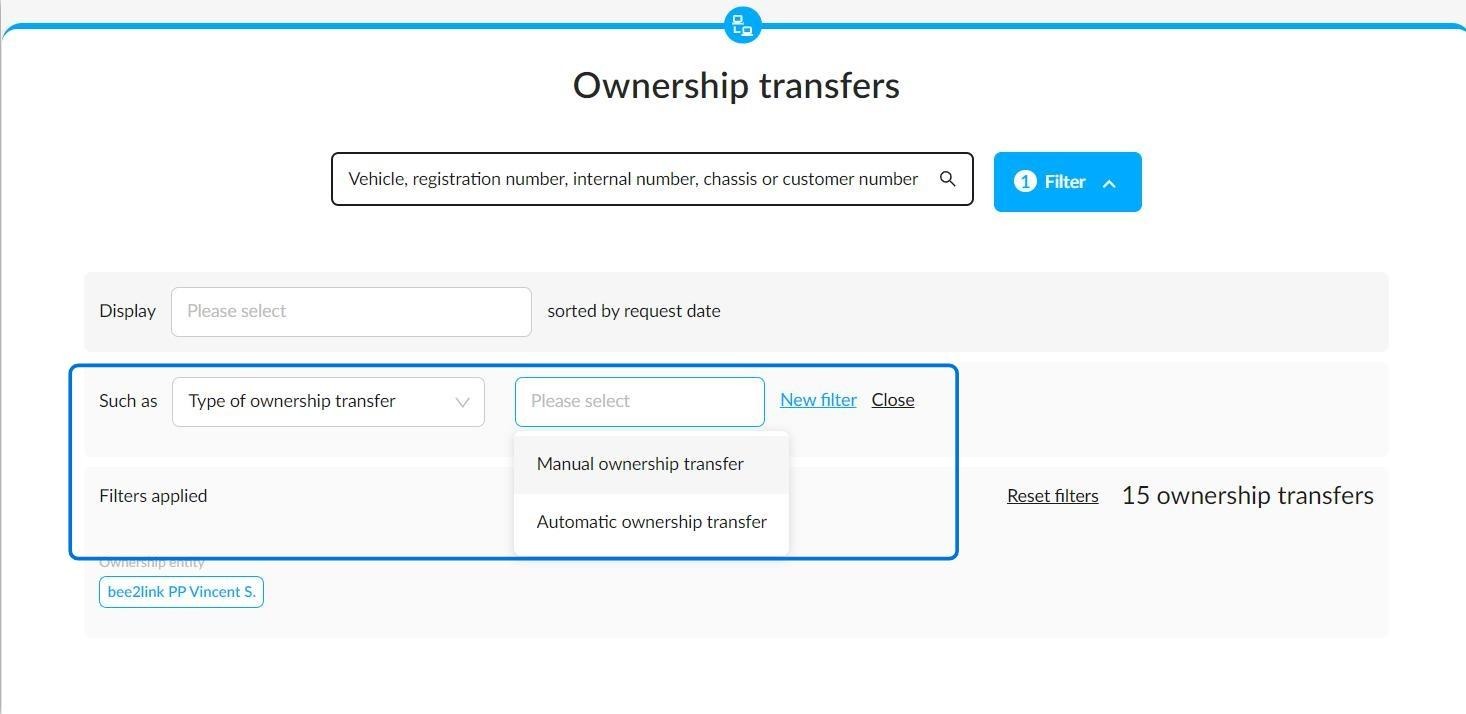
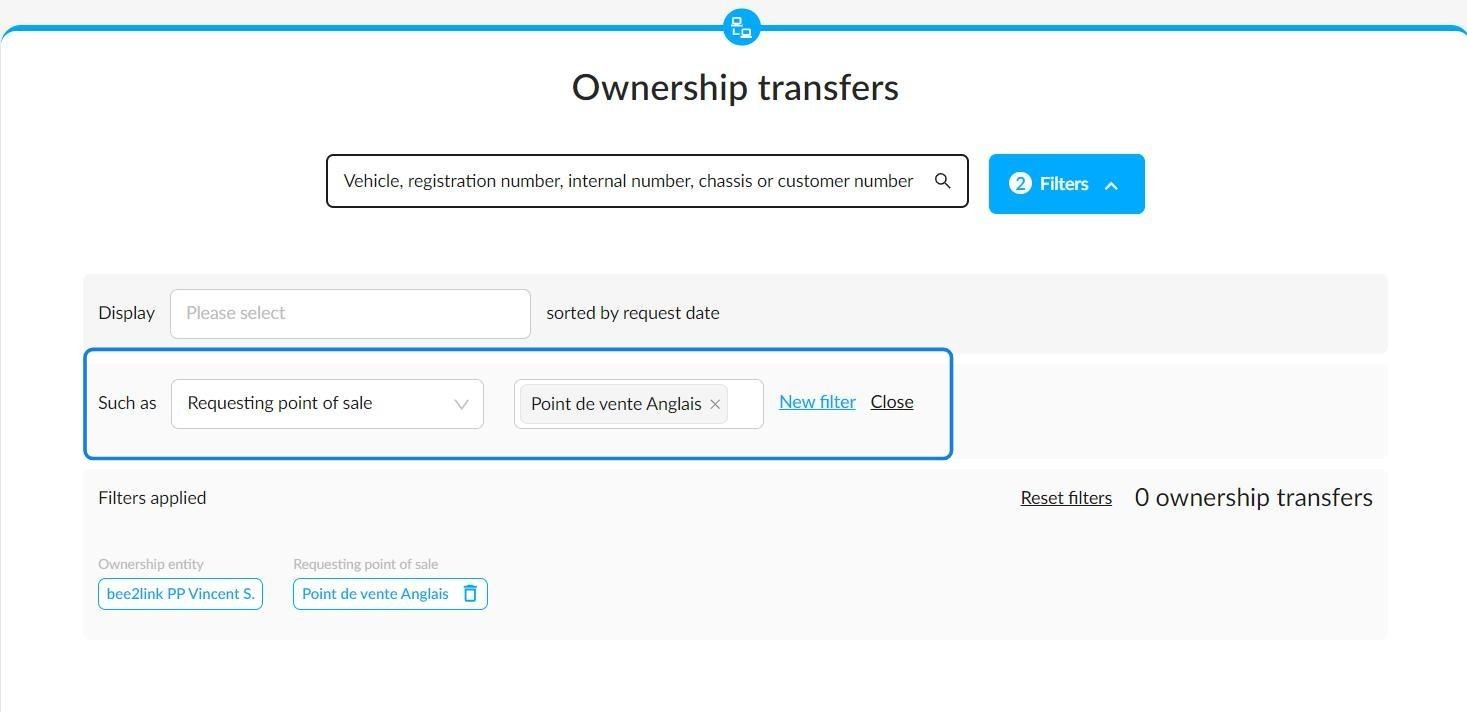
You can also filter the results by:
Request date
Salesperson
Requesting entity
Proprietary point of sale
Requesting point of sale
-
Physical location
and by the vehicles specifications
Makes
Models
Type of vehicle (NV in stock/ DV /UV)
2) Automatic ownership transfer: Introducing an automatic ownership transfer made from the stock
If you are processing ownership transfers automatically in the 'Vehicles' module, please follow these steps:
a) Search the stock for a vehicle belonging to an entity that has authorised transfers with you.
b) Open the file for the vehicle in question and click on the 'Make a transfer request' button.
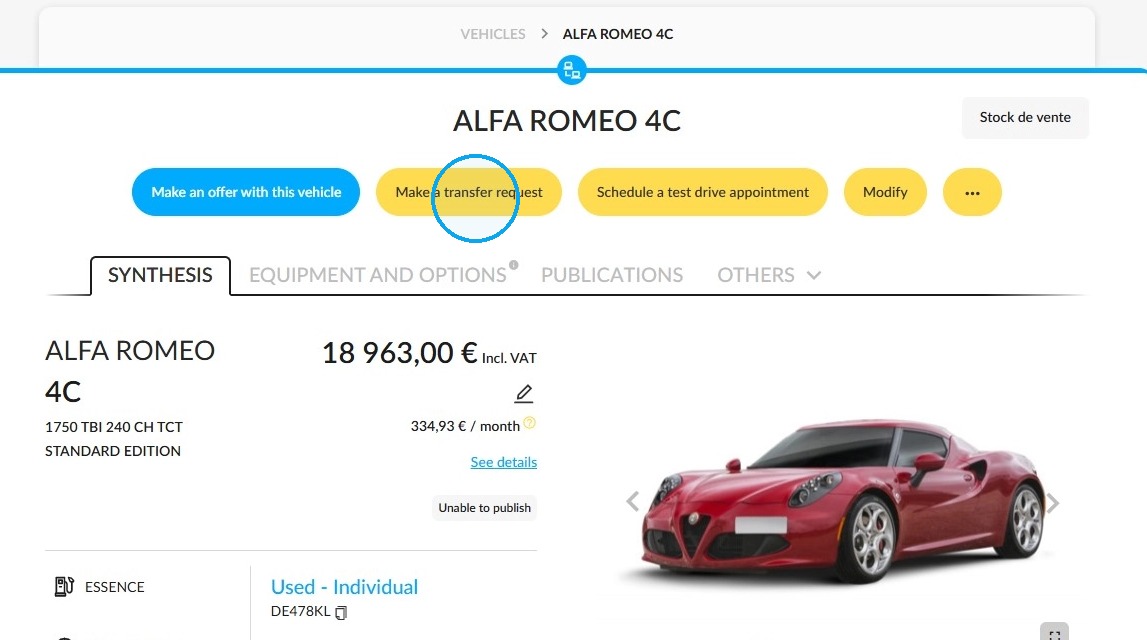
c) You will immediately receive a notification to show that the transfer has been automatically approved.
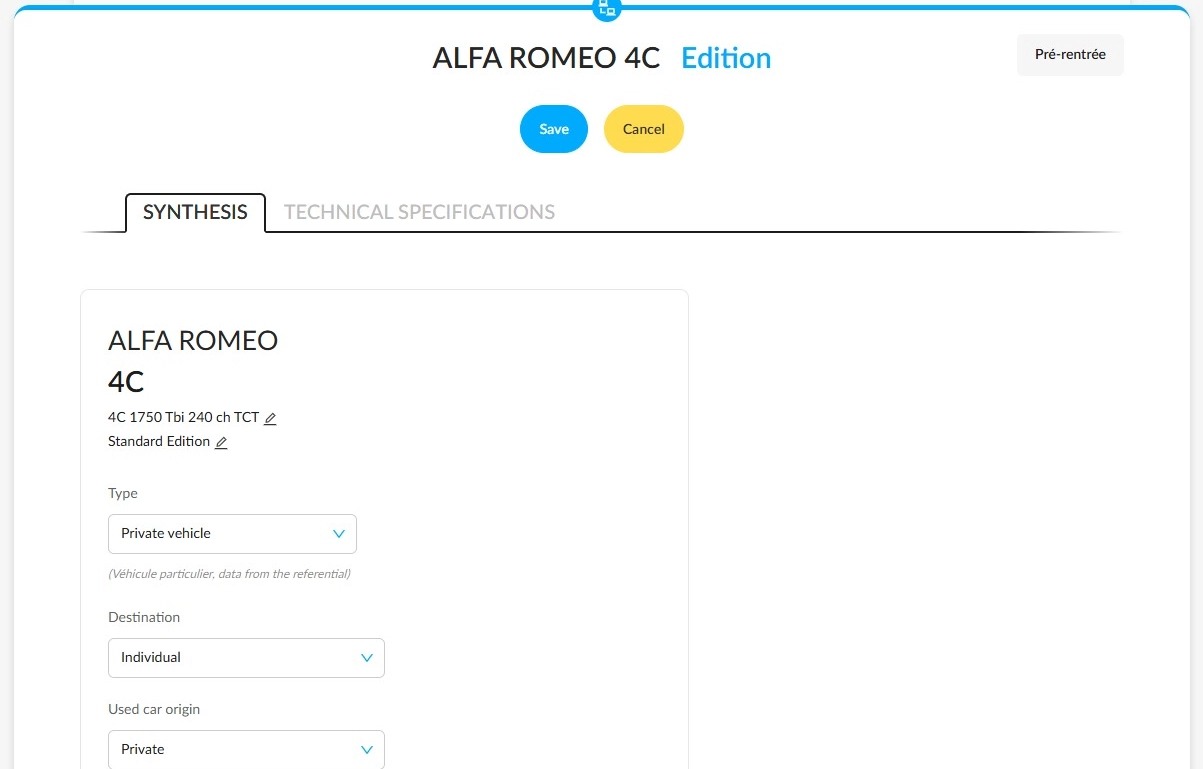
d) The file for the vehicle arriving in your stock will open on its synthesis page, allowing you to check or enter information about its configuration and historical data.
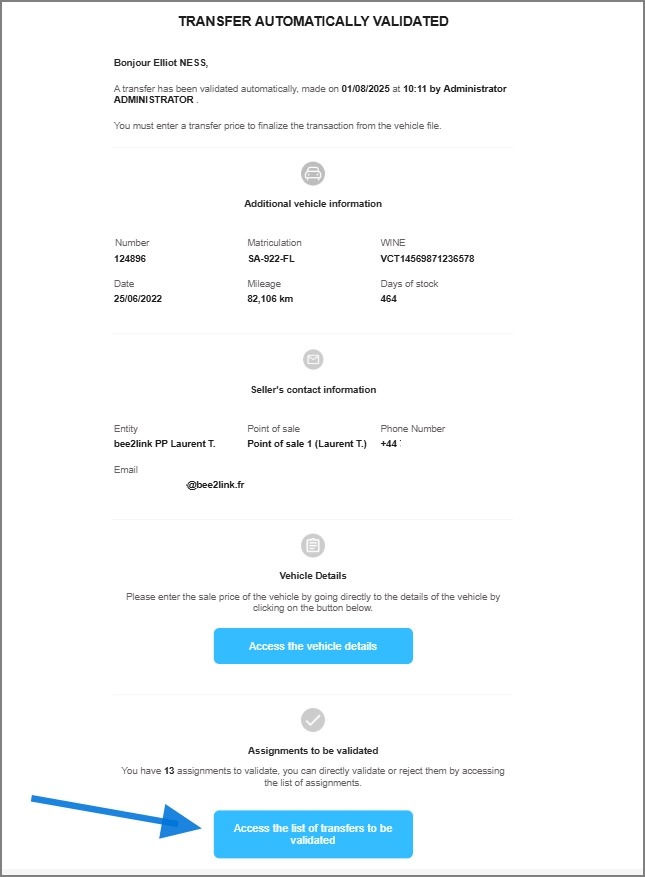
e) The managers responsible for managing transfers on the transferring entity will be notified by email when a transfer is made on their stock.
f) They will then need to confirm the transfer price to finalise the transaction. They can access the list of transfers to be processed via the link in the email.
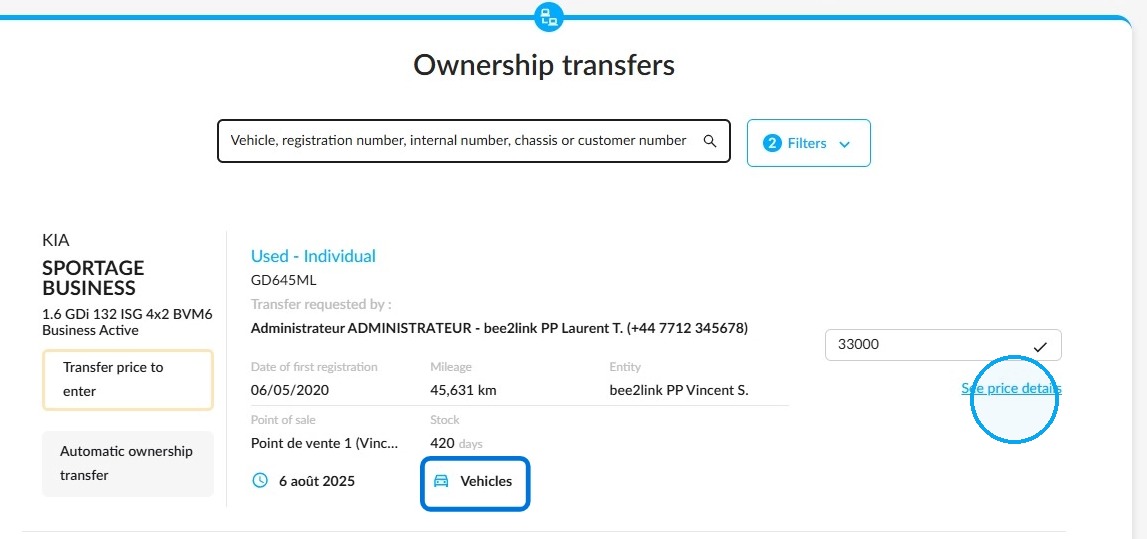
g) Before confirming or amending the quoted price, they will be able to see which module the request originated from.
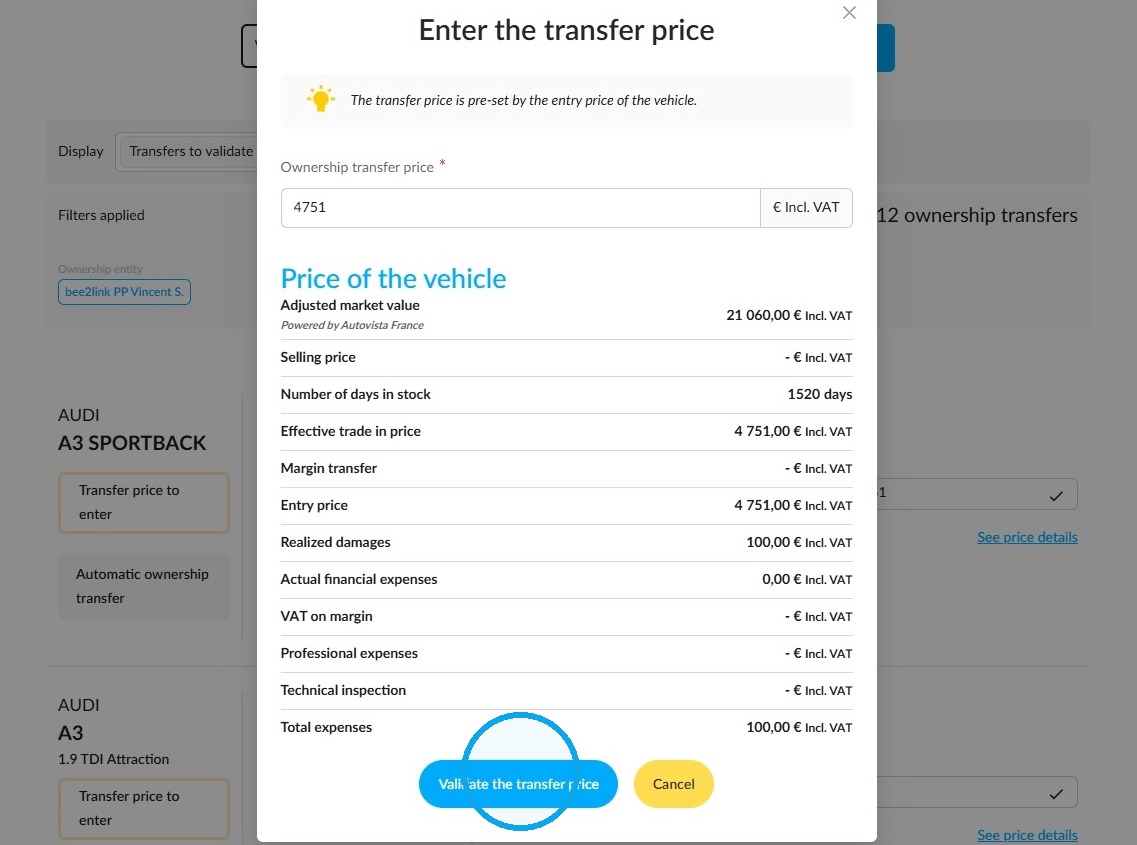
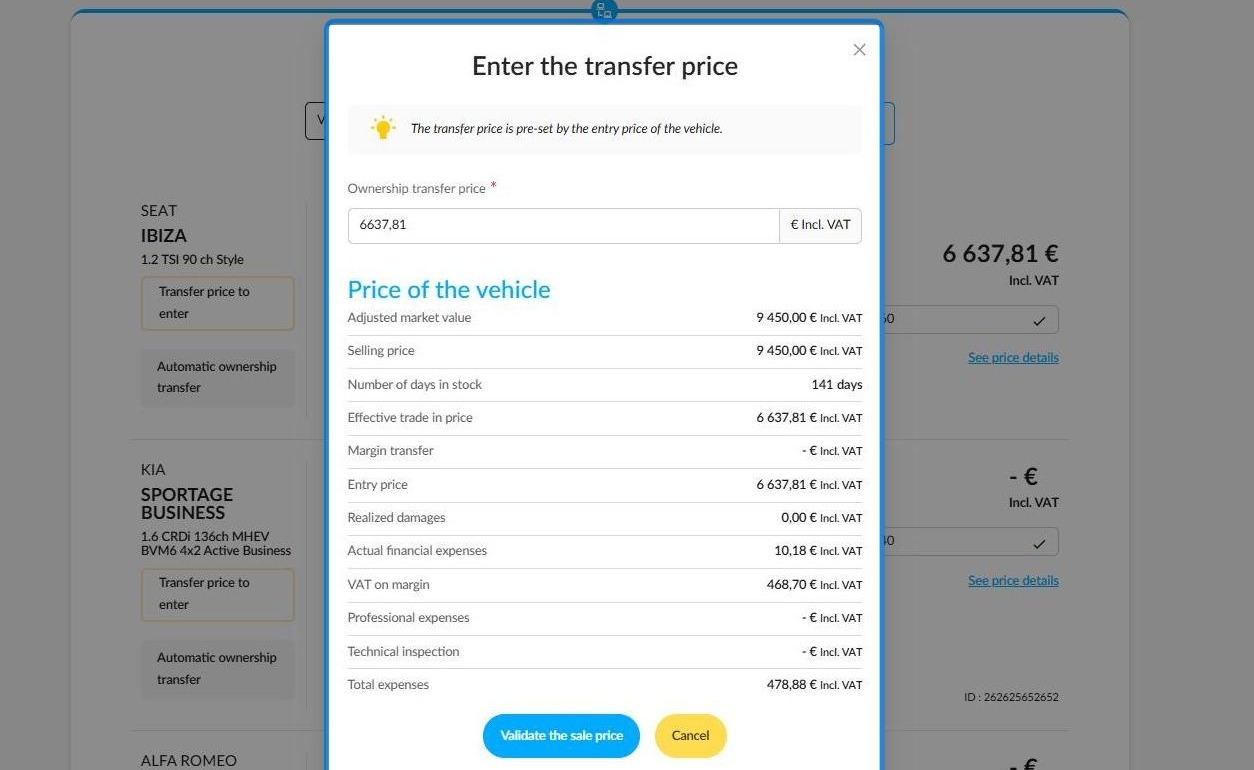
Clicking on the 'View price details' button will make a wealth of information available to help them set the best price.
h) They will then need to approve the transfer price.
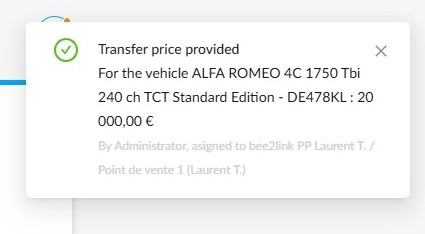
i) Finally, the entity that retrieved the vehicle will receive a notification informing them that the transfer price has been entered.
3) Manual ownership transfer: sending and receiving transfer requests made via the stock.
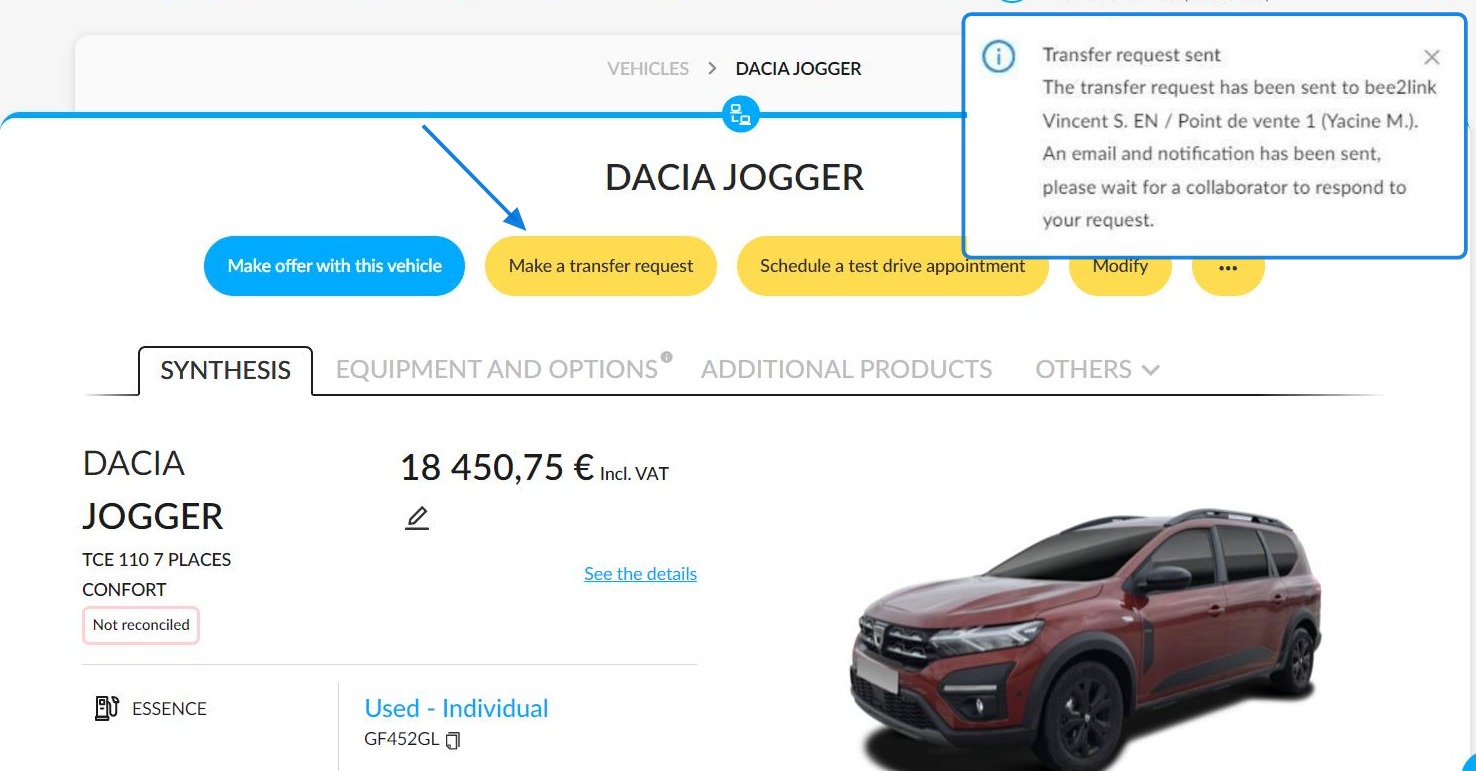
On the vehicle details page, click on 'Make a transfer request'. A notification will then appear in the top right-hand corner of the screen to let you know that the request is being processed.
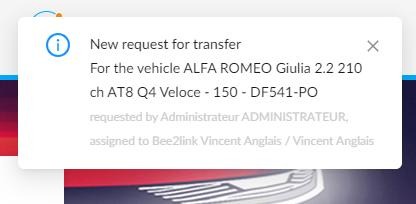
The employee responsible for validating transfers for the entity that owns the vehicle will also receive an on-screen notification.
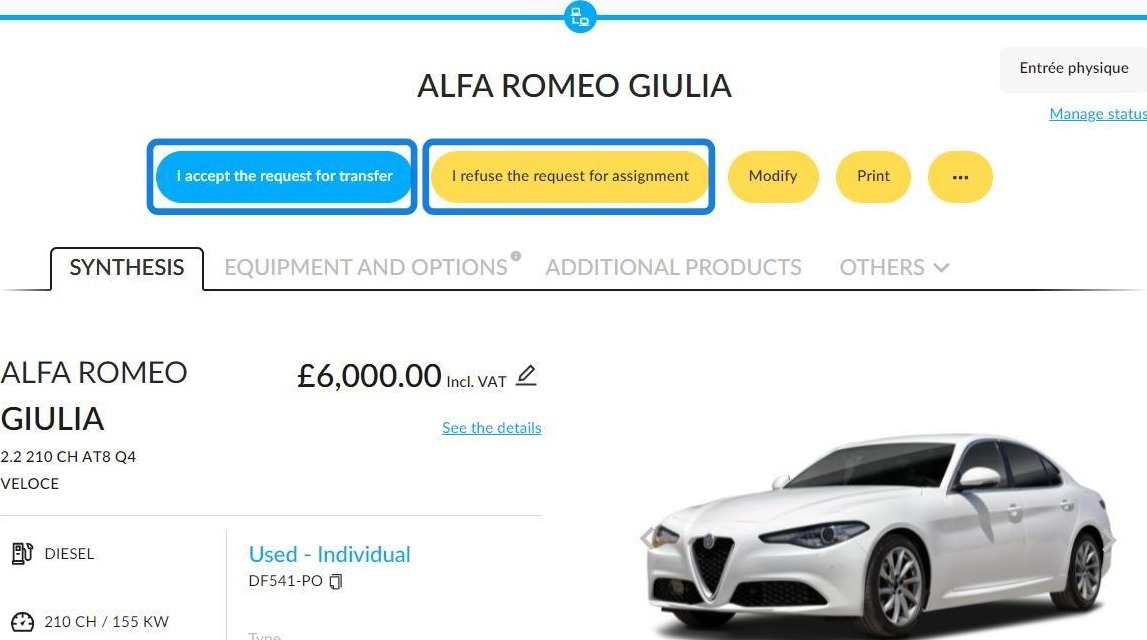
Clicking on the notification will open the vehicle details sheet directly. They can then either accept or refuse the ownership transfer.
When the user clicks on 'Accept the transfer request', a window opens in which they can enter the transfer price. For used vehicles, this is the same as the entry price for the vehicle.
For NVs/DVs, this is equivalent to the displayed selling price. This stage is compulsory for validating the transfer.
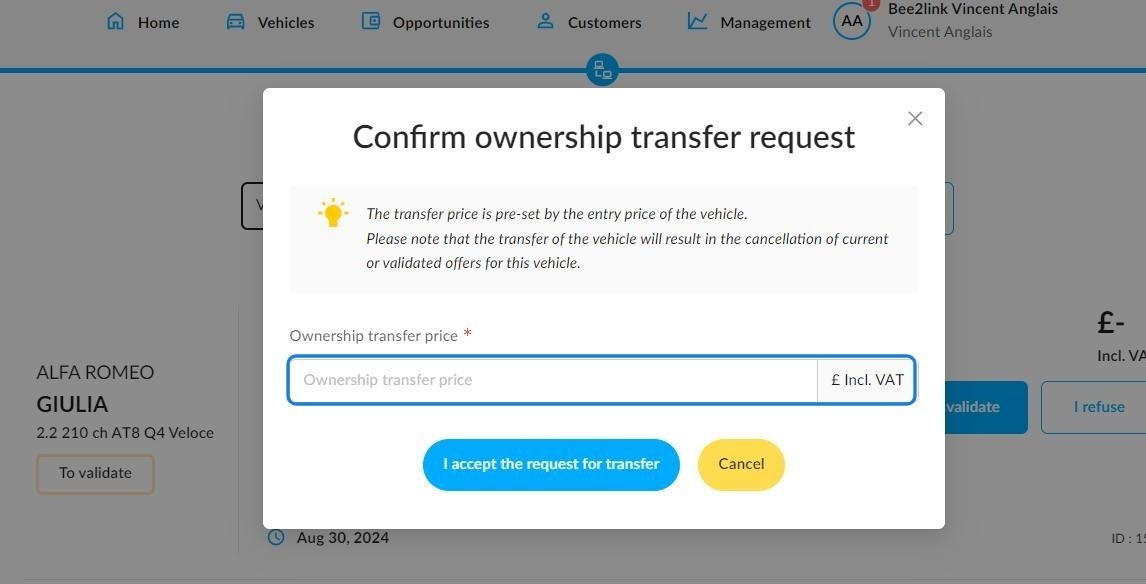
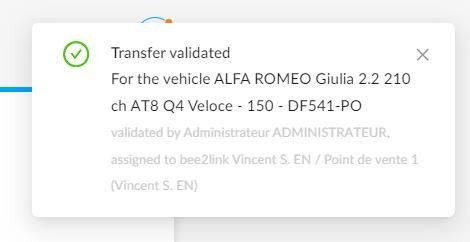
Afterwards, the requestor will receive a notification informing them of the outcome.
4) Manual ownership transfer: Sending and receiving a transfer request made via an opportunity
When making an offer on a vehicle owned by another entity, you will need to select a warranty. A window will remind you of the vehicle’s previous warranty.
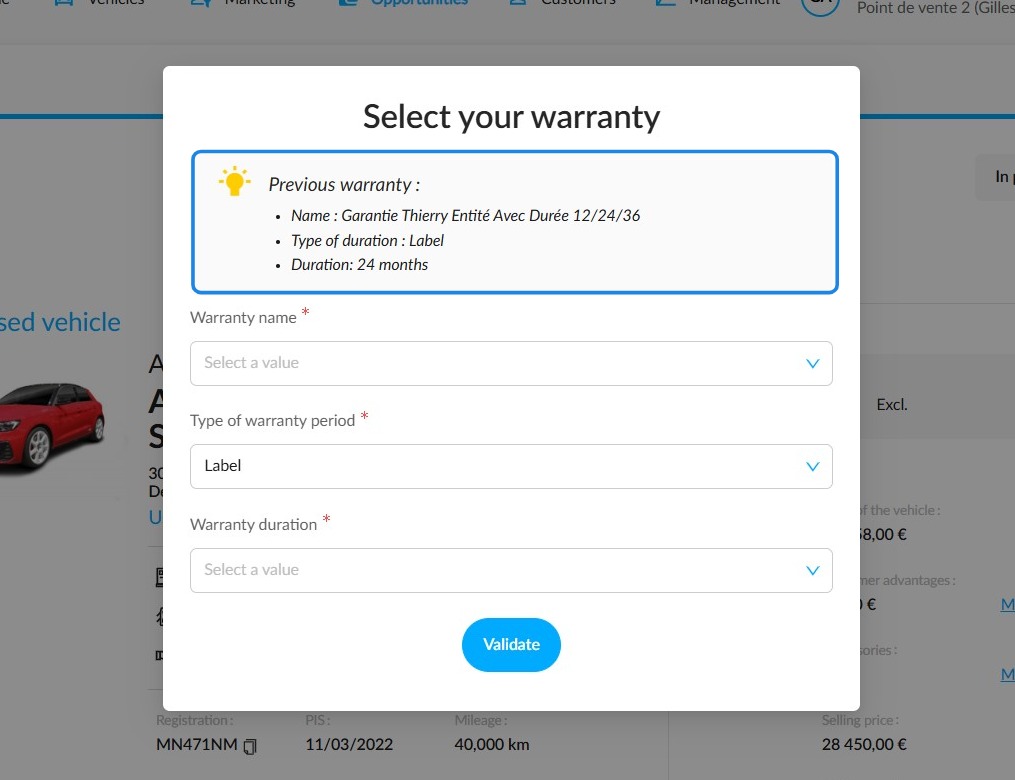
Reminder: In this context, when a seller places an order for a vehicle stored at an entity or point of sale that authorises transfers, approval from the managers of the transferring entity is required.
They must therefore wait to find out whether the transfer has been approved before confirming the order.
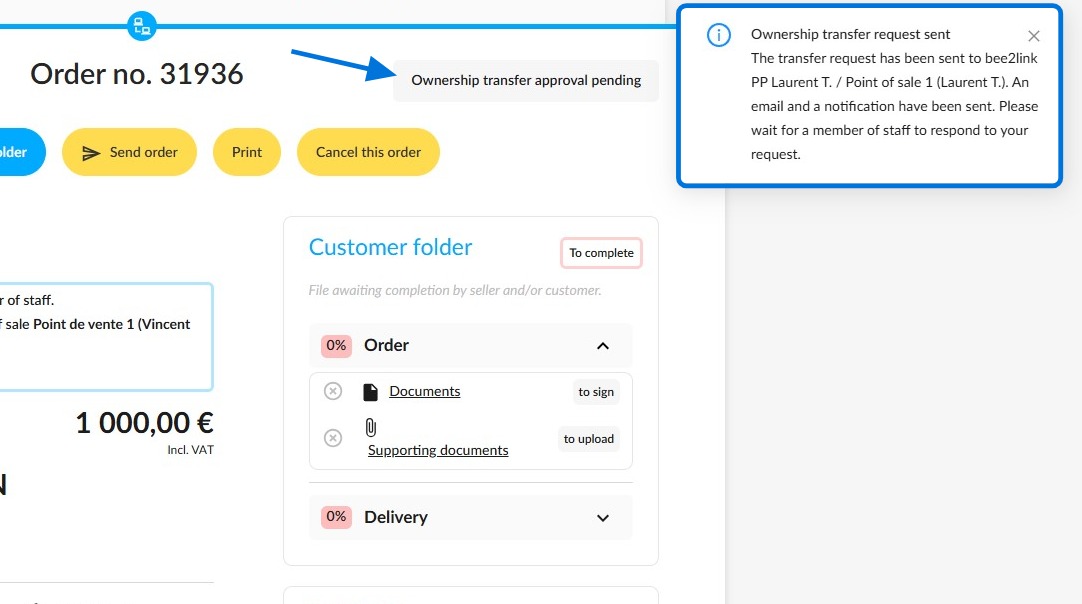
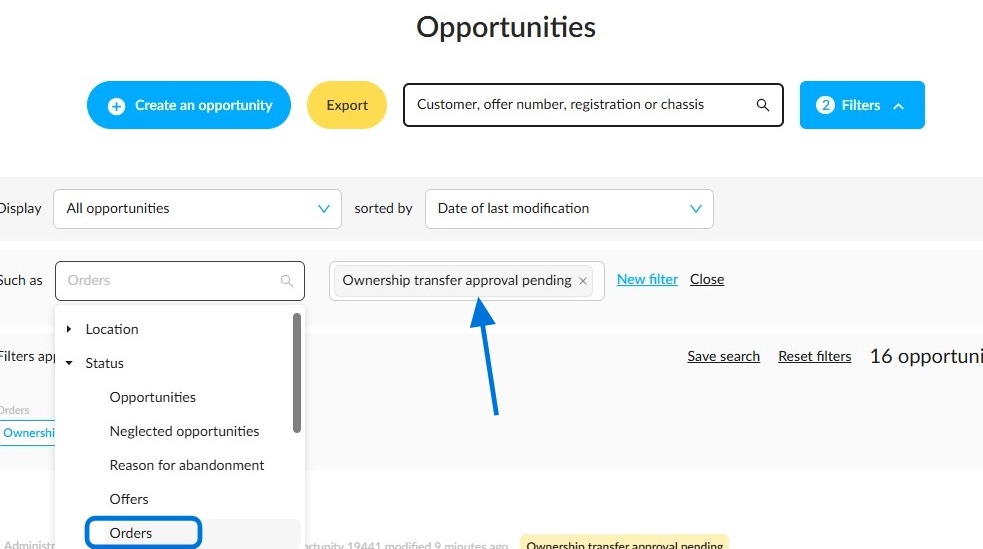
You can easily follow up on this order. Use the 'Order' filter in the opportunities table. Select the status 'Ownership transfer approval pending'.
At the point of sale where the vehicle is located, the manager will receive a notification and an email informing them that a transfer request has been received and needs to be processed.
We recommend that you click on the notification or email to go directly to the transfer request.
This will also be recorded in the 'Ownership Transfers Pending Approval' tile on the homepage. Therefore, even if you lose the email or notification, you can still process the request by clicking on the tile.
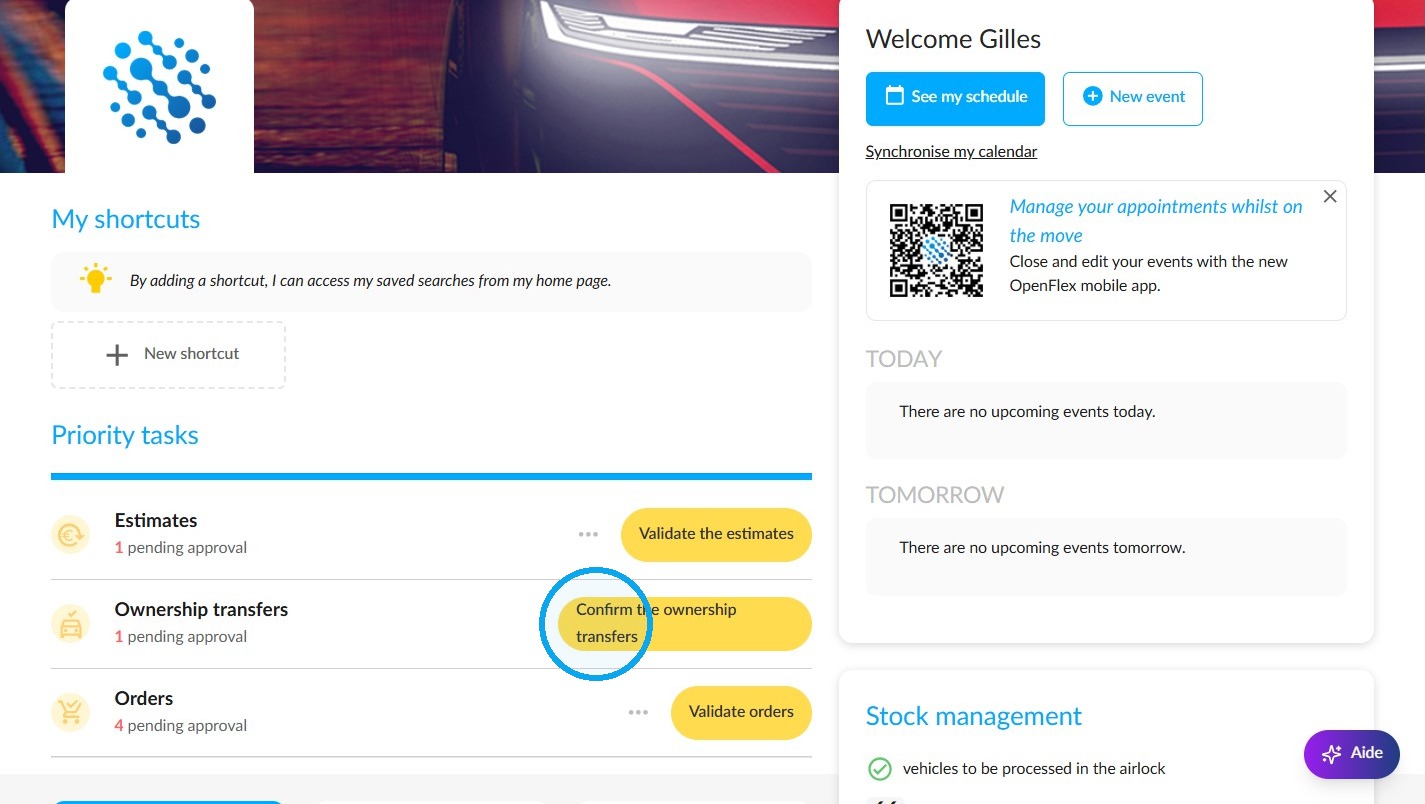
Click on the tile to view the request for validation and process it.
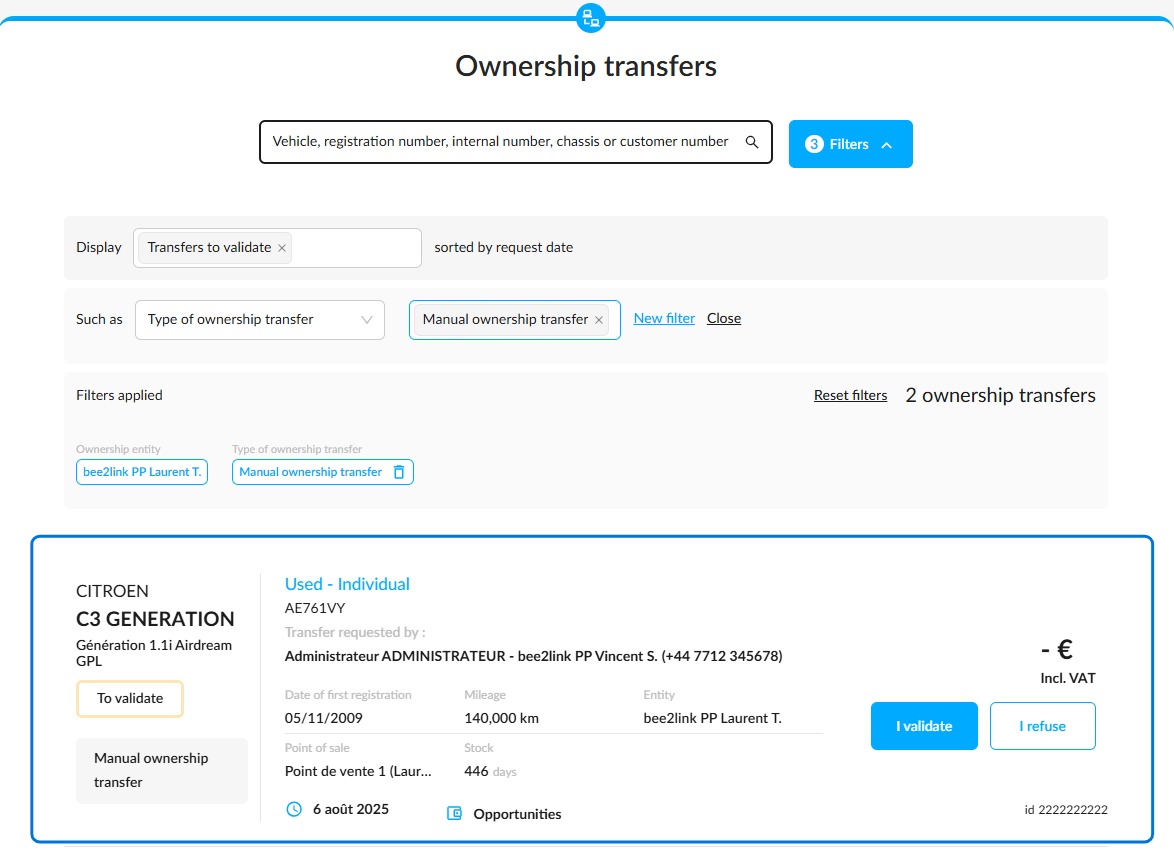
The process will be similar to the one described above. The manager will have buttons to accept or reject the transfer request.
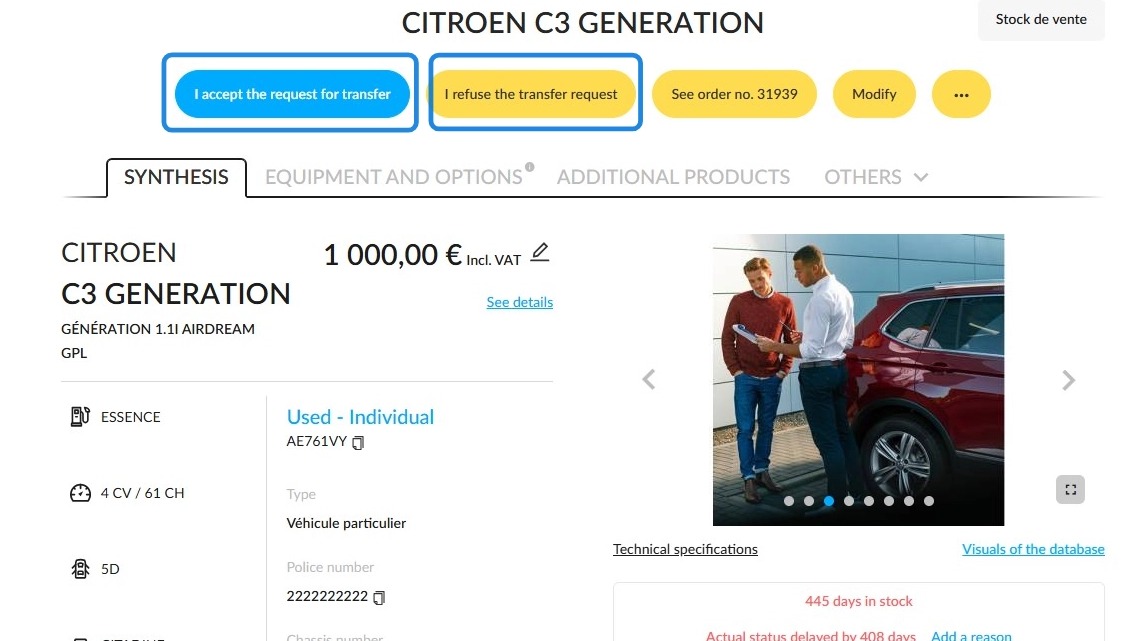
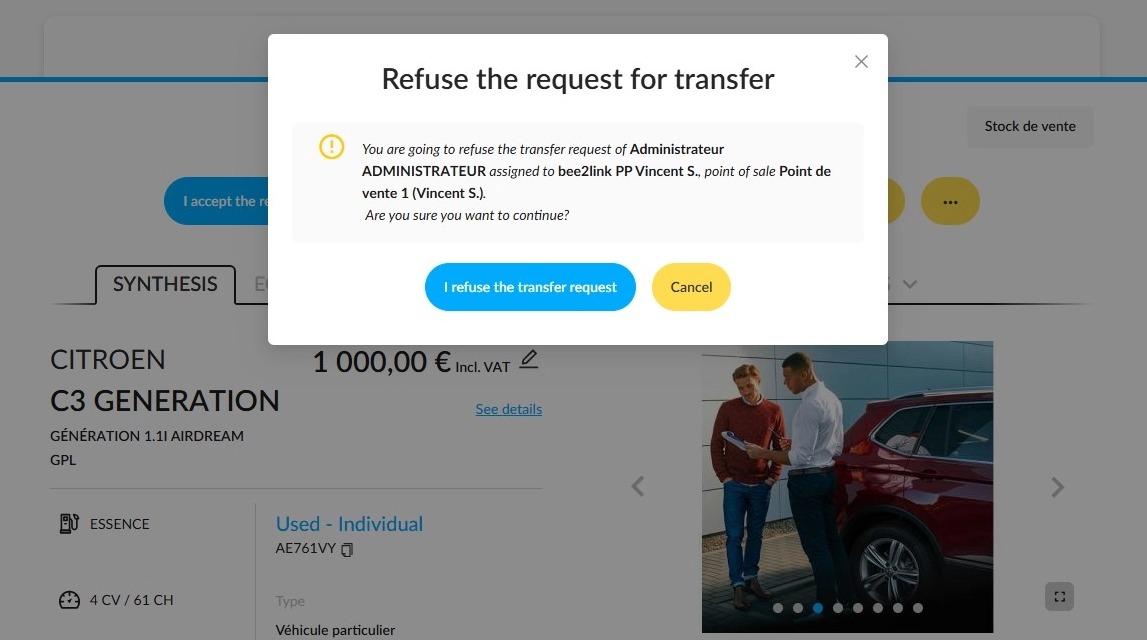
Refusal of the transfer will result in the cancellation of the offer made by the seller who requested the transfer.
As a result, a warning message will appear asking you to confirm your decision.
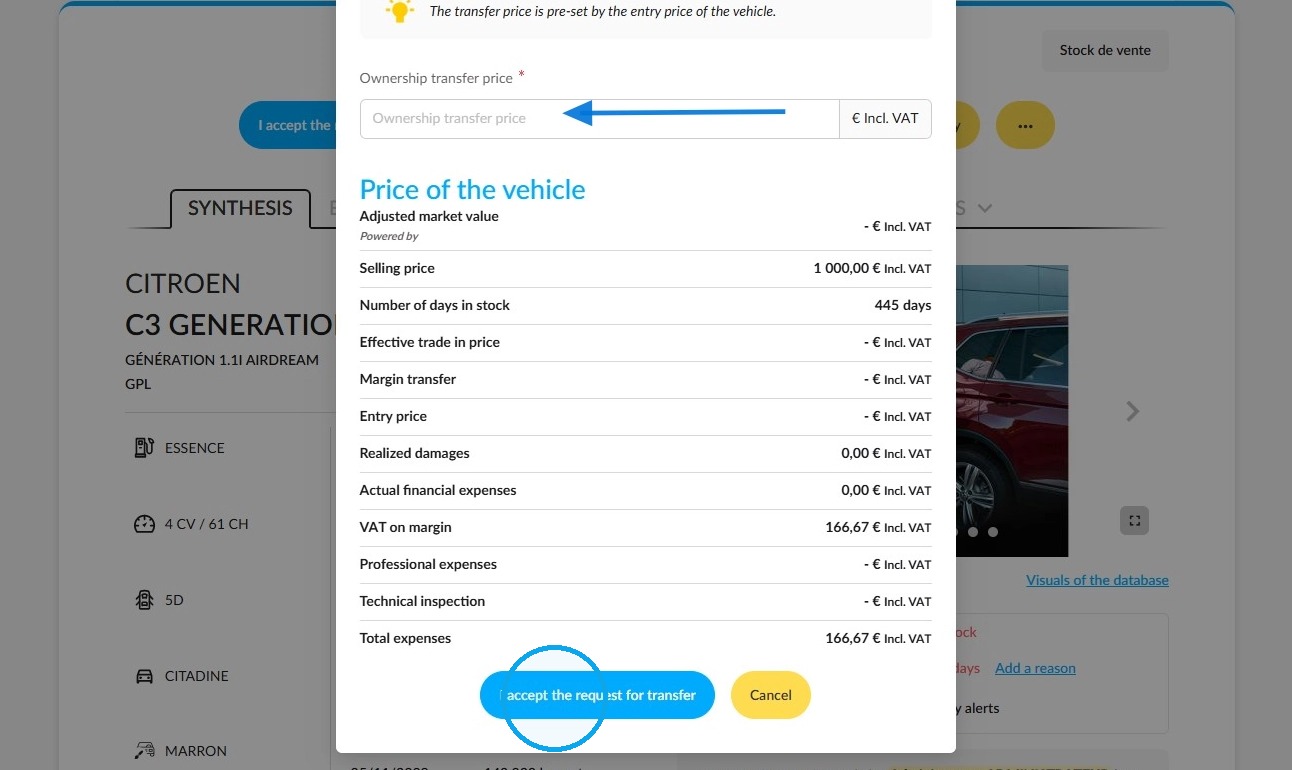
If you agree, enter the price at which the vehicle will be transferred. For used vehicles, you will be provided with a wealth of information to help you set the price.
Finally, click on the ‘I accept the request for transfer’ button.
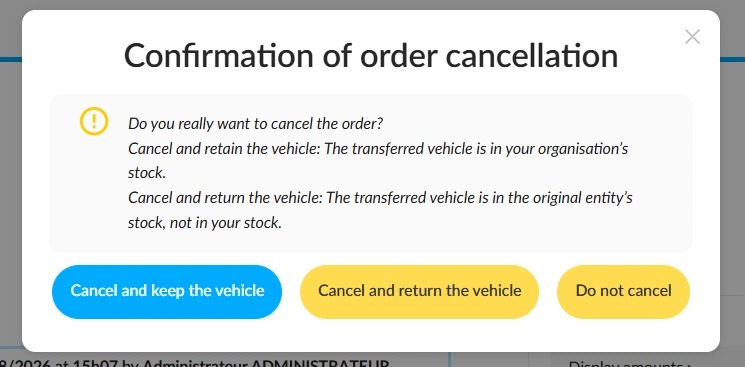
When an order is cancelled, the user is asked if they want to return the vehicle to the previous entity or keep it with the new one.
5) Automatic Ownership Transfer: Entering the Transfer Price After Order Validation
Background: When a seller approves an order that includes a vehicle stored at an entity or point of sale that authorises ownership transfers, ownership of the vehicle is automatically transferred to the point of sale where the order is processed.
Employees responsible for processing ownership transfers at the transferring entity must enter the vehicle’s transfer price in the transaction. They will be notified through the system and by email.
Following the validation of an order on a transferable vehicle, the employees responsible for tracking transfers will receive an email and a notification inviting them to enter a transfer price.
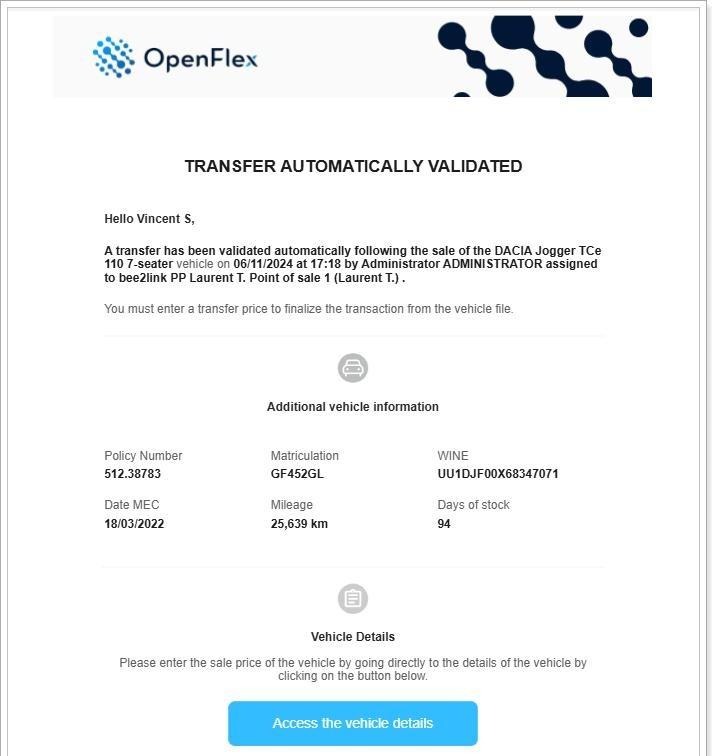
From this step onwards, the process is identical to the one described in Chapter 2.
Special case:
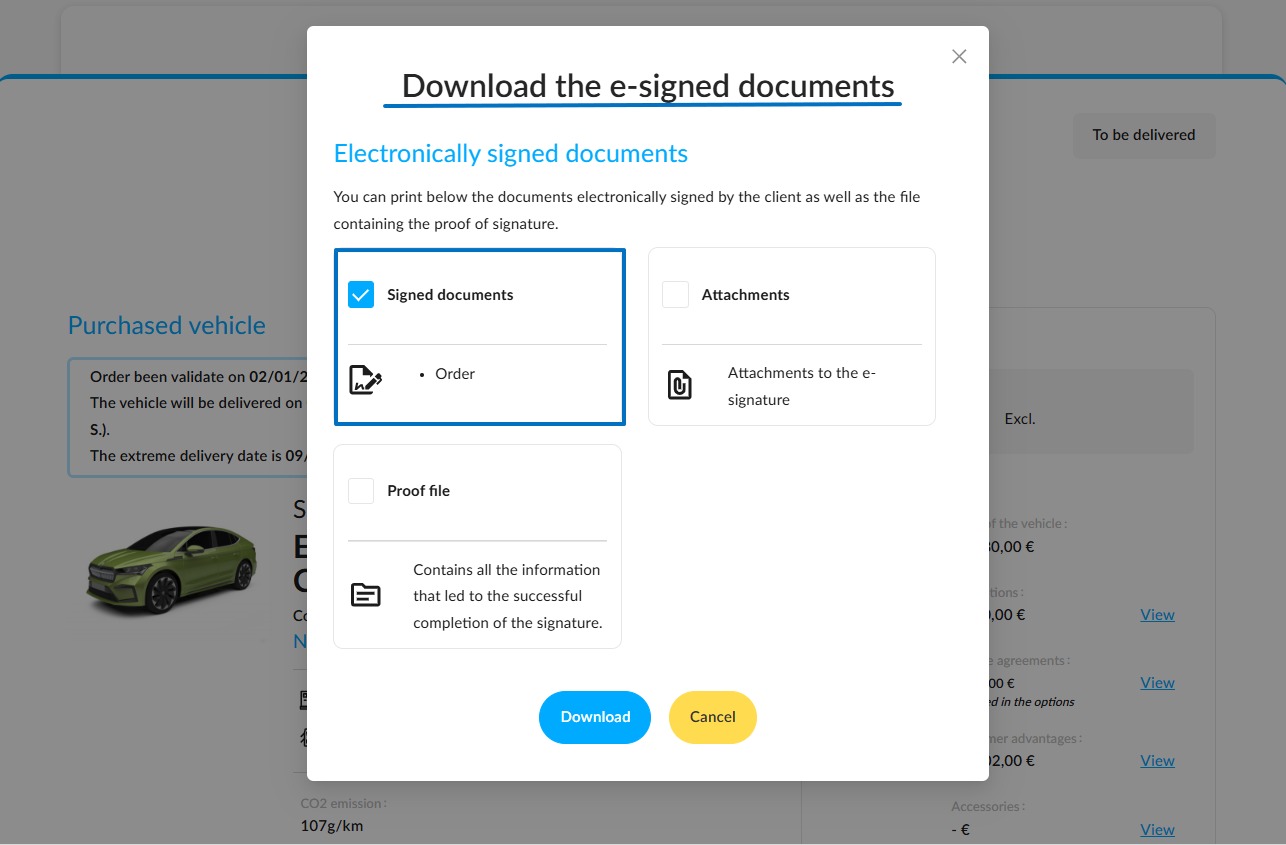
In the case of an order for a transferable vehicle, if a customer chooses to sign electronically, the ownership transfer will only take effect once the order has been validated by the customer’s electronic signature.
Comments
0 comments
Article is closed for comments.