
Please find out how to set up predefined comments that you will be able to select when printing commercial documents.
Accessing the Comments Library:
Prerequisite: You need administrator permissions on the platform to access the comment settings for opportunities.
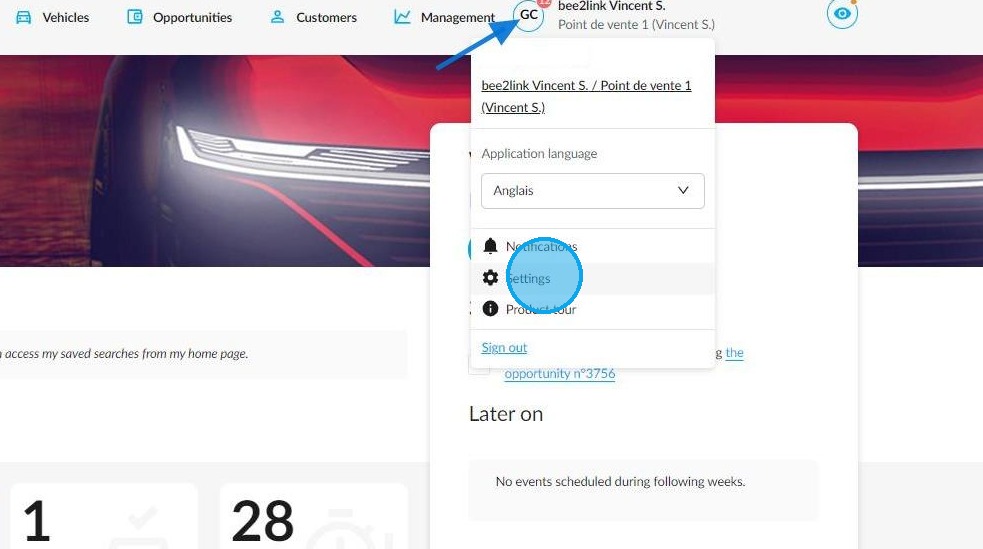
You can configure a library of preset comments that you can select directly when validating offers and/or orders. To do this, click on your initials to open the 'Settings' menu.
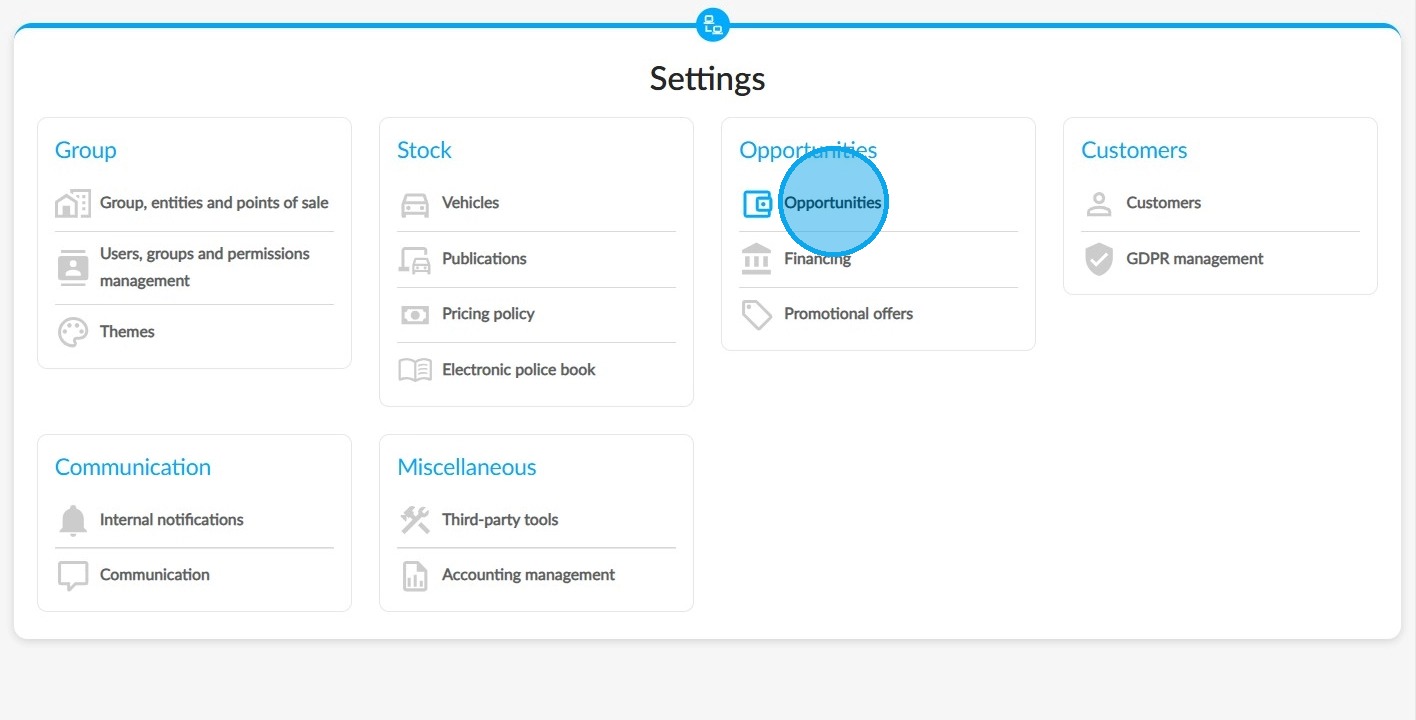
In the section of the same name, select the 'Opportunities' module.
Entering a comment:
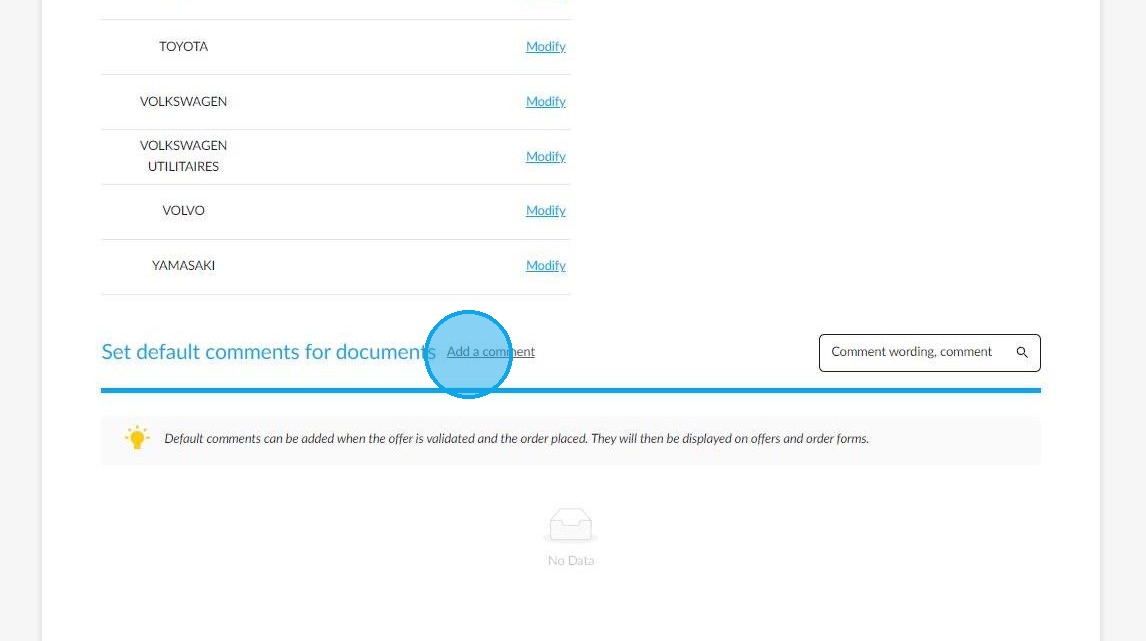
At the bottom of the page is a box labelled 'Set default comments for documents', which allows users to add comments that will be copied onto future offers and/or orders.
Click on 'Add a comment'.
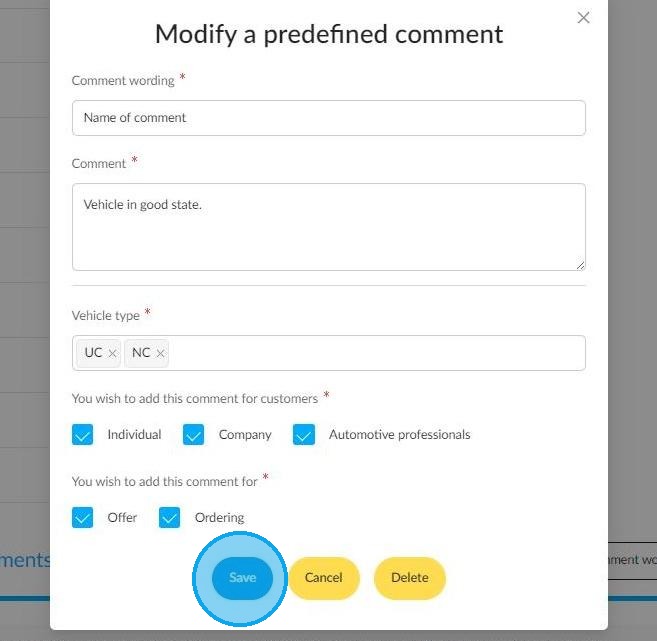
The 'Add a predefined comment' window then allows you to write your comment. You must give each comment a name. The following fields must be completed to proceed to the next step:
• the comment title;
• the comment;
• vehicle type.
- the type of customer for whom this comment should be displayed;
- whether this comment applies to offers or orders.
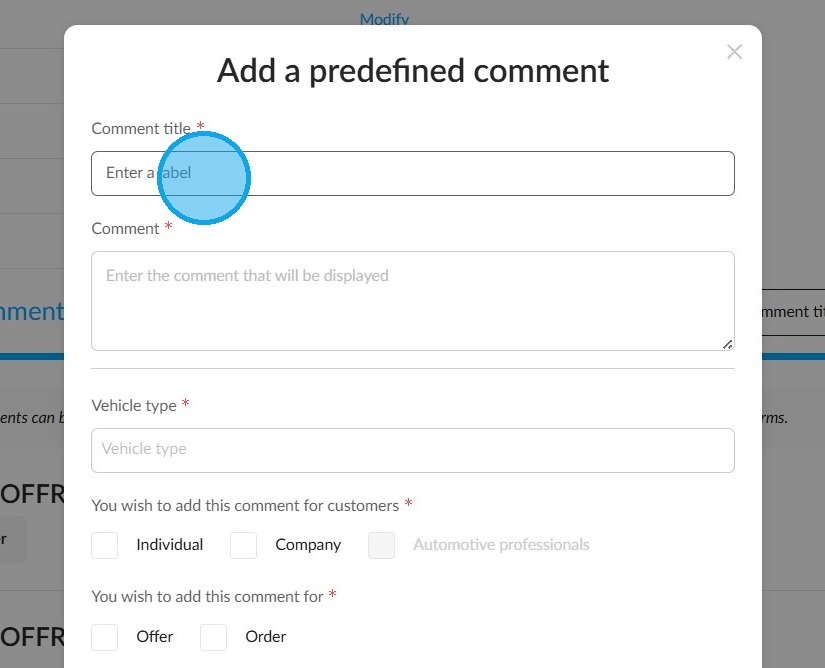
The vehicle types referred to in your comment – 'NV, DV and UV' – can be selected from the drop-down menu.
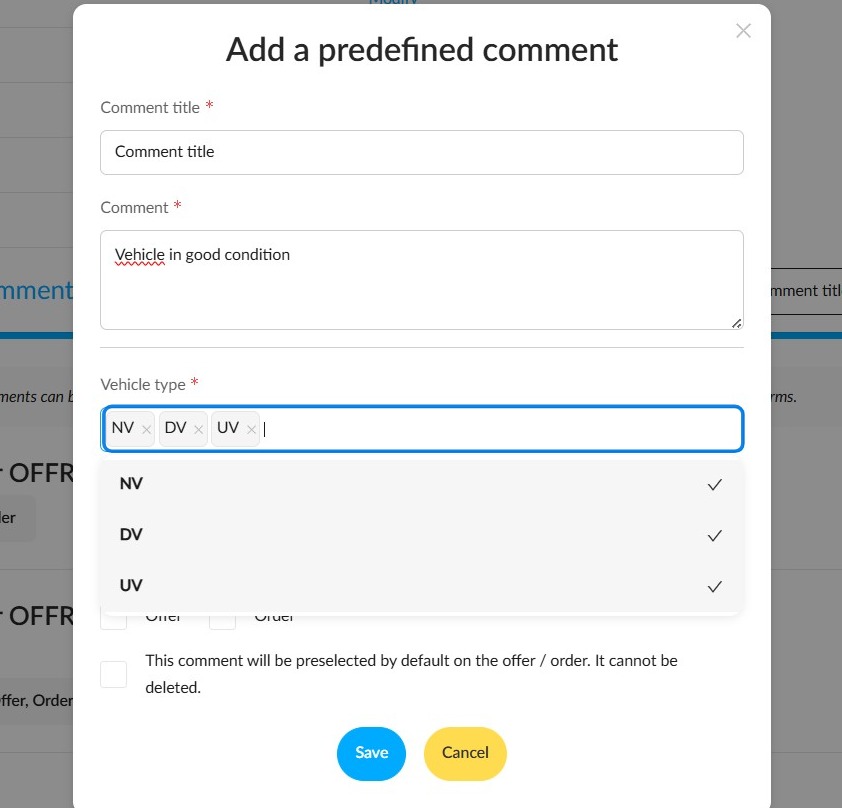
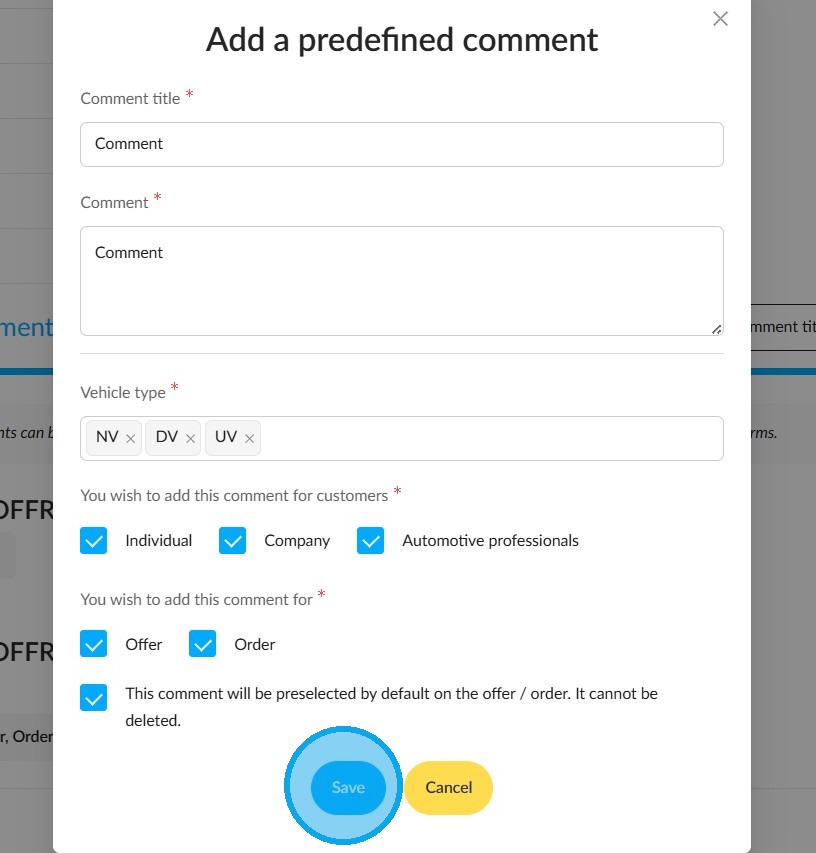
You can then select the category to which your comment applies from the following options: 'Individual', 'Company' or 'Automotive Professionals'. Finally, select the relevant documents depending on whether they are offers or orders. If you would like this comment to appear automatically on the offer or order, select the relevant box.
Click "Save" at the bottom of the page when you have finished configuring the settings.
Editing a comment:
Click on a comment to edit it.
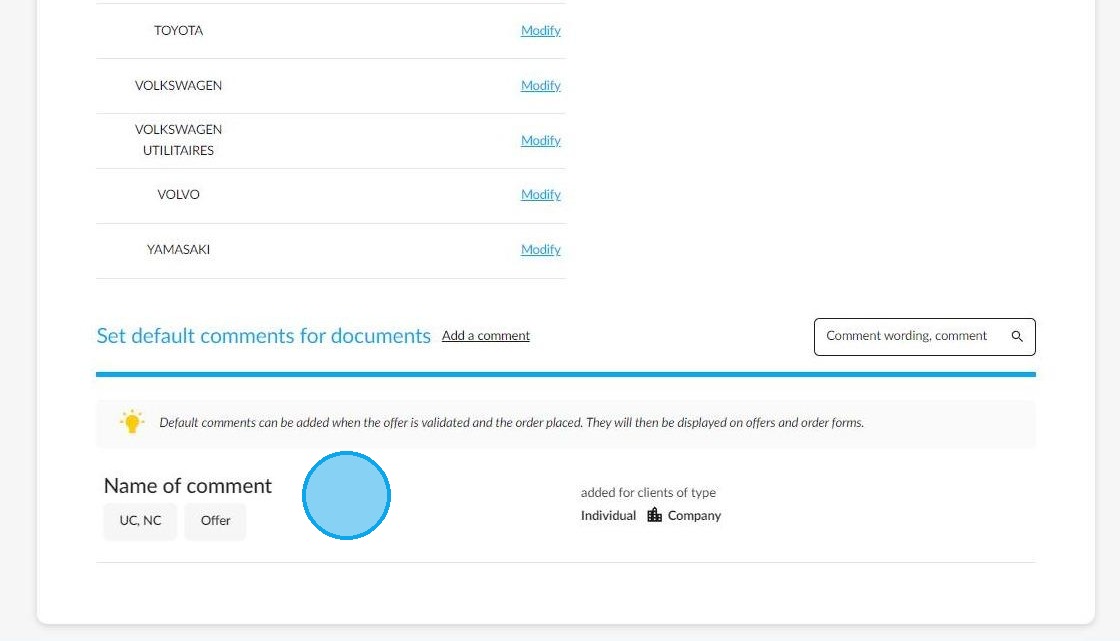
You can review any predefined comment and how it is applied as you see fit.
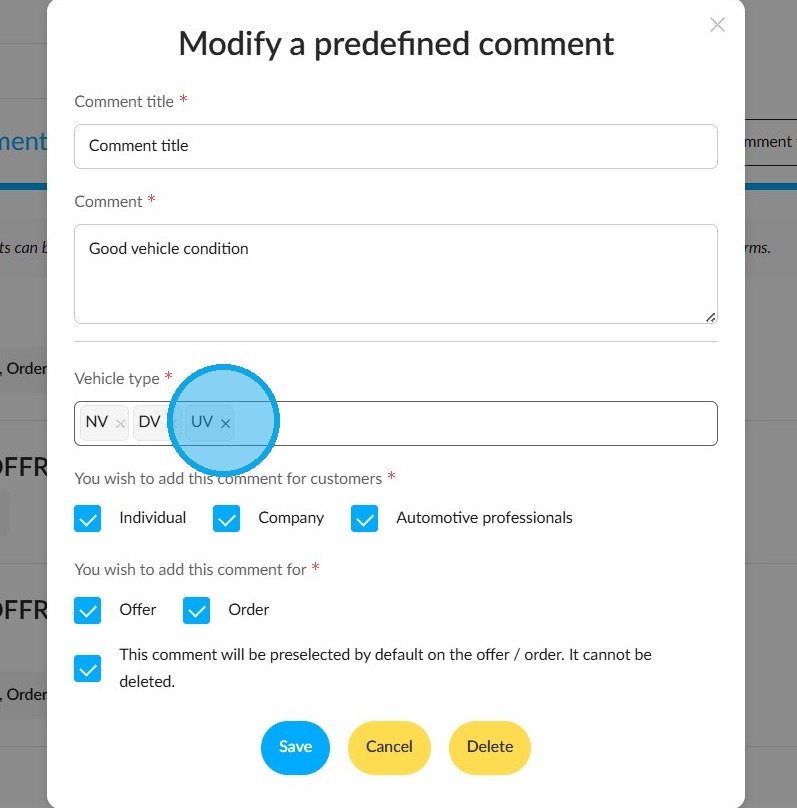
Once you have made your changes, Save your work.
Selection of predefined comments during transactions:
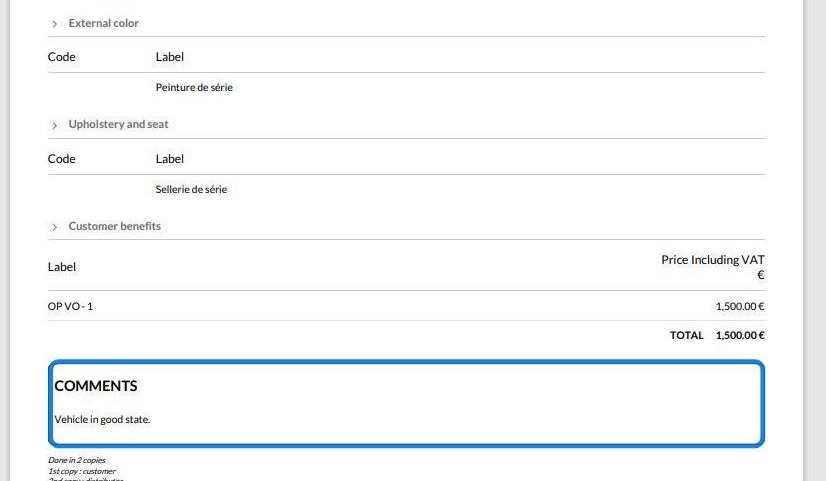
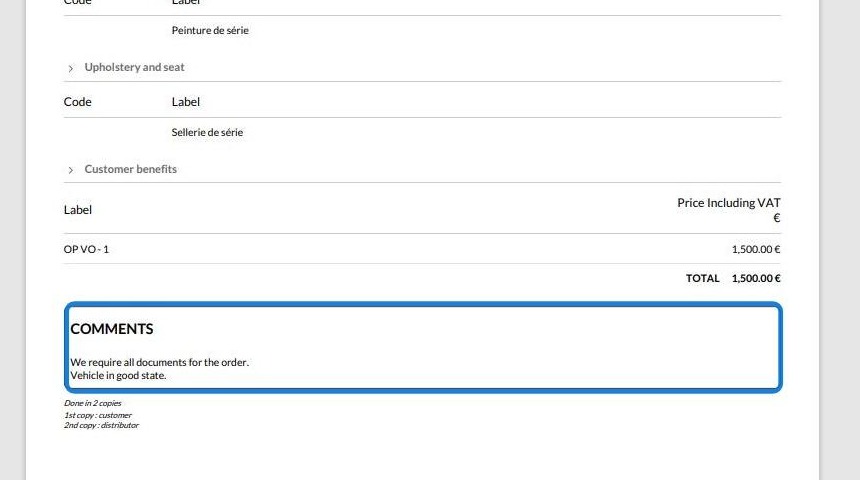
The following is an example of a predefined comment that appears in the 'Comments' section of an offer:
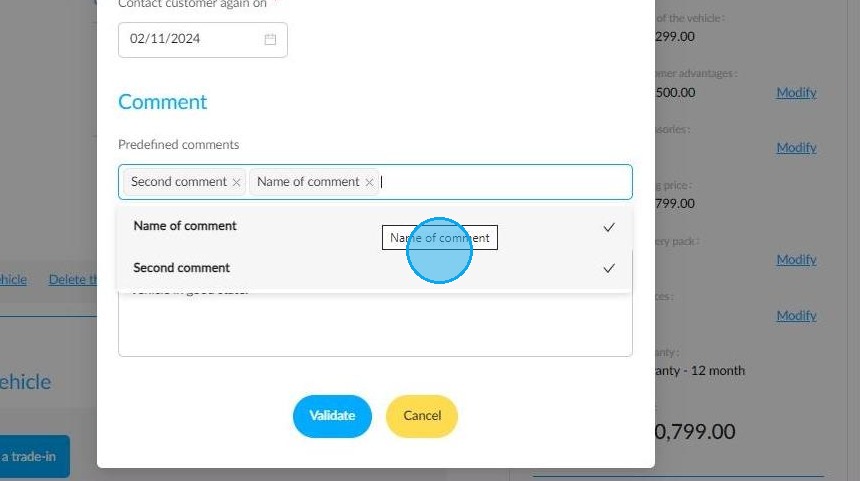
If you create multiple comments, you will be able to select them from a drop-down menu when printing quotes and/or orders, depending on how you have set them up.
You can manually edit the text of a predefined comment as required. This allows you to add or delete text before validating a transaction.
Even if no predefined comment has been established, you will still have access to free input when editing commercial documents.
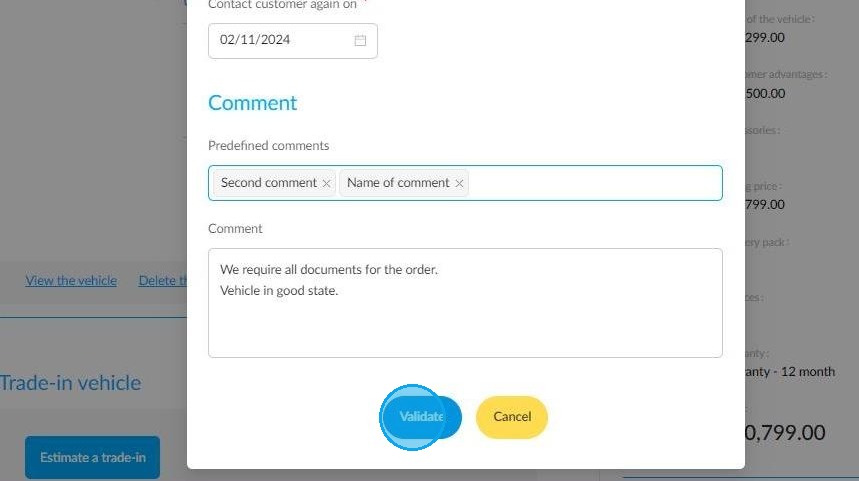
Here is an example of a printed offer with two comments:
Comments
0 comments
Article is closed for comments.