
Find out how to process price update requests from the home page and the "Vehicles" module.
Prerequisites management:
Prerequisite: you must have the right to manage used vehicle prices in order to update them.
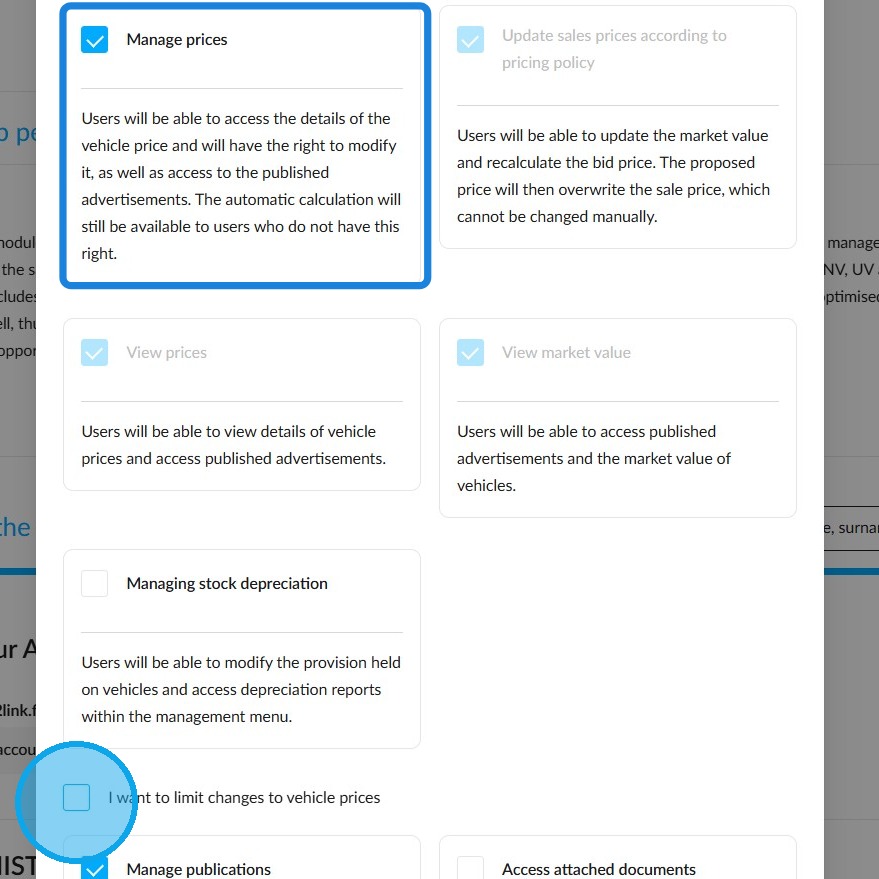
1. In the rights management section, open the file for the group of your choice, click on the 'Vehicles' module, then go to the 'UV' tab. Ensure that the 'Manage prices' box is ticked.
You may limit this right to either the trade-in price or the selling price. To do that, tick the 'I want to limit vehicle price changes' box.
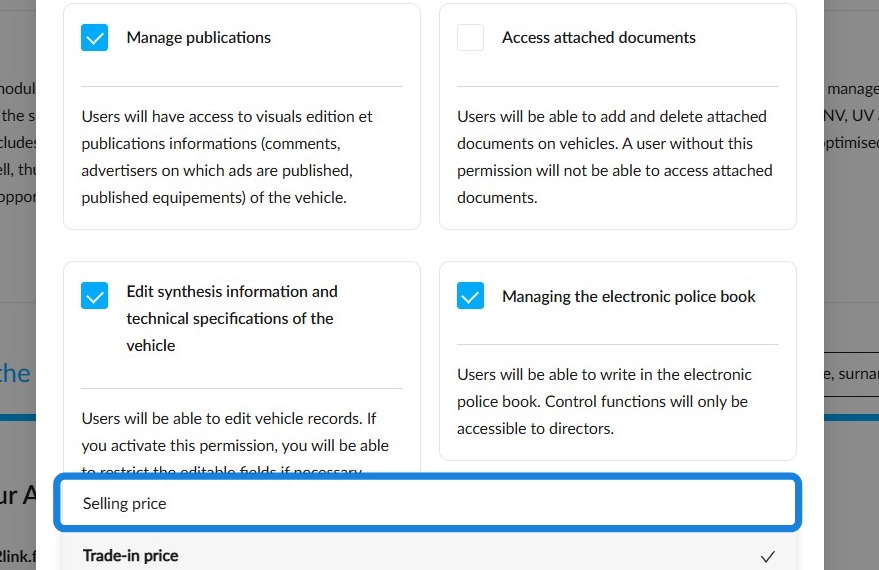
2. In this tutorial, it is the selling price that is relevant for the rest of the process. Select the option from the drop-down menu and then save by clicking "Save".
1) Manual management of automatically calculated prices:
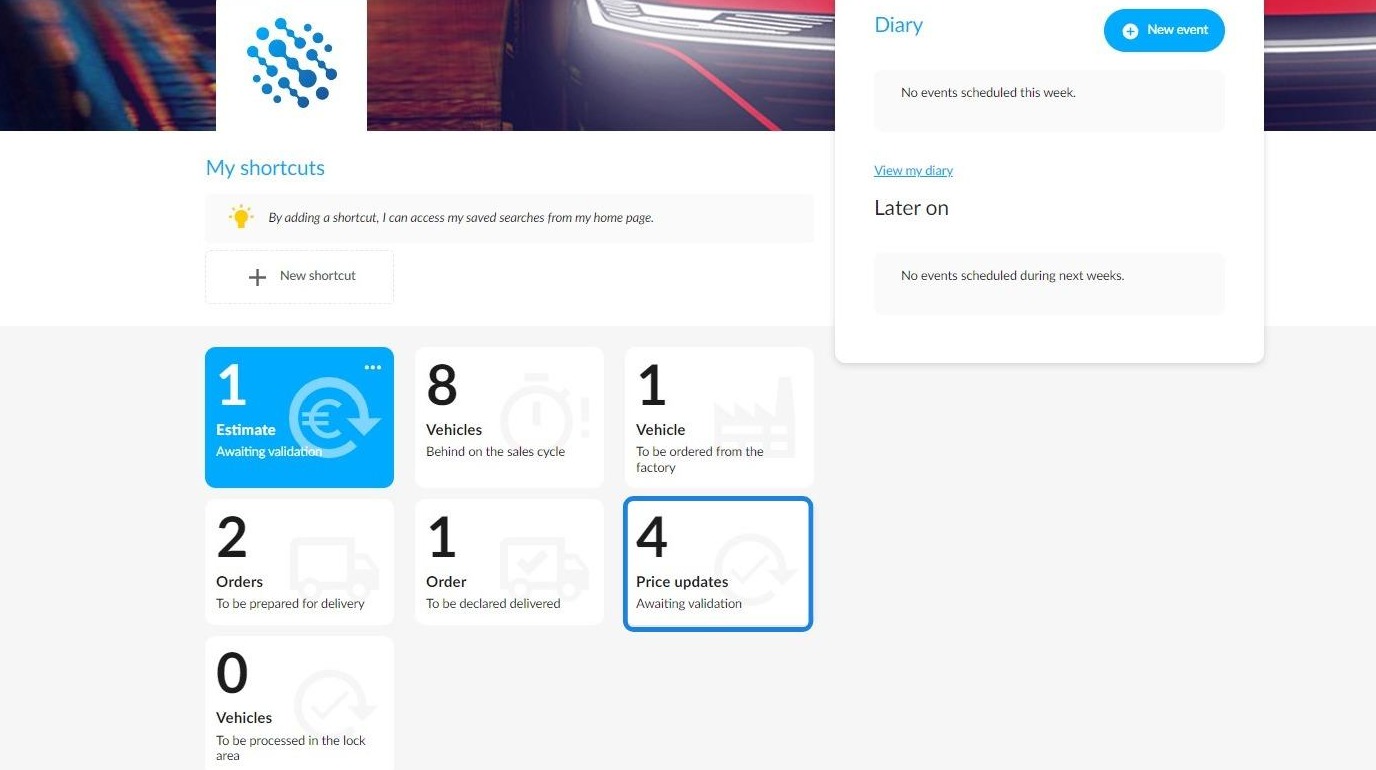
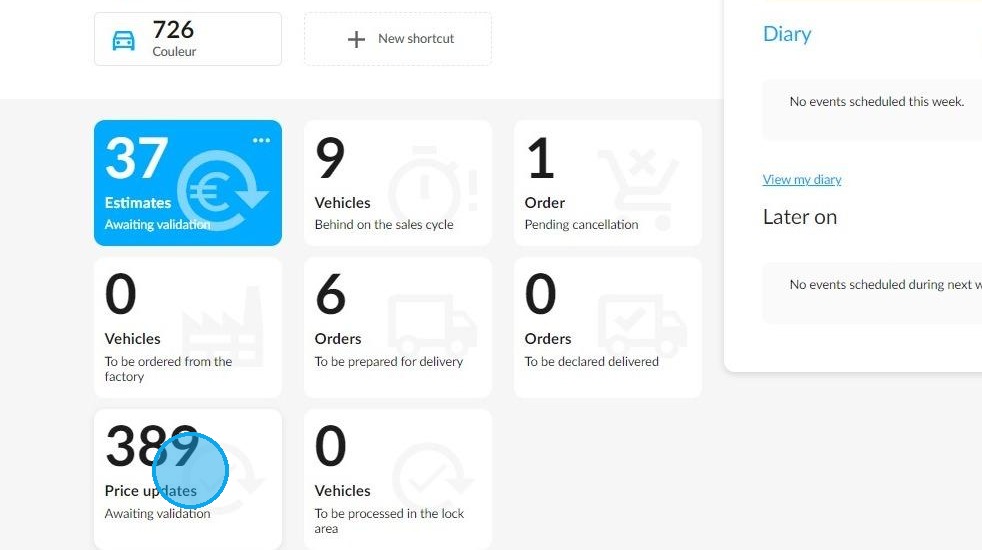
3. From the home page, a button is visible to enable you to find the list of all vehicles with a change of price awaiting confirmation.
4. The stock manager can quickly and accurately identify a vehicle by entering any of the following data in the search bar:
- make
- model
- version
- finish
- registration no.
- internal no.
- chassis number
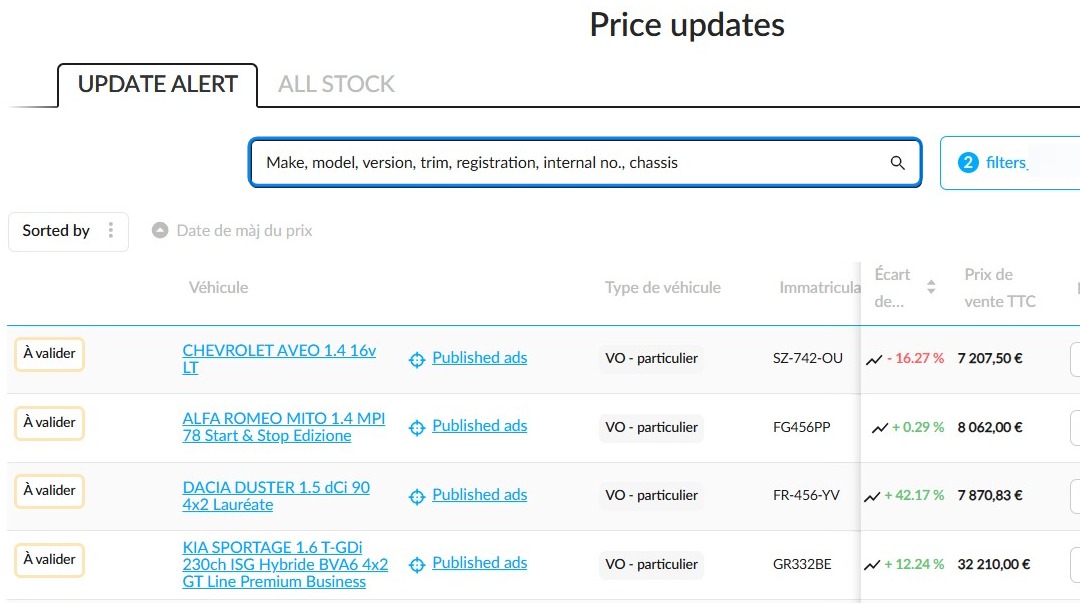
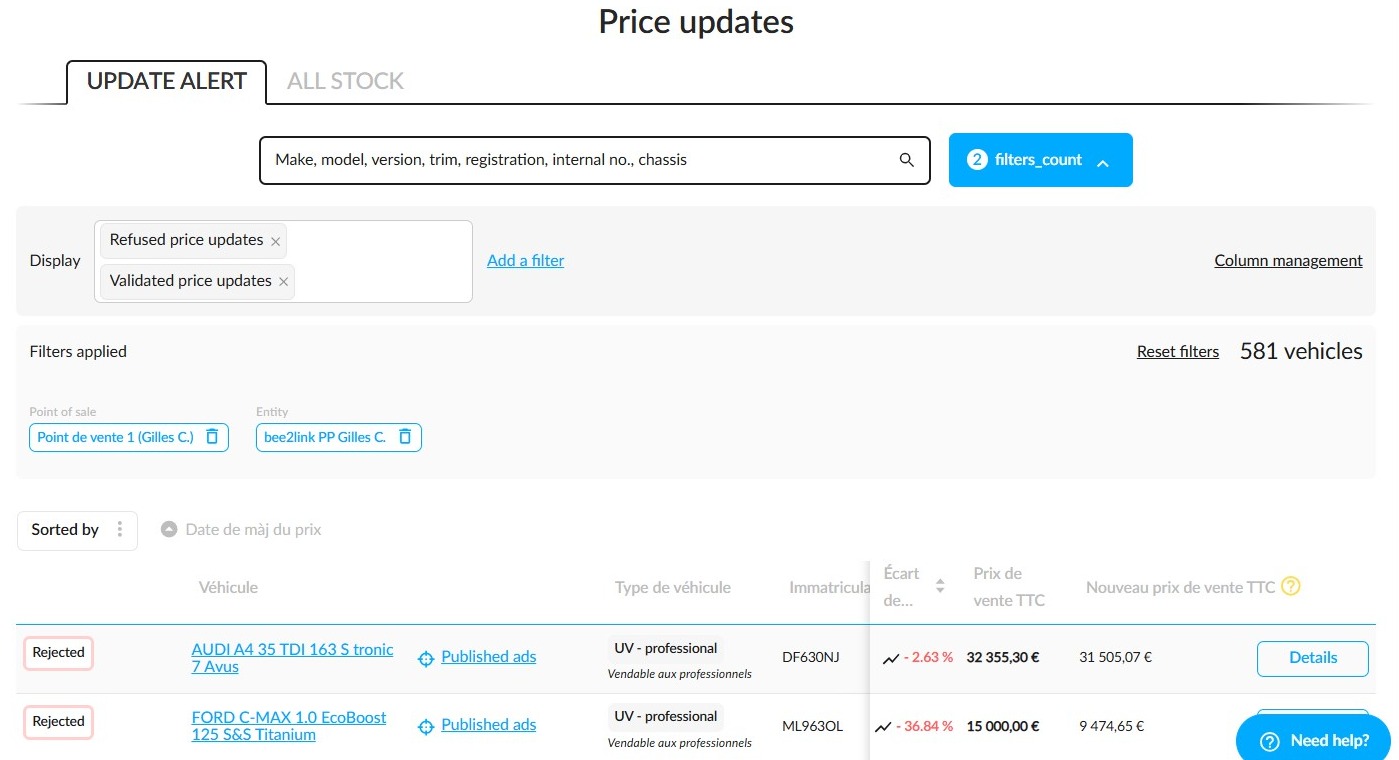
5. To see the list of all prices pending validation, a filter is available to display all vehicles for which a new price has to be validated or rejected by a stock manager.
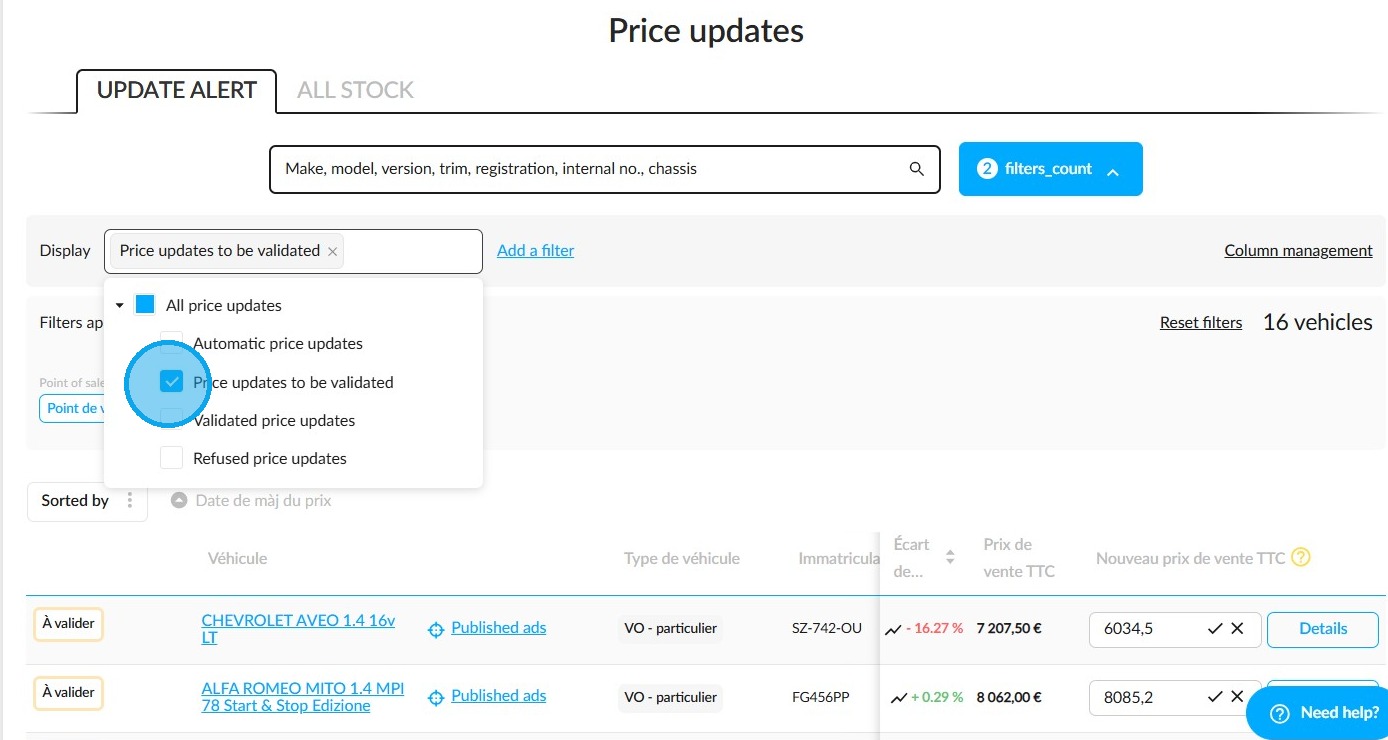
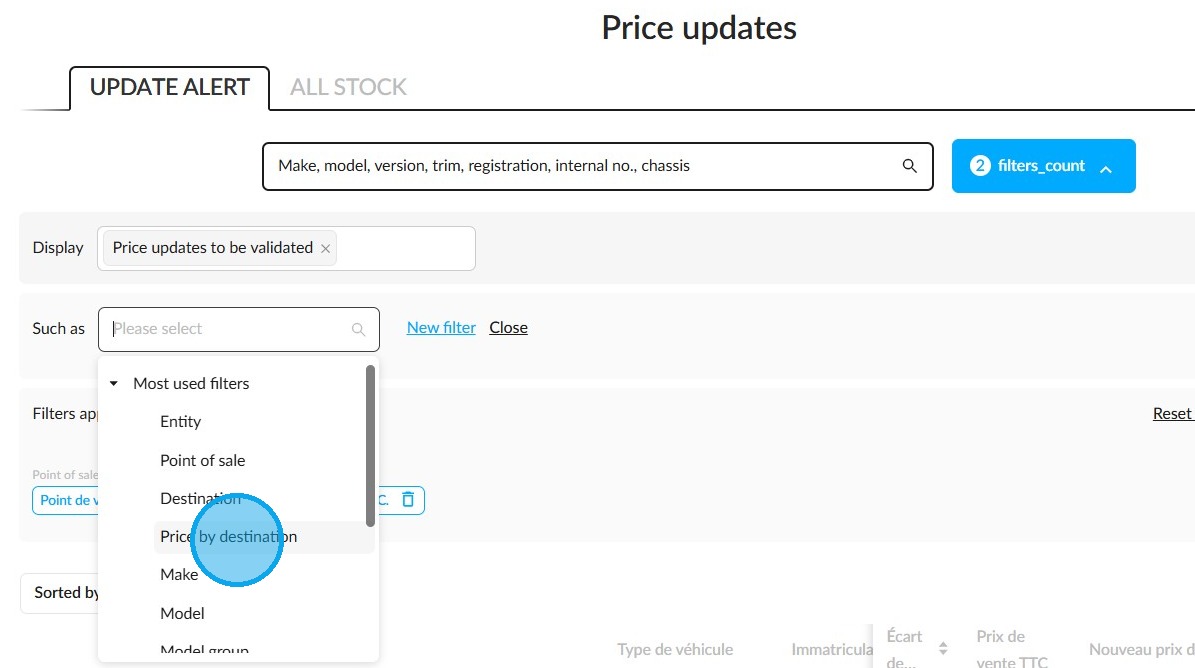
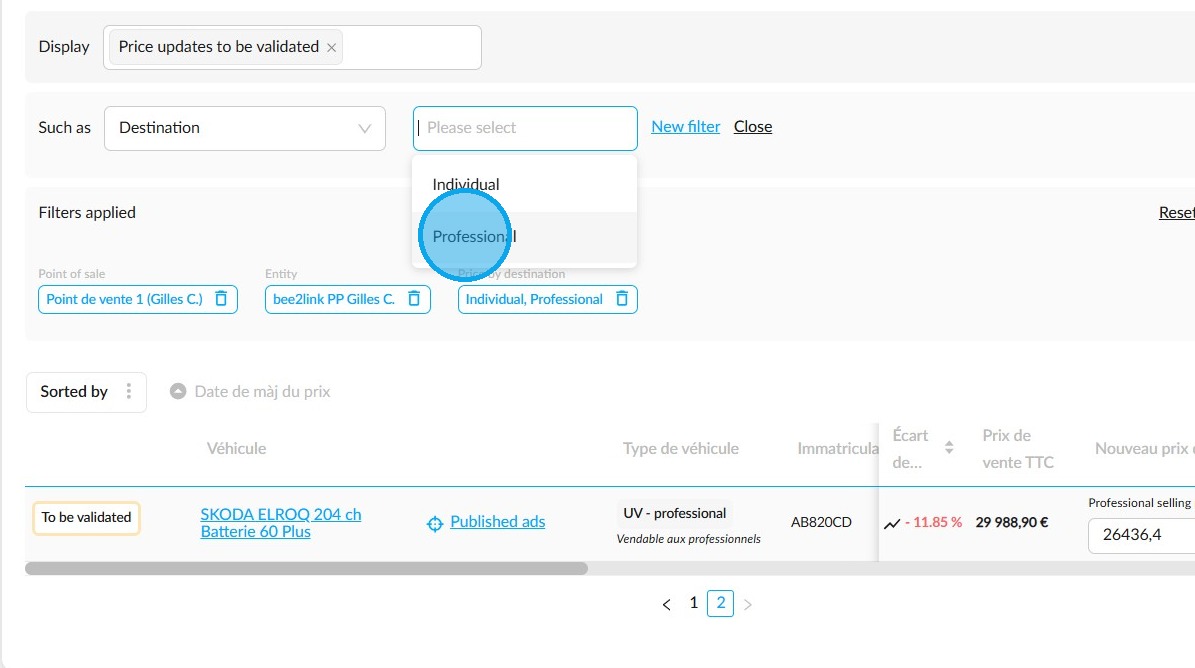
6. You can also add filters to refine your results further, such as the point of sale, destination, price by destination.
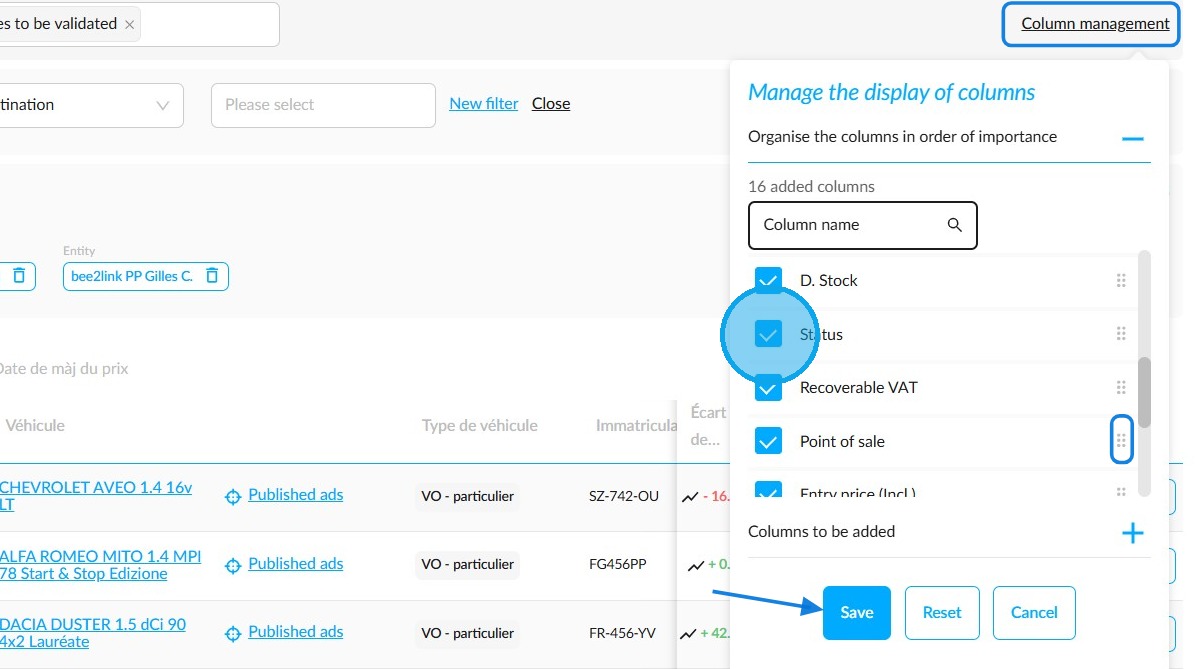
7. Handle the table columns in the same way as in the 'Vehicles' module. First, click on 'Column Management' on the right-hand side and then move and tick the columns so that they are displayed in your chosen order. Finally, click on 'Save'.
8. By consulting the list of vehicles with price updates awaiting validation via the tile available on the home page, you will see:
-UVs intended for individuals.
-UVs intended for professionals.
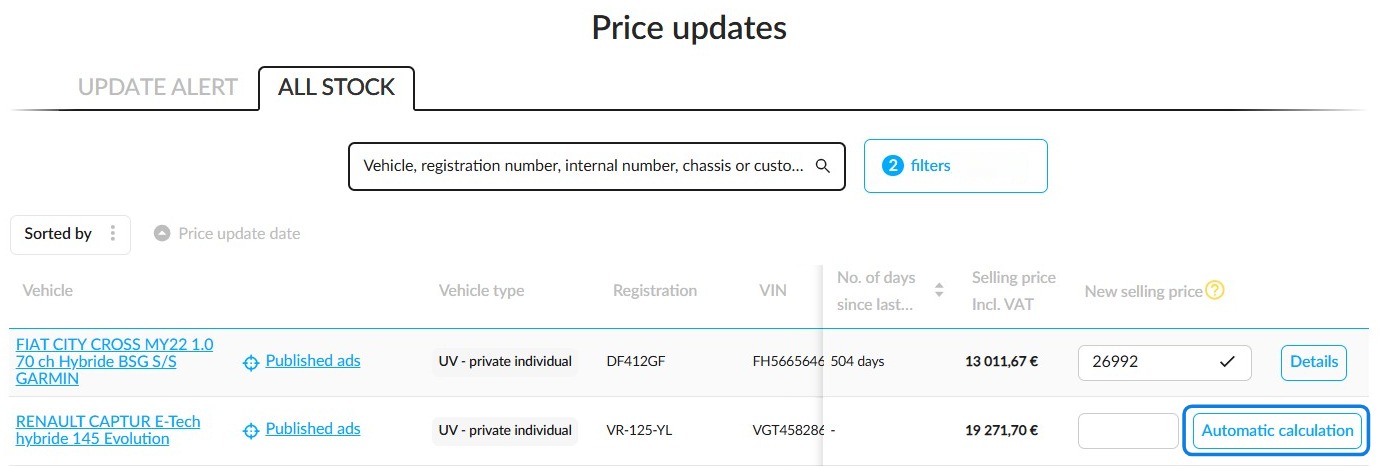
And UVs intended for individuals which can be sold to professionals.
In the latter case, a price must be validated for each destination.
Presentation of a UV intended for individuals saleable to professionals:
-validation request of the new price for individuals.
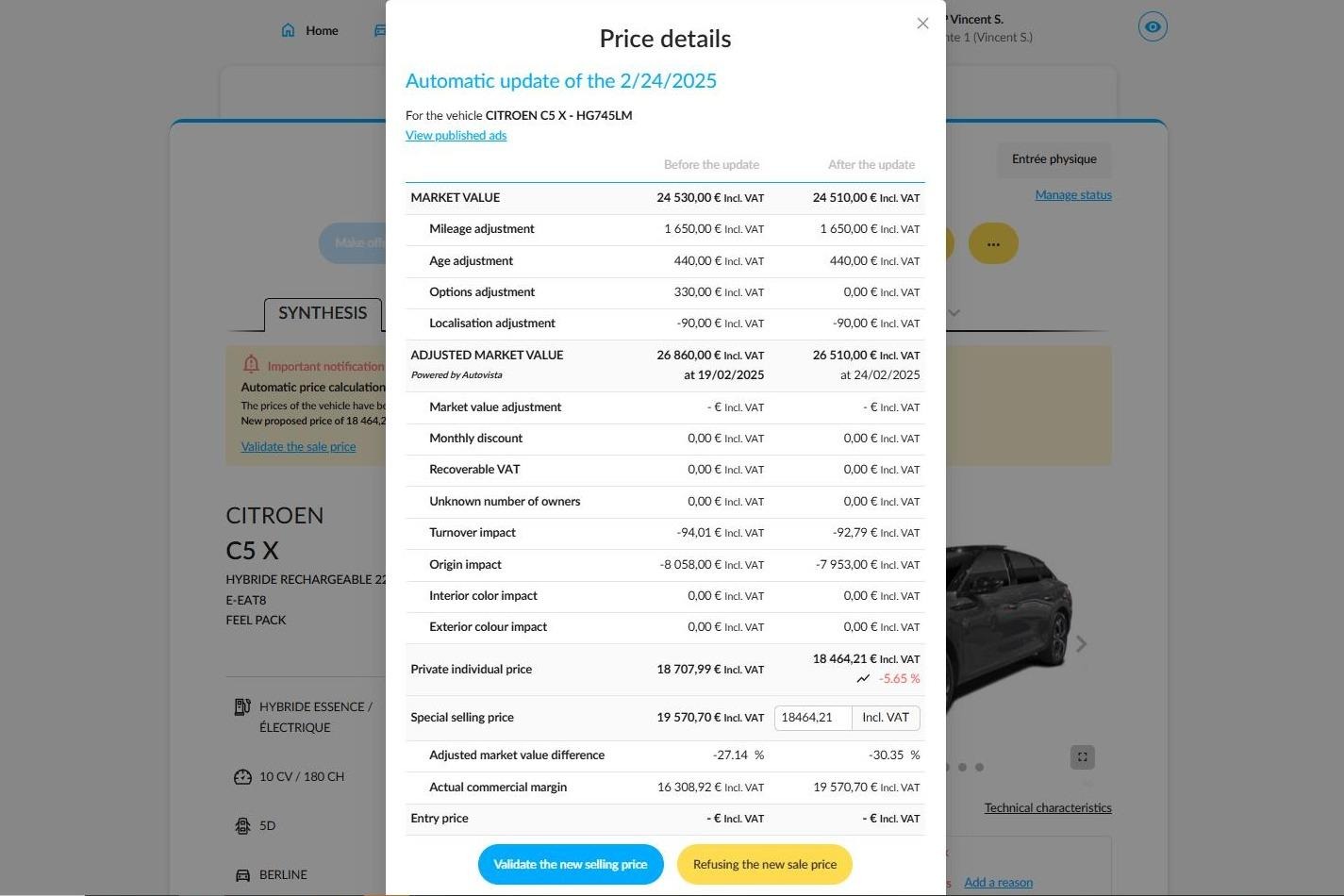
If the user wants more information to refine their decision, they can click 'Details' to display a comparison of prices before and after the update.
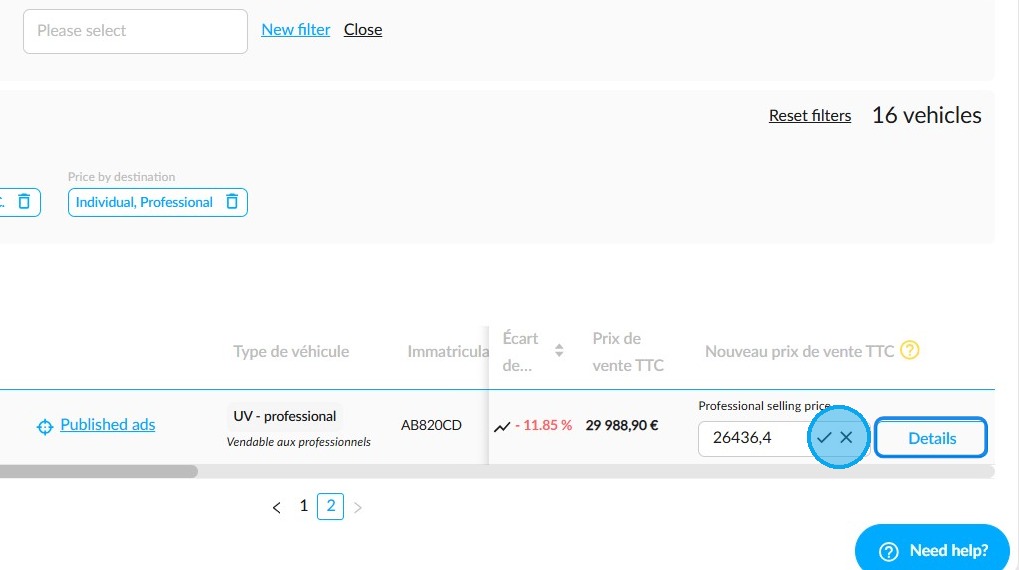
9. In this pop-up, you will be able to:
- have access to the published advertisements and to the market research.
- carry out a comparative study of changes in tariffs before and after the automatic price update.
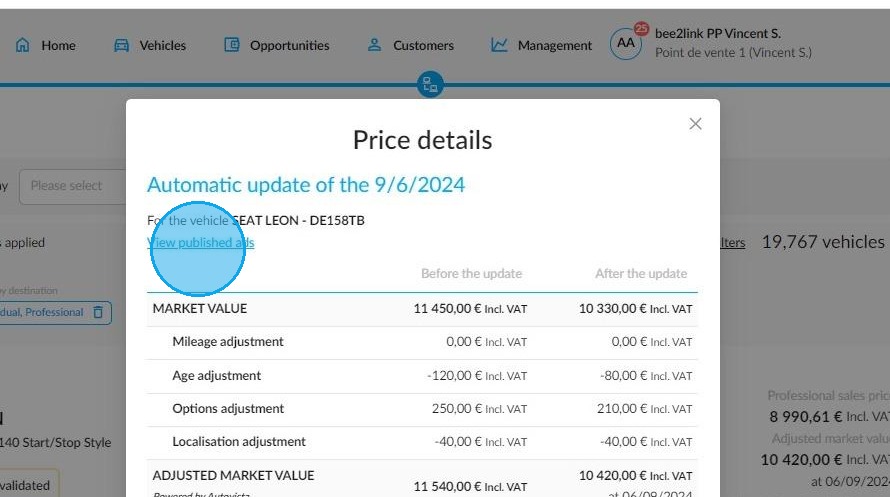
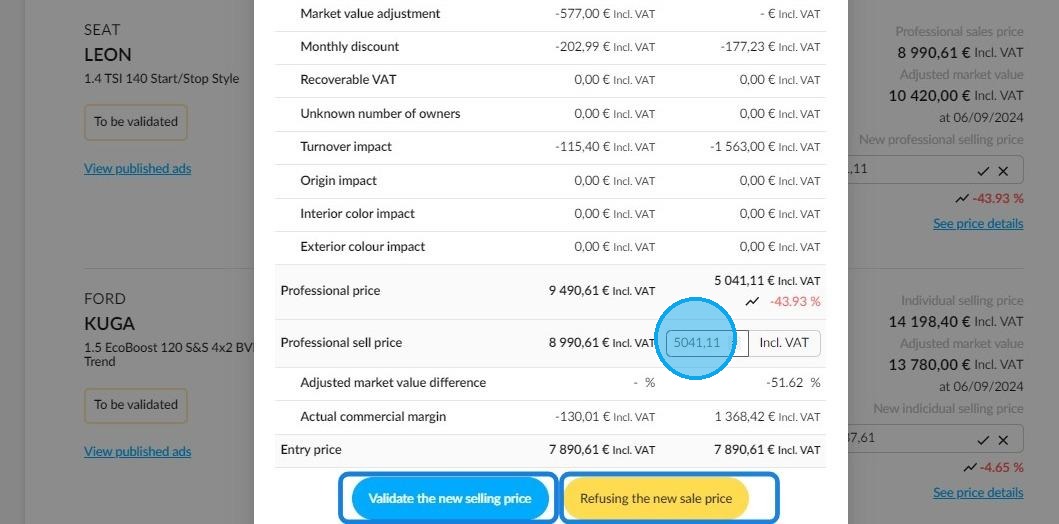
10. - update the selling price manually after examining the information provided
or
- "Validate" or "Refuse" directly the selling price proposed by the algorithm.
11. Presentation of the filters to be used for validating price updates according to the destination of used vehicles.
12. Example of how to confirm a price of a UV that can be sold to professionals:
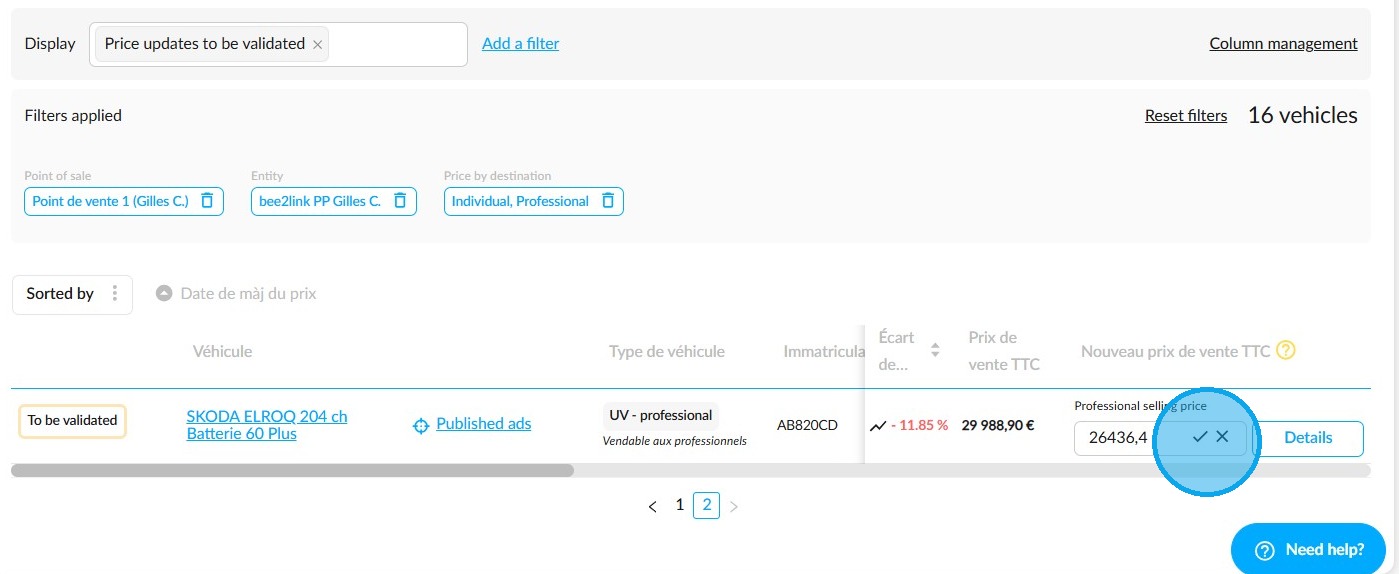
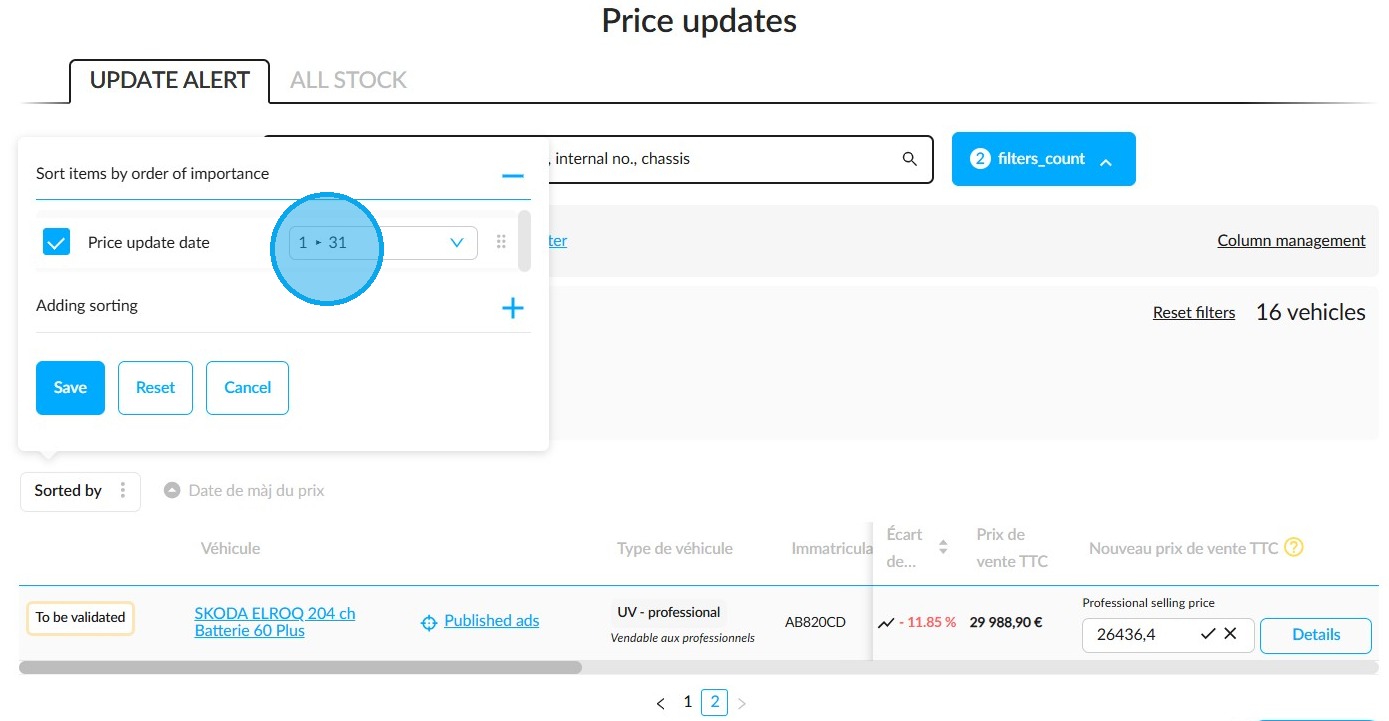
13. Price updates can be ordered by the date they were made:
2) Semi-automatic management of price updates:
14. In the context of an automatic price update, the manager can click on the button on the home page to examine the list of vehicles with a price which has been updated automatically by the platform.
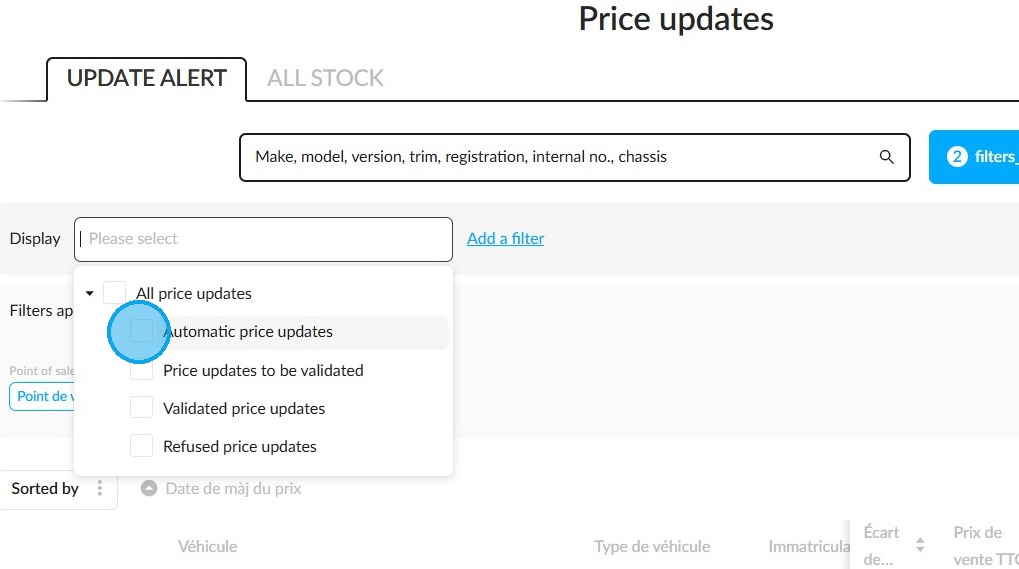
15. Selecting the "Automatic Price Updates" filter gives you access to the list of vehicles with a price updated by the OpenFlex algorithm.
16. The stock manager will also be able to find the vehicles with a remaining margin (excl. VAT) that is lower than the thresholds defined in the configuration phase by filtering the results by "Price updates to be validated".
These thresholds have been customised by an OpenFlex administrator in the pricing policy settings (See FAQ-037). They are minimum margins required for a given vehicle. If the margin is lower than this, the manager must ensure that the price update is profitable enough for their dealership.
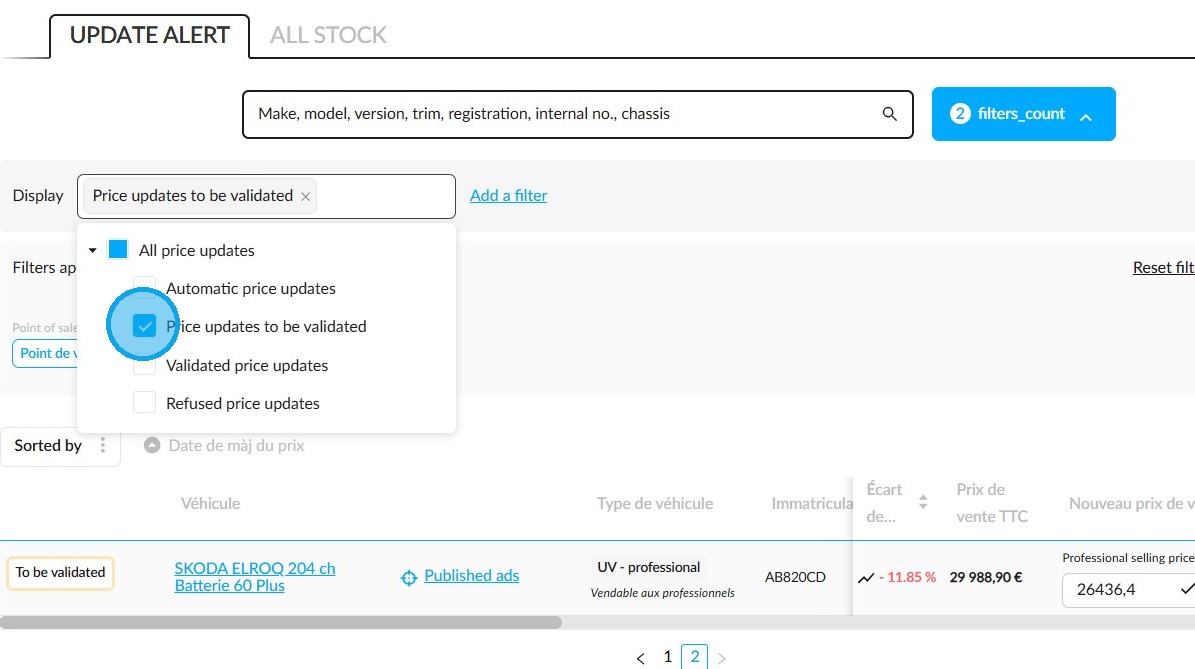
17. You can also display lists of vehicles for which price updates have been approved or rejected by using the filters designed for this purpose.
3) Update of the selling price from the ‘Vehicles’ module:
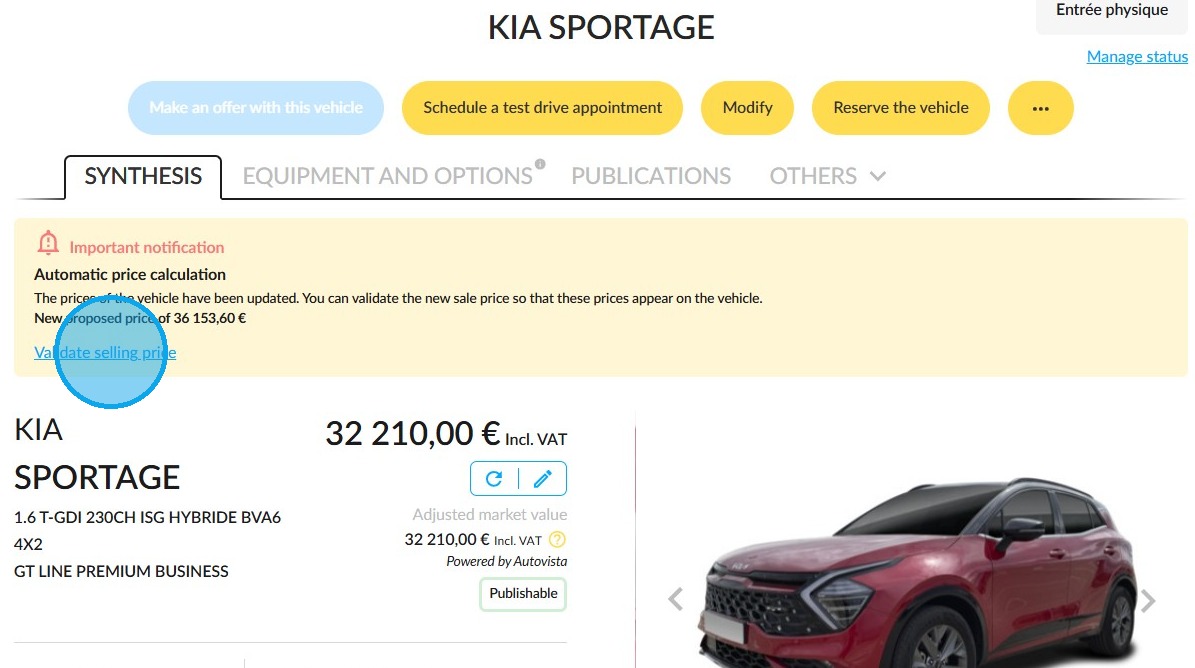
18. When the algorithm recalculates a selling price and a validation is required, the user is warned with an alert on the file of each vehicle concerned.
This contains a "Validate selling price" button that enables the administrator to validate or reject the new price:
19. Clicking on this button will open the 'Price details' window, where you can approve the selling price and compare the vehicle's market position.
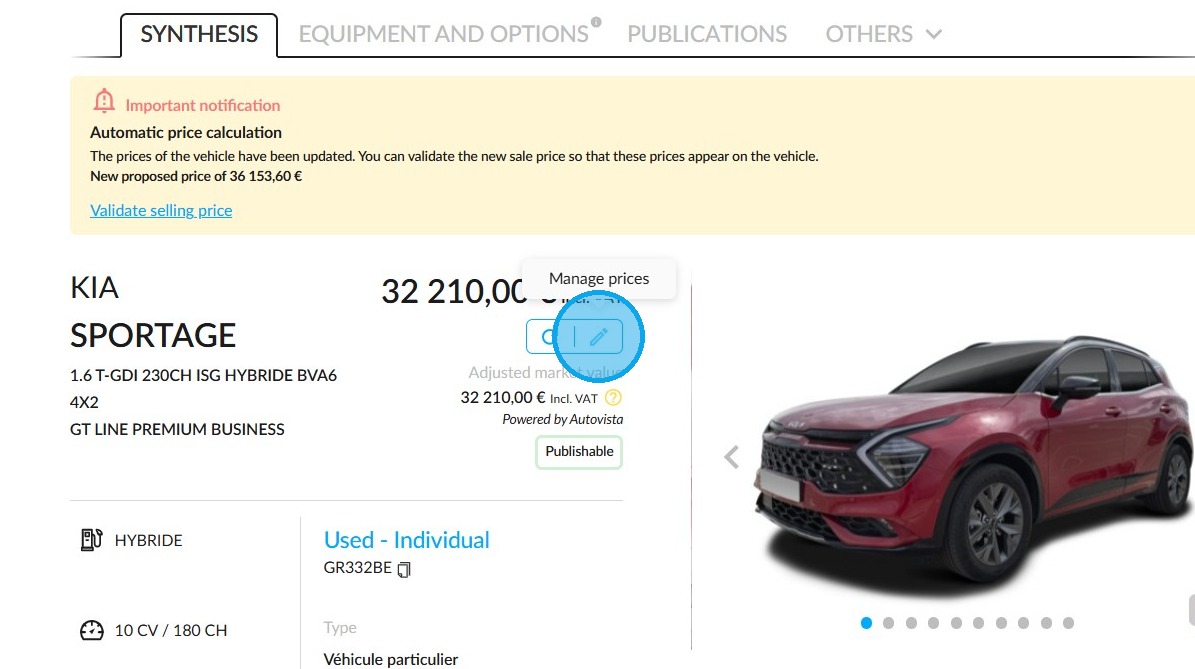
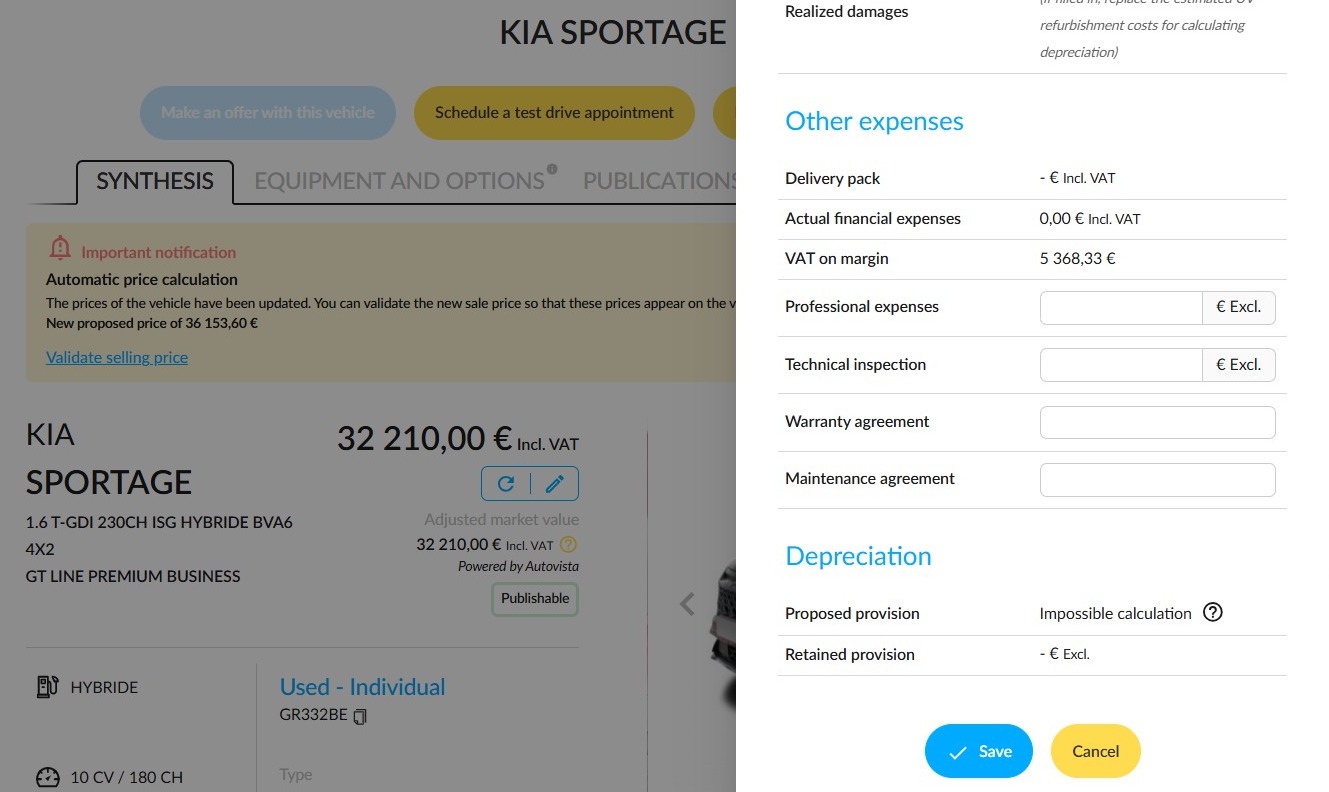
20. Click on the pencil icon to correct a price and other financial data yourself:
21. Complete the fields in the drawer, then save.
4) Fast price updates
In order to update the prices of all vehicles in stock, you must have the necessary authorisation to adjust the selling price in accordance with the pricing policy.
22. In the selling price updates table, an additional tab allows you to update all UV prices based on the established settings. This feature is primarily intended for users who are not authorized to manage prices. It enables them to quickly calculate prices automatically.
Exportable columns:
The stock list includes columns relating to prices to help you easily identify vehicles:
-‘Old adjusted market value’,
-‘New adjusted market value’,
-‘Adjusted market value difference’.
These columns can be added to the table via the column management feature and can be exported.
Comments
0 comments
Article is closed for comments.