
Find out how you can give your sales teams the autonomy to automatically calculate the price of a vehicle. This will enable them to sell a vehicle thanks to the selling price generated by the algorithm, calculated in accordance with the adjustments you have previously made in the settings. However, this price cannot be modified by your employees; only those who have the right to manage prices will be able to make changes.
Prerequisites:
-Be an administrator to be able to grant permissions to the other user groups.
-Have the right to update the selling price in accordance with the pricing policy in order to generate a selling price using the algorithm.
-The vehicle must be reconciled with the reference database, and its market value must be determined.
Accessing rights
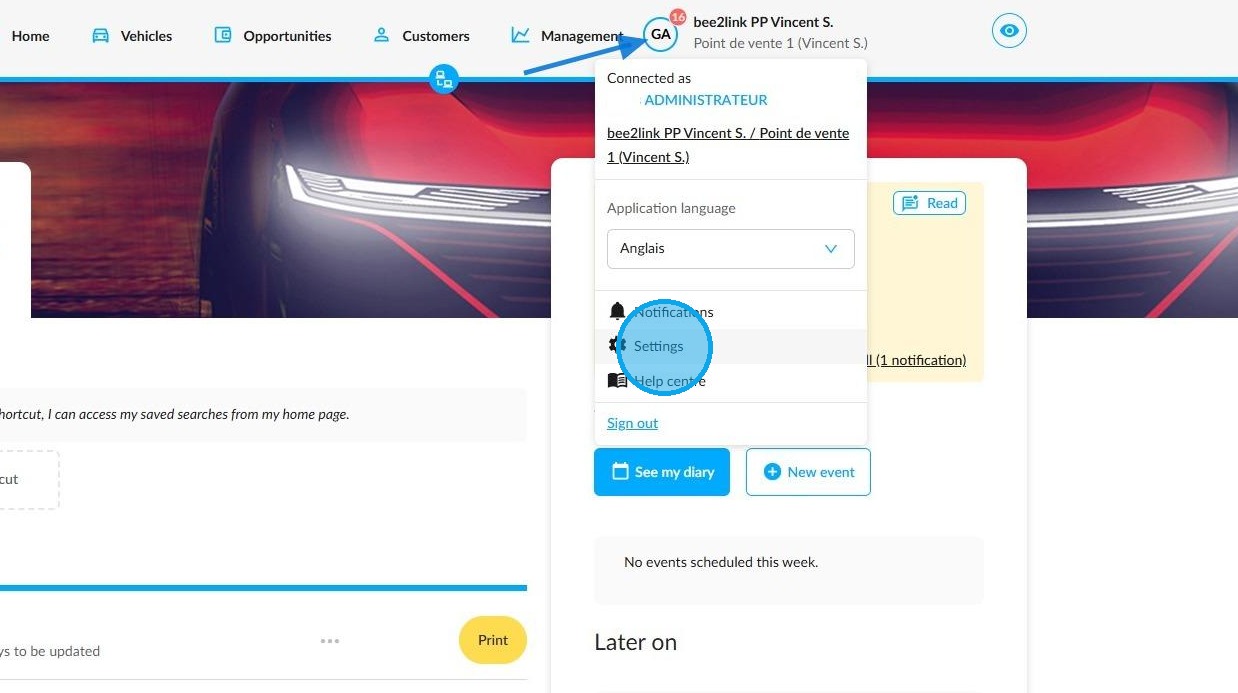
1. To grant the right to automatically calculate prices and distinguish this from the right to manage them, start by clicking on your initials, followed by Settings.
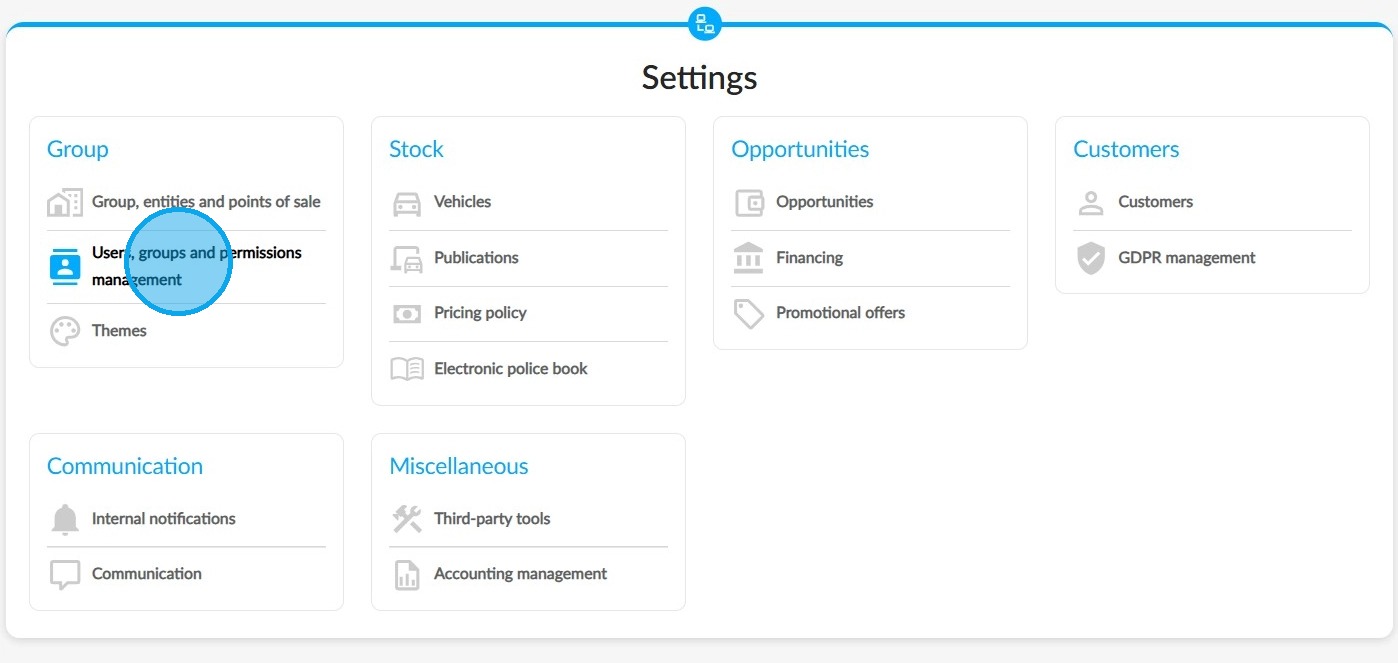
2. Go to the configuration of users, groups and permissions in the "Group" category.
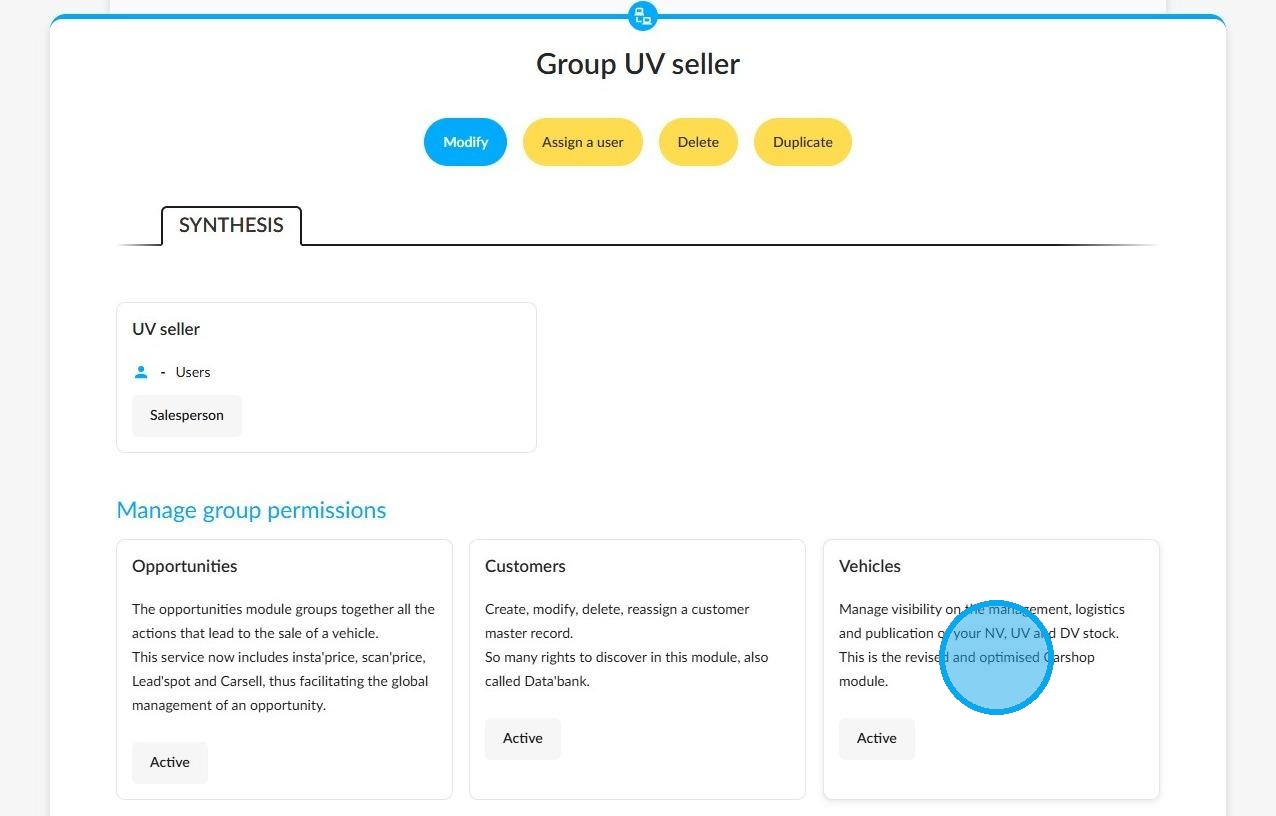
3. First of all, select a group. Then select the 'Vehicles' module to decide which stock management rights to give to your employees.
4. Select the "UV" tab and select the box "Update selling prices in accordance with the pricing policy".
If the 'Manage prices' box is ticked, it must be unticked to separate the two rights (Manage prices and Update the selling price in accordance with the pricing policy).
Automated update of selling prices
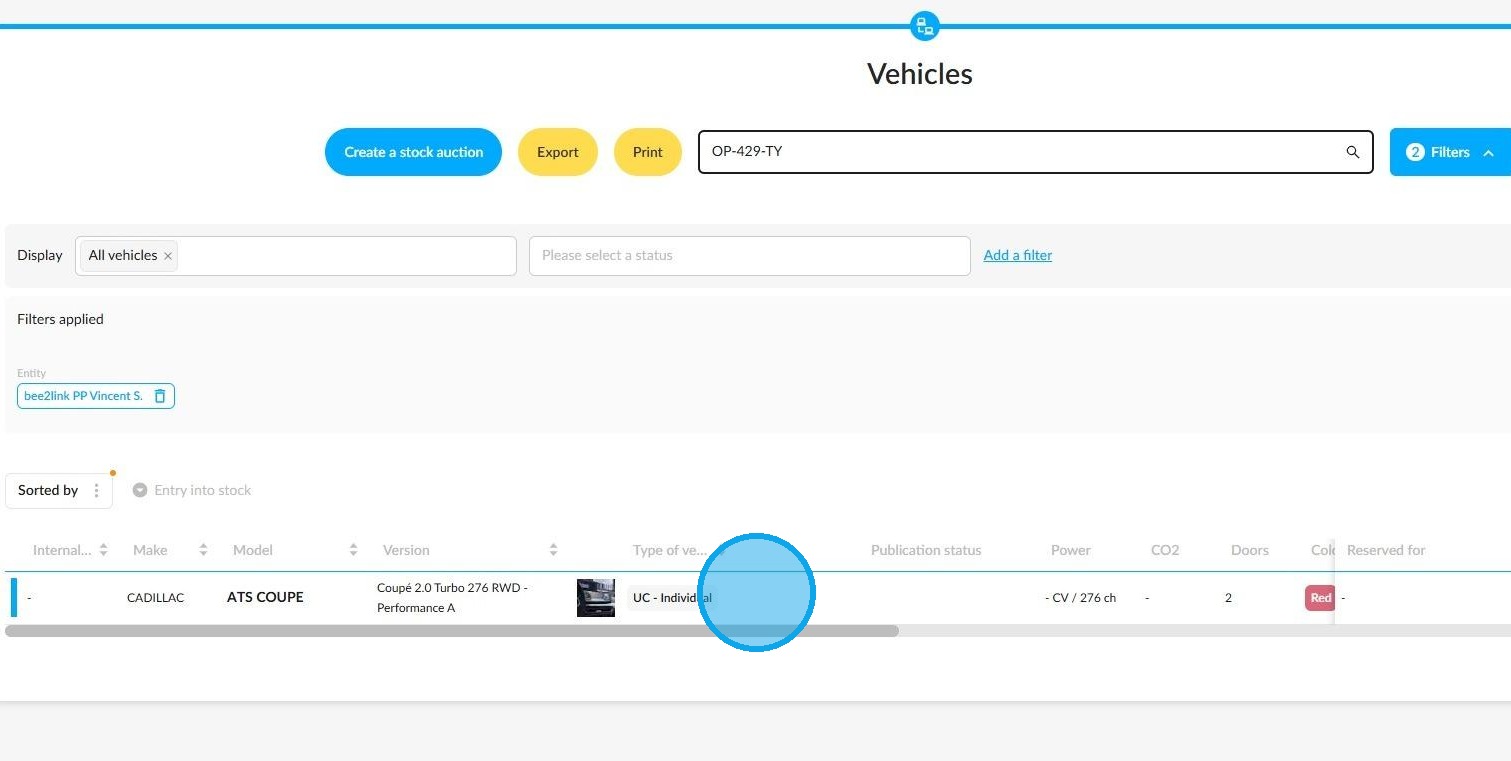
5. This will allow your employees to automatically calculate the price of a UV from its file in the "Vehicles" module.
6. You must enter a date of first circulation and a mileage to perform a price update.
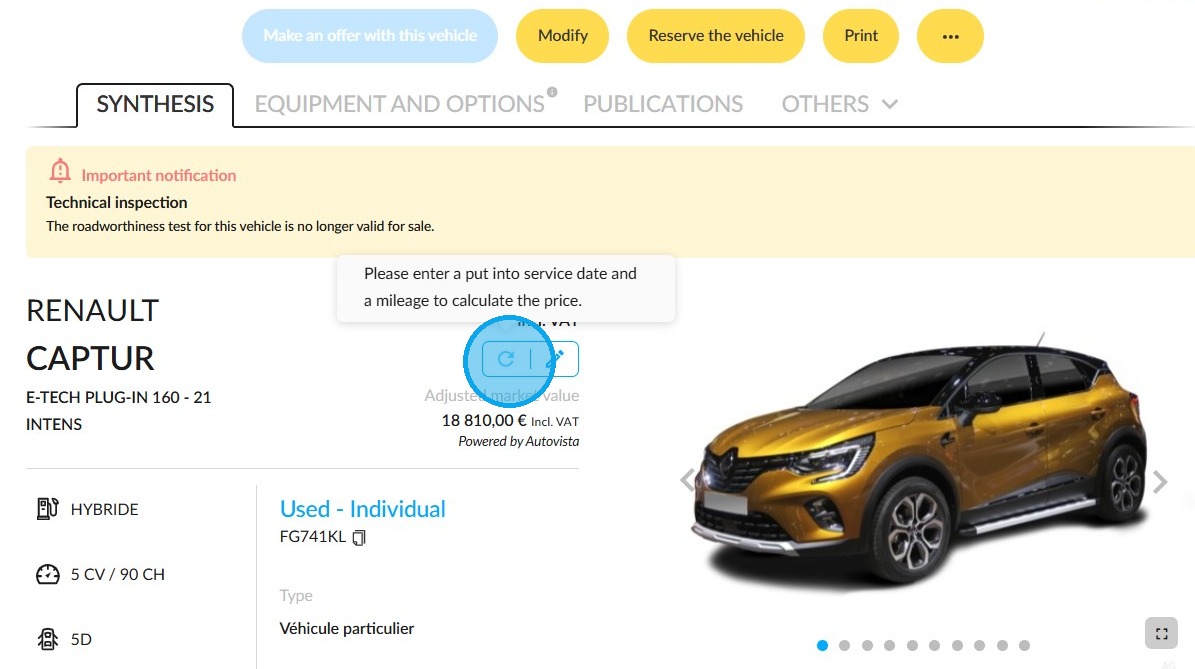
7. Click on the refresh arrow on a vehicle's details page in the "Sinthesis" tab to update the selling price.
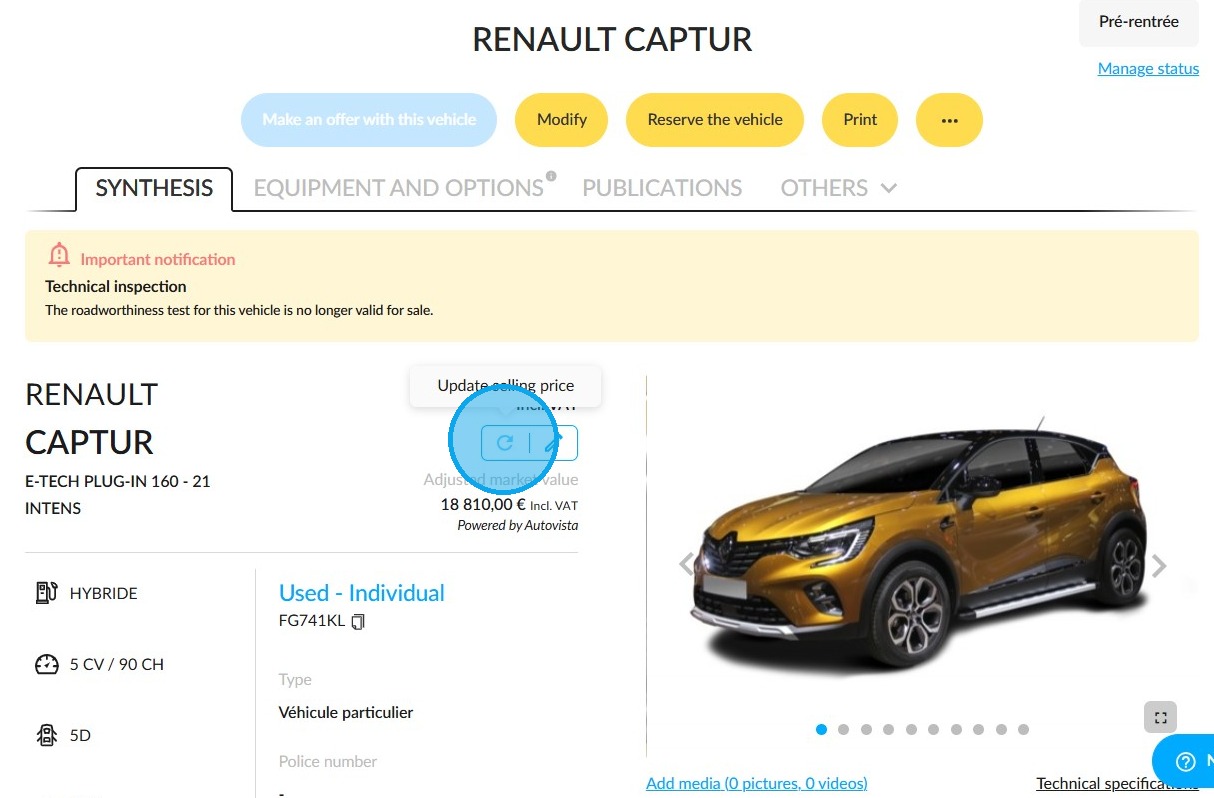
8. The latter will be updated on the vehicle record after the algorithm has started the calculation. It will always be rounded up to the nearest whole number.
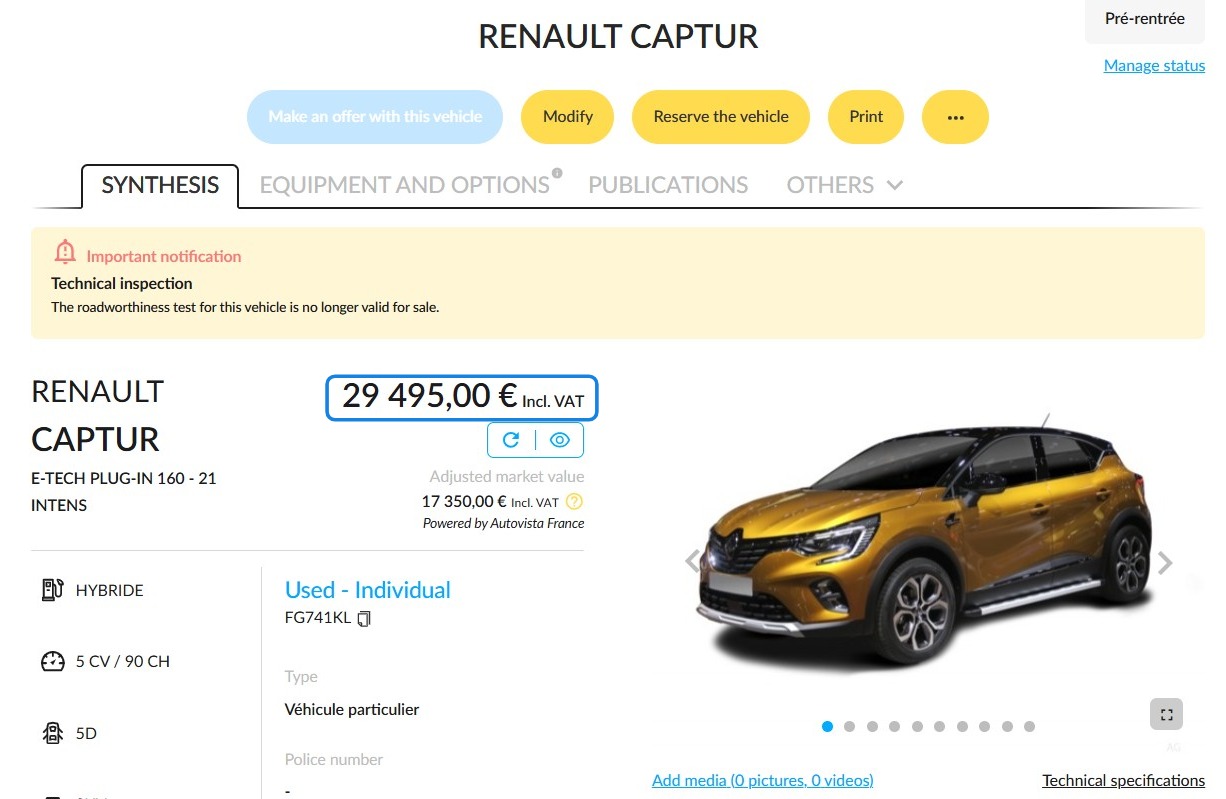
Updating the price when changing the vehicle status
9. When you change the vehicle's status, press the ‘Automatic calculation’ button to set or change its price.

Viewing the selling price
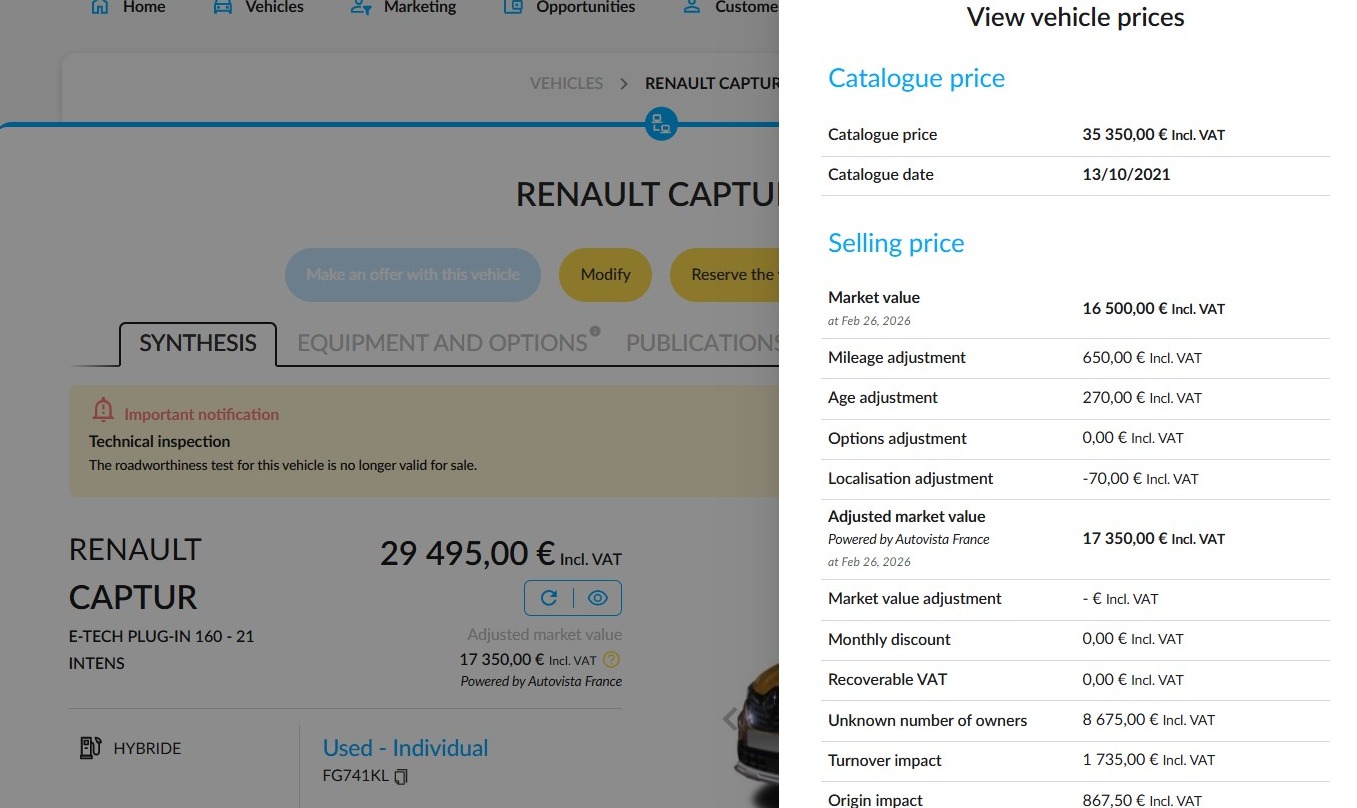
10. The eye icon shows the prices of the car, without allowing anyone who does not have the appropriate rights to modify them.
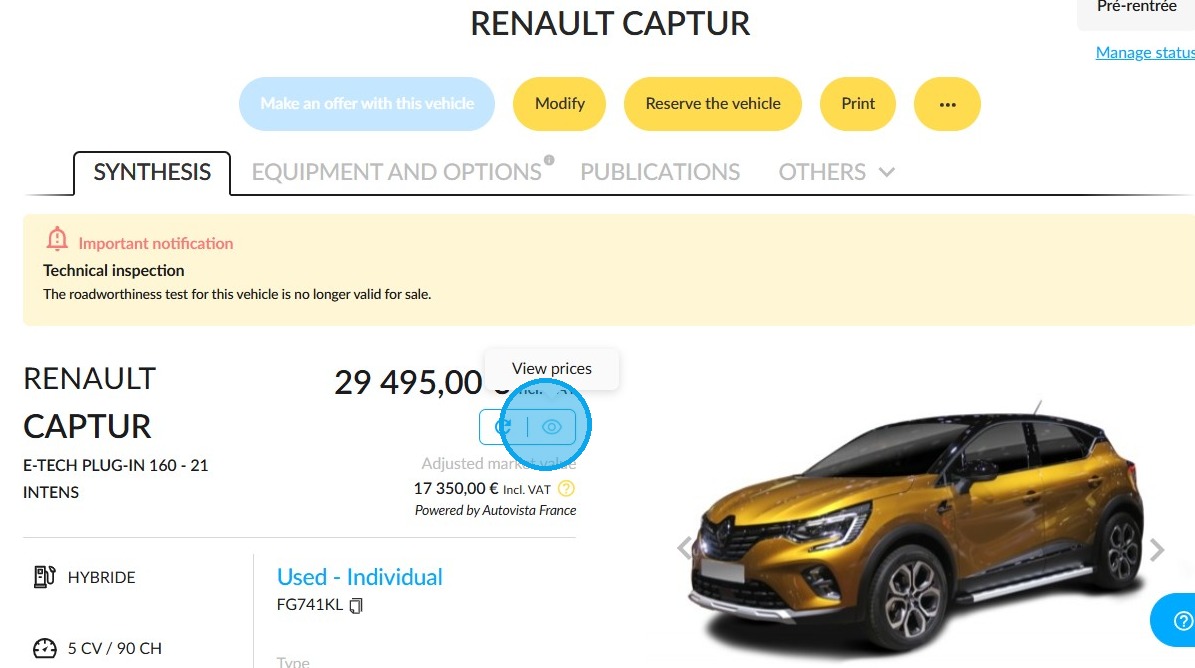
11. Displaying prices for users who only have the right to view them:
History
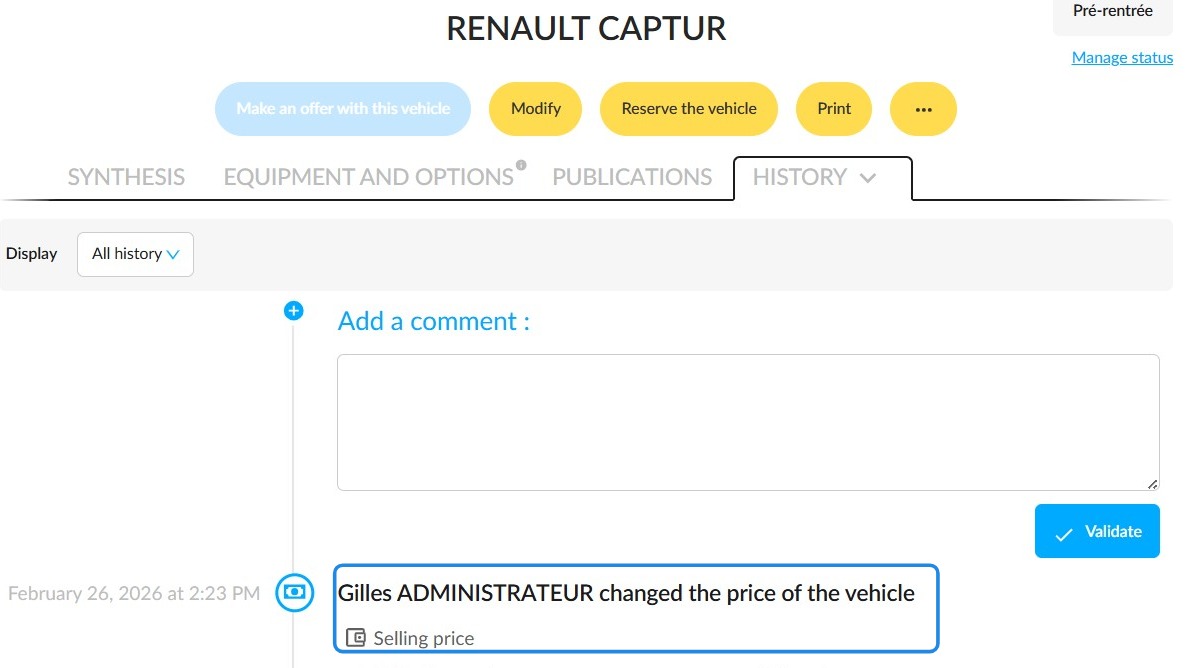
12. Any changes to the price will be recorded in the vehicle history.
Comments
0 comments
Article is closed for comments.